



Deep Linking in iOS—A Complete Guide of 2026
Published on:
11 May, 2026

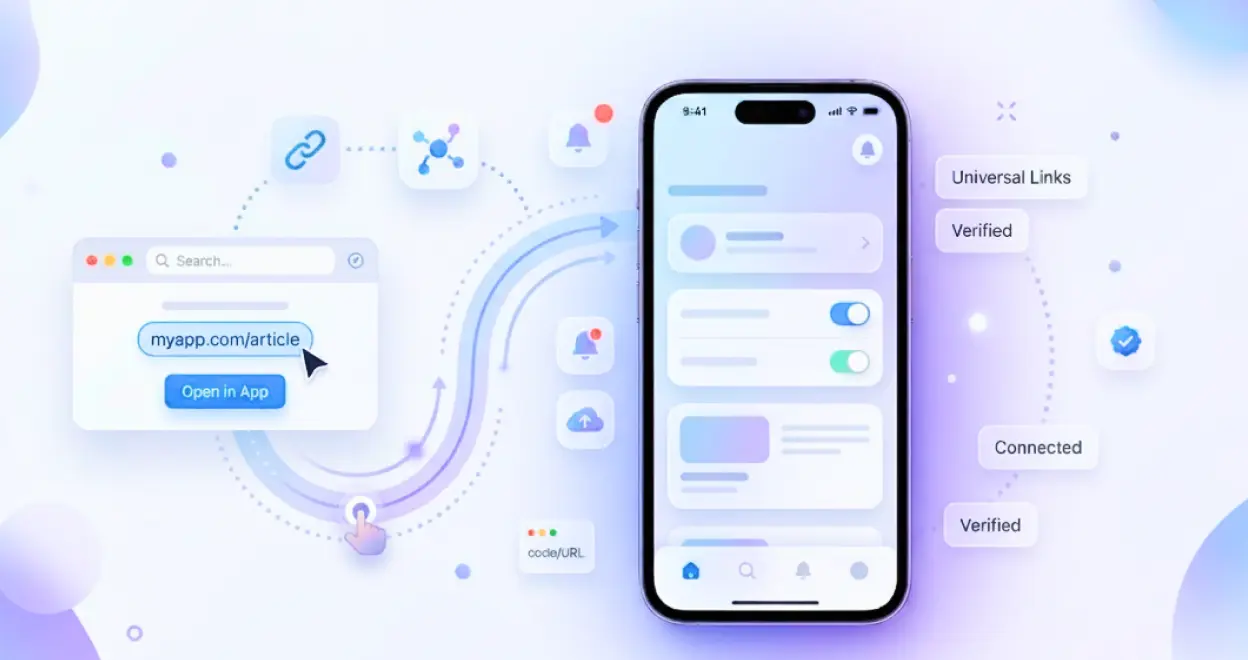
Deep linking sends the user directly to a particular screen inside your iOS app instead of the home screen. Without it, every shared link either opens in the Safari browser or lands the user inside your app’s home screen, losing the context that made the user click the first view.
But mostly iOS app owners ignore the configuration entirely. Later, it leads to losing customers and decreases conversion & retention rates. Because each shared or clicked link opens in the browser, even if the app is installed on the iOS device.
Apple requires an Apple App Store Association (AASA) file hosted on your server to verify the connection between your website and your iOS app. Without this file, the universal links will not work.
This guide will explain why deep linking is important, types of iOS deep links, how to configure deep linking in iOS using WebToNative, and everything you need to know about Deep Linking for iOS.
What is Deep Linking?
Deep Linking is a way to send users to a specific page within the iOS app or website. Instead of opening the homepage, the user is directly taken to the page on which they have clicked on the link. It eliminates extra steps, unnecessary searching, and getting lost in the app or website to find that particular page.
User receives a discount link through WhatsApp and clicks on it. The link directly takes the user to the desired discount screen inside the iOS app, instead of the home screen of the app. This is deep linking, taking the user directly to the exact content or page. For instance, if the user does not have the app, the desired page will open in the browser. This is still deep linking but handled through the website instead of the app.
A few real-world examples are listed below:
-
Amazon: You receive an email about a sale on t-shirts. You click on the link, and the Amazon app opens directly on that t-shirt page rather than opening the home screen of the app.
-
Instagram: A friend sends you a reel on WhatsApp. You click on it, and Instagram opens immediately, showing that particular reel.
-
Swiggy: You get a notification about a restaurant offer. Clicking it opens Swiggy directly on that restaurant’s menu page.
-
Without Deep Linking: Any of the above shareable links would open inside the app’s home screen or in the browser, leaving the users confused and irritated.
Why is Deep Linking Important for Your iOS App?
1. Higher Conversion Rate
When users land exactly where they wanted to, they are more likely to complete a purchase and take an action like signing up or filling out a form. Each extra step a user takes reduces the chances of completing the process, leading to lower conversion.
2. Smarter Marketing Campaigns
Even if you are running a paid ad, marketing campaigns, referral, or loyalty programs, iOS deep links allows to send traffic exactly where it converts and track the specific campaigns that drive actions.
3. Superior Onboarding Experience
When a new user installs your iOS app through a deep link, they might be redirected to the particular content that encouraged them to install the app, leading to higher retention on Day 1.
4. Effective User Retention
Push notifications, re-engagement campaigns, SMS promotions, and email links work perfectly with deep linking only. For example, you have sent a push notification related to “Your cart has an offer,” which appears on the user’s mobile screen. It directly takes the user to the cart by just clicking on the notification. Effortless. Smooth. Highly engaging.
How Deep Linking Works in iOS?
Now, let’s know how the two mechanisms work in the iOS app.
Below is the complete flow that happens when a user clicks on the Universal Link.
Step 1: Users click on a Link
A user clicks on the URL through an email message, WhatsApp notification, or SMS.
Step 2: iOS blocks the click
Before opening the link in the browser, iOS checks its local cache. Is there a domain registered for the app?
Step 3: iOS checks the Apple App Site Association file
When you install your iOS app, iOS downloads a special JSON file from your server called the AASA file. This file tells Apple that the installed app is completely authorized to handle requests from this domain. If the file is found and right, iOS proceeds to open the app
Step 4: Your iOS app receives the URL
iOS opens your app and passes the full URL to it. Your app code reads the URL, parses the path, and navigates the user to the right screen inside the iOS app.
Step 5: Fallback to Safari (Browser)
If the app is not installed or the AASA file is missing or invalid, iOS simply opens the URL in Safari. The user lands on your website, keeping the experience unbroken without errors.
Below is the complete flow that happens when a user clicks on the Custom URL Scheme.
Step 1: User clicks on the custom link
The user clicks on the custom link inside another app, a push notification, and an SMS.
Step 2: iOS looks for a registered app
iOS checks whether any installed app has registered the scheme. This registration happens inside your app’s Info.plist file without any server involvement.
Step 3: App found and opens directly
If your app is installed and has registered that scheme, iOS opens your app instantly and passes the complete URL to it. Your app reads the path and redirects accordingly.
Step 4: App not found leads to failure
If your app is not installed, iOS has nowhere to send the link. There is no fallback URL, no website, and no redirects. The link displays nothing or shows an error. This is the weakness of the custom URL scheme as compared to universal links.
Types of Deep Links in iOS
There are two primary types of deep linking and two ways to implement deep linking in iOS apps: Universal Links and Custom URL Schemes.
Below is the table for the two:
| UNIVERSAL LINKS | CUSTOM URL SCHEMES | |
|---|---|---|
| Link Format | https://yoursite.com/products/123 | myapp://products/123 |
| Looks Like | A normal and active website URL | A custom protocol |
| If the app is installed | Opens directly in the app | Opens directly in the app |
| If the app is NOT installed | Open your website in Safari | Fails completely (Either shows an error or nothing happens) |
| Security | High (Apple verifies through the AASA file on your server.) | Low (Any app can claim the same scheme) |
| Server Setup needed | Yes (AASA file must be hosted on your domain) | No (Only app-level configuration is required) |
| Where Configured | Xcode and your web server | Info.plist inside your app |
| Best Used for | Marketing links, email campaigns, ads, production apps | App-to-App communication and internal dev flows |
Universal links are highly recommended as they are safe, smarter, and never leave your users confused when the app is not installed on their iOS device.
Step-By-Step Deep Linking Configuration in iOS
Below are the step-by-step process to configure deep linking in your iOS app.
Step 1: Get Your Apple Team ID and Bundle ID
Before creating any file, you must have two identifiers from your Apple Developer account.
-
Your Team ID is found under Membership details.
-
Your Bundle ID is your app’s unique identifier. You will get it in Xcode under the Project’s Signing & Capabilities tab.
Together, they will form your App ID.
Step 2: Create AASA File
Create a plain JSON file without any extension. The file name must be apple-app-site-assocation.
Below is the given format of the AASA file:
{
  "applinks": {
    "apps": [],
    "details": [
      {
        "appID": "A1B2C3D4E5.com.yourcompany.appname",
        "paths": [ "*" ]
      }
    ]
  }
}
Things You Have to Replace:
-
A1B2C3D4E5 replace with your Team ID
-
com.yourcompany.appname replace with your Bundle ID
-
Paths: [“”] It means all the URLs from your domain will open inside the iOS app. You can control it to specific paths like [“/products/”, “/users/*”].
Step 3: Enable Associated Domains in Xcode
-
Open your project in Xcode and select your app target.
-
Navigate to Signing & Capabilities and click on + Capability.
-
Add associated domains. For example, enter your domain as,
applinks:yourdomain.com.
Step 4: Manage Incoming Links in Your App
Once a user taps a deep link and your app opens, the app needs to know what to do with that URL. This is handled inside your app’s code by the developer. The app reads the URL path, like /products/shoes, and navigates the user to the exact screen immediately.
Step 5: Upload the AASA File and Test
Upload the file to your server and verify it is live at https://yourdomain.com/.well-known/apple-app-site-association.
How to Prepare the AASA File
The Apple App Site Association (AASA) file is a JSON configuration file you upload to your website that tells Apple which iOS app is authorized to open links from your registered domain.
The file must be named exactly like apple-app-site-association without the .json extension or any other extension. It must be served over HTTPS, not HTTP. The server must return it with Content-Type: application/json.
File Example
{
  "applinks": {
    "apps": [],
    "details": [
      {
        "appID": "YOUR_TEAM_ID.com.yourcompany.appname",
        "paths": [ "*" ]
      }
    ]
  }
}
If you want only particular URLs to open your app, you can configure paths like this:
"paths": [ "/products/*", "/users/*", "NOT /admin/*" ]
How to Publish Your AASA File on Your Server
Step 1: Create the .well-known Directory
The AASA file must be inside a folder named .well-known at the root directory of your website. It is the same directory where your index.html file is present.
Step 2: Upload the AASA File
Upload your apple-app-site-association file into the .well-known folder using FTP, SFTP, or your hosting panel’s file manager.
If you use Apache, add this to your .htaccess to ensure the right Content-Type:
<Files "apple-app-site-association">
  Header set Content-Type "application/json"
</Files>
From Nginx, add this to your configuration:
location = /.well-known/apple-app-site-association {
    default_type application/json;
}
Step 3: Verify the Setup
Open your browser and navigate to https://yourdomain.com/.well-known/apple-app-site-association.
The scenarios with their meaning:
-
If you see raw JSON displayed on screen, the file is stored correctly on the server.
-
If you get 404, the path is wrong.
-
If you see a download command, the Content-Type header must be fixed.
For an advanced check, use Apple’s official App Search Validation Tool. To test the device, open the Notes app on a real iOS device, type your deep link URL, and click on it. Your app must open directly to the right screen.
NOTE: Clicking on a Universal Link from Safari’s address bar will not trigger the app because of Apple’s design. Always test from Notes, Mails, or Messages.
FAQs
1. What is the AASA file?
A. The Apple App Site Association file is a JSON file that is uploaded on your website’s server that securely links with the website’s domain within an iOS app. It works as proof for Apple that the link is associated with your domain.
2. Where should the AASA file be placed?
A. The AASA file must be placed at https://yourdomain.com/.well-known/apple-app-site-association, served over HTTPS with Content-Type: application/json without any extensions.
3. Do deep links work if my iOS app is not installed?
A. Yes. It is possible with Universal Links. If your app is not installed, iOS will open the link in the browser (Safari). The user will reach your website instead of seeing an error.
4. How often does Apple refresh the AASA file?
A. Apple caches the AASA file through a CDN and re-fetches it occasionally within 24 to 48 hours. If you update the file, wait for 48 hours for the changes to propagate.
5. Why is my Universal Link not opening in the app?
A. The most common reasons are the AASA file is not at the right location, the Content Type header is incorrect, the associated domain capability is not added in Xcode, accessing the link from Safari’s address bar is blocked by the app due to design, and it is served without HTTPS.
6. What is deferred deep linking, and how is it different from deep linking?
A. Deferred deep linking allows mobile apps to take users directly to the specific content inside the app. Even if the user has not installed the app at the time the user clicked on the link. It is different from deep linking, as it takes the user to the app installation and opens the exact same page, while in deep linking, either it shows an error or nothing, leaving the user confused.
7. Does Universal Links work on third-party apps?
A. Yes. Universal links work inside third-party apps such as Telegram, Gmail, WhatsApp, and Instagram.
Conclusion
Deep linking is one of the highest re-engagement features you can configure into your iOS app. Once configured successfully, it works silently and smoothly in the background. It results in keeping users staying for a longer period of time and converting more.
The process breaks down to three things: creating an AASA file with your App ID, uploading it to the right path on your server with HTTPS, and setting the correct Content-Type. You must ensure that your app is configured correctly to handle the incoming URLs.
If your app is built with WebToNative, your configuration is just a few clicks away. Follow the step-by-step instructions and verify using a real iOS device, and your iOS deep linking setup will be ready.
Similar Blogs