


How to Turn Your Elementor Website Into a Mobile App --- A Complete Guide
Published on:
10 July, 2026

Ever wondered if your Elementor website could do more than just live in the browser? As mobile users are rapidly growing, businesses, app owners, or individuals are always searching for ways to encourage users to spend most of their time on their websites.
According to Sensor Tower’s report on the State of Mobile 2025, an average mobile user spends approximately 3.5 hours per day using mobile apps. This growing preference for mobile apps indicates a huge engagement opportunity for better engagement and encouragement inside the app. Instead of solely relying on mobile browsers.
That’s where a mobile app can make a real difference. By turning your Elementor website into an app, you can provide a more convenient experience, improve user retention, and make it easier for visitors to access your content or services.
In this blog, we will walk you through the entire process of converting your Elementor website into a fully functional mobile app for Android and iOS, its impact, limitations, and contribution to business growth.
What is Elementor?
Elementor is a drag-and-drop page builder for WordPress to design websites visually without coding. It gives you complete control over layouts, widgets, templates, and animations. It is considered one of the most popular ways to build a WordPress website. Elementor does not provide anything outside the web browser.
Why Convert Your Elementor Website Into a Mobile App?
- No More Hunting for Your Website URL
Users open your app with one tap from their home screen instead of manually searching and typing your website URL every time.
- Bring Users Back with Push Notifications
A browser cannot notify anyone about discounts, order updates, and more. But a mobile app alone can drive more engagement and encourage users to visit again and again.
- Offline Functionality
Users get access even in areas with low or no internet connection. On the other hand, a website running in the browser cannot offer this.
- App Store Visibility Builds Trust
Listing on the Google Play Store or Apple App Store signals reliability and visibility that a website alone cannot.
- Native Device Features
The Elementor editor can never offer biometric authentication, camera access, location services, downloads, and apps.
- Quicker and Intuitive Navigation
Moving between screens inside the native shell feels smoother than waiting for website pages to load each time.
Elementor Apps VS WebToNative Apps – The Difference
| Feature | Elementor App (Website running in Browser) | WebToNative Mobile Apps |
|---|---|---|
| Access | Requires typing or searching a URL in a browser | Just a click from the home screen |
| Push Notifications | Not supported | Fully supported |
| Offline Access | Not available | Available for key screens |
| Biometric Login | Not available | Supported (Touch ID, Face ID, and biometric authentication) |
| App Store Visibility | None | Listed on Google Play and App Store |
| Design & Layout | Original Elementor design | Same design without any rebuild |
| Updates | Instant as saved | Instant and reflected automatically in the app |
What Changes Immediately When You Convert Using WebToNative?
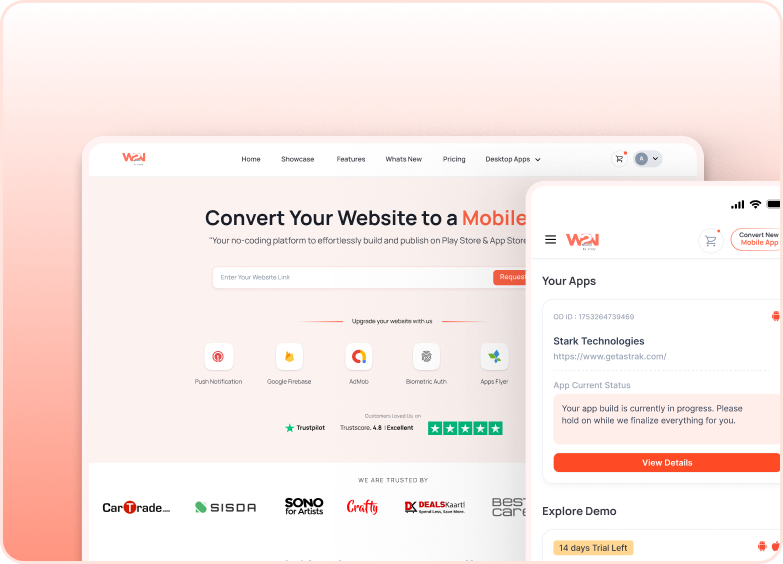
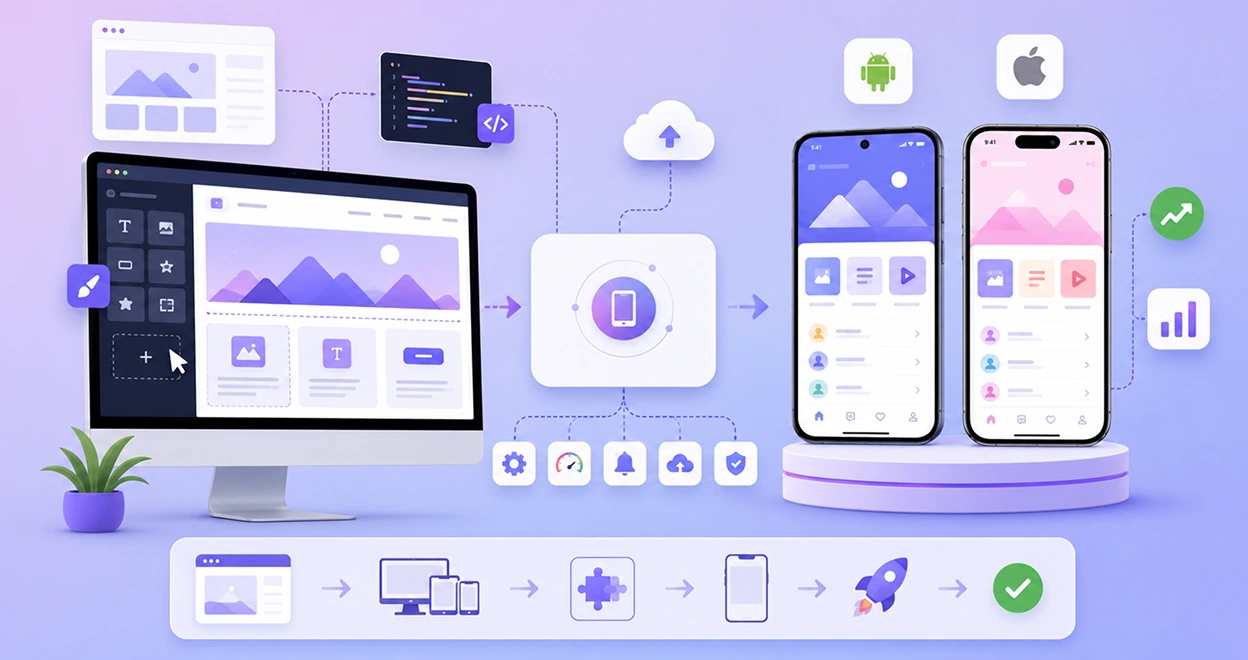
WebToNative is an app creation platform that converts your web app into a fully functional iOS and Android app with your live URL. Also, you get:
- Your website is wrapped into an app shell.
The entire Elementor website now runs inside a native app container instead of a browser.
- An app icon appears on the home screen.
No need to open the browser. The app stays on the user’s mobile screen. The app stays just a click away from opening.
- A backend dashboard is available.
You will have complete control over app settings, splash screens, native features, and icons from the WebToNative dashboard.
- Native features are accessible.
All the native functionality is activated, such as push notifications, biometric login, location services, offline mode, and camera access.
- Your website remains the only source of content.
You continue editing in Elementor, and the app displays the same content from the same website URL.
- The App Store submission is the next step.
Once configured, the app is ready for Google Play and Apple App Store review without any long wait for development and deployment.
How to Convert an Elementor Website Into a Mobile App — Step-by-Step Process
Follow the given instructions carefully in order to successfully convert your website into an app.
Step 1: Check Your Website on Mobile First
Check the following things on your website properly on mobile devices.
-
The website must load perfectly on mobile devices.
-
Confirm that your website menus, forms, buttons, and layouts function properly.
-
Check font size, spacing, and images on smaller screens.
Step 2: Add Your Live URL to WebToNative
Enter or paste your website URL on the WebToNative dashboard. Click on Build Your App.
Step 3: Customize Your App
This step makes sure the user recognizes your app in the first app launch.
-
Set your app name, icon, and app settings.
-
Customize your app’s appearance, like the splash screen, app permissions, and more.
Step 4: Access Native Features
Choose features that you need in your mobile app.
-
Activate the push notifications functionality in your app.
-
Geolocation Support
-
File Downloads & Uploads
-
Offline Functionality
-
In-App Purchases
-
Touch ID / Face ID and Biometric Authentication
Step 5: Test Your Mobile App
Download the app build and test it on the real devices the way real users would:
-
Check for navigation across all the pages.
-
Check the payment flow and submissions.
-
Every functionality is working properly.
Step 6: Publish Your App to App Stores
Once you have tested your app thoroughly. It’s time to make a list on the Google Play Store or Apple App Store.
One Alone Limitation to Know About Elementor Website
Your Elementor app runs on a WebView shell, which means its performance is dependent on how your website performs. If your Elementor website is slow to load or heavy with unoptimized images and content, the app will have the same slow loading speed.
Offline access also applies to specific screens you configure rather than your entire website by default, as your content still lives on your web server. For most Elementor businesses, neither of these is a major drawback, but it's important to be aware of them before converting, particularly if your website needs a speed upgrade.
How Does It Contribute to Your Business Growth?
- Builds Daily Habit
A home screen app icon puts your mobile app in front of users every time they unlock their mobile device.
- Direct Re-engagement Channel
Push notifications are the most popular way for users to bring them back and encourage them to take an action inside the app.
- Stronger Brand Visibility
Your mobile app's listing on the app stores indicates a strong reliability for users that a web browser cannot match.
- Better User Retention
Faster navigation and native features keep users engaged inside your mobile app for a longer period of time instead of bouncing off a slow mobile website.
Frequently Asked Questions
Q1. Do I have to rebuild my Elementor website to convert it into an app?
A. No, if your Elementor website is already working well on mobile browsers and devices. It carries over into the mobile app exactly like your website does.
Q2. Will I still be able to edit my Elementor website after converting it into a mobile app?
A. Yes, your Elementor website will remain the only source of your app’s content. Any change you make on the website will reflect in your mobile app in real-time.
Q3. Will my Elementor mobile app support push notifications and offline access?
Yes. As you have converted your website into an app using WebToNative, you will get access to all essential native features, including push notifications, offline access, location support, camera access, and file downloads and uploads.
Q4. Do I need coding and any technical knowledge to convert my Elementor website into a mobile app?
A. No, the conversion process works like this: you only have to enter your existing website URL and follow the instructions carefully.
Conclusion
Converting your Elementor website into a mobile app is an extension of your website. Your design stays consistent, your content remains live & editable, and you gain app store presence, push notifications, and native device features your website could never offer on its own. If your Elementor site already runs well on mobile, you are just a few steps away from publishing an app.
Similar Blogs