


How to Convert Your Website into a Desktop Application
Published on:
6 August, 2026

By Chavi Chandani
Technical Content Writer
Table of contents
A few years ago, everyone believed that desktop apps were going to disappear. The internet was becoming the main place for everything, so why would anyone need a separate app on their computer?
However, that didn't happen. According to the Operating Systems Market Report 2026, the global desktop operating system market was valued at $49.35 billion in 2026, and it's expected to keep growing through 2030.
Today, many businesses are converting their websites into desktop apps to give users a better experience. A desktop app can be launched directly from your computer, stays just one click away, and is always ready to use.
The good news is that you don't need to choose between having a website or a desktop app. If you already have a working website, there are ways to turn it into a desktop application without rebuilding everything from the beginning. This makes the process faster, easier, and much more affordable.
In this guide, you'll learn what a desktop application is, why you might want one, the different ways to convert a website into a desktop app, and how to choose the best approach for your needs.
What is a desktop application?
It is just a program that runs directly on your computer, not inside your browser. Once installed, you can open it from your desktop.
Unlike a website that requires a browser like Chrome or Firefox, a desktop application runs on your computer's operating system, such as Windows, macOS, or Linux.
You probably use desktop applications every day without even knowing it. Popular examples include Microsoft Word for creating documents, VLC Media Player for watching videos, Discord for chatting with friends or teams, and Visual Studio Code for writing code. Even Chrome and Firefox are desktop applications.
Some apps also come pre-installed when you get your computer. But you can always download more from the internet.
So what makes desktop apps different from websites?
A website runs inside your browser and needs the browser to work properly. A desktop app runs directly on your computer using its own memory, processor, storage, and other system resources.
And because of this direct access, desktop apps can:
1. Work offline: Many desktop apps can still perform important tasks even when you're not connected to the internet.
2. Use your hardware: Desktop apps can access your computer's camera, microphone, files, printer, and other system features when needed.
3. Feel faster and more reliable: Since they run directly on your computer, desktop apps often open faster and provide a smoother experience than websites.
4. Always be visible: Your app sits right there on the taskbar, so people don't forget about it.
5. A more professional experience: A desktop app feels like dedicated software, which can make your product look more polished and easier for users to trust.
The Different Ways to Convert Your Website into a Desktop Application
Here are some of the most common ways to convert your website into a desktop application.
1. PWA (Progressive Web App)
It is a website that can be installed on your computer or phone and used just like an app. It is built using normal web technologies like HTML, CSS, and JavaScript. It looks and feels like a real app, but it's still a website running behind the scenes.
- Works offline for some features
- Sends notifications like a real app
- Gets an app icon on your desktop
- No app store needed. You can install directly from the browser
- Runs on any device with a supported browser
2. Electron
It is a tool that lets developers build desktop apps using the same stuff websites are made of, which is HTML, CSS, and JavaScript. Normally, your website's code (HTML, CSS, and JavaScript) can only work inside a browser like Chrome or Firefox. It can't work on its own. But Electron does something clever. It takes a small copy of Chrome's engine called Chromium, which hides inside your app like a secret browser. It also adds something called Node.js, which lets your app talk to your computer's files and system.
- One codebase works on Windows, macOS, and Linux
- No native coding skills needed. Web knowledge is enough
- Free and open-source
- Trusted by big apps like Slack, Discord, and VS Code
- Bigger file size (apps can be 80–120MB)
3.Tauri
Tauri is a tool for building small and super-fast apps that work on desktop (Windows, Mac, Linux) and even mobile. You can use any website framework you like (React, Vue, etc.) for how the app looks. But behind the scenes, it uses Rust (a programming language) to handle the technical stuff.
- Extremely small file size (sometimes under 600KB)
- Uses less memory than Electron
- More secure by default (thanks to Rust)
- Works with any frontend framework (React, Vue, etc.)
- Requires a bit of Rust knowledge for advanced features
The problem with these methods
Sounds simple in theory, right? But each of these options comes with its own set of cons.
PWA is the easiest to set up, but it has a limit. Even in 2026, PWAs still can't fully use things like USB devices, Bluetooth, Native menus, or multiple windows. If your app needs deep system access, a PWA simply can't do it, no matter how well you build it.
Electron gives you way more power, but at a cost. Apps are usually 80-120MB, and it can be an issue for businesses with strict IT rules. Some companies avoid Electron because their IT team has policies against large installs.
Tauri fixes the size issue but comes with new problems. Since it uses the browser already on the user's device instead of its own, your app can look or act slightly different on Mac vs Windows. Developers have also faced real bugs because of this. Plus, you’ll need to learn Rust to fully use it, which isn’t easy if your team only knows JavaScript
| Platform | Built with | File Size | Coding Skill Needed | Works Offline | Memory Usage | Used By | Things to Consider | Best For |
|---|---|---|---|---|---|---|---|---|
| PWA | HTML, CSS & JavaScript | No installation required | Basic web knowledge | Limited (some features) | Low | Starbucks, Pinterest | No deep system access, limited native features | Simple websites, blogs & basic web apps |
| Electron | HTML, CSS & JavaScript | 80–120 MB | Web development knowledge | Yes | High | Slack, Discord, VS Code | Larger app size and higher memory usage | Feature-heavy apps, big teams |
| Tauri | Any frontend (React,Vue,etc)+ Rust | Under 600 KB (minimum apps) | Web knowledge + some Rust | Yes | Low | Newer apps | Can behave differently across OS, needs rust for advanced features | Lightweight, security-focused teams |
| WebToNative | Your existing website | Depends on your website | No coding required | Yes | Depends on your website | Anyone who has an website | Requires an existing website | Turn an existing website into a desktop app in minutes |
The easiest solution: WebToNative
WebToNative is a no-code platform that lets you convert your existing website into a real desktop application, without writing any code, hiring developers, or learning tools like Electron or Tauri. If you don't have a development team or don't want to spend weeks learning Rust or setting up Electron, this is a simpler way to get the same result.
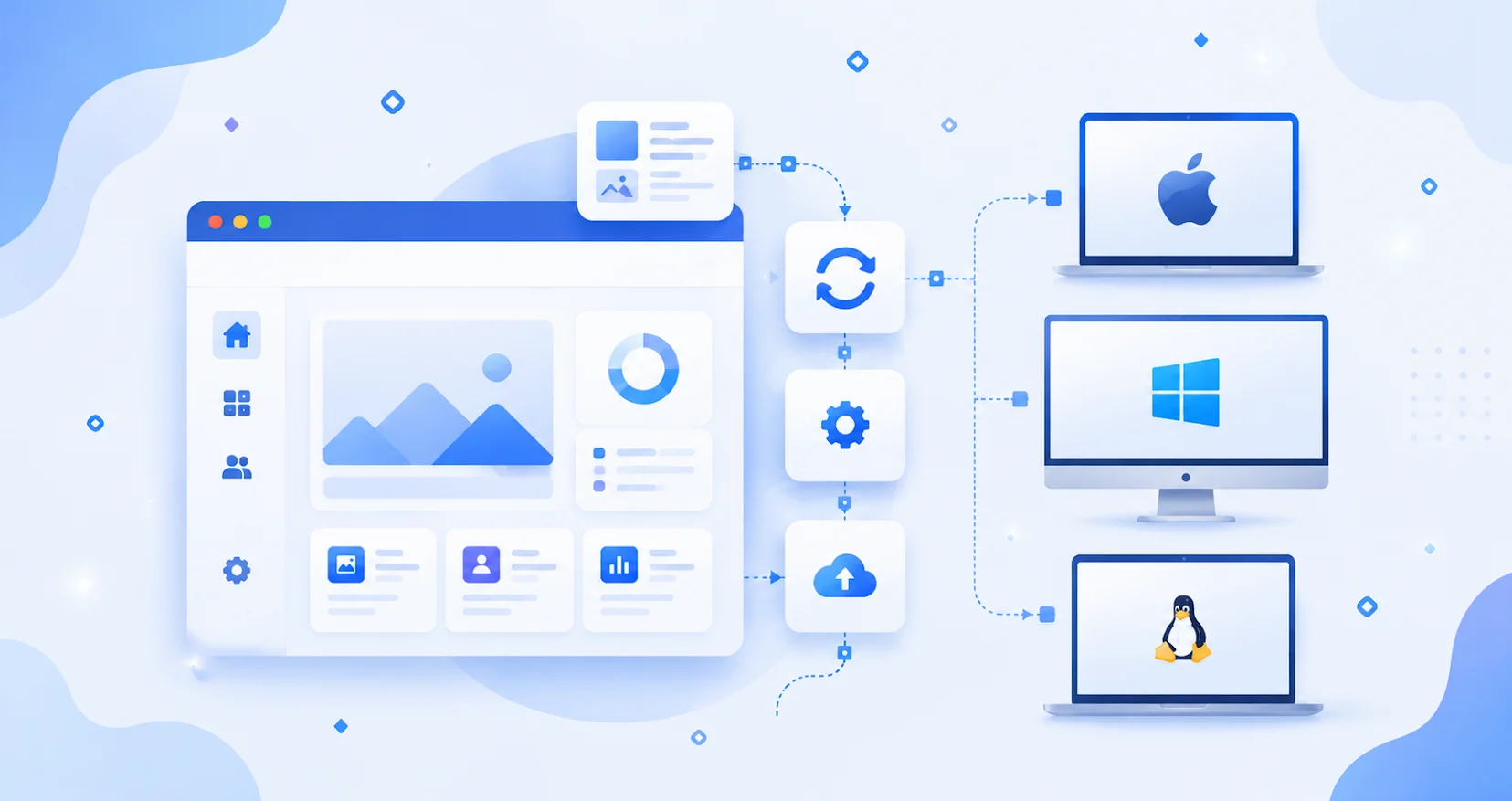
It works on Windows, MacOS, and Linux. Just use the website you already have and turn it into a desktop app.
Why Does WebToNative Stand Out?
1. No need to rebuild your website: You don't have to create a new desktop app from scratch. Just use the website you already have.
2. Supports Multiple Platforms: Generate desktop apps for Windows, macOS, and Linux from the same website.
3. Easy customization: Change your app name, icon, splash screen, window size, and other settings without editing your website.
4. Quick testing: Preview your desktop app before downloading it.
5. Real-time synchronization: When you update your website, managing your desktop app becomes much easier because both use the same website.
Step-By-Step Process to Convert Your Website into a Desktop Application using WebToNative
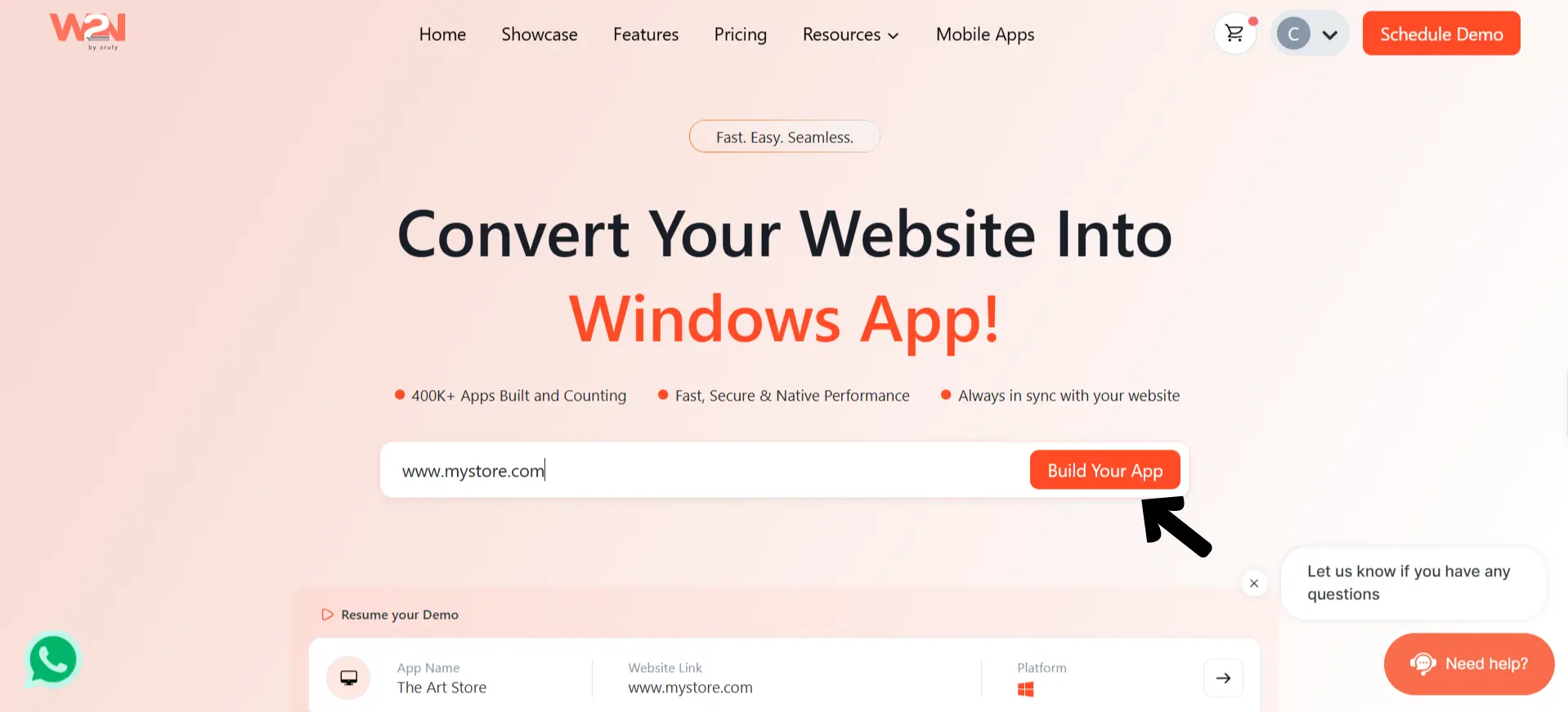
Step 1: Enter Your Website URL
- Go to WebToNative
- Type in your website URL in the box and click "Build Your App."
Step 2: Select your platform
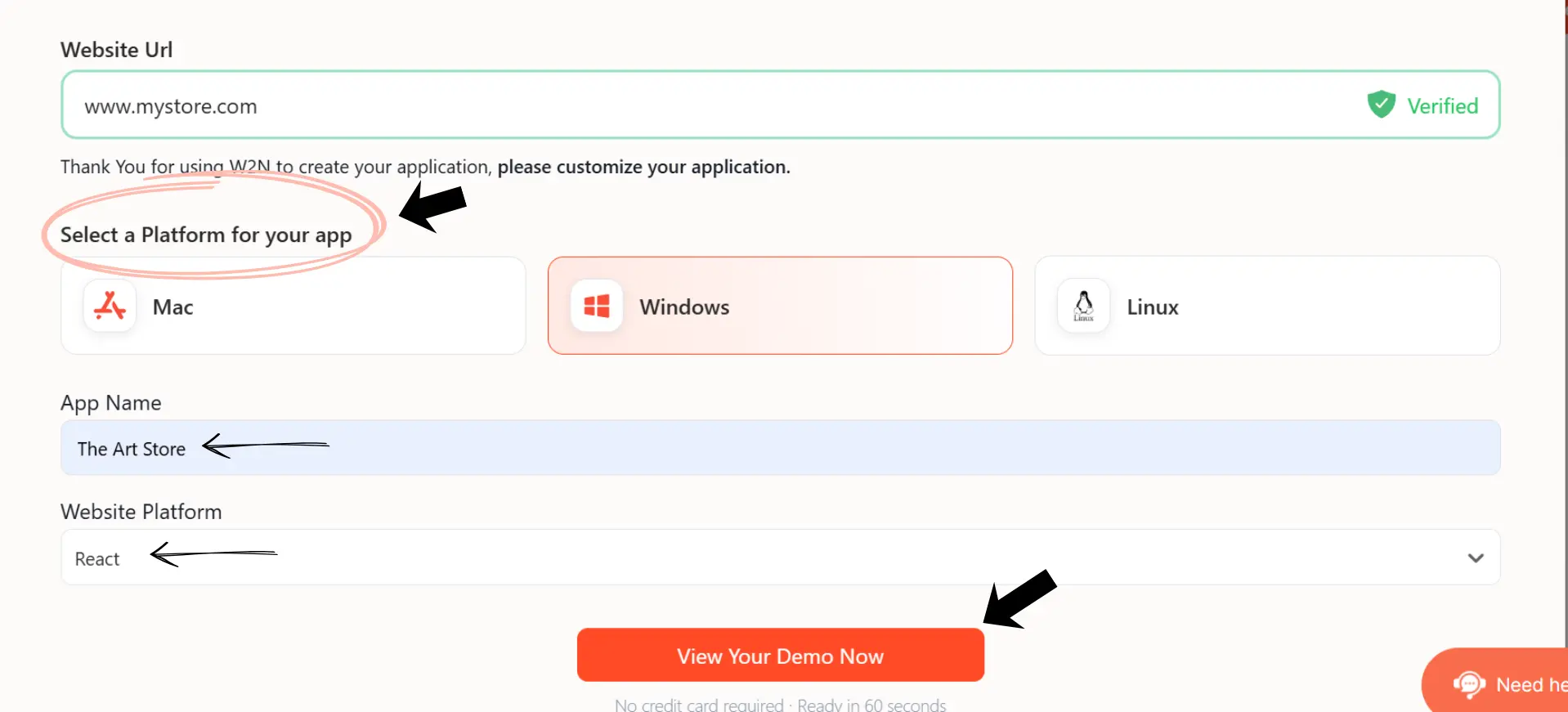
- Choose the platform you want to build for- Mac, Windows, or Linux.
- Enter your App Name and confirm your Website Platform (like React, WordPress, Shopify, etc.).
- Click "View Your Demo Now" to preview your app. In just a few minutes, your desktop app will be ready.
Step 3: Customize Your App
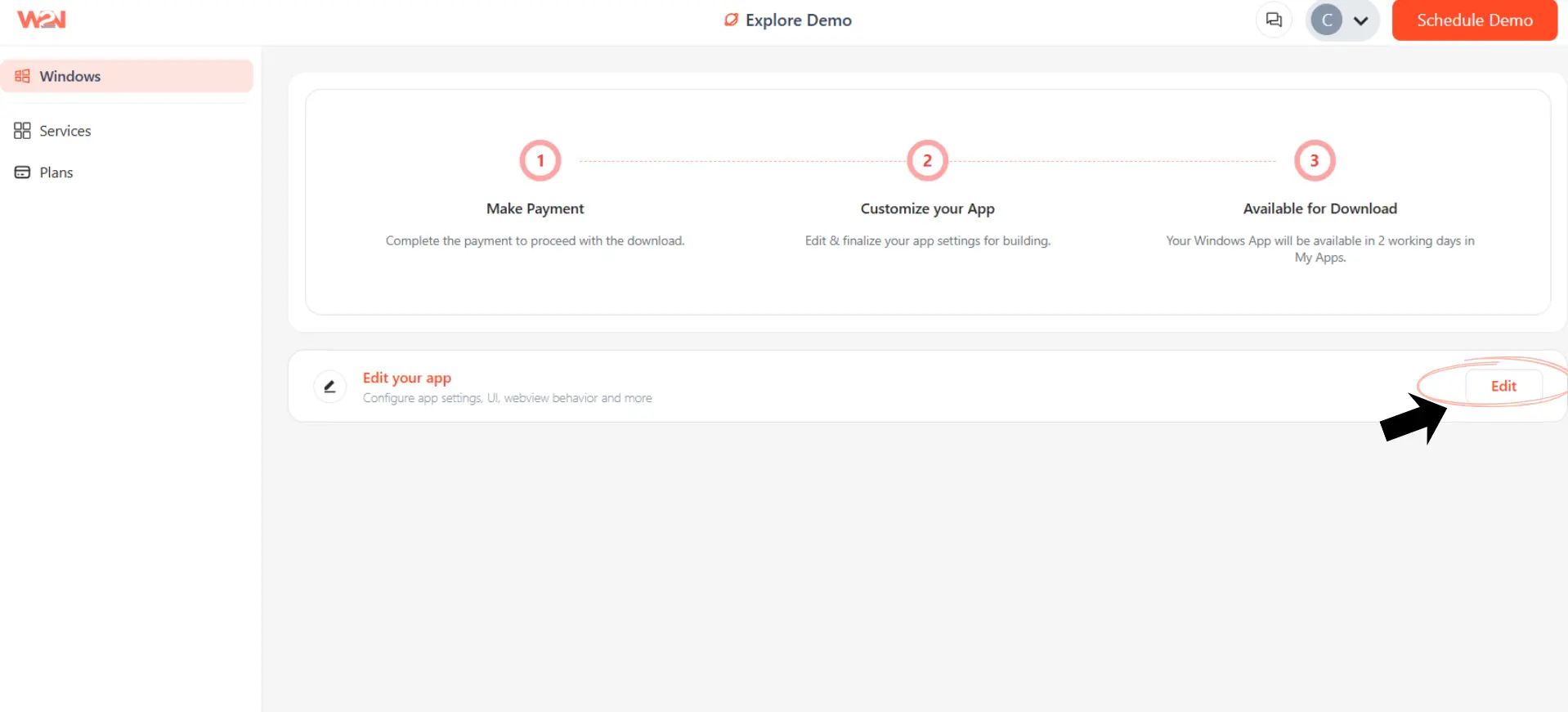
- Click on "Edit" and you will be redirected to the App Info section.
-
Set your app name, upload an app icon (or generate one automatically), and choose an app category like games, education, business, etc. The app category option is currently available only for macOS, not for Windows or Linux.
-
You can also customize the splash screen, app settings, link handling, and other website features from the sidebar.
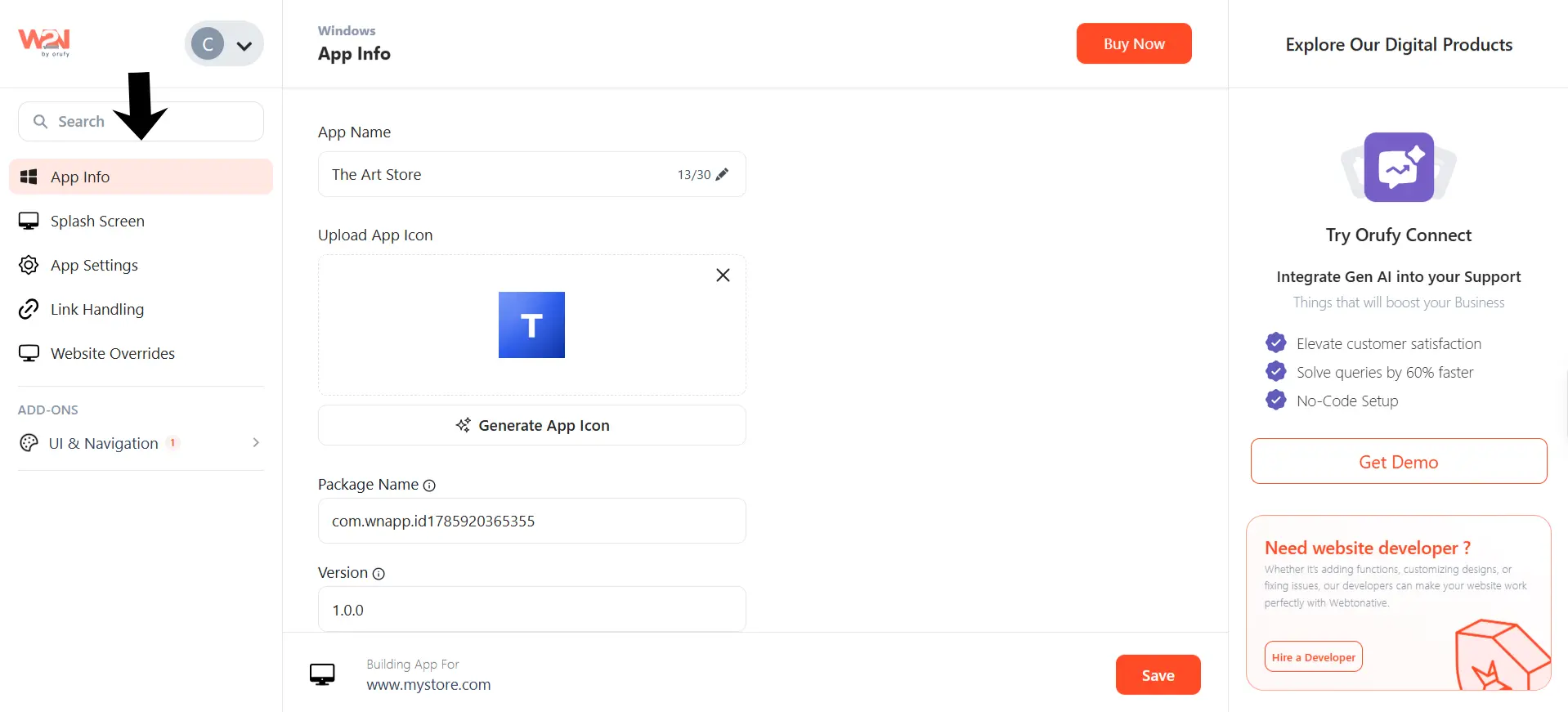
- Click Save once you're happy with the setup.
Step 4: Wait for Your App to Build
- Once your app settings are finalized, WebToNative prepares your app in the background.
- Your app will be ready for download in about 2 working days.
Step 5: Download Your App
- Once ready, your finished app will appear in the "My Apps" section of your dashboard, ready to download and share with your users.
Features you get with WebToNative
1. Page Navigation Loader: Turn on a custom loading effect when switching pages so the app feels smoother instead of looking stuck.
2. Custom Back Button: Add a simple back button so people can go to the previous page easily, just like any normal app.
3. Custom Splash Screen: Design the loading screen people see first when opening your app (like a mini intro), with your logo and colors, and preview it before saving.
4. CSS & JS Overrides: If you know a bit of coding, you can inject custom CSS or JS to change tiny things like hiding a button only inside the app.
5. User Agent Control: The app can behave slightly differently depending on what device or platform someone's using, for a smoother experience.
6. Link Handling (Internal vs External): Decide which links open inside your app and which ones open in the browser instead. So users don't randomly get thrown out of your app.
How does your website work after conversion
Once your desktop app is built and downloaded, here's exactly how it works:
1. Live Sync With Your Website Whatever you update on your live website shows up inside your desktop app automatically since the app is just a shell wrapped around your website's URL.
2. No Need to Rebuild Anything Content, design, or feature changes on your website don't require rebuilding the app. Only bigger changes (like adding new native features) would need an update.
3. Same Backend, No Duplication Your website's backend, database, and everything behind the scenes stays exactly the same. Nothing gets copied or moved anywhere else.
4. The App Handles the "Desktop" Part Things like the app icon, splash screen, notifications, and offline caching are handled by the wrapper itself; you don't need to code any of this yourself.
5. Each Platform Runs Independently Windows, macOS, and Linux versions are each built separately, but they all connect back to the same live website.
6. Same Experience Everywhere Whether someone opens your app on Windows, Mac, or Linux, they see the same content and features since everything loads from the same source.
Frequently Asked Questions
Q1. Do I need to know coding to convert my website into a desktop app?
A. Not always. If you use a no-code solution like WebToNative, you can convert your website into a desktop app without writing code. However, if you choose frameworks like Electron or Tauri, you'll need programming knowledge to build, customize, and maintain your application.
Q2. Can I make apps for Windows, Mac, and Linux all at once?
A. Yes. That's one of the biggest advantages of all these methods, including WebToNative, which lets you build desktop apps for Windows, macOS, and Linux from your existing website, so you don't have to create separate versions for each operating system.
Q3. Is a PWA the same as a desktop app?
A. Not exactly, but it's very close. A Progressive Web App (PWA) is still a website, but it can be installed and used like an app. It gets its own icon, opens in a separate window, and can support features like offline access and notifications. However, it doesn't offer all the capabilities of a traditional desktop application.
Q4. Will my desktop app work without internet?
A. It depends on how your app is built. WebToNative includes offline support, while PWAs can also work offline using service workers. However, if your app depends on live data from a server, some features may still require an internet connection.
Q5. Do I need to rebuild my desktop app every time I update my website?
A. Yes. If your desktop app is connected to your website, changes you make to your website can be reflected in the app. This makes it much easier to keep your content up to date without rebuilding the entire application.
Q6.How long does it take to convert a website into a desktop app?
A. The time depends on the method you choose. Building a desktop app from scratch with frameworks like Electron or Tauri can take days or even weeks. With WebToNative, you can convert your existing website into a desktop app within minutes, making it a much faster option.
Conclusion
So there you have it, turning your website into a desktop app isn't as complicated or tricky as it sounds once you break it down in steps.
If you’re comfortable with code and want full control, options like Electron and Tauri are solid. Just be ready for some real setup time, testing across different operating systems, and a bit of learning (especially with Tauri).
But if you don't have a development team or just want a fast no-code way to get your website working as a real desktop app, tools like webtonative make the whole process a lot simpler. You skip the coding, skip the manual setup for each platform, and still end up with an app that looks and feels native on Windows, macOS, and Linux. There's no single "best" option; it actually depends on what you need. Desktop apps clearly aren't going anywhere. In fact, they're making a strong comeback, just built in smarter, lighter ways than before. Whichever path you choose, the good news is: you don't need to be a native app developer anymore. If you've got a website, you already have everything you need to turn it into a real app.
Similar Blogs