


How to Make a Website an App on iPhone: Add It to the Home Screen (and When You Need a Real App Store App)
Published on:
2 November, 2026

TL;DR:
You can convert any website into a real app-style icon on iPhone within seconds through Safari and Chrome. It is absolutely free, but it is still a web application and cannot be published on the Apple App Store.
How to Add a Website to Your Home Screen in Safari
Safari offers more control over how the website looks on the home screen. Follow a few steps and your website appears as a real app icon.
Step 1: Open the Safari app on your iPhone.
Step 2: Enter the website you want to add to your home screen.
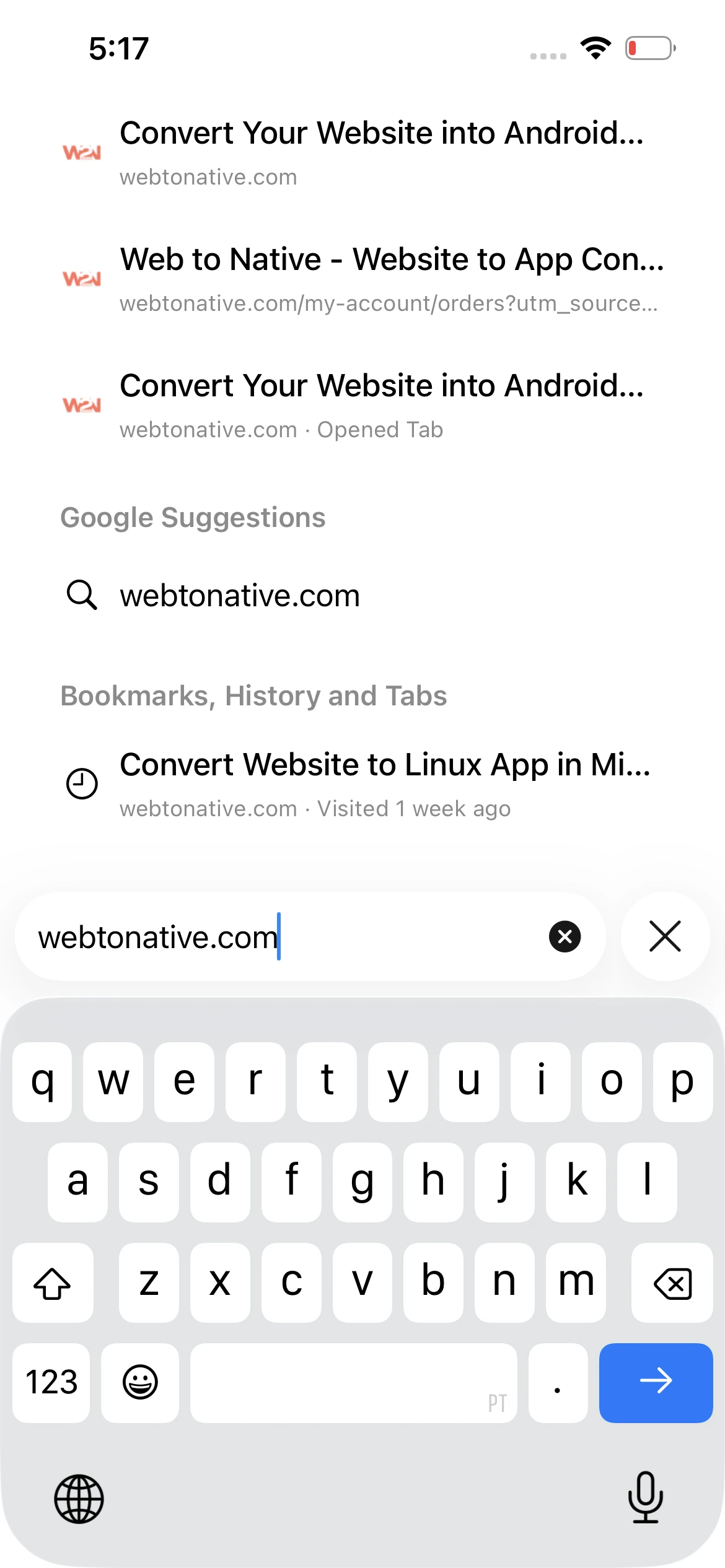
Step 3: Click on the arrow to go further.
Step 4: Depending on your iOS version, this may vary, such as three dots or three horizontal lines. A small pop-up appears with a few options.
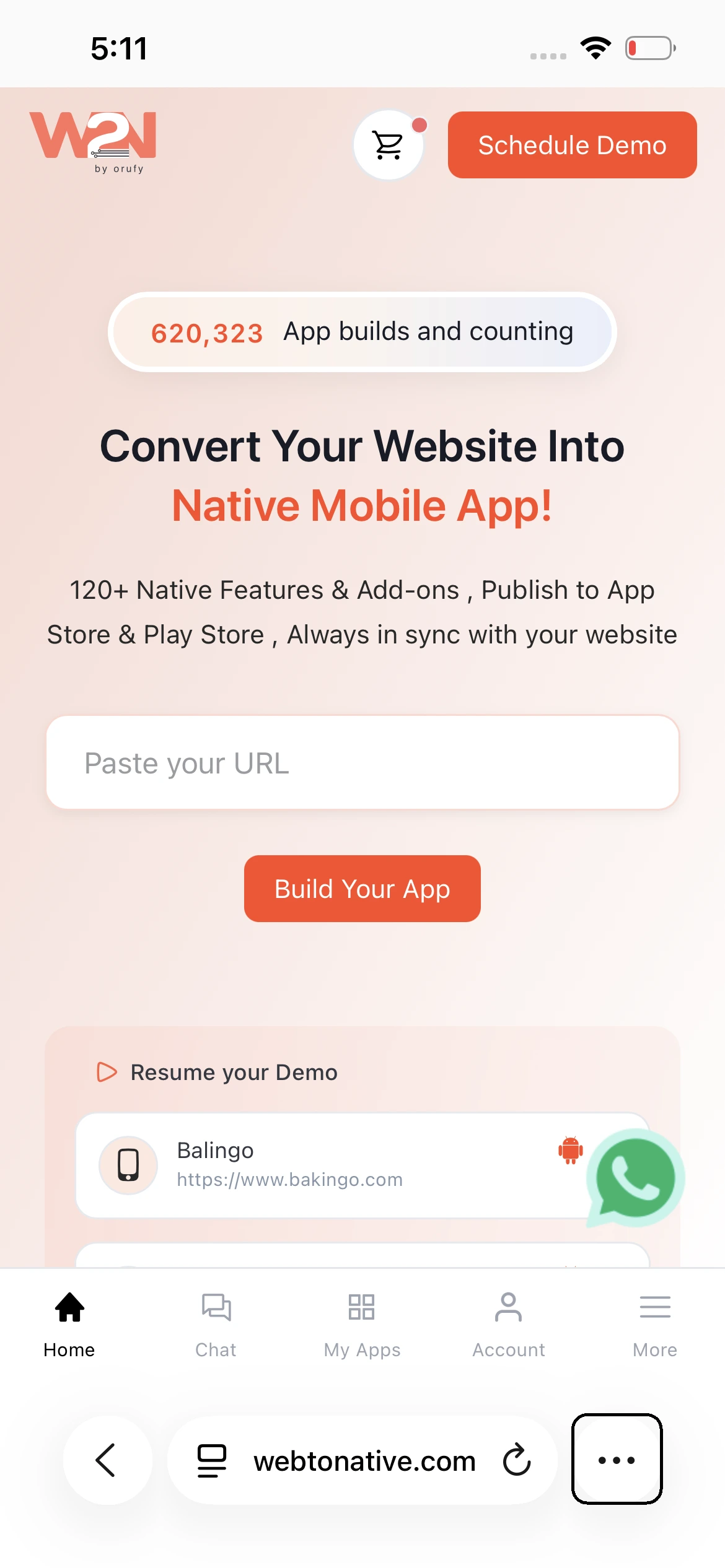
Step 5: Click on the Share icon. Many share options appear.
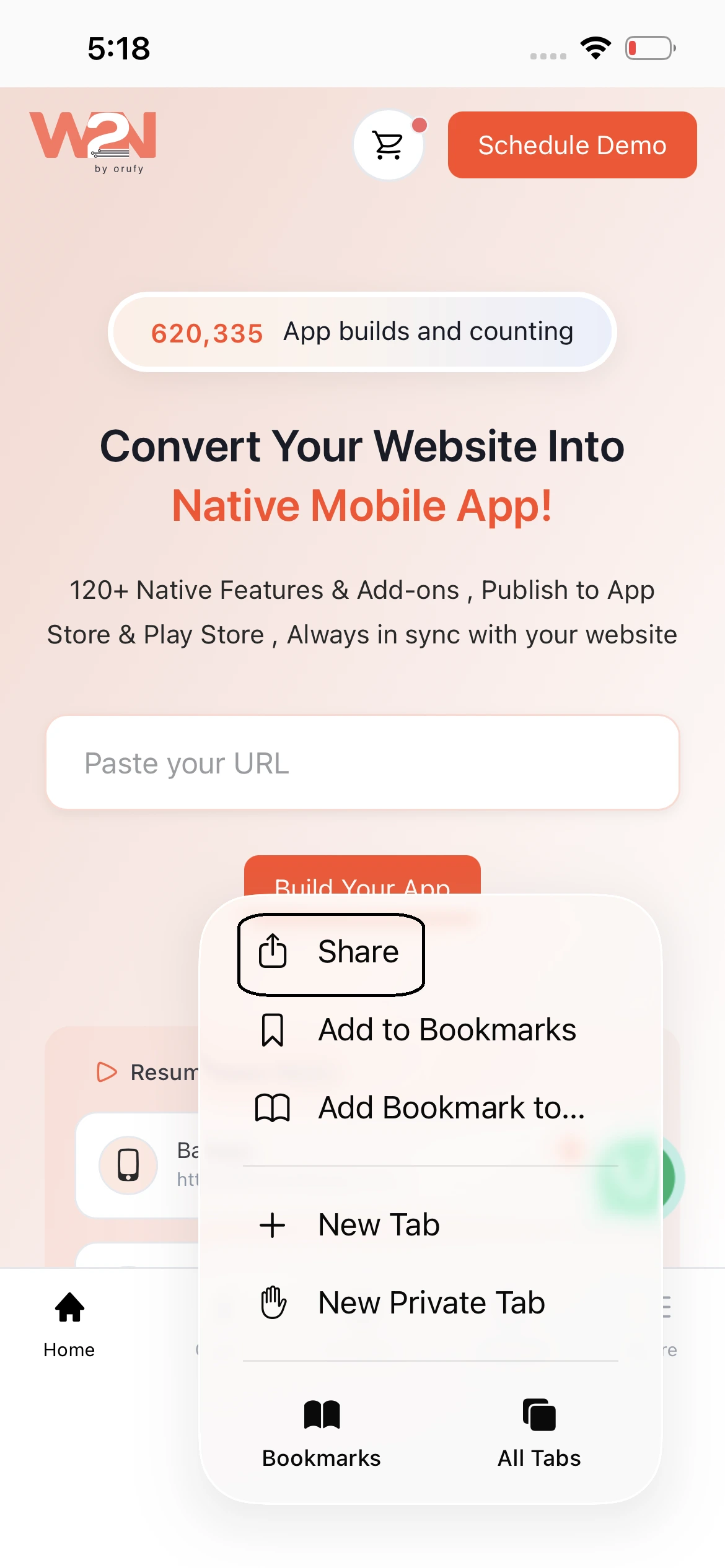
Click on View More.
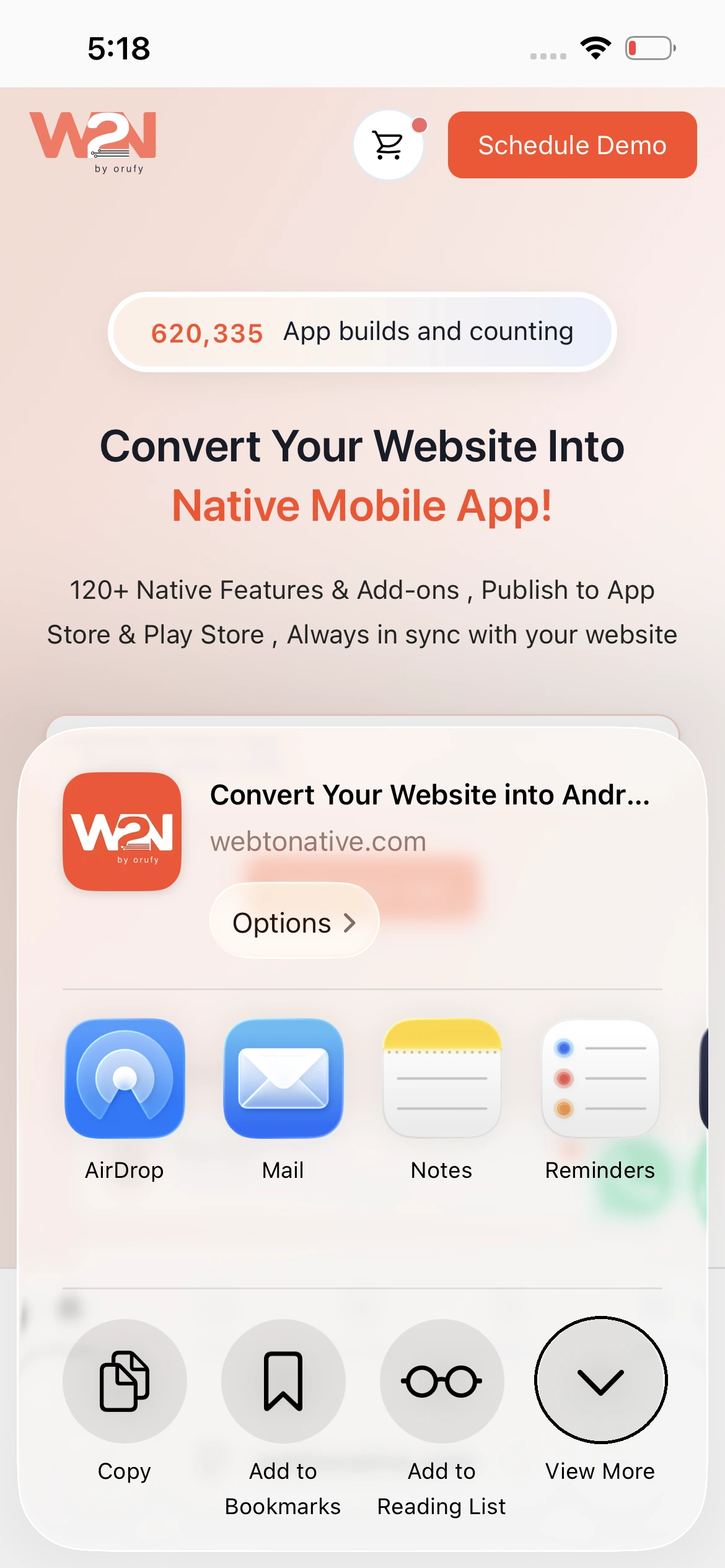
Step 6: Now, tap on the Add to Home Screen button.
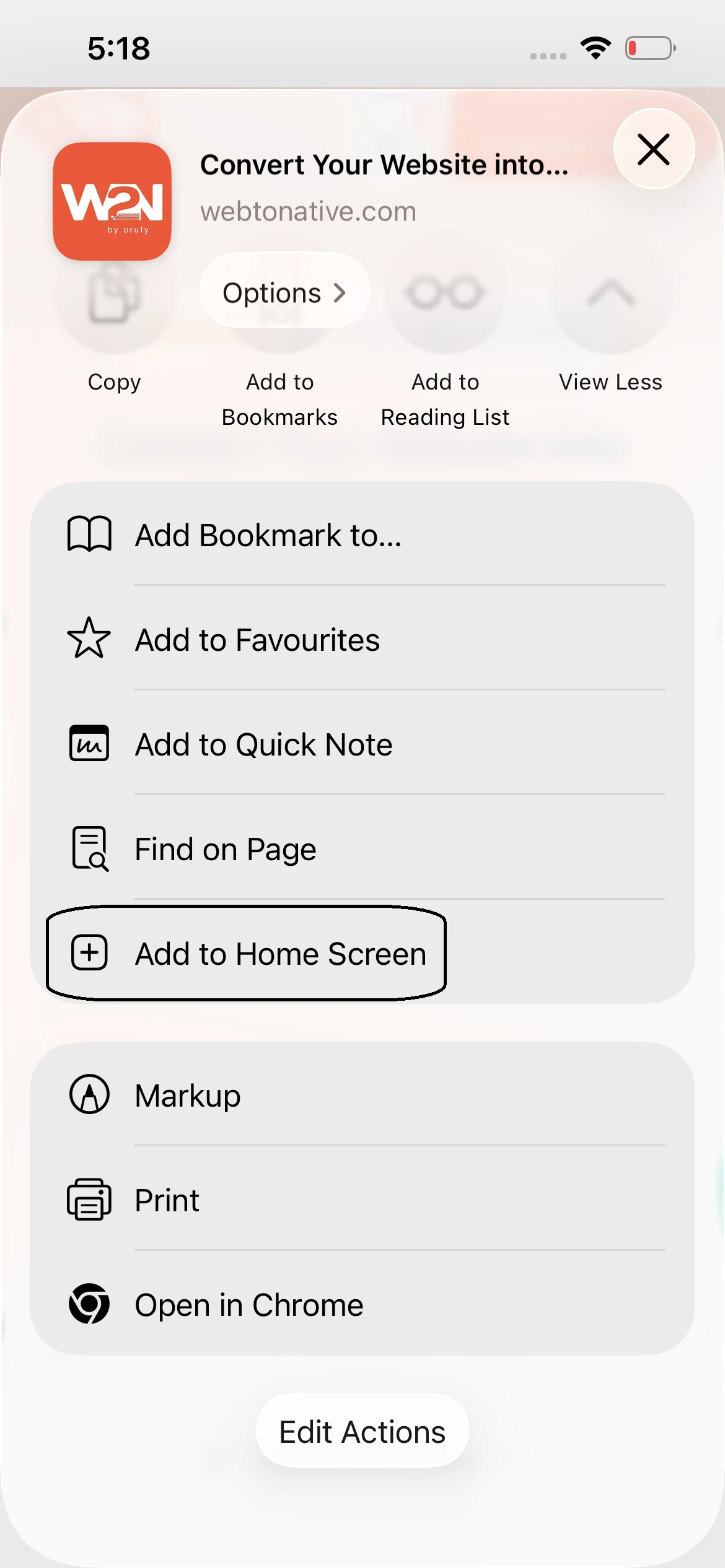
Step 7: A new screen opens showing the website link and name. You can edit the name of the website that will appear below the icon on your home screen.
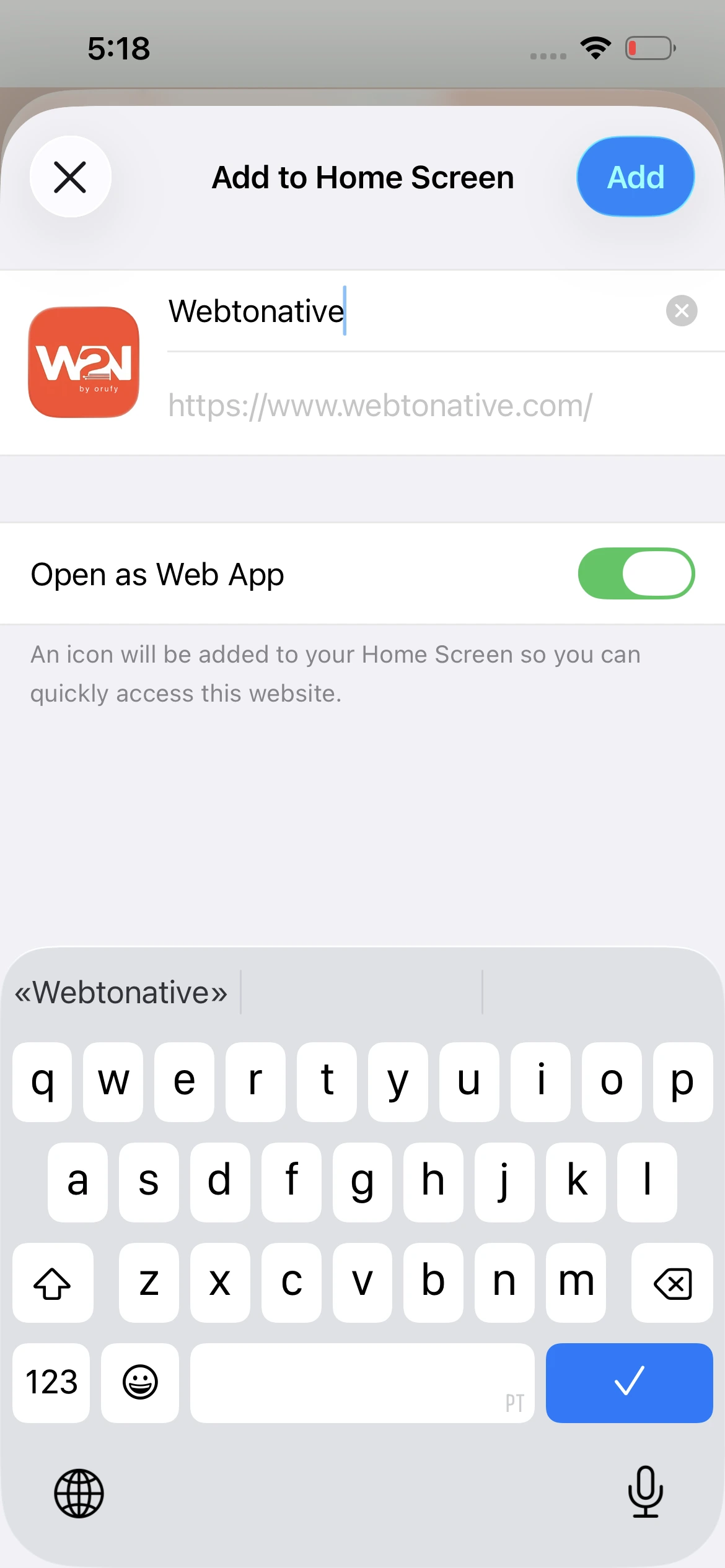
Step 8: Below this, you will see an additional setting, Open as Web App. This is a toggle-based setting. You either have to enable or disable it to get a specific functionality. If it is enabled, tapping the icon opens the website in its own separate window, eliminating the general Safari address bar. This is what makes a website appear to be a real mobile app. If it is disabled, the icon simply opens the website as a normal tab in Safari.
Step 9: Click on the Add button. Now the website icon appears on your home screen. You can open the website with a tap like any other mobile app.
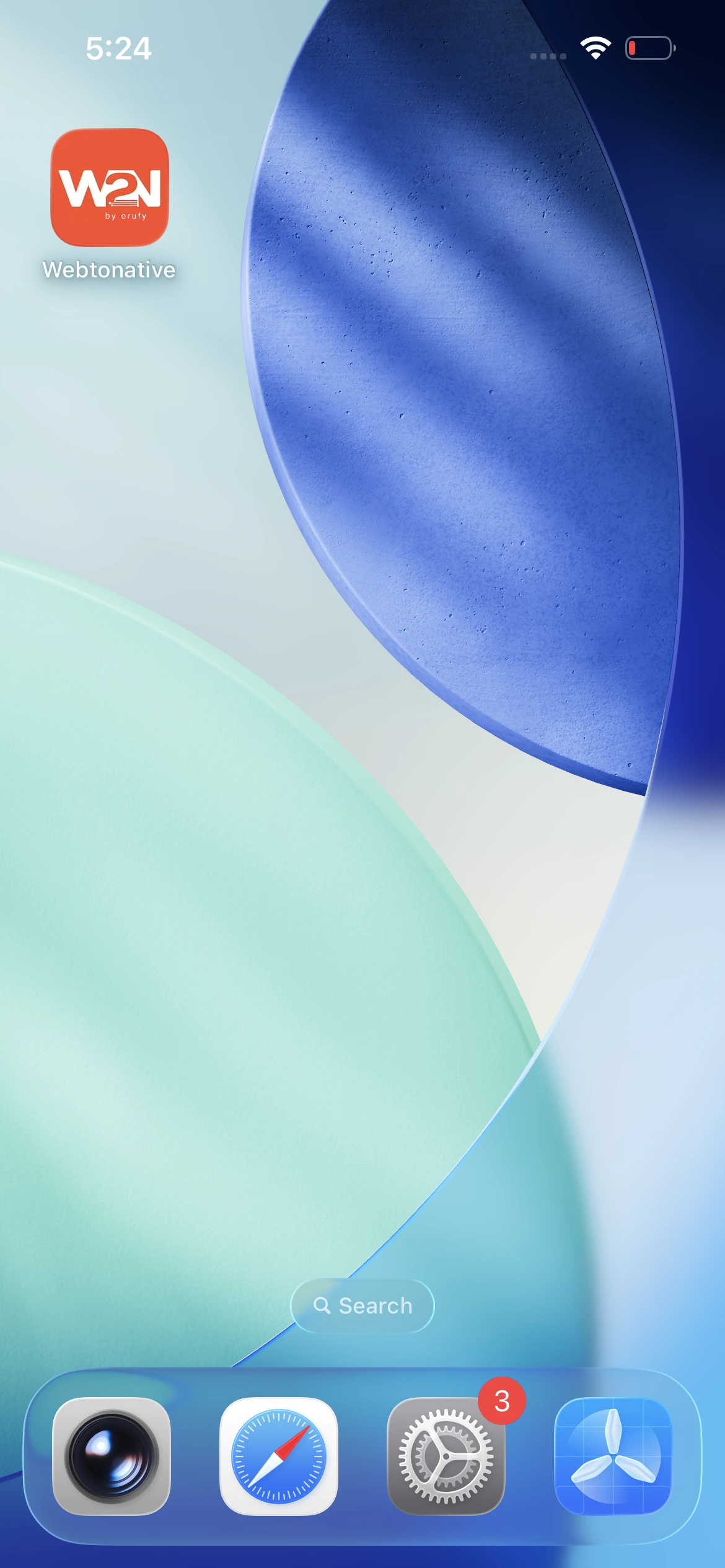
How to Add a Website to Your Home Screen from Chrome on an iPhone
If you use Chrome frequently, a few clicks will put the most visited websites on your home screen, ready to open like an app.
Step 1: Open Chrome on your iPhone and enter the website URL in the address bar.
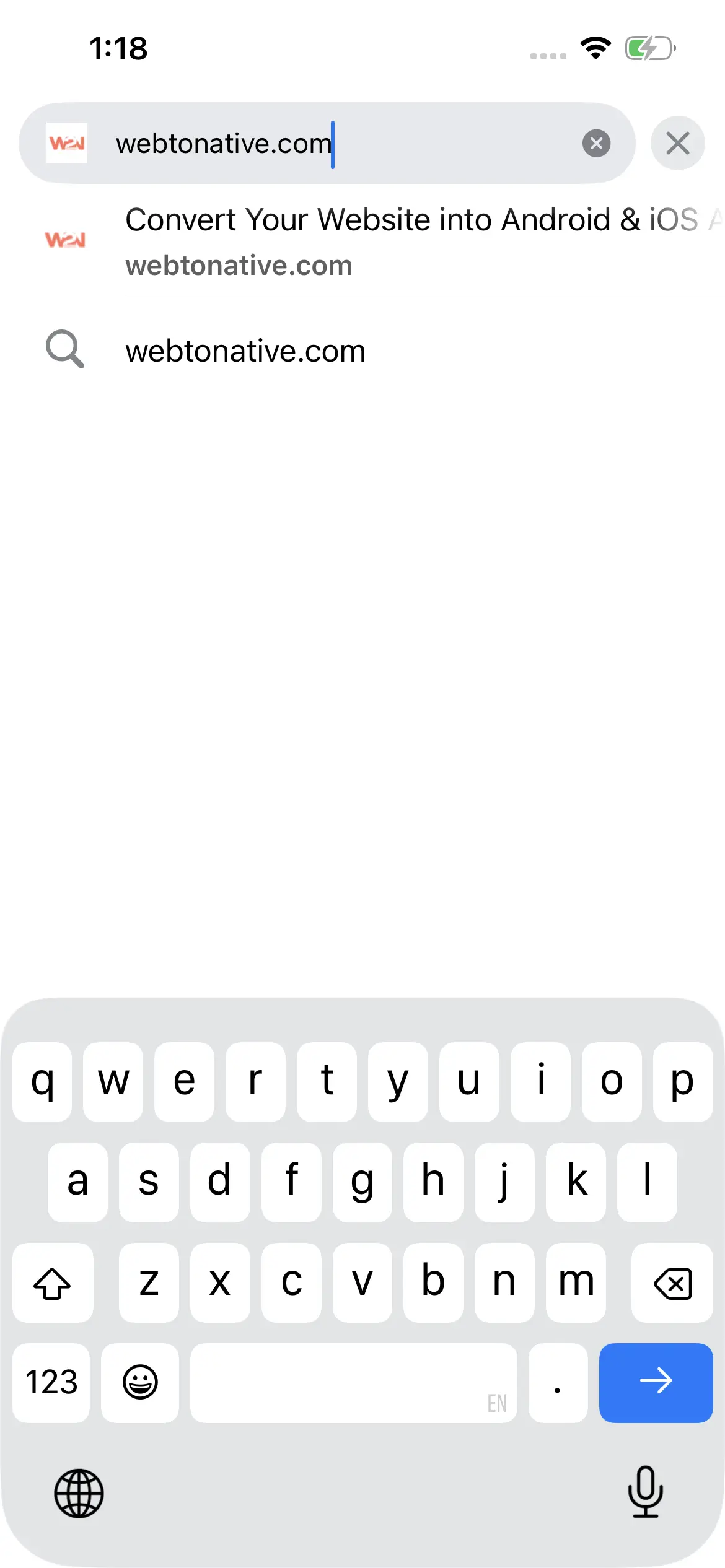
Step 2: Click on the arrow to move forward.
Step 3: In the top-right corner, click on the Share button to see all the options.
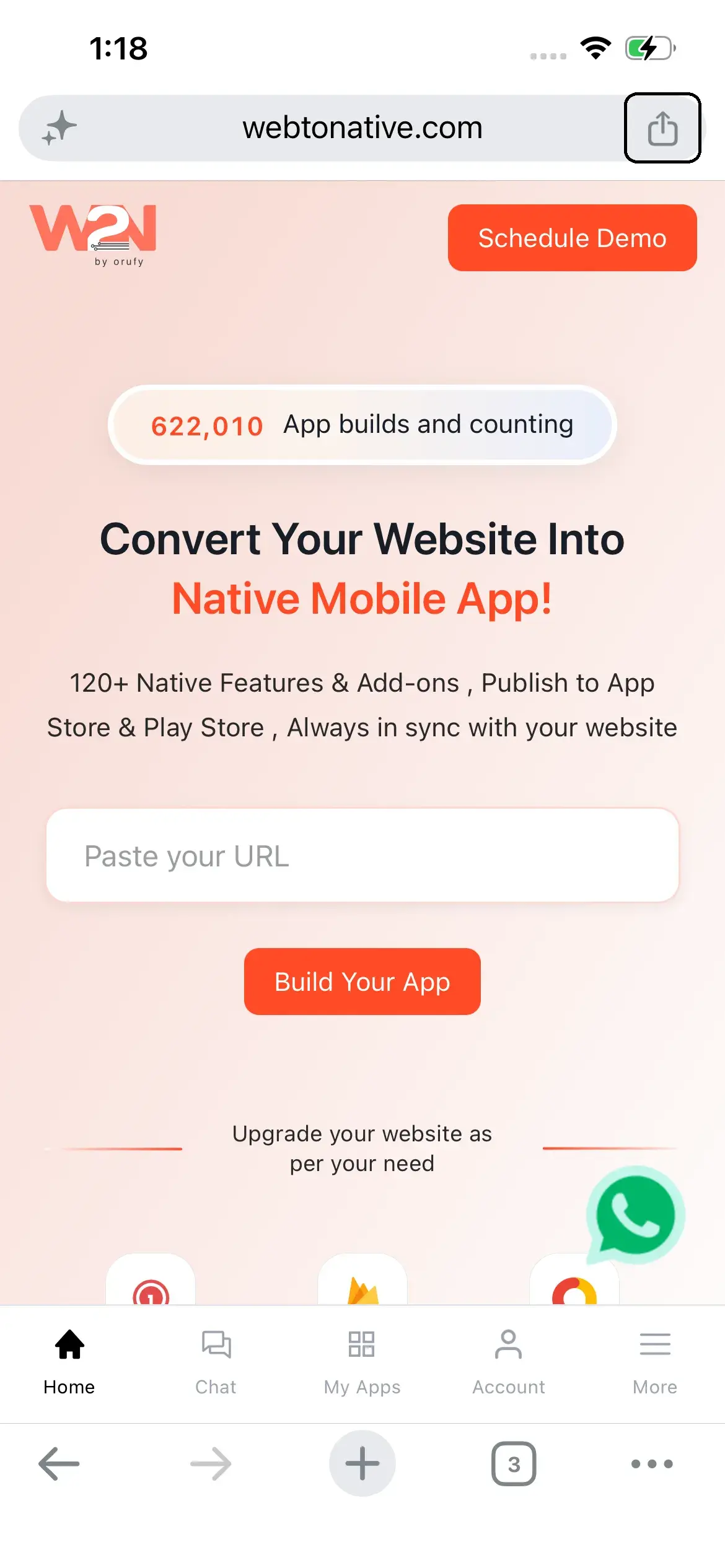
Step 4: Click on View More.
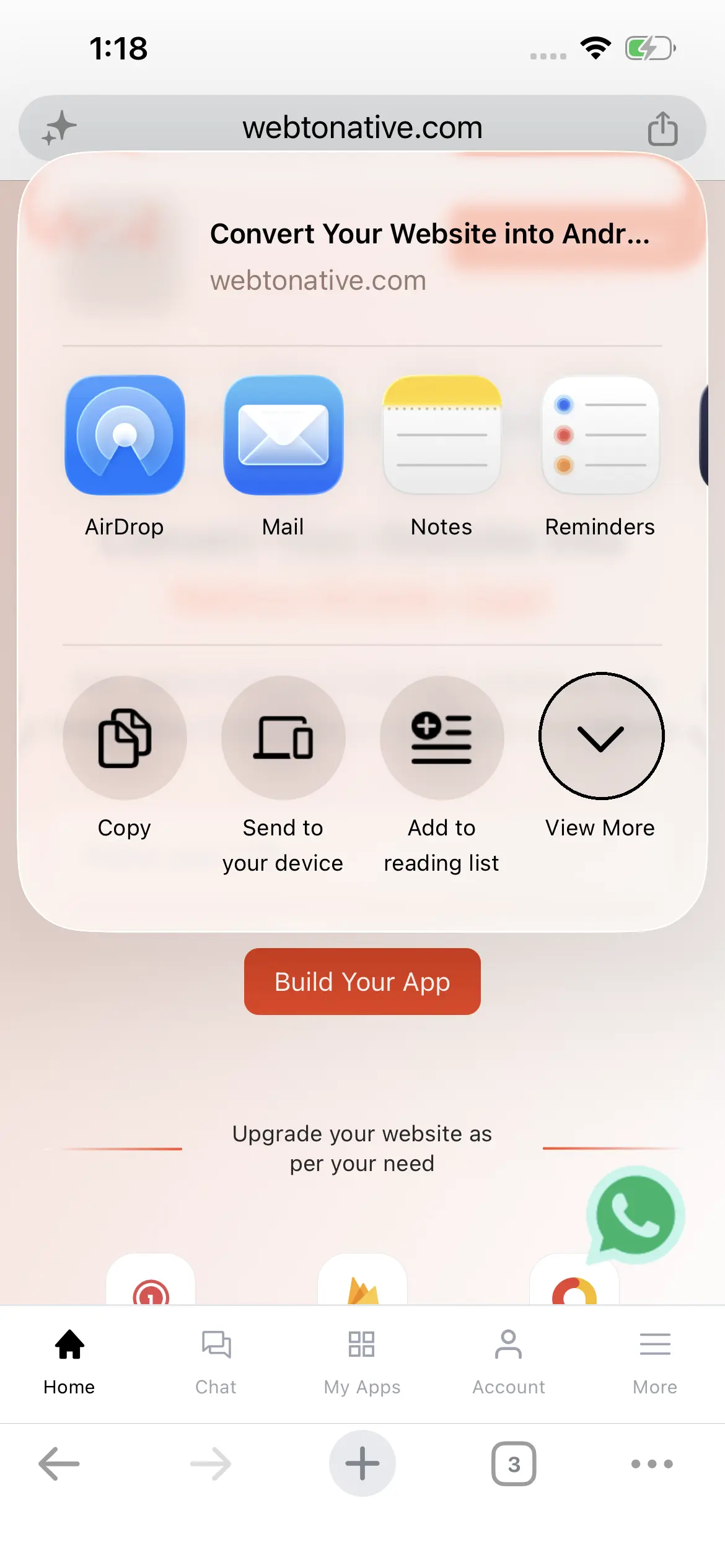
Find the Add to Home Screen button. Click on it.
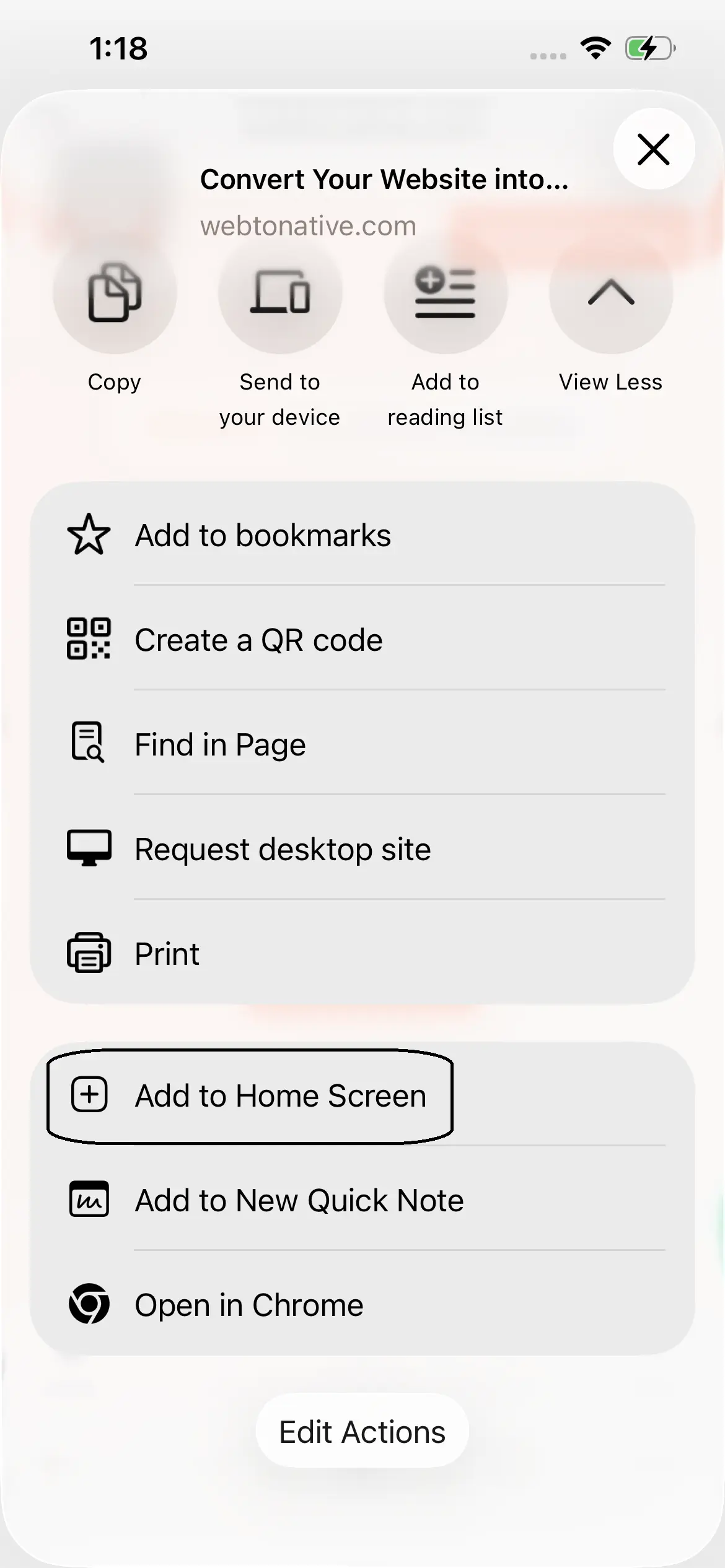
Step 5: A new screen will appear showing the website name with the link and a setting.
Step 6: You can edit the website name, which will be shown below the icon.
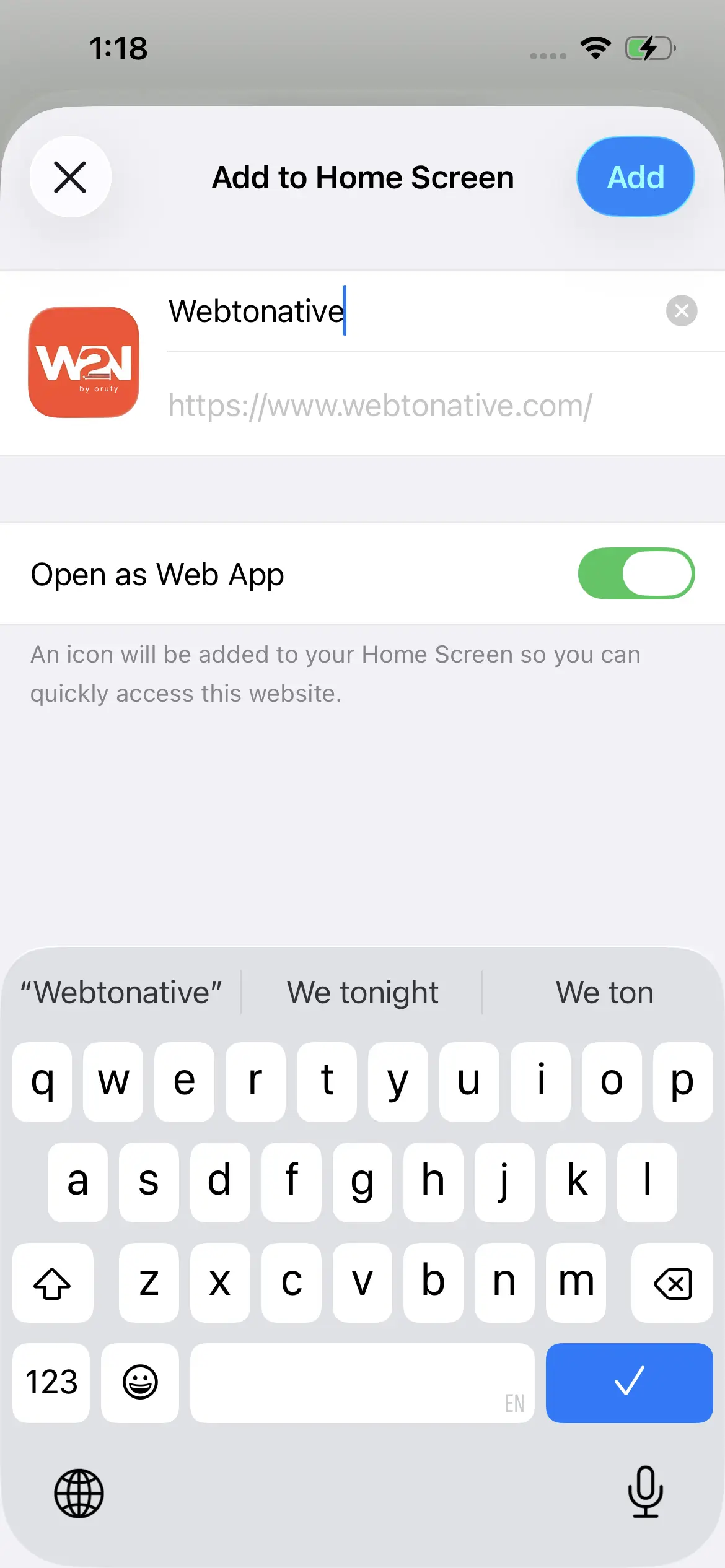
Step 7: You will see an advanced setting: Open as Web App. If it is enabled, tapping the icon opens the website in its own separate window, eliminating the general Safari address bar. If it is disabled, the icon simply opens the website as a normal tab in Safari.
Step 8: Click on the Add button. The website will appear on the home screen like a real app.
How to Change the Name or Icon
The name is already set when you add the icon to the home screen. If you really want to change it, you have to upload the website again and edit it with a new name.
The icon shown on the home screen comes from your website. The website owners set it inside their code with a touch icon. If the website has no touch icon, the iPhone shows a fallback icon. You cannot change the icon in any circumstances.
How to Remove a Website from Your Home Screen
Removing an icon from the home screen is easier than adding one. Below are a few steps if you want to remove the website from the screen.
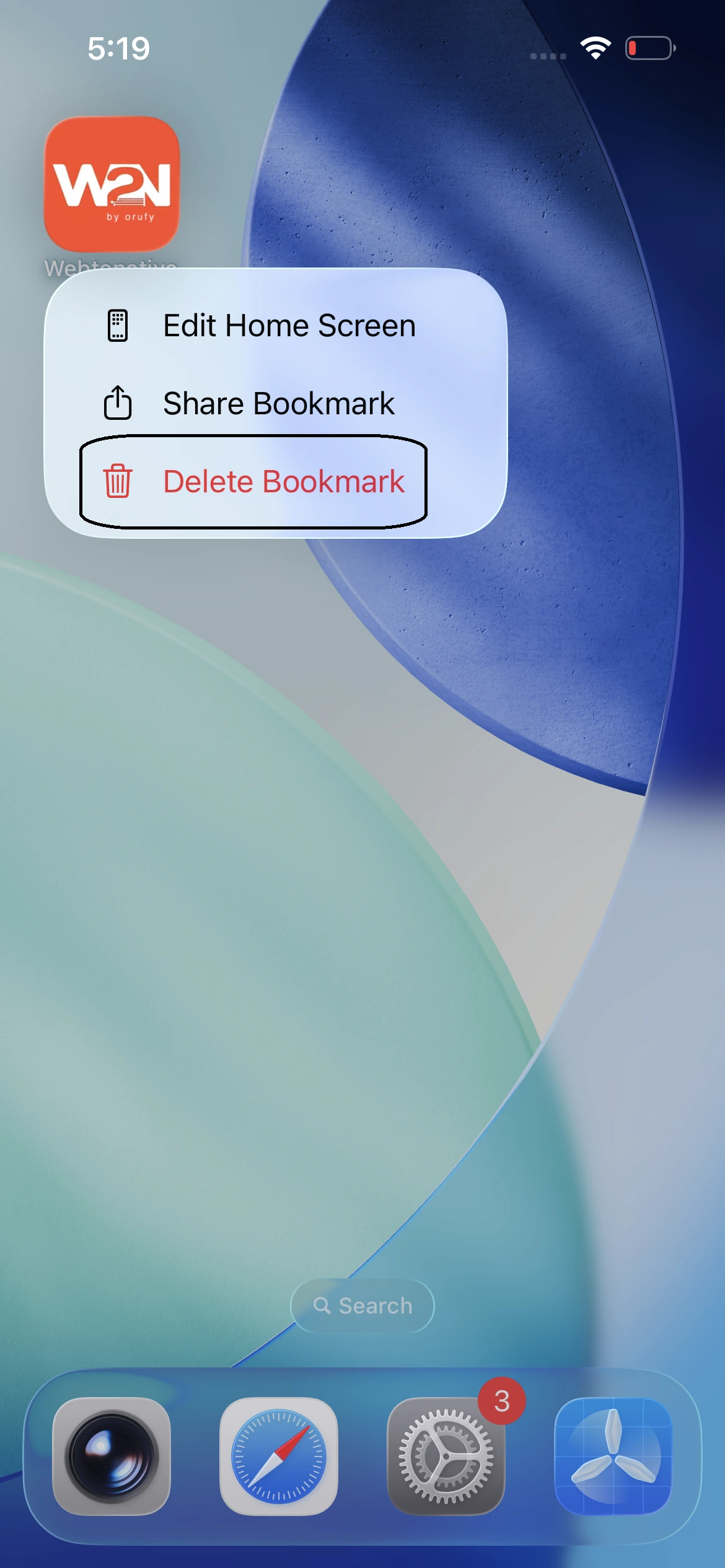
Step 1: On your iPhone home screen, touch and hold the icon for a long time.
Step 2: A small menu with three options appears: Edit Home Screen, Share Bookmark, and Delete Bookmark.
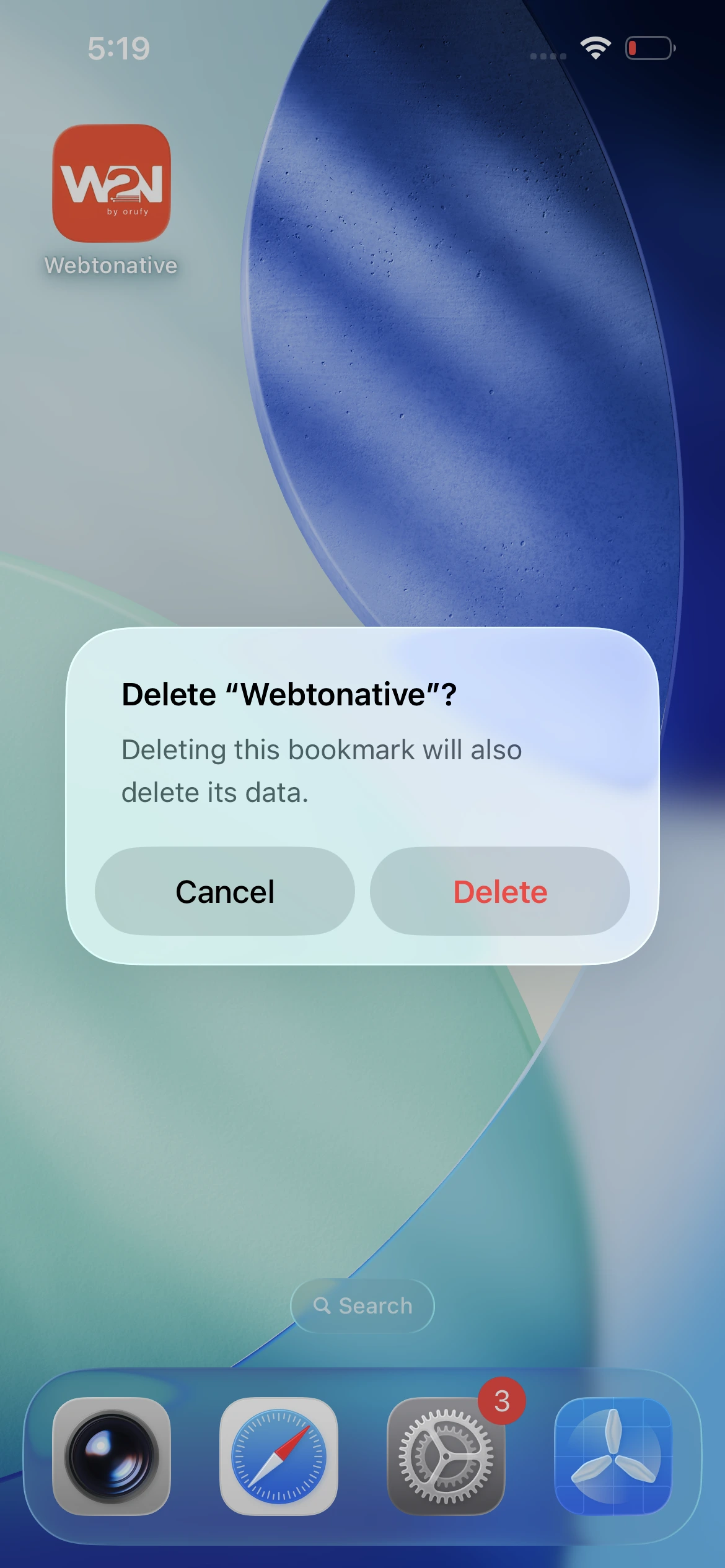
Step 3: Click on the Delete Bookmark option. A pop-up will appear asking for confirmation. It tells you that deleting this bookmark will also delete the data.
Step 4: Click on Delete. The icon will be removed from your home screen right away.
What Can a Home Screen Web App Do, and What Can It Not Do?
Below is the complete comparison of what a home screen web app can and cannot do.
| Home Screen Web App Can Do | What Home Screen Cannot Do |
| Runs in full-screen mode just like a real app in a clean window. | Cannot run scripts, synchronize data, or perform heavy tasks in the background. |
| Supports push notifications if you allow it. Relies on iPhone versions also. | Are unable to use Apple’s in-app purchase systems or subscriptions. |
| Works offline, like storing data and caching content with limitations. | Have limited or no access to hardware APIs like Bluetooth or Face ID/Touch ID. |
| Through Web APIs, access device features like camera, GPS, and storage. | Cannot publish on the Apple App Store. It is directly added through the browser. |
| Organize like a real app, such as moving icons around the home screen, placing them inside folders, or deleting them. |
Need a Real App Store App?
A home screen web application does not have an Apple App Store listing. Audiences are unable to find it by searching the App Store and cannot access the application without an App Store installable link. So, there is no place for real reviews and ratings to build up. People have to add the website to their home screen by themselves. For many websites, this works perfectly, but it becomes limited when you want customers to explore more inside the App Store.
A website can only send push notifications after the customer has added the web app to their home screen with limited functionality. So your reach relies on how many people take that extra step of adding it to their home screen.
If you own a website and need an Apple App Store presence. You have to build an iOS app and publish it from your Apple Developer account. That includes an Apple Developer Program enrollment with an annual membership fee of $99. As Apple approves your app, it is ready to be live for our audience. A business depends on App Store search, reviews, or installable app links that will outgrow a web application on the home screen.
Apple reviews each app thoroughly before approving it, and nobody can promise the app’s approval. Your app must answer how it works, what its costs are, its features, and everything. If your users are satisfied with a home screen icon, there is no need to build the app. In case you are weighing multiple options, read our WebView Apps Vs Native App blog to find the perfect option.
Frequently Asked Questions
Q1. Can I make any website an app on my iPhone?
A. Yes. Any live website that opens in Safari can become an app on the iPhone home screen. As it is added, the website gets its own icon, opening in its own window without the Safari address bar. How responsive the website is determines how much it feels like a real native app. It stays a web app; it just lacks App Store visibility, reviews, and searchability.
Q2. Is adding a website to the home screen free?
A. Yes, adding a website to the home screen is absolutely free on iPhone. It's a few clicks in Safari or Chrome to add a website as an app. You save a website shortcut that already exists; the difference is you can directly access the website without searching for it with a tap on the home screen. You can add as many websites as you like on the home screen without paying anything. Keep in mind that it is not a real app; it’s just a website showcasing itself as a real native app.
Q3. Why does my home screen web app open in Safari instead of its own window?
A. At the time of adding the website to the home screen, you haven’t enabled the setting Open as Web App. When this setting is turned off, the website opens in a browser instead of opening in its own window. So, you can fix this by adding the website again and keeping this setting enabled. This setting appears on the same screen where you edit the website name, following the website link and the Open as Web App setting. Enabling it will give you a separate window.
Q4. Can a home screen web app send notifications?
A. Yes. From iOS 16.4 and later versions. The website supports web push notifications but only when the website is added to your home screen as a web app. After adding it, the website asks to send notifications when you tap buttons like subscription and lets you choose whether to allow it or not. If allowed, the notifications appear on the lock screen and inside the Notification Center like any other native app.
Q5. Is a home screen web app the same as an App Store app?
A. No, a home screen web app appears to be a native app but is different from an App Store app. A web app is a website that appears as an app on the home screen without any App Store reviews or visibility. An App Store app is a separate app that Apple reviews, appears in searches, is downloadable on devices, and more. A user who wishes to appear in the App Store searches must build a real mobile app that must be published from their app developer account on the Apple App Store.
Q6. How do I add a website to the home screen on iPad?
A. You have to open Safari on your iPad and enter the website link. Now, click on the Share button, and find the option Add to Home Screen. Click on it; a new screen will appear showcasing the name, website link, and a setting, Open as Web App. You can edit the website name that will be shown below the icon and toggle on the setting as well. Click the Add button to successfully add the website to the home screen.
Conclusion
Converting a website into an iPhone app takes a few taps either in Safari or in Chrome. You only have to share the website link, edit the name, and toggle a setting. Now, just tap Add, and your website will appear as a native app on the home screen. The website sits on the home screen without any budget and opens in its own window. It is an ideal way for users who spend regular time on a few websites, making it easier to access, and it works perfectly.
Similar Blogs