



How To Reset Your Upload Key on Google Play Console — Lost Keystore Fix
Published on:
26 June, 2026

By Yash Saini
Android & iOS Developer
Table of contents
Picture this: you are about to publish a new update to your mobile app on the Google Play Store and realize your keystore file is lost. Maybe you got a new laptop, or the file just ended up hidden in some folder you can no longer find. Another way, your update is stuck, and you're staring at a signing error.
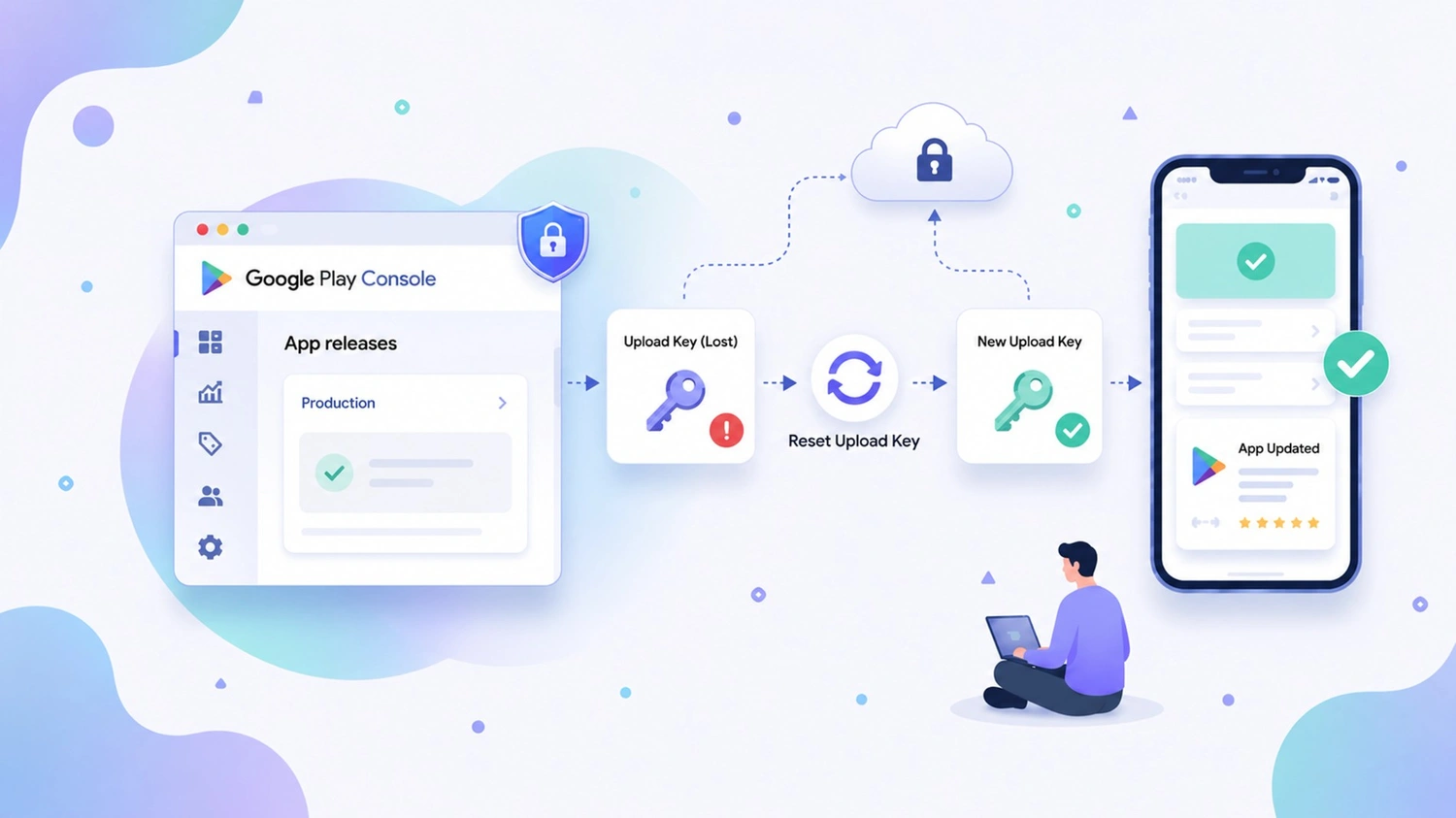
The first natural response is to panic and get stressed. I get it. Your app is live, users are waiting for the update, and you cannot do anything until this problem is resolved. But before you turn around, here is the thing. If your app uses Google Play App Signing, Google has a built-in fix for this situation. The fix is to request an upload key reset. It allows you to switch to a new key so you can continue publishing.
This blog will walk you through everything from what an upload key is to how to reset it.
What Is an Upload Key?
Firstly, people are confused between two keys that are involved when you publish an Android app. So, let’s clear up the confusion.
The Upload Key is your key. You use it to sign your APK or AAB file before uploading it to the Google Play Console. Google checks it every time you submit a new release to confirm the update is actually coming from you and not someone else.
Another key is the App Signing Key, which is Google’s key. As your signed file reaches Google’s servers, Google verifies your upload key and then signs the distributed APKs using your App Signing key. This is the key that actually lives on the user’s phone.
These two are completely different keys. When you reset your upload key, only your upload key changes. The app signing key, which matters to your users and stays exactly where it is, is held safely by Google. Your users will not see any difference. No app reinstalls, data loss, or disruptions.
So, if you have lost your upload key. You have actually lost your ability to push new updates. Your live app is completely fine. And with an upload key reset, you can get that ability back.
Before You Start — Make Sure You Have
Instead of jumping straight into the Google Play Console, ensure you don’t miss these two things.
1. Account Owner Access on Google Play Console
This cannot be just an account. It has to be the account owner's login, the primary Google account linked to your Play Console. Admin and editor roles do not have access to the upload key reset option. If you log in and the option is missing or appears greyed out, it means you are using the wrong Google account. You must immediately check with whoever set up the Play Console account originally.
2. A .pem Certificate File from Your New Keystore
This step is ignored in most blogs and guides, but it is essential. You cannot request a reset without uploading a .pem certificate file that Google will tie to your new upload key.
To access this file, you first need to generate a brand new keystore and then export a certificate from it. Below is the process to do it.
To access this file, you first need to generate a brand new keystore and then export a certificate from it. Below is the process to do it.
1. Generate a New Keystore
Open your terminal, either Mac or Linux, or command prompt in Windows.
Run this Command
keytool -genkey -v -keystore upload-keystore.jks -keyalg RSA -keysize 2048 -validity 10000 -alias upload
The command is actually the same on all three platforms. The only difference is where you run the command. Mac and Linux users open Terminal. Windows users open Command Prompt or PowerShell.
It will ask you a series of questions, like:
-
Your name
-
Organization’s name
-
City and Country
Fill in all the answers. Then it will prompt you to set a password for the keystore. Set a strong password and write it down immediately. You will need this password every single time you sign a release build. So, losing it would put you right back into this situation.
2. Export the .pem Certificate File
Now that you have generated your keystore, export the certificate.
Run this Command
keytool -export -rfc -keystore upload-keystore.jks -alias upload -file upload_certificate.pem
Enter the password you just set when prompted. This command exports your public certificate to upload_certificate.pem in the same directory as the command. This is the file you will upload to Google.
Keep both your new upload-keystore.jks and upload_certificate.pem files somewhere safe, ideally backed up in at least two places. A secured drive, cloud storage, or a password manager stores it wherever it works for you.
How to Request the Upload Key Reset – A Step-By-Step Process
Now you have your .pem file ready. Below is the complete step-by-step process inside the Google Play Console.
Step 1: Go to the Google Play Console and sign in with the account owner's credentials.
Step 2: Select the particular app you need to reset the upload key for from the home screen. If you manage multiple apps, ensure you are inside the right one.
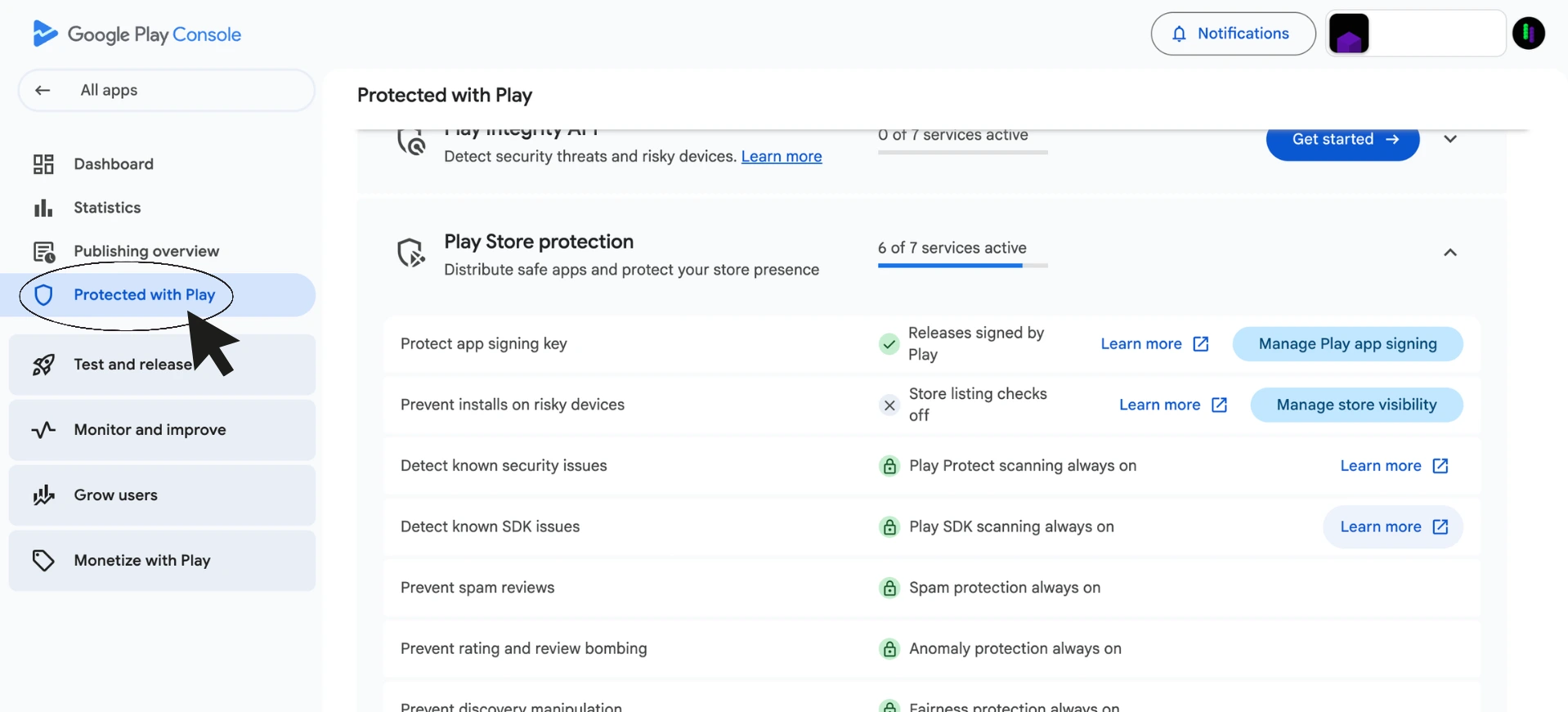
Step 3: In the left sidebar, go to Protected with Play.
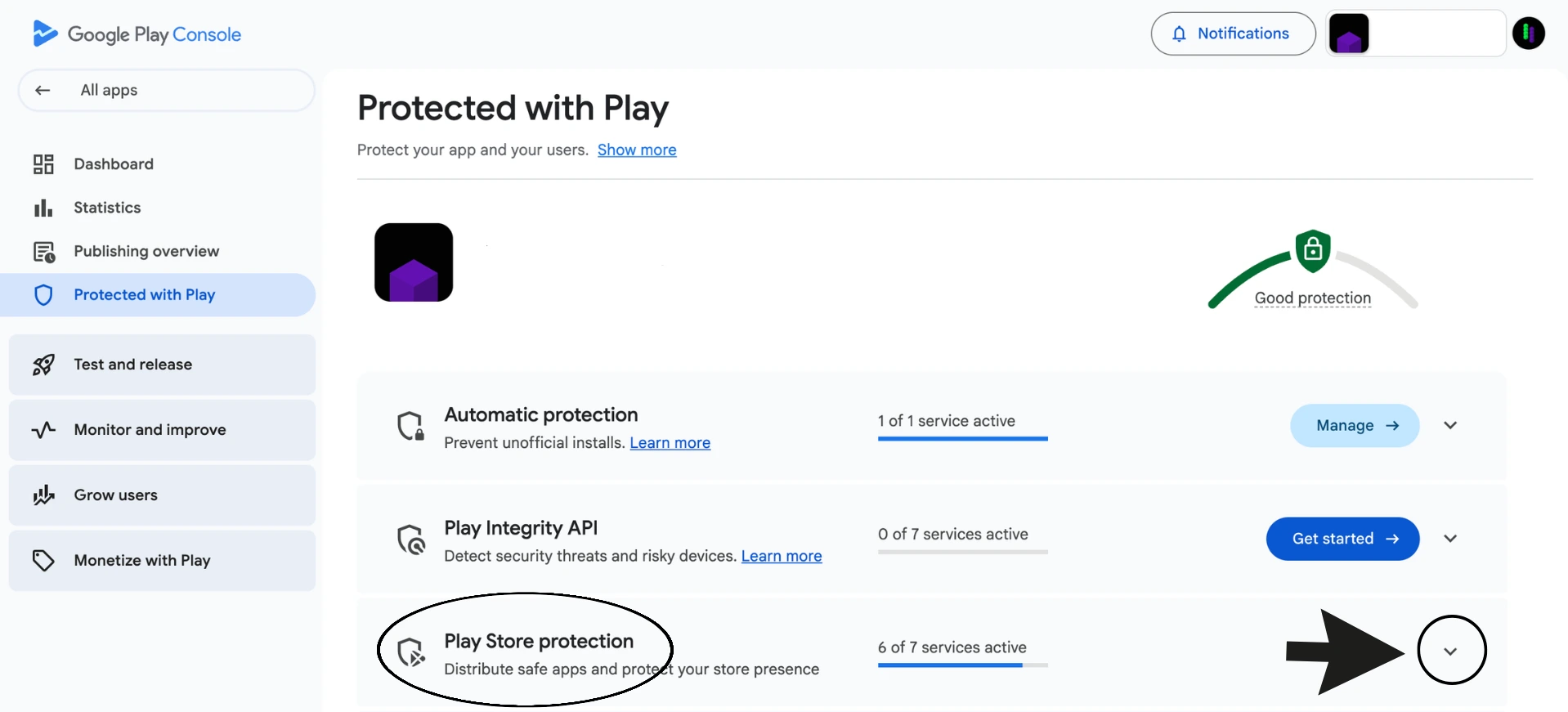
Step 4: Click on the Play Store Protection drop-down. And click on Manage Play App Signing.
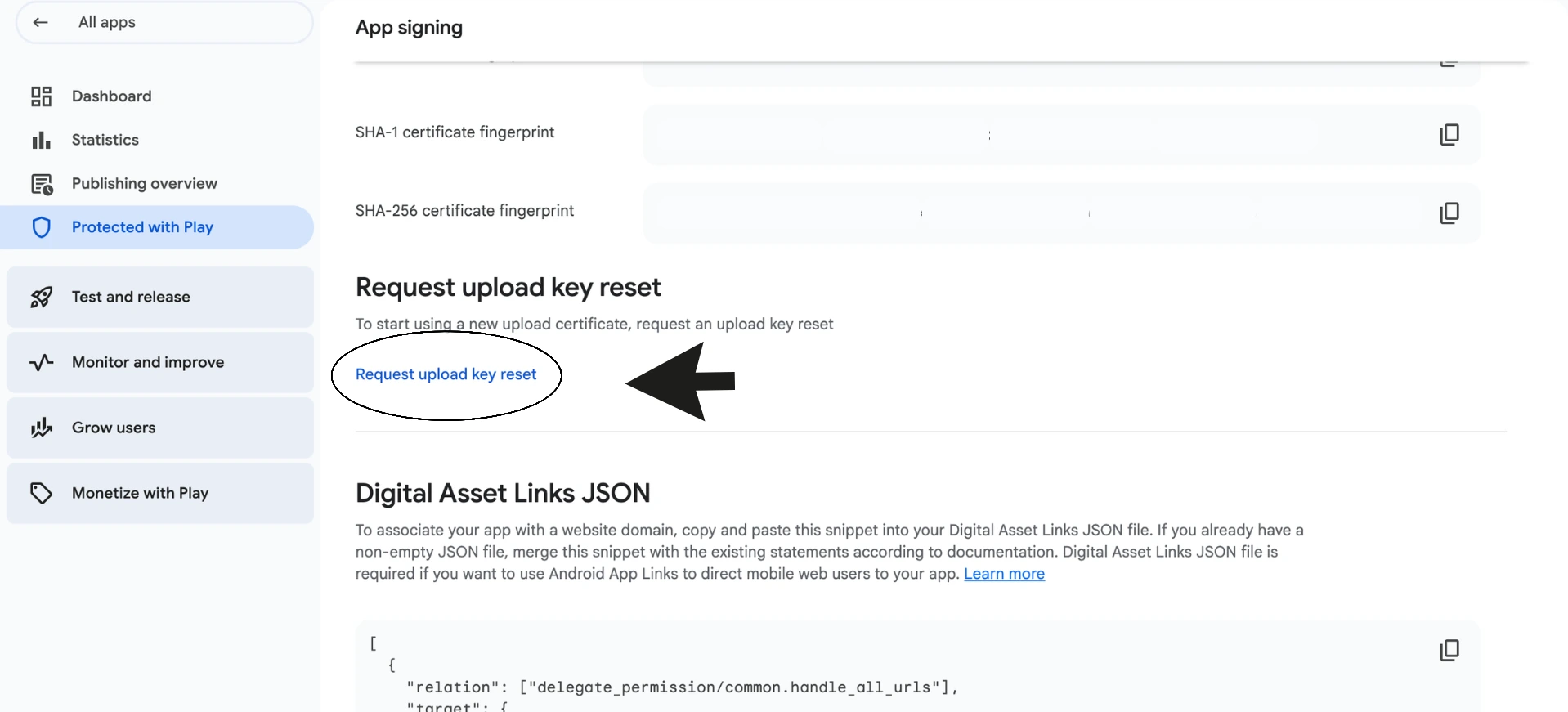
Step 5: On the App Signing page, scroll down to the Upload Key Certificate section. And click on Request Upload Key Reset.
Step 6: You will be prompted to choose the reason for the reset by a dialog box. The options include “I lost my upload key”, “I want to upgrade my key", or “My upload key was compromised”. Choose whichever matches your situation. If you lost your keystore or forgot the password, choose “I lost my upload key”.
Step 7: Click on “Upload the .pem certificate file generated from your upload key." And select the upload_certificate.pem file you generated earlier.
Step 8: Review everything one more time and then click on Send Request. You will receive a confirmation email from Google almost immediately acknowledging that your request has been received.
What Happens After You Submit
Google reviews the upload key reset request manually. Google’s approval can take a few minutes or hours in some cases, while other requests may take 1 to 2 business days. You'll receive an email once your request has been reviewed.
When your request is approved, Google will send you an email with a specific date and time indicating when your new upload key will become active. After the activation point, any release you sign with your new keystore will be accepted by Google Play.
Until that activation date, if you still have access to your old keystore, use it to push any urgent updates. Do not try to upload anything unsigned or signed with the new key before Google confirms its activation.
As the new key is activated, update your signing configuration. In Android Studio, this usually means updating your key.properties file or the signing block in your build.gradle to point to the new keystore file and use the new password and alias.
What If You Don’t See The Reset Key Option
Two things you must check if the “Request Upload Key Reset” button is not showing:
1. You are not signed in as the account owner.
This is one of the most common reasons you won’t see the reset key option. Only the account owner has access to this specific option. Log out or log back in with the original account that owns the Play Console.
2. Your app is not enrolled in Play App Signing.
If your app was published before Play App Signing was introduced or made mandatory, it might not be enrolled. In this case, there is no upload key reset option because Play App Signing is what enables the complete system. You would need to contact Google Play support through the Help section in the Play Console and explain your situation.
If you are not on Play App Signing and you have truly lost your original keystore, your options are unfortunately very limited, which is why Google made Play App Signing the default for new apps.
Frequently Asked Questions
Q1. Will users who have already installed my app be impacted if I reset my upload key?
A. No, the app signing key that Google uses to sign what users download does not change. Users will not notice anything different.
Q2. Will this affect my SHA fingerprints for Firebase or Google Maps?
A. Your app signing key fingerprint, which is used by Firebase, Google Maps, and the majority of OAuth setups, won't change, but your upload key fingerprint will. Just to be sure, check again in the dashboard of your API provider.
Q3. Can I cancel the request after submitting?
A. Yes, as long as Google hasn't yet processed the request, a cancel option should be visible on the App Signing tab in the Play Console.
Q4. Do I need to update anything in my project after the reset?
A. Yes, update your key.properties file or your build.gradle signing configuration to use the new keystore path, new password, and new alias. Your CI/CD pipeline, if you use one, will also need to be updated with the new credentials.
Q5. What if I forgot my keystore password?
A. There is no way to recover a forgotten keystore password. Java keystores do not have a password reset option. This is a situation of a lost keystore, so go ahead with the upload key reset request on Play Console.
Q6. Can I reset the upload key for an app not enrolled in the Play App Signing?
A. No, the upload key reset option is accessible only for apps enrolled in the Play App Signing. If your app is not enrolled, there is no upload key separate from your signing key. They are both the same.
Final Thoughts
Losing your upload key is a terrible thing, but it can be recovered. Once your app is enrolled in Play App Signing, Google has you covered. Generate your new keystore, export the .pem file, and submit the reset request, and you will be back to publishing within 1 to 2 business days.
The only thing I have to say, and I cannot stress this enough, is to immediately back up your new keystore the moment you generate it. This entire process exists because developers lose their keystores, and once you go through it, you won’t go back to it. Google activates your new key, updates your signing configuration, and you are good to go.
Similar Blogs