


What Are Push Notifications? How They Work for Websites and Apps
Published on:
6 November, 2026
TL;DR:
"Hey User! Get a flat 60% off on the products in your wishlist."
We all come across these types of messages on our phones. Whenever we see an offer like this, we usually stop for a moment and read it because it catches our attention. Sometimes, it even makes us open the app and check out the offer. These interesting messages are managed by a feature called push notifications.
What is a push notification?
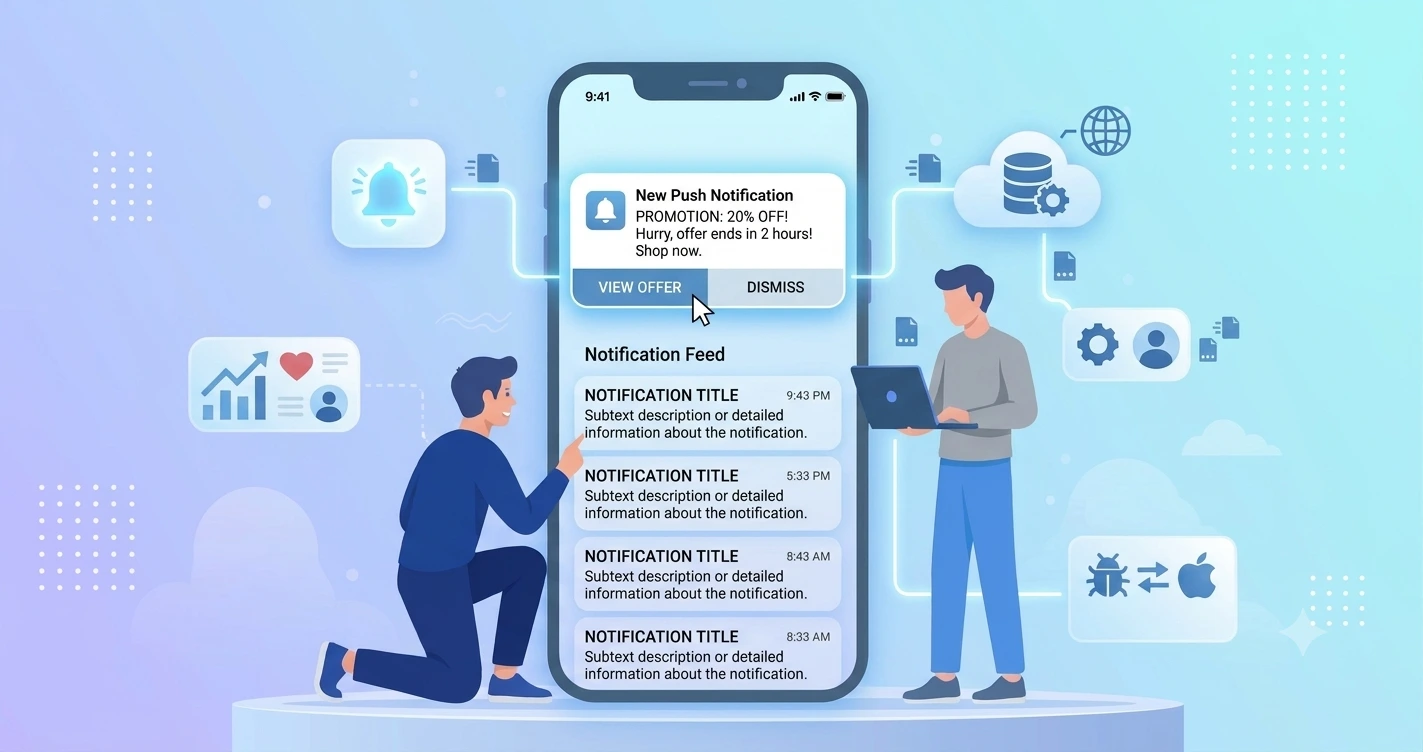
A push notification is a short message that an app or website delivers directly to a user's device. It appears on the phone's home screen or notification bar, even when the user is not using the app or has closed the browser. These messages usually include a short title, a message, and sometimes an image or a button that takes the user directly to a particular page or offer.
Businesses use push notifications to stay connected with their users and keep them updated. For example, an online shopping app can send notifications about new offers, discounts, and order updates. In the same way, a service-based business can send appointment reminders, booking updates, or important announcements.
To receive push notifications, users need to allow the app or website to send them. Once they give permission, they can start receiving these messages on their devices. Users can also turn off notifications anytime through their phone or browser settings.
How does a push notification reach a phone?
A push notification is sent from a business’s server or notification tool to the user's phone. Here is how the process works:
1. The business creates a notification.
The business writes a message it wants to send to users. For example, "Get 60% off on your favorite products!" It can also add an image, a title, or a button to the message.
2. The notification is sent to a push notification platform.
Once a business sends a push notification, the message is routed through a push notification platform, which helps deliver it to users' devices. Mobile apps use services such as Firebase Cloud Messaging (FCM) for Android and Apple Push Notification Service (APNs) for iOS. Web apps use web push services to deliver notifications through supported browsers to users' devices.
3. The platform identifies the user's device.
When users allow notifications, their device gets a unique notification ID. The push notification platform uses this address to identify which phone should receive the message.
4. The notification reaches the phone.
The push notification provider sends the message to the user's device through the internet. The phone receives it even if the app is closed or running in the background.
5. The notification appears on the screen.
The phone displays the notification on the lock screen or notification panel. Users can tap it to open the app and view the offer, update, or information.
What is the difference between web push and app push?
Here’s a clear difference between web push and app push:
| Question | Web push | App push |
|---|---|---|
| Where it comes from | A website, through the browse | An installed app on the phone |
| What the user installs | Nothing on Android: visitors just tap Allow in the browser. On an iPhone, the site must be added to the Home Screen first. | The app, from Google Play or the App Store |
| Who asks for permission | The browser, on your site | The app, usually at first launch or a key moment |
| Does it provide custom sounds | No | Yes |
| Are there rich content (images, buttons) | Partly, it varies by browser | Yes |
| Does it work when the browser is closed | Depends on the phone and browser | Yes |
| Who it is best for | Bringing visitors back to your website with reminders about items they viewed, abandoned carts, new blog posts, or limited-time offers. | Keeping regular customers connected with order confirmations, delivery updates, payment reminders, loyalty rewards, and offers based on their interests. |
Do push notifications work on iPhone for websites?
Yes, but there is one condition: Since iOS and iPadOS 16.4, websites can send push notifications to iPhones and iPads, but users must first add the website to their home screen to receive them. Only opening the website in a browser is not enough to turn on notifications.
What does this mean for your business?
- Visitors need to add your website to their home screen.
First, they have to open your website in a browser, tap the Share option, and select Add to Home Screen. This makes your website appear like an app icon on their phone.
- They must allow notifications.
Adding your website to the home screen does not instantly set up notifications. Users must open the website using its Home Screen icon and choose to allow notifications when asked.
- Not everyone will complete these steps.
Some visitors may not know how to add a website to their home screen. Others may find the extra steps annoying and leave without subscribing. This means you may miss the chance to send updates to many of your website visitors.
- Mobile apps make the process easier.
When you convert your website into an Android or iOS app, users can install it directly from Google Play or the App Store. The app can then ask them for permission to send notifications without requiring them to add your website to their home screen first.
- You can stay connected with your customers.
Once users allow notifications, you can send them order updates, new offers, discounts, reminders, and important announcements. These notifications can reach their phones even when they are not actively using your app.
Websites can send push notifications to iPhones and iPads, but users need to complete a few extra steps before they can receive them. A mobile app makes this process easier because users can install it directly from an app store and enable notifications from there. This can make it more convenient for your business to stay in touch with regular customers.
When should an app ask for push permission?
An app should ask for notification permission when users can understand how messages will be useful to them. The timing may depend on the type of app and the services it offers. For example, take Bewakoof, the e-commerce app. When users install and open the app for the first time, it immediately asks them to allow notifications. This gives users an early chance to receive updates about new offers, discounts, product launches, and orders.
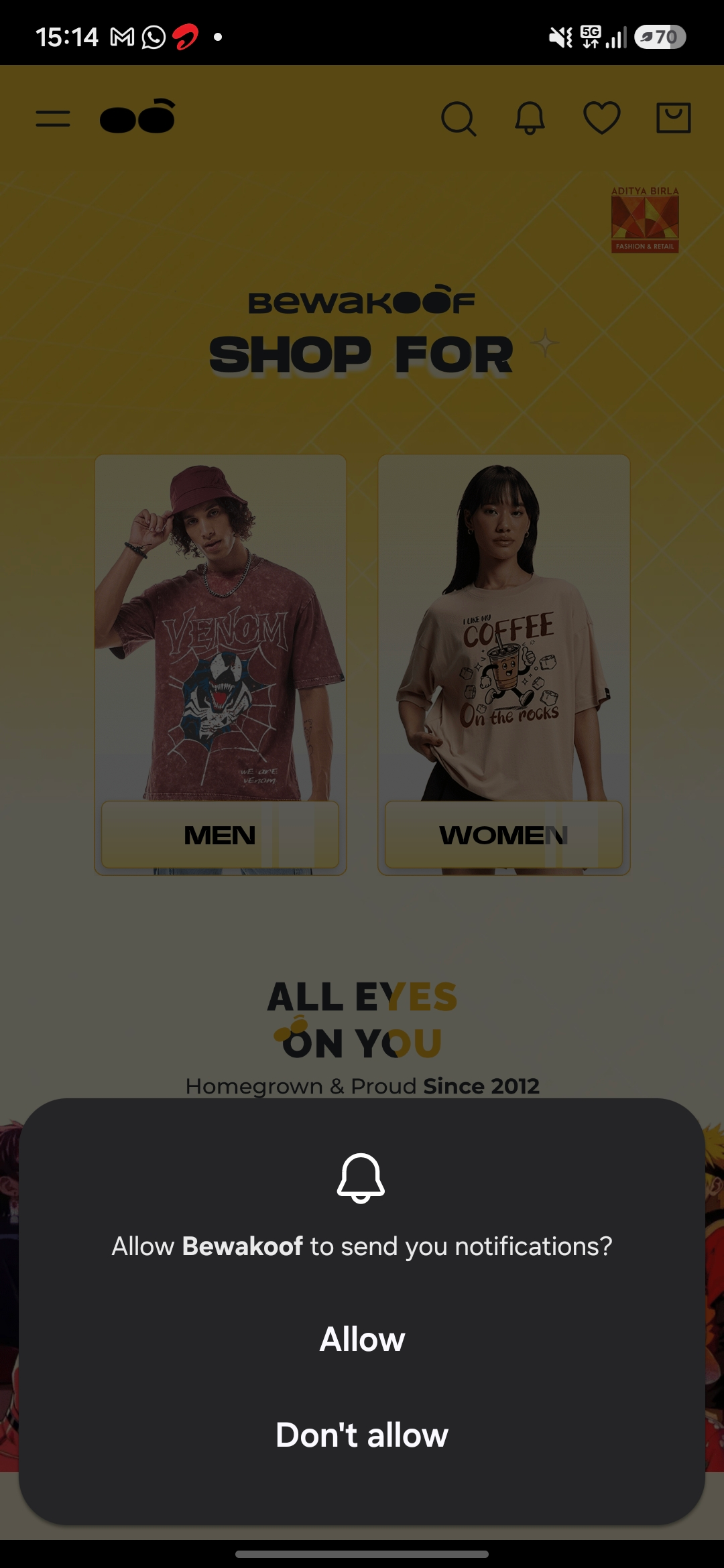
This approach works well for apps where regular updates are important. However, you can also let users explore your app first and ask for permission when they use a feature where notifications would be helpful. The important thing is to make the purpose clear and let users decide whether they want to receive notifications. You can follow the approach as recommended in the Android and Apple guidelines.
What do good push notifications look like?
A good push notification should give users information that is useful to them. It should be short, easy to understand, and sent at the right time. Instead of sending messages just to get users to open the app, focus on sharing updates that they actually need.
Here are a few examples of useful push notifications:
1. e-commerce app: “Your order 365 has been shipped. Tap here to track your delivery." This keeps customers informed about their orders and lets them check when their package will arrive.
2. Coaching class app: "Tomorrow's class will start at 9 AM instead of 8 AM." This helps parents and students know about schedule changes so they don't miss their classes.
3. Clinic app: "A quick reminder: Your appointment is today at 6:30 PM." This reminds patients about their upcoming appointments and helps them avoid missing them.
4. News applications or web apps: "The new budget has been announced. See what it means for small businesses." This helps readers stay updated about topics and news they are interested in.
5. Customer Service app: "Your login code is 184966. It will expire in 10 minutes." This gives users the code they need to log in without making them wait or search for it.
What makes these notifications good?
- Useful information: Every notification shares something the user may need, such as an order update, appointment reminder, or login code.
- Short and simple: The message shares the main information without using unnecessary words. Users should be able to understand it without opening the app or reading a long message.
- Relevant to the user: The notification should be related to something the user has done or shown interest in. For example, sending a delivery update to someone who has placed an order.
- Sent at the right time: Notifications should reach users when the information is important. An appointment reminder should arrive before the appointment, not after it.
- Gives users a next step: Whenever possible, tell users what they can do next. For example, they can track an order, check a new update, or enter a login code.
You can also use push notifications to share discounts, special offers, new products, and upcoming sales. But make sure these messages are useful to the people receiving them.
For example, sending a discount on a product that a customer has saved or viewed can encourage them to visit your app again. Sending the same promotional message every day can annoy users and make them turn off notifications.
How does a website-based app send push notifications?
If your app is built from your website using Webtonative, push notification add-ons are provided. You can choose different ways to send notifications depending on your business needs and how you want to manage them.
1. OneSignal add-on OneSignal gives you a dashboard where you can write, schedule, and send push notifications to your app users. You create a OneSignal account and enter your OneSignal app ID in Webtonative. You can send the same message to everyone or select a particular group of users. It also provides an API that allows you to send notifications automatically from your own system. For example, an online store can use it to send messages about new products, discounts, and special offers. Read more about OneSignal.
2.Google Firebase Notification add-on This option uses Firebase Cloud Messaging (FCM) to send notifications to individual devices or a group of users. It is useful for businesses that already use Google Firebase or want to manage notifications through their existing Firebase setup. For example, a booking app can send an appointment reminder to a particular user or share an important update with a selected group. Know more about Firebase Cloud Notification .
3.WooCommerce push notifications If your website runs on WooCommerce, you can use supported plugins to send order-related notifications automatically. For example, when a customer places an order, makes a payment, or their order is shipped, they can receive an update on their phone. This saves you from manually writing and sending a notification every time an order status changes. Explore more on WooCommerce Notifications .
Once your notification system is set up, you can also add a specific notification sound to your app.
Notification services such as OneSignal have their own pricing and limits, billed separately from your Webtonative plan. Check its plan details before sending to a large audience.
Why are push notifications not showing up on Android and iOS?
Sometimes, users may not receive push notifications even when they have installed your app and enabled notifications. This can happen for several reasons. Here are some common reasons why Android and iOS push notifications may not work:
For Android:
1. The phone's battery management is restricting the app.
Some Android manufacturers, such as Xiaomi, OPPO, and Samsung, have additional battery management settings that can limit background activity. These restrictions may delay notifications or affect their scheduled delivery. Users may need to allow the app to run in the background or adjust its battery settings.
2. The app is not properly registered with Firebase Cloud Messaging (FCM).
Many Android apps use Firebase Cloud Messaging (FCM) to receive push notifications. If the app's FCM setup is incorrect, its Firebase configuration is missing, or the device registration token is outdated, notifications may not reach users. Developers should check the FCM setup and make sure the app is correctly registered.
3. The app's notification channel is disabled.
Android uses notification channels to let users control different types of alerts from an app. For example, users can turn off promotional notifications while keeping order updates enabled. If a notification channel is disabled or muted, alerts sent through it may not appear or make a sound.
For iOS:
1. Focus mode, or Do Not Disturb, is turned on.
iPhones have Focus modes, such as Do Not Disturb and Sleep, which help users avoid interruptions. When these modes are enabled, notifications from certain apps may be silenced or delayed. Users can check their Focus settings and allow notifications from your app if they want to receive them.
2. Notifications are going to the Scheduled Summary.
iPhones have a feature called Scheduled Summary that collects notifications from selected apps and shows them together at a chosen time instead of displaying them immediately. If your app is included in this setting, users may not see your notifications as soon as they are sent. They can change this by going to Settings, selecting Notifications, and choosing Immediate Delivery for your app.
3. The app has an incorrect APNs configuration.
Apple uses Apple Push Notification Service (APNs) to deliver notifications to iPhones. If the app's APNs setup is incorrect, or its certificate or authentication key is missing or expired, notifications may fail to reach users. Developers should check the APNs configuration and make sure the correct credentials and device tokens are being used.
Frequently asked questions
Ques 1. What is the difference between push notifications and in-app notifications?
Ans: The main difference between in-app messages and push notifications is where and when users see them. Push notifications appear on a user's phone screen, even when they are not using your app. They are mainly used to share important updates, reminders, offers, and announcements that encourage users to open the app. For example, an online store can send a notification saying, "Your order has been shipped. Tap here to track it." On the other hand, in-app messages appear inside the app while users are actively using it. They help businesses share information, introduce new features, promote offers, or guide users through different sections of the app. One important difference is that push notifications require users' permission, while in-app messages generally do not need separate notification permission. Both are useful ways to communicate with clients. Push notifications help bring users back to your app, whereas in-app messages help you connect with them during their visit.
Ques 2. Are push notifications free to send?
Ans: You can send push notifications for free using some services, but the cost may vary depending on the provider and the features you want to use. For example, Firebase Cloud Messaging (FCM) and Apple Push Notification Service (APNs) allow businesses to send push notifications without paying for each message. Services like OneSignal also offer free plans with basic features, while advanced features, a larger audience, and additional tools may require a paid subscription. However, if you use a third-party notification service, you should check its pricing and usage limits before getting started. You may also have to pay extra for features such as advanced targeting, automation, and analytics. Sending basic push notifications does not always require a paid plan, but managing and sending notifications at a larger scale may involve additional costs.
Ques 3. Can I send push notifications without an app?
Ans: Yes, you can send push notifications without having a mobile app. You can do this through web push notifications, which allow businesses to send messages directly to users through their web browsers. Users don't need to download or install an app to receive these notifications. They only need to visit your website and allow notification permission when asked. For example, a news website can use web push notifications to alert readers about breaking news, important announcements, new articles, or updates on topics they follow. These notifications can appear on users' devices even when they are not actively browsing the website. There are some conditions. Your website must support web push notifications, and users must give permission to receive them. On iPhones and iPads, users must also add your website to their Home Screen before they can turn on web push notifications. So, if you don't have a mobile app yet, web push is a useful way to stay connected with your website visitors without requiring them to install one.
Ques 4. How often should I send push notifications?
Ans: You should send push notifications only when you have something useful or important to share with your users. Avoid sending messages too frequently, as too many alerts can annoy users and make them turn off notifications or uninstall your app. The frequency also depends on your business and the type of updates you share. For example, an e-commerce app can send notifications about order updates, special discounts, and offers on products users have viewed. A banking app can send alerts about successful payments, account activity, and upcoming bill payments. Similarly, a travel app can notify users about booking confirmations, flight delays, and changes to their travel plans. Instead of sending notifications just to keep your app active on users' phones, focus on sharing messages that are relevant to their preferences and needs. Also, avoid sending the same message multiple times. The goal is to make every notification useful enough that users are satisfied to receive it.
Conclusion
Push notifications are a simple way to stay connected with your users and keep them updated. They help businesses share important news, send reminders, promote offers, and bring users back to their apps. Whether you use web push or app push, the goal should be to send messages that are useful and relevant to your users. Before sending notifications, make sure you understand what your users want to hear about. Ask for permission at the right time, choose the right notification service, and avoid sending too many messages. Nobody likes getting alerts that don't matter to them. Remember, push notifications are not just about getting users to open your app. They are about giving them a reason to come back. When you send the right message at the right time, you can build better relationships with your customers and make their experience with your app more enjoyable.
Similar Blogs