



How to Set Up Custom Notification Sound in OneSignal — Android & iOS Guide
Published on:
30 June, 2026

By Mohit Jangir
Software Test Engineer
Table of contents
Push notifications are one of the most powerful ways to bring users back to your app and encourage them to take action inside the app. There is one way that makes a notification stand out from every other app notification on the mobile device — A Custom Sound.
A Custom Notification Sound gives your app its own presence. Users start recognizing your app just by the sound it plays when pushing a notification. This is good for engagement, brand recall, and user retention.
This blog covers everything you need to know about setting up custom notification sounds in OneSignal for Android and iOS.
What Is a Custom Notification Sound in OneSignal?
A Custom Notification Sound is an audio file that plays on a user’s device when they receive a push notification from your app instead of playing a default sound.
OneSignal supports custom notification sounds on:
-
Android: Through Android Notification Channels
-
iOS: Through the ios_sound parameter
One thing to know is that custom sounds are not supported on web push. They only work on mobile apps.
The audio file must also be bundled inside the app itself. You cannot use an external URL or a hosted audio file. The file needs to be included in the app build before the app is published.
Why Should You Add a Custom Sound to a Notification?
Most apps use the default notification sound, so each app on the user’s phone sounds the same. When a notification pops up, the user has no idea which app it is coming from until they actually look at the screen. This is a missed opportunity.
The Custom Notification Sound changes that. The moment your sound plays, the users know it’s your app before they even pick up their phone. This minor detail does a lot of work:
1. Builds Brand Recognition
A different notification sound becomes part of how users identify your app. Over time, users begin to associate that specific sound with your brand.
2. Improves Response Time
If your app sends time-sensitive alerts such as order updates, breaking news, delivery status, or OTPs. A unique sound makes users react faster because they instantly know it needs attention.
3. Differentiate Important Alerts from the Noise
Using different sounds for different types of notifications helps users prioritize your app. A unique, loud, and alert tone for important alerts and a soft tone for general updates mean users do not have to open the app to know how important a notification is.
4. App Feels More Native and Intuitive
Apps that use default notification sounds for everything can feel generic. A custom sound, paired with proper branding, delivers a well-built and professional app.
5. Increases Mobile App Engagement
Notifications that users actually notice and encourage them to open the app more frequently. A custom sound that stands out directly impacts how often users come back.
The custom notification sound offers faster user response, better native experience, and polished app flow.
Requirements — Before You Start
Ensure these two things are in place before touching any OneSignal settings.
1. Your app is connected to OneSignal.
Confirm your app is listed in the OneSignal dashboard and push notifications are already working. Configure sound settings only after the basic push notification setup is complete.
2. Your sound file is included in the app build.
The audio file must be packaged inside the app binary. An update must be released before adding a sound file to a live application. If the app does not include your custom audio file, rebuild the app with the file included, then configure OneSignal.
What Audio File Formats Does OneSignal Support?
The supported file formats differ between Android and iOS. Using the wrong format is one of the most common reasons custom notification sounds fail silently. The notification still delivers, but the default system sound plays instead.
| Platform | Supported Formats | Maximum Length |
|---|---|---|
| Android | .mp3, .wav, .ogg | Under 30 seconds |
| iOS | .wav, .aiff, .caf | Under 30 seconds |
File Naming Rules to Keep In Mind
-
Always use lowercase file names. A few platforms ignore uppercase letters entirely, and the sound will not play. Use tone. mp3. Don't use file names like Tone.MP3.
-
Use underscores instead of spaces, like alert_tone.mp3.
-
For Android, don’t include the file extension while referencing the sound in OneSignal. For example, enter only the name of the file, like "tone." Do not write like tone.mp3.
-
For iOS, always include the file name with the extension, like tone.wav.
How to Set Up Custom Notification Sound on Android
Android 8.0 and above use a system called Notification Channels. OneSignal calls these "Notification Categories" to control how notifications behave, including which sound they play, lock screen visibility, importance level, and vibration.
NOTE: You cannot set a custom notification sound on Android without first configuring a Notification Channel in OneSignal.
Step 1: Log in to Your OneSignal Dashboard
Navigate to OneSignal and log in with your account credentials. Select the app you want to configure.
Step 2: Navigate to Android Notification Channels
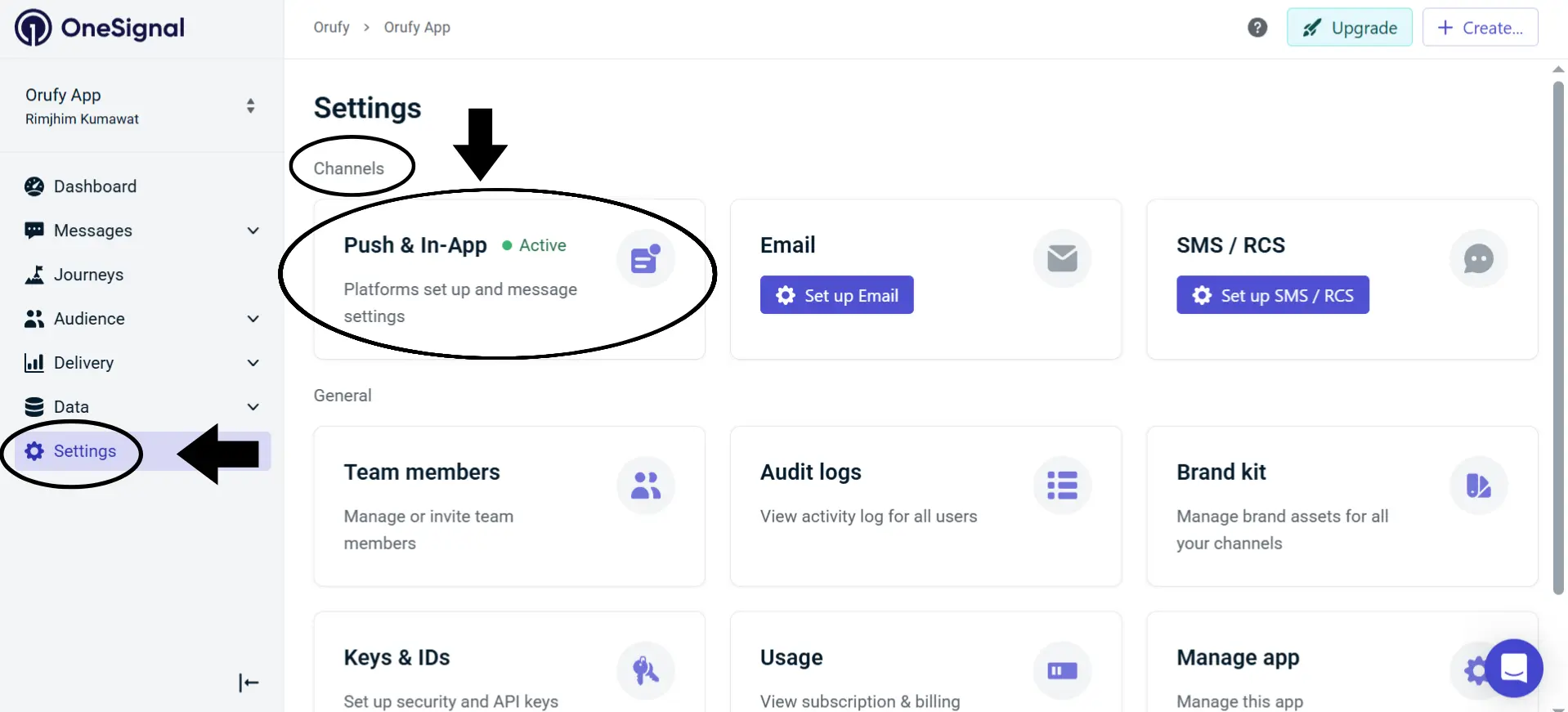
From the left sidebar, go to Settings → Push & In-App → Android Notification Channels.
Step 3: Add a Group
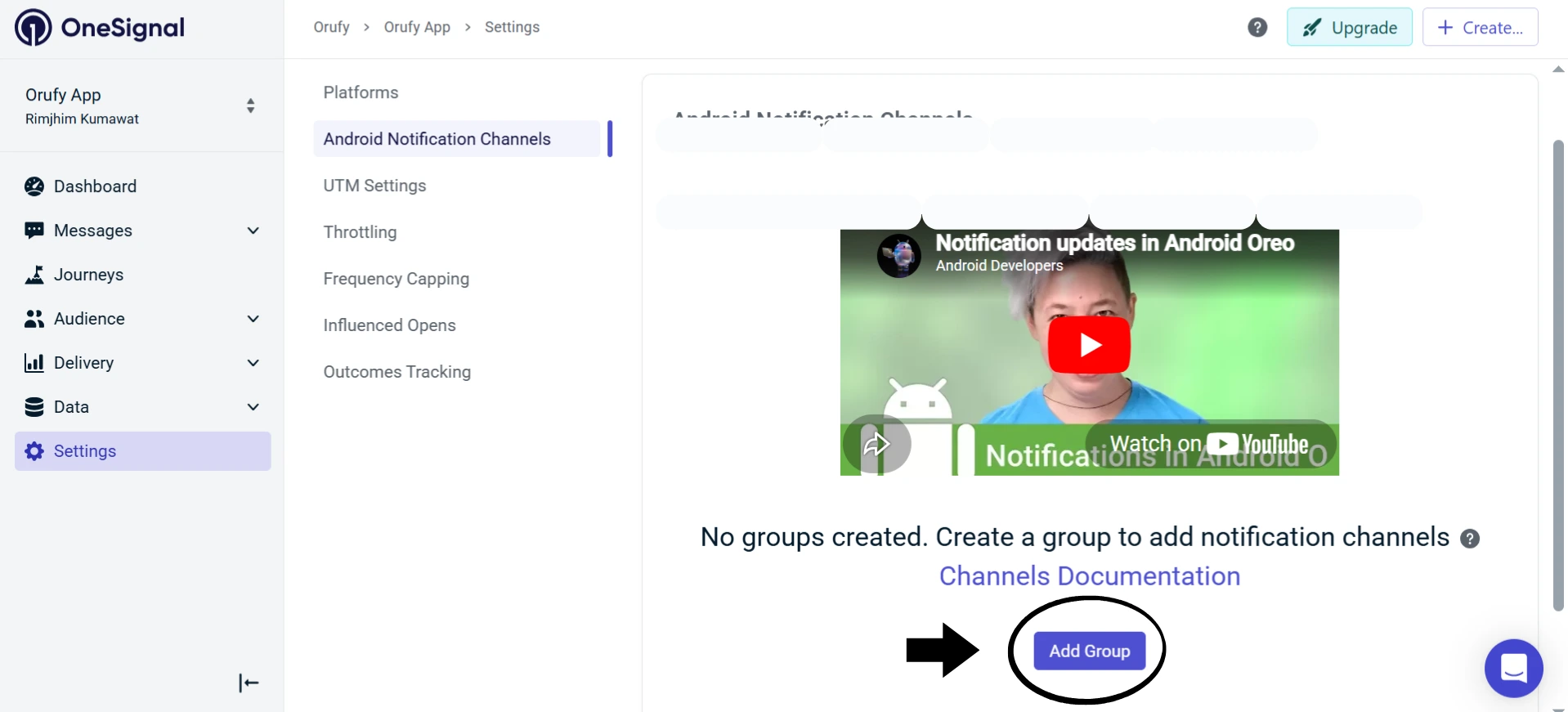
Click on Add Group. Groups are how OneSignal organizes your notification categories.
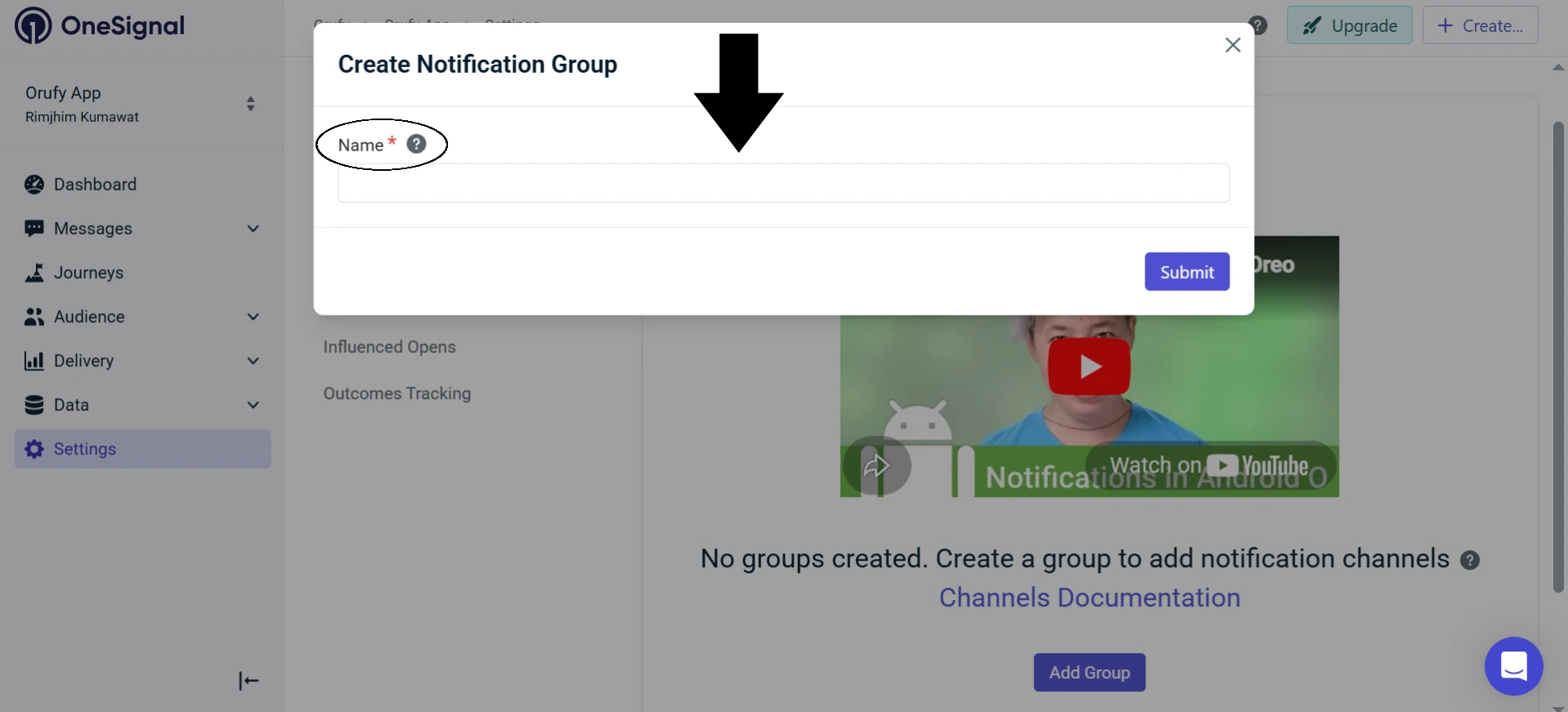
Define the group with a clear and descriptive name. This name is user-visible in Android notification settings. For example, “Alerts” or “Updates” use these kinds of group names.
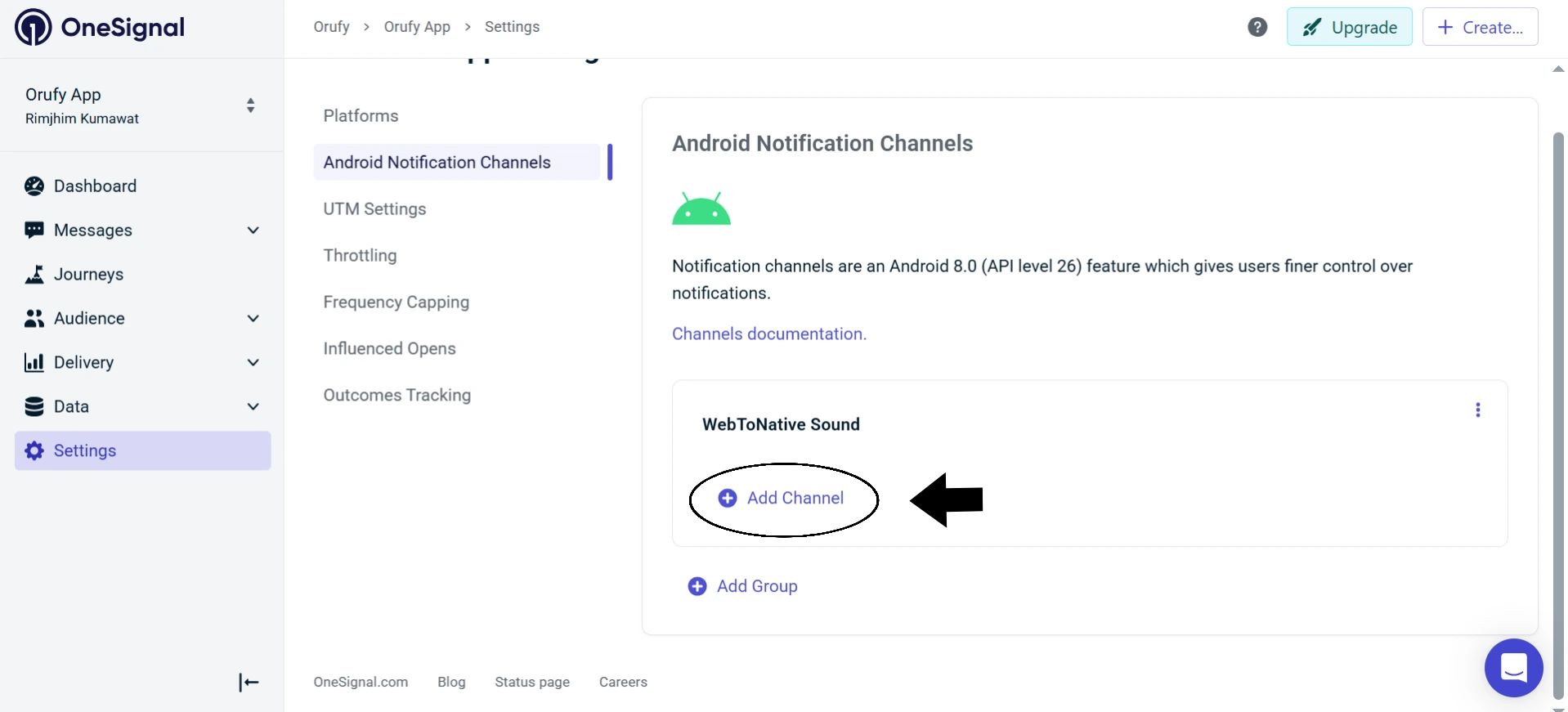
Step 4: Add a Channel
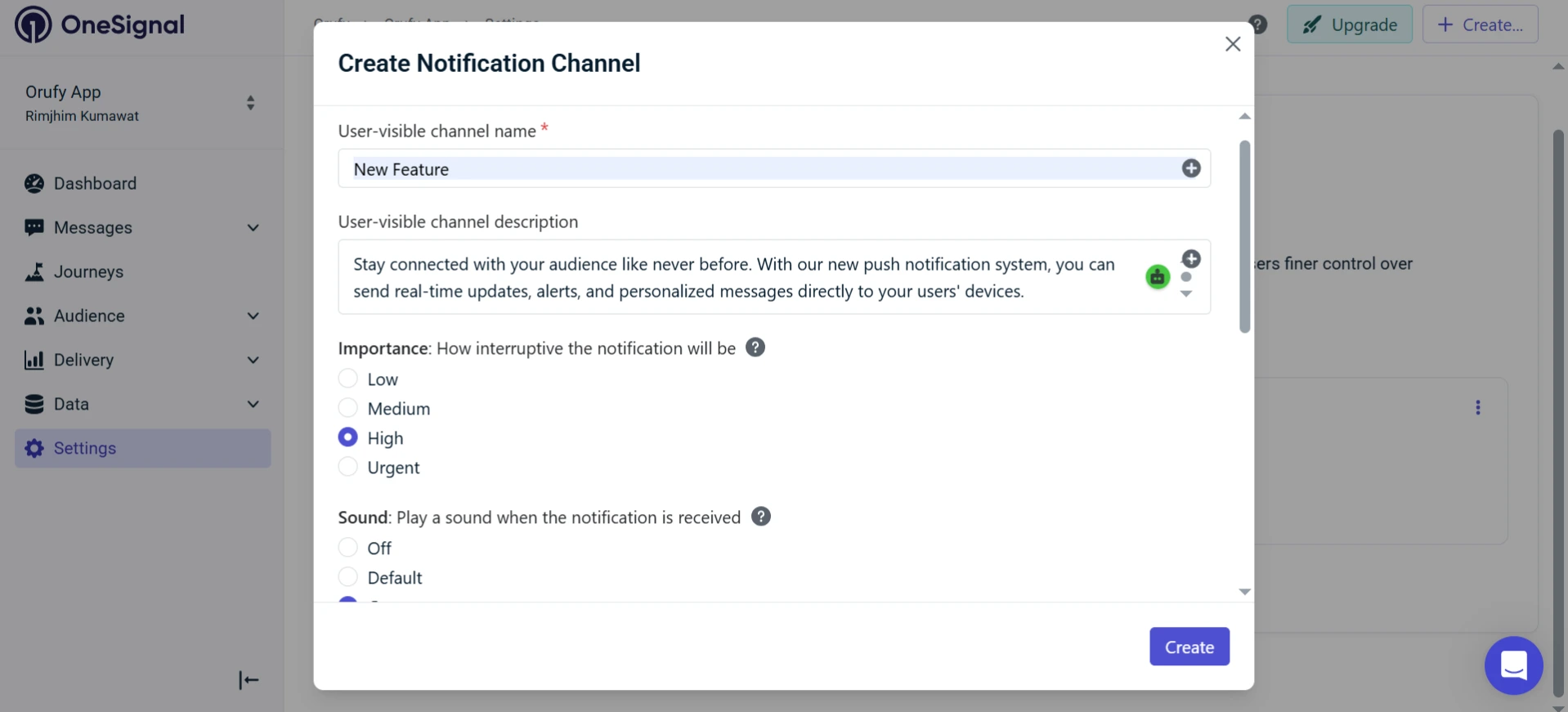
Click on Add Channel to add it to your group. You will be asked to fill in the following details:
-
Name: Make sure it's precise and informative.
-
Description: Briefly describe what type of notifications this channel will handle.
-
Importance: This controls how interruptive the notification is:
| Importance Level | Sound | Vibration | Screen Pop-Up |
|---|---|---|---|
| Low | No | No | No |
| Medium | No | No | No |
| High | Yes | Yes | No |
| Urgent | Yes | Yes | Yes -- Pop Up Notificaion |
Set this from High to Urgent for the custom sound to play. If you set it to Medium or Low, no sound plays regardless of your sound setting.
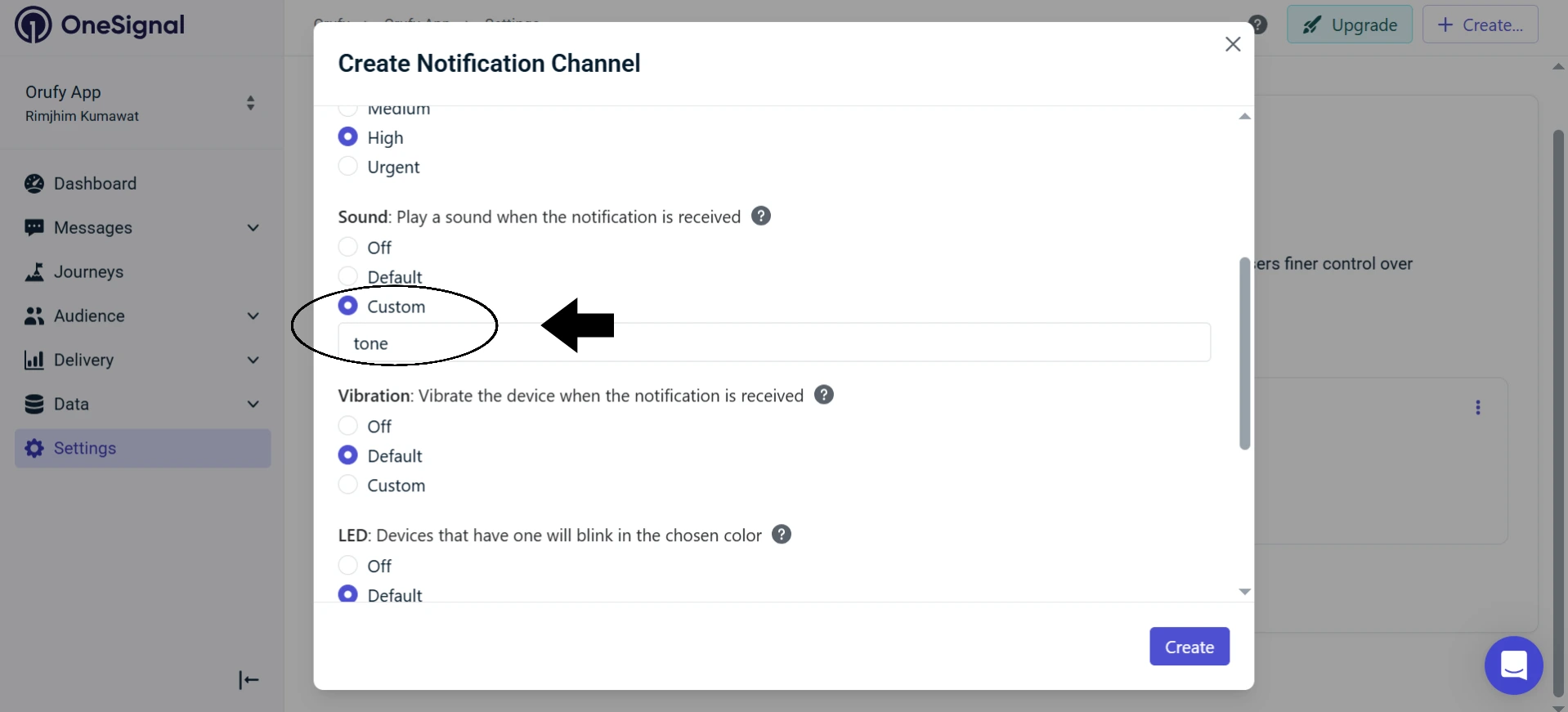
Sound: Change this from Default to Custom. Enter the file name of your audio file without the file extension. For example, if the name of the file is tone.mp3 and you enter tone.
Step 5: Save the Channel ID
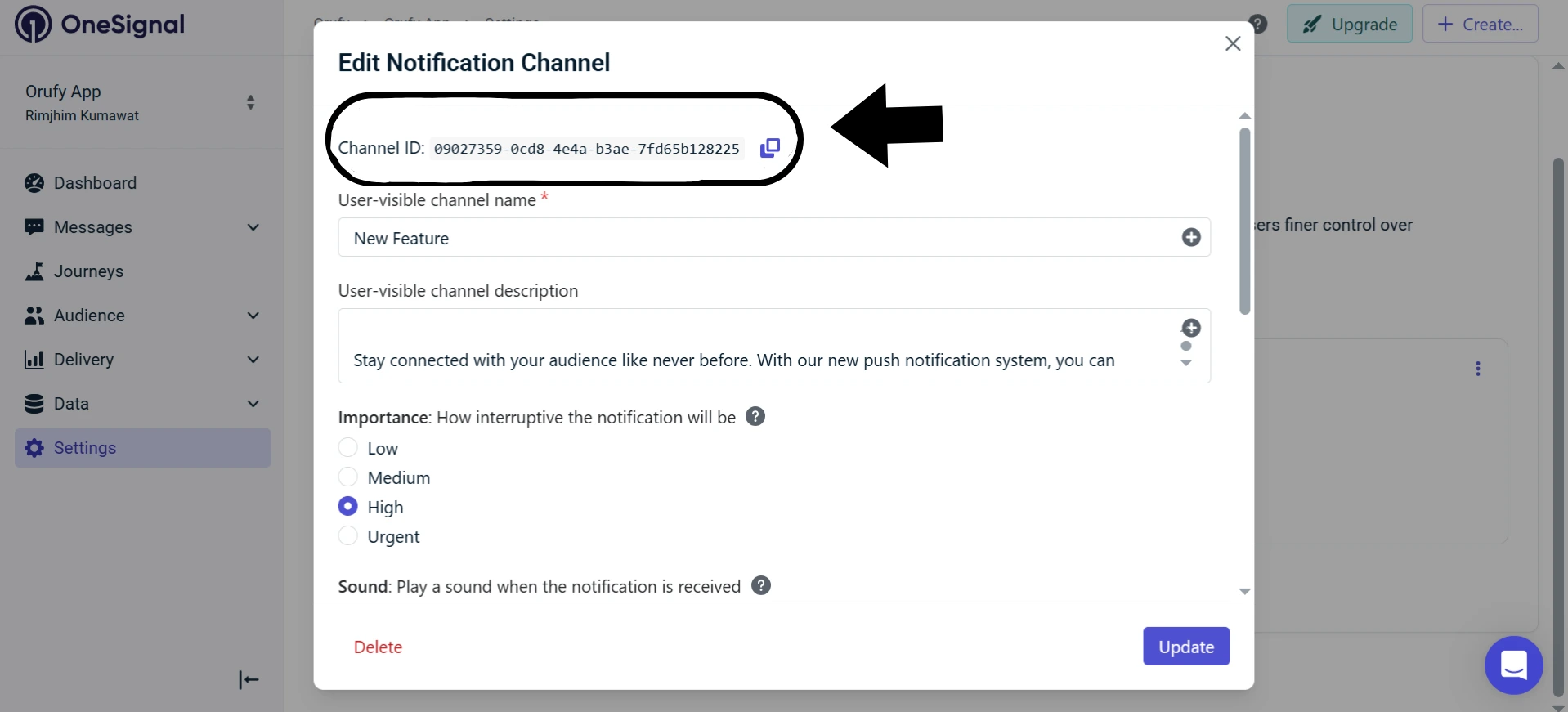
After saving the file, OneSignal shows you a Channel ID – a unique identifier for the channel. You must copy it and keep it safe. You require this channel ID when sending notifications that should use this custom sound.
How to Set Up Custom Notification Sound on iOS
iOS does not use Notification Channels. So the setup becomes simpler. You have to refer to the sound file directly each time you send a notification.
Step 1: Confirm the Sound File Is In the App Build.
The audio file must be bundled in the app. It supports iOS formats, including .wav, .aiff, and .caf. The file must be encoded as Linear PCM, IMA4 (IMA/ADPCM), µLaw, or aLaw.
Step 2: Reference the Sound When Sending From the Dashboard
While creating a push notification in the OneSignal dashboard:
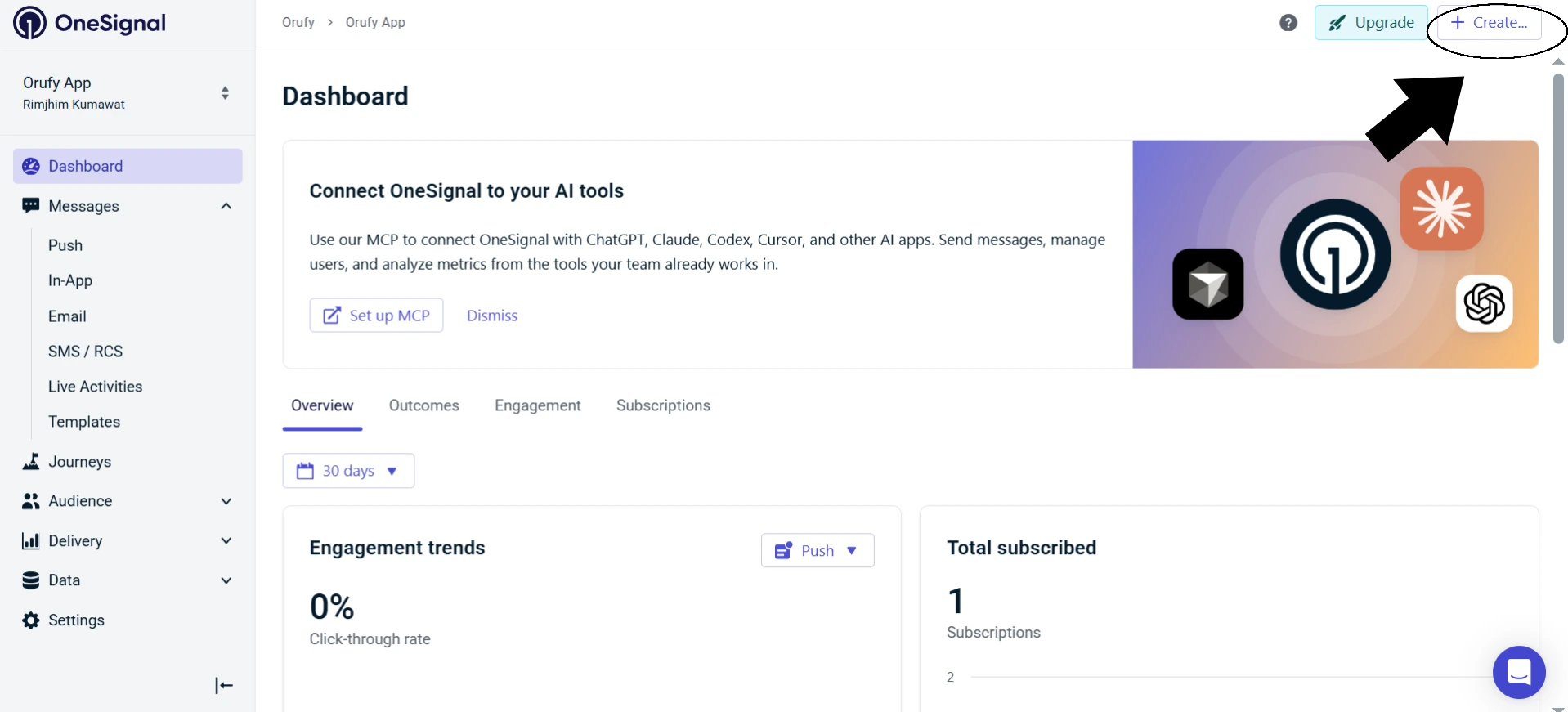
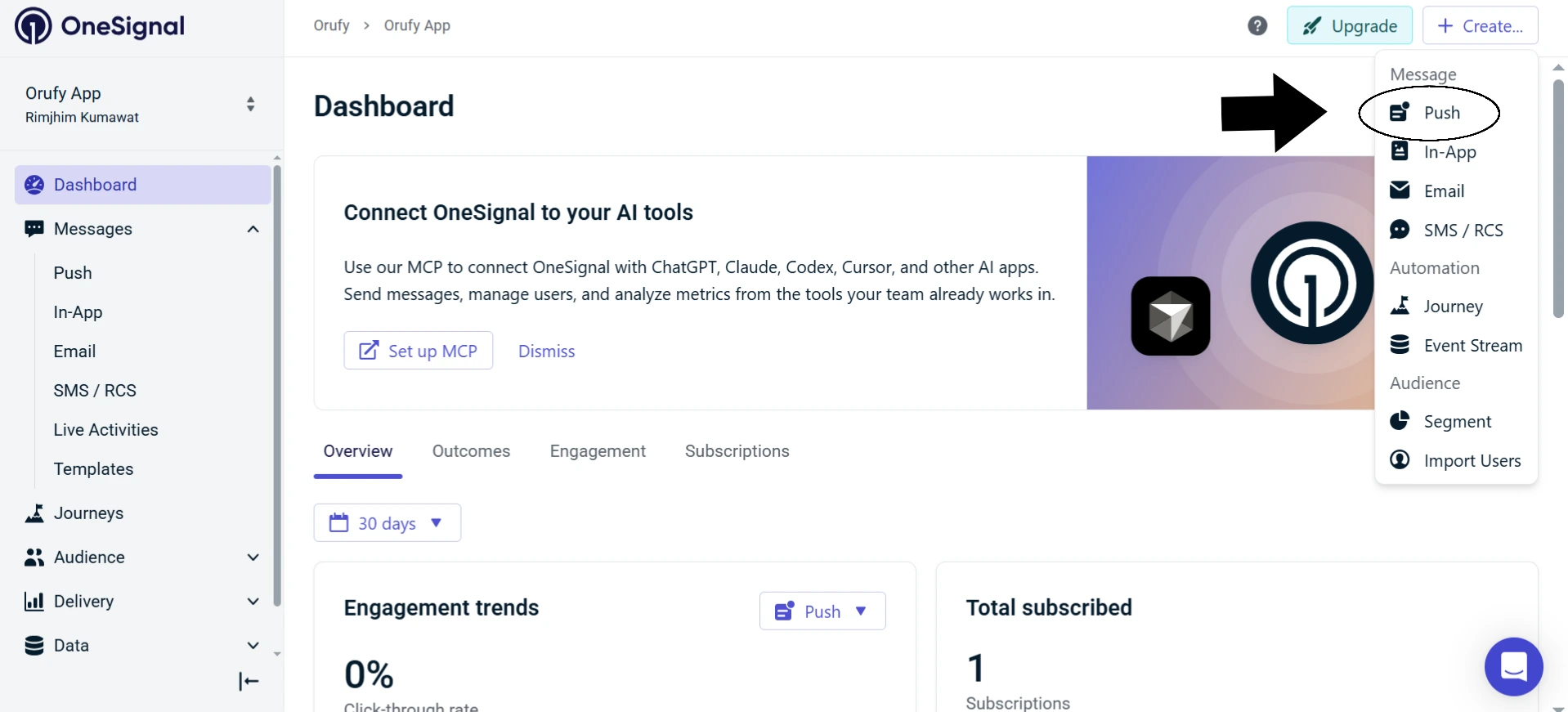
- Click on the Create. Select Push.
-
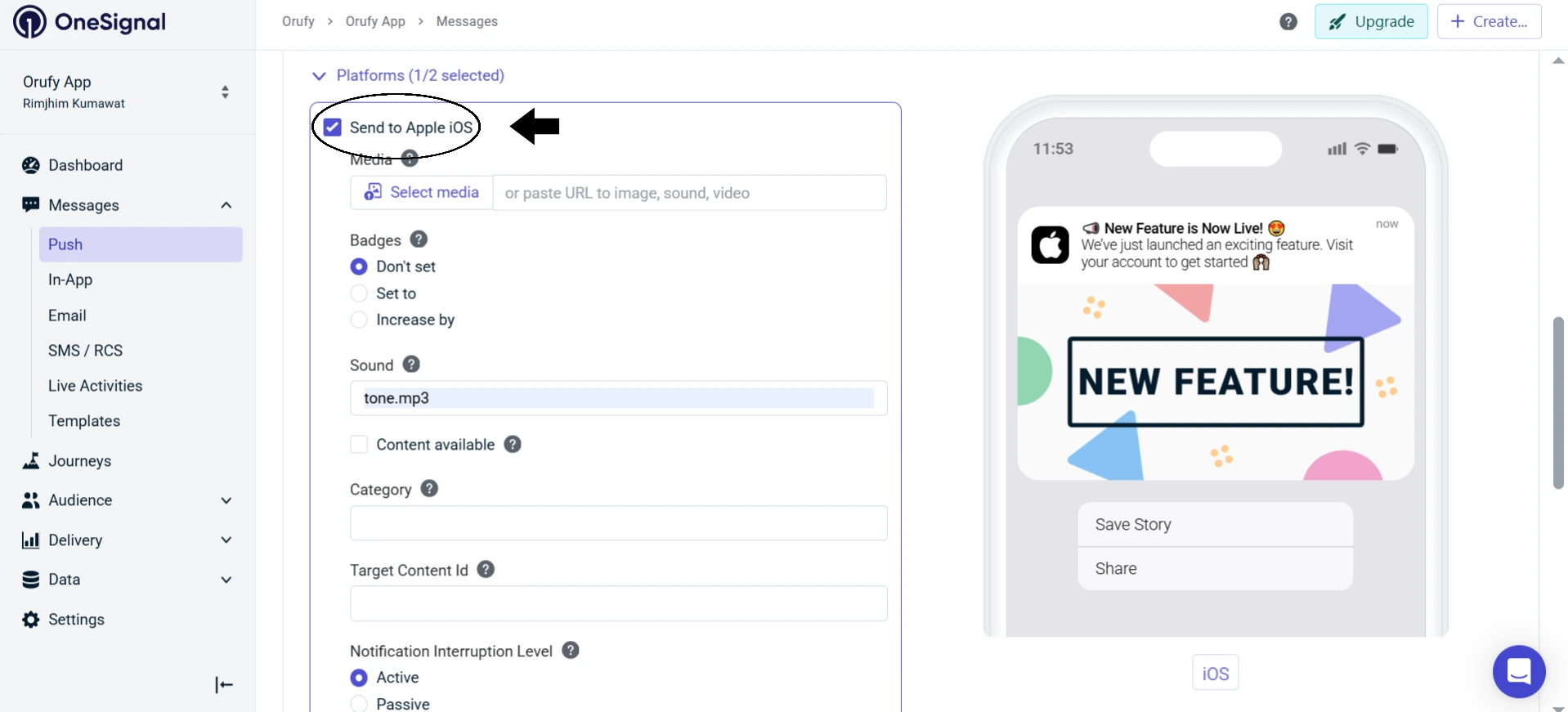
Under Platform Settings, select iOS.
-
In the Sound field, enter the file name with the file extension.
Step 3: Use the REST API (Second Option)
Use the ios_sound parameter with the file name, including the file extension:
{
  "app_id": "YOUR_APP_ID",
  "contents": {"en": "You have a new notification!"},
  "ios_sound": "tone.wav"
}
For no sound on iOS, pass nil to the sound field.
How to Send Notifications Using Your Custom Sound
From the OneSignal Dashboard
For ANDROID
-
Create a new push notification.
-
Under Platform Settings, open the Category drop-down under Android Settings.
-
Select the channel you configured with the custom sound.
-
If the channel was created programmatically in your app and not in the OneSignal dashboard. Select the Created in App and fill in the Existing Channel field with the channel name for your code.
For iOS
-
Create a new push notification.
-
Under Platform Settings, enter your sound file name with extension in the Sound field.
From the REST API
{
  "app_id": "YOUR_APP_ID",
  "contents": {"en": "You have a new notification!"},
  "android_channel_id": "YOUR_CHANNEL_ID_HERE",
  "ios_sound": "tone.wav"
}
IMPORTANT: Use android_channel_id only if the channel was created in the OneSignal dashboard. If you created the channel programmatically in your app code, use existing_android_channel_id instead.
Replace YOUR_CHANNEL_ID_HERE with the Channel ID from Step 5 of the Android Setup.
Reasons the Custom Notification Sound Is Not Playing
Below are the reasons why the Custom Notification Sound won’t play.
1. The sound file is not bundled in the app.
Users using older versions will not have the file and will hear the default notification sound. The audio file must be packaged inside the app. If it was added after the last app build, you must rebuild the app and publish an app update.
2. The importance level is set too Low or Medium on Android.
If the Android Notification Channel's importance is Low or Medium, no sound will play, either custom or default. Go to your channel’s settings in OneSignal and set Importance to High or Urgent.
3. The file extension is wrong.
For Android, the sound value must not have a file extension. For example, use tone only and not tone.mp3.
For iOS, the extension is required. For example, use tone.wav. Combining these is one of the most common causes of custom sounds for working.
4. Using uppercase letters in the file name.
Some platforms are case-sensitive. A file named Tone.mp3 may not be found if the system accepts only the tone.mp3 file. You must use only lowercase letters in the file names.
5. The channel settings changed after the first notification on Android.
Android locks notification channel settings after the first notification is received. Changes made in OneSignal to sound, importance, or vibration after that point will not apply to existing devices. Create a new channel if you need different settings. This is standard Android platform behaviour, view Android’s Official Notification Channels Documentation.
6. The unsupported audio format.
If the file format is not supported on that platform, the notification silently falls back to the default system sound. You must verify the format using the table given above.
7. Users are using older app versions.
If you added a custom sound in a recent app update, users using older versions will not be able to hear the custom sound on their devices. OneSignal recommends waiting for a few days after publishing a new update before sending notifications that rely on a new sound file, to allow most users to update.
8. The sound files are too long or too large.
You must keep files under 30 seconds. Many large or long sound files won't be able to play on some Android devices.
Frequently Asked Questions
Q1. What is a custom notification sound in OneSignal?
A. A custom notification sound is an audio file that plays when a user receives a push notification from your app. This can be used to build a unique presence for your app.
Q2. Does custom notification sound work on both Android and iOS?
A. Yes, OneSignal supports custom notification sounds on both Android and iOS. Custom sounds are not available for web push applications, only mobile apps.
Q3. What audio formats does OneSignal support for Android?
A. OneSignal supports .mp3, .wav, and .ogg for Android. The files must be under 30 seconds and use lowercase filenames.
Q4. What audio formats does OneSignal support for iOS?
A. OneSignal supports .wav, .aiff, and .caf for iOS. The audio must be encoded as Linear PCM, IMA4 (IMA/ADPCM), µLaw, or aLaw and must be under 30 seconds.
Q5. Why do I need a notification channel for a custom Android sound?
A. Android 8.0 and above require all notifications to be assigned to a notification channel. The channel controls sound, importance, vibration, and other notification behaviors. OneSignal uses the sound configured in the channel for all Android versions, ensuring the channel setup is correct for any custom sound to play.
Q6. What is the difference between High and Urgent importance in OneSignal?
A. Both High and Urgent importance play a sound. The key difference is that Urgent also shows a heads-up banner notification that appears on the screen even when the user is using the phone. High plays sound but do not interrupt with a banner.
Q7. Can I change a channel's custom sound after it is set up?
A. You cannot change the channel’s custom sound on devices that have already received a notification with that channel. Android locks the channel configuration after the first notification. If you want to change the channel’s custom sound, create a new channel with different settings and use that going forward.
Q8. Can I use a hosted audio URL instead of bundling the file in the app?
A. No, OneSignal does not support external audio URLs for notification sounds. The audio file must be included as a resource inside the app build.
Q9. Can I send different notification sounds to different users?
A. Not in a single API call. The ios_sound and android_channel_id parameters apply to all recipients of one request. To send different sounds to different users, make separate API calls, one per sound variant, and target users using tags or segments.
Q10. Why is the custom sound working on Android but not on iOS?
A. The setup is different for each platform. You must ensure the setup is completely proper. Android uses notification channels, and the sound value must not include the file extension. iOS uses ios_sound, and the file extension is required. Follow the platform-specific steps separately for each.
Q11. What happens if the sound file is not found on the device?
A. If the device cannot find the specified audio file or the file format is unsupported, it automatically falls back to the default system notification sound. No error will be shown to the user.
Q12. Can notifications bypass Do Not Disturb mode with a custom sound?
A. No, OneSignal does not enable bypassing DND by default on notification channels. You must programmatically create the Android channel in your app code with setBypassDnd enabled and refer to it using existing_android_channel_id in your API calls if you require notifications to override Do Not Disturb.
Final Thoughts
Custom notification sounds play an essential role in making your mobile app stand out from other mobile apps. A brand-specific sound instantly notifies the user, "This is from your app”, before they even look at their screen. This way of recognition builds engagement over time.
On Android, everything runs through Notification Channels. You set up a channel with the right importance level and custom sound, then refer to that channel when sending notifications.
On iOS, it’s easier and quicker. You just have to refer to your sound file directly using the ios_sound parameter, either from the dashboard or the API.
The setup might take time, but getting the process right, with the correct file format and appropriate file and importance level. To ensure the custom sound notification works the way you want. If something is not working properly, the above Reasons section is there to help you. As it's set up perfectly, you won't need to touch it again unless you want to change the sound itself, and now you know exactly how to do that too.
If you're using Firebase Push Notifications instead of OneSignal, the implementation process is slightly different. We’ve covered the complete setup in our detailed guide on Firebase Push Notifications: Custom Sound Setup for Android and iOS.
Similar Blogs