



Invalid Data Safety Form – Why Google Play Rejects Your Android App and How to Fix It
Published on:
3 July, 2026
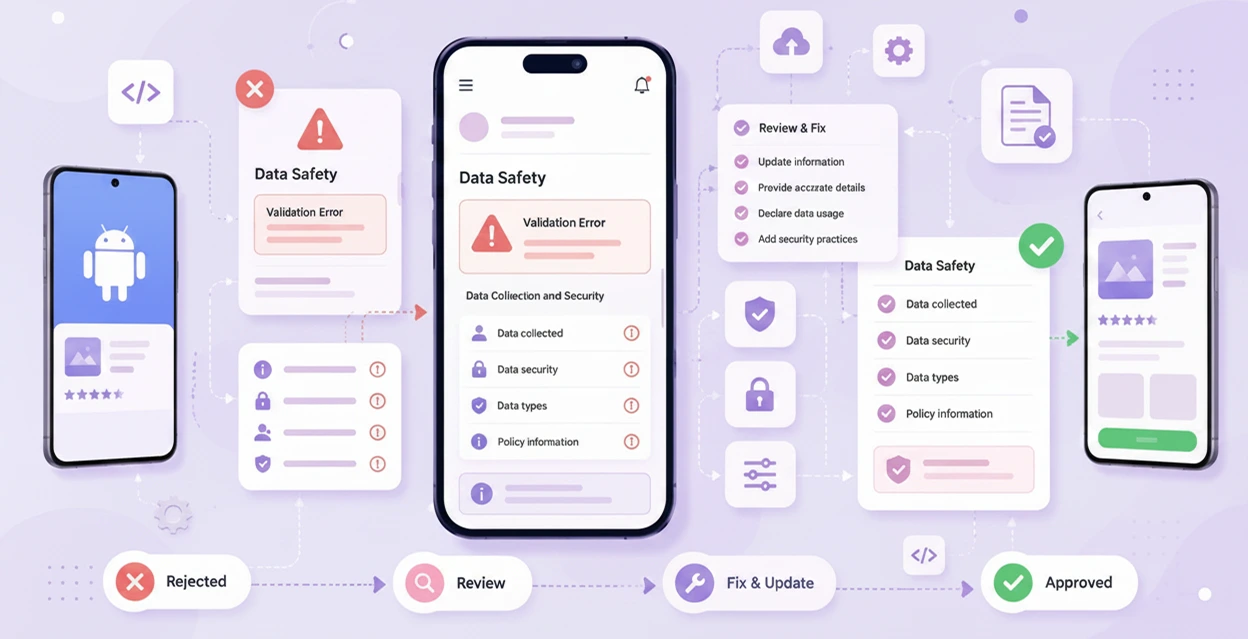
We know how frustrating it feels to submit your app on Google Play. Only to get your app rejected with “Invalid Data Safety Form". It means Google found a gap between what your app actually collects & shares and what you declared in the Data Safety Section of Google Play Console. According to Google’s Official Data Safety Documentation, this happens when the review team detects differences between the form and the real data collection & sharing behavior. This requirement is applied to apps that do not collect any data. Every app has to complete the declaration.
In 2026, Google scans app binary files automatically, meaning apps that previously passed review may suddenly receive this rejection after a Play Console update even without any changes on your side.
This blog will walk you through the reasons leading to the gap, what Google’s official documentation says, and the measures to fix this rejection.
What is the Data Safety Form in Google Play?
The Data Safety Form in the Google Play Console is where developers provide details about how their app collects, uses, and shares data. These details are displayed on the Google Play Store to help users understand an app’s privacy policies before installing it.
After submitting the form, Google reviews the information and compares it with the actual app’s behavior.
1. Valid Data Safety Form
The form is considered valid when the information provided completely matches the data collected, used, and shared by the app and its third-party SDKs.
2. Invalid Data Safety Form
The form is considered invalid when there is a mismatch between the details declared in the form and the app’s actual data practices.
For example, if an app collects device identifiers or location data but does not mention it in the form, Google will mark it as an invalid Data Safety form.
If the form is found to be invalid, Google Play might reject your app submission or update until the information is corrected. Developers or app owners must ensure that all data collection and sharing practices are accurately mentioned and disclosed in the form.
Why Does Google Play Reject Your App for an Invalid Data Safety Form?
1. Hidden Third-Party SDK Collection
One of the most common reasons is hidden third-party SDK collection. Ad networks such as AdMob, Firebase Analytics Tool, and crash reporting SDKs collect data automatically in the background. Even if the data never comes into contact with your own server, Google's own documentation affirms that any data sent off the device by a library or SDK in your app needs to be declared.
2. Undeclared Device or Other IDs
Google’s review process checks for identifiers such as Android IDs, advertising IDs, MAC addresses, and IMEI numbers being transmitted off the device. A mismatch occurs if your app gathers these via an SDK and you haven't checked the box under Device or other IDs.
3. Unreported App Activity Data
Features that track installed apps on the device, such as in-app interactions or search history, send data back to servers. But it frequently goes unreported because developers are unaware that, according to Google's framework, this constitutes "app activity" data.
4. Missing or Incorrect Account Deletion Link
If your app allows users to create an account, Google requires a public web link where users can request account and data deletion easily without logging in or reinstalling the app. A missing link, a broken link, or marking “No” to account creation when your app actually has login functionality causes rejection.
5. Outdated Declaration After SDK Changes
Adding, updating, or removing an SDK changes your app’s actual data behavior. Google requires the form to stay accurate at all times. Therefore, an earlier declaration will be flagged if it does not match your existing SDK setup.
6. Misusing the Temporary Processing Exception
Few developers skip declaring data because it’s only used briefly. But Google is explicit that this limitation never applies if the data is used for advertising or building user profiles, even if held only temporarily.
How to Fix the Invalid Data Safety Form Rejection?
FIX 1: Read Your Rejection Email Carefully.
Google’s rejection notice indicates which section causes the issue, usually under a line like “Issue found: Invalid Data Safety Form,” followed by the specific data type or category that did not match.
FIX 2: Check the Google Play SDK Index and Your SDK Providers' Own Documentation.
Many well-known SDK providers, including AdMob and Firebase Push Notifications, publish their own data collection disclosures specifically so developers can map them correctly into the form. You can check your app’s permissions and APIs using the Android Developer Data Collection guide.
FIX 3: Access Your Data Safety Declaration.
Go to App Content → Data Safety → Manage in the Google Play Console to open and review your existing Data Safety declaration. In this section, you can update any inaccurate or missing details about your app's data collection and sharing policies.
FIX 4: Update the Specific Data Type Flagged.
If Google’s rejection email indicates a Device or Other IDs, go to that section and correct the declaration from No to Yes based on what you confirmed from your SDK audit.
FIX 5: Answer the Handling Questions Accurately for Each Data Type.
State whether the data is collected, shared, or both, even if it's processed only temporarily. Either it is required or optional for users, and there is an actual purpose behind collecting it.
FIX 6: If Applicable, Fix Your Account Deletion Link.
Ensure the URL is live and publicly available without login. And takes users to a page explaining how to request deletion of accounts and data.
FIX 7: Update All Active Release Tracks.
If you have older app builds live on your Open, Closed, or Internal Testing tracks, Google scans those too. You need to push a new release on every active track to fully resolve the errors.
FIX 8: Submit and Track the Review Status.
After making all the necessary changes, submit the updated Data Safety Form for review. You can track its status on the App Content page. A green checkmark indicates that your Data Safety Form has been reviewed and is compliant with Google Play’s requirements. After submitting, Google may take 1 to 2 weeks to review your updated Data Safety form, potentially longer if further issues are identified.
How to Complete the Data Safety Form Correctly – the Step-By-Step Process
Below is a step-by-step process to complete the Data Safety Form. This process is officially given by Google Play Console.
Step 1: Go to the App Content
-
Navigate to Google Play Console and select your app.
-
From the left-hand menu, go to the App Content page.
Step 2: Start or Manage the Data Safety Form
-
Inside Data Safety, select Start if this is your first time.
-
Or Manage, if you are correcting an existing declaration.
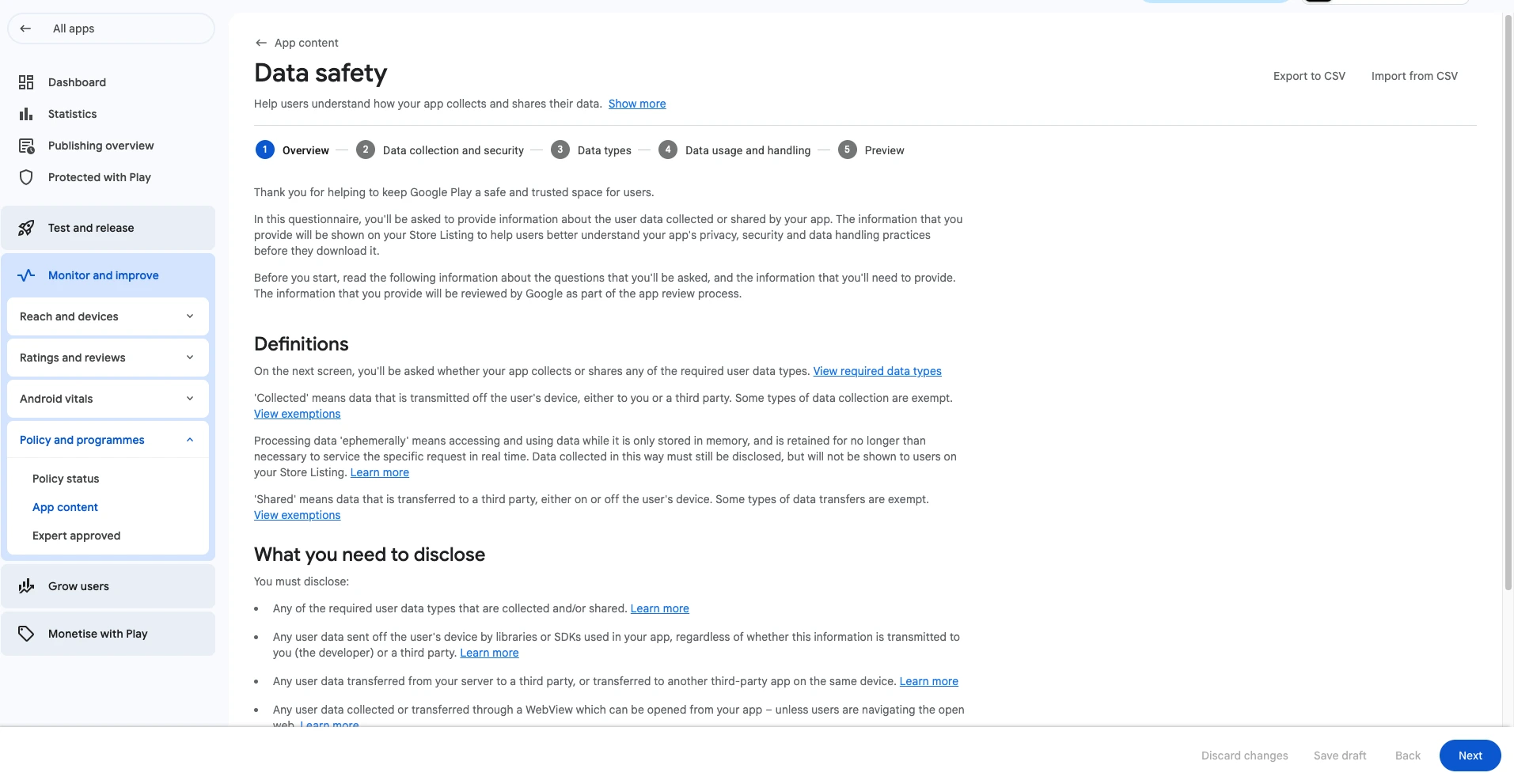
Step 3: Read the Overview Section Carefully
-
This section explains what you will be asked and what information to prepare.
-
Select Next once you are ready.
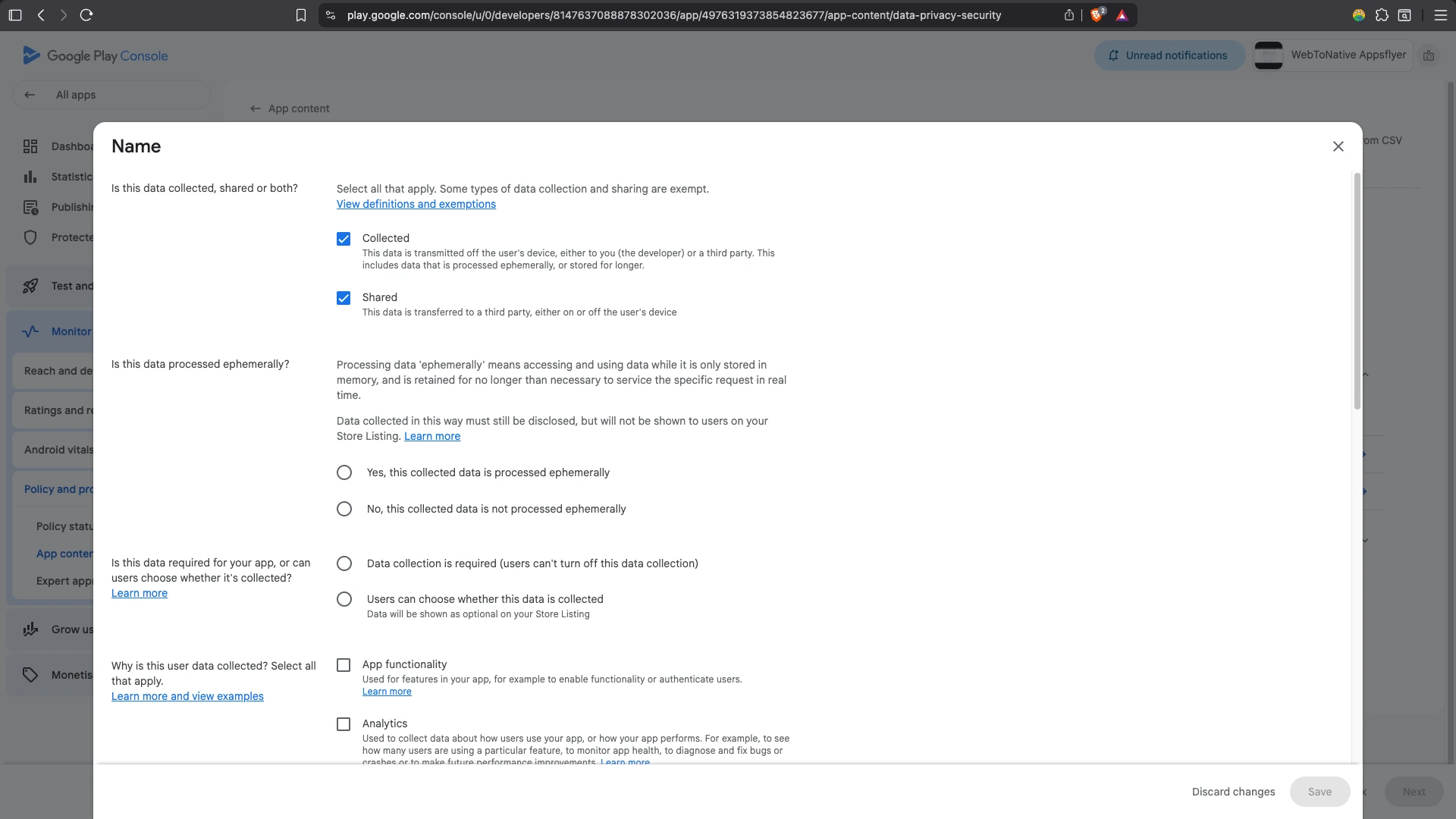
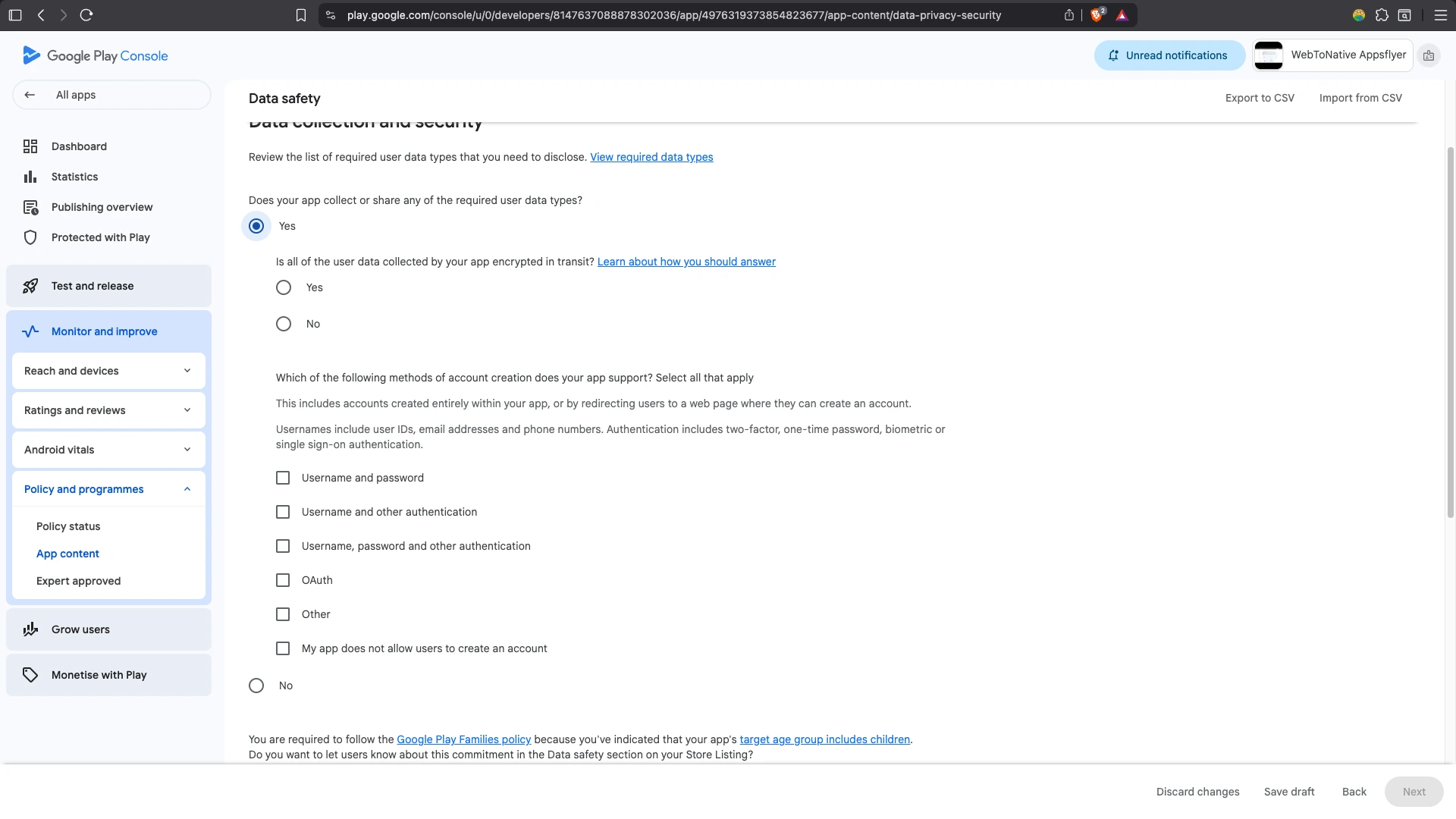
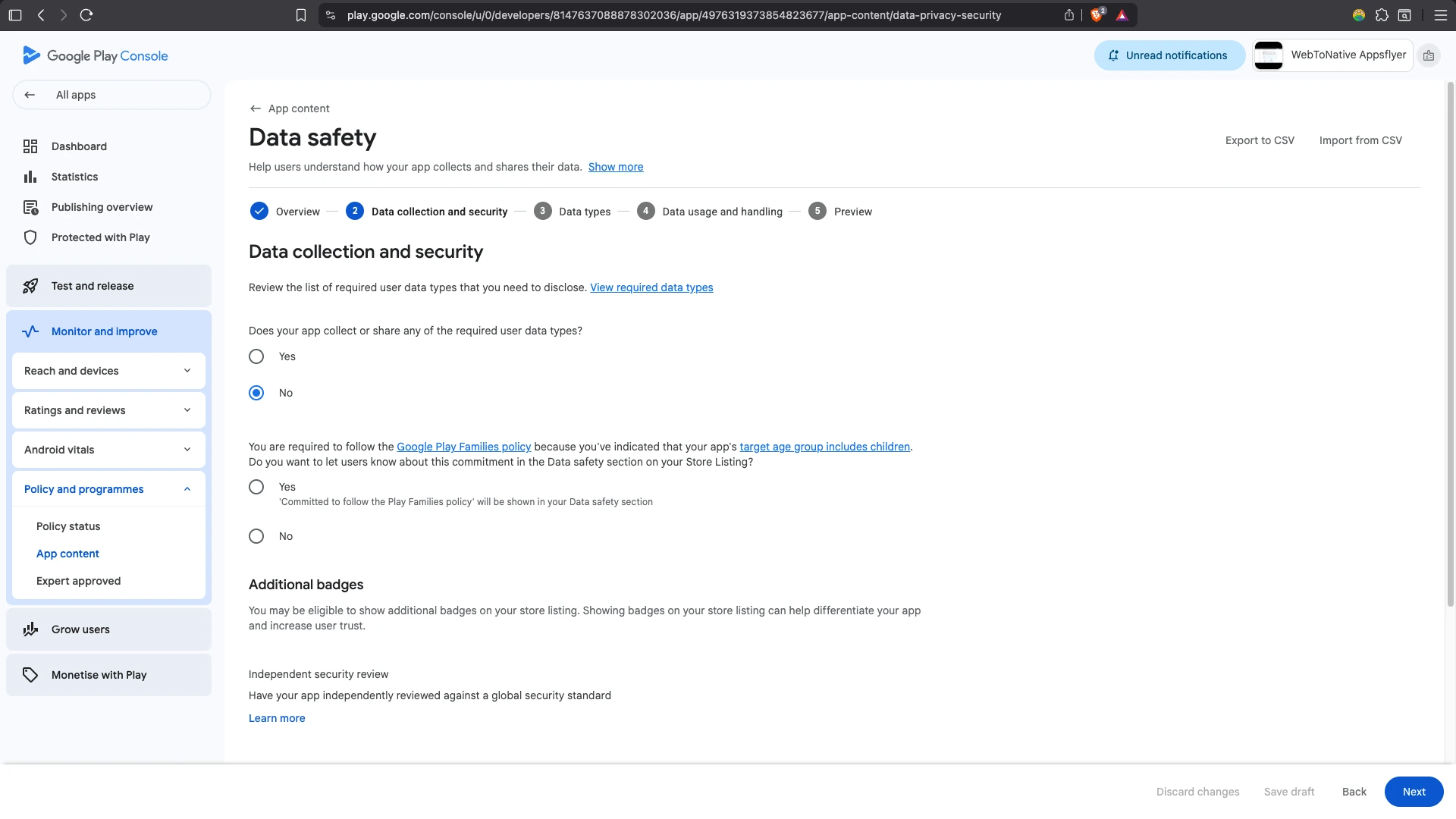
Step 4: Complete Data Collection and Security
-
Confirm whether your app collects or shares any required user data types.
-
If yes, you will then confirm that all collected data is encrypted in transit and whether you provide users a way to request deletion of their data.
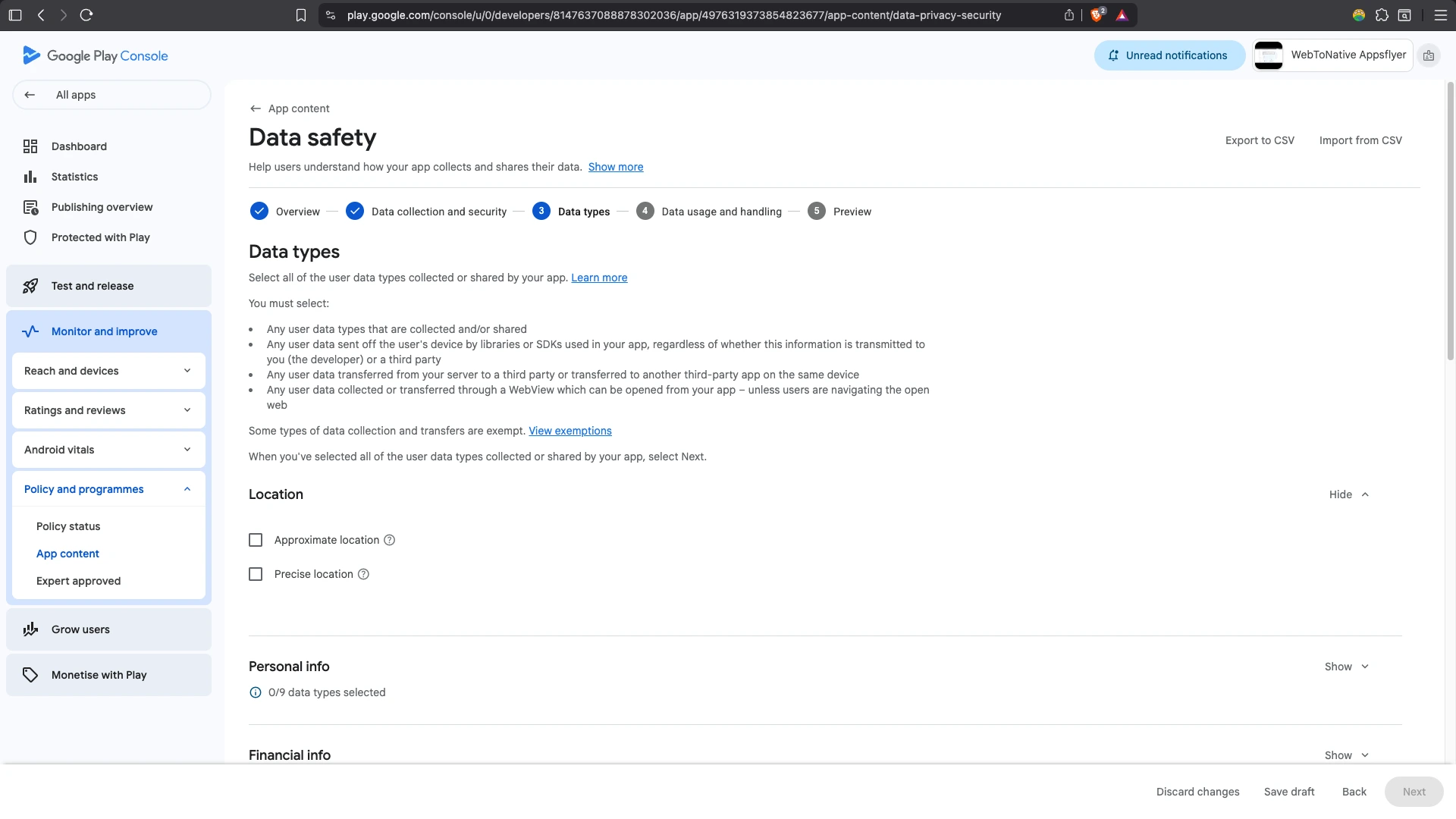
Step 5: Select Your Data Types
- In the Data Types section, select every type of data your app and its SDK actually collect or share based on your SDK review from the previous step.
- This is the section where most rejections arise. Although it is where SDK-collected data, such as device identifiers, get missed.
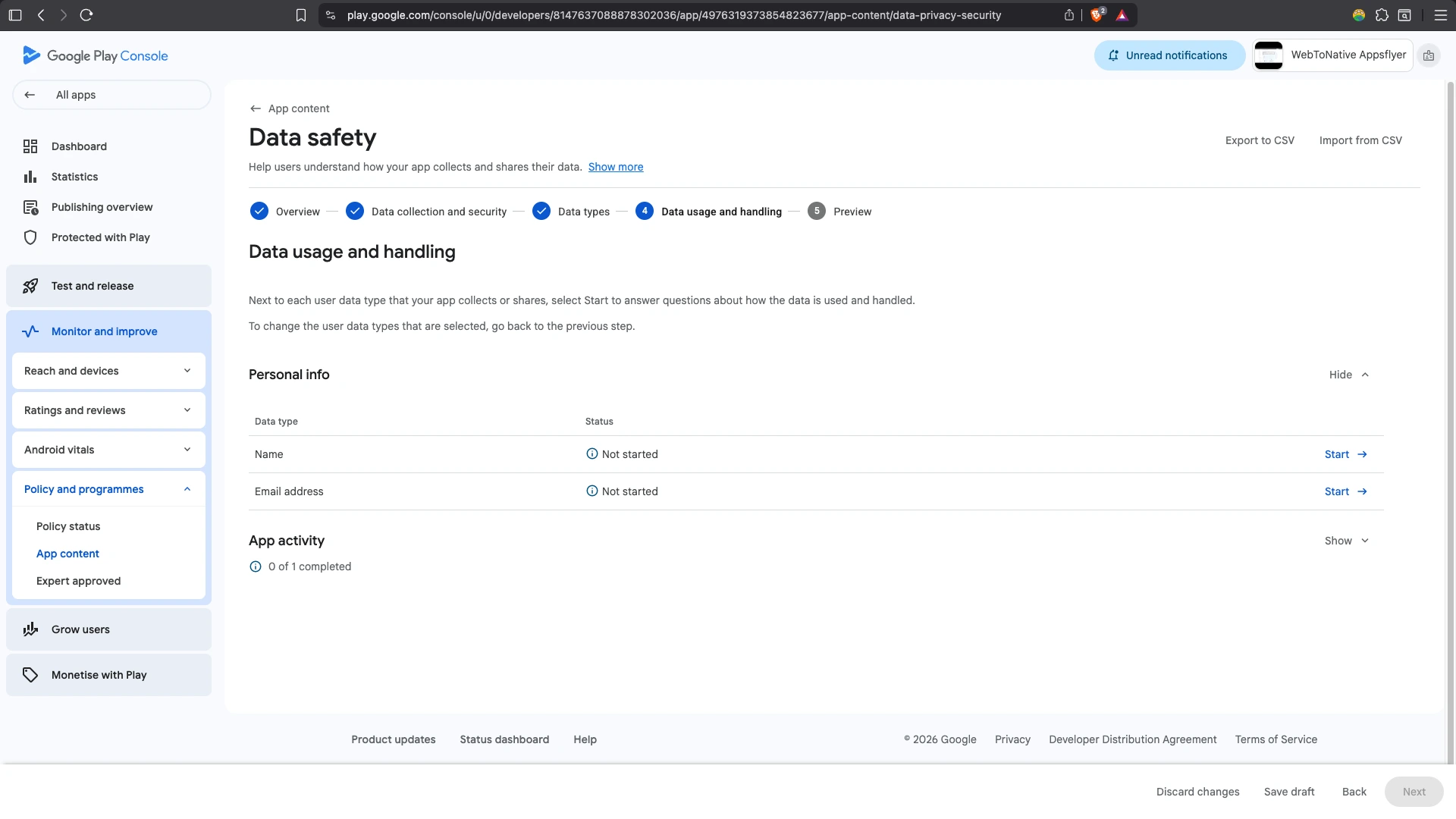
Step 6: Complete Data Usage and Handling
- For each data type you selected, you will answer whether it is collected, shared, or both, and whether it is required or optional for users.
-
The purpose for collecting it is for app functionality, advertising, marketing, or analytics.
-
Select every purpose that genuinely applies to your app.
Step 7: Review the Store Listing Preview
-
Google shows you exactly how this information will appear to users on your store listing.
-
Review it carefully since this becomes public once your update is live.
Step 8: Submit the Form
-
Once everything matches your app’s actual behavior and submit the form.
-
You can also save as a draft at any point if you are not ready to submit.
How Often You Need to Update the Form
According to Google, you are required to update your Data Safety section whenever there are necessary changes to your app’s data practices. Your declaration must be accurate and complete at all times, not only at the time of your last submission. This means every time you add, update, or remove an SDK, that is the moment to revisit this form.
Frequently Asked Questions
Q1. What does "Invalid Data Safety Form" mean on Google Play?
A. It means Google’s review process detected differences between your app’s actual data collection & sharing behavior and what you declared in the Data Safety section based on Google’s Developer Documentation.
Q2. Do I have to declare information collected by SDKs that I did not create?
A. Yes. Google’s SDK Documentation states explicitly that data transmitted off the device through any library or SDK used in your app must be declared. However, whether data goes to you or directly to a third-party.
Q3. Does Google verify my Data Safety form before approving it?
A. Google states it cannot guarantee thorough verification of every declaration. But it does perform checks and can take enforcement action when differences are found, and you remain legally responsible for accuracy.
Q4. How often should I update my Data Safety form?
A. An update is necessary whenever there is an essential change to your app’s data practices, such as adding, updating, or removing an SDK. Google needs your declaration to stay accurate and complete at all times.
Q5. Does declaring a permission in my app's manifest equal declaring data collection?
A. No. According to Google, you only need to declare collection or sharing if data is actually collected or shared.
Conclusion
An Invalid Data Safety Form is the result of a broken or incomplete data declaration, instead of the app. You must be careful while viewing your app’s data collection practices, updating your declarations, and ensuring all active release tracks are compliant. Maintaining the Data Safety details accrued and everything declared reduces the chances of being rejected. Keep your Data Safety declaration accurate every time you add or update an SDK, and you are unlikely to face this rejection again.
Similar Blogs