
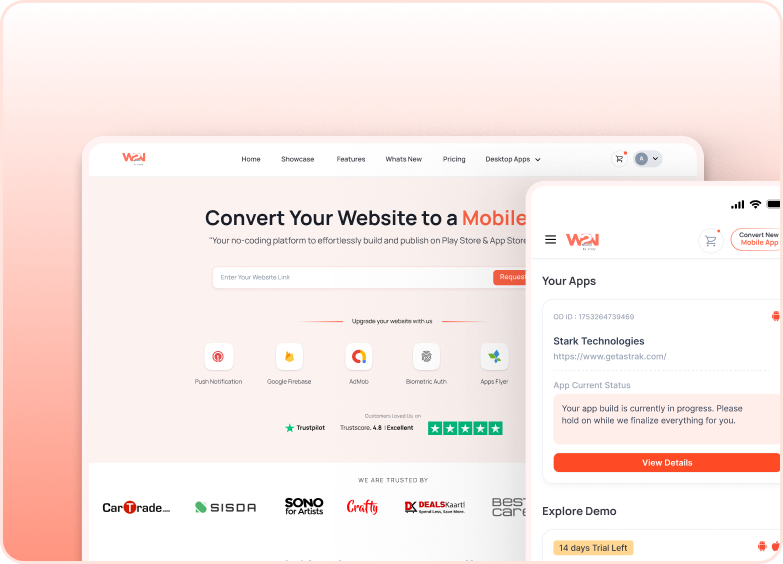


How to Turn Your Website Into an App
Published on:
12 August, 2026

By Chavi Chandani
Technical Content Writer
Table of contents
Your website already works hard for you. Why not turn it into a working app too? With WebToNative, you can do it in a day. No coding, no developers, no high budget. Just your website, turned into a real app on the App Store and Play Store.
But there's one important thing to know in 2026. You can't just put your website inside an app and expect it to be approved. Apple and Google Play have guidelines around app quality, functionality, and user experience.
So, how do you transform your website into an app the right way? In this guide, we'll show you how to build an app from your website using WebToNative, what features you can add, and what to check before submitting your app to the App Store and Google Play.
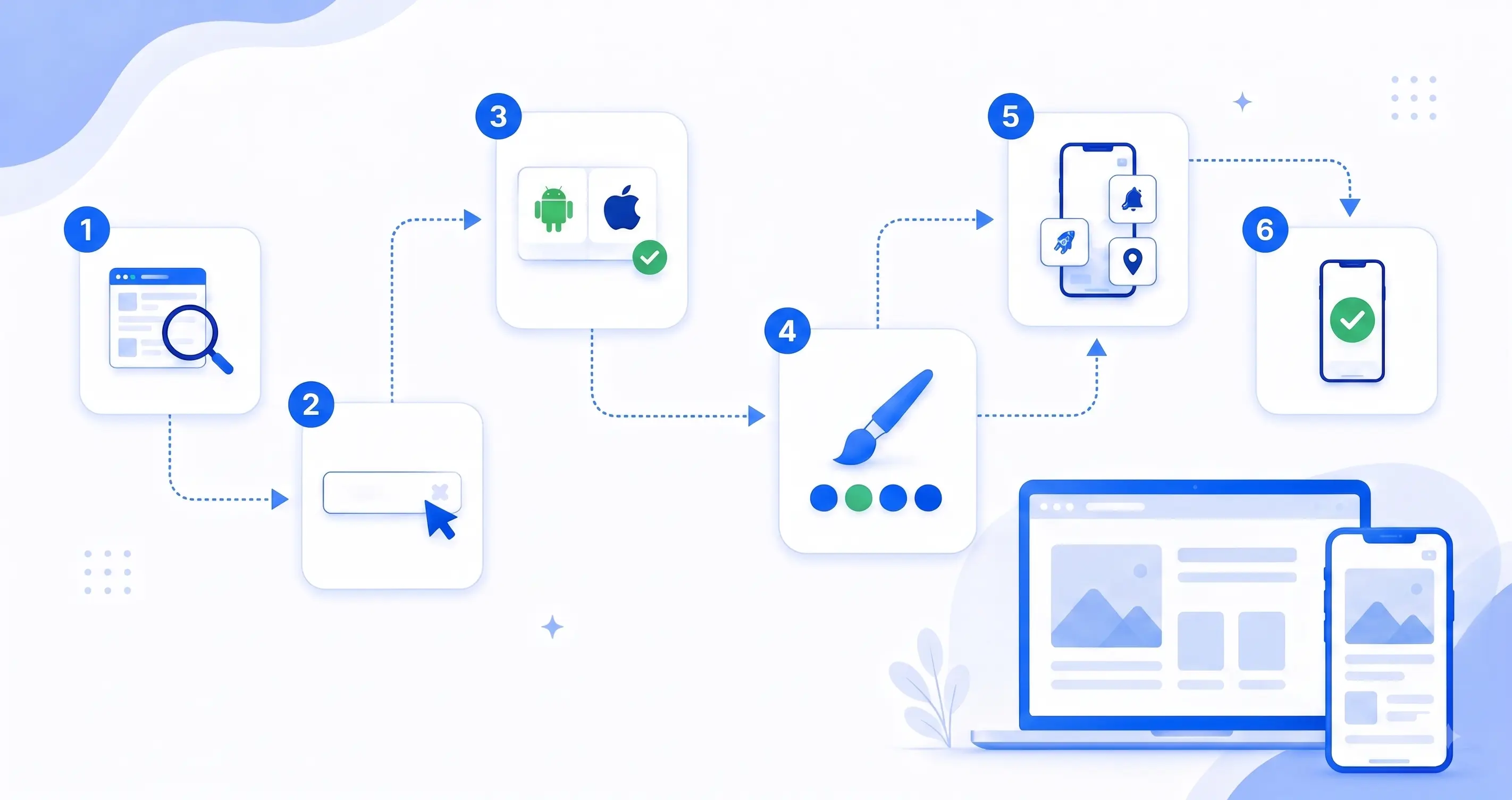
Step-By-Step Process to Convert Your Website into a Mobile App Using WebToNative
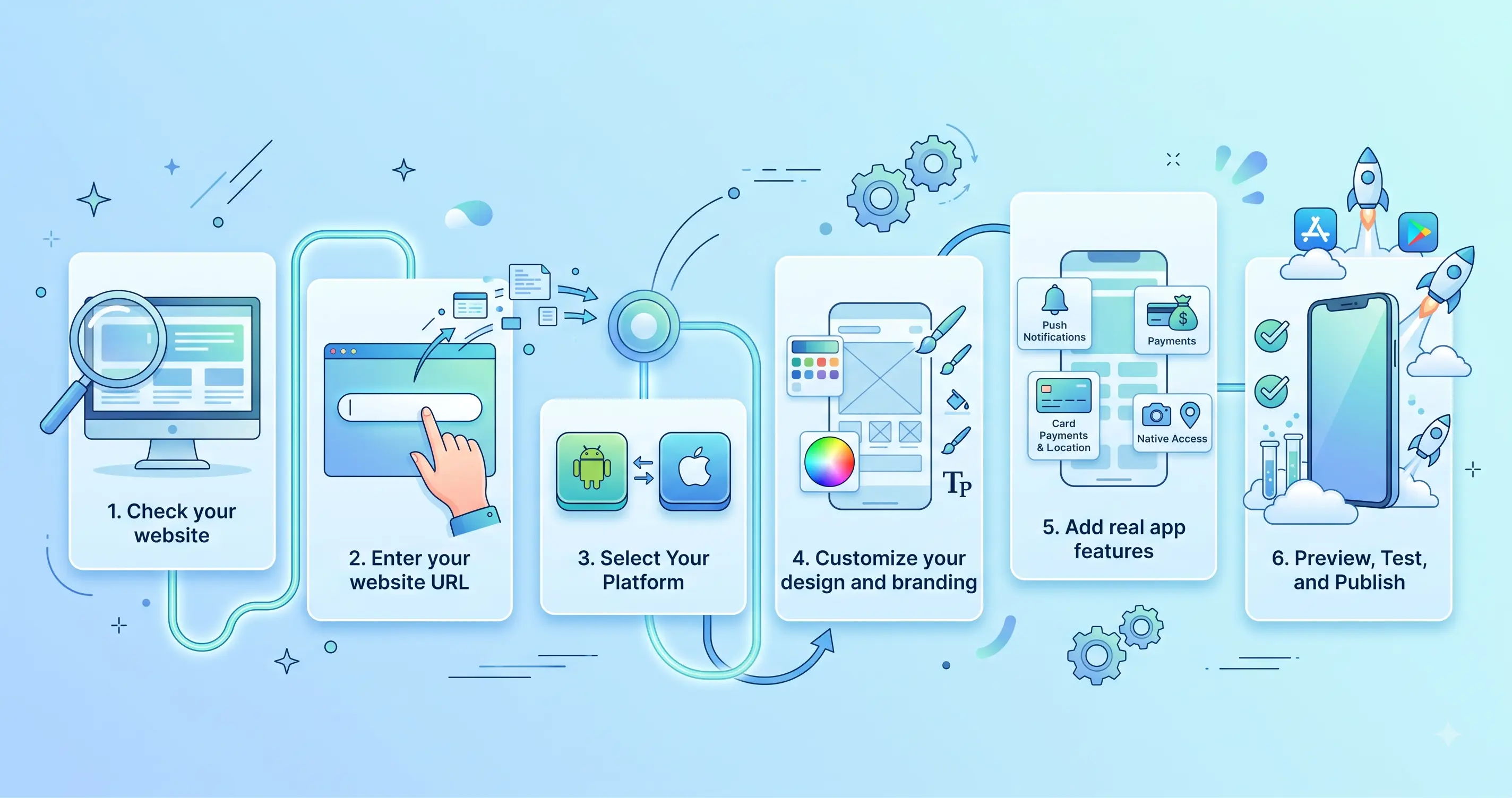
1. Check your website
Before you turn your website into an app, make sure it works properly on mobile devices. Your website should be easy to navigate, load quickly, and have a responsive design. Check important parts of your website, like:
-
Menus and navigation: Make sure they are easy to tap and use
-
Buttons and links: Check that all buttons and links work.
-
Forms: Make sure contact, signup, and checkout forms work properly.
-
Login and accounts: Check that users can log in, sign up, and reset passwords.
-
Images and videos: Make sure they load properly and don't slow down the page.
-
Mobile design: Open your website on your phone and check that everything fits the screen.
-
Page speed: Make sure your pages load quickly. A slow website can make your app feel slow too.
2. Enter your website URL
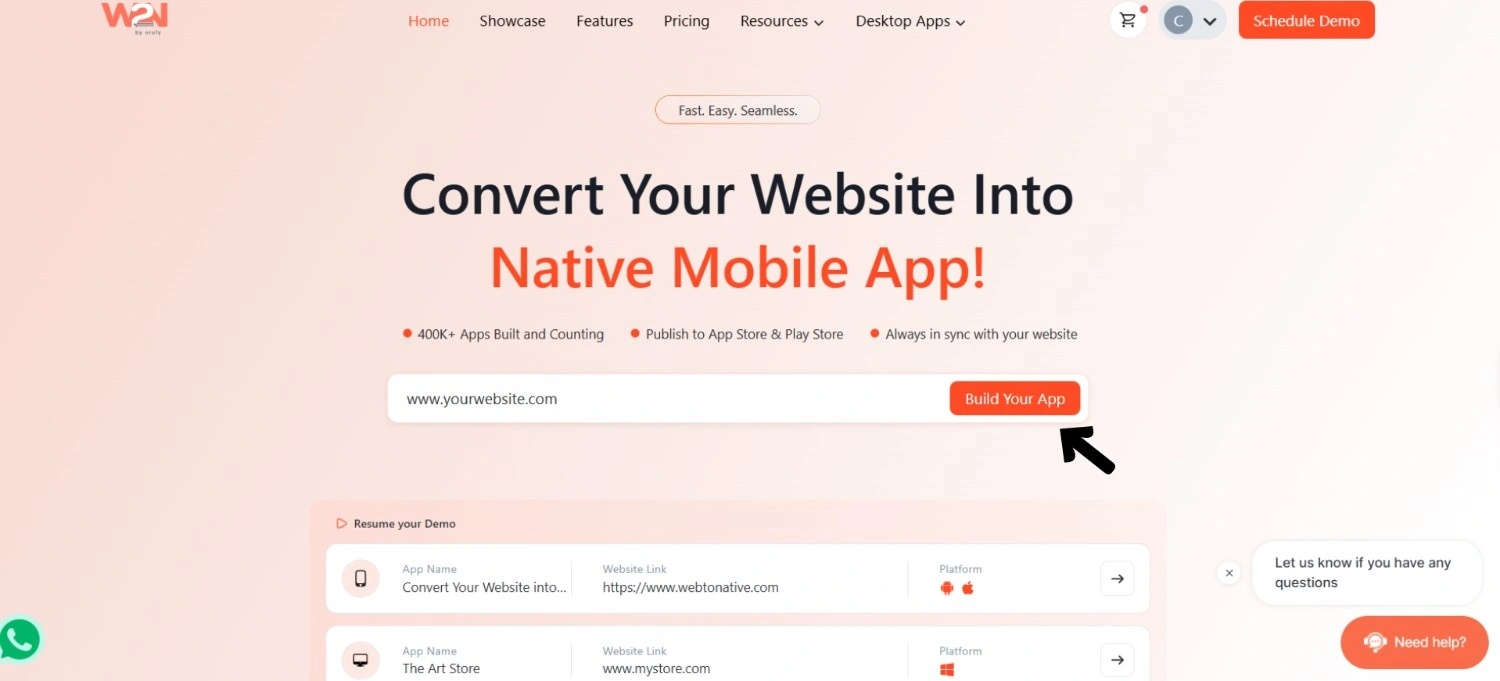
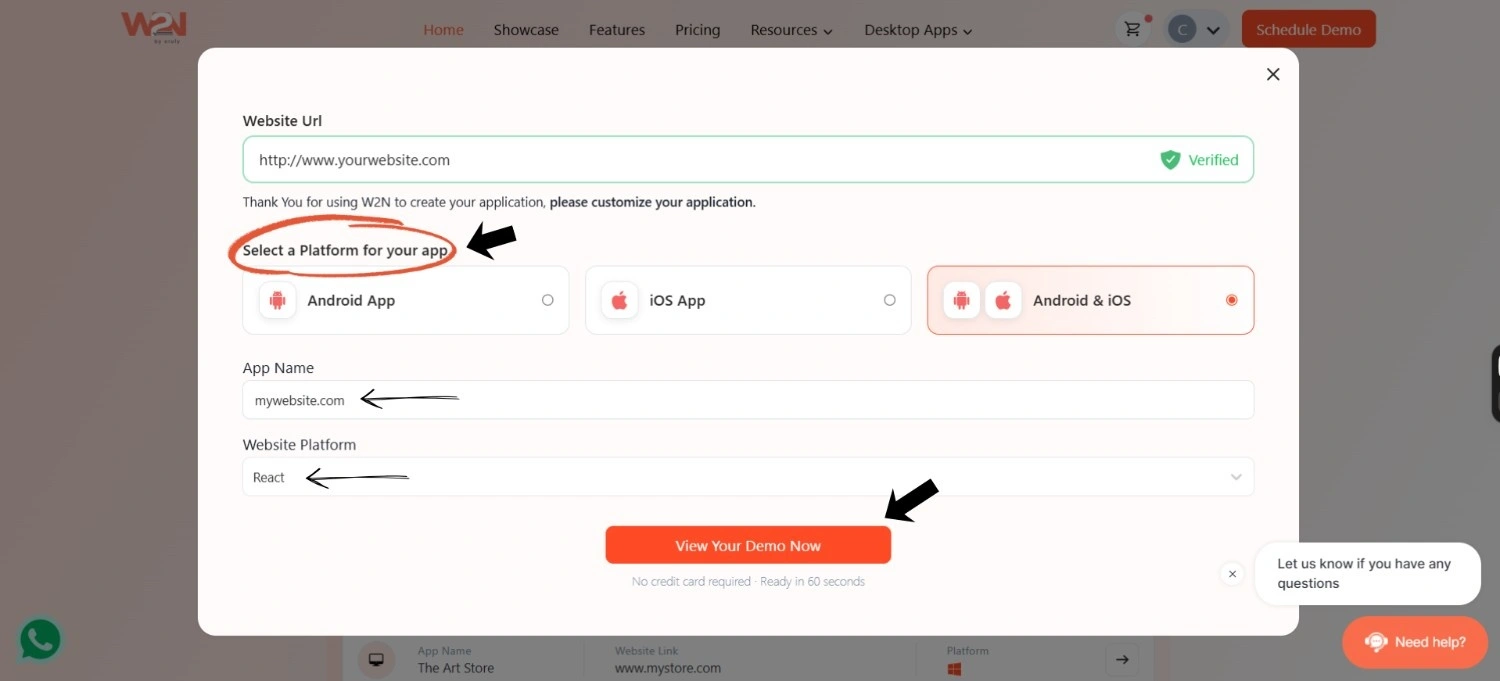
Go to WebToNative and enter your website URL.
WebToNative uses your website to create the basic version of your app. Your pages, content, images, and layout are brought into the app automatically.
You don't need to upload everything separately or write any code. Just add your website link, and WebToNative handles the technical work for you. And in a few minutes, your app is ready.
3. Select Your Platform
Choose where you want your app to run:
- Android
- iOS
- Both Android and iOS
Then enter your app name and select your website platform, such as WordPress, Shopify, React, or another platform.
Once you’ve added the details, you can preview your app and see how your website looks inside it before moving ahead.
4. Customize your design and branding
Now it's time to make the app look and feel like your own app.
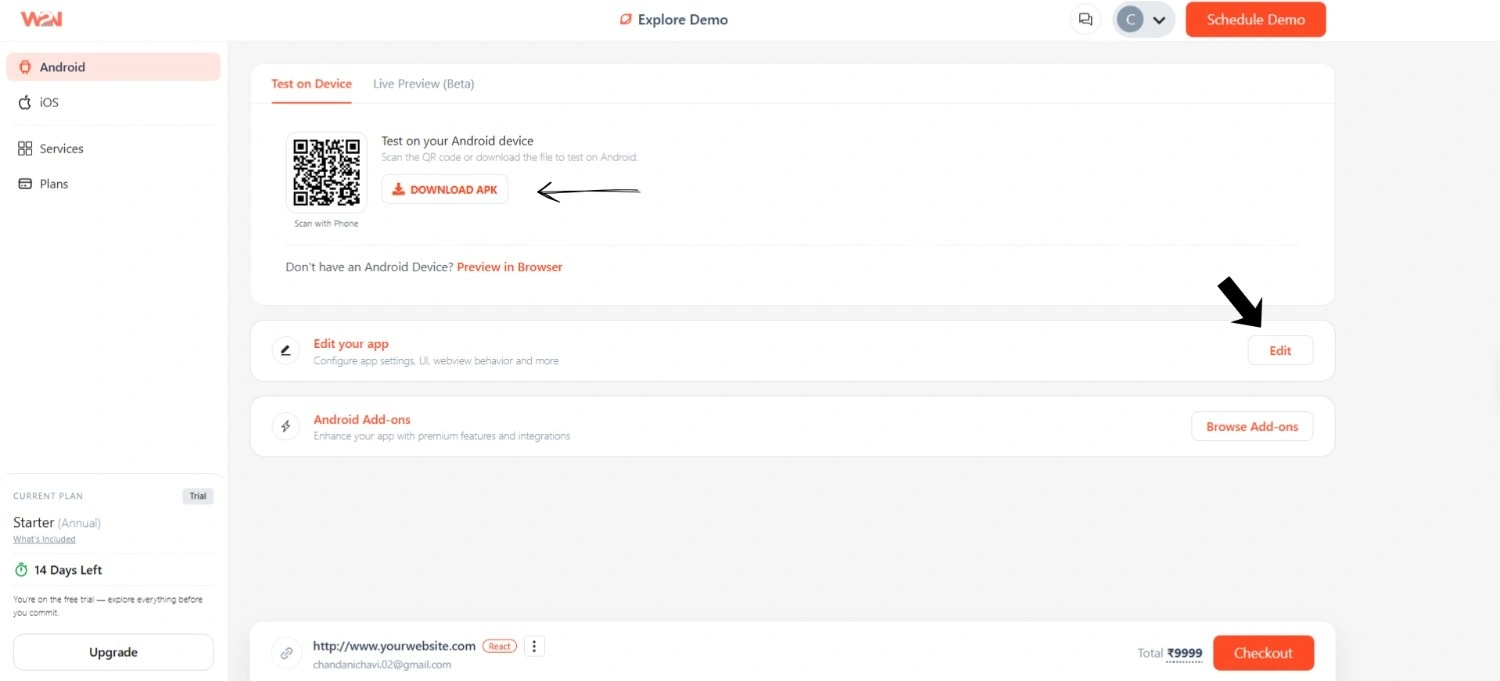
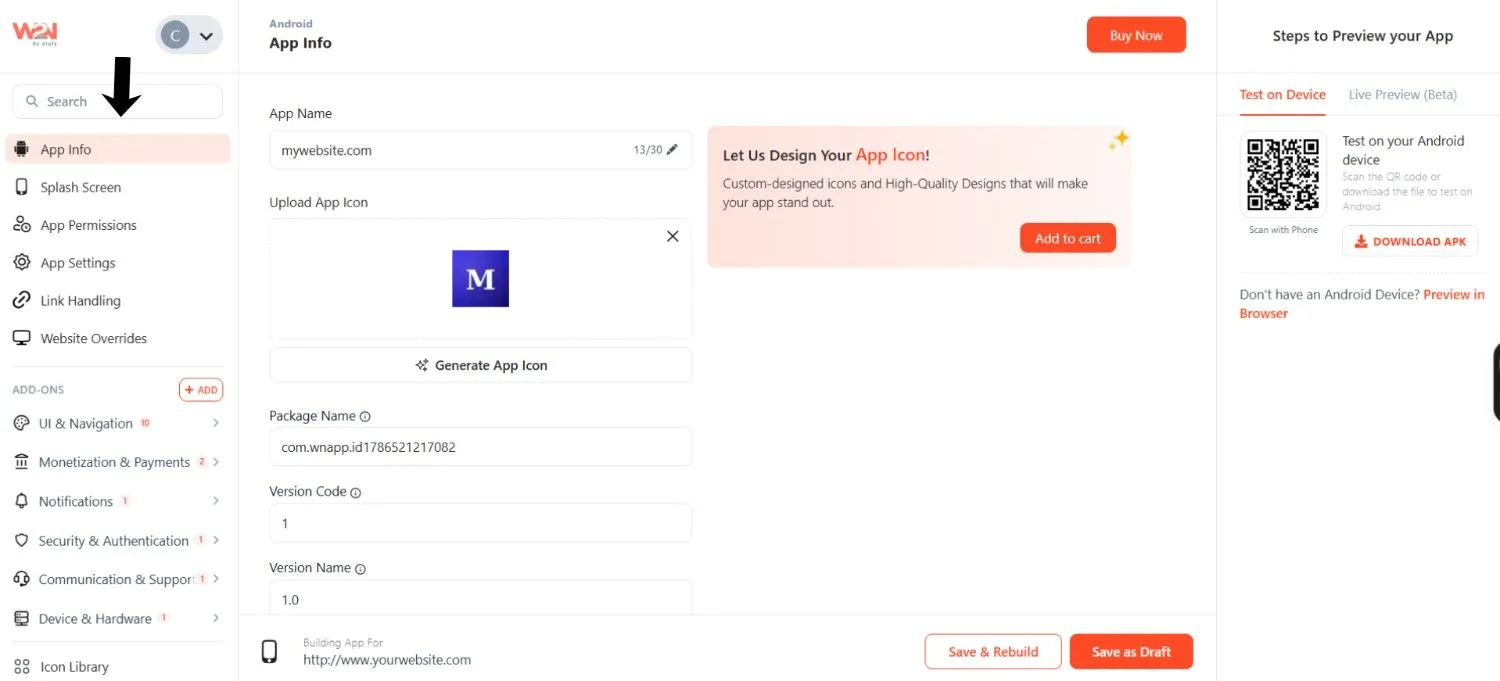
Click “Edit” and open the App Info section. Here, you can change things like:
- App name and icon: Add your own app name and icon.
- Splash screen: Add your logo and brand colors to the screen users see when the app opens.
- Theme colors: Choose your brand colors for buttons, links, and other parts of the app.
- App settings: Set up basic settings to control how your app works.
- Link handling: Choose which links open inside the app and which ones open in a browser.
- App permissions: Control the permissions your app needs, such as location or other device access.
Once you're happy with everything, click Save.
No coding or design skills are needed. Just choose the settings you want, and you're good to go.
5. Add real app features
Now you can add features that make your website work better as a mobile app. With WebToNative, you can add features such as the following:
-
Push notifications: Send updates, reminders, and offers directly to users.
-
Deep linking: Open a specific page in your app directly from a link.
-
No Internet Screen: Show a custom message when users lose their internet connection.
-
Custom Splash Screen: Add your logo and branding to the screen shown when the app opens.
-
App Linking and Sharing: Let users share links that can open specific pages in the app.
-
Location Support: Use the user's location for location-based features.
-
Biometric Login: Let users use Face ID, Touch ID, or fingerprint to access the app.
-
File Uploads and Downloads: Let users upload or download files directly in the app.
-
Custom Navigation: Add features like bottom navigation to make moving around the app easier.
You don't need to add every feature. Choose the ones that make sense for your website and deliver users a better app experience.
6. Preview, Test, and Publish
Before publishing your app, test it properly on both Android and iOS.
Check important things like:
-
No internet: Make sure users see a proper message when their connection is lost.
-
Navigation: Check that menus, tabs, and buttons work smoothly.
-
App features: Test notifications, deep links, login, and other features you added.
-
Website pages: Make sure your important pages open and work correctly.
Once everything is working properly, you can submit your app to the Google Play Store and Apple App Store. WebToNative also helps guide you through the app submission process.
Why "Just Wrapping" Your Website Isn't Enough Anymore
If you're turning your website into an app, you can't just put the website inside an app and call it done.
Apple’s App Store guidelines say an app must do more than just repackage a website. Our app should give users a better experience than the website alone. It should offer useful features that make sense on mobile devices.
Google Play also has rules that your app needs to follow before it can be published. So, it's important to check that your app works properly and meets the latest Play Store requirements.
What Should You Check?
Before submitting your app, make sure:
-
It works properly: Check for broken pages, links, or crashes.
-
It feels like an app: Add useful mobile features instead of showing only your website.
-
Important features work: Test login, forms, payments, notifications, and other key features.
-
Your app details are ready: Add the correct app name, description, screenshots, and privacy information.
-
It's ready for review: If your app needs a login, make sure the reviewer has the required access.
The simple rule is that you don't just copy your website into an app. Make the app useful and easy to use on a phone.
Frequently Asked Questions
Q1. Can I really turn my website into an app without coding?
A. Yes. With WebToNative, you just enter your website URL, customize the design, add the features you want, and publish. No coding needed at any step.
Q2. What app features can I add with WebToNative?
A. You can add push notifications, deep linking, a custom "no internet" screen, biometric login (Face ID, Touch ID, fingerprint), location support, file uploads and downloads, custom navigation, and more. It depends on what makes sense for your website.
Q3. How long does it take to build an app with WebToNative?
A. Most people can go from a website to a working app in about a day, much faster than traditional app development, which can take weeks or months.
Q4. Can I add push notifications to my website app?
A. Yes. You can add push notifications to send updates, reminders, and other messages directly to users.
Q5. Will my app work without the internet?
A. Yes, you can have a custom “no internet” screen so when the connection drops, users get a nice message instead of a blank page. Some features may still require the internet to work, depending on what they use.
Conclusion
It's not necessary to start from scratch when converting your website into an app. The features, content, and website are already yours. You can make that experience available on the phones of your users.
With WebToNative, you can turn your existing website into an Android and iOS app, customize its look, add useful mobile features, test everything, and prepare it for the app stores. All of this can be done without writing a single line of code.
Just remember, a good website alone isn't enough. Your app should feel useful, work smoothly, and give users a reason to use it instead of simply opening the website in a browser.
Your website was the first step. Now it’s time to turn it into an app your users can really take with them.
Similar Blogs