


PDF Viewer
The PDF Viewer allows users to open the PDF links right inside your app instead of downloading the file or heading to another app.
This feature is available for both Android and iOS. You can start with the Pro plan to access this feature on Webtonative.

Without PDF Viewer
A PDF link either silently downloads into a folder the user never checks or hands off to a third-party app, pulling the user out of your app. This breaks the user experience, making the user not come back again.

With PDF Viewer
PDF links open inside the app, delivering a clean and professional native experience with search, thumbnails, and navigation controls on the same user screen. No downloading. No app switching.
Why Use PDF Viewer?
Keep Users Inside Your App
Every PDF link that takes users to an external app is a moment your user might not come back from. Viewing the PDF inside the app makes their app flow seamless.

Faster Content Access
No waiting for the download and “open with” window. The document opens instantly on the same screen the user is already on.
Built for Heavy-Documented Apps
Brochures, receipts, catalogs, invoices, and study materials. Any app that regularly shares a PDF gets a proper reading experience, complete with search, thumbnails, and page navigation.
What Does Webtonative Provide in PDF Viewer?

Complete Control Over Toolbar
Choose which options users see in the PDF viewer, such as title, search, thumbnails, page indicator, download, or share. Turn off anything you don’t want users to see or use.

Smart Link Detection
PDF links are picked up automatically wherever they appear in your app. For links that don’t end in .pdf, like a checkout or download endpoint, you can add a custom URL pattern so those open in the viewer too.

Custom Error State
If a PDF fails to load, users see a message and retry button written in your own words instead of a generic broken screen, keeping the experience consistent with the rest of your app.
Where to Find It In Your Dashboard
My Apps ➡️ Edit your app ➡️ Add-Ons ➡️ UI & Navigation ➡️ PDF Viewer
Steps to Apply PDF Viewer to Your App
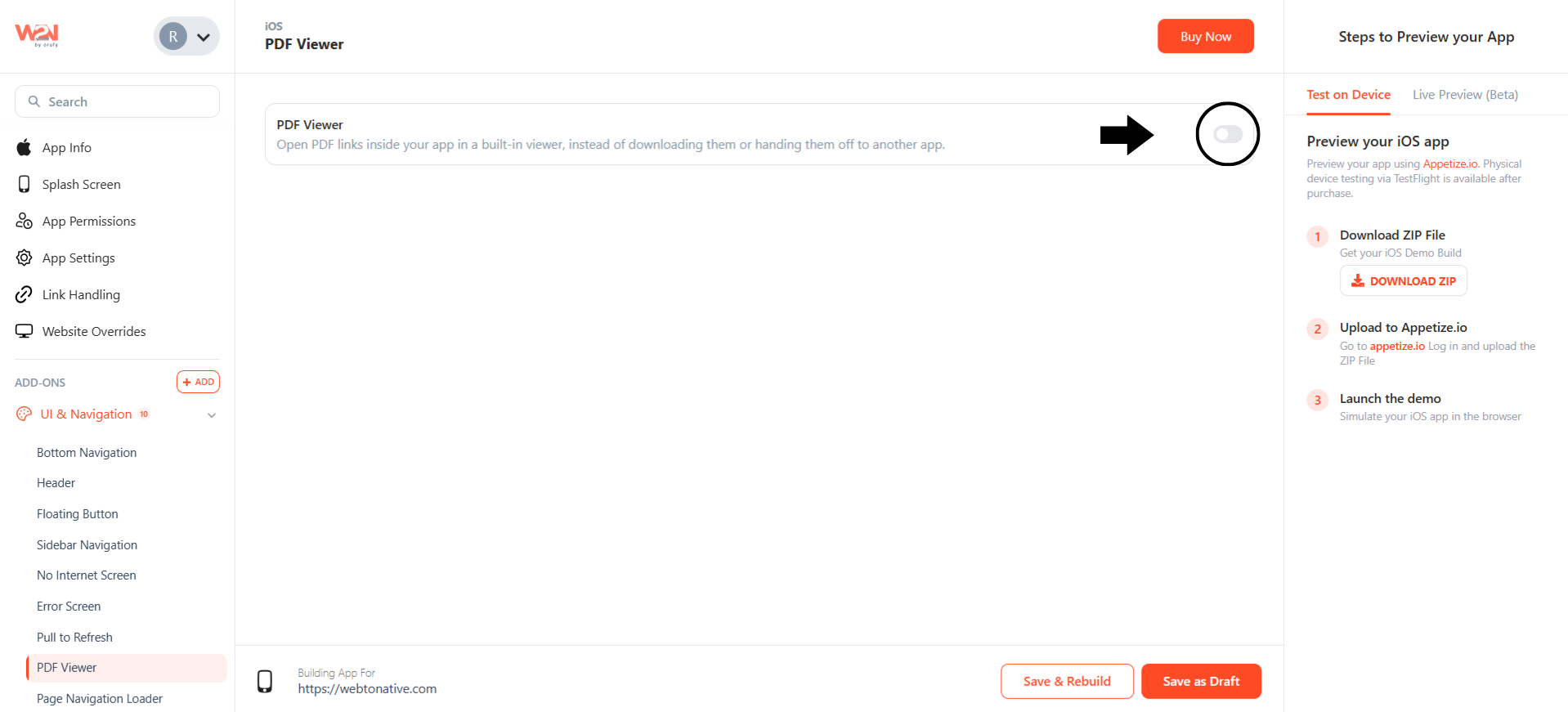
Enable/Disable Toggle
Set the PDF viewer toggle ON to activate the feature. When it’s OFF, PDF links behave as before, either downloading or taking you to an external app.
Customize the Header Toolbar Controls
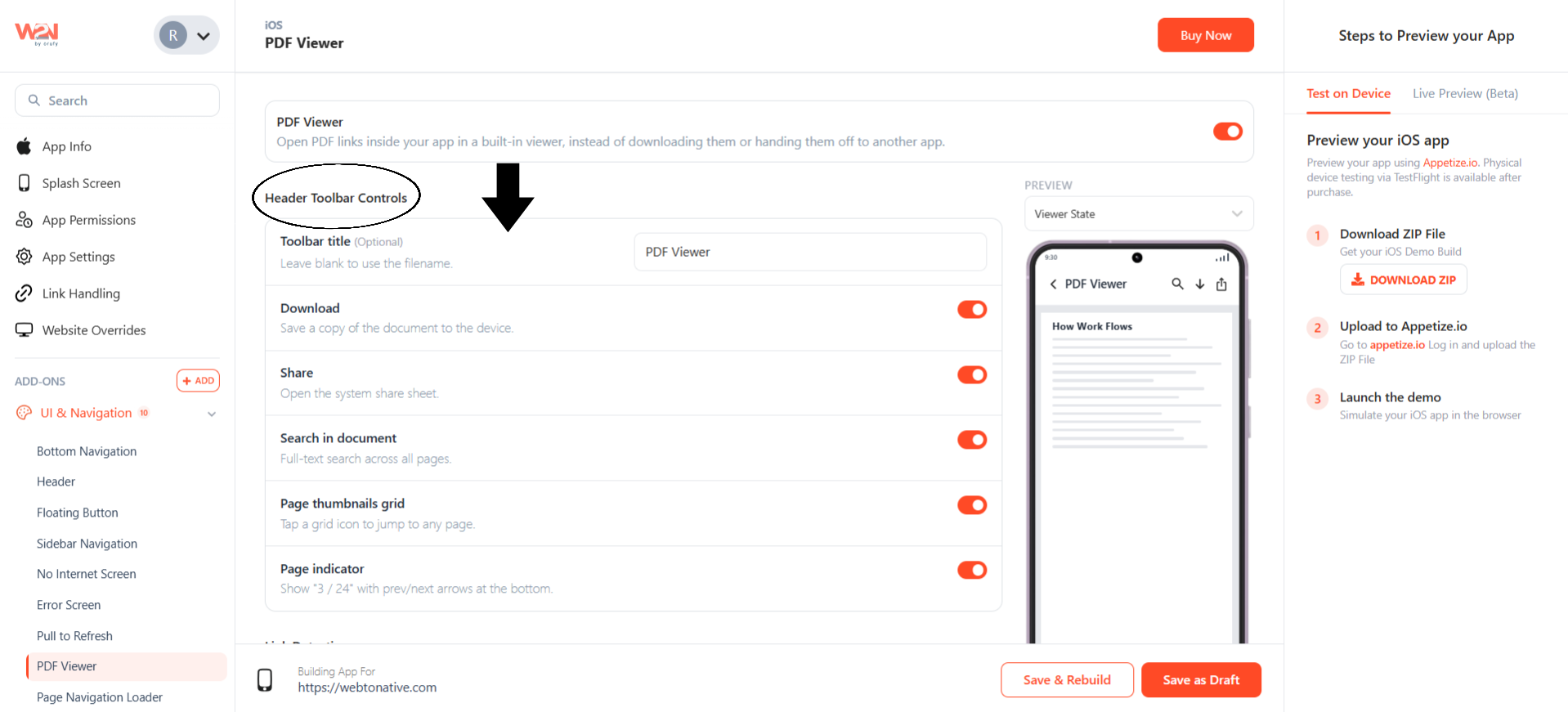
You can control everything at the top of the PDF viewer, from the title to the page number.
-
Toolbar Title (Optional): Set a custom title shown in the viewer header. If left blank, the PDF’s own filename is used automatically.
-
Download: Add a download icon that allows users to save the document to their device storage.
-
Share: Opens the system share sheet so users can send the PDF through email, messaging apps, or any other installed share target.
-
Search in Document: Full-text search across all pages of the PDF. Users can find any word or phrase instantly without scrolling.
-
Page Thumbnails Grid: A grid icon in the toolbar opens a thumbnail view of all pages. You can tap any thumbnail to jump directly to that page.
-
Page Indicator: It shows the user's current position. For example, "5 / 15" with previous and next arrows to move between pages.
Set Up Link Detection
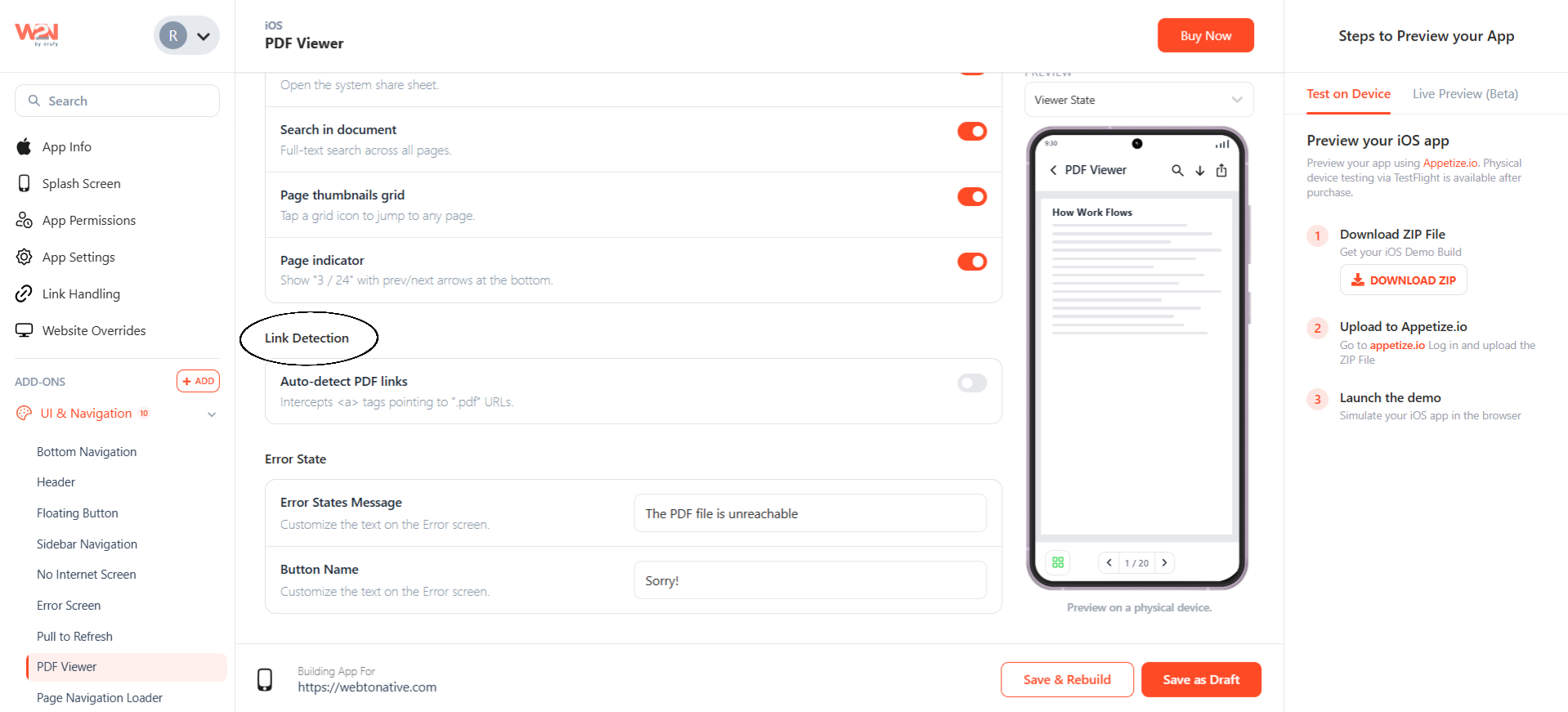
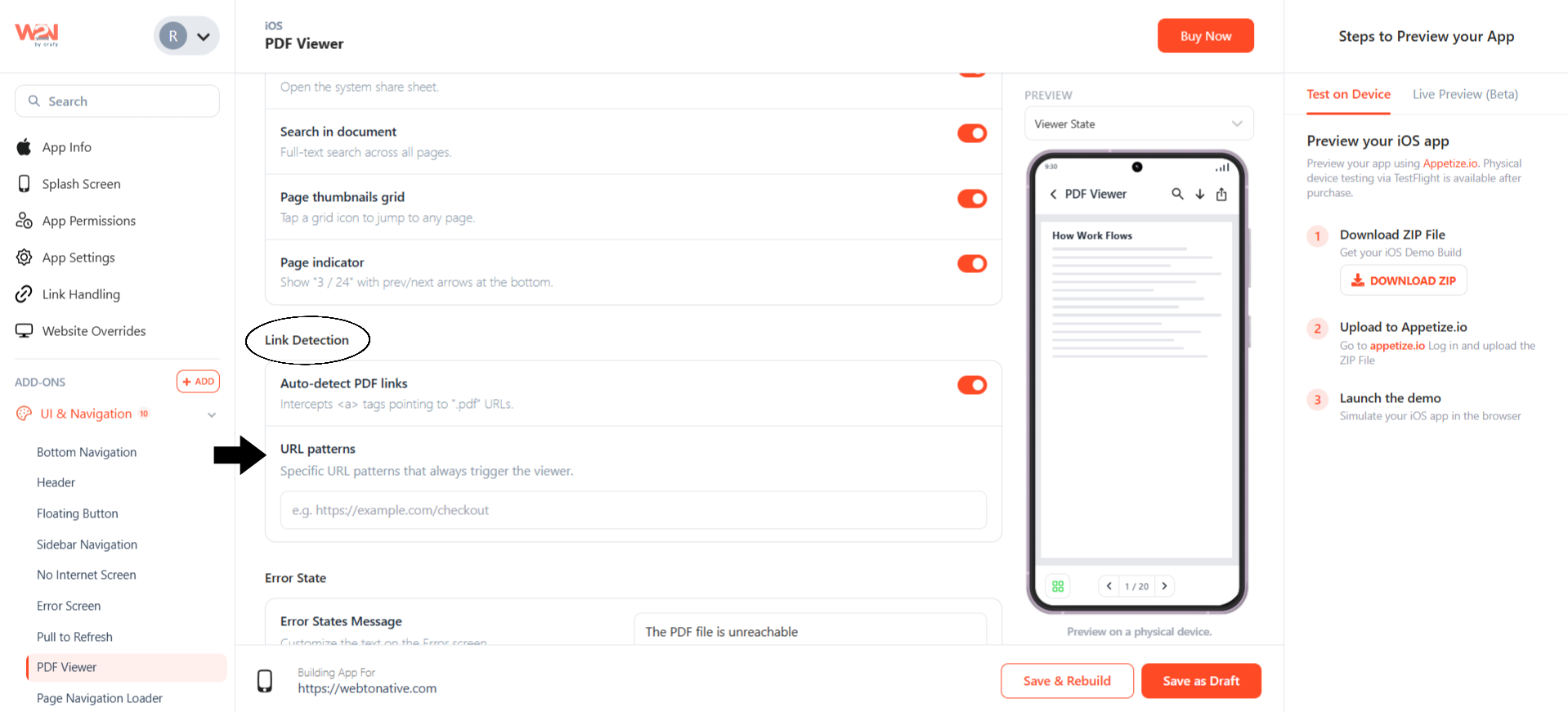
It controls which links on your website must open in the PDF viewer inside the app.
Auto-Detect PDF Links
Any links on your website ending in .pdf automatically open in the PDF viewer. You don’t need to change anything on your website.
URL Patterns
(Only visible if you have enabled the above feature) Some PDF links don’t end in the .pdf file format, like a receipt or a bill copy. Add these links here also so that they open in the PDF viewer only.
Adjust the Error Screen
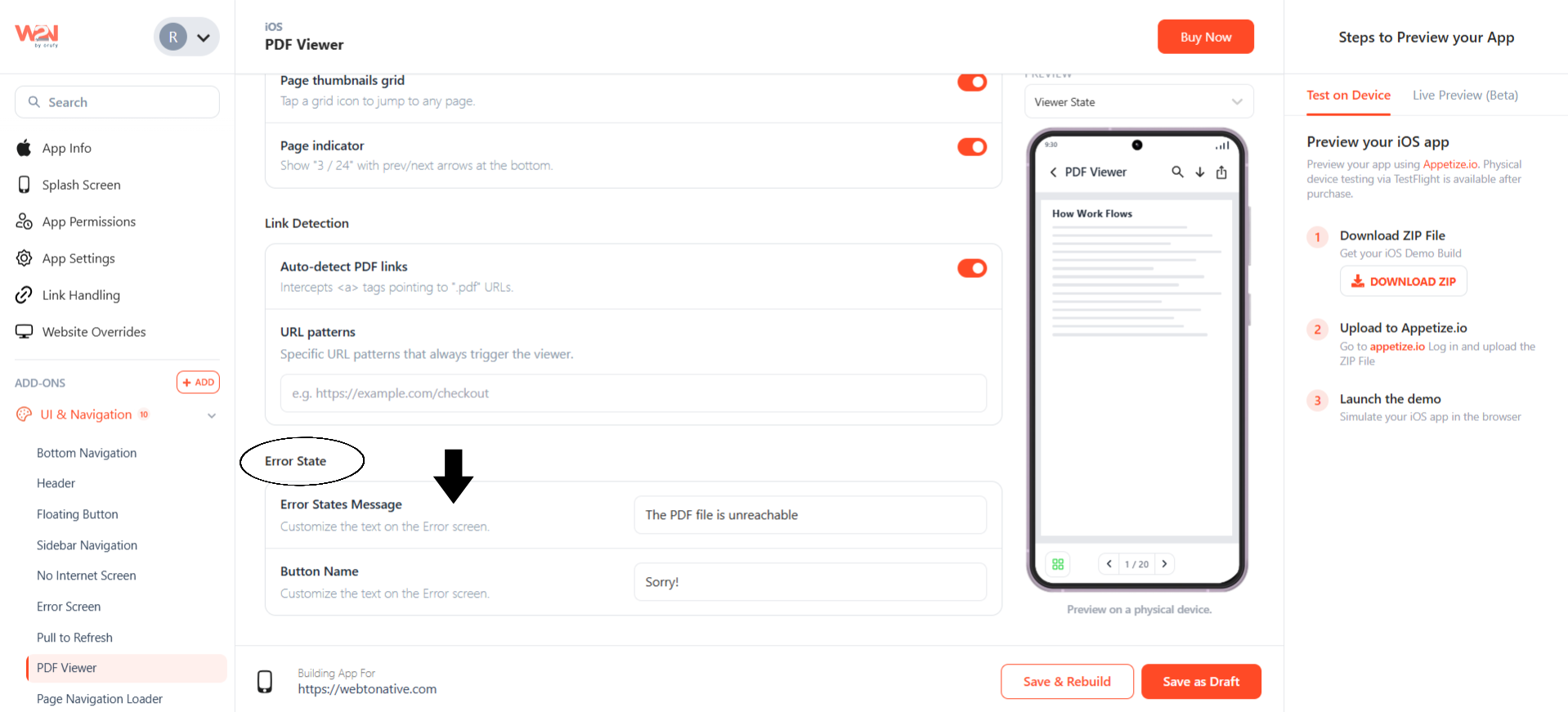
It controls what users see if a PDF fails to open. You can modify the message and text for the error screen.
-
Error State Messages: Write what users see if a PDF fails to load. The default text that appears is “The PDF file is unreachable."
-
Button Name: Write the text shown on the button. The default text that appears is “Retry.”
Preview
Use the Preview panel on the right to see exactly how the viewer looks before rebuilding and switching between all four states:
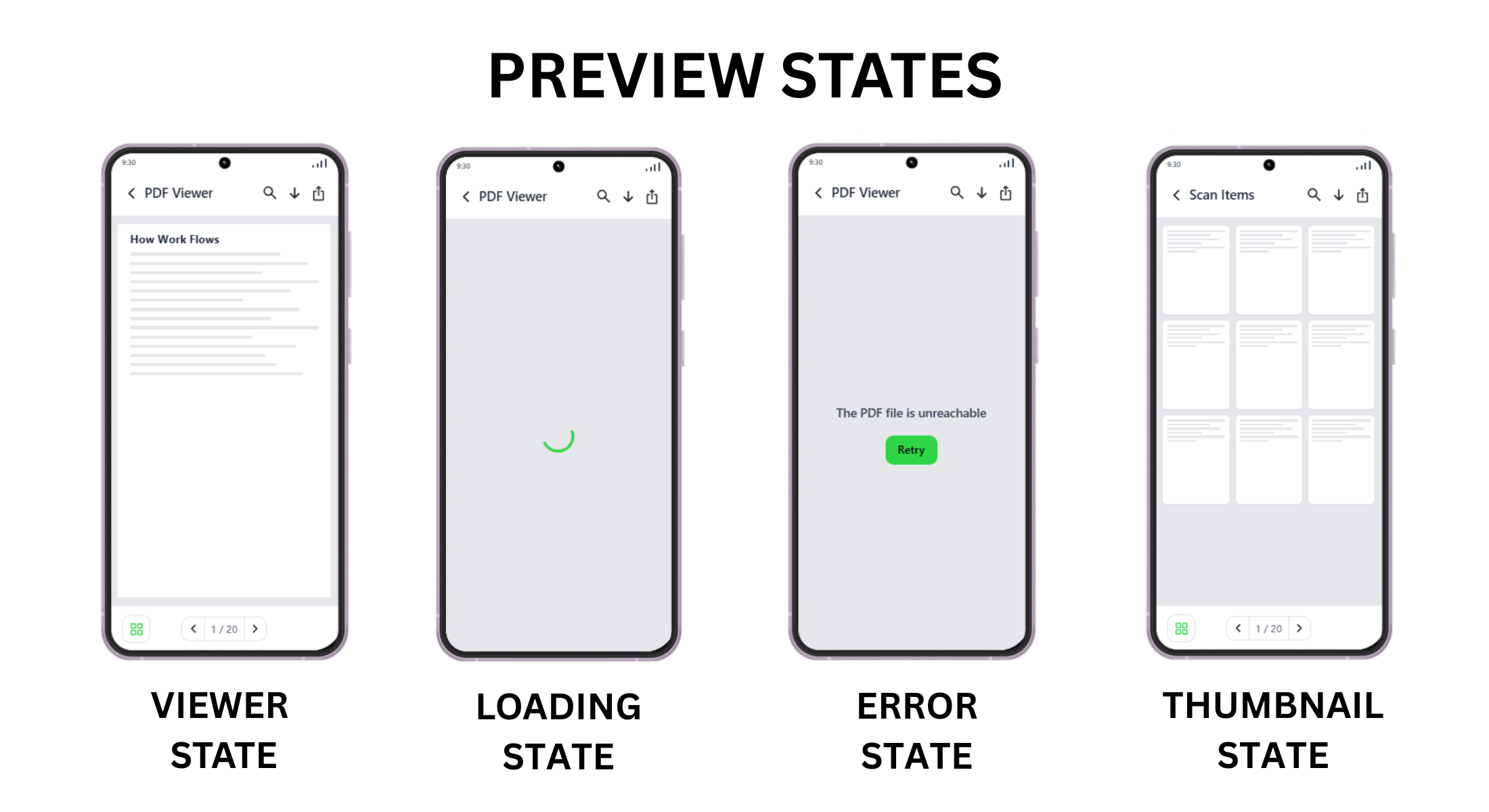

Viewer State
This is the normal view once the PDF has loaded successfully. The header shows the toolbar title with search, share icons, and download. At the bottom, you will see a thumbnail grid button and a page number with arrows to move between multiple pages.

Loading State
While the PDF is loading, users see a simple spinner in the middle of the screen. Just to let them know something is happening instead of staring at a blank screen.

Error State
If the PDF cannot load for some reason, like a broken link or a missing file, this is what shows up. It displays your custom error message, such as "The PDF file is unreachable," along with a retry button and text.

Thumbnail View
This is what appears when a user taps the Page Thumbnails Grid icon. Every page shows up as a small preview in a grid layout. Tapping any thumbnail takes the user straight to that page.
Save & Rebuild
Click on Save & Rebuild to apply your changes to the app. This starts a new build with the PDF viewer settings included.
Frequently Answered Questions
Q1. Do I need to make any changes on my website for this to work?
A. No, once you turn on Auto-Detect PDF links. Any .pdf link on your website automatically opens in the PDF viewer.
Q2. Will this work on PDFs that are password protected?
A. No. Password-protected PDFs currently are not supported by the viewer and may fail to load inside the app. Use the Error State to show users a clear message when PDFs fail to open.
Q3. Does this work for links that don’t end in .pdf?
A. Yes. Add the link under the URL Patterns field in Link Detection. It will open in the viewer even if it does not end in .pdf format.
Q4. What if I don’t want every PDF link to open in the viewer?
A. Turn off Auto-detect PDF links under the Link Detection section. Instead of adding only the specific links you want under URL Patterns, this way only those links will open inside the PDF viewer.
Q5. Can I go back to the old behavior if I don’t like it?
A. Yes, turn the PDF viewer toggle OFF and rebuild. PDFs will go back to downloading or opening in another app like before.
Q6. Will this apply automatically to users who already have the app installed?
A. Yes, once you rebuild and users update to the latest version of your app. PDF links will start opening in the PDF viewer.