


Disable Screenshot
Disabling screenshots in an app is a security and privacy feature developers use to block users from capturing images or videos of sensitive in-app content. When active, the OS prevents screen captures, resulting in a blacked-out screen or a notification that the app restricts capturing.
This add-on is included free with your Business plan on iOS, and you can unlock it from your Starter plan.
Common Use Cases of Disable Screenshot
Finance & Banking
Protecting account balances, card details, and transaction histories.

Secure Messaging
Shielding private data, disappearing messages, and "view once" media.

Premium Content
Preventing the piracy of copyrighted streaming videos or secure documents.
Why Should You Use Disable Screenshot?
Protects sensitive data
Guards personally identifiable information (PII), health records, and financial credentials from being easily stored, forwarded, or misused by a screenshot shared out of context.

Secures the app switcher
Blacks out the app's preview in the recent apps menu. Prevents a passerby — or someone who picks up an unlocked phone — from seeing sensitive data while switching between apps.
Blocks remote screen-scraping
Stops background processes, remote access tools (like TeamViewer), and unauthorized screen recording software from capturing your app's content remotely.

Enforces content ownership
Protects ephemeral media (Snapchat-style photos, dating app images) from being saved without the owner's consent, and shields copyrighted material from screen-capture piracy.
Where to find it in your dashboard
My Apps ➡️ Edit your app ➡️ Add-ons ➡️ Security and Authentication ➡️ Disable Screenshot
Steps to apply Disable Screenshot to your app with WebToNative
Android and iOS have slightly different configuration options. Android uses a global toggle; iOS gives you additional page-level URL control directly in the dashboard.
Configuration Steps for Android
Enable/Disable the toggle
Switch the Disable Screenshot toggle to ON to block screenshots across your entire Android app. When OFF, screenshots are permitted on all pages.
To restrict screenshots on only specific pages rather than the whole app, leave the toggle OFF and use the JavaScript API on those individual pages.
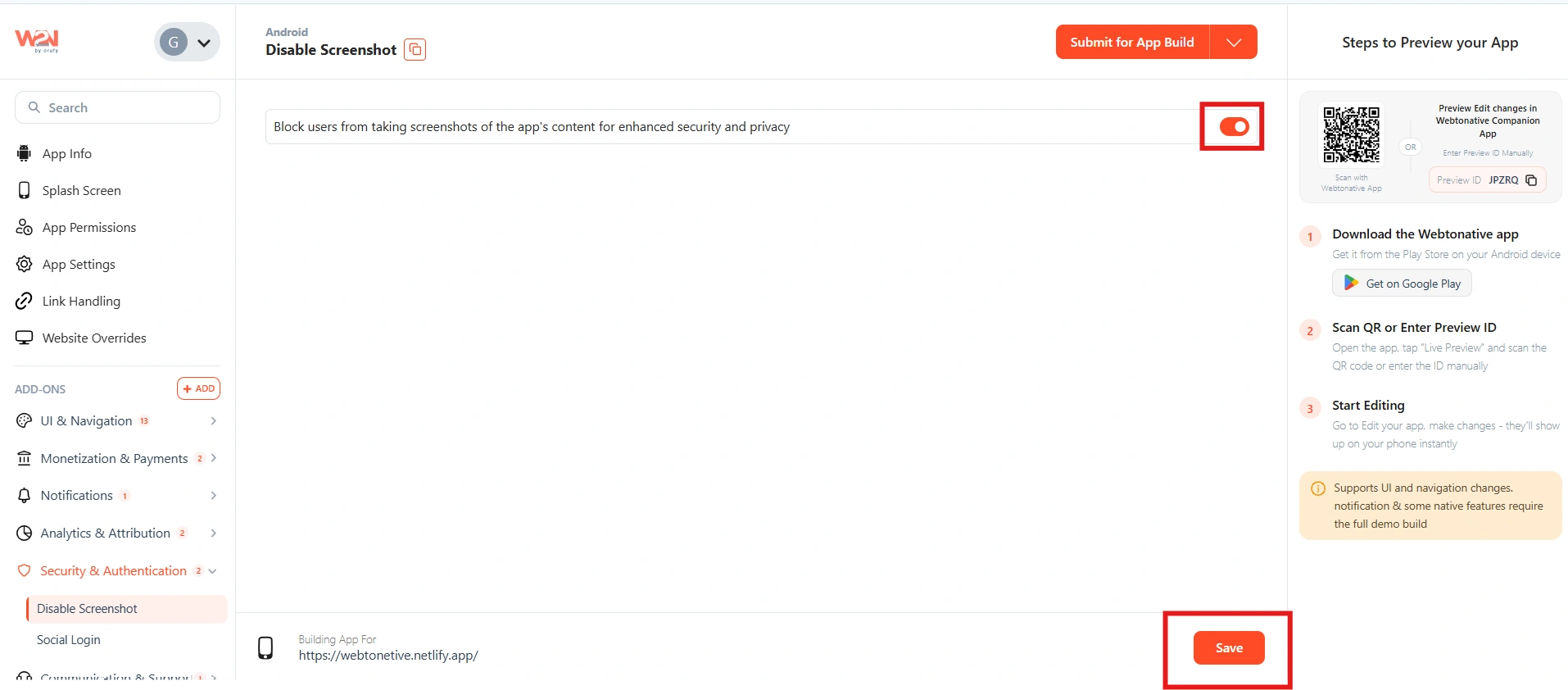
Save and Rebuild
Click Save, then Save & Rebuild. The restriction is active in the new build.
Configuration Steps for iOS
Enable the toggle
Switch the Block Screenshot Capture toggle to ON to activate the feature on iOS.
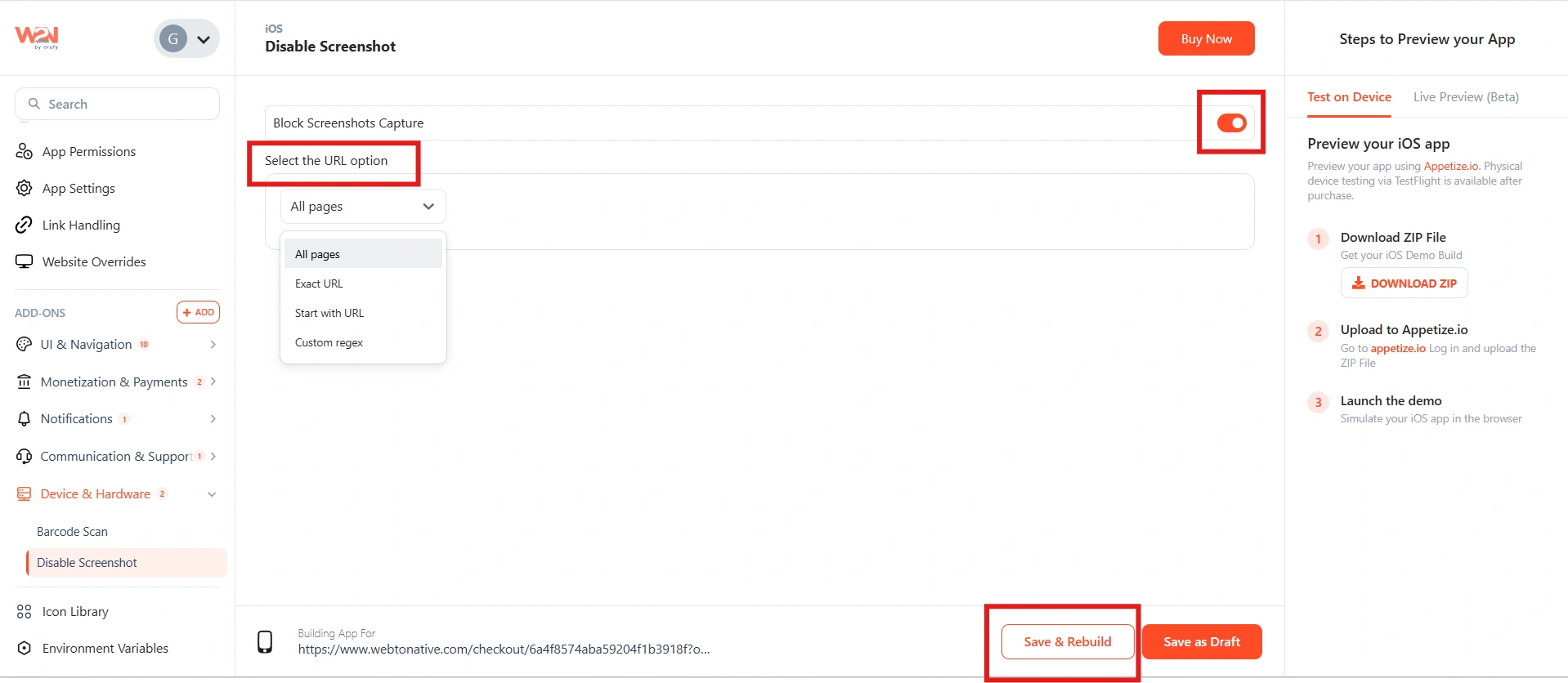
Choose which pages to protect
Select where screenshot blocking is enforced — across the whole app or on specific pages:
All Pages
Every page in your app is protected. No screenshot or screen recording can capture any content. Best for apps where all content is sensitive. EG-www.example.com
Exact URL
Screenshots are blocked only on this exact URL — all other pages are unprotected. Use for a single sensitive screen such as an account details or payment confirmation page. EG - www.example.com/comparison/abc
Start with URL
Any page whose URL begins with the specified prefix gets screenshot protection. Use for an entire account area, document vault, or secure messaging section. EG- www.example.com/blog → covers /blog, /blog/post-1, /blog/tags.
Custom Regex
Write a regular expression to match exactly the pages you want to protect. For developers who need precise control beyond a simple prefix. EG - ^https://www\.example\.com/(shop|products)*.
On iOS, you can also use the JavaScript API to override the dashboard setting on specific pages — for example, to temporarily re-allow screenshots on a page that is normally protected, or to protect a page that isn't covered by your URL rule.
Save and Rebuild
Click Save then Save & Rebuild. Screenshot blocking is active on the pages you selected in the new build.
JavaScript API — per-page override
The disableScreenshot() function overrides your dashboard setting for the specific page it runs on. Use it to protect or unprotect individual pages independently of your global configuration.
Full code examples for both plain JavaScript and npm are in the developer documentation. https://docs.webtonative.com/javascript-apis/disable-screenshot (opens in a new tab)
disableScreenshot({ ssKey }) - Android & iOS
Call this function in your page's JavaScript to override the dashboard screenshot setting for that page. The ssKey parameter controls whether screenshots are blocked or allowed on the page where the function runs.
| ssKey value | What it does | When to use it |
|---|---|---|
| true | Blocks screenshots on this page — even if the dashboard has screenshots allowed globally | You want to protect a specific sensitive page without enabling global protection |
| false | Allows screenshots on this page — even if the dashboard has screenshots blocked globally | You need to allow screenshots on one specific page (e.g. a share screen) while keeping the rest of the app protected |
| omitted | Follows the dashboard setting — no per-page override | Default behaviour when the function is not called on a page |
Frequently Asked Questions
What does the user see when they try to take a screenshot?
The screenshot action appears to succeed (the camera sound plays, the flash may appear) but the saved image is completely black. On some Android versions, the OS shows a toast notification saying the app does not permit screenshots. The user cannot capture any content from the protected screen.
Does it also block screen recording?
Yes — on both Android and iOS, the protection applies to screen recording as well as screenshots. Any screen recording that includes your protected app will show a black frame for the duration the protected page is visible. It also prevents the app content from appearing in the recent apps switcher preview.
Does this work against external cameras or someone filming the screen?
No — the OS-level protection only works against digital screen capture (screenshots, screen recordings, remote access tools). It cannot prevent someone from pointing a physical camera at the screen. This is a limitation of all software-based screenshot protection — it is not possible to block someone photographing the screen with another device.
Can the JavaScript API override the dashboard setting?
Yes — that is its primary purpose. If your dashboard has screenshots blocked globally and you call disableScreenshot({ ssKey: false }) on a specific page, screenshots will be allowed on that page only. If screenshots are allowed globally and you call disableScreenshot({ ssKey: true }) on a page, that page will be protected. The function always takes precedence over the dashboard setting on the page where it runs.