



iOS Offline Persistence
When you board a plane and lose Wi-Fi, a downloaded magazine is still fully readable. But a webpage you never saved shows nothing — just an error screen.
iOS Offline Persistence works the same way. It saves a copy of your selected web pages directly on the device while the user is online. When they lose their connection — on a plane, in a tunnel, in a basement — those pages still open normally, as if they had full internet.
Steps to Activating iOS Offline Persistence
Navigate to Link Handling
Log in to your WebToNative dashboard and choose your iOS app
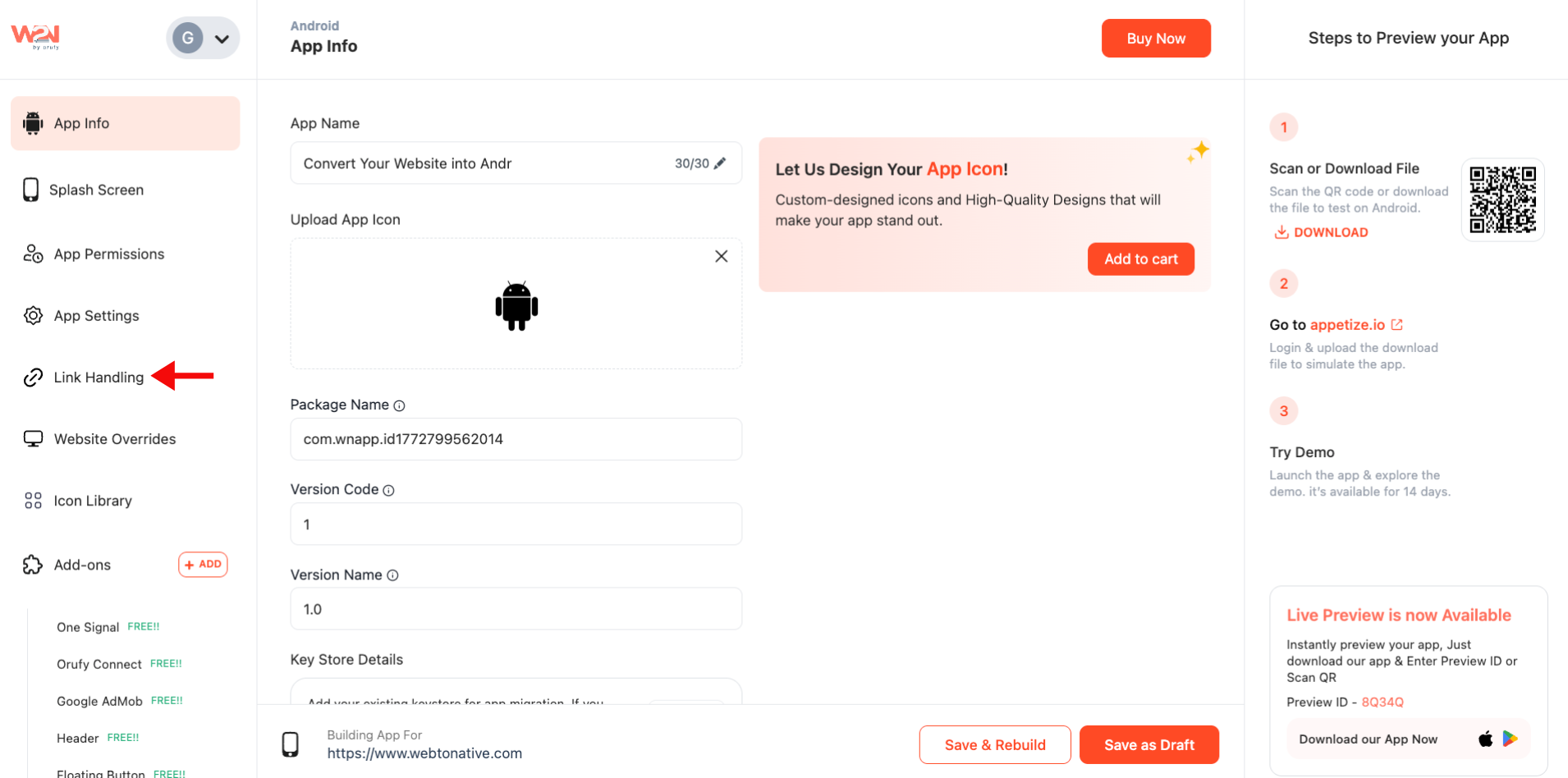
iOS Offline Persistence
After clicking on Link Handling, locate the iOS Offline Persistence feature
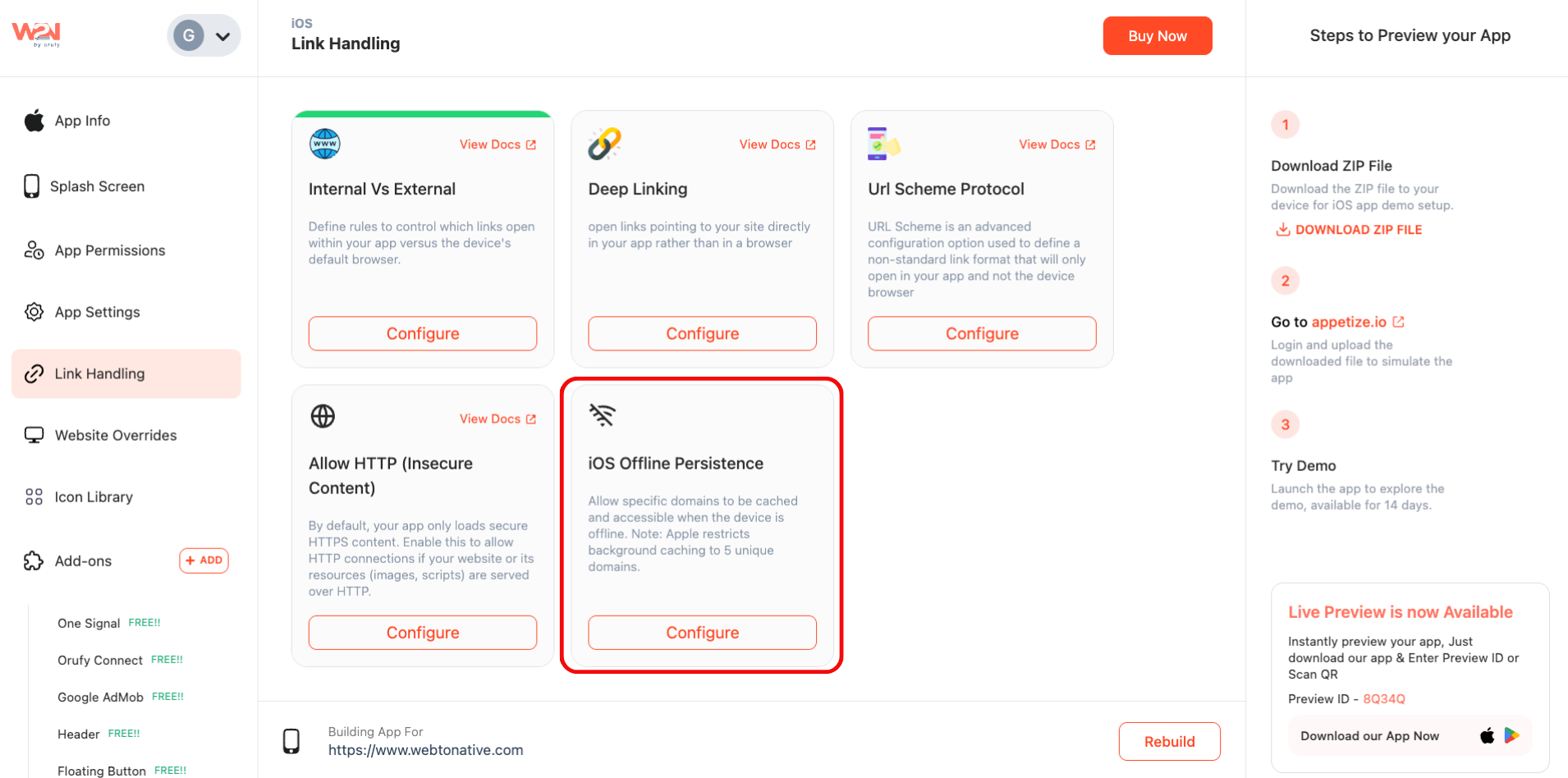
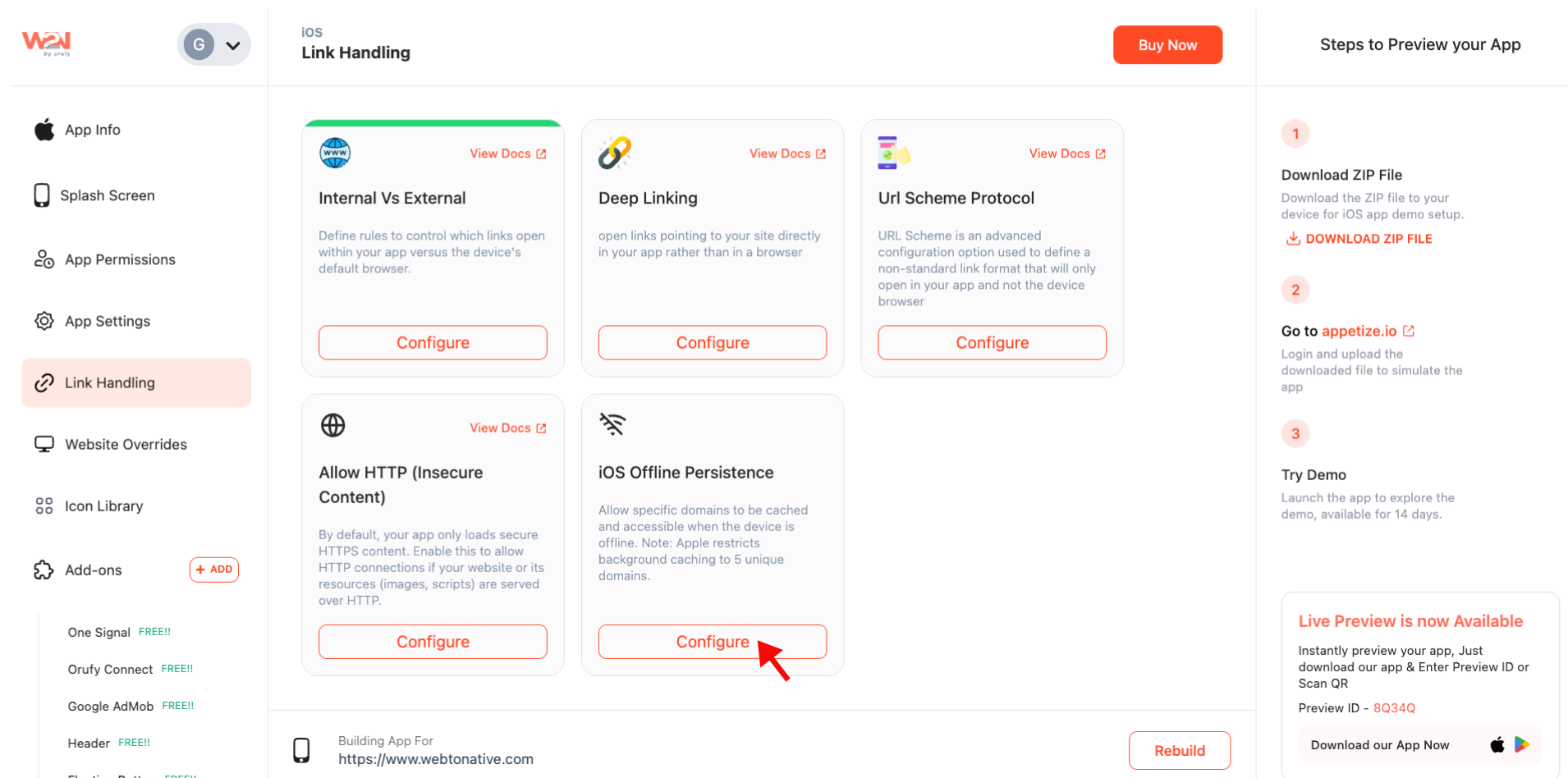
Configure the Feature
Below the iOS Offline Persistence card, click on “Configure”
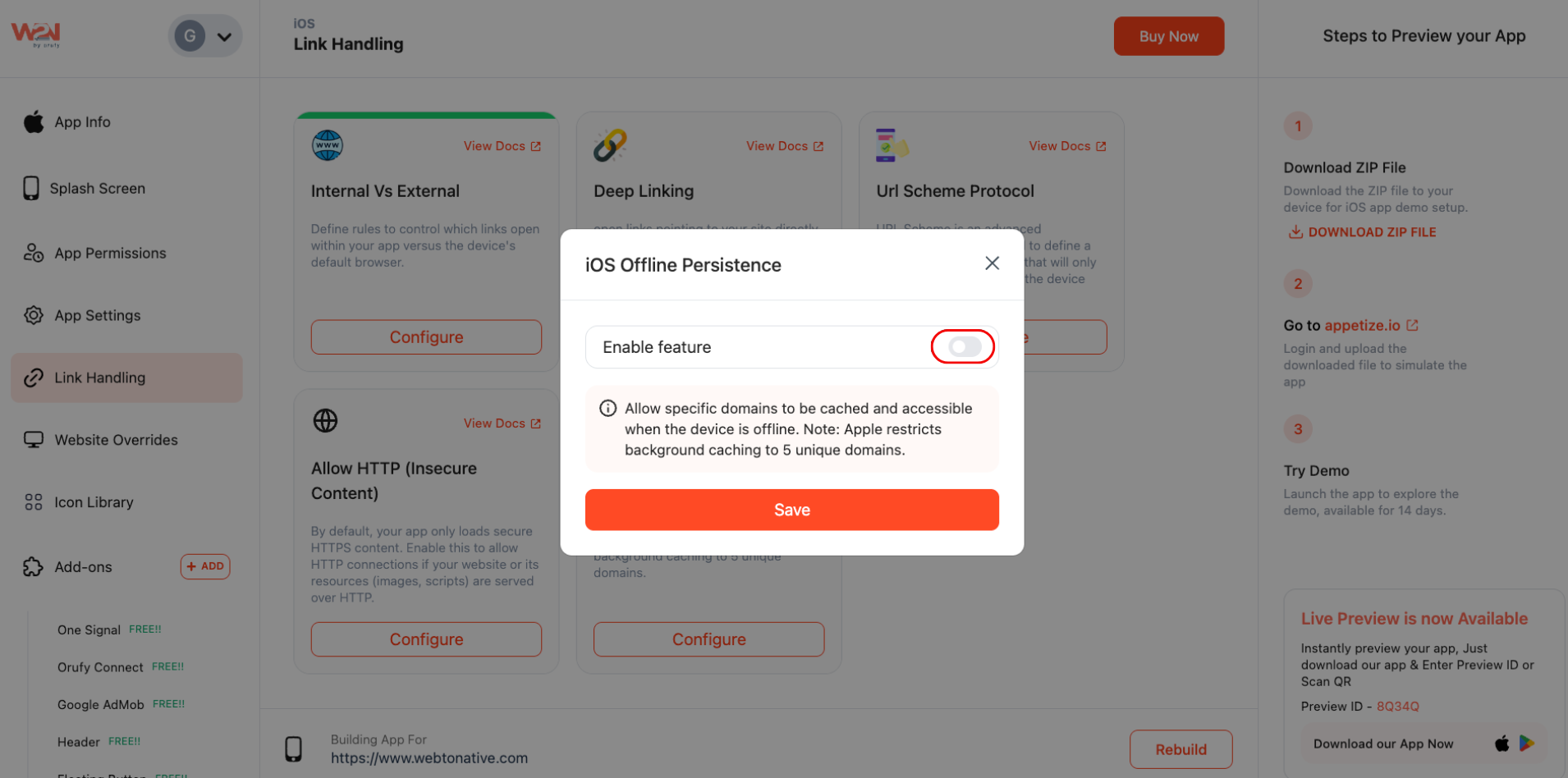
Enable iOS Offline Persistence
Switch on iOS Offline Persistence to enable this feature
Select Domains to Cache
Enter the domain you want to cache in the Domain field
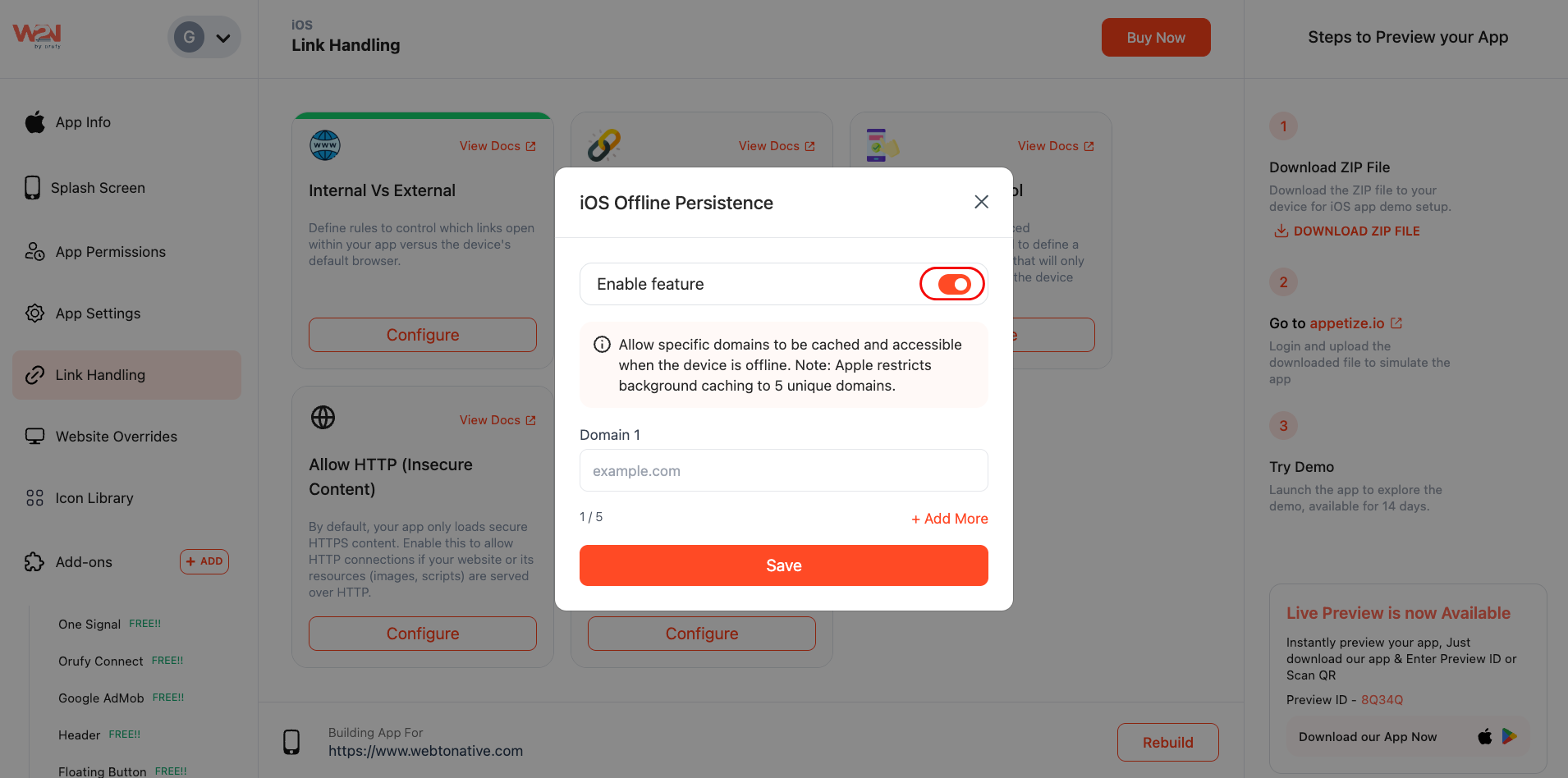
Click on “+ Add More”
The +Add More option allows you to add more domains. Apple allows you to cache for up to 5 domains
Due to iOS WKWebView caching limitations, offline persistence supports up to 5 domains. Prioritize the pages and sections your users access most frequently and may need available offline.
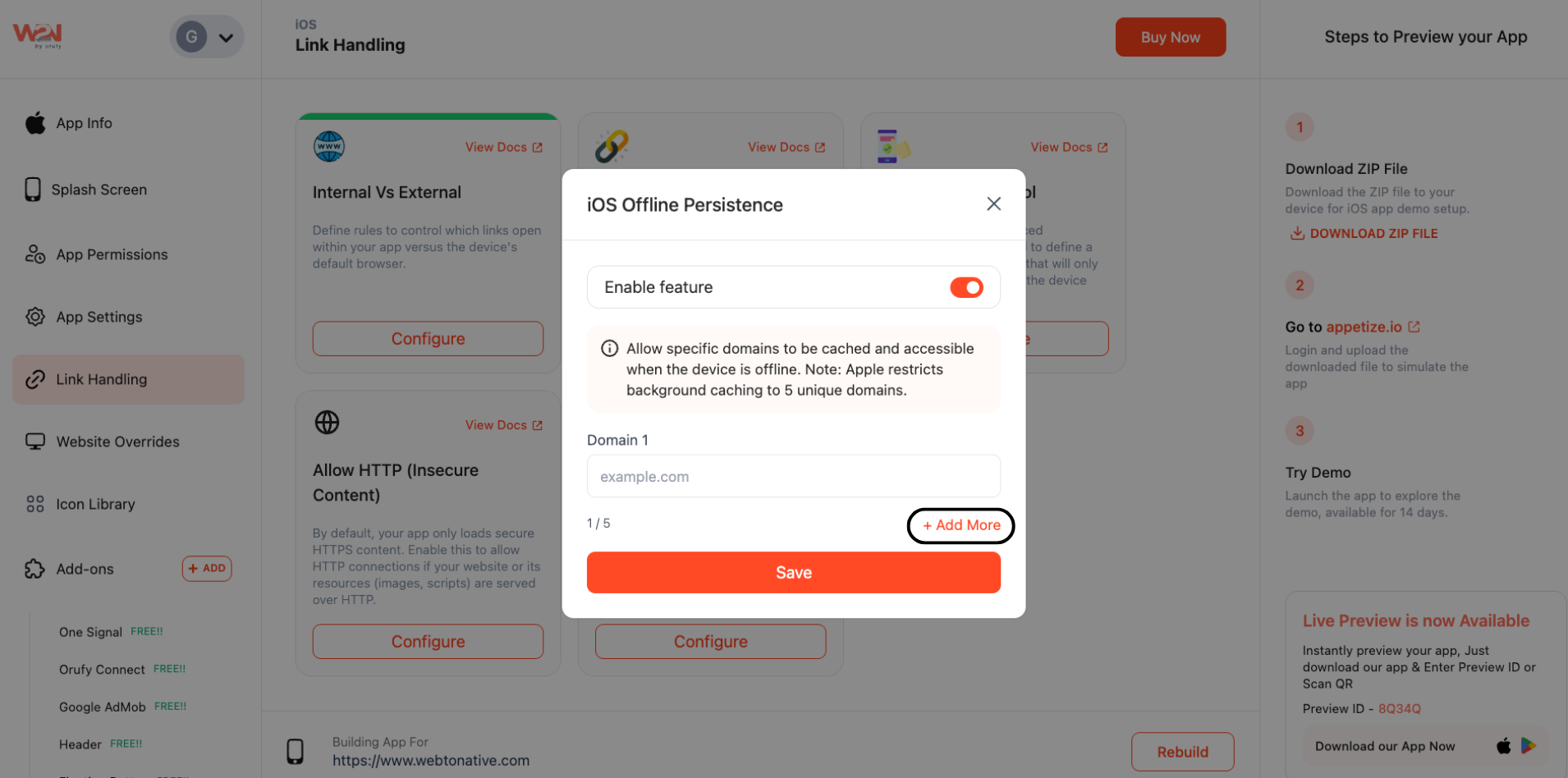
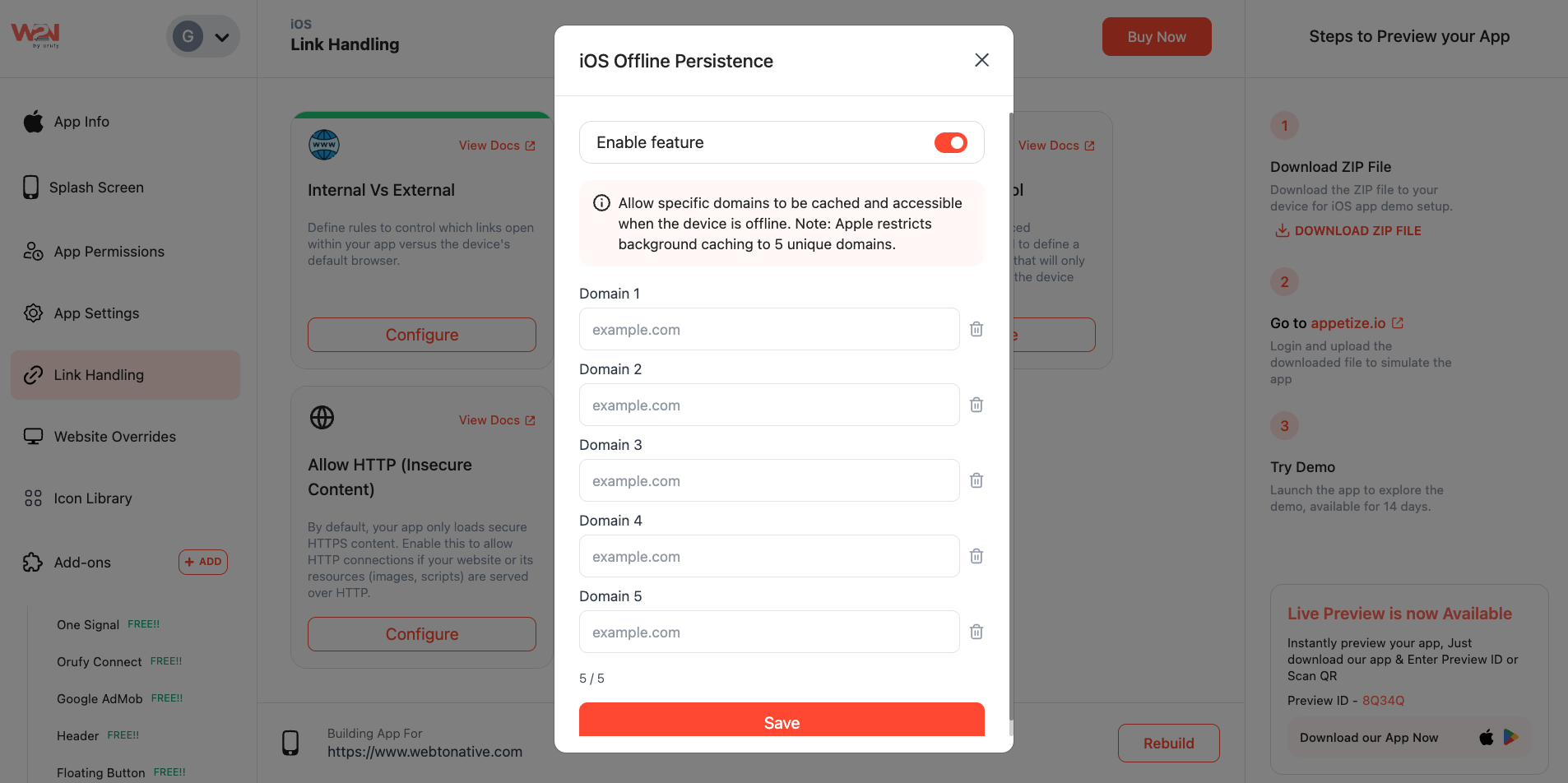
- Since you're limited to 5 domains, focus on pages your users genuinely need when offline:

Menus & Catalogues
Restaurant menus, product catalogues, or service lists users browse before placing an order. menu.yoursite.com

Schedules & Timetables
Class schedules, event listings, appointment times — content users check on the go. schedule.yoursite.com

Account & Profile Pages
User's own data — order history, loyalty points, saved items — that they frequently check. account.yoursite.com

Homepage/Landing
Your app's main entry point — ensures users always see something when they open the app. yoursite.com

Location & Contact Info
Address, opening hours, phone number — exactly what people need when they're already traveling. contact.yoursite.com
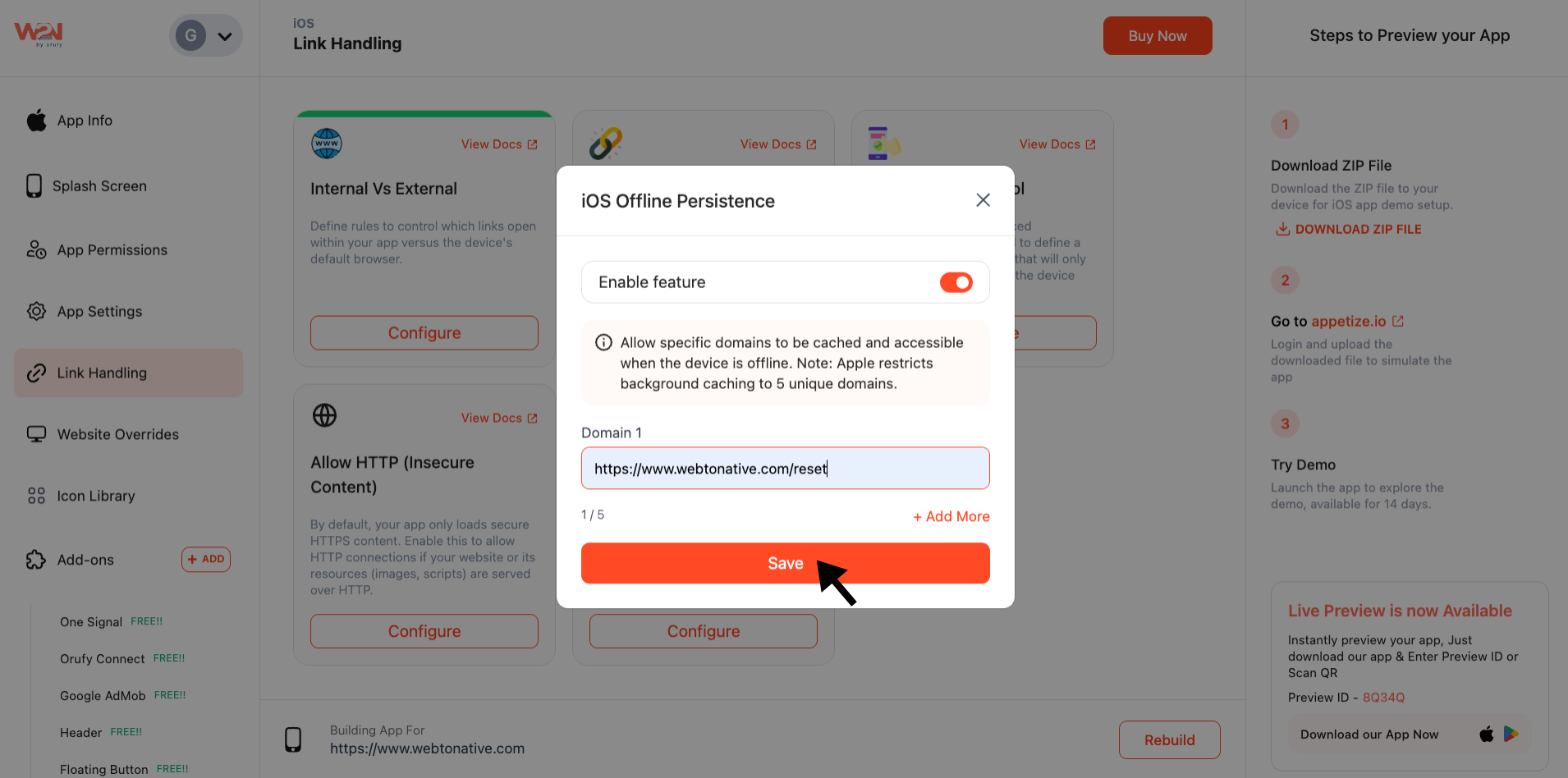
Save Settings
Tap on Save to update your changes
Rebuild
Rebuild your app to enable offline access for your selected domains
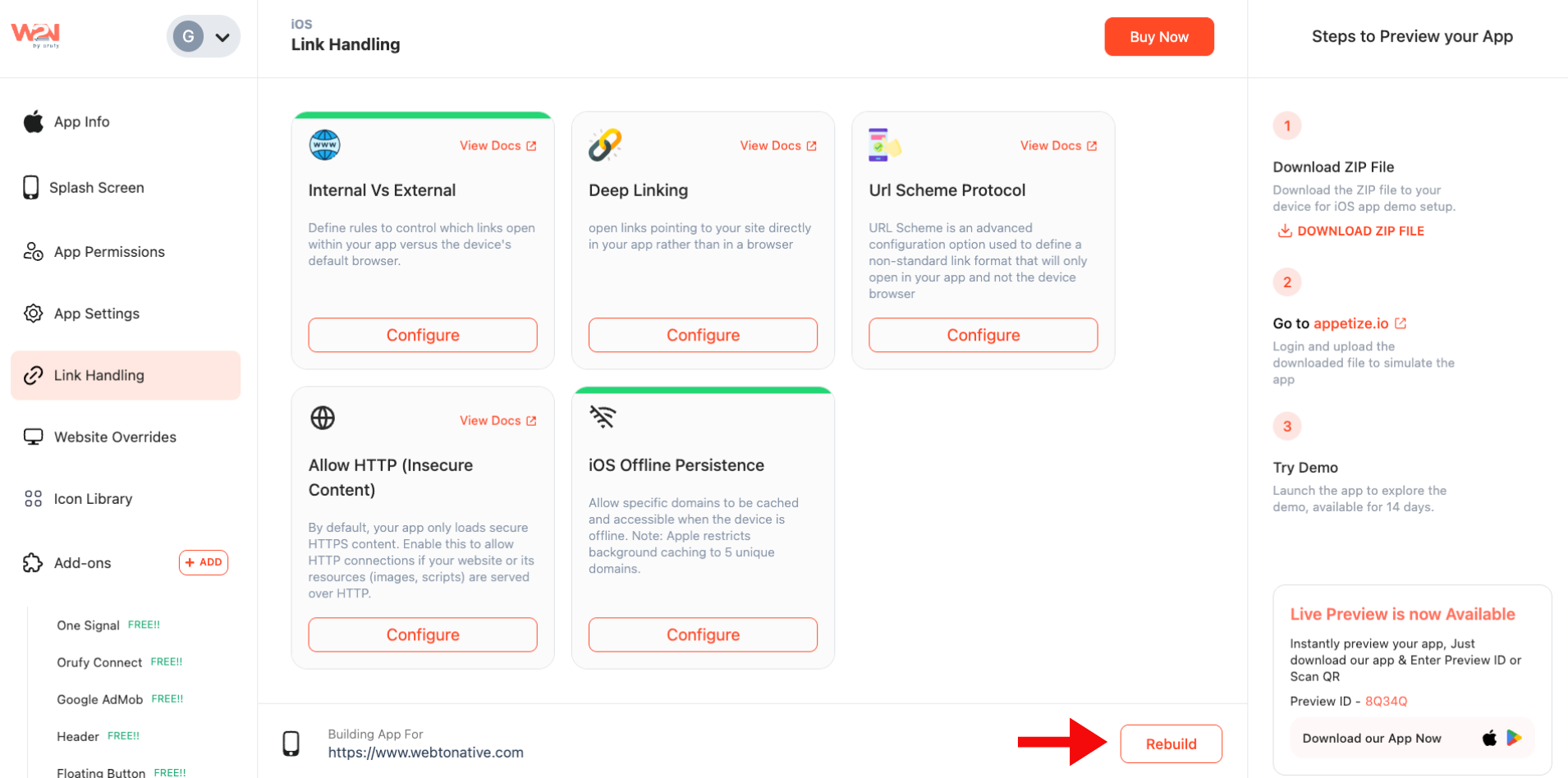
After rebuilding, test the feature by visiting one of your cached pages while online, then turning off Wi-Fi and mobile data — the page should still load normally.
Benefits of iOS Offline Persistence for Your App

Smooth Browsing Offline
Users can access the key content without an internet connection.

Ready-to-Access Content
Ensure the most important pages are accessible anytime.

Increase Engagement
Keep your users interacting with your app even when they are offline