


Biometric Authentication
Biometric authentication lets users log in or approve actions using their unique physical traits — a fingerprint or a face scan — instead of typing a password. The device reads the trait, checks it against what was registered during setup, and either grants or denies access in less than a second.
Every modern phone has a biometric system built in — fingerprint sensor, Face ID, or iris scan — that users set up when they first configure their lock screen. That same trusted system can protect your app too.
When biometric authentication is active, users verify their identity with what they've already registered on their device. No passwords to remember, no OTPs to wait for
This add-on is included free with your Business plan on Android and iOS, and you can unlock it from your Starter plan.
Where to find it in your dashboard
My Apps ➡️ Edit your app ➡️ Add-ons ➡️ Device and Hardware ➡️ Biometric
Common uses of Biometric Authentication

Fast logins
Quickly signing into banking, shopping, or password-manager apps without typing long credentials. One touch or glance — instant access.

Payment approvals
Confirming digital wallet transfers, in-app purchases, or money sends. A quick tap replaces re-entering a password or PIN for every transaction.

Locking private content
Securing hidden folders, private notes, or encrypted chats inside an already open app — adding a second layer of protection beyond the initial login.
Why users prefer biometrics over passwords

No forgotten credentials
Users never need to reset a lost password or get locked out of their account. Their fingerprint or face is always with them.

Less friction, more engagement
Removing the password step reduces frustration and makes users more willing to open and use the app regularly — especially for apps they check multiple times a day.

Harder to steal
Physical traits are unique to each person and cannot be guessed, copied, or shared the way text passwords can. There is no credential to leak in a data breach.

No phishing risk
Attackers cannot trick users into handing over a fingerprint or face scan the way they steal typed passwords with fake login pages or social engineering.
Steps to apply Biometric Authentication to your app with WebToNative
Enable Biometric Authentication
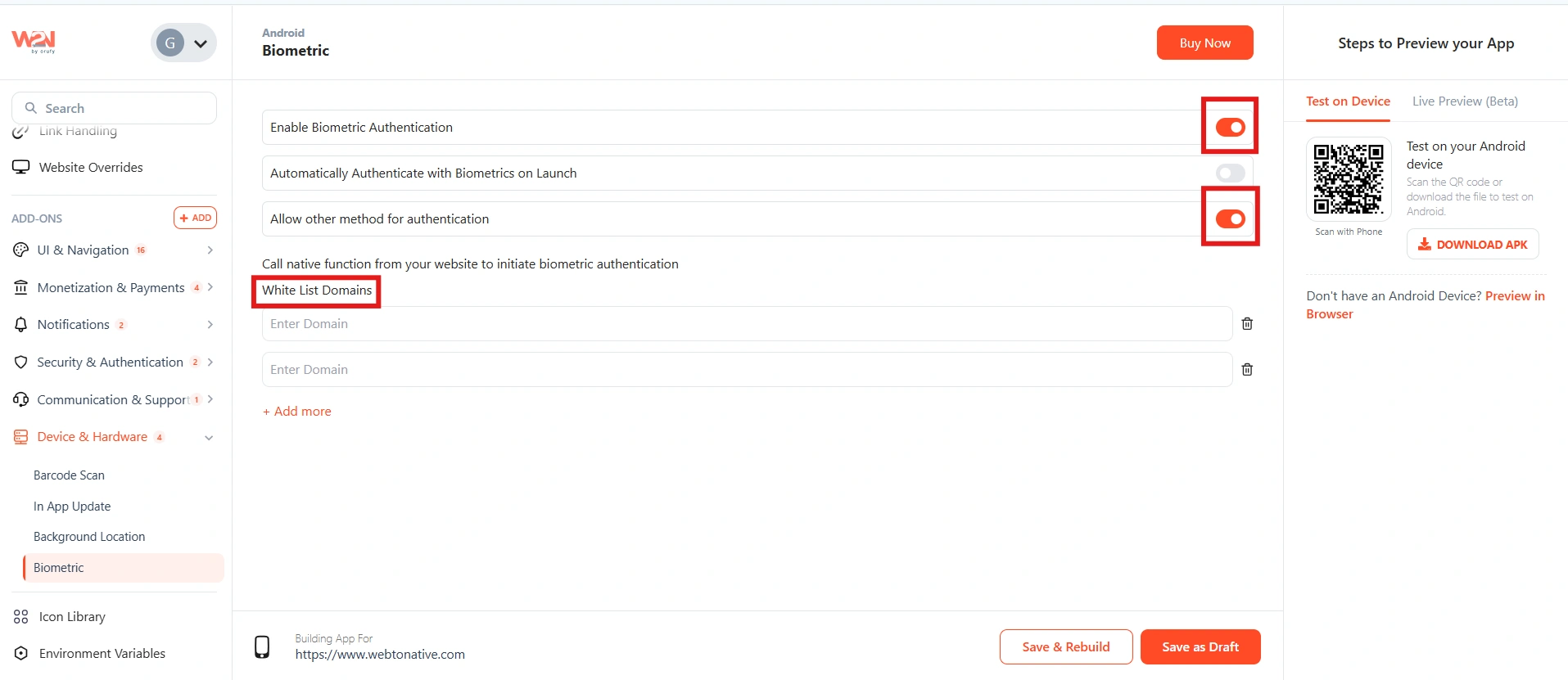
Switch the Biometric Authentication toggle to ON. This activates the biometric module in your app and makes the JavaScript API functions available to call from your website.
Authenticate with Biometrics
There are two ways to use biometric authentication. Choose the approach that fits your app.
Auto on launch — toggle ON
The biometric prompt appears automatically every time the app opens. The user must authenticate before they can use the app at all.
- User opens the app
- Device's default biometric appears (fingerprint or Face ID)
- On success — app unlocks
Best for apps where all content is sensitive — banking, health, secure documents.
Manual / per-page — toggle OFF
The biometric prompt is not shown automatically. You control exactly when it appears by calling a JavaScript function from your website — on a specific page, before a sensitive action, or on a button tap.
Whitelist Domains — enter the list of domains that are allowed to call the biometric JavaScript functions. The functions will only work on whitelisted domains.
Whitelist Domains
When using Manual mode (toggle OFF), you must add your domain(s) to the whitelist before calling any biometric JavaScript functions. Functions called from a domain that is not whitelisted will not work.
Example domain entries
If you call a biometric function from a domain that is not in your whitelist, the function will silently fail — the prompt will not appear and no error is returned to the page. Always add your domain before testing.
Other Method
When enabled, users can fall back to an alternative authentication method — such as their device PIN or password — if they cannot use biometric (e.g. fingerprint not recognized, Face ID unavailable). When disabled, the app only accepts the biometric method and offers no alternative.
Save and Rebuild
Click Save, then Save & Rebuild to see the changes.
JavaScript API functions
Five functions give you complete control over biometric behavior from your website's JavaScript. Full code examples with parameter details are in the developer docs. https://docs.webtonative.com/javascript-apis/biometric-authentication (opens in a new tab)

show()
Displays the biometric authentication prompt to the user. Call this from any page, event, or button in your website to trigger the native fingerprint or Face ID prompt. If the user authenticates successfully, the callback returns the saved secret (if one was stored).

saveSecret()
Saves a secret value securely on the device — tied to the user's biometric. The secret is returned whenever the user successfully authenticates with show(). Use this to store a login token, session key, or any value you want to retrieve without asking the user to re-enter it
| Login without re-entering credentials — the pattern |
|---|
| User logs in normally (username + password) for the first time. |
| Call saveSecret() with their login token or session key. |
| Next time they open the app, call show() — the callback returns their token. |
| Use the returned token to log them in automatically — no password required. |

deleteSecret()
Removes the saved secret from the device. The secret cannot be deleted by the user directly — only your app can remove it by calling this function. Use this when the user logs out, when a session expires, or when you want to force re-authentication from scratch.

checkStatus()
Returns the current biometric status for the app and device. Use this to check whether biometric authentication is available and active before calling show() — and to check whether a secret has already been saved for the current user.

biometricAuthWithDismissOnCancel()
Shows the biometric prompt — but unlike show(), tapping Cancel does not close the app. Instead, the callback fires and your page can decide what to do next — show a message, offer a password form, or let the user continue without authenticating. Use this when you want to give users a choice rather than forcing authentication or quitting
biometricAuthWithDismissOnCancel() is available on Android only, from version released 30 June 2025.
Frequently Asked Questions
What biometric types are supported?
The module uses the device's built-in biometric system — whatever the user has registered on their device. On iOS this means Face ID or Touch ID. On Android this means fingerprint, face recognition, or iris scan, depending on the device. You don't configure the biometric type — the OS presents whichever method the user has set up.
I called the function but nothing happened. What should I check?
The most common cause is a missing whitelist entry. When using Manual mode (toggle OFF), the domain the function is called from must be in the Whitelist Domains list. If the domain is not whitelisted, the function will silently do nothing. Add your domain exactly as it appears in the URL — including the protocol (https://).
Can I use biometric to log users in automatically?
Yes — using the Save Secret pattern: the first time a user logs in normally, call saveSecret() with their login token. On subsequent app opens, call show() — if authentication succeeds, the callback returns the saved token. Use that token to log them in on your backend without asking for a password. You manage what to do with the token — WebToNative handles the secure storage and biometric verification.
Can users delete their own saved secret?
Not directly — users cannot remove the secret themselves. Only your app can delete it by calling deleteSecret(). If you want to give users control over this (e.g. a "Log out and clear biometric" option in settings), build a button or flow in your website that calls deleteSecret() when tapped.
What happens when the user cancels the biometric prompt?
With show(), cancelling the prompt closes the app on Android. If you want to keep the app open when the user cancels, use biometricAuthWithDismissOnCancel() (Android only) with isAuthenticationOptional: true. This lets you handle the cancellation gracefully — showing a message, offering an alternative, or letting the user continue without biometric.
What does Allow Other Authentication Methods do?
When enabled, users who cannot complete biometric authentication (e.g. fingerprint not recognized, Face ID unavailable) can fall back to their device PIN, password, or other enrolled authentication method. When disabled, the only accepted method is the biometric — there is no fallback. Enable this for better accessibility and fewer lock-out scenarios.
Does "Allow Other Authentication Methods" work on iOS?
On iOS, the fallback to an alternative authentication method (such as a device passcode) is handled automatically by the operating system — iOS always provides this option by default when biometric fails or is unavailable. The Allow Other Authentication Methods toggle in the WebToNative dashboard is therefore only relevant for Android, where you explicitly control whether the fallback is offered to the user.