



Passcode Lock
Passcode Lock is a security feature that protects apps and user data through a pin or passcode. Before accessing the app, only an authorized person can open and use it.
Step-by-Step Process to Add a Passcode Lock
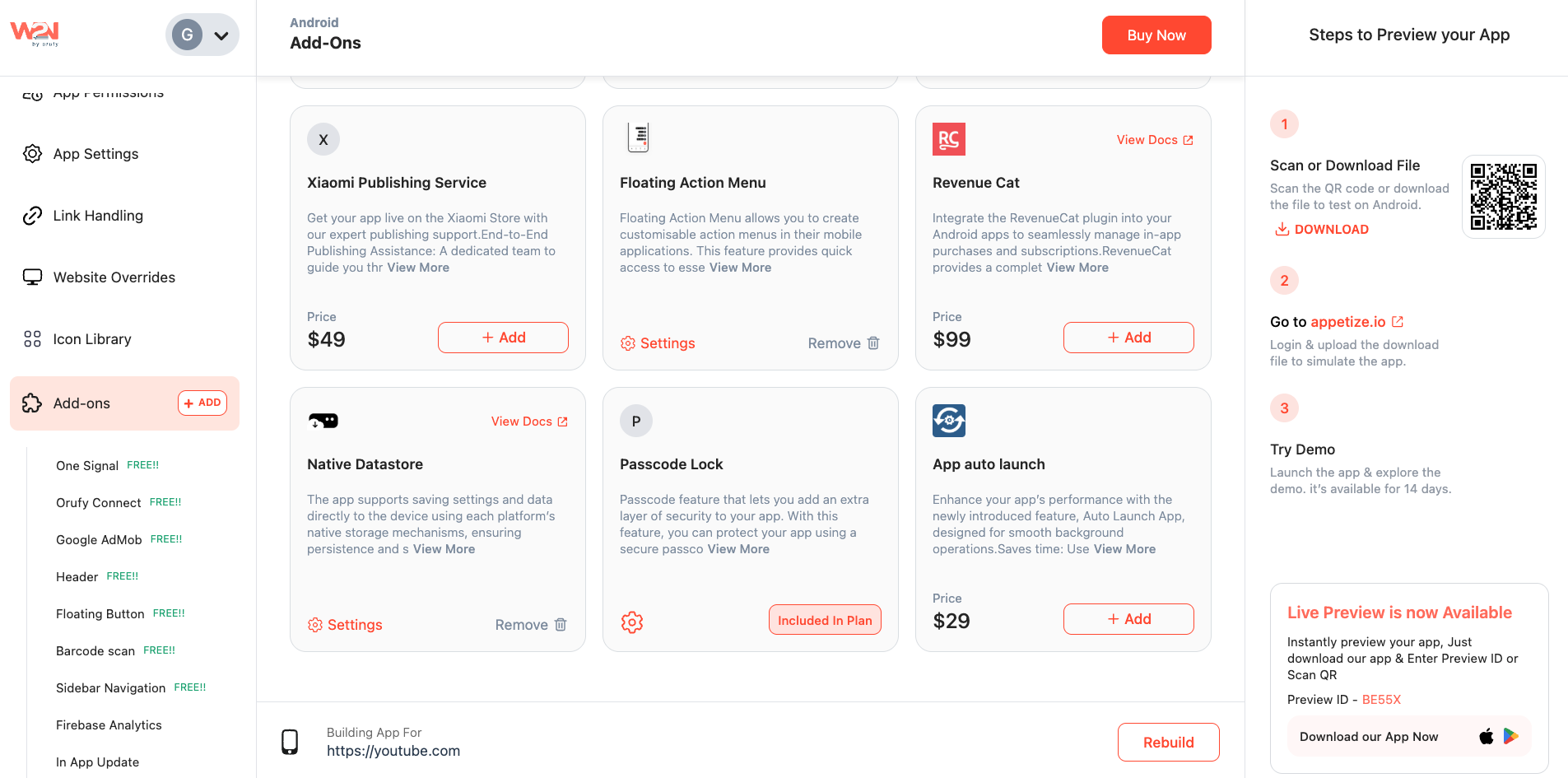
1. Enable Passcode Lock from Add-Ons
- Click on the settings icon to enable the passcode.
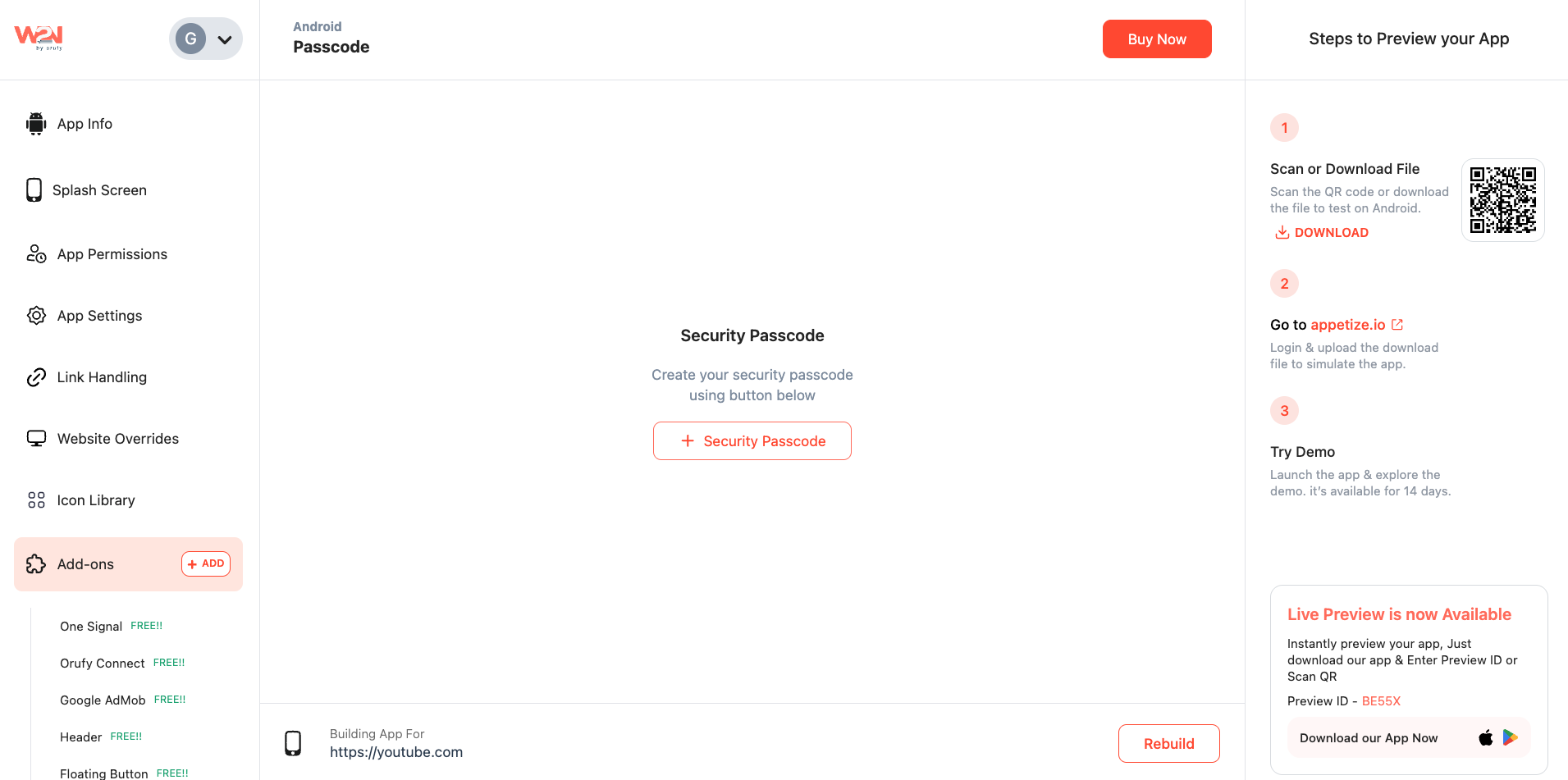
2. Add Passcode Tap on “+ Security Passcode” to configure your passcode settings.
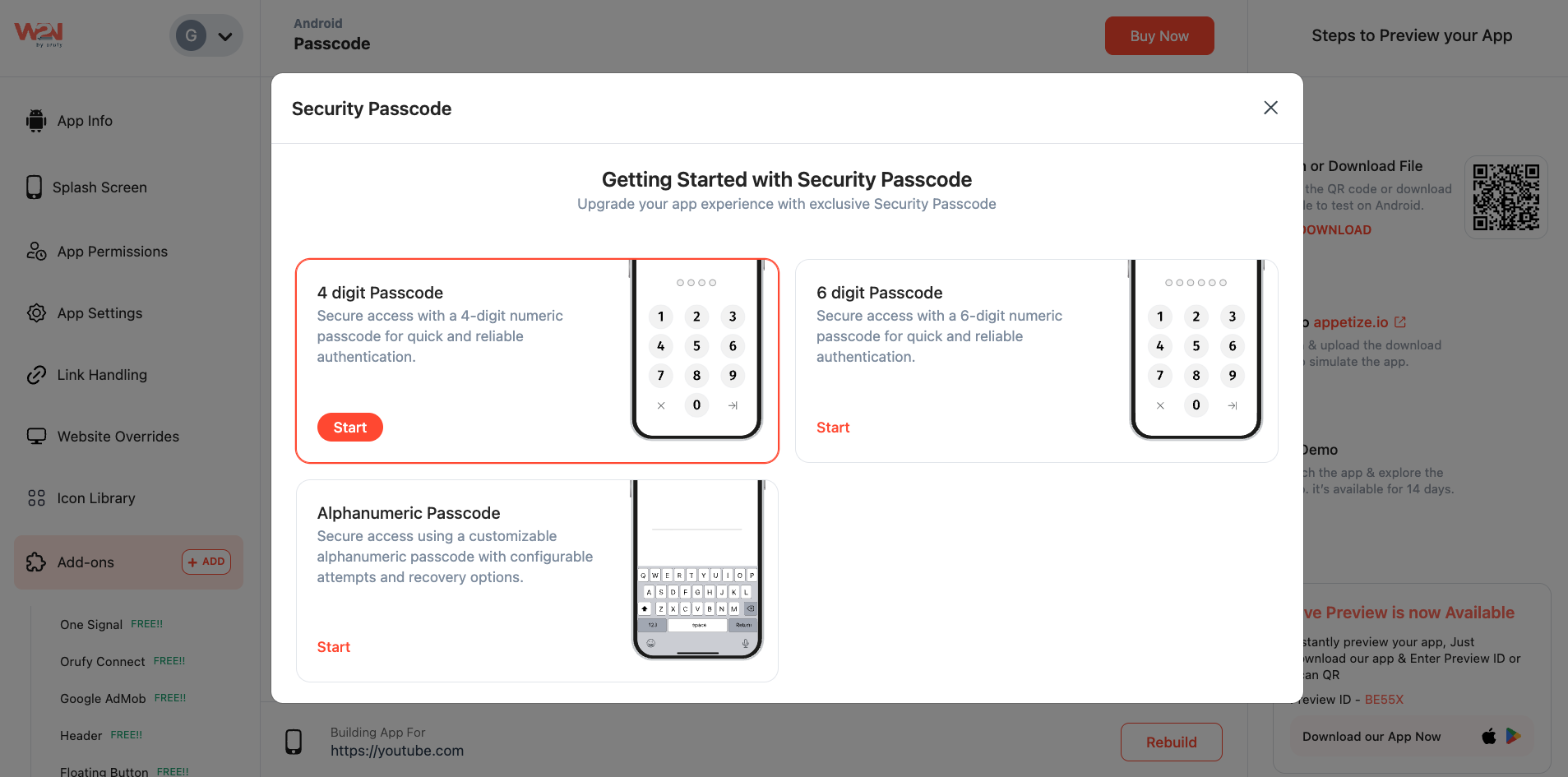
3. Set Your Passcode There are 3 options to set your passcode based on your needs. One is 4 digits passcode, the second is a 6-digit passcode, and the third is an alphanumeric passcode.
4. Navigate to the “Start” Button After clicking on the start button, you will see the passcode settings.
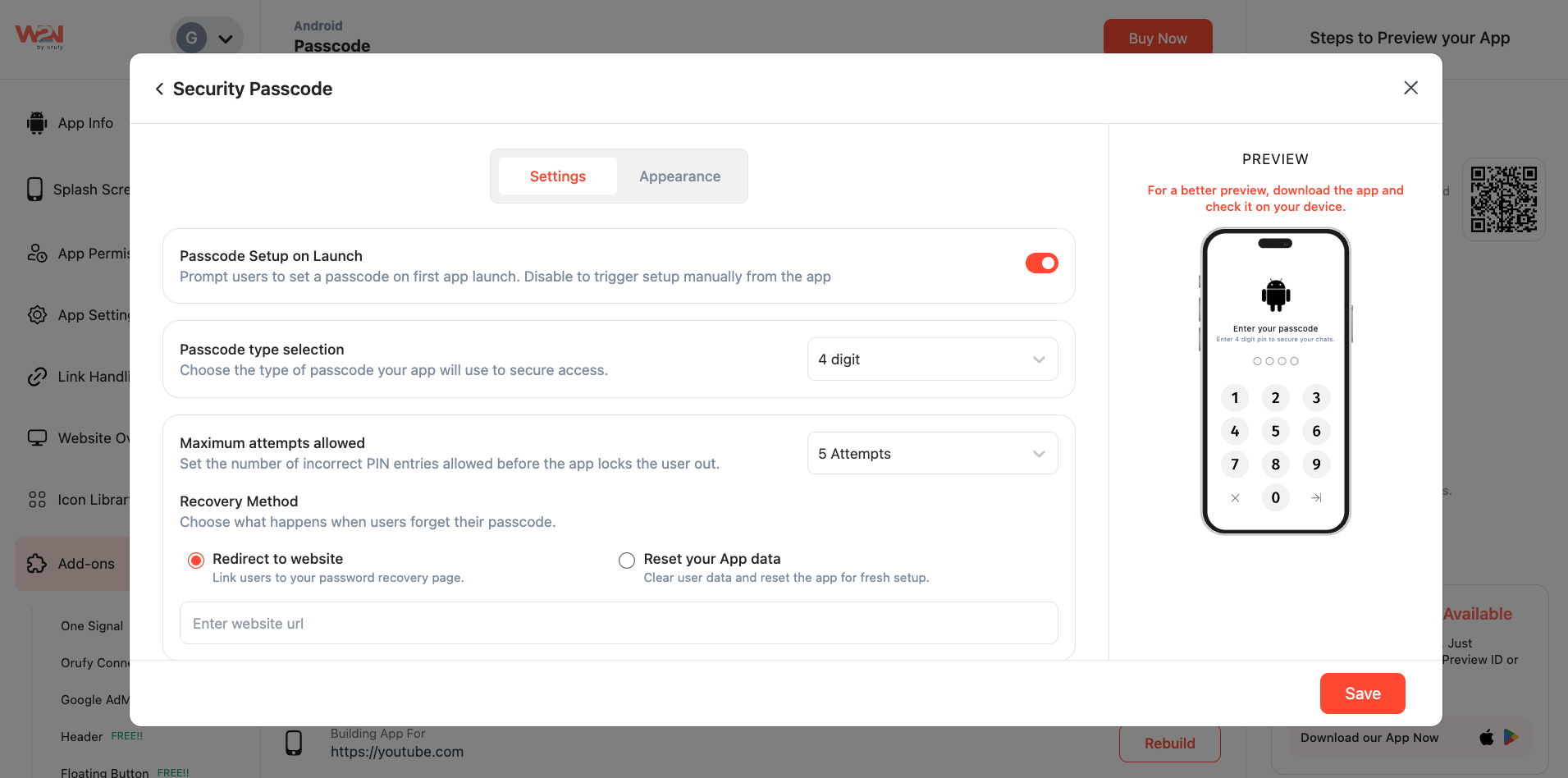
5. Configure the Settings Now, you can set passcode settings and the appearance according to your theme colors and logo.
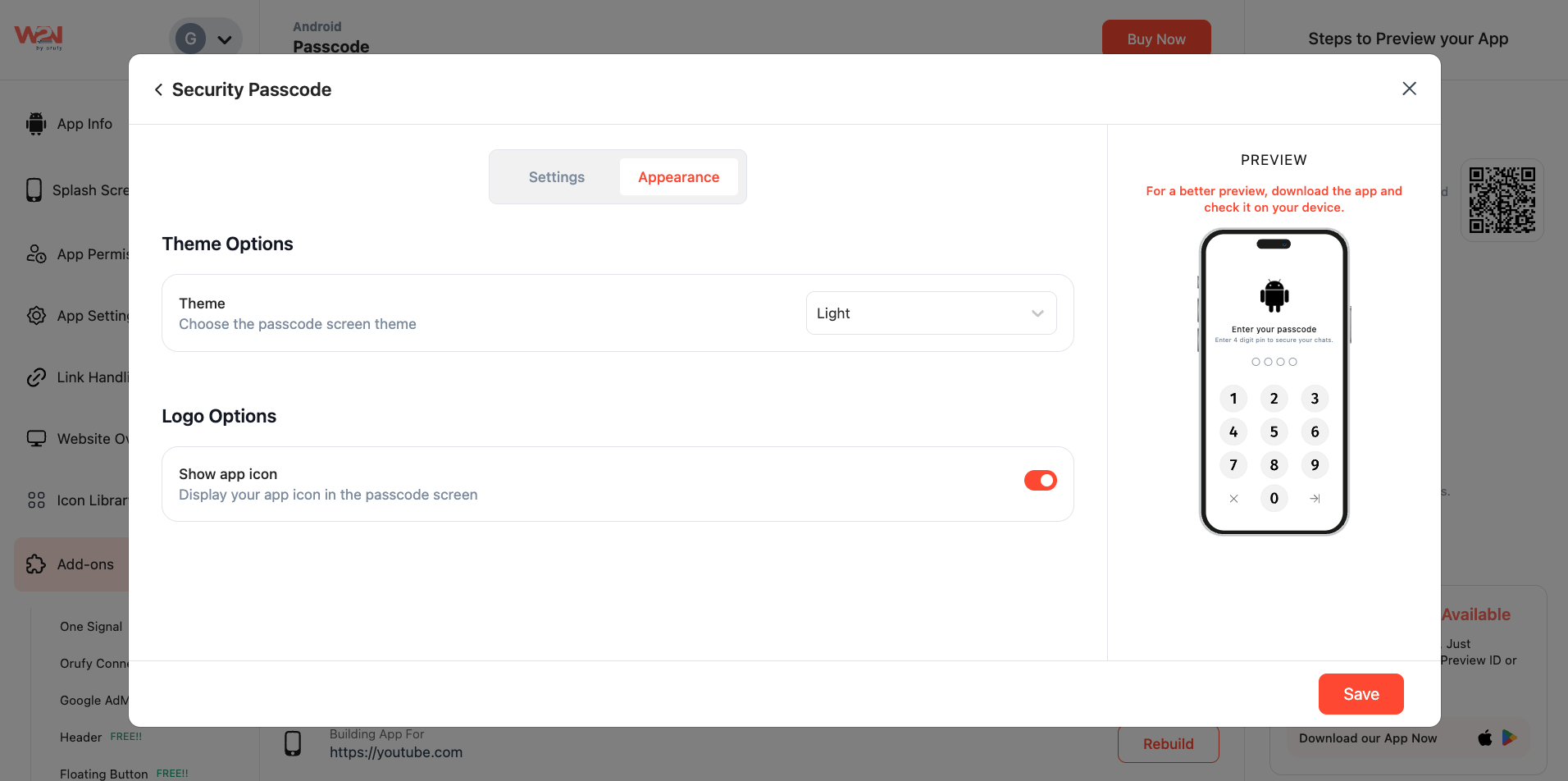
6. After configuring your passcode, click on the “Save” button to save the changes.
Rebuild allows you to apply and view those changes. Additionally, depending on your app’s complexity, it may take several minutes to rebuild your app.