



Back & Exit for Android
Disable Back Button
By default, the Back & Exit is Disabled. The app will follow the website’s normal navigation flow with Android’s default back navigation.
When the Disable Back Button toggle is OFF.
-
Users can freely navigate back using the device's back button
-
URL matching rules are not applied
-
App uses the default Android back navigation behavior
-
No Pages are blocked from back navigation
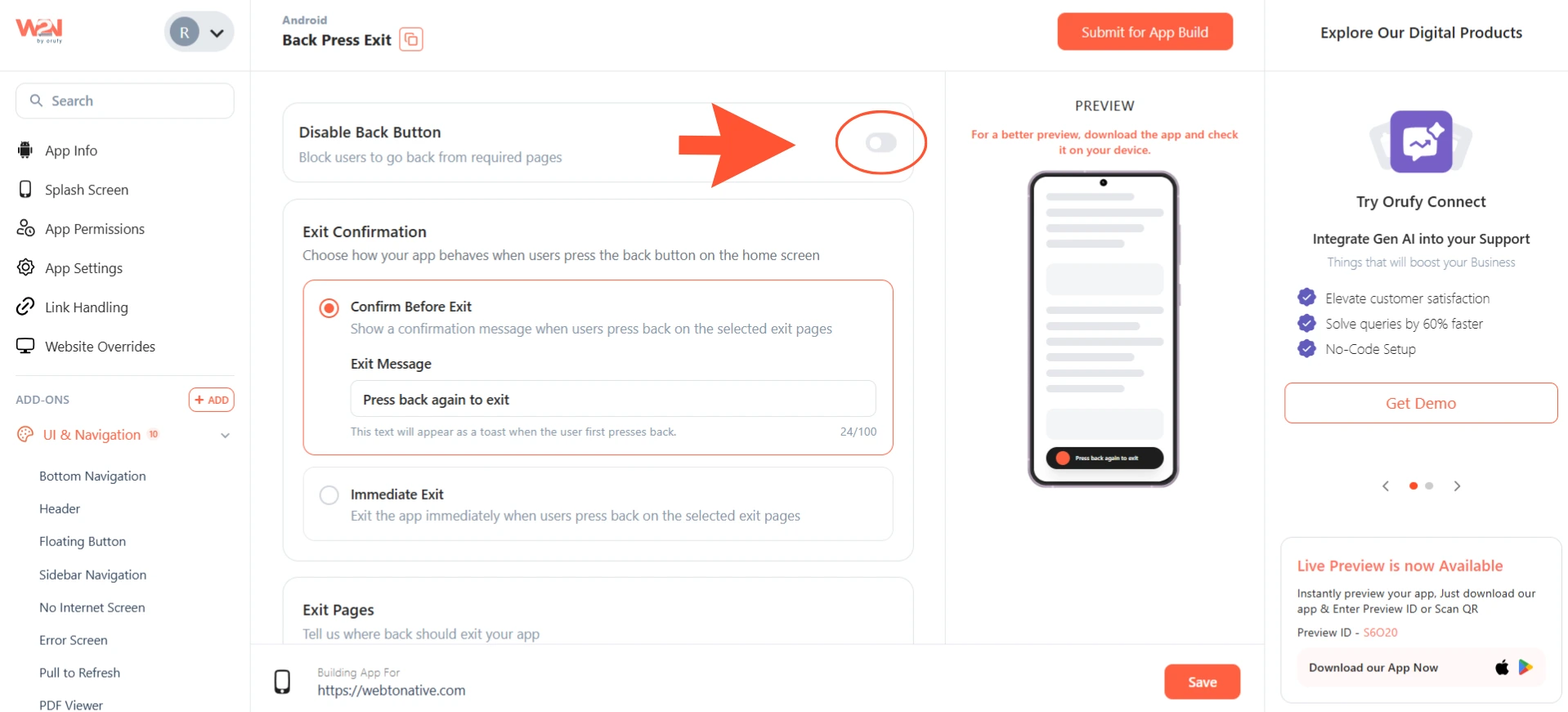
Exit Confirmation
It helps control what happens when a user presses the device's Back Button on the configured Exit Pages. You have two exit behaviors to choose from:
1. Confirm Before Exit
Select the Confirm Before Exit behavior if you want users to see a confirmation message before the app closes accidentally. The app will only close if the user presses the Back button again.
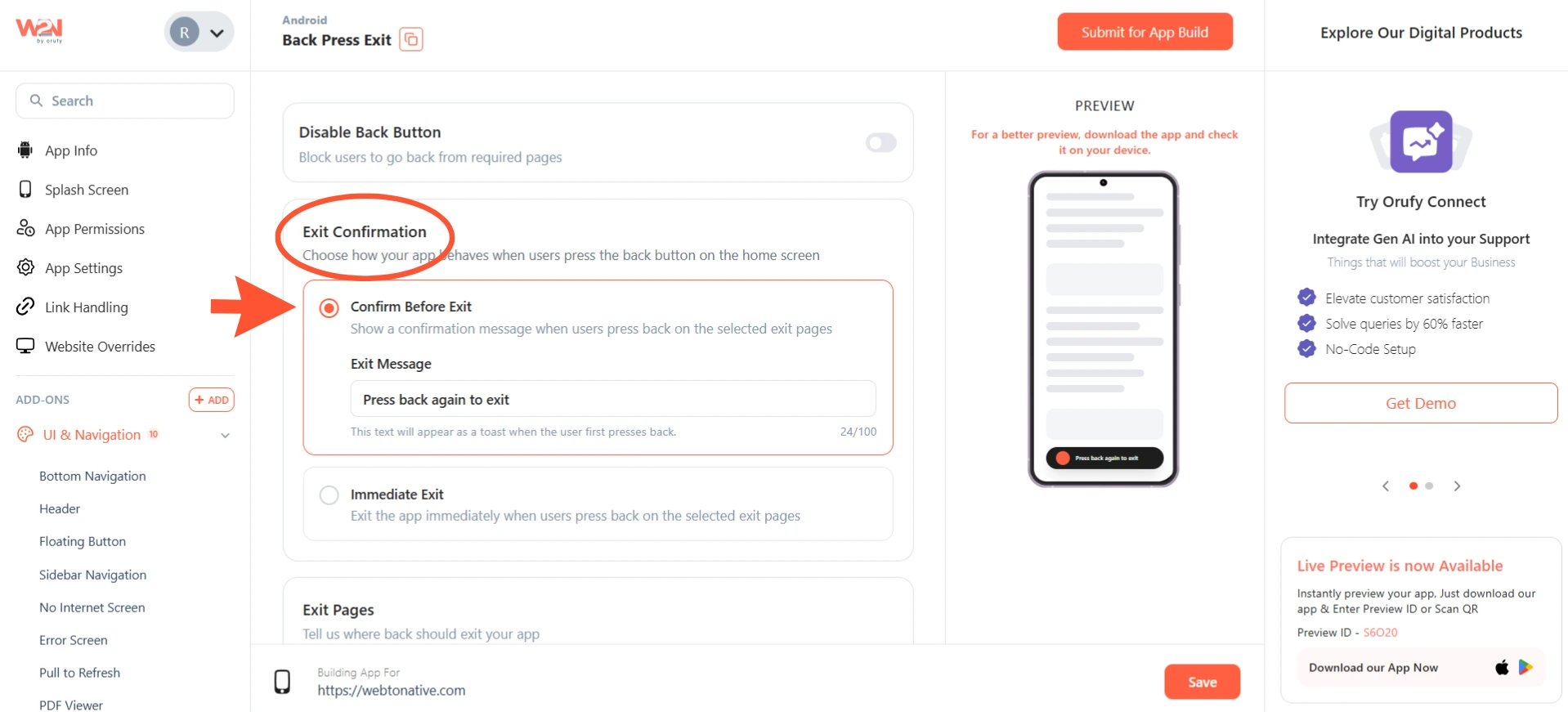
You can customize the exit message shown when they press the Back button for the first time.
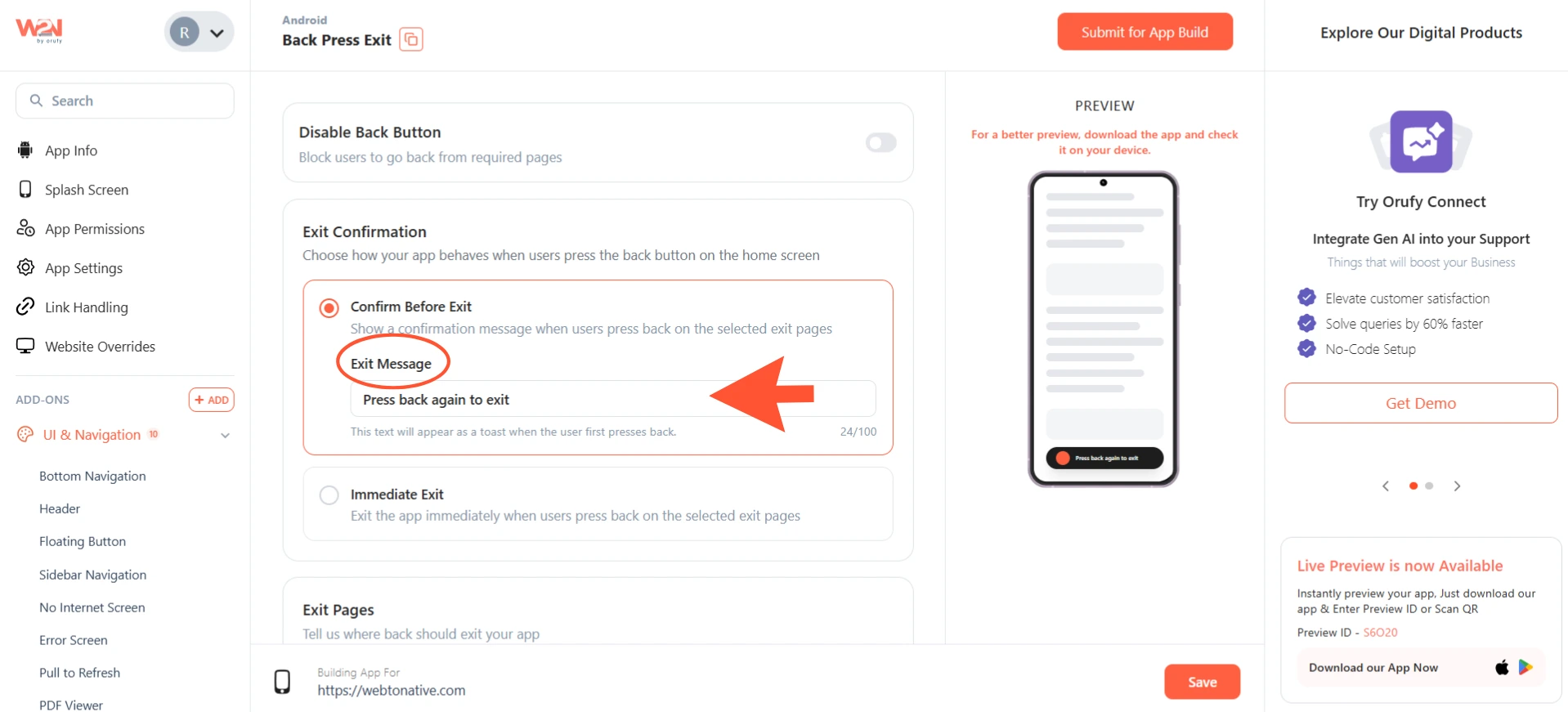
2. Immediate Exit
Select the Immediate Exit behavior if you want the app to close immediately when the user presses the Back button on the configured Exit Pages. It will not show any message. The app closes instantly.
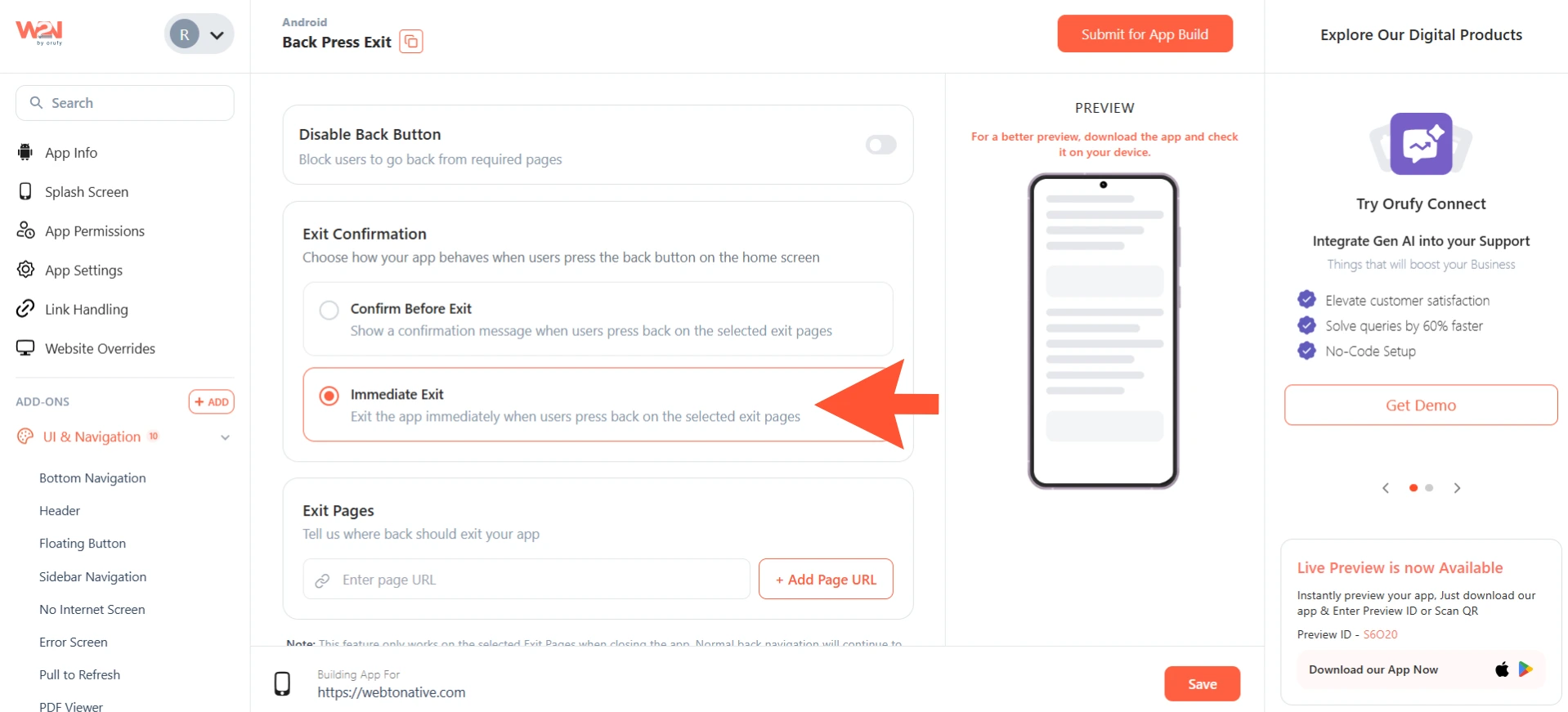
Exit Pages
This allows specifying the pages where the configured Back Press Exit action should be triggered.
Click + Add Page URL to enter the URL pages to follow the behavior of the app accordingly. You can add multiple URLs if you want the exit behavior to work on more than one page.
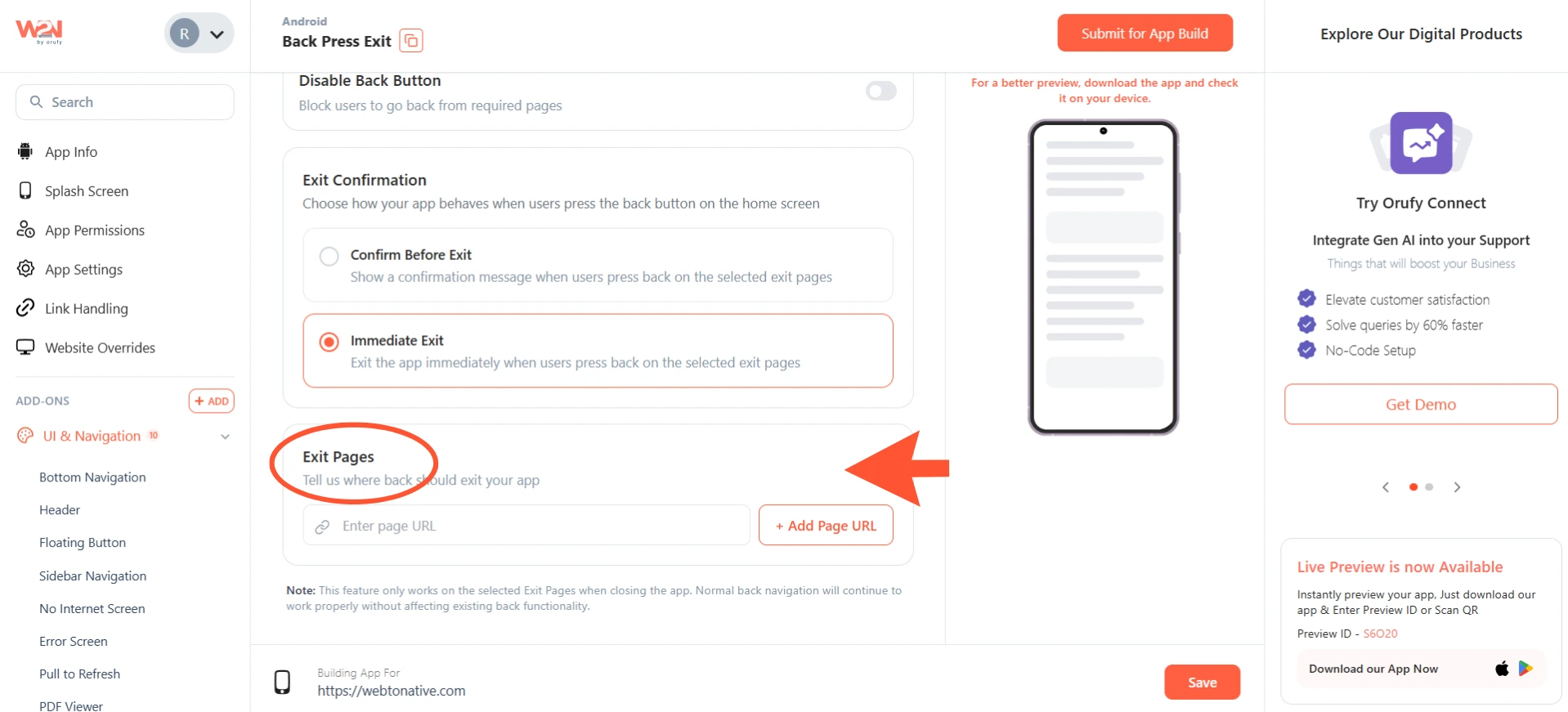
This feature only works on the particular Exit Pages while closing the app. Normal back navigation will continue to work for the rest of the pages.
Enable Back Button
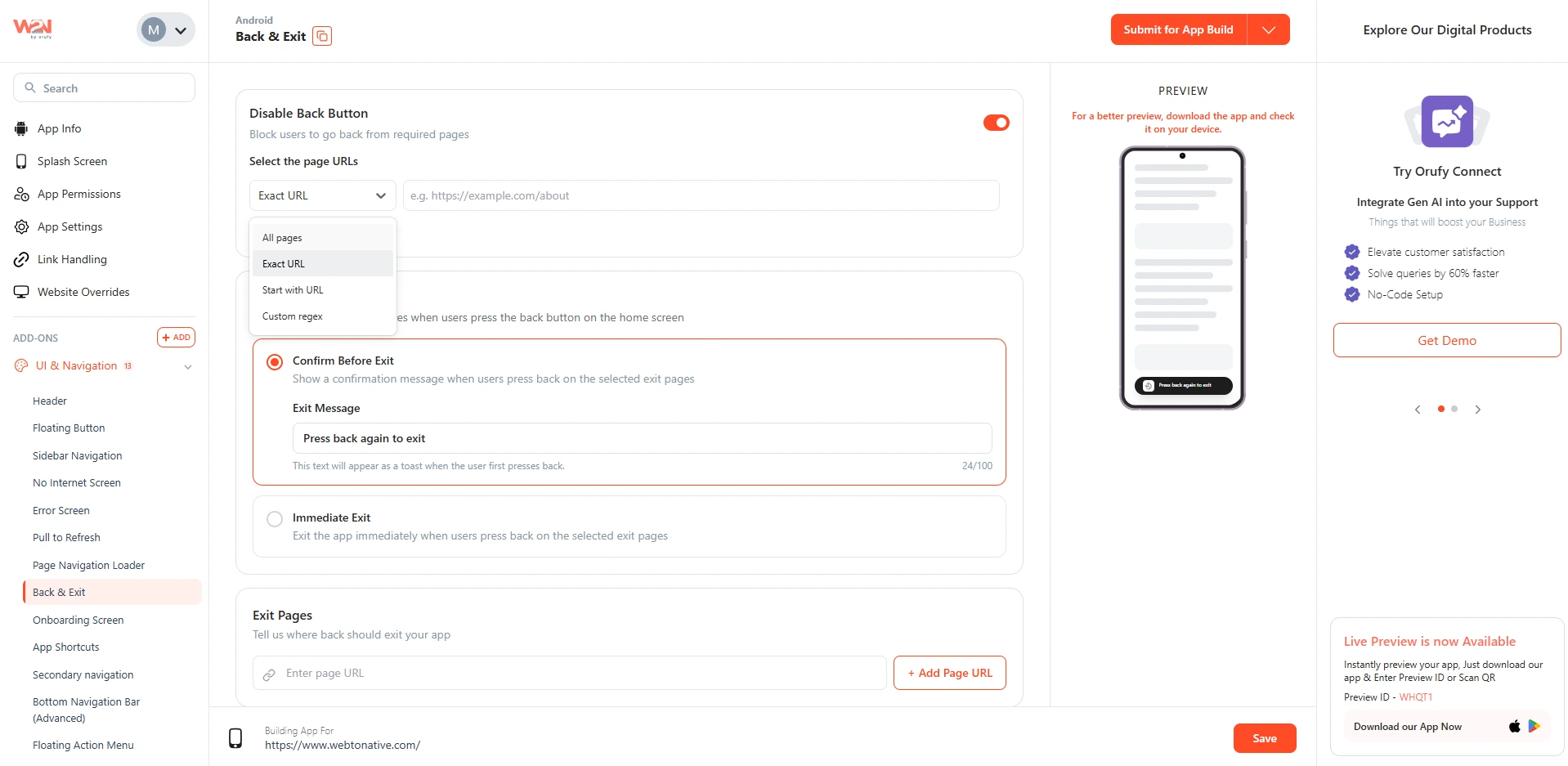
Enable Disable Back Button if you want to block the device's back button on pages. If you toggle ON, users will not be able to navigate back using their device’s back button on the chosen pages.
Select the Page URLs
You have to select the pages where you want to apply the Disable Back button functionality.
1. All Pages
If selected, All Pages users will not be able to use the device's back button anywhere in the app.
Disabling the back button on all pages might affect the user experience. Ensure your app has an alternate navigation, such as a sidebar or a bottom navigation, so that users can move around easily.
2. Exact URL
If selected, Exact URL users will not be able to use the device’s back button on a specific page only.
For example, https://www.webtonative.com/pricing (opens in a new tab)
The back button will be disabled only on the pricing page.
3. Start with URL
If selected, Start with URL users will not be able to use the device’s back button on URLs starting with a specific slug.
For example, https://www.webtonative.com/blog (opens in a new tab)
The back button will be disabled on all URLs starting with /blog.
4. Custom Regex
If selected, Custom Regex users will not be able to use the device’s back button on pages whose URLs match the defined regular expression pattern.
For example, https://www.webtonative.com/blog/ (opens in a new tab).*
The back button will be disabled on all pages inside the blog section of your website.
Custom Regex is recommended for advanced users who are familiar with regular expressions.