



Firebase Notification Integration
A Firebase notification is a push notification sent through Firebase Cloud Messaging (FCM) — a free, cross-platform service from Google that reliably delivers messages to Android, iOS, and web apps.
It works whether the app is open, running in the background, or completely closed — so you can reach your users at any time. For iOS, Firebase delivers notifications through Apple's own push service (APNs), which is why the setup below includes generating an Apple APNs key.
Phase 1 — Create a Firebase project
Sign in to Firebase
Go to the Firebase Console (opens in a new tab) and sign in with your Google account.
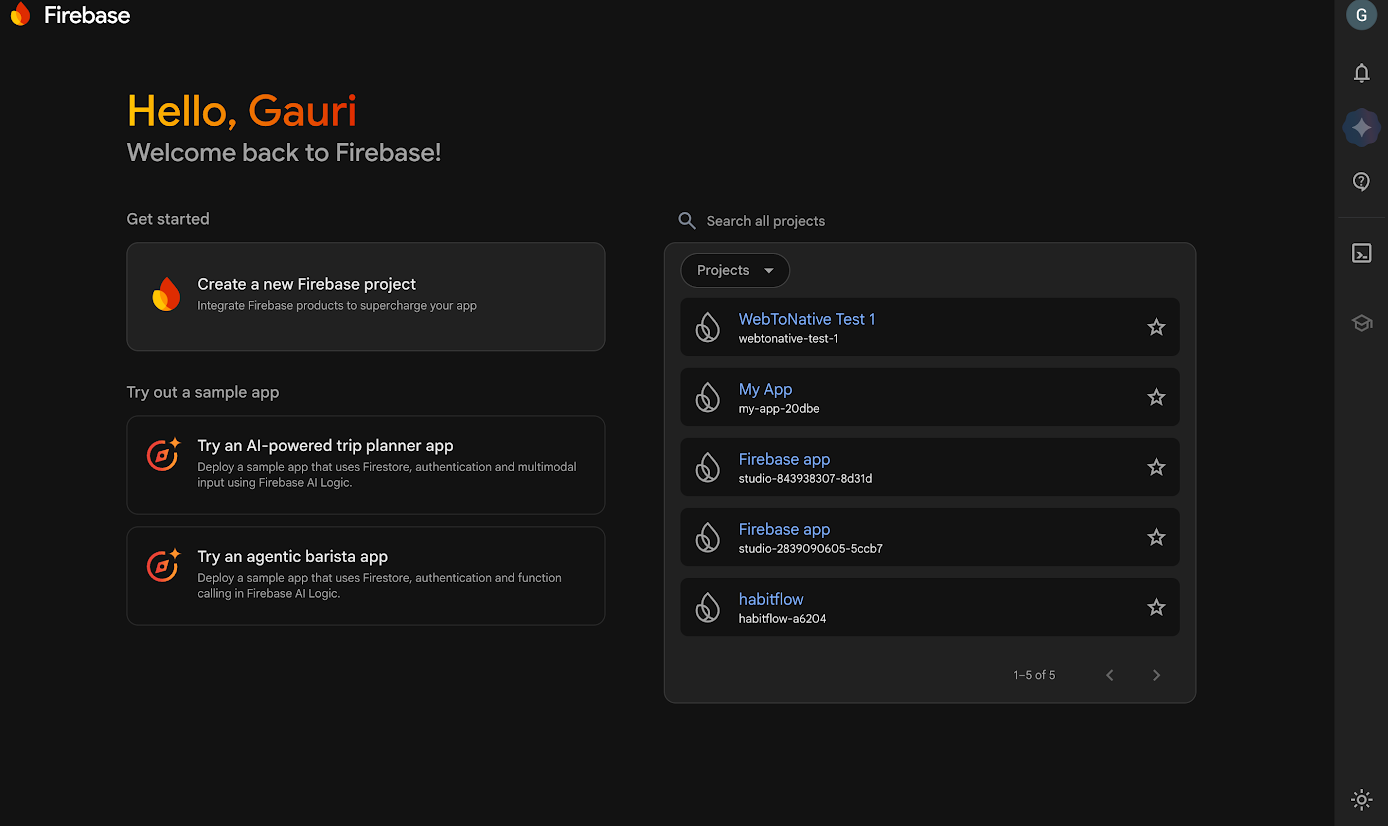
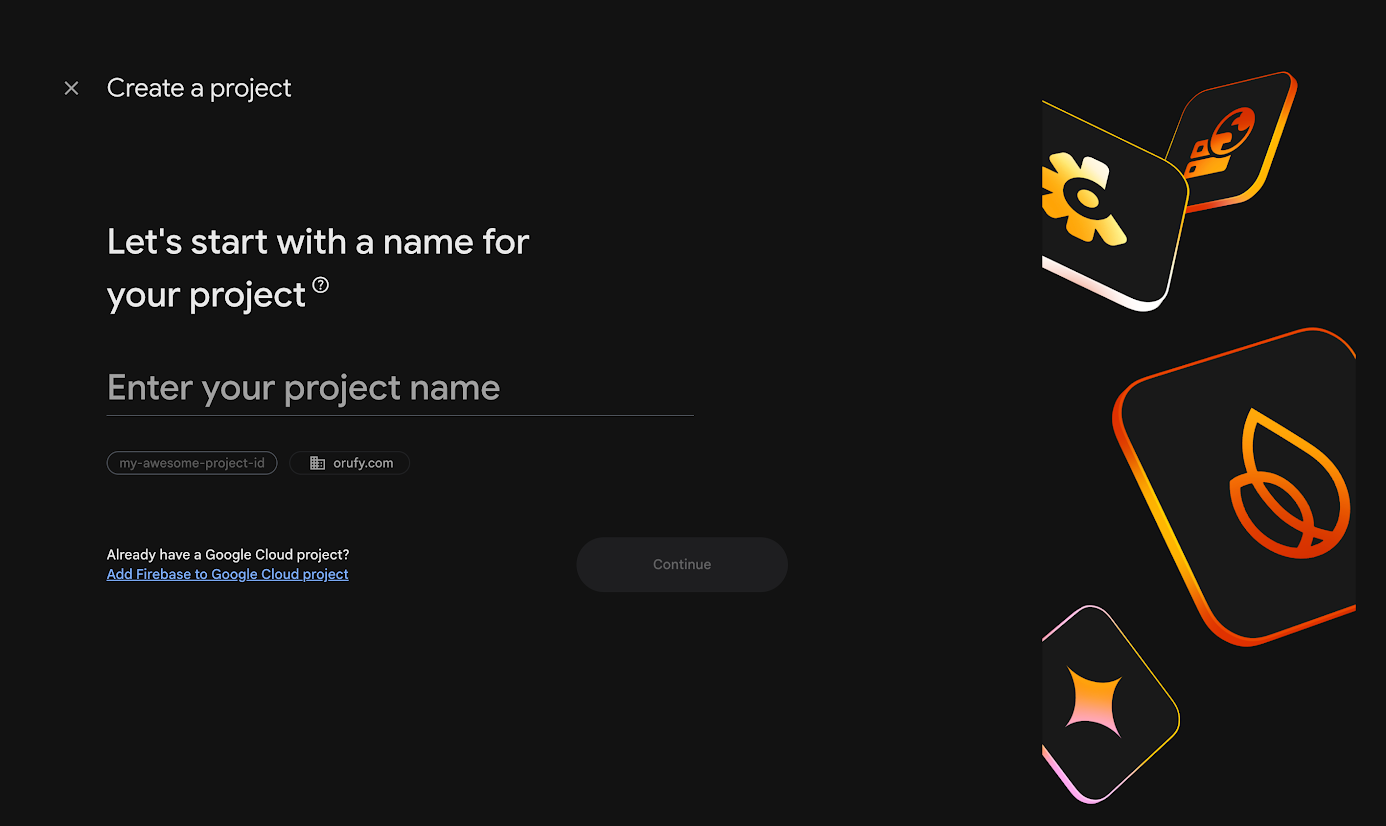
Create a new project
Click Add Project, enter a project name, and continue.
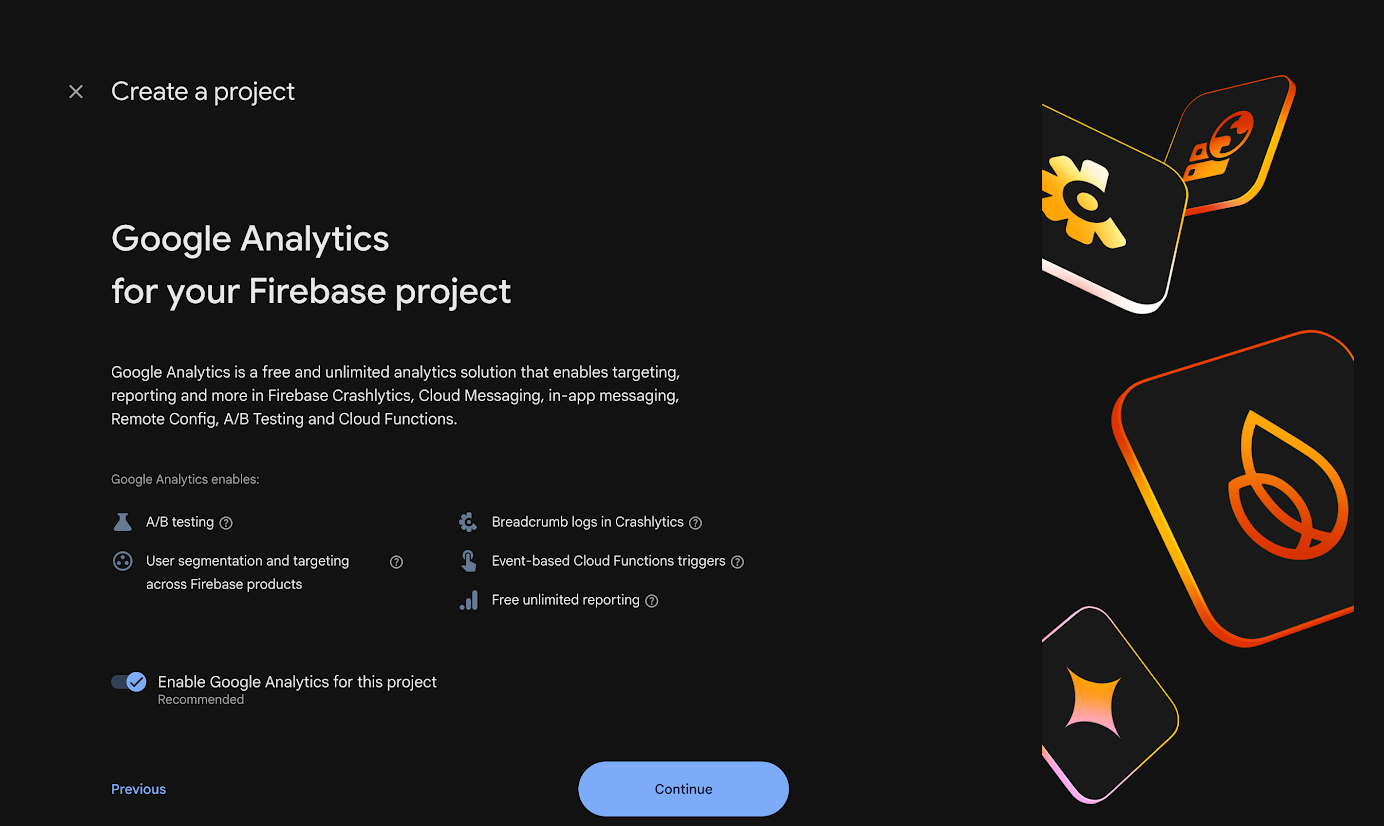
Choose your analytics account
Enable Google Analytics if you intend to use Firebase Analytics (recommended). Choose the default Firebase account or create a new one, then click Create Project.
Open the project dashboard
Once the project is created, click Continue to open your new project's dashboard.
Phase 2 — Add your app to Firebase
From the project dashboard, add the app for your platform. Choose the tab below for your app type:
- Android
- iOS
iOS App
Enter the details
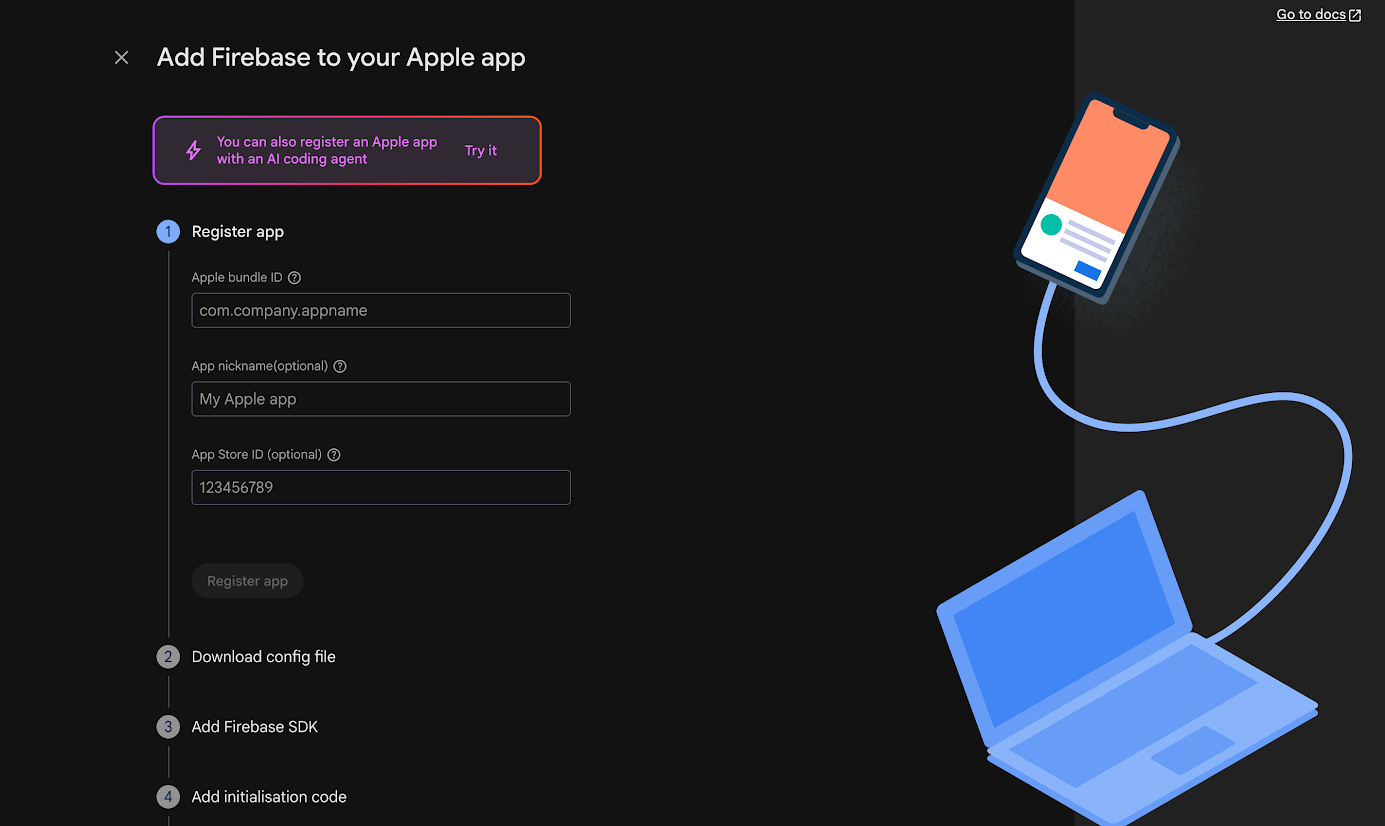
On the dashboard, click the iOS+ icon to add an iOS app, then fill in the details:
| Field | Where To Find |
|---|---|
| App Name | Your app's display name on the App Store |
| Bundle ID | WebToNative dashboard → App Info → Bundle ID |
| App Store ID | Optional — available from the App Store once your app is listed. |
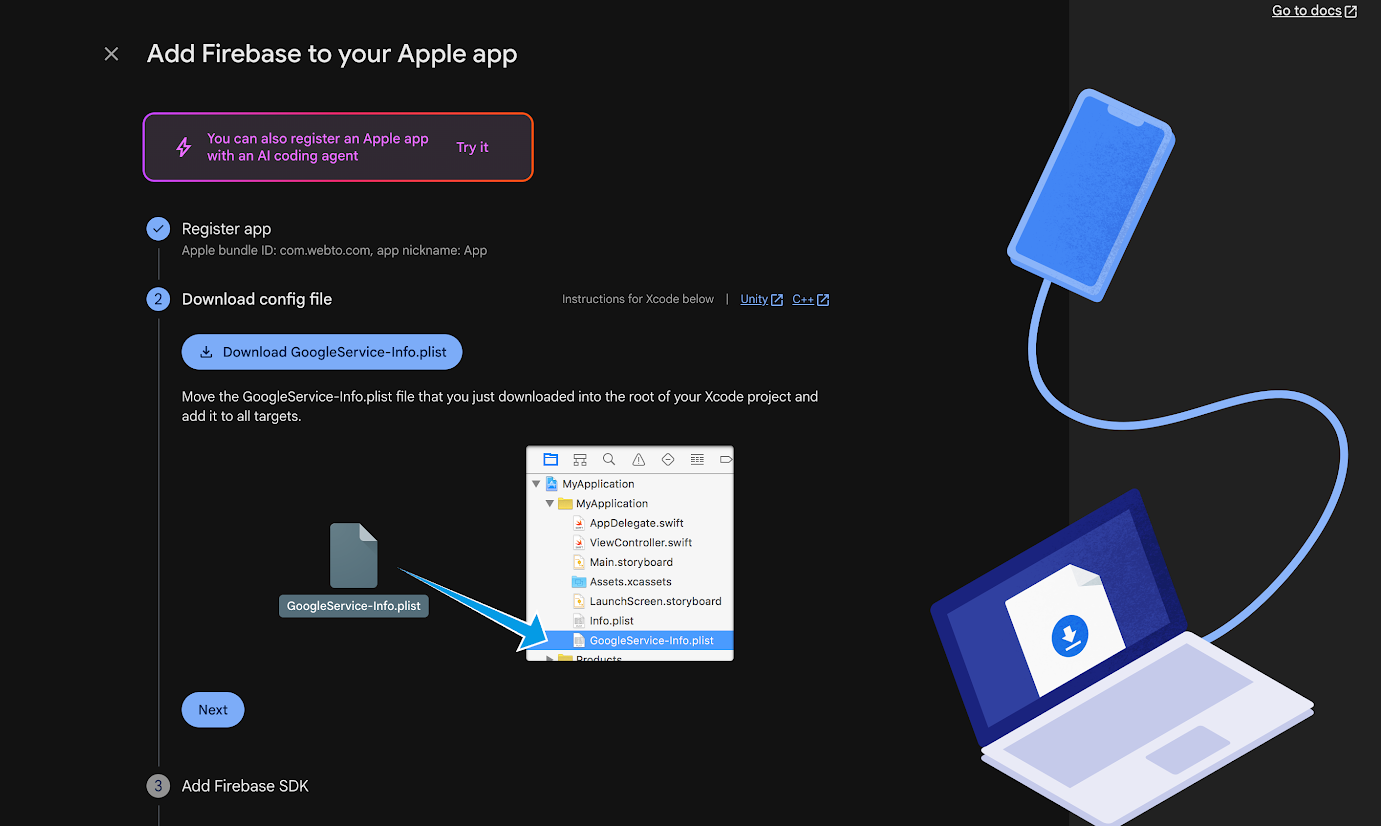
Download GoogleService-Info.plist
Download the configuration file — you'll need it for the WebToNative integration, so keep it saved somewhere safe. GoogleService-Info.plist
Skip the SDK setup & finish
The native Firebase SDK setup is already handled by WebToNative — you don't need to add any code. Click Next, then Continue to Console. Your iOS app should now appear in the Firebase dashboard.
Android
Enter the details
On the dashboard, click the Android icon to add an Android app, then fill in the details:
| Field | Where to Find it |
|---|---|
| Package name | WebToNative dashboard → App Info → Package Name |
| App name | A nickname to identify this app in the Firebase dashboard. |
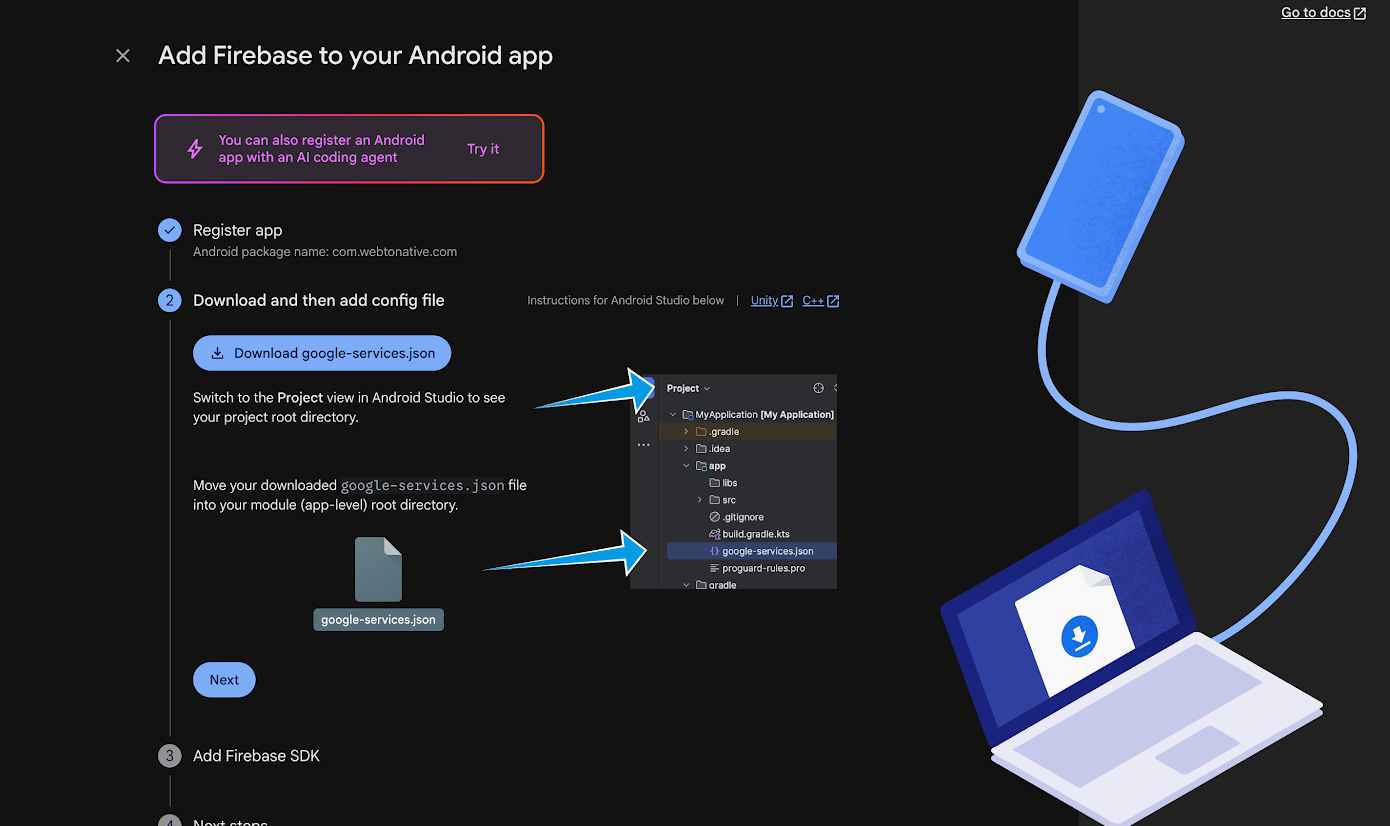
Download google-services.json
Download the configuration file — you'll need it for the WebToNative integration, so keep it saved somewhere safe. google-services.json
Finish the steps
As with iOS, the SDK setup is handled by WebToNative — skip the code steps, finish, and continue to the console. Your Android app will appear in the dashboard.
Android needs no APNs key — once you have google-services.json, your Android setup is done. The remaining phases below are iOS-only.
Phase 3 — Generate an APNs key from Apple (iOS)
Firebase Cloud Messaging delivers iOS notifications through Apple Push Notification service (APNs). You need to create a .p8 authentication key in your Apple Developer account.
Login to Apple Developer Account
Log in to your Apple Developer account and go to Certificates, Identifiers & Profiles → Keys.
Enter Details
Click the + button to create a new key. Enter a descriptive Key Name — e.g. "Firebase Push – MyApp" — so you can identify it later.
Check APNs
Check Apple Push Notifications service (APNs), then click Configure, select the appropriate environment, and click Save.
Download the file
Click Continue, then Register. Click Download to download the .p8 file.
You can only download the .p8 key once. Save it immediately in a secure location and keep a backup — Apple will not let you download it again. If you lose it, you'll have to create a new key.
One APNs key works for both development and production — you can use the same key for both environments if that suits your workflow.
Phase 4 — Upload the key & config to Firebase (iOS)
Open Cloud Messaging in Firebase
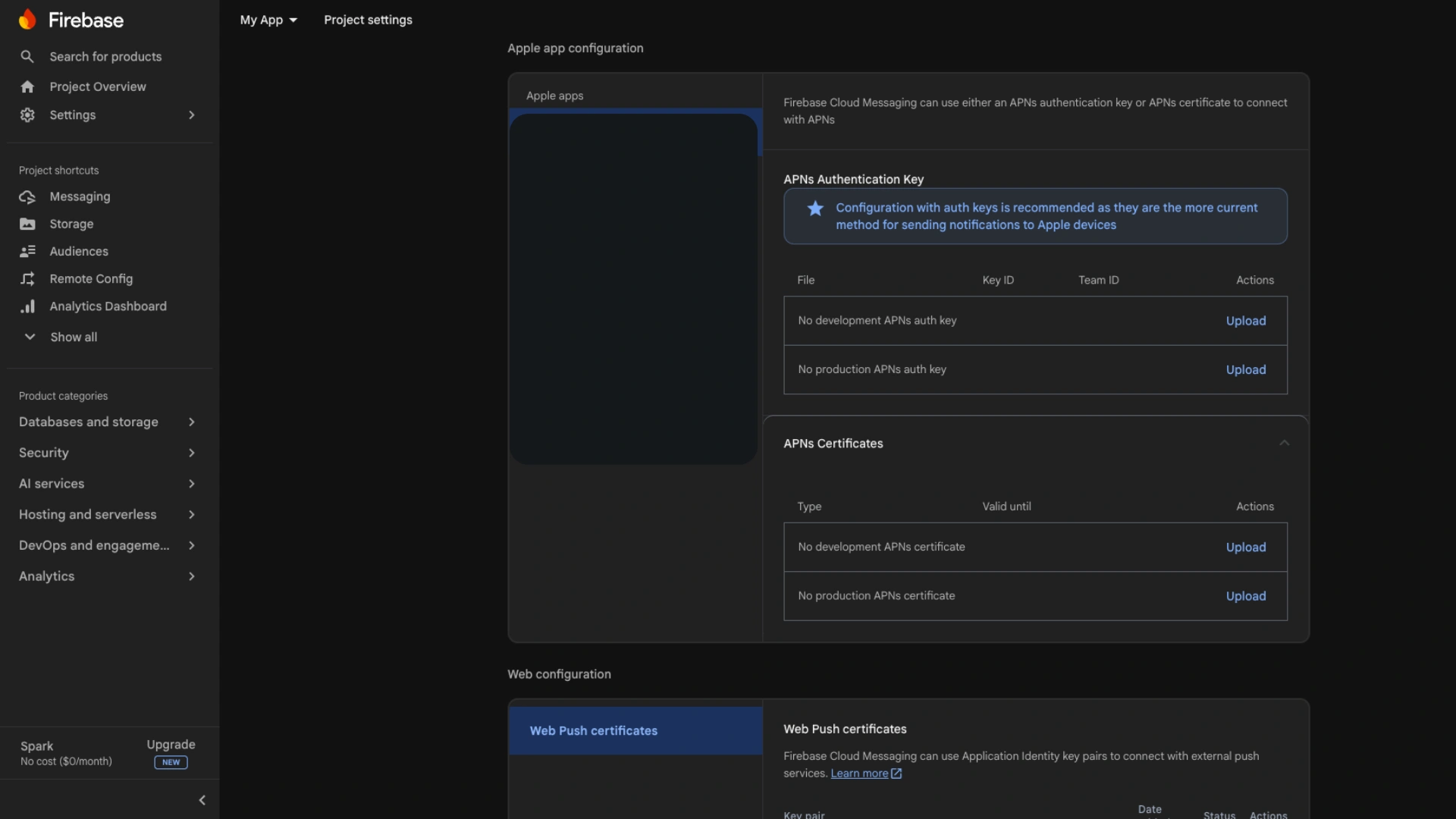
In Firebase, go to Project Settings → Cloud Messaging and scroll to the Apple app configuration section.
Upload the APNs .p8 key
Under Apple app configuration, click Upload and select the .p8 file you downloaded from Apple.
Enter the Key ID and Team ID
Firebase will ask for two IDs alongside the key — both come from your Apple Developer account:
| Field | Where to Find it |
|---|---|
| Key ID | Open the APNs key you just created in the Apple Developer portal (Keys list) — the Key ID is shown on the key's detail page. Copy it. |
| Team ID | Found in your Apple Developer account — usually shown in the top-right membership details. Copy it. |
Paste both into Firebase and click Upload.
Upload GoogleService-Info.plist
Back in WebToNative, upload the GoogleService-Info.plist file you downloaded in Phase 2. Then click Save and Submit for App Build.
Lost the plist? You can download it again anytime from Firebase → Project Settings → General.
Firebase Cloud Messaging is now configured for your iOS app. Once the build is complete and installed, you can send push notifications to your users through Firebase.