


No Internet Screen
When a shop is temporarily closed, a good sign tells you why — "Back at 2 pm" — so you leave calmly and come back later. A shop with no sign leaves you rattling a locked door, confused and frustrated.
When your app loses internet, the No Internet Screen is the sign. Instead of a frozen screen or a cryptic browser error, users see a clear, branded message explaining the situation — and a button to try again when they're ready. No confusion. No frustration. No uninstalls.
Why should you use “No Internet Screen” in your app?

Prevents user frustration
Users never see a blank page or an endless spinner. They see a clear, human message that explains why content isn't loading — stopping them from tapping unresponsive buttons in confusion and assuming the app has crashed.

Improves app usability
Instead of restarting the app, users can tap "Try Again" to refresh directly. A single button gives users a clear path forward — keeping them inside the app and reducing unnecessary restarts and support contacts.

Protects data integrity
The screen stops users from submitting forms that will fail silently and prevents incomplete data syncs from corrupting user profiles. It also stops the app from flooding your server with repeated failed timeout requests — reducing unnecessary server load.
Where to Find It In Your Dashboard
My Apps ➡️ Edit your app ➡️ Add-ons ➡️Ui & Navigation ➡️ No Internet Screen
Steps to apply the No internet screen to your app
Enable/Disable Toggle
Turn the No Internet Screen toggle on or off, depending on whether you want it to be active in your app.
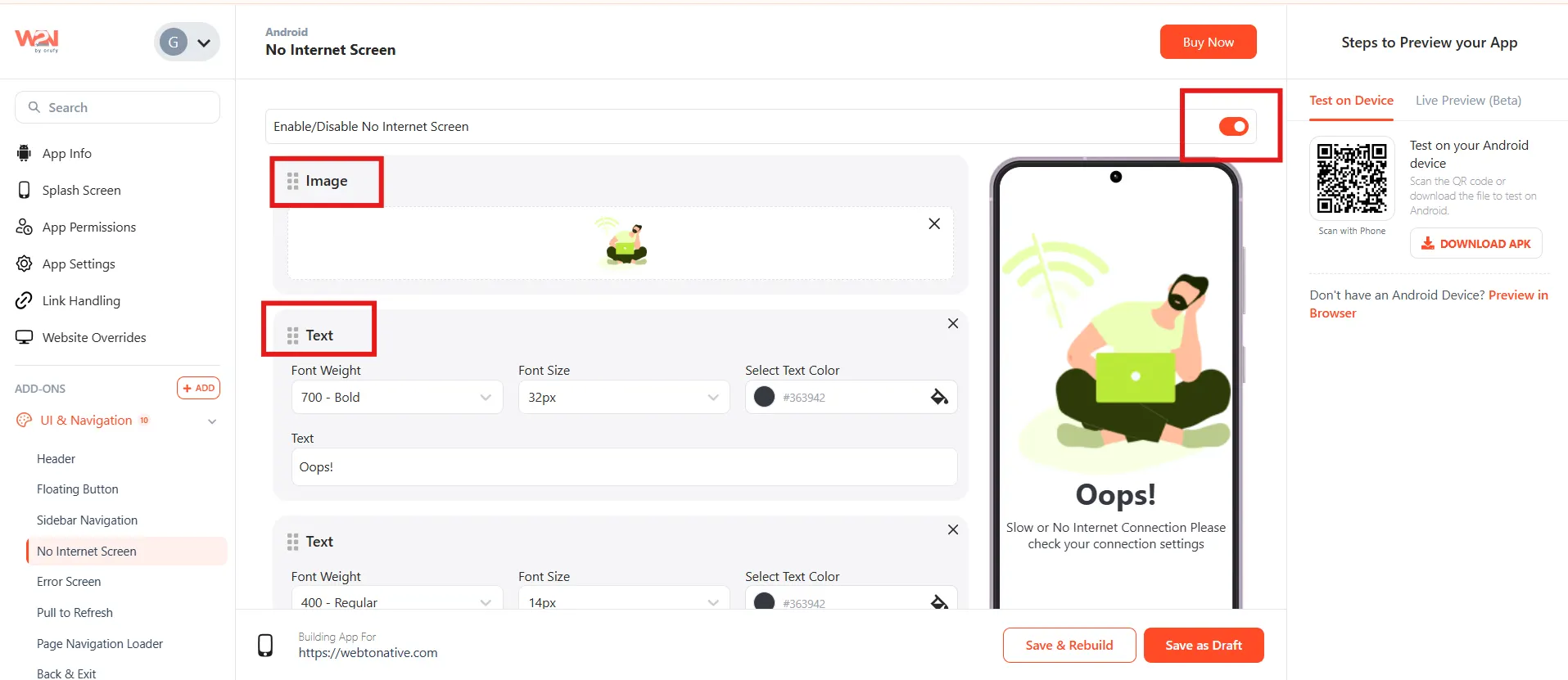
Choose Image & Text
Choose the image and enter the message you want to show your users when there is no internet connection.
Action Button:
Customise the Action button text and style as desired.
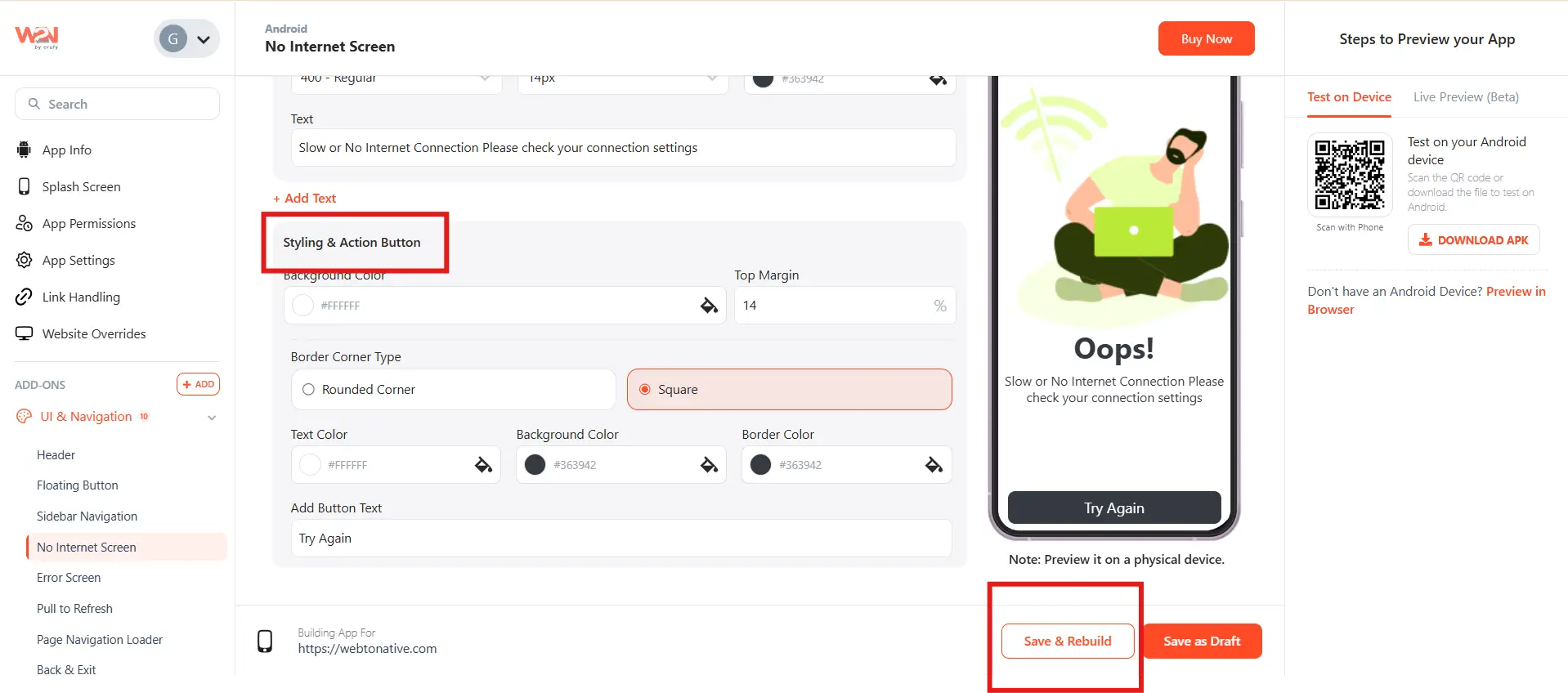
Save & Rebuild
Click Save and rebuild your app to apply and see the changes.
When the toggle is OFF, the default WebView offline message (or a blank screen) is shown to users instead.
Frequently Asked Questions:
1. Does it work on both Android & iOS?
Yes — the No Internet Screen applies to both Android and iOS. You configure it once and the same custom screen is shown on both platforms whenever the device loses its internet connection inside the app.
2. What is the difference between No Internet Screen and Error Screen?
No Internet Screen appears specifically when the device has no connectivity — no Wi-Fi and no mobile data. The error screen appears when the device has connectivity but a page fails to load — for example, a server error, a broken URL, or a timeout. They are two separate screens for two different failure scenarios, and both are configurable independently.
3. What does the Action button do?
The button attempts to reload the page — the same as a browser "Try Again" or refresh. If the user has restored their connection by the time they tap it, the page loads normally. If they're still offline, the screen remains. Label it clearly — "Try Again" or "Refresh" — so users know what to expect.
4. How to test it after enabling?
After rebuilding and installing the updated app, open the app, turn off both Wi-Fi and mobile data on your device (aeroplane mode works well), then navigate to any page in the app. Your custom No Internet Screen should appear immediately. Turn connectivity back on and tap your retry button to confirm it recovers correctly.
5. Can I use this alongside iOS offline persistence?
Yes — they work together perfectly. iOS Offline Persistence caches up to 5 specific domains so those pages load even without a connection. For any page that is not cached, the No Internet Screen appears. Using both gives you the best offline experience: key pages stay accessible, and everything else shows a friendly message instead of a blank screen.