


App Reviews
App Reviews brings all your Google Play and App Store reviews into one place in your WebToNative dashboard. Read what your users are saying, see your rating on each store, and reply to them — without logging in to Google Play Console or App Store Connect.
Your replies are posted directly to the store and appear publicly under each review, so everyone who visits your store page can see that you listen and respond.
This works for both Android (Google Play) and iOS (App Store) apps that are live on the store.
Only reviews with a written message appear in the dashboard. Ratings with stars only and no text don't appear in the list, but they still count toward your app's overall rating on the store.
When do you need App Reviews?
You get reviews on both stores
Your Android and iOS reviews live in two different consoles with two different logins. App Reviews shows them together in one list, so nothing gets missed.
Your team doesn't have store access
Support or marketing staff can read and answer reviews from the dashboard, without being given access to Play Console or App Store Connect.
A user reports a problem
A 1-star review saying 'I can't log in' is often the first sign of a bug. Seeing it early lets you reply quickly and fix the issue before more users are affected.
A user changes their review
When someone edits a review after you've replied, it moves to its own tab, so you can see what changed and update your answer.
How does App Reviews benefit you?
All reviews in one place
See Android and iOS reviews in a single list, with filters for store, star rating and text search.
Reply without store logins
Answer reviews directly from your WebToNative dashboard. Your reply is posted to the store for you.
Reply faster
Use ready-made templates for common answers, or let AI write a first draft that you can check and post.
Never miss a review
Tabs show which reviews still need a reply and which were changed after you replied, so nothing slips through.
Where to find it in your dashboard
My Apps ➡️ Select an app ➡️ Reviews (left menu)
Steps to open App Reviews
Click on Reviews
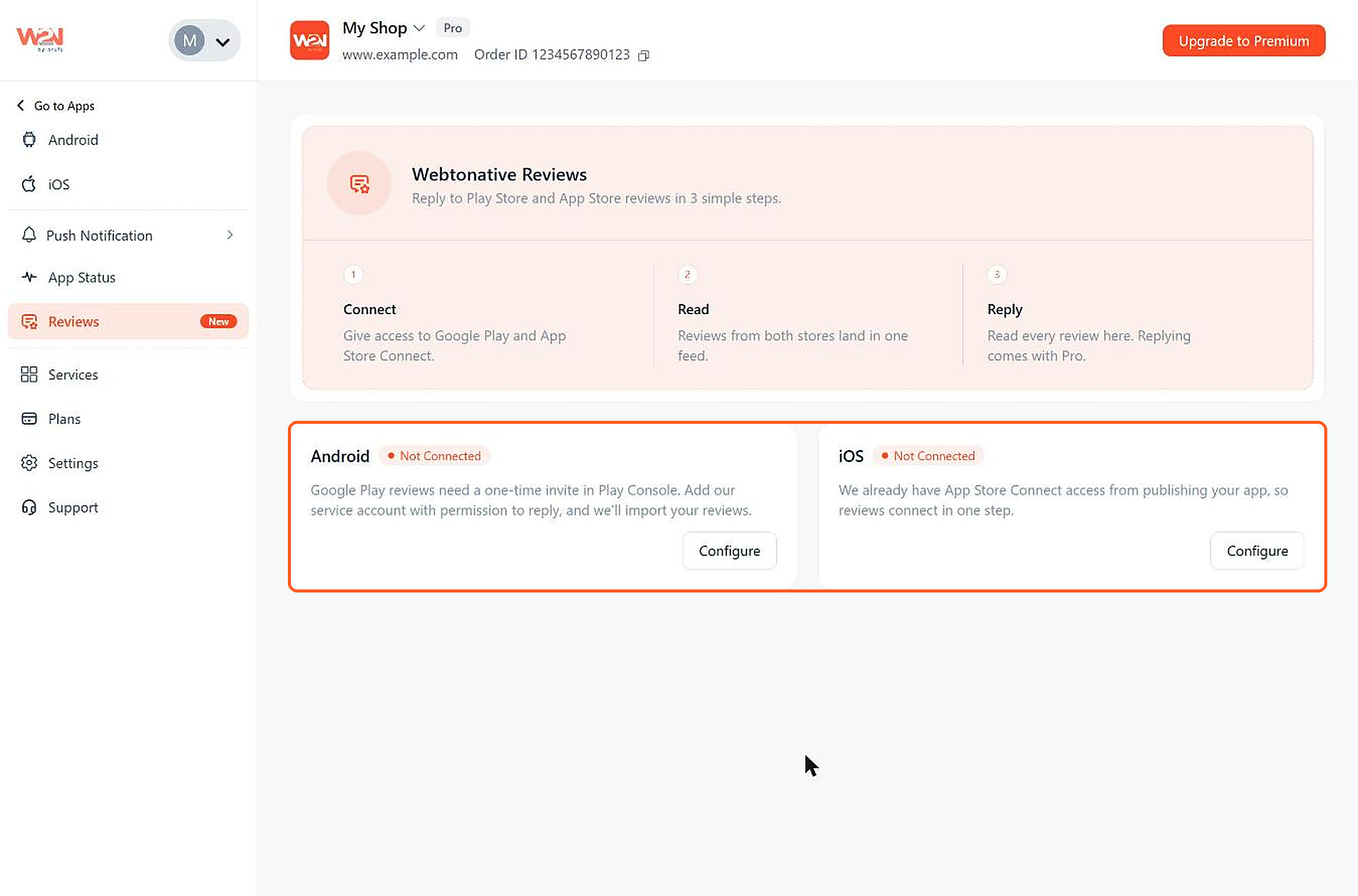
Go to My Apps and select your app. In the left menu, click Reviews. You'll see an Android card and an iOS card, each with a Configure button.
Check the Status on Each Card
Each card shows whether that store is connected. See Understand the Connection Status below.
Click on Configure
Click Configure on the store you want to connect. You can connect one store or both.
Steps to connect Google Play
Before you start, make sure your app is live on Google Play, and that the person sending the invite can manage users in Play Console. This is usually the account owner.
Choose What WebToNative Can Access
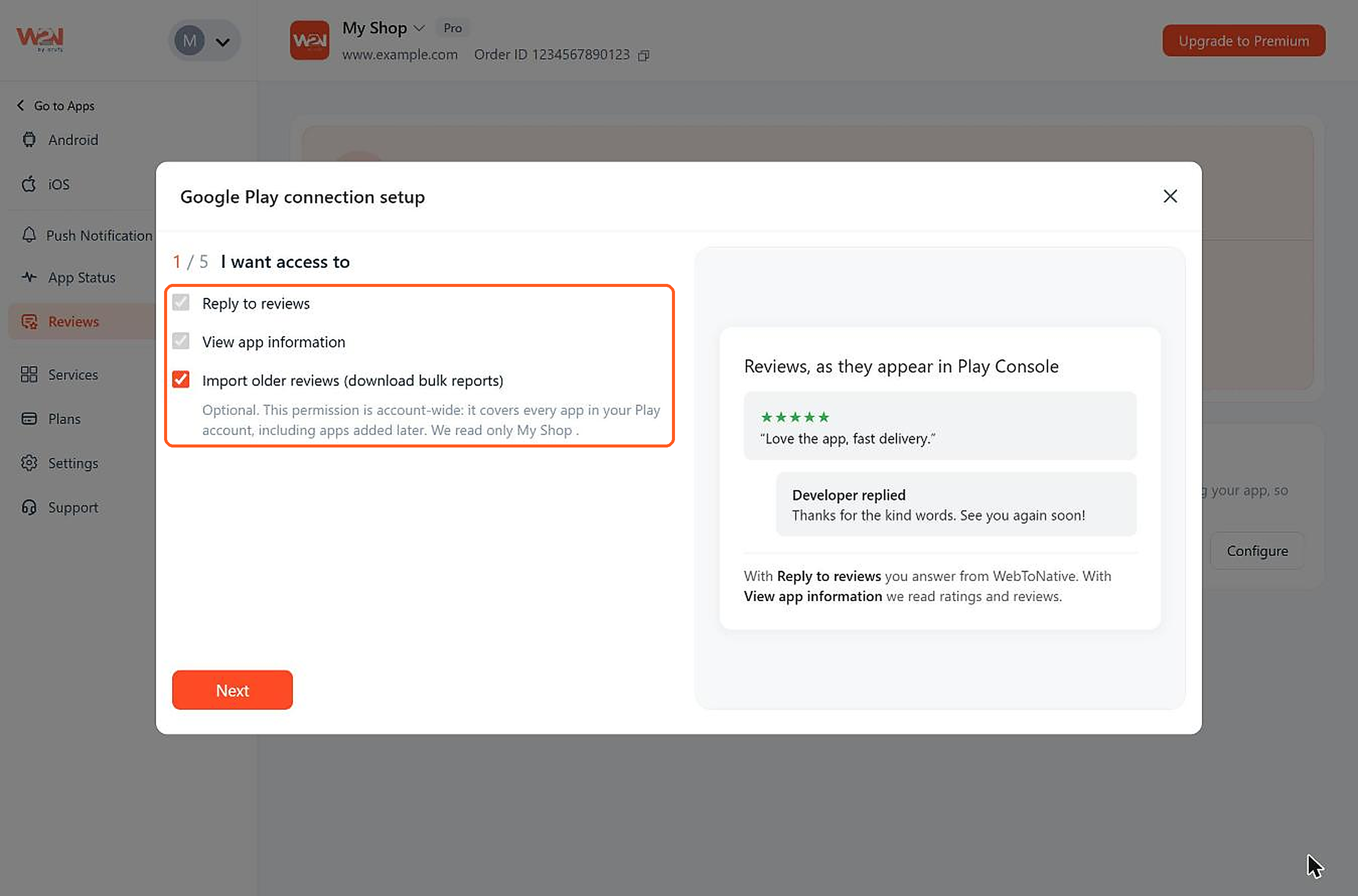
Click Configure on the Android card. The Google Play connection setup opens. Under I want access to:
Reply to reviews
Lets you post replies from the dashboard. Always on.
View app information
Lets WebToNative read your reviews and ratings. Always on.
Import older reviews (download bulk reports)
Optional. Brings in your past reviews too. This permission covers every app in your Play Console account, but WebToNative only reads reviews for this app.
Enter the Developer Account ID
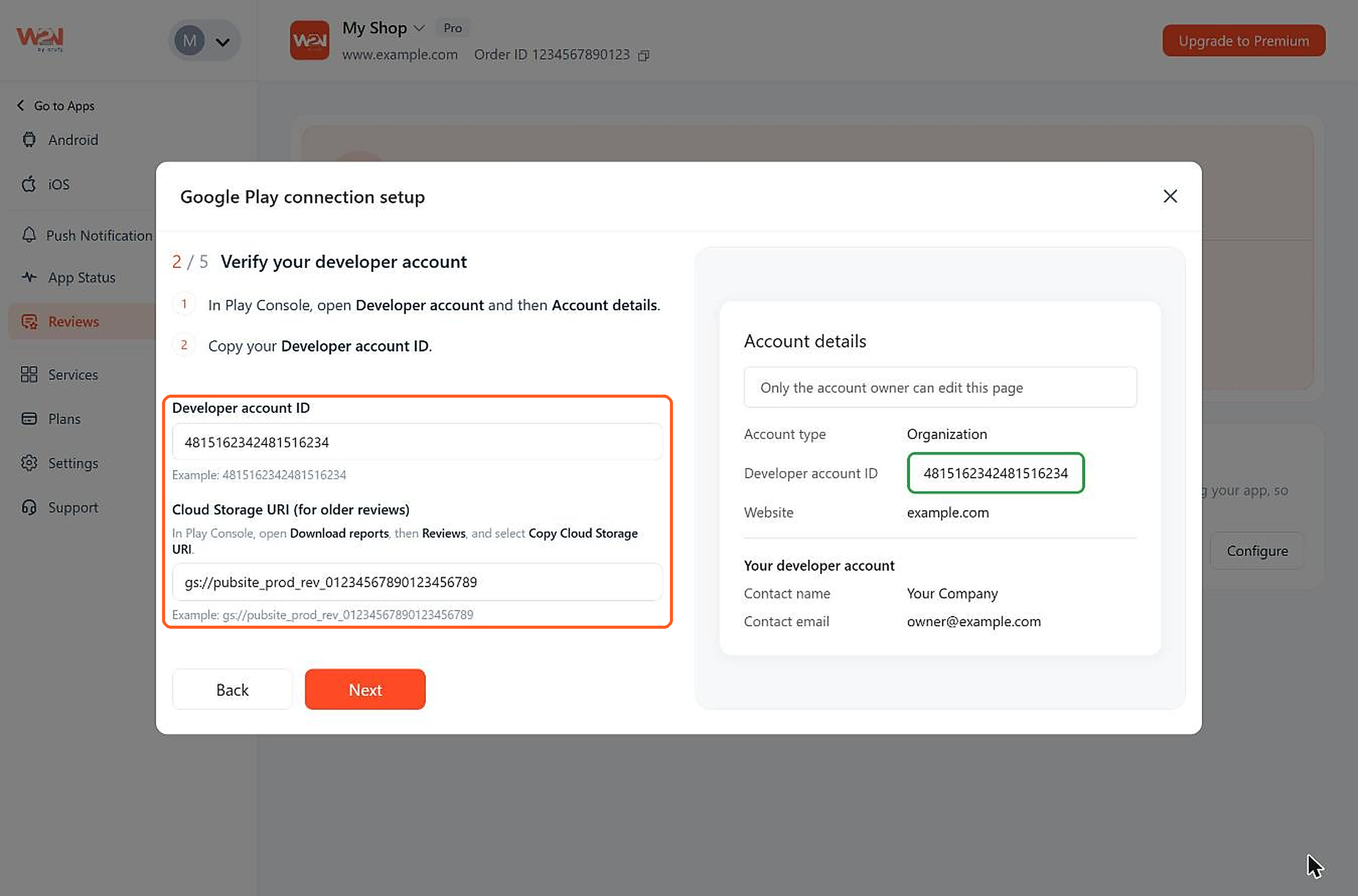
In Play Console, open Developer account ➡️ Account details, copy your Developer account ID and paste it here, for example 4815162342481516234.
Enter the Cloud Storage URI
If you ticked Import older reviews, open Download reports ➡️ Reviews in Play Console, click Copy Cloud Storage URI and paste it here, for example gs://pubsite_prod_rev_01234567890123456789. Skip this field if you didn't tick it.
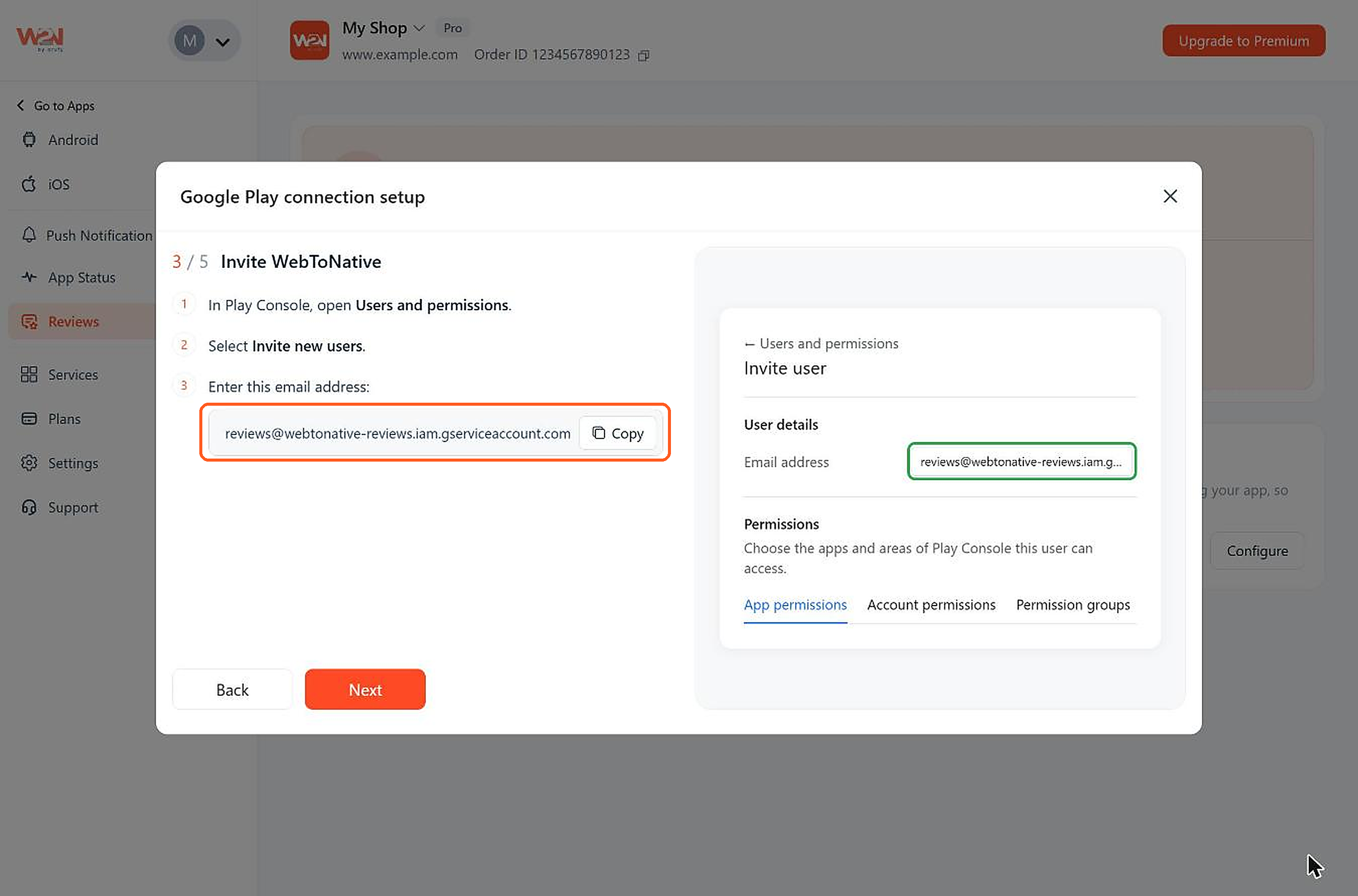
Invite WebToNative in Play Console
Click Copy to copy WebToNative's email address: reviews@webtonative-reviews.iam.gserviceaccount.com. In Play Console, go to Users and permissions ➡️ Invite new users and paste it.
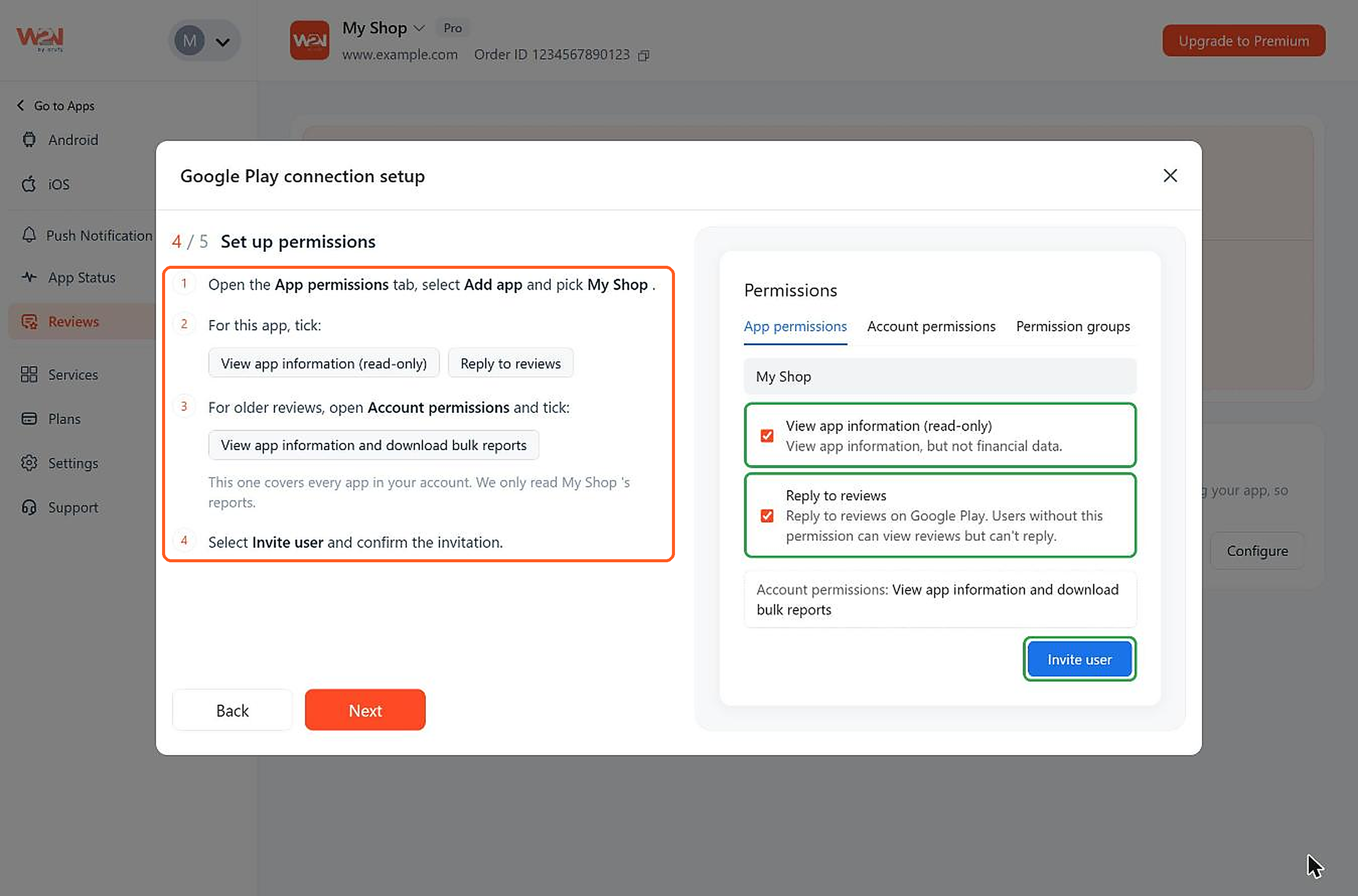
Set Up the Permissions
In the same invite screen in Play Console:
- Open the App permissions tab, click Add app and choose your app.
- Tick View app information (read-only) and Reply to reviews.
- If you're importing older reviews, open the Account permissions tab and tick View app information and download bulk reports.
- Click Invite user and confirm.
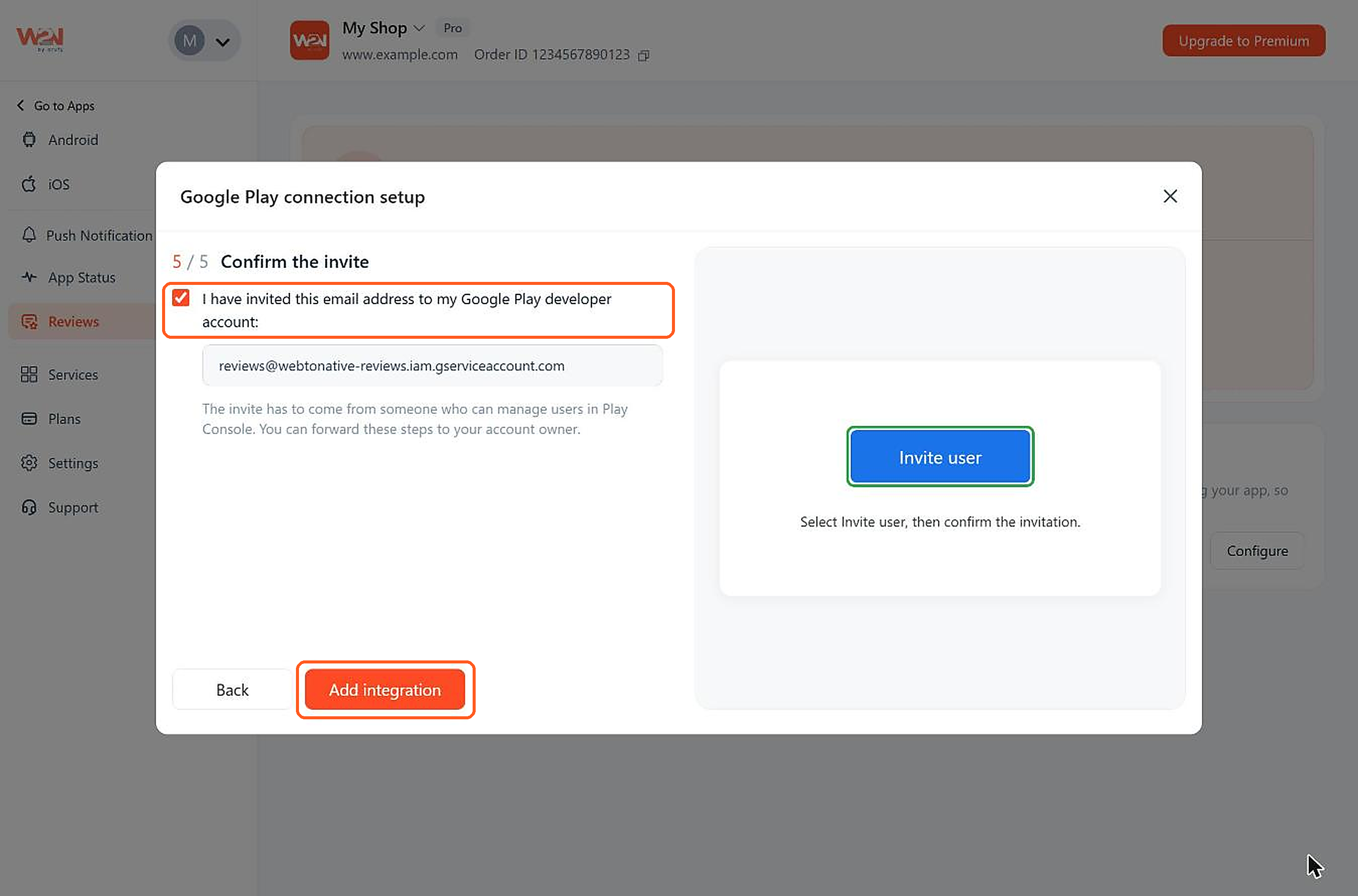
Click on Add Integration
Back in the dashboard, tick I have invited this email address to my Google Play developer account and click Add integration. WebToNative checks the connection right away.
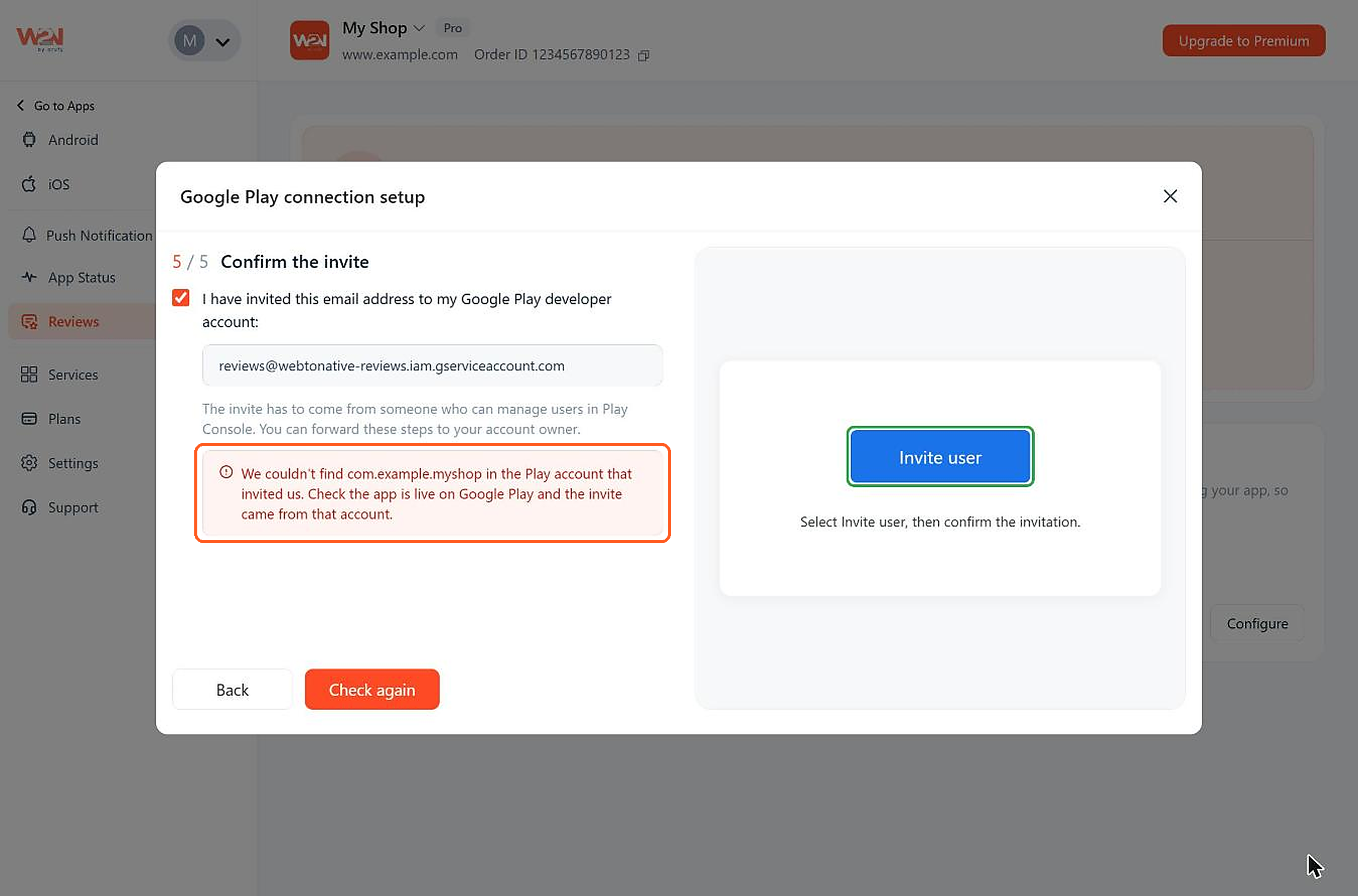
Click on Check Again (If Needed)
If something isn't set up correctly, a message tells you exactly what to fix, for example when the app isn't found in the Play account that sent the invite. Fix it in Play Console, then click Check again.
Not sure whether to import older reviews? Tick it if you want your full review history in the dashboard. Without it, you'll only see reviews from the last 7 days at first, and newer reviews as they come in.
Steps to connect the App Store
WebToNative uses the App Store Connect access you already gave for publishing your app, so there's nothing to set up in App Store Connect.
Click on Configure
Click Configure on the iOS card.
Click on Connect
Check that the app, Apple ID and team shown are correct, then click Connect. Your past App Store reviews start coming in right away.
Map Your Apple Developer Account (If Asked)
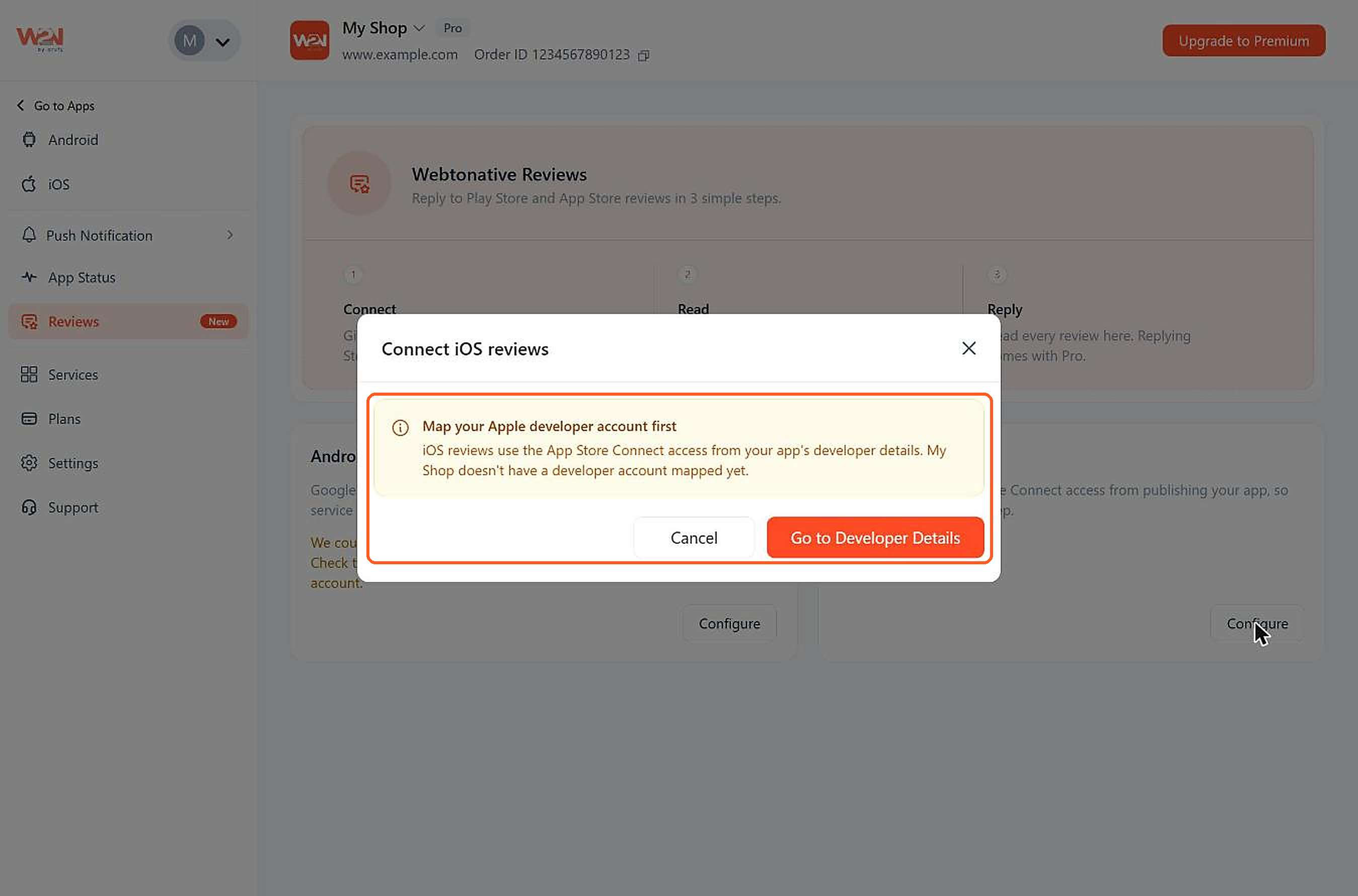
If you see Map your Apple developer account first, your app doesn't have an Apple developer account linked yet. Click Go to Developer Details, add your Apple developer account, then come back to Reviews and click Configure again.
See What Happens After You Connect
Your reviews start appearing as soon as a store is connected.
App Store
All your past reviews are brought in right away.
Google Play
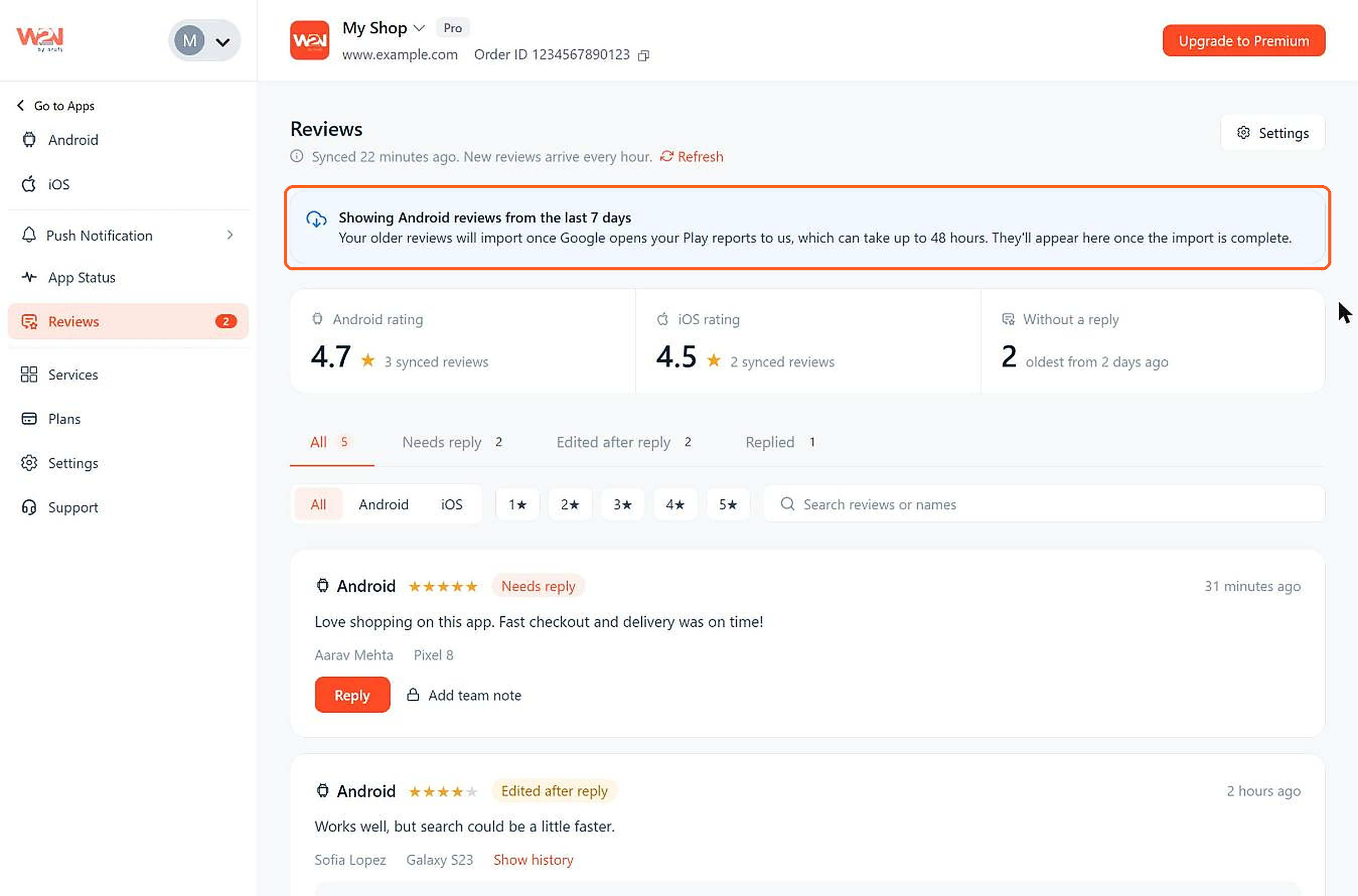
Google only shares reviews from the last 7 days at first. If you ticked Import older reviews, your past reviews are added once Google gives access to your reports. This can take up to 48 hours.
Steps to read and reply to reviews
Choose a Tab
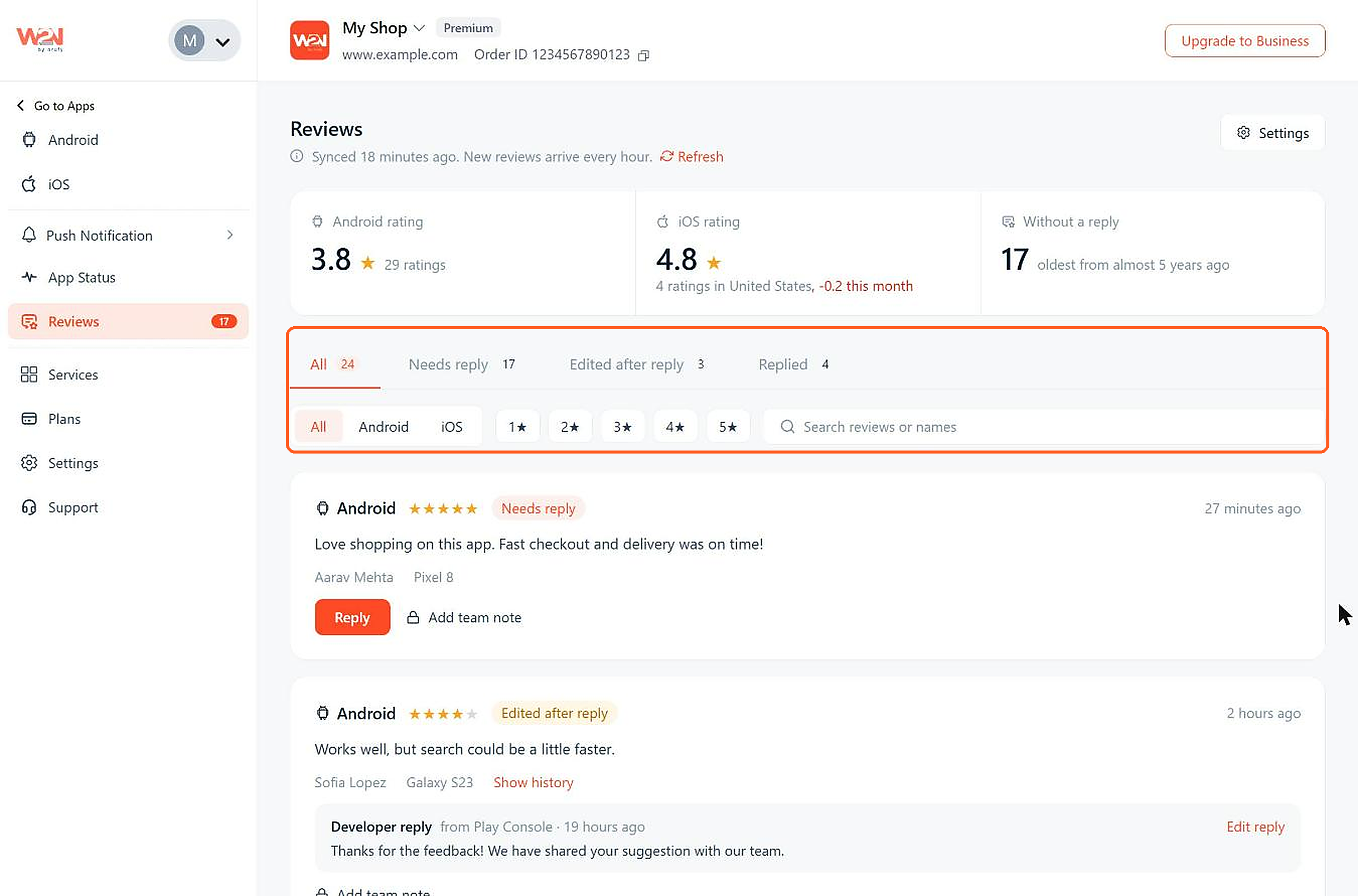
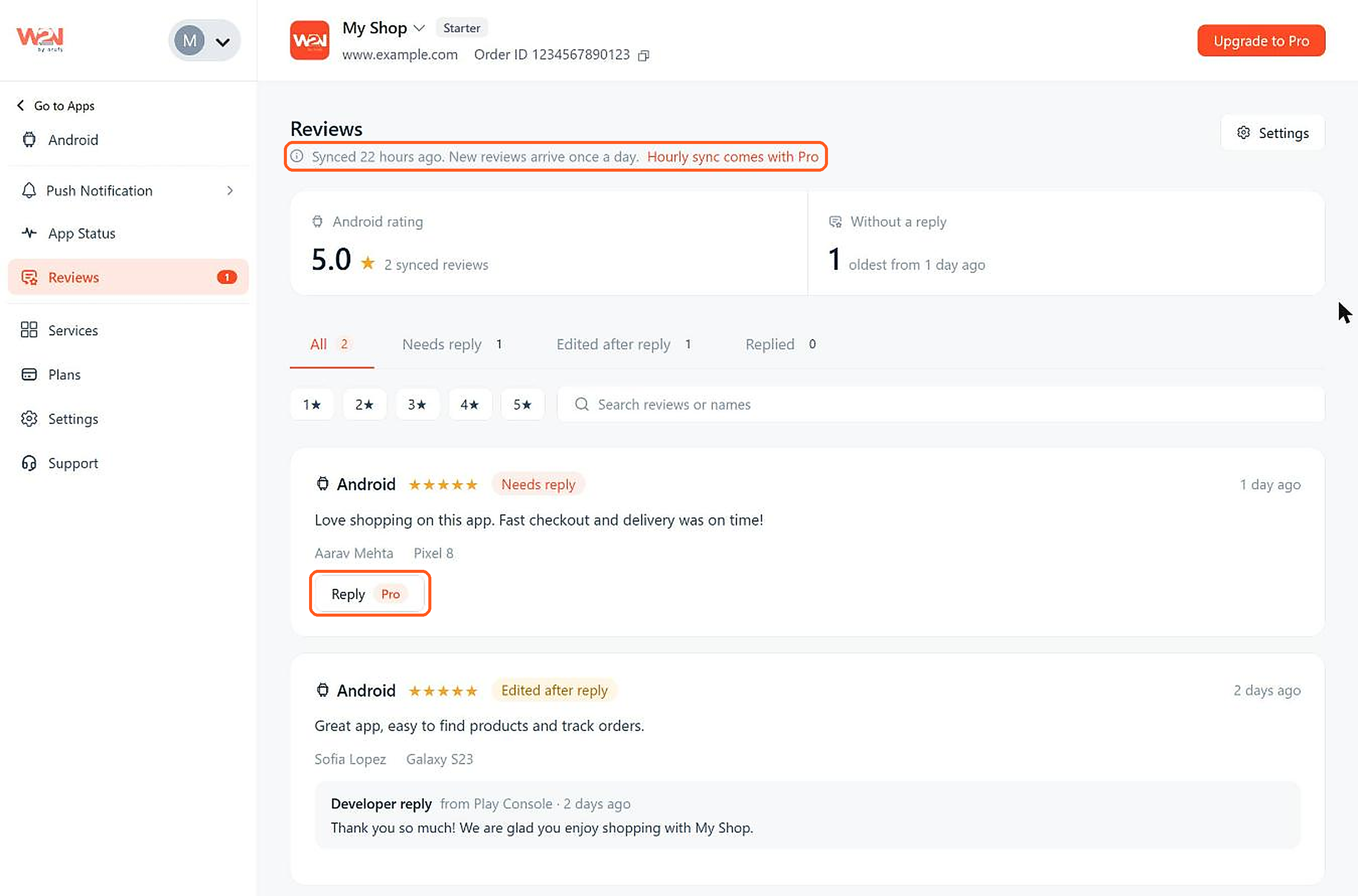
At the top of the page, you'll see your rating on each store and how many reviews don't have a reply yet. Use the tabs to sort your reviews:
Needs reply
Reviews you haven't answered yet. Start here.
Edited after reply
Reviews the user changed after you replied.
Replied
Reviews you've already answered.
All
Every review from both stores.
Filter and Search
Filter by store (All, Android or iOS) or by star rating (1★ to 5★), or search by words in the review or the reviewer's name. Click Refresh to check for new reviews right away.
Click on Show History
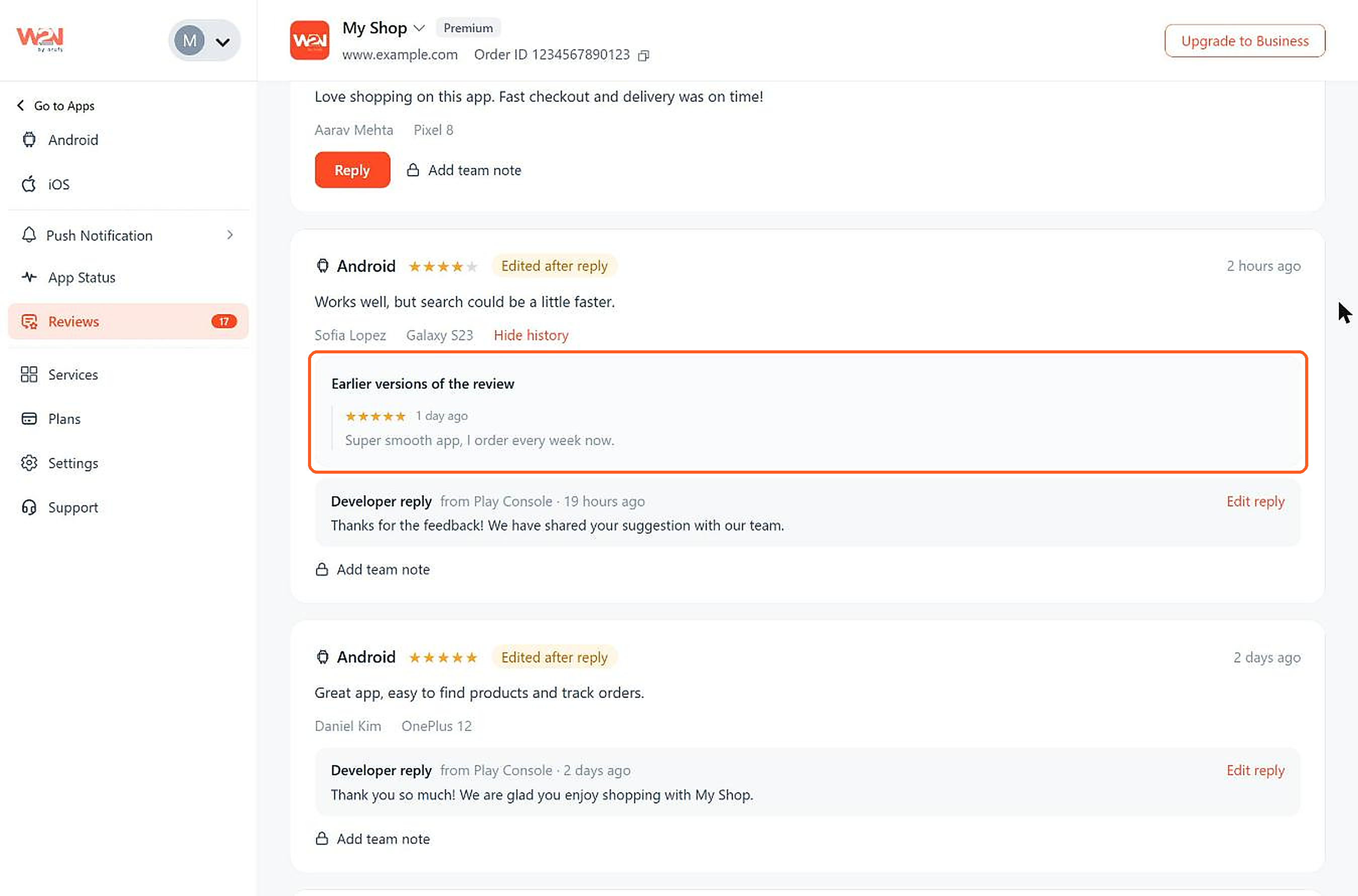
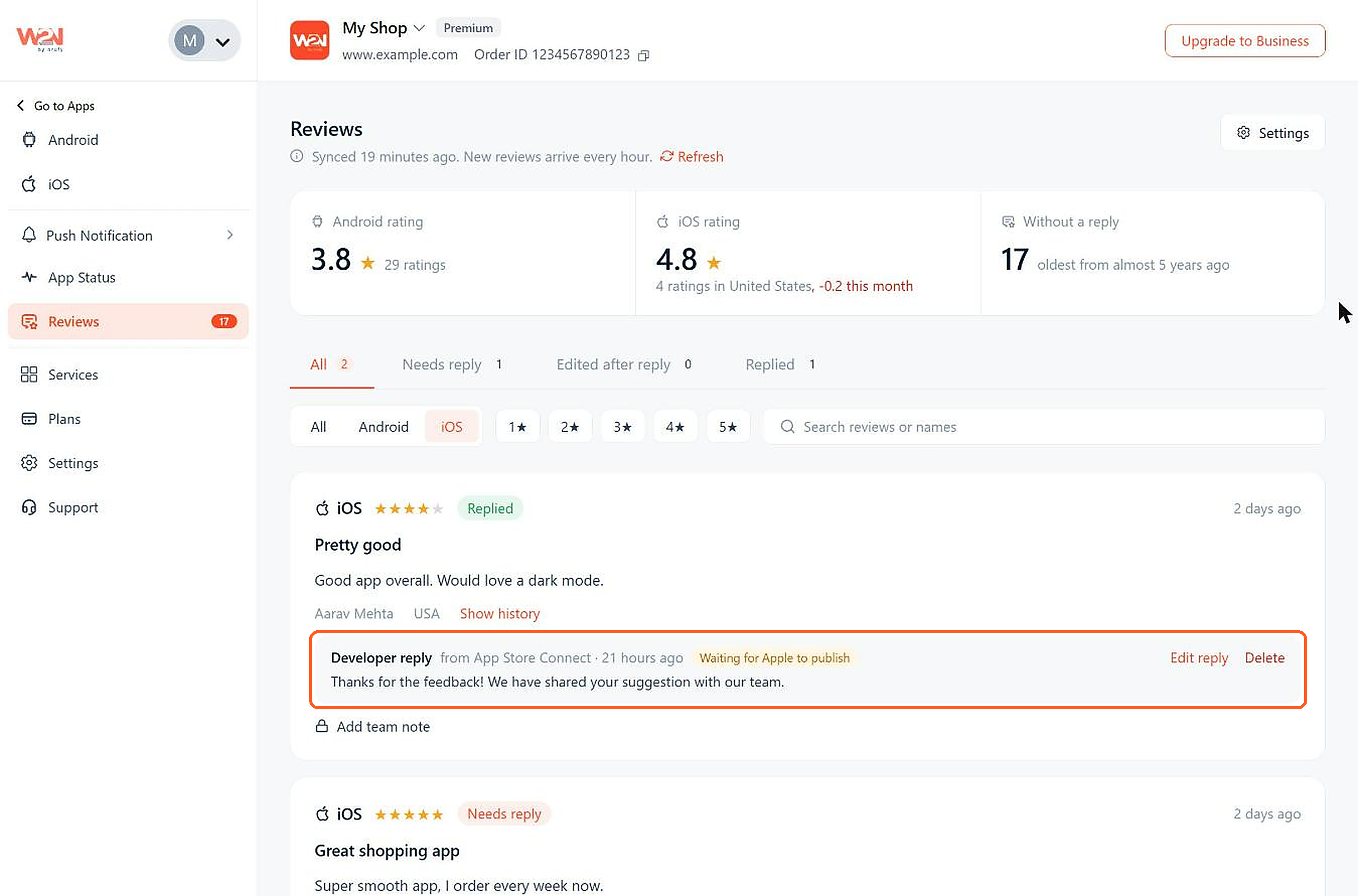
When a user changes their review after you've replied, click Show history to see what they wrote before. Then click Edit reply if your answer needs to change.
Click on Reply
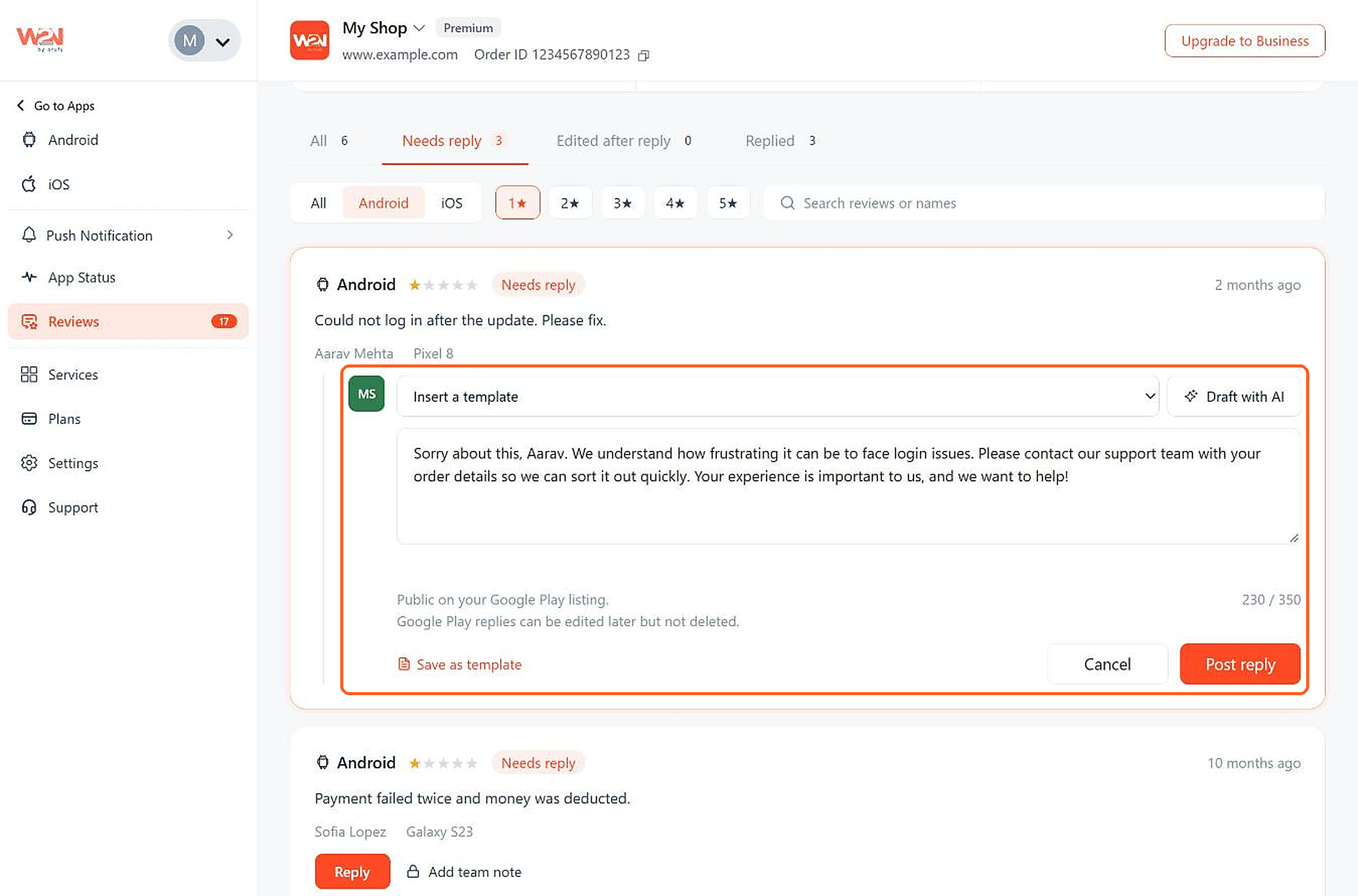
Click Reply on a review to open the reply box. Write your own reply, or use one of these:
Insert a template
Pick a saved reply. The reviewer's first name and your app name are filled in for you.
Draft with AI
Get a suggested reply written for that review. Always read and adjust it before posting.
Click on Post Reply
Click Post reply. Your reply is public and appears under the review on the store. Each review can have only one reply, so editing a reply replaces the old one.
Google Play
Replies can be up to 350 characters. You can edit a reply, but you can't delete it.
App Store
You can edit or delete a reply. Apple can take up to 24 hours to publish it.
Add a Team Note
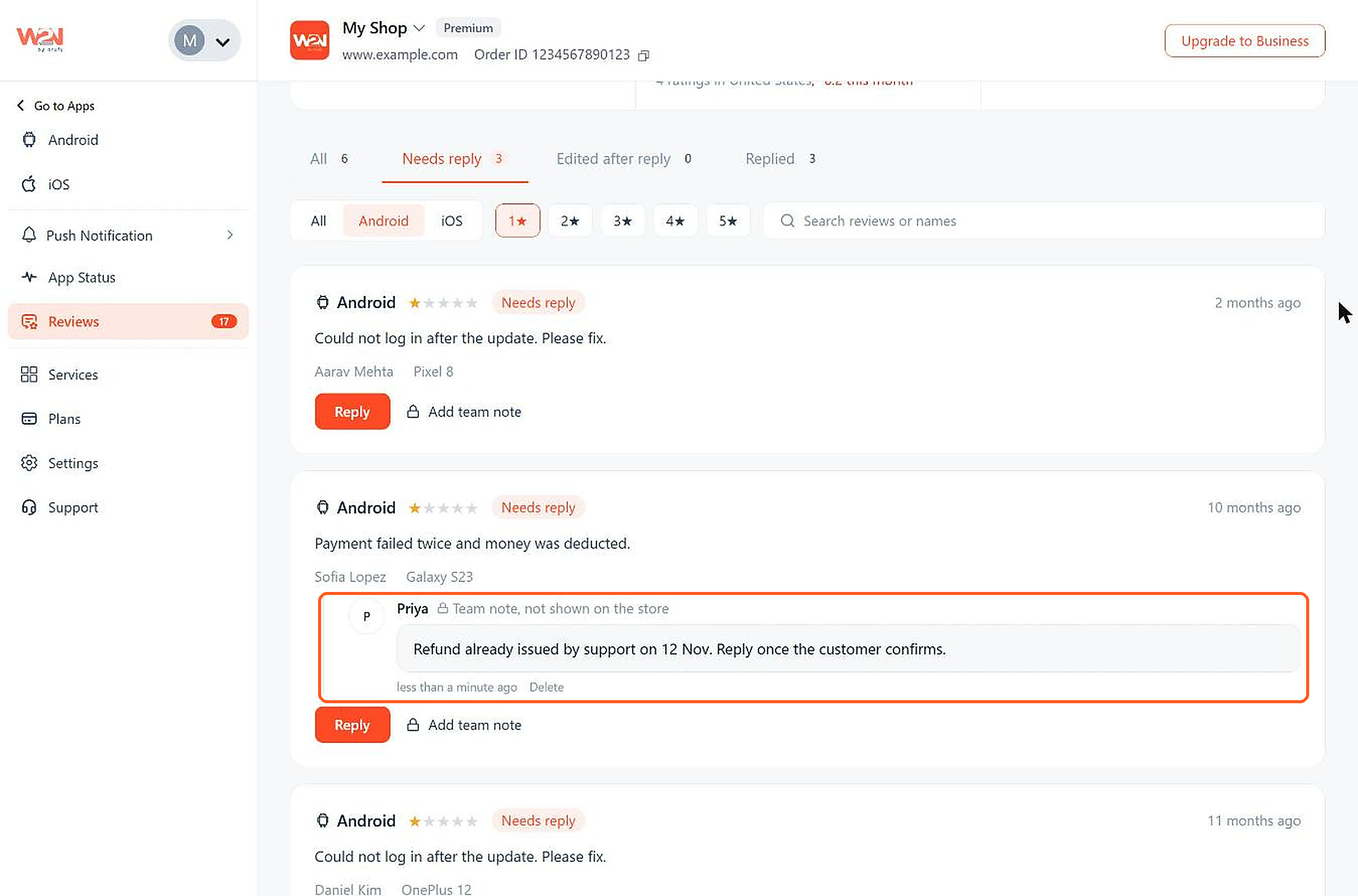
Click Add team note to leave a private message for your teammates, for example Refund already issued by support. Team notes are never sent to Google or Apple.
Replies are public. Keep them helpful, honest and about what the user wrote, and never share personal information. Google doesn't allow rude or promotional replies, and breaking its rules can lead to your app being suspended.
How long reviews and replies take to appear on the stores
The stores take some time to publish new reviews and your replies, so something you see in the dashboard may show up on the store a little later.
App Store
Apple can take some time to publish a new review on your App Store page, and up to 24 hours to publish your reply. Until then, your reply shows Waiting for Apple to publish in the dashboard. An edited reply is marked as edited.
Google Play
Google holds new reviews for around 24 hours before showing them publicly, to check for fake or suspicious activity. You can still see and reply to them in the dashboard during this time. The user is notified about your first reply, but not when you edit it later.
Steps to manage review settings
Click on Settings
Click Settings at the top of the Reviews page. You'll see two tabs: Connections and Templates.
Open Templates
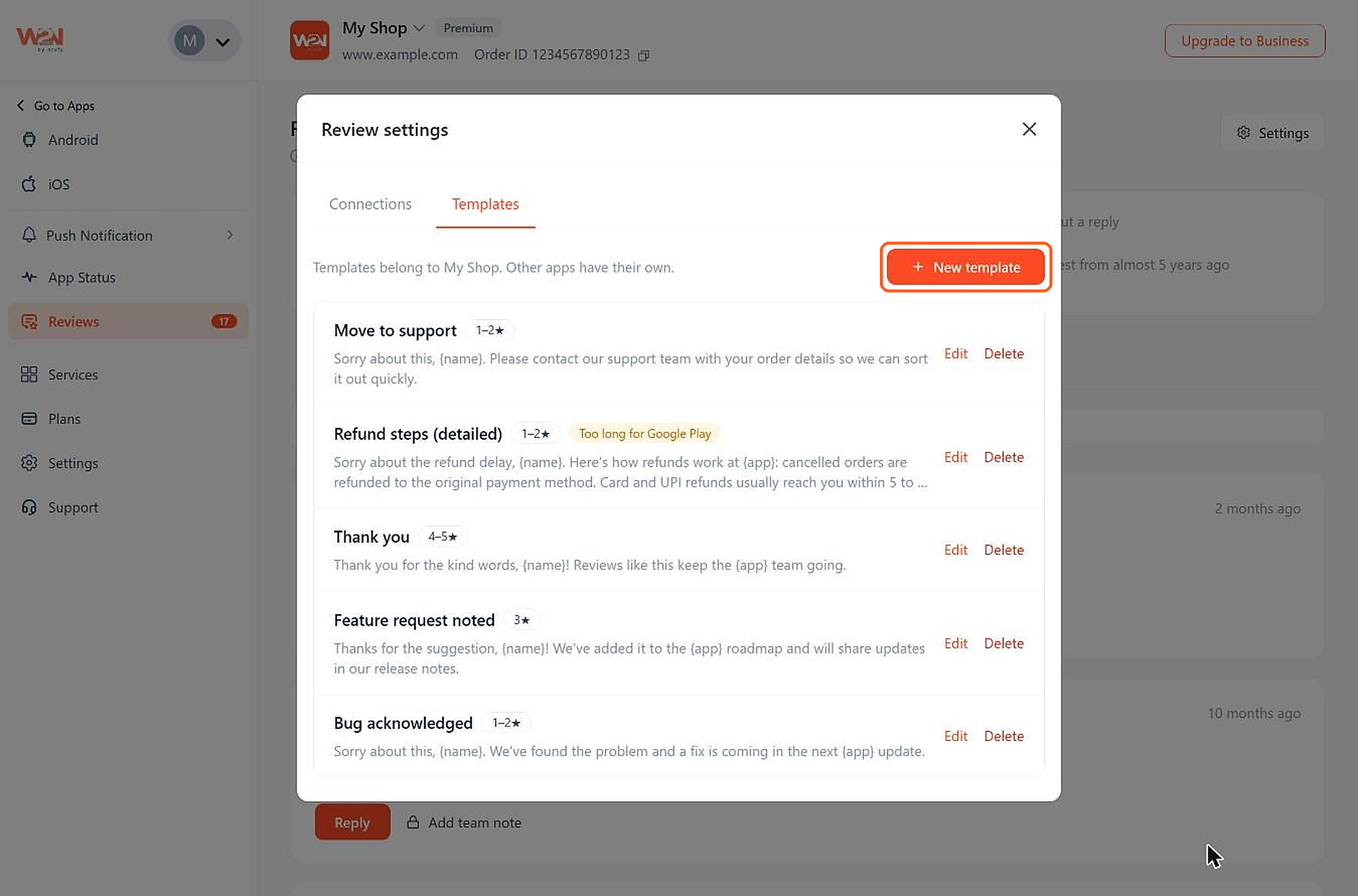
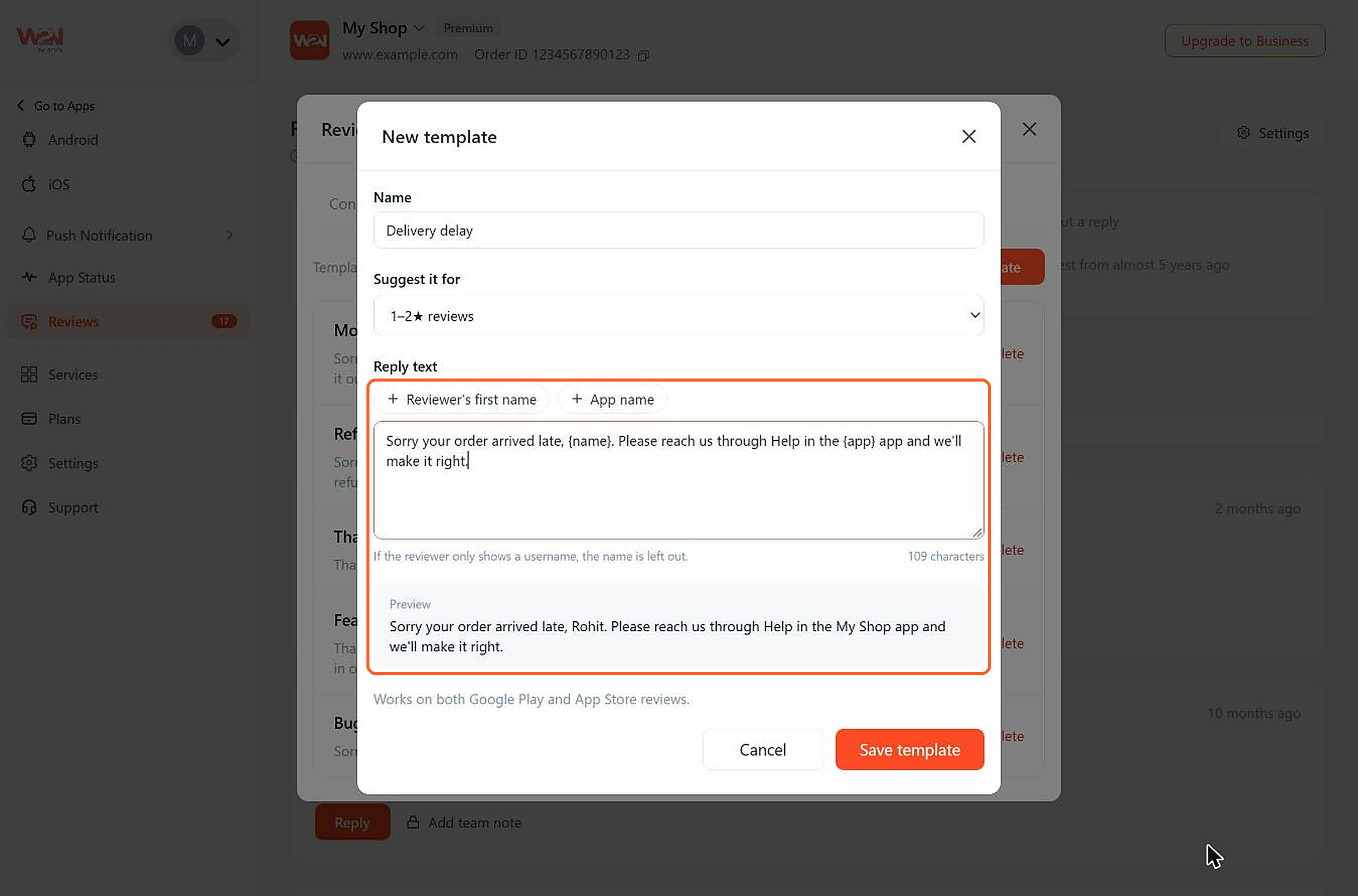
Templates are saved replies you can reuse. Your app comes with five ready-made templates, and each app has its own templates. Click Edit or Delete to change an existing one.
Click on New Template
Click New template and fill in these fields:
Name
A short name to find the template later, for example Delivery delay.
Suggest it for
The star ratings the template fits best: Any rating, 1–2★, 3★ or 4–5★ reviews.
Reply text
Your reply. Click Reviewer's first name or App name to add them automatically.
Preview
Shows how the reply will look to a reviewer. If a reviewer only shows a username, their name is left out.
Click Save template. Templates longer than 350 characters can't be used for Google Play reviews.
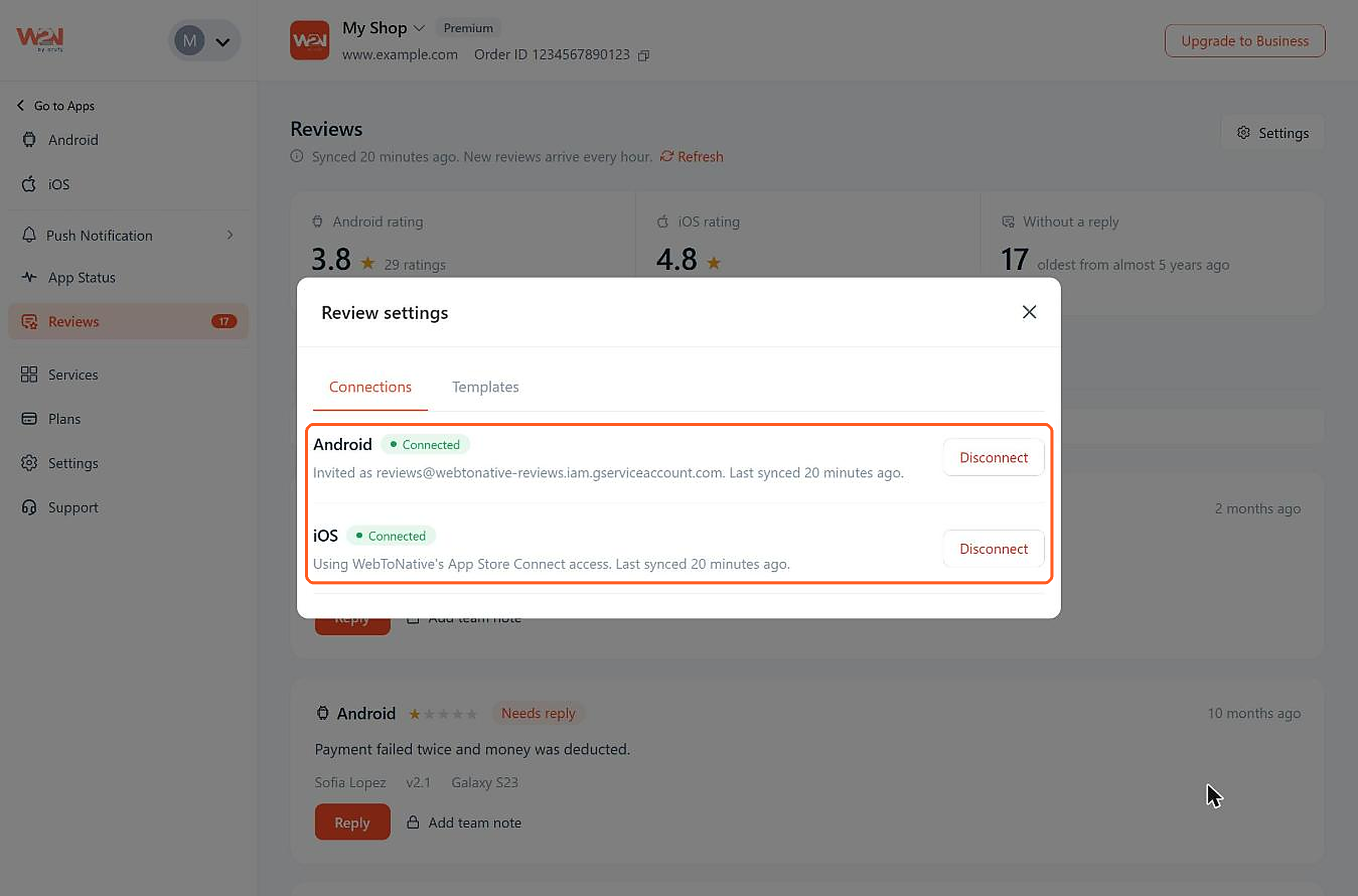
Open Connections
See whether each store is connected and when reviews were last updated.
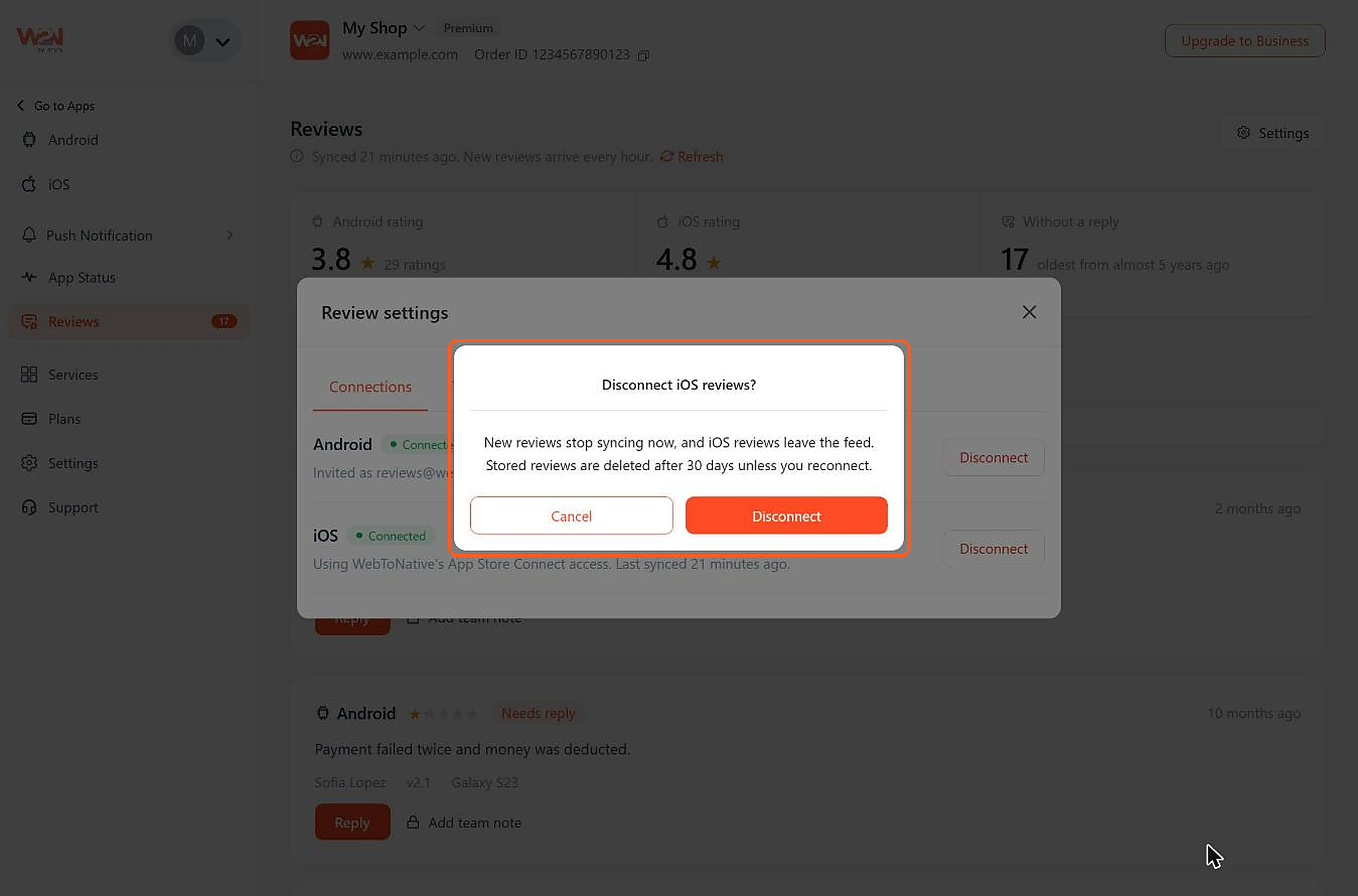
Click on Disconnect
Click Disconnect next to a store and confirm. New reviews stop coming in right away. Your saved reviews are deleted after 30 days unless you connect again.
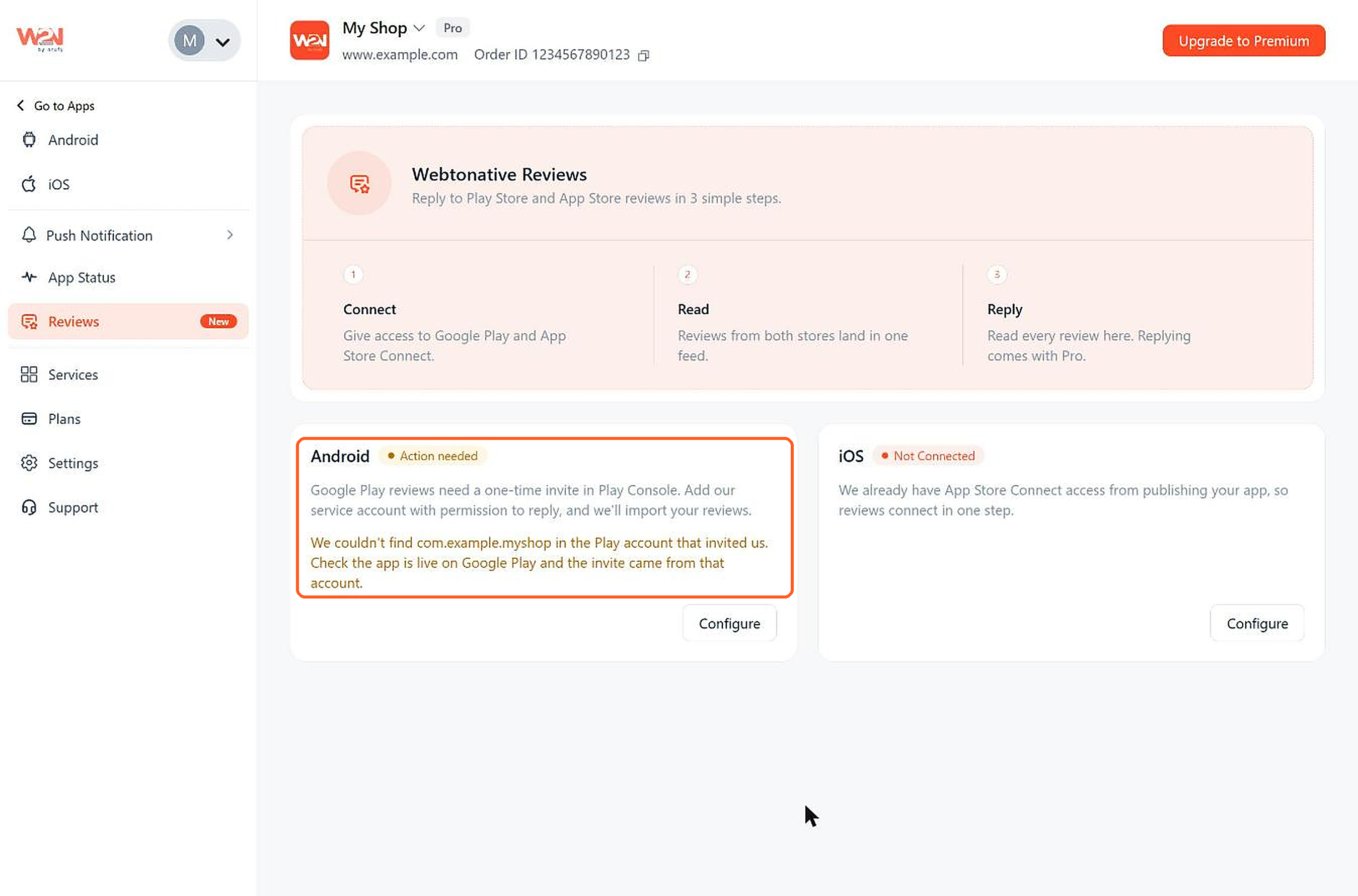
Understand the Connection Status
Each store card on the Reviews page shows a status.
Not Connected
You haven't connected this store yet. Click Configure to start.
Connected
The store is connected and your reviews are coming in.
Action needed
Something in the setup needs fixing, such as a missing Play Console permission. The card shows what to fix. Click Configure, fix it, then click Check again.
Understand the Plan Tags
What you can do in Reviews depends on your app's plan. If an option isn't included in your plan, it shows a tag, such as Pro on the Reply button. Click it to see upgrade options.
Starter
Connect your stores, and read, filter and search your reviews. New reviews are added once a day.
Pro
Everything in Starter, plus reply to reviews, edit replies, use templates and add team notes. New reviews are added every hour.
Premium & Business
Everything in Pro, plus Draft with AI.
One-time plans
Reviews shows an upgrade screen.
Frequently Asked Questions:
1. Why do I see only a few Google Play reviews after connecting?
Google only shares reviews from the last 7 days at first. To see older reviews, tick Import older reviews during setup and add your Cloud Storage URI. They can take up to 48 hours to appear.
2. Why don't some of my ratings appear in the dashboard?
Only reviews with a written message appear. Ratings with stars only and no text aren't shown, but they still count toward your app's rating on the store.
3. I see "We couldn't find [your app] in the Play account that invited us." What should I do?
Make sure your app is live on Google Play, and that you sent the invite from the Play Console account that owns the app. Then click Check again.
4. I sent the invite, but the connection still fails. Why?
Check that View app information and Reply to reviews are both ticked for your app. Play Console can take a few minutes to apply new permissions, so wait a little and click Check again.
5. I can see a new Google Play review in the dashboard, but not on the Play Store. Why?
Google holds new reviews for around 24 hours before showing them publicly. You can still reply during this time.
6. Why isn't my App Store reply showing yet?
Apple can take up to 24 hours to publish a reply. It shows Waiting for Apple to publish until then.
7. Can I delete a reply on Google Play?
No. Google Play doesn't allow deleting replies, but you can edit them anytime.
8. Why can't I reply to reviews?
Replying needs the Pro plan or higher, and your team role must be Owner, Admin or App Manager.
9. How often are new reviews added?
Once a day on Starter, and every hour on Pro and above. On Pro and above, you can also click Refresh to check right away.
10. What happens if I disconnect a store?
New reviews stop coming in right away. Your saved reviews are kept for 30 days, so you can reconnect without losing them.