


Support For TV
Continue Watching and Channel Recommendations allow your app to connect its video content to the Android TV home screen. Viewers who start a movie, episode, or clip and exit the app will find that content waiting for them in the Continue Watching section, with their progress already saved.
Alongside this, you can publish channel recommendations of your own choosing, such as New Releases or Trending. So even viewers who haven't recently opened the app can see your content on the home screen.
This add-on is only available for Android TV. It is available in the free trial and all paid plans.

Without Support for TV
A viewer who is mid-episode has to open your app, search for the same title again, and manually scrub back to where they left off. Most viewers simply won’t bother, and your app loses a returning watcher.

With Support for TV
The episode shows up right on the Android TV home screen with the progress already marked. One click on the remote and the viewer is back exactly where they stopped.
Why Use This Feature
Bring Viewers Back
A tile sitting on the home screen is a constant and low-effort reminder to keep watching. Without it, the viewer must remember to launch your app to resume content.
Get Discovered on Home Screen
Even if viewers haven't recently opened your app, the recommendation channels display your content to them. The way popular streaming apps display recommended or trending content is similar.
Show Real Progress
The Continue Watching tile displays how far along the viewer got, so they always know where they left off before selecting anything.
What Does WebToNative Provide
Secure Deep Linking
Each tile opens via a deep link that is compared to the domains that your application has set up. This means that you can only open your own content.
Continue Watching Management
Add, update, remove, or clear entries in the Android TV Continue Watching row using simple JavaScript calls from your website. WebToNative handles writing this data to the device.
Home Screen Recommendation Channels
Publish a named channel of channels, such as Trending or New Releases, that viewers can add to their Android TV home screen directly from your content.
Remote Control Navigation
Each time the device presses a remote button, a JavaScript function call is sent to your website. So your website can react to the D-pad movement, select, home, menu, and media transport keys without you developing any native handling.
Where to Find It in Your Dashboard
My Apps ➡️ Edit your App ➡️ Add-Ons ➡️ Device & Hardware ➡️ Support for TV
Steps to Apply This Feature to Your App
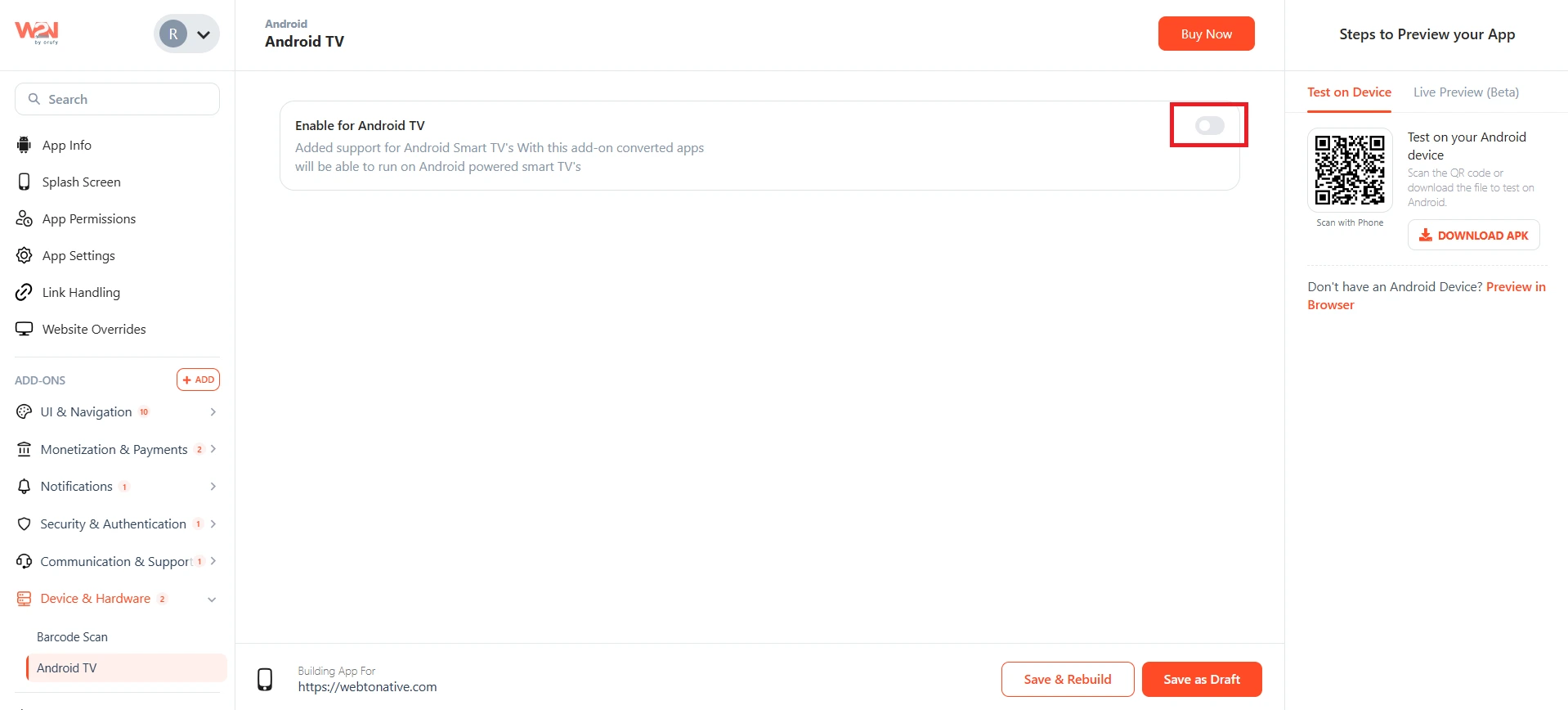
Enable the Toggle
Turn the Android TV toggle ON from your dashboard to activate the integration for your app. Even if your website calls the bridge functions, nothing is written to the Android TV home screen when it is turned OFF.
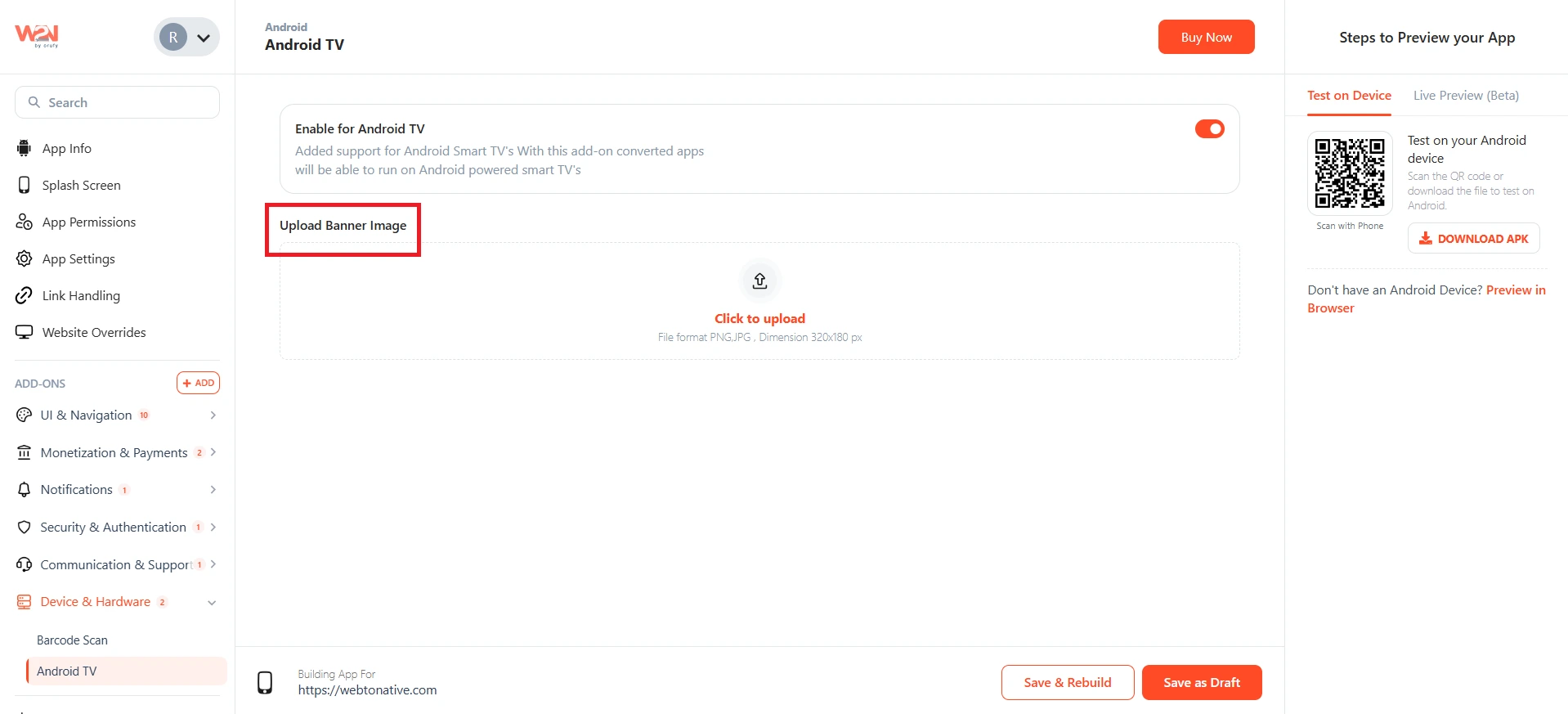
Upload a Banner Image
Upload a banner image from your dashboard before you start sending content. The image should be in PNG or JPG file format with dimensions of 320*180 pixels.
You have to set up a custom URL Scheme to make this functionality work perfectly.
Save & Rebuild
Click Save & Rebuild to apply changes to your app. Once the build is ready, you can start calling the bridge functions from your website.
Using the Bridge Functions
1. Add Content to Continue Watching
Your website calls the bridge whenever a viewer has watched at least 2 minutes of a supported video.
WTN.TV.watchNext.upsert({
  id: "show-123-ep4",
  type: "TV_EPISODE",
  title: "Episode 4",
  showTitle: "My Show",
  seasonNumber: 1,
  episodeNumber: 4,
  posterUrl: "https://example.com/poster.jpg",
  durationMs: 2700000,
  positionMs: 1200000,
  deepLinkUrl: "https://customer-site.com/watch/show-123/ep4"
});
id
should stay the same for the same piece of content across sessions. Calling upsert again with the same id updates that tile’s progress instead of creating a duplicate.
type
accepts MOVIE, TV_EPISODE, or CLIP only.
durationMs and positionMs
are both in milliseconds and control the progress bar shown on the tile.
posterUrl
needs to be an HTTPS image, ideally at least 320*180 pixels.
deepLinkUrl
is what opens when the viewer selects the tile. It works whether your app is closed or already running.
2. Remove Content When Finished
Call WTN.TV.watchNext.remove("show-123-ep4") once a viewer completes a title, so it doesn’t sit in Continue Watching after there’s nothing left to resume. As a backup, an item is auto-removed once playback passes roughly 95% of its duration on its own.
To wipe every tile added through this integration in one go, use WTN.TV.watchNext.clear().
3. Publish a Recommendation Channel
Give the recommendation channel a name that clearly describes what it holds, such as Editor’s Pick, New Releases, or Trending. Calling publish again replaces the channel’s current list with whatever you send. So, send the full updated list each time rather than just the new additions.
After removing the channel, the user needs to re-enable it in the Smart TV channel settings to see recommendations for this app.
To take a channel down, call WTN.TV.channel.remove("Trending").
WTN.TV.channel.publish({
  channelName: "Trending",
  programs: [
    {
      id: "movie-1",
      type: "MOVIE",
      title: "Movie One",
      posterUrl: "https://example.com/movie1.jpg",
      deepLinkUrl: "https://example.com/watch/movie-1"
    }
  ]
});
4. Handling Remote Control Key Presses
Your website defines a global function. The native app calls it whenever the viewer presses a key on the remote.
window.handleKeyEvent = function (key) {
  switch (key) {
    case "PLAY":
      videoElement.play();
      break;
    case "PAUSE":
      videoElement.pause();
      break;
    case "STOP":
      videoElement.pause();
      videoElement.currentTime = 0;
      break;
    case "NEXT":
      playNextInPlaylist();
      break;
    case "PREVIOUS":
      playPreviousInPlaylist();
      break;
    case "CENTER":
    case "ENTER":
      document.activeElement?.click?.();
      break;
  }
};You must define this on page load, before the viewer starts using the remote.
The directional keys, UP, DOWN, LEFT, and RIGHT, along with CENTER, HOME, MENU, ENTER, and INFO, are also always used by the app itself to move focus between the elements on the page. Your function can react to these for things like a focus sound, but it cannot block or override the focus movement.
PLAY, PAUSE, STOP, NEXT, and PREVIOUS work differently. The app doesn't handle these at all. So, your function is fully responsible for them. If PLAY, PAUSE, or STOP are not handled, the viewer sees a message saying the media player is not working.
Back and the Voice Assistant button never reach this function. Back is handled natively as the app’s back action, and the Voice button launches the device’s assistant directly.
If you want your website to receive remote key presses, keep the Custom Media Player add-on turned OFF. Otherwise, it will interrupt the media transport keys before your website gets them.
Frequently Asked Questions
Q1. Will the tile update or duplicate if the viewer keeps watching?
A. It updates instead of duplicating. As long as you send the same id with every call, upsert refreshes the existing tile’s progress and title details rather than creating a fresh entry for the same content.
Q2. Can a viewer end up on a page outside my app through one of these tiles?
A. No. Every deep link tied to a Continue Watching or recommendation tile is checked against the domains configured for your app before it opens. So viewers can never be sent to an unrelated website.
Q3. Does this work on iOS or Fire TV too?
A. No. Continue Watching and Channel Recommendations are supported on Android TV only in this version. iOS or Fire TV are not currently supported. Fire TV runs on a different home screen platform entirely.
Q4. Why is my handleKeyEvent function never getting called?
A. Two things are needed for this to work. First, Support for TV must be enabled from your dashboard. Second, the device must be detected as an Android TV. On a phone, tablet, or iOS device, this function is never called.
Q5. What happens if I send a viewer’s progress before they have watched 2 minutes?
A. The call gets rejected, and nothing is added to Continue Watching. WebToNative requires at least 2 minutes of playback before an entry is created. So, briefly opened content does not end up cluttering the row unnecessarily.
Q6. Do I need to build anything native for this to work?
A. No. Native development is not needed. Your website simply calls the JavaScript bridge functions for Continue Watching and Channel Recommendations. WebToNative takes care of writing that data to the Android TV home screen on your behalf.
Q7. Why did the viewer see a media player not working message?
A. It only appears for PLAY, PAUSE, or STOP when your handleKeyEvent function is not defined at all. Defining the function and handling these keys removes the messages.
Q8. Can I stop the remote from moving focus between elements?
A. No, not for the directional and selection keys. The app always moves focus for these regardless of what your function does. So, you can react to the key but not block the movement itself.
Q9. What happens if I don’t call the remove function when a viewer finishes a title?
A. Nothing breaks. As a safeguard, the system automatically removes an entry once playback crosses 95% of the total duration. Even if your website never explicitly calls the remove function for that title.