


Device Phone Number
When a user creates a Google account, they associate a phone number with it. That same number is stored on their Android device. Instead of asking the user to type their phone number — and risk typos, wrong formats, or drop-offs — you can surface it directly using Google's Phone Number Hint API.
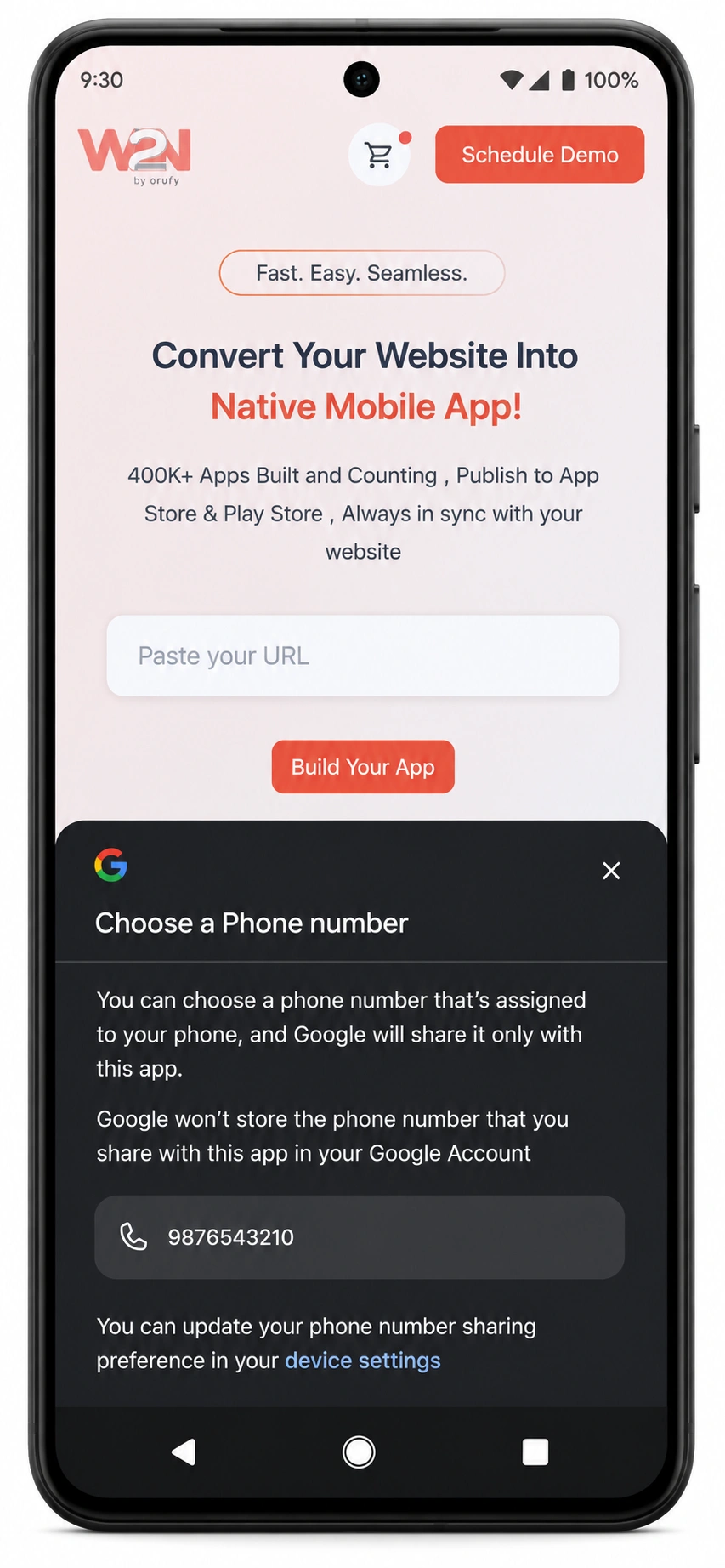
A native bottom-sheet picker appears, showing the phone numbers linked to the signed-in Google account(s) on the device. The user taps one, and it's autofilled into your form. No keyboard, no manual entry, authenticated by Google.
This add-on is available for Android only. It’s included free with the Pro plan.
Where to Find It In Your Dashboard
My Apps ➡️ Edit your app ➡️ Add-ons ➡️ +ADD ➡️ Security & Authentication ➡️ Device Phone Number ➡️ Activate
How it works

Your app calls getDevicePhoneNumber() from your website's JavaScript — for example, when a user focuses a phone number input field.

Google's system shows a native bottom-sheet picker — a familiar Android UI that lists the phone numbers associated with the user's signed-in Google account(s).

The user taps a number to select it. No keyboard, no typing required.

The callback fires with the selected phone number. If the user dismisses the picker without selecting, the callback returns success: false — your manual input field stays available as a fallback.
Benefits of Using Device Phone Number

Authenticated by Google
Numbers come from the user's verified Google account — not typed in, not guessed. You get a real, associated number rather than whatever a user happens to type.

Zero-typing entry
User taps a button, a native bottom-sheet picker appears, they tap their number — done. No keyboard, no formatting errors, no typos in country codes.

No dangerous permissions
Unlike READ_PHONE_STATE or READ_PHONE_NUMBERS, this uses a user-consented picker — no Play Store permission justifications, no privacy policy friction, no rejection risk.

Higher conversion
Manual phone entry is one of the biggest drop-off points in login and signup flows. Removing that friction meaningfully reduces abandonment before OTP verification.

Works without a SIM
Numbers are sourced from the Google account, not just the physical SIM. Useful on WiFi-only devices and tablets — if a number is linked to the Google account, it appears in the picker.

Graceful fallback by design
The hint can return no result or be dismissed. Always keep a manual input field available — this is additive, not a replacement for direct entry. The callback makes the fallback case easy to handle.
JavaScript API
One function. Import the WebToNative JavaScript file first, then call it wherever you want to trigger the phone number picker.

getDevicePhoneNumber()
Triggers the Google Phone Number Hint prompt. The user sees a native bottom-sheet picker listing phone numbers from their Google account. When they select a number — or dismiss the picker — the callback fires with the result.
Full API reference and additional code examples are in the developer documentation - https://docs.webtonative.com/javascript-apis/device-phone-number (opens in a new tab)
Always check response.success before using response.phoneNumber. When the user dismisses the picker, success is false and phoneNumber is null — your manual input field should remain available and focused.
Frequently Asked Questions
Does this read the SIM card's phone number?
No — the numbers come from the user's signed-in Google account(s), not from the physical SIM card. This is intentional: it avoids requiring the READ_PHONE_STATE or READ_PHONE_NUMBERS permissions (which are classed as dangerous permissions on Android and require Play Store justification). It also means the feature works on WiFi-only devices and tablets that have no SIM at all, as long as a Google account with a linked phone number is signed in.
What if the user dismisses the picker or has no number linked?
The callback still fires — with success: false and phoneNumber: null. This is the expected fallback path. Always keep a manual phone number input field visible alongside the "autofill" option. When success is false, simply focus the manual input so the user can type their number without any disruption.
When is the best time to trigger the picker?
The most natural trigger is when the user taps or focuses a phone number input field — the picker appears just as they're about to type, making the one-tap autofill feel natural rather than intrusive. You can also attach it to a dedicated "Use my phone number" button next to the input. Avoid triggering it on page load before the user has interacted with the form.
Does this work if the user is not signed into a Google account?
No — the picker relies on Google Play Services and a signed-in Google account. If no Google account is signed in, or the account has no phone number linked, the hint prompt will show no options and the callback returns success: false. This is another reason to always keep manual input available as a fallback.