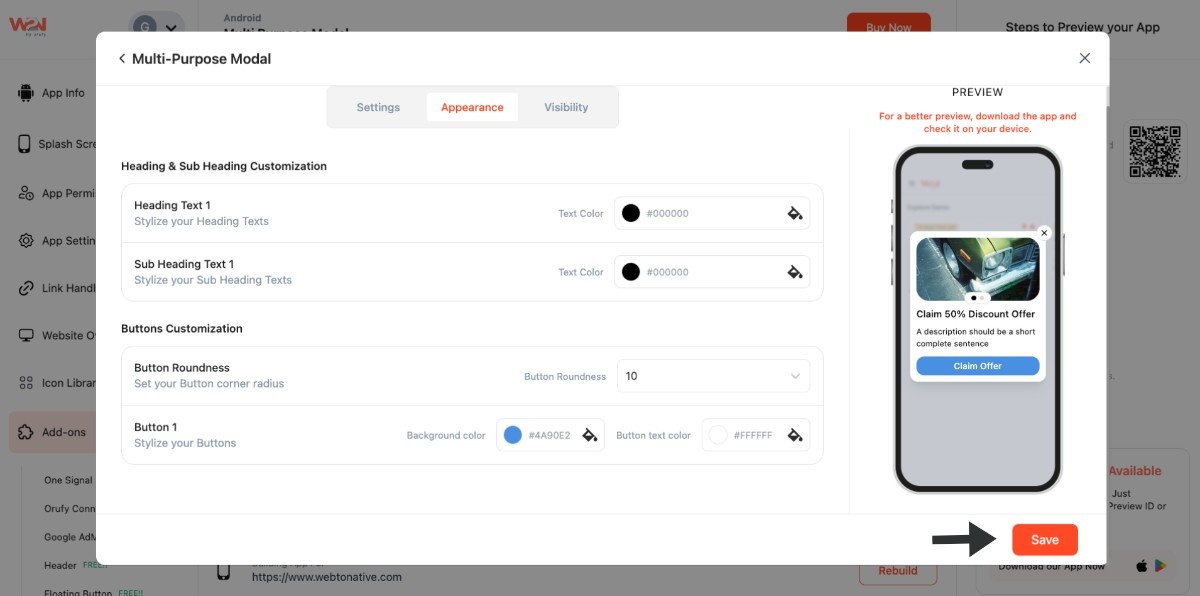
Bottom Offer Modal
A bottom offer modal is a kind of pop-up that appears and slides up from the bottom of the screen, showing offers, deals, and important messages. Without taking over the entire screen, users can still see the background behind it.
Step 1: Go to the Start Button
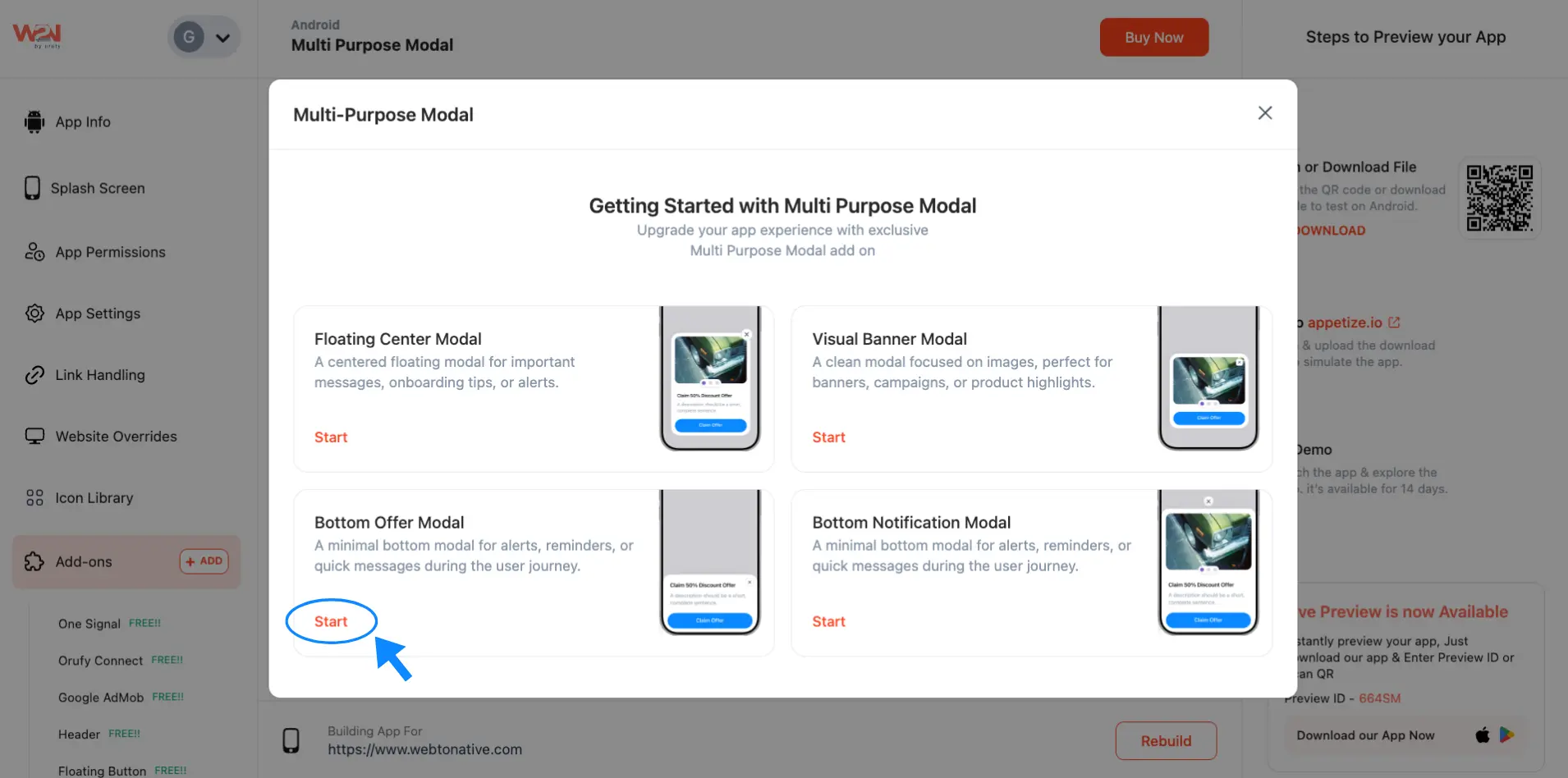
- Use the + Add Image or + Add YouTube URL buttons to include visual content in your app
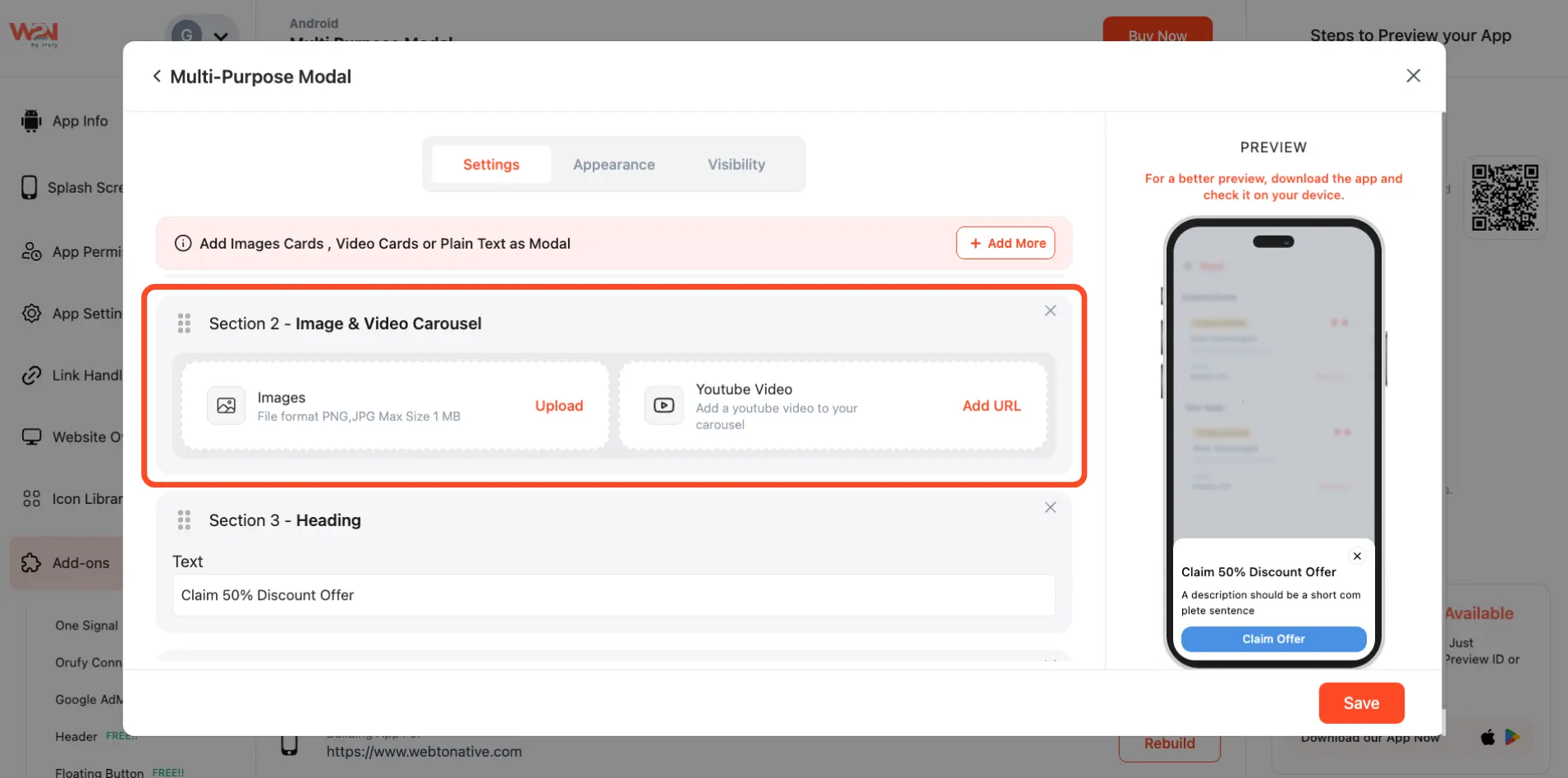
- Add a heading or title for your offer or alert
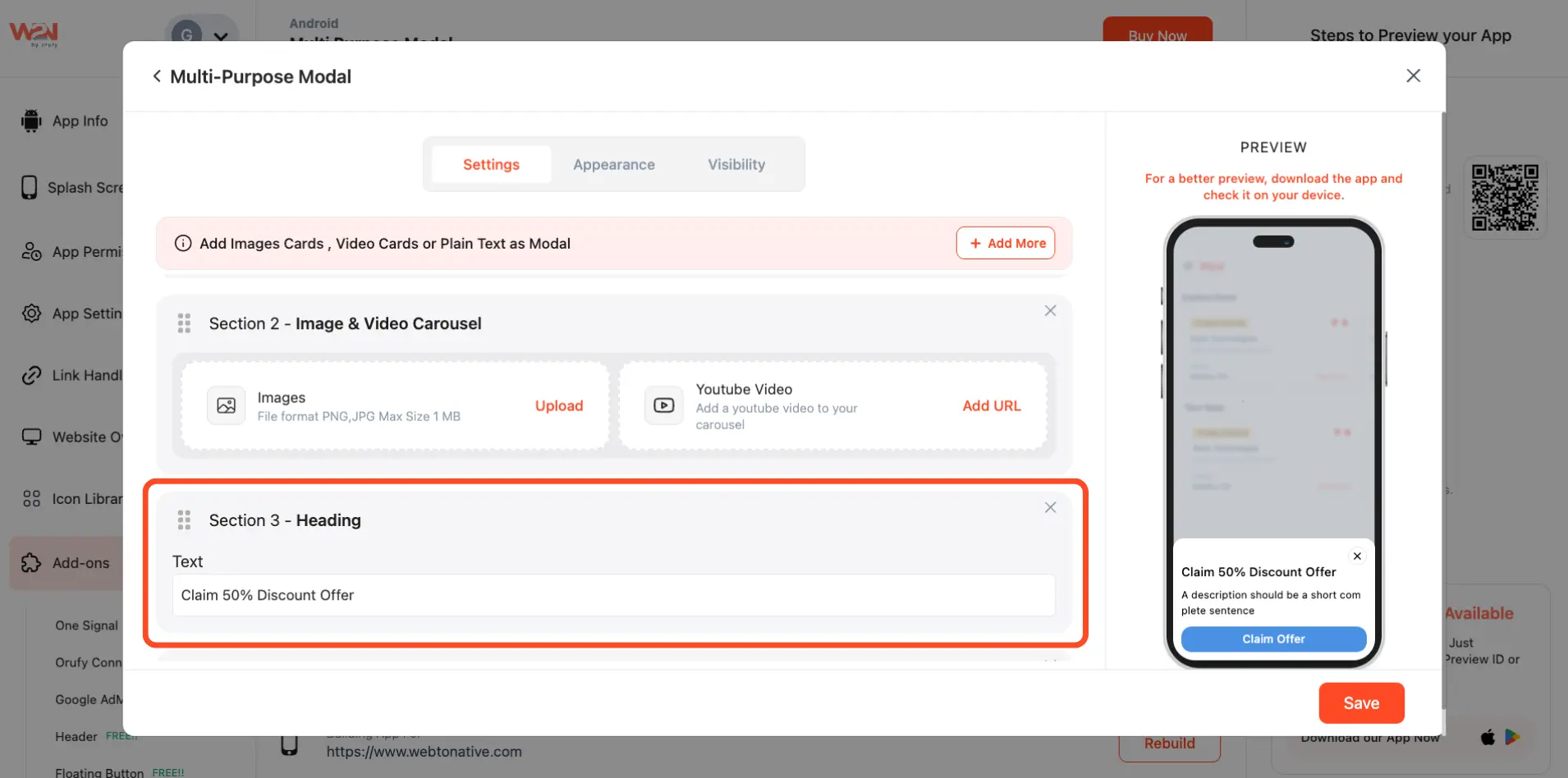
- Enter a brief subheading in a complete sentence
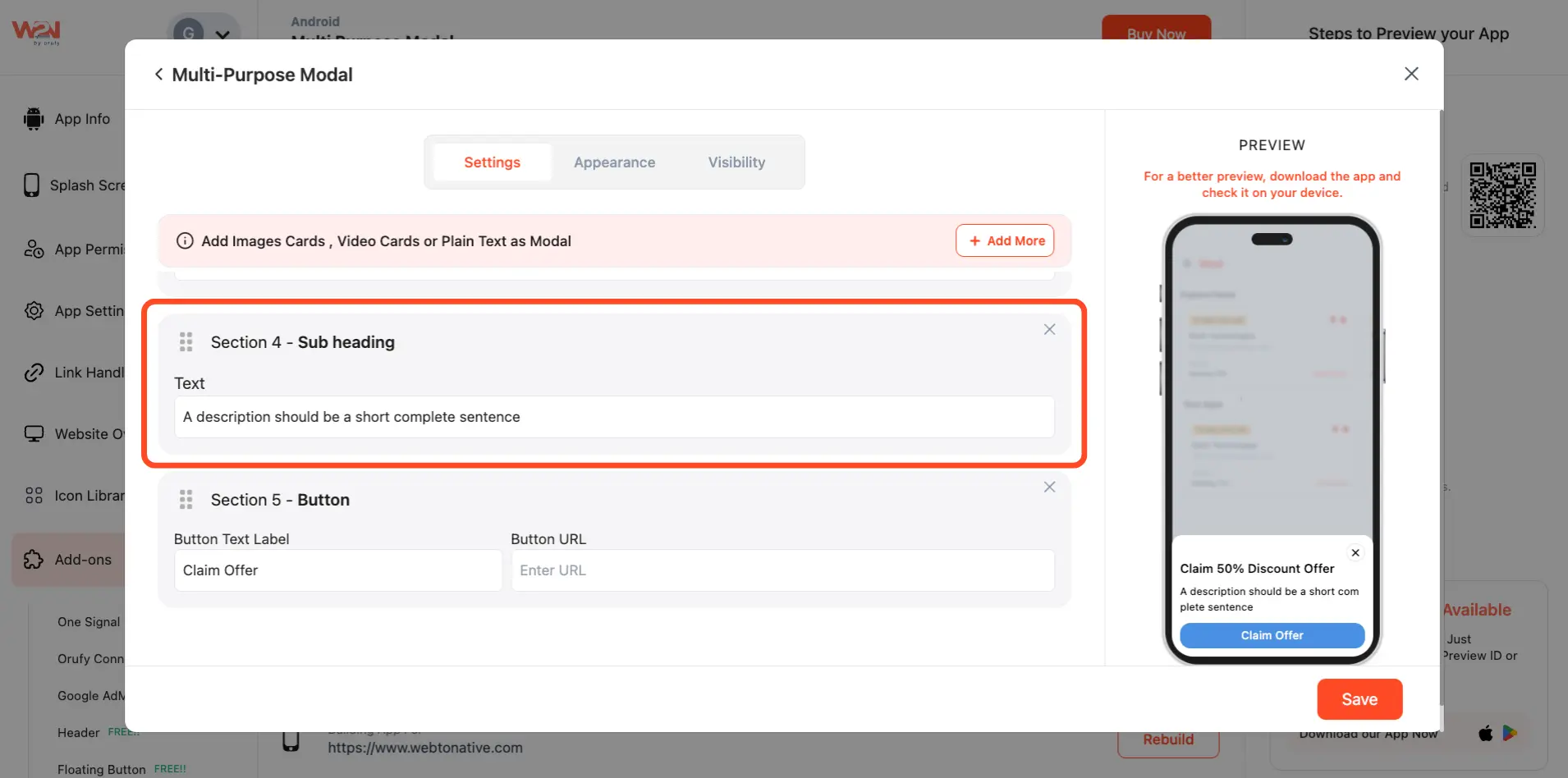
- Guide users to take action with a button and URL
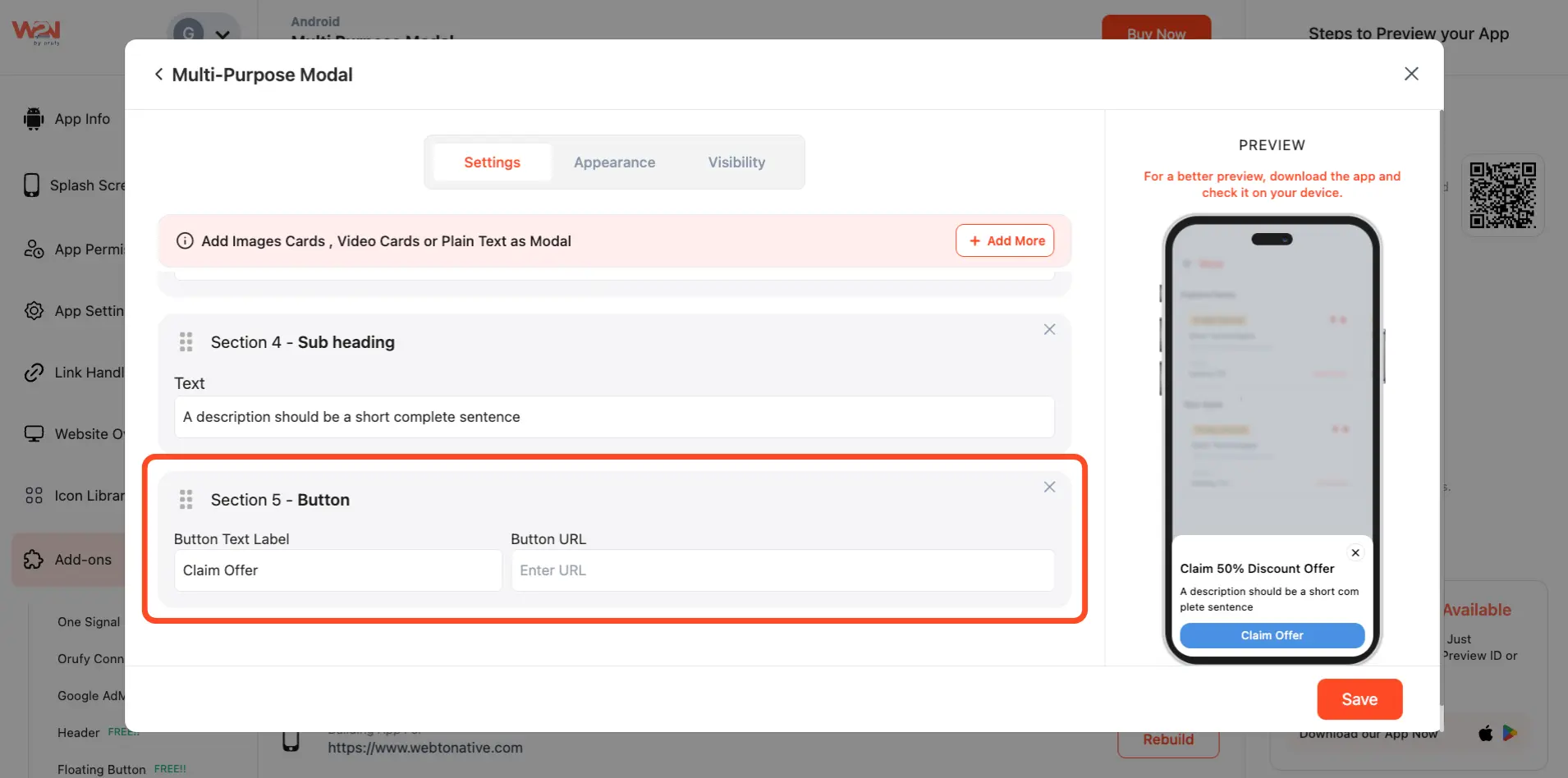
Step 2: Navigate to the Appearance Section
- It helps you customize the overall look of your modal
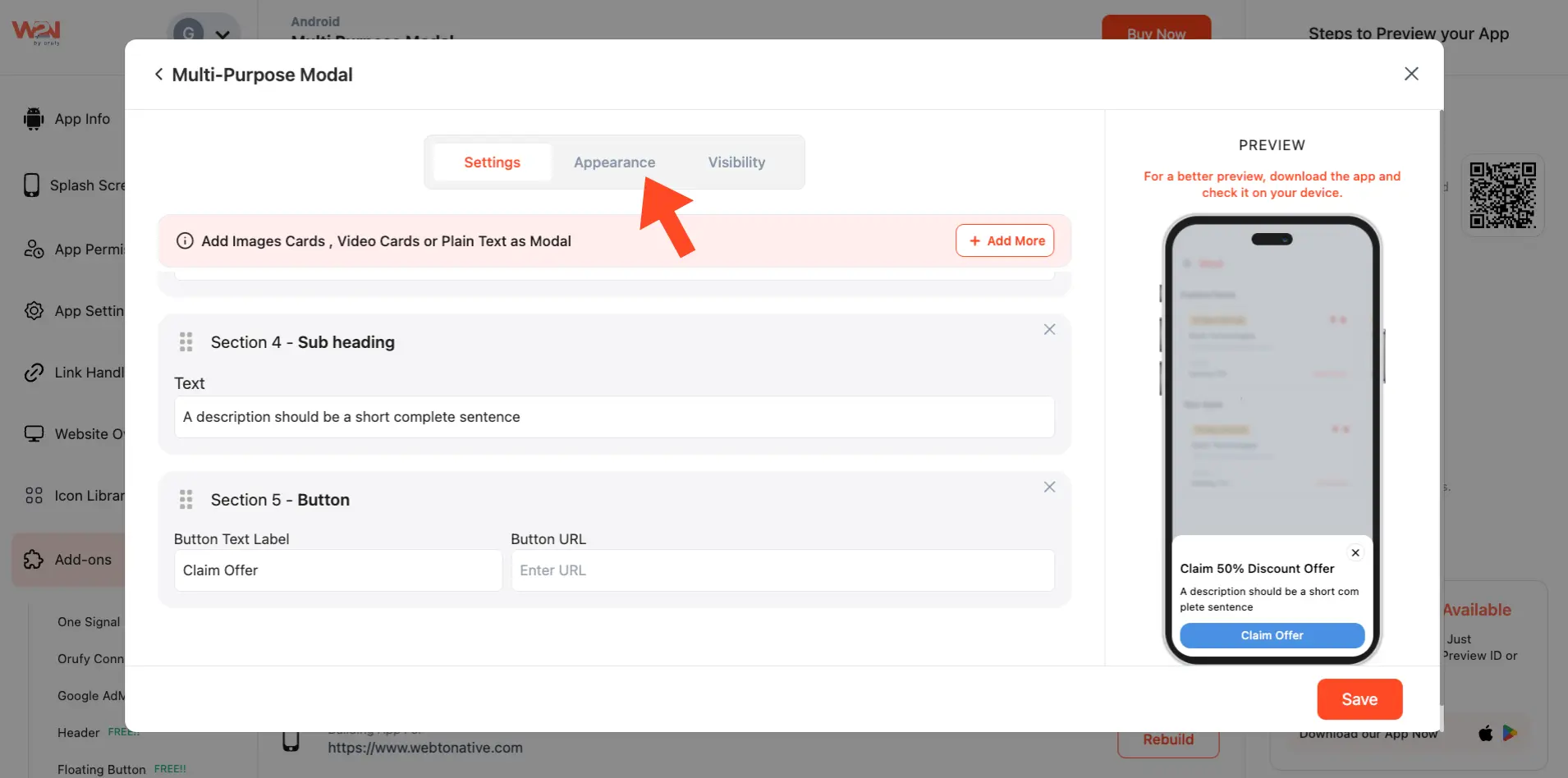
- Pick a background colour by clicking the colour circle
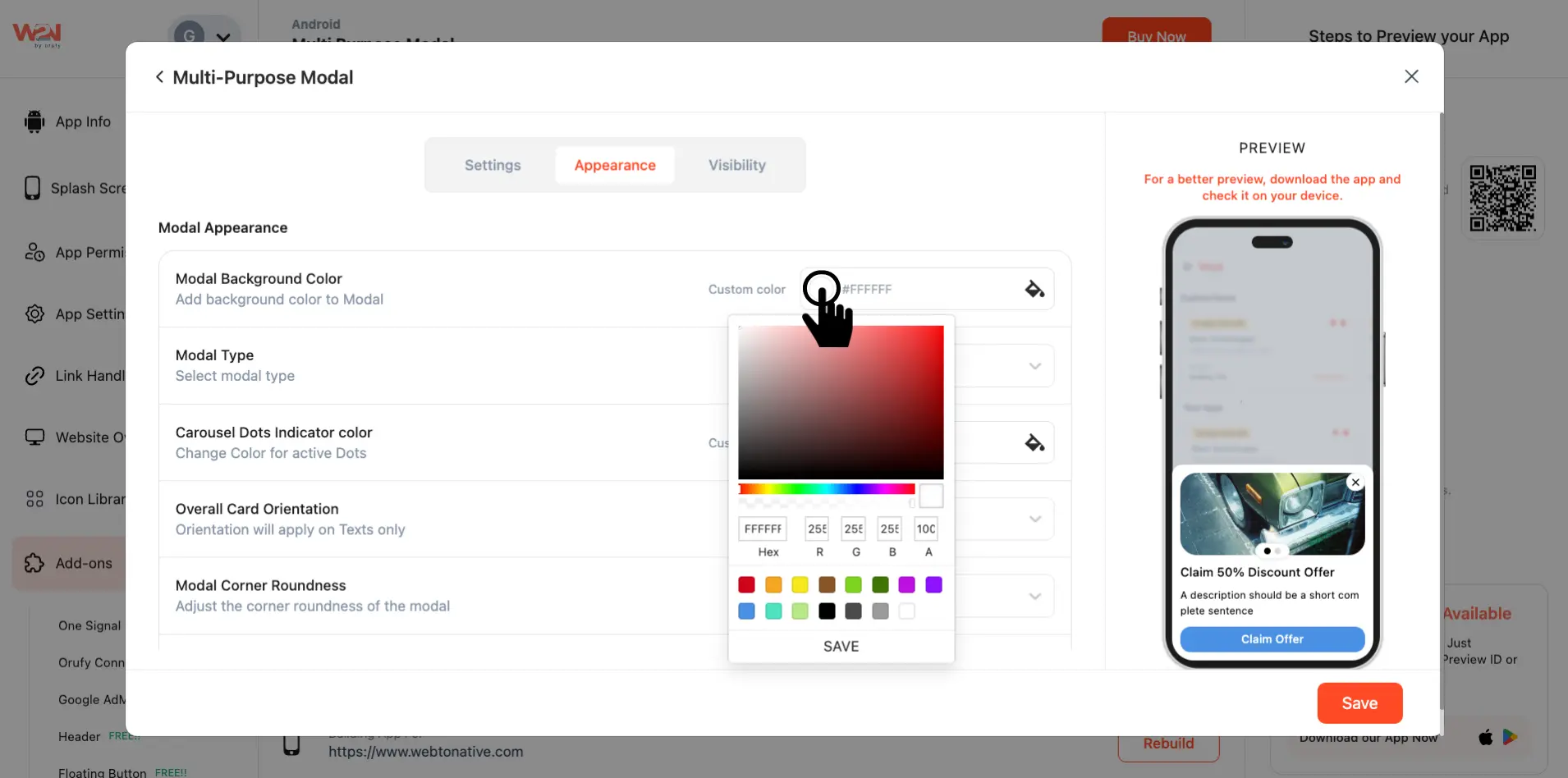
- Select the modal type: Bottom or Floating
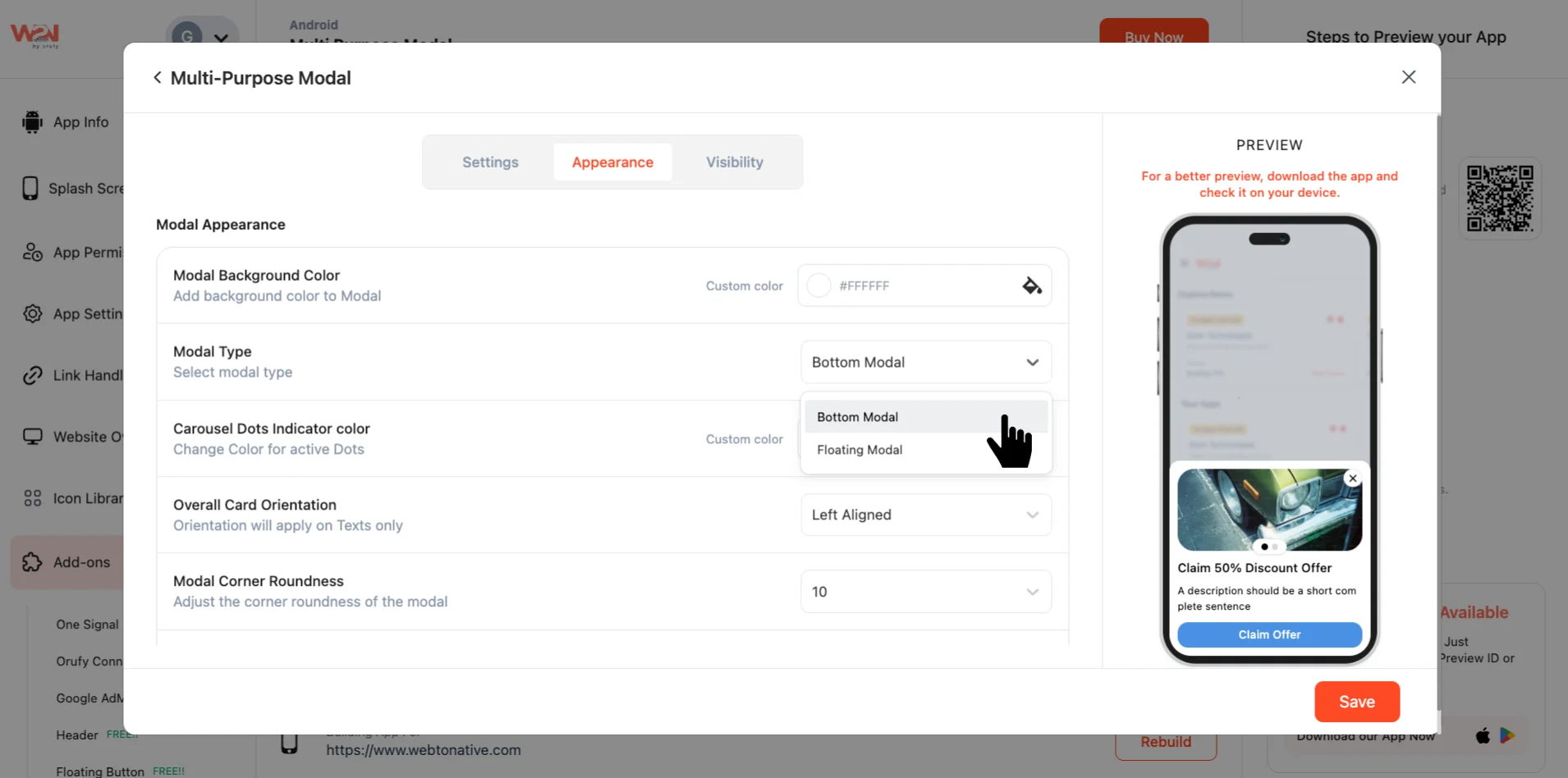
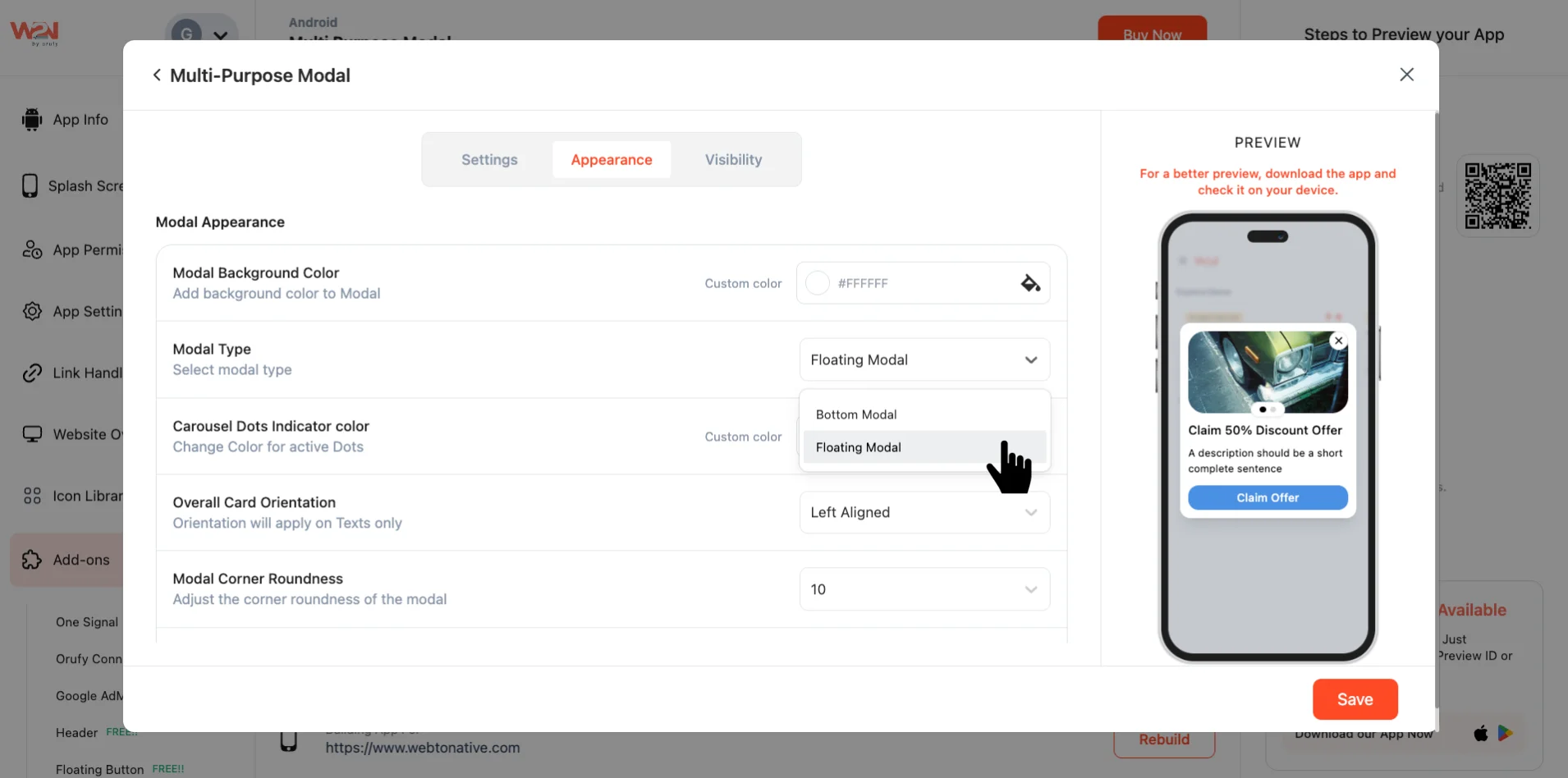
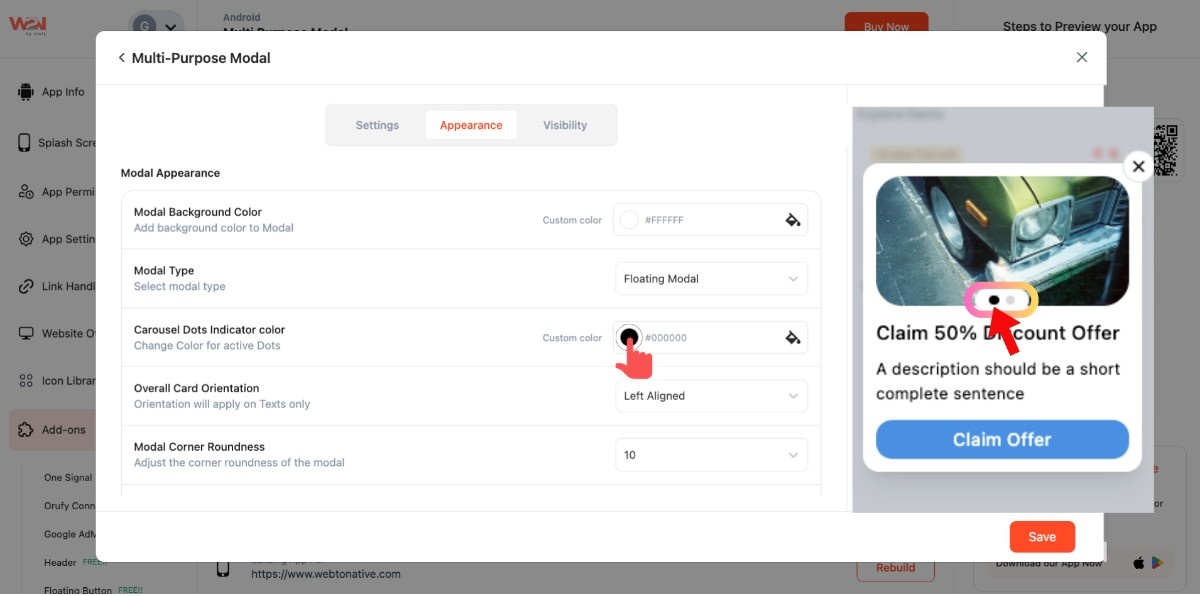
- Change the colour of the carousel dot from the colour picker
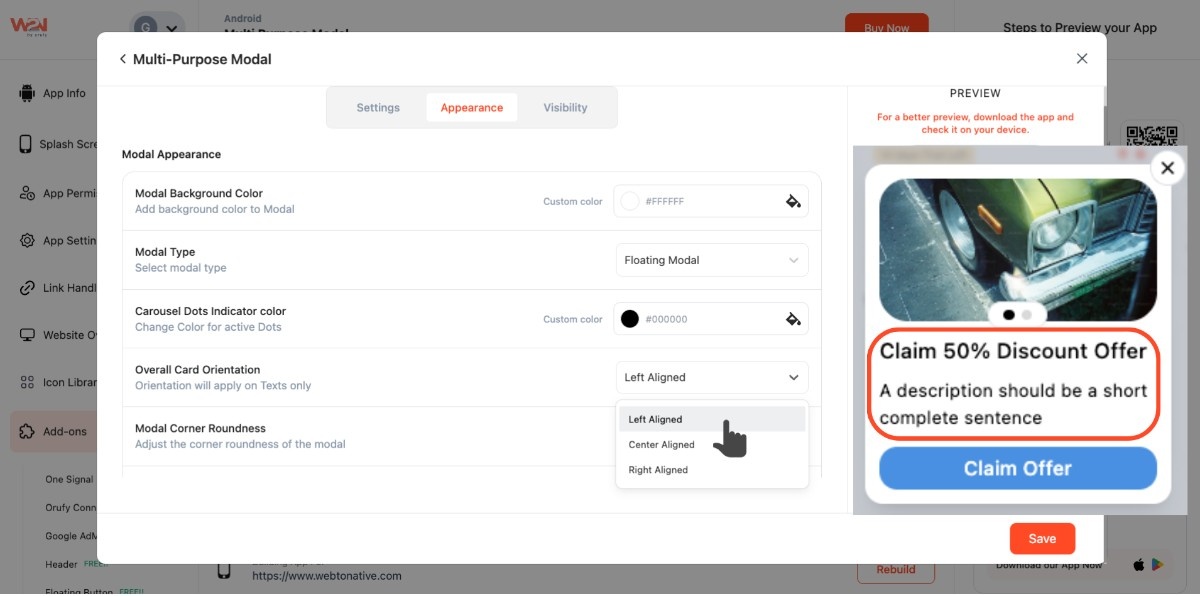
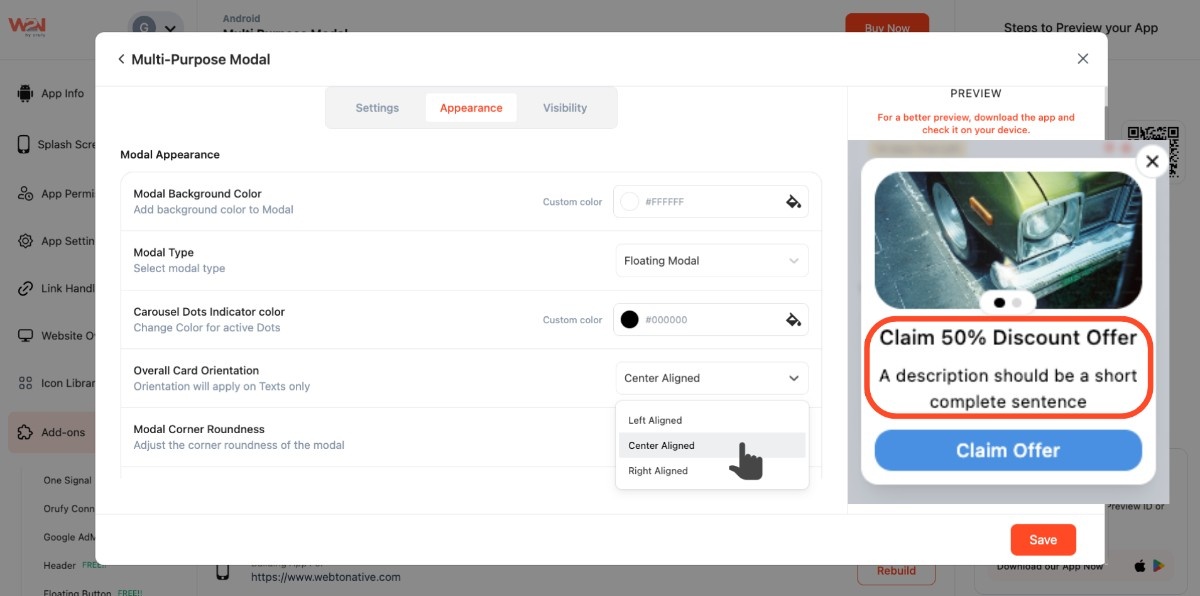
- Set the text position on the slide using Overall Card Orientation (left, center, or right)
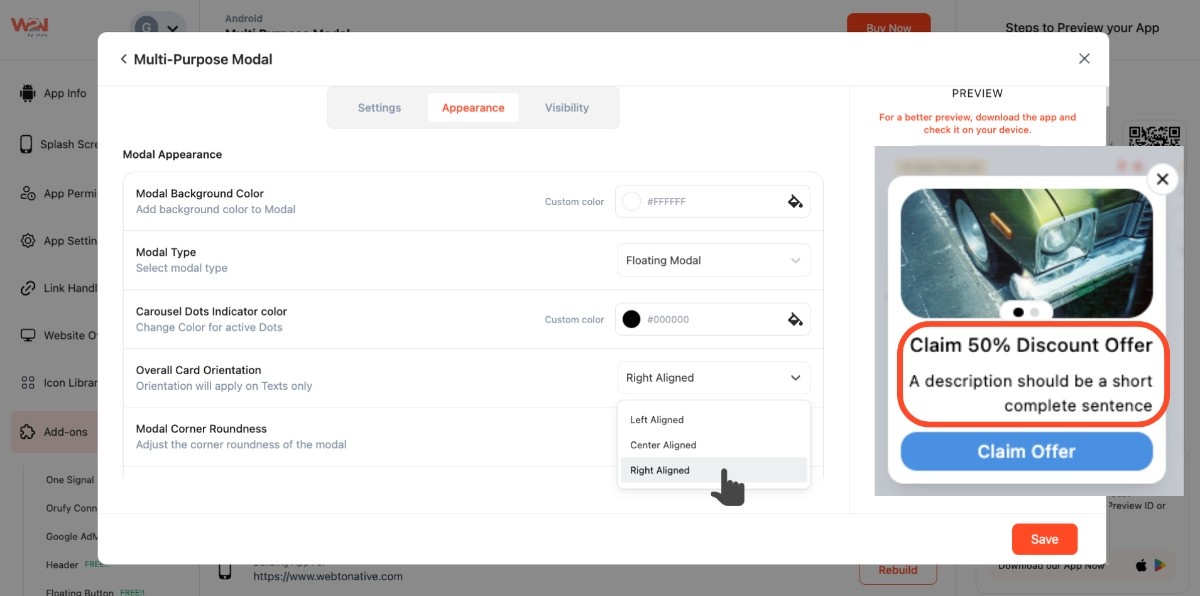
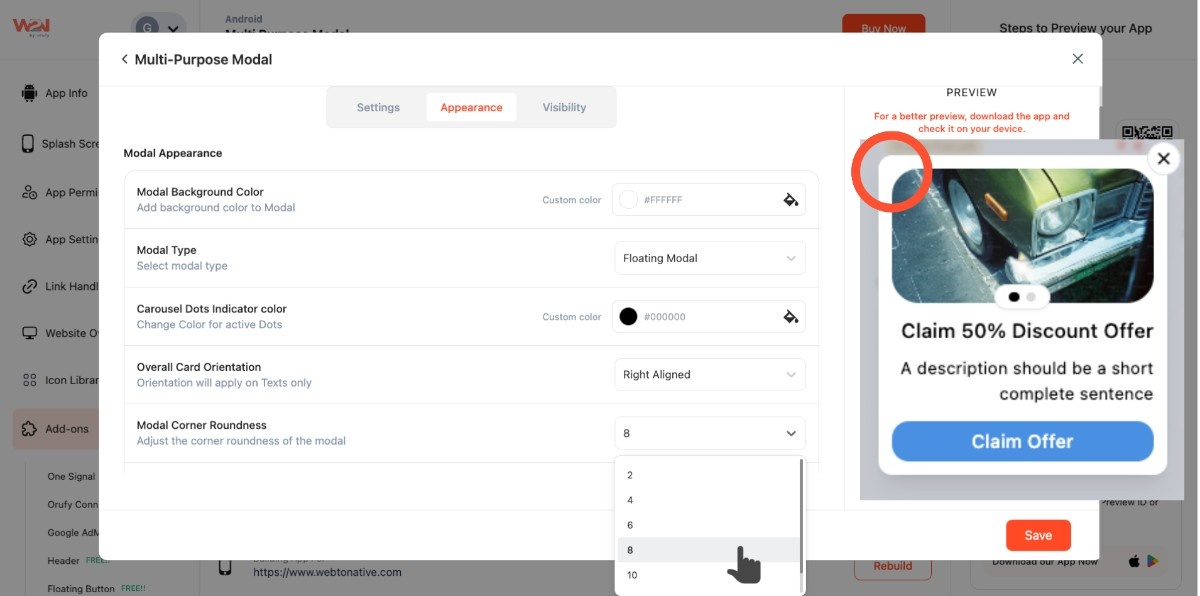
- Adjust the roundness of the modal
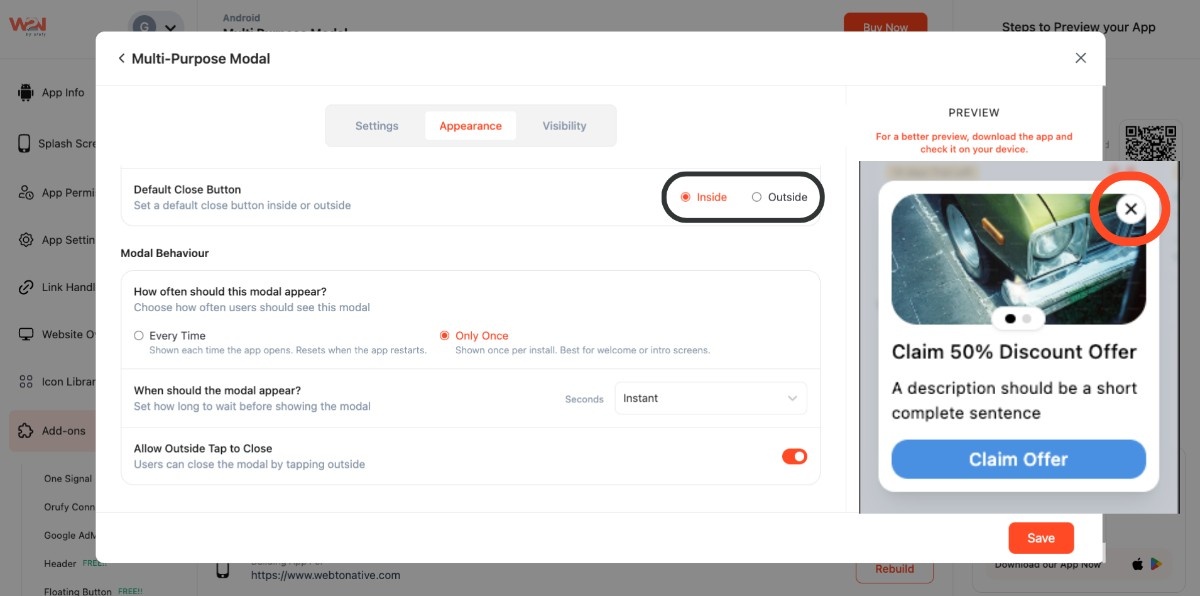
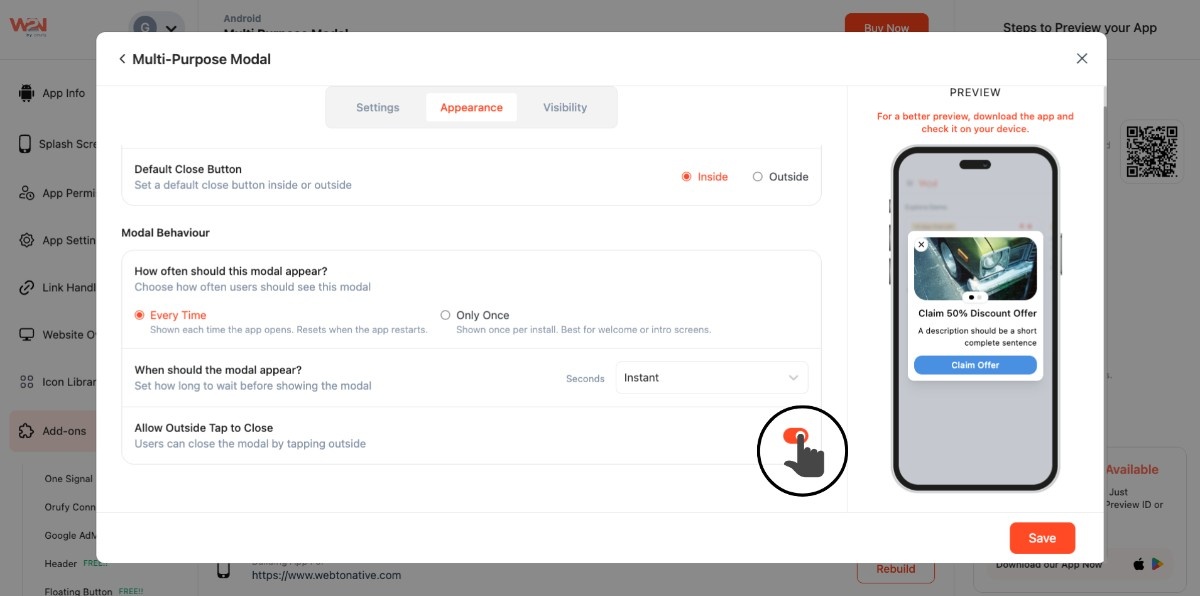
- Decide where you want to place the close button, inside or outside
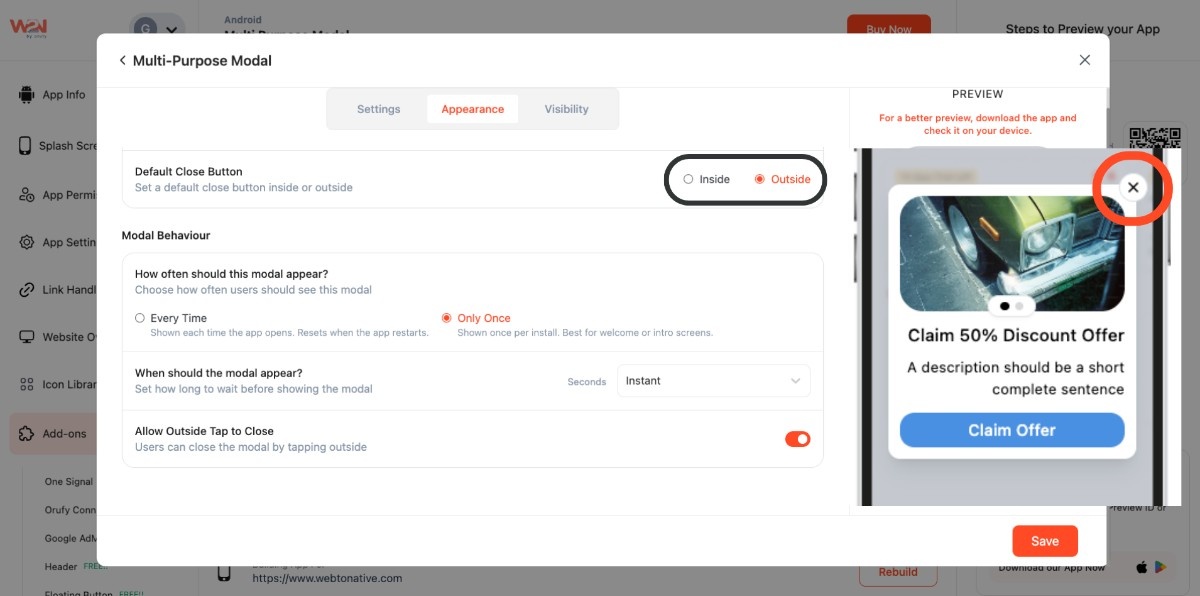
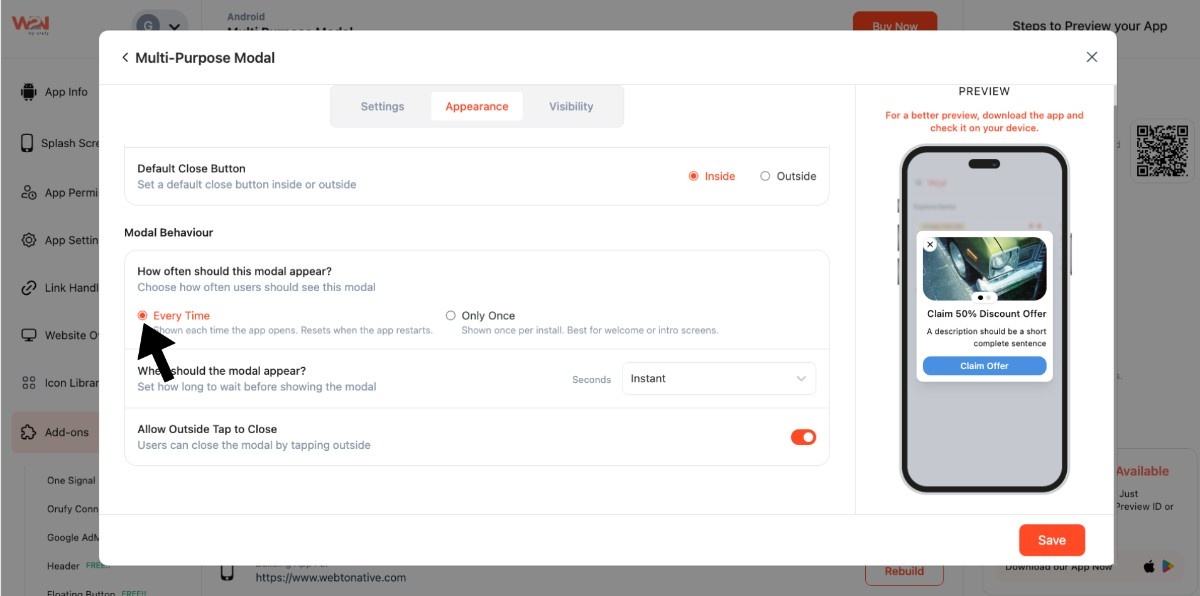
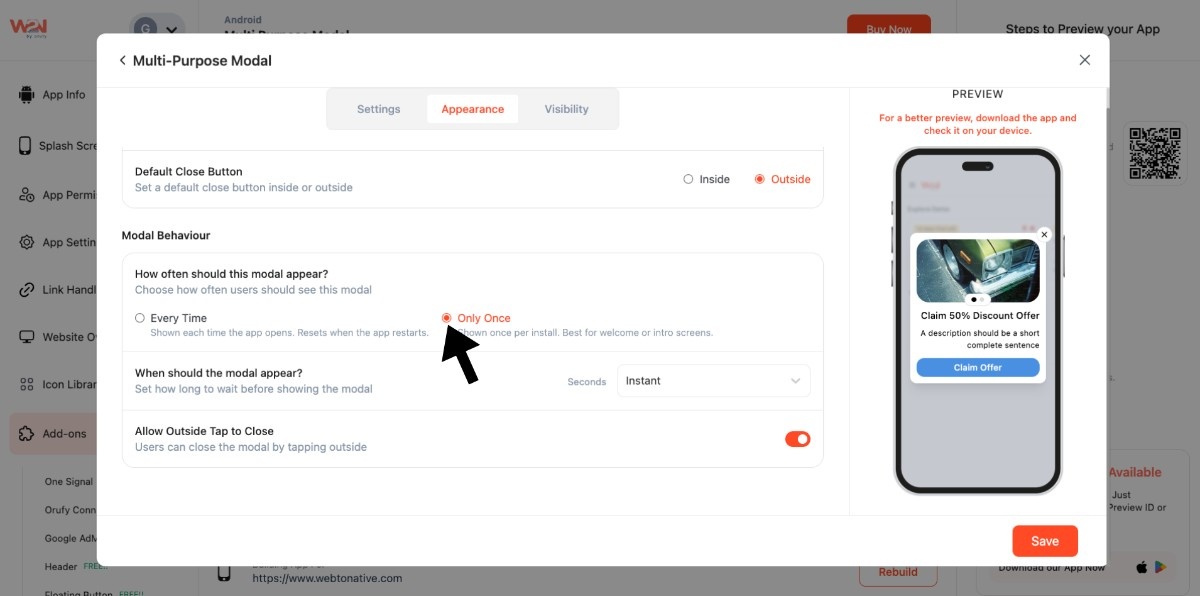
- Set the modal frequency to show every time or only once. Every Time shows it whenever the app opens or restarts. Only Once shows it just after installation on first launch
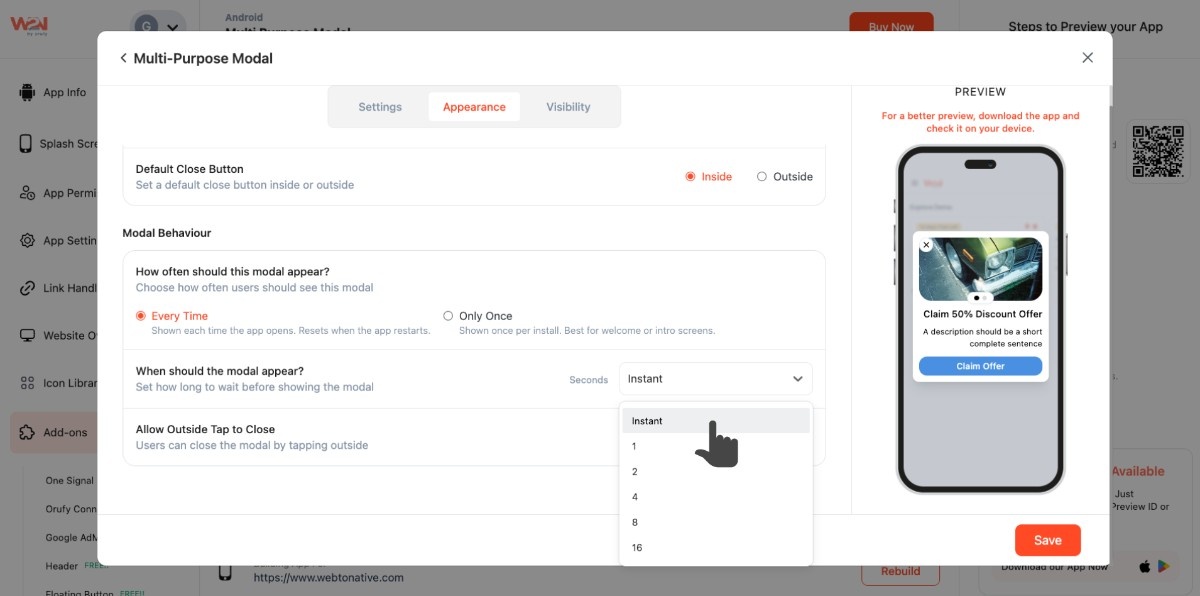
- Control when to show the modal by setting a delay in seconds or instantly
- Turn on Allow Outside Tap to Close helps users to close the modal by tapping outside the modal area
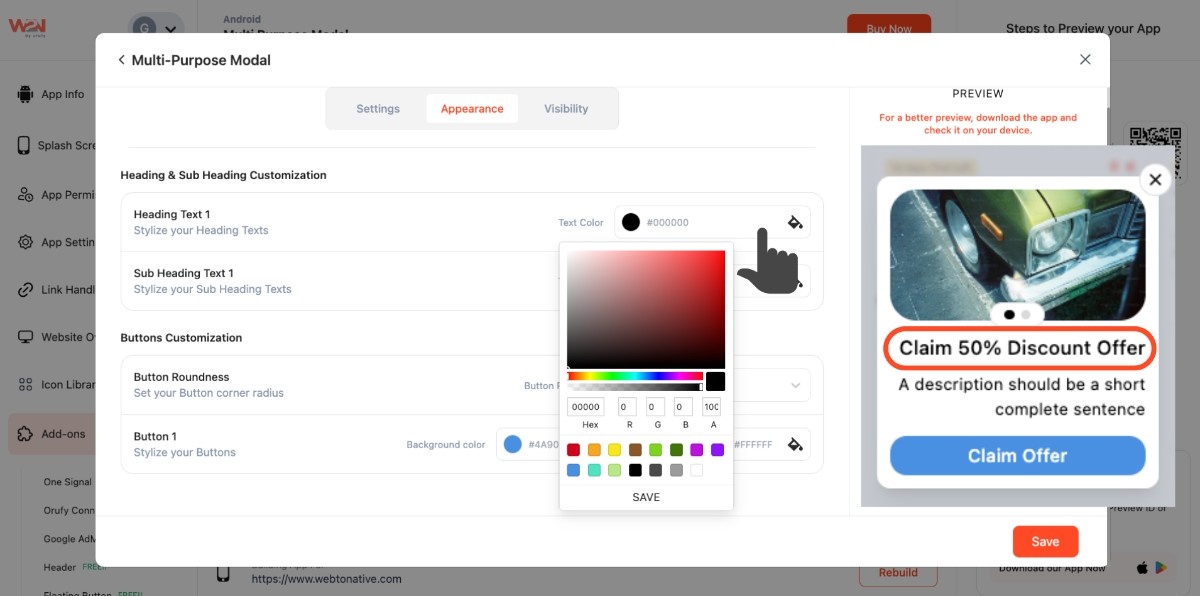
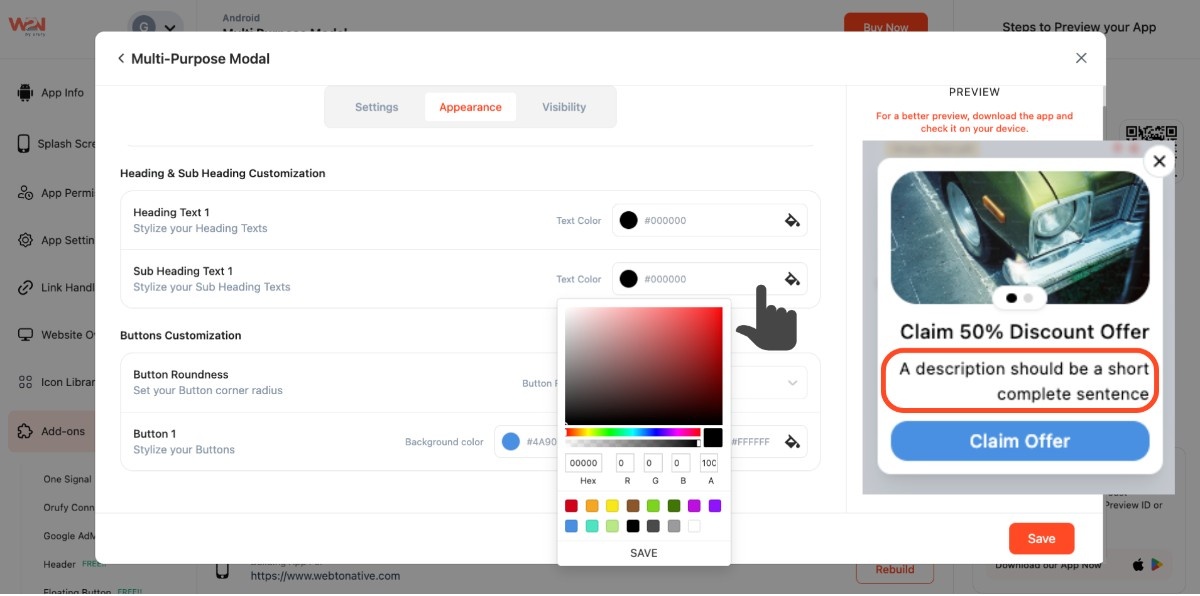
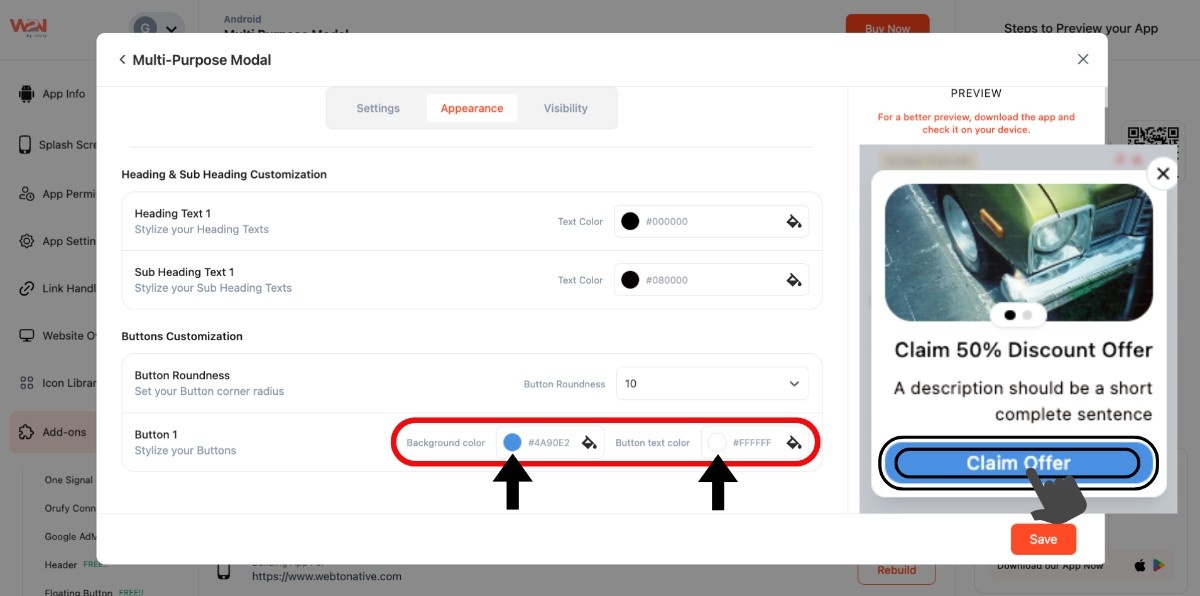
- Customize the colour of heading and subheading text
- Set the corner radius of the action button
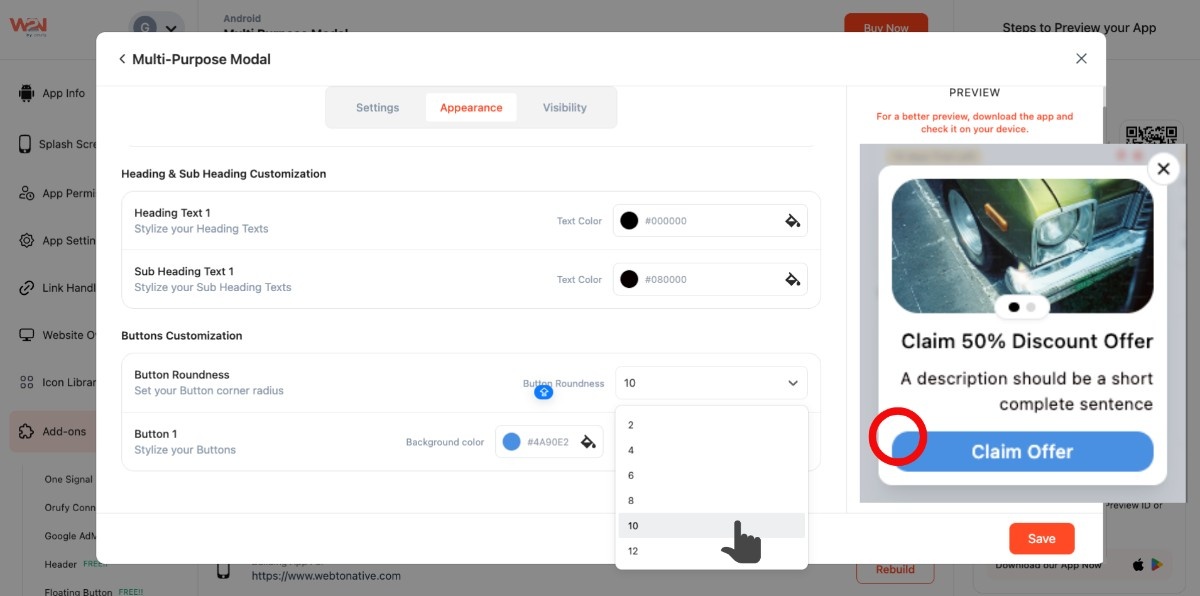
- Choose your desired background and text colours
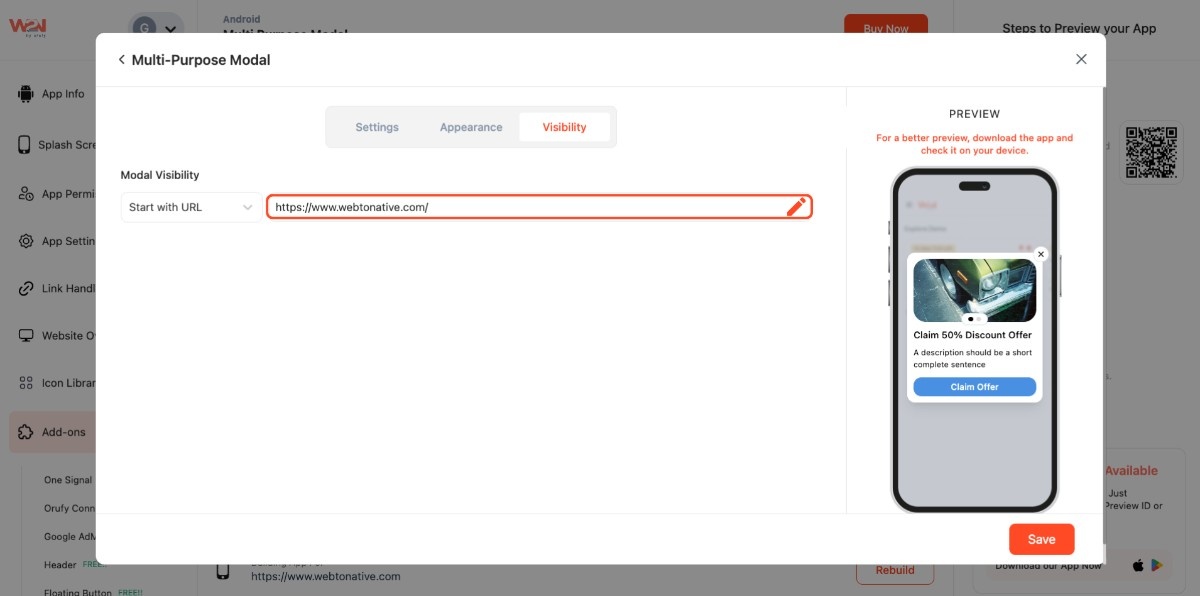
Step 3: Access Visibility
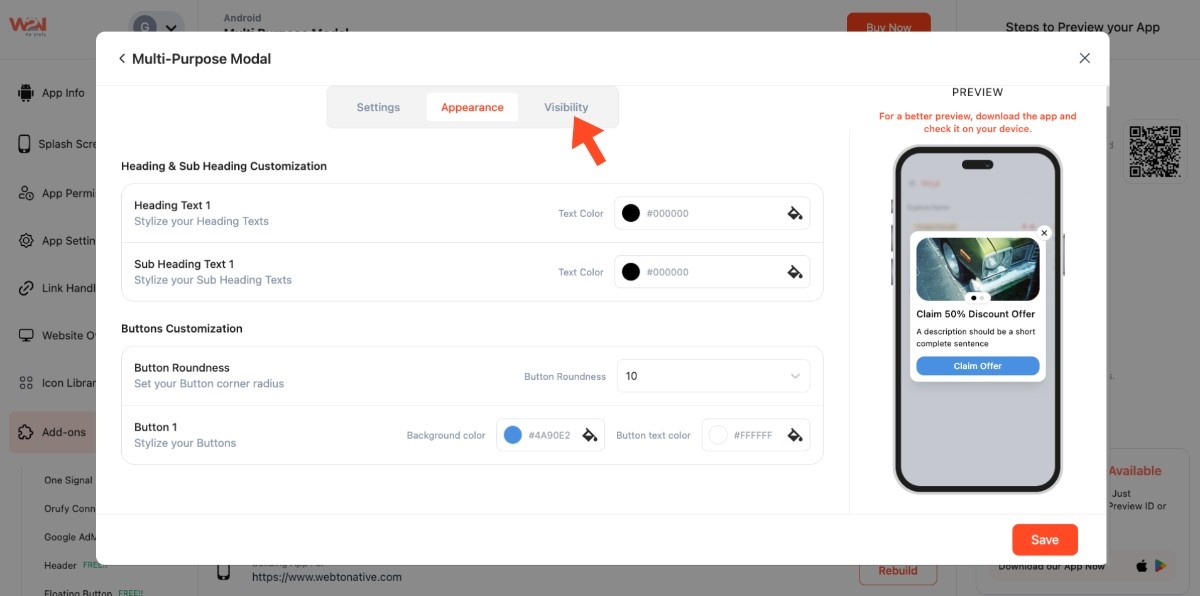
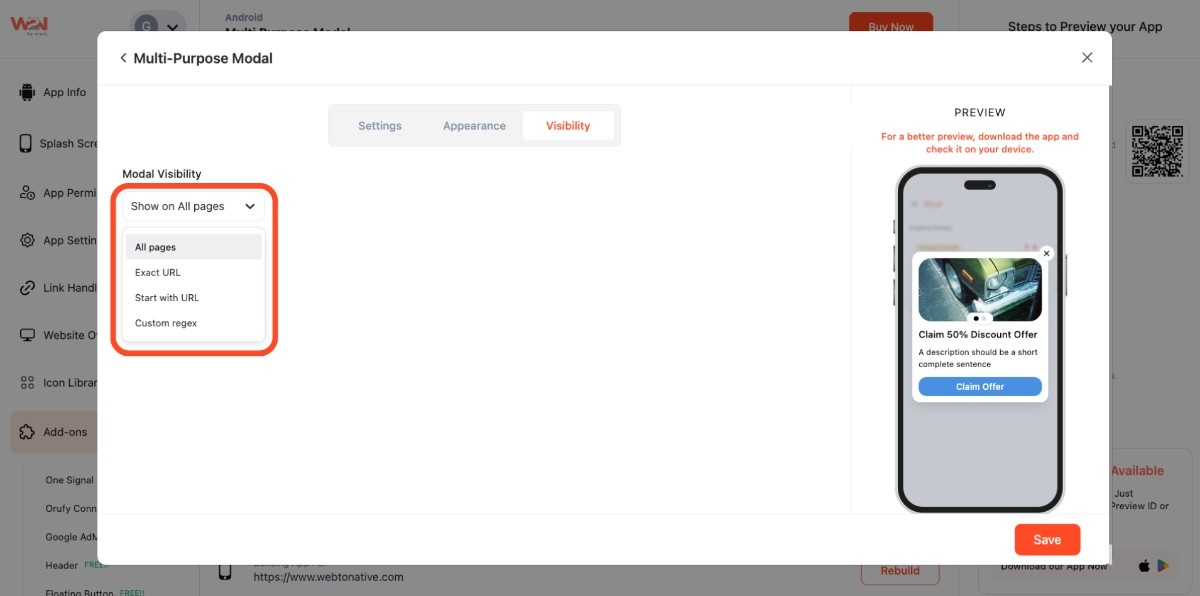
Define where the modal will show:
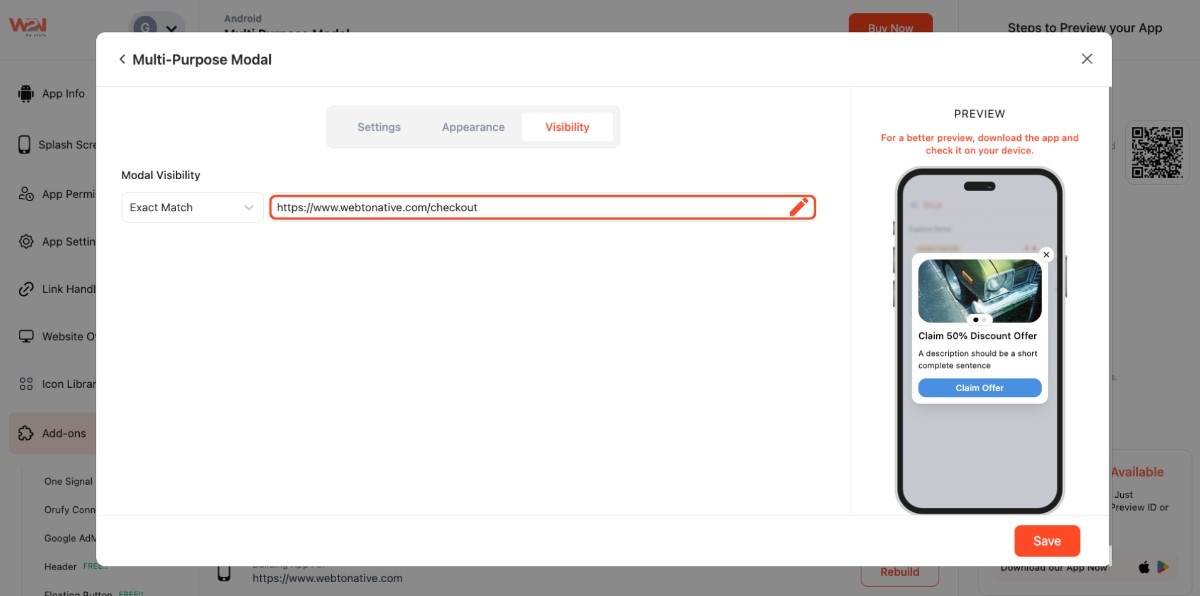
- Exact URL: https://www.webtonative.com/checkout (opens in a new tab)
- Start with URL: https://www.webtonative.com/ (opens in a new tab)
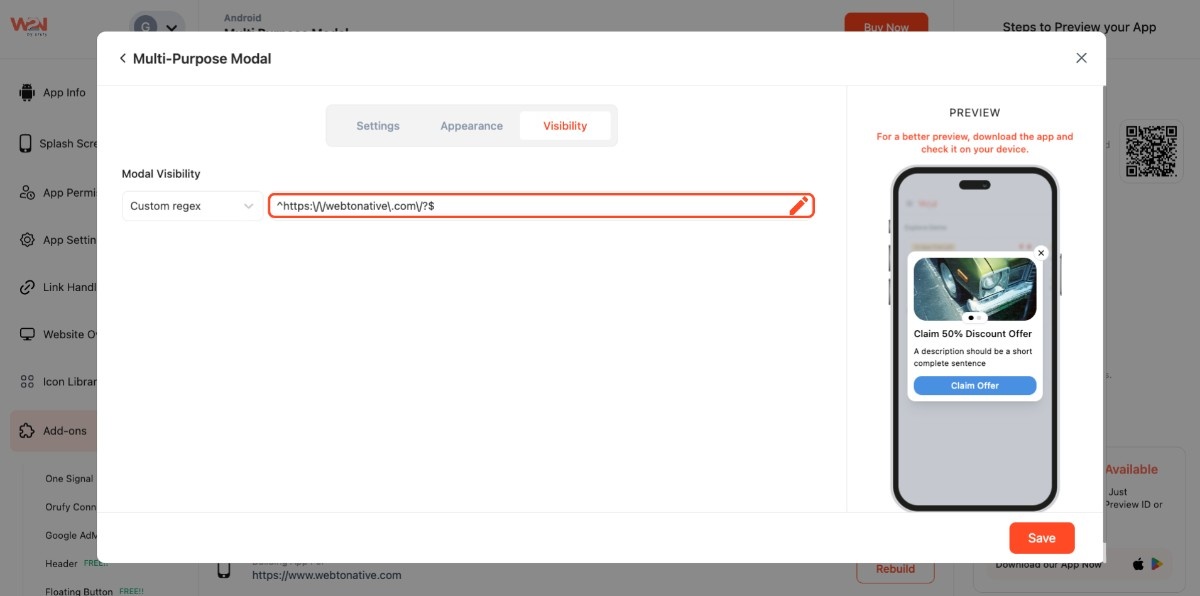
- Custom Regex: ^https://webtonative.com/?$ (opens in a new tab)
- Paste the URL in the input field based on the option you selected: Exact URL or Start with URL
Custom Regex
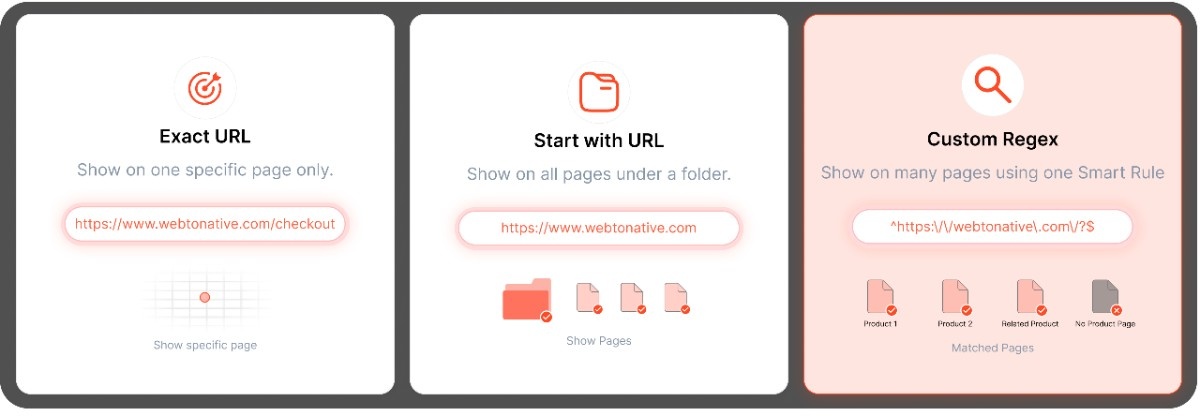
What is a Custom Regex?
Custom regex is the easiest way to target multiple pages using a single rule. Instead of selecting each page, you define a pattern only once, and it applies to all pages that match it. Suppose you want to target all pages that contain the word . *sale. * and it displays all matching pages, such as:
yoursite.com/sale yoursite.com/flash-sale yoursite.com/summer-sale-2026

- Save your customization to apply in your app