
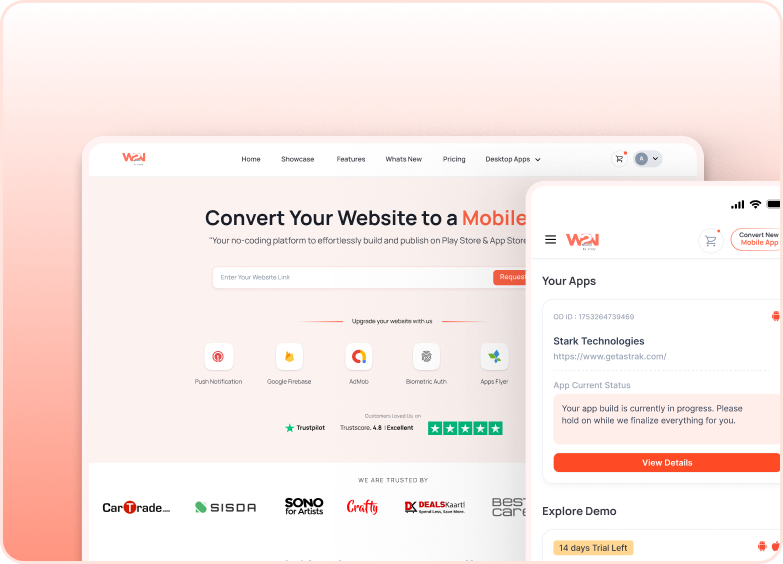


Native Datastore
Native Datastore gives your website direct access to persistent storage through a JavaScript API — no platform-specific code needed. It supports two storage modes: data stored locally on the device, and data stored in the cloud.
You write values using a key-value pair, retrieve them by key, and delete them when no longer needed. The same six functions work identically on both Android and iOS — your website doesn't need to know which platform it's running on.
This add-on is included free with your Business plan on Android and iOS, and you can unlock it from your Starter plan.
Where to Find It In Your Dashboard
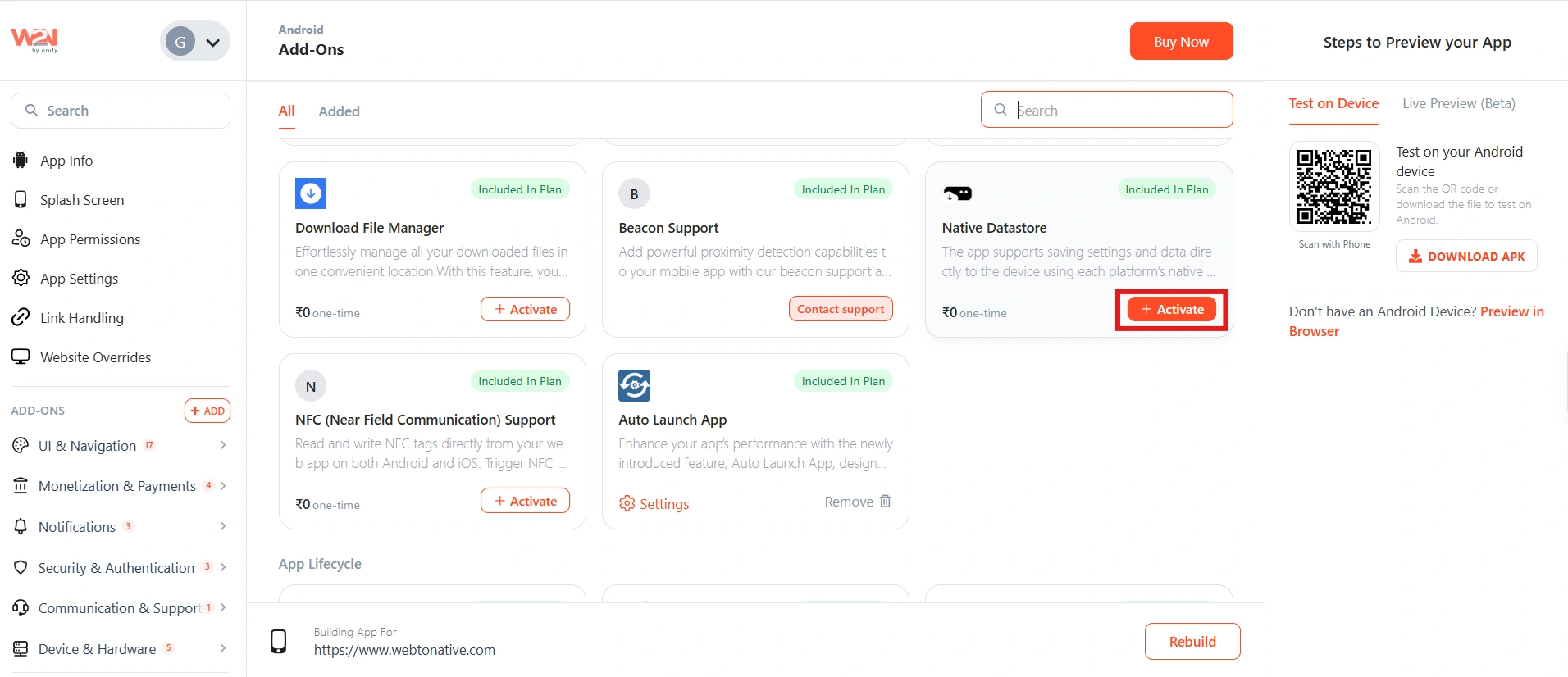
My Apps ➡️ Edit your app ➡️ Add-ons ➡️ +ADD ➡️Device and Hardware ➡️ Native Datastore ➡️ Activate
Two storage types

App Data — Local
Data is stored on the user's device. It persists between app sessions and survives app restarts — but stays on that specific device and is removed when the app is uninstalled. Use for: preferences, settings, flags, UI state — anything that doesn't need to travel with the user.

Cloud Data — Synced
Data is stored in the cloud. Accessible beyond a single device — useful when data needs to persist across reinstalls or be available when a user switches devices. Use for: user preferences that should follow the user, cross-device state, or data that must survive an uninstall.
Supported data types
All six functions accept the following value types directly — no serialisation required:
- Aa String
- Object
- []Array
Why use Native Datastore?

Less load on your server
Small pieces of data that don't need to live on your backend can stay on the device instead — reducing the amount of data you store and sync server-side.

Faster performance
Read and write locally without repeated network or API requests. Data is available instantly, with no round-trip latency.

Persistent sessions
Store session state so users don't have to start over every time they reopen the app — a smoother return experience.

Simple data management
Three clear operations — Store, Get, and Delete — for both local and cloud data. Easy to reason about and maintain.
What to store in Native DataStore?

App preferences
Display settings, notification options, theme choices — anything the user configures that should persist across sessions.

User choices
Language, region, or onboarding completion state — restored automatically on the next open without re-prompting.

Feature flags
Boolean flags that control whether a feature or behaviour is active for a specific user session.

Local app state
A partially completed flow, the last page visited, or a cached value that should still be there when the user returns.
Steps to Setup Native Datastore
Add the Native Datastore Add-on
Enable Native Datastore in your WebToNative dashboard under Add-Ons. Rebuild and install the updated app — calling datastore functions without the add-on will silently do nothing.
Include JavaScript library
Add the script tag inside the <head> of your page, before any datastore calls.
See the Getting Started guide for full setup instructions. - https://docs.webtonative.com/javascript-apis/getting-started (opens in a new tab)
Call the Native Datastore functions
Destructure the functions you need from window.WTN.NativeDatastore, then call them anywhere in your website's JavaScript. Both storage types use the same key-value pattern.
JavaScript API — all 6 functions
Import all functions at once, or only what you need.
App Data — stored locally on the device
setAppData()
Saves a value to local device storage under a key you define. Accepts strings, objects, and arrays. The value persists until you delete it or the app is uninstalled.
getAppData()
Retrieves a previously saved local value by its key. The callback receives the stored data — use the returned value to restore preferences, state, or any saved content.
deleteAppData()
Removes a value from local storage by its key. Use this when a preference is reset, a session ends, or a user logs out and their local data should be cleared.
Cloud Data — stored in the cloud
setCloudData()
Saves a value to cloud storage under a key. Uses the same parameter structure as setAppData() — just replace the function name. The value is stored remotely and can survive app reinstalls.
getCloudData()
Retrieves a value from cloud storage by key. Same structure as getAppData().
deleteCloudData()
Removes a value from cloud storage by key. Same structure as deleteAppData().
Full API reference and code examples in the developer documentation. https://docs.webtonative.com/javascript-apis/native-data-store (opens in a new tab)
What to store — and what not to
Safe to store
- User preferences and display settings
- Feature flags and configuration
- UI state and session context
- Non-sensitive cached values
Do NOT store
- Passwords or authentication tokens
- Private encryption keys
- Payment or financial credentials
- Sensitive personal information
Native Datastore is not encrypted by default and is not a replacement for a secure backend database or encrypted keychain. It's fine for a non-sensitive session flag that keeps a user signed in, but never store raw passwords, long-lived auth tokens, or private keys here — for those, use a dedicated secure storage mechanism.
Troubleshooting

Calls do nothing silently
The add-on is not in the build. Enable Native Datastore in your dashboard and rebuild. Without it, all function calls are silently ignored.

window.WTN is undefined
The WebToNative script tag is missing or loading after the function call. Add it to `<head>` and ensure it loads before any datastore calls.

NativeDatastore is undefined
Destructuring happens before window.WTN is ready. Wait for the page's DOMContentLoaded event, or call the functions inside a function triggered by user interaction rather than at the top level of the script.

Retrieved value is empty or null
The key passed to getAppData or getCloudData doesn't match the key used to save. Key names are case-sensitive — check for typos or inconsistent casing between the save and retrieve calls.
Frequently Asked Questions
When should I use App Data vs Cloud Data?
Use App Data for device-specific preferences — display settings, UI state, cached values — where data only needs to live on the current device. Use Cloud Data when data should persist across app reinstalls, or when you want user preferences to carry over if they use the app on multiple devices.
Does App Data survive an app update?
Yes — local device storage (Android SharedPreferences / iOS UserDefaults) is preserved through app updates. However, it is cleared when the user uninstalls the app. If data must survive uninstall/reinstall, use Cloud Data instead.
Do I need to serialise objects or arrays before saving?
No — Native Datastore natively supports strings, objects, and arrays. You can pass a JavaScript object or array directly as the value without calling JSON.stringify() first. The API handles serialisation internally.
Is Native Datastore the same as localStorage?
No — Native Datastore writes to the device's native storage layer (Android SharedPreferences / iOS UserDefaults), not to the WebView's browser storage. This is more durable and reliable inside a WebView — browser storage can be cleared by OS memory management, WebView resets, or storage quota limits. Native storage is unaffected by these.