



Advanced Settings
Advanced settings open the additional configuration settings to adjust the splash screen on your own. You can provide the smoothest loading experience while keeping the app experience fast and responsive.
Navigate to Default
Click on Advanced Settings.
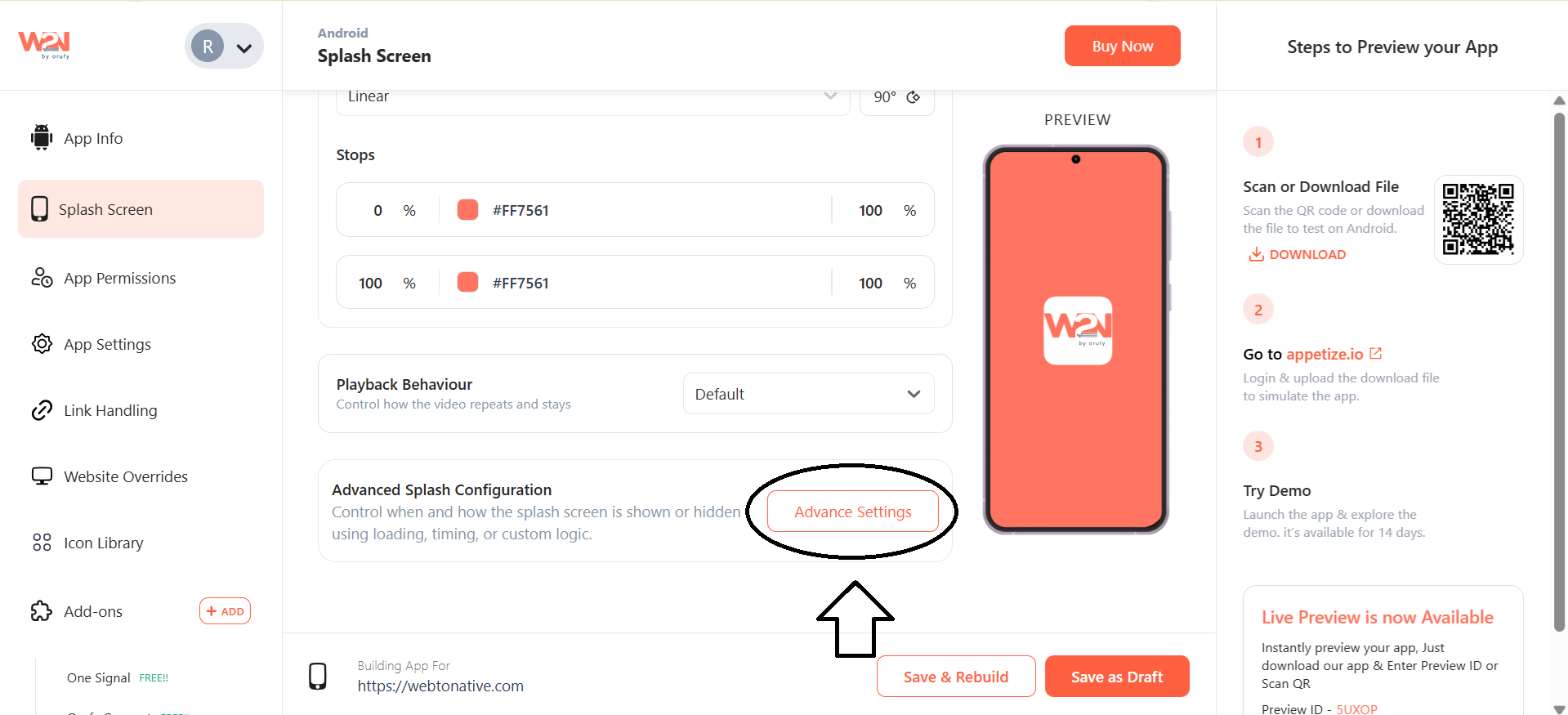
Additonal Configuration
Tapping on Advanced Settings will open additional settings.
Go to Hide Splash When
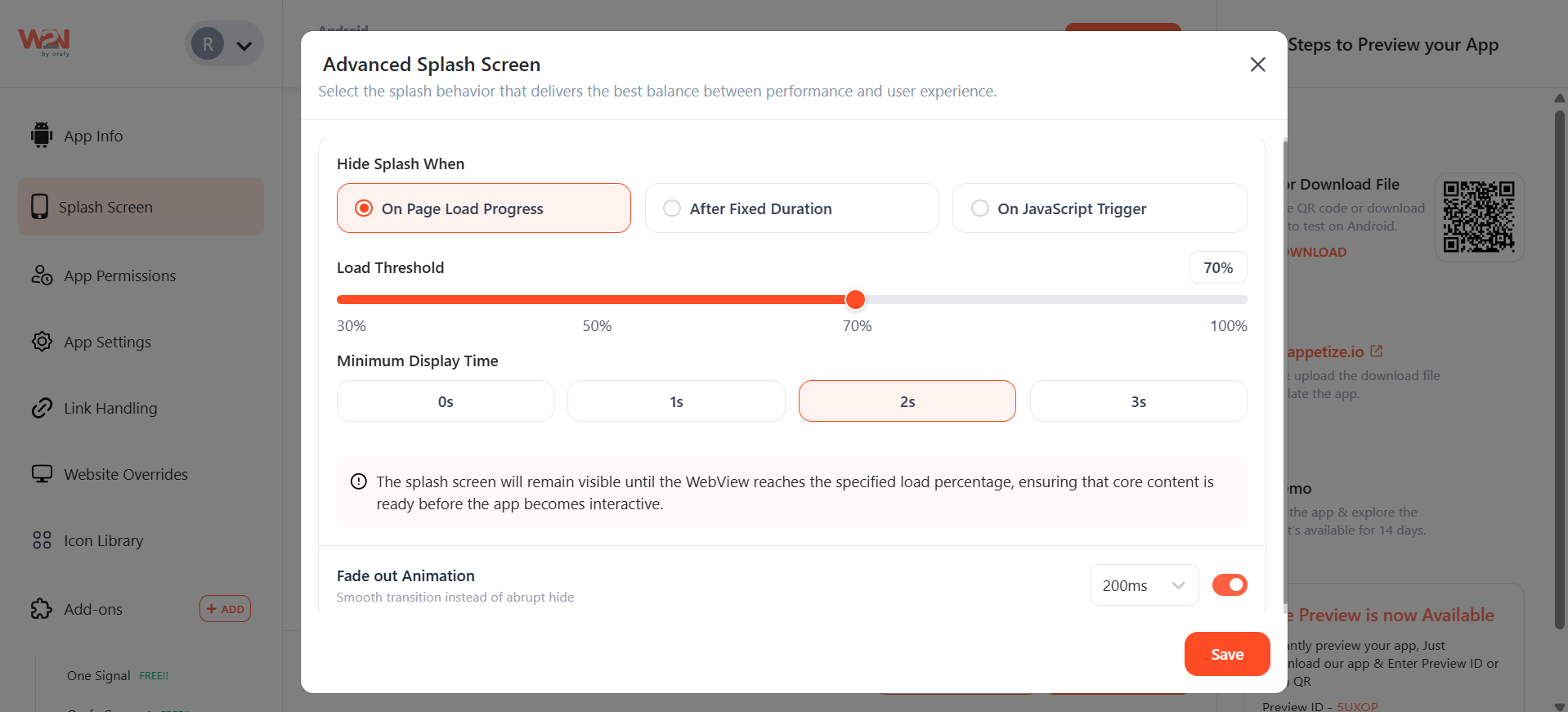
1. On Page Load Progress
Suppose you have chosen “On Page Load Progress.” The splash screen will disappear based on how much of the page is being loaded.
- Load Threshold
Define how much of your website content will load before the splash screen disappears.
- Minimum Display Time
Set the minimum time (in seconds) the splash screen stays visible.
- Fade Out Animation
You can control the splash screen so it does not disappear suddenly. The smooth transition is available with two options: 200 ms, 300ms, and 500 ms, with the toggle. Additionally, this customization is only applicable to pro members.
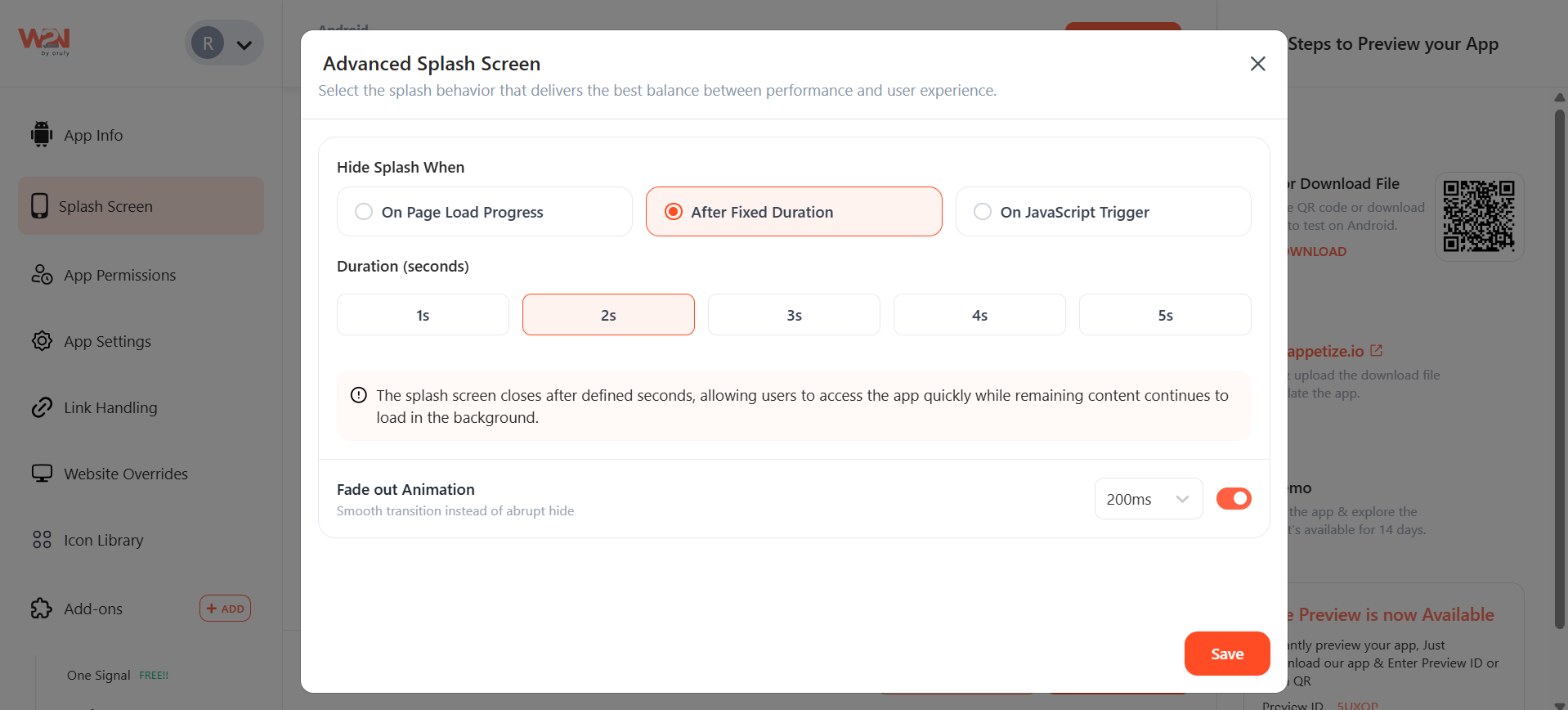
2. After Fixed Duration
The splash screen will disappear after a fixed duration.
- Duration
Select the time for the splash screen to be visible on the screen. It includes 1, 2, 3, 4, and 5 seconds.
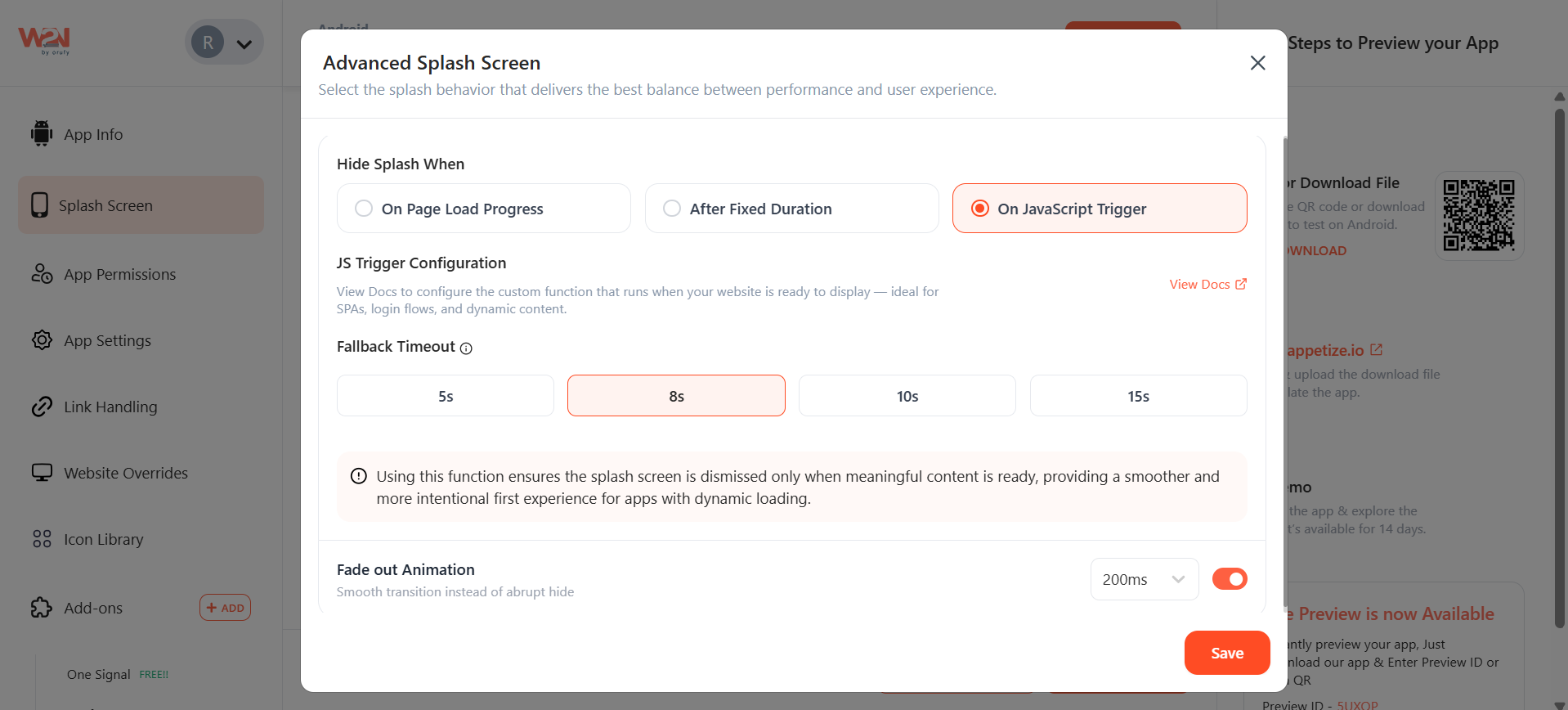
3. On JavaScript Trigger - Required Pro Plan
The splash screen will only disappear when the JavaScript is triggered.
- JS Trigger Configuration
You have to configure the JavaScript custom function on your website. So that it runs when your website is ready to display. Visit the Developer Documentation (opens in a new tab) for the integration by clicking on View Docs.
- Fallback Timeout
Choose the duration of the splash screen to hide if the JS code is not triggered. It includes durations of 5, 8, 10, and 15 seconds.
Save
Click on the Save button to save this setting.
Rebuild
Tap on the Rebuild button to reflect those saved changes in your app. After clicking on this button, download your app again.