



Test Your App
Testing your App ensures that your app functions seamlessly. You can start by trying the demo version to see how it performs. Then, explore any plugins or add-ons you may need to improve features and performance, making your app more efficient and user-friendly.
Before you publish, make sure your app looks and works exactly as expected. You have two ways to test — on a real device or in a browser-based simulator.
Choose how you want to test your Android app:

Real Device
Download the .apk and install it directly on an Android phone.

Virtual device
Use Appetize.io to simulate the app in your browser.
Process to Test -Option A
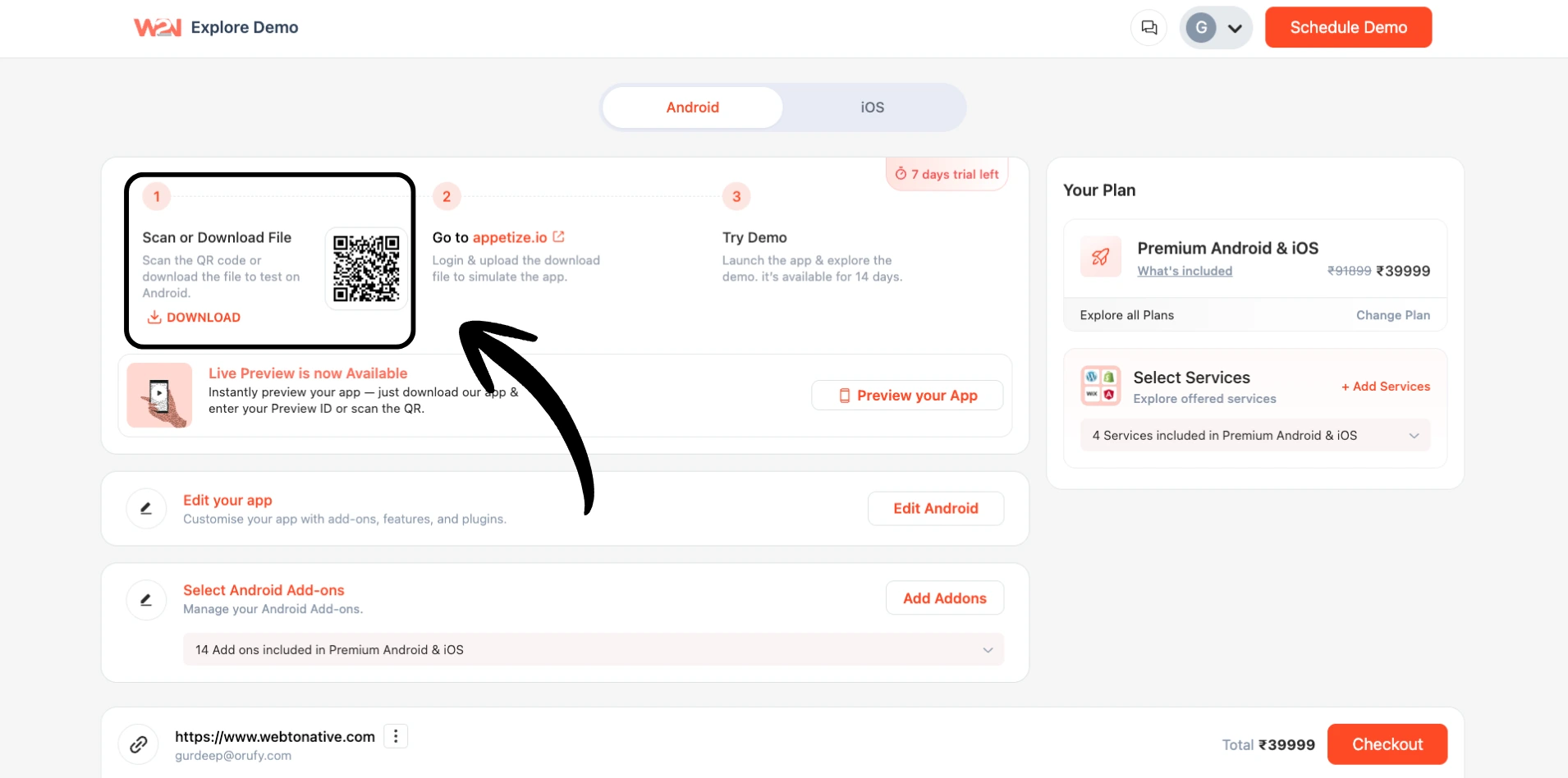
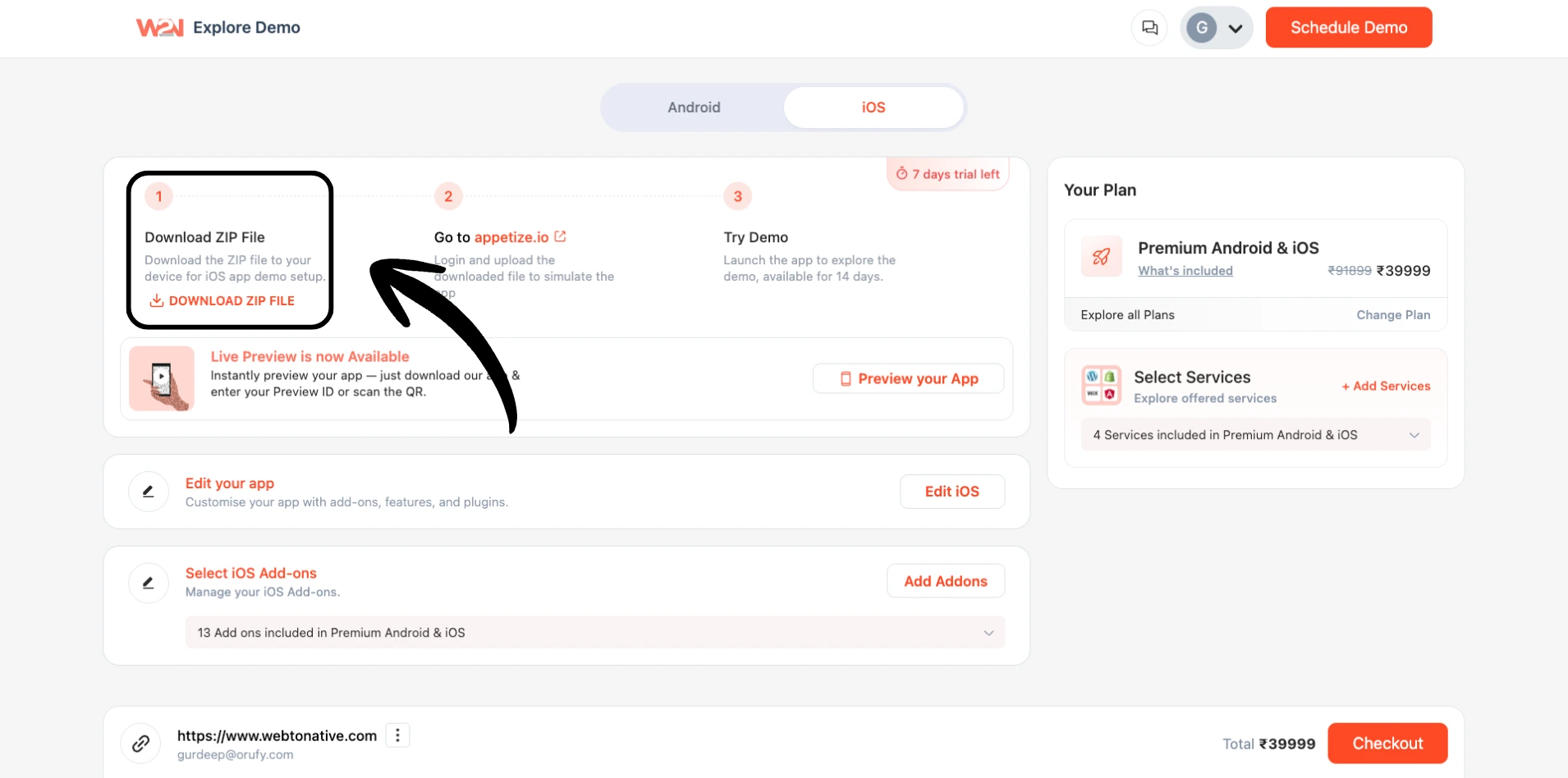
Scan/ Download
Download the .APK (for Android) or ZIP (for iOS) file from your WebToNative dashboard, or scan the QR code directly on your phone.
Install Your Android/iOS App
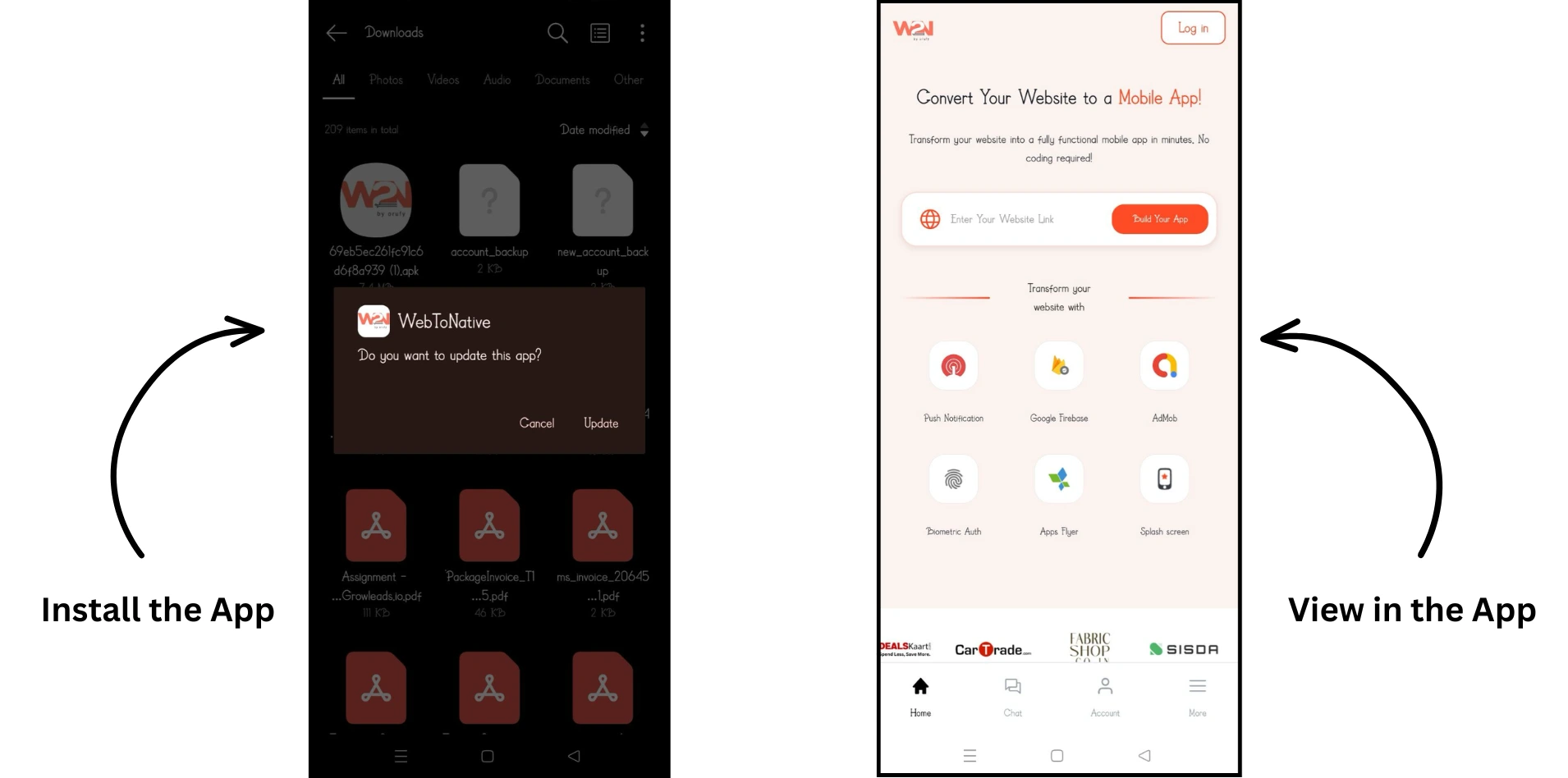
Open the downloaded file and tap Install. Your app will appear on your home screen, and test important features to check how they are working on a real device.
Option B
Scan/ Download
Download the .APK file from your WebToNative dashboard.
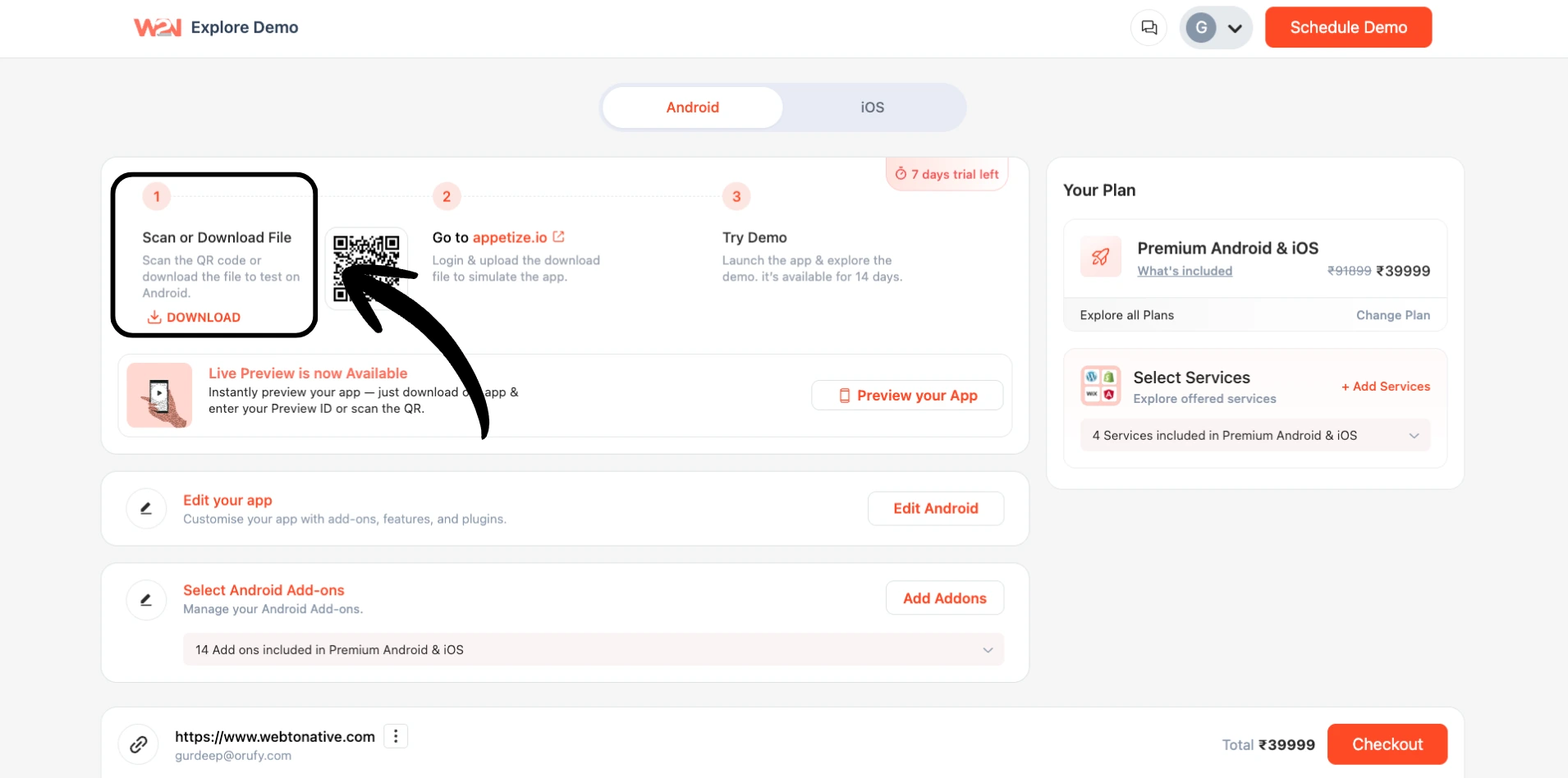
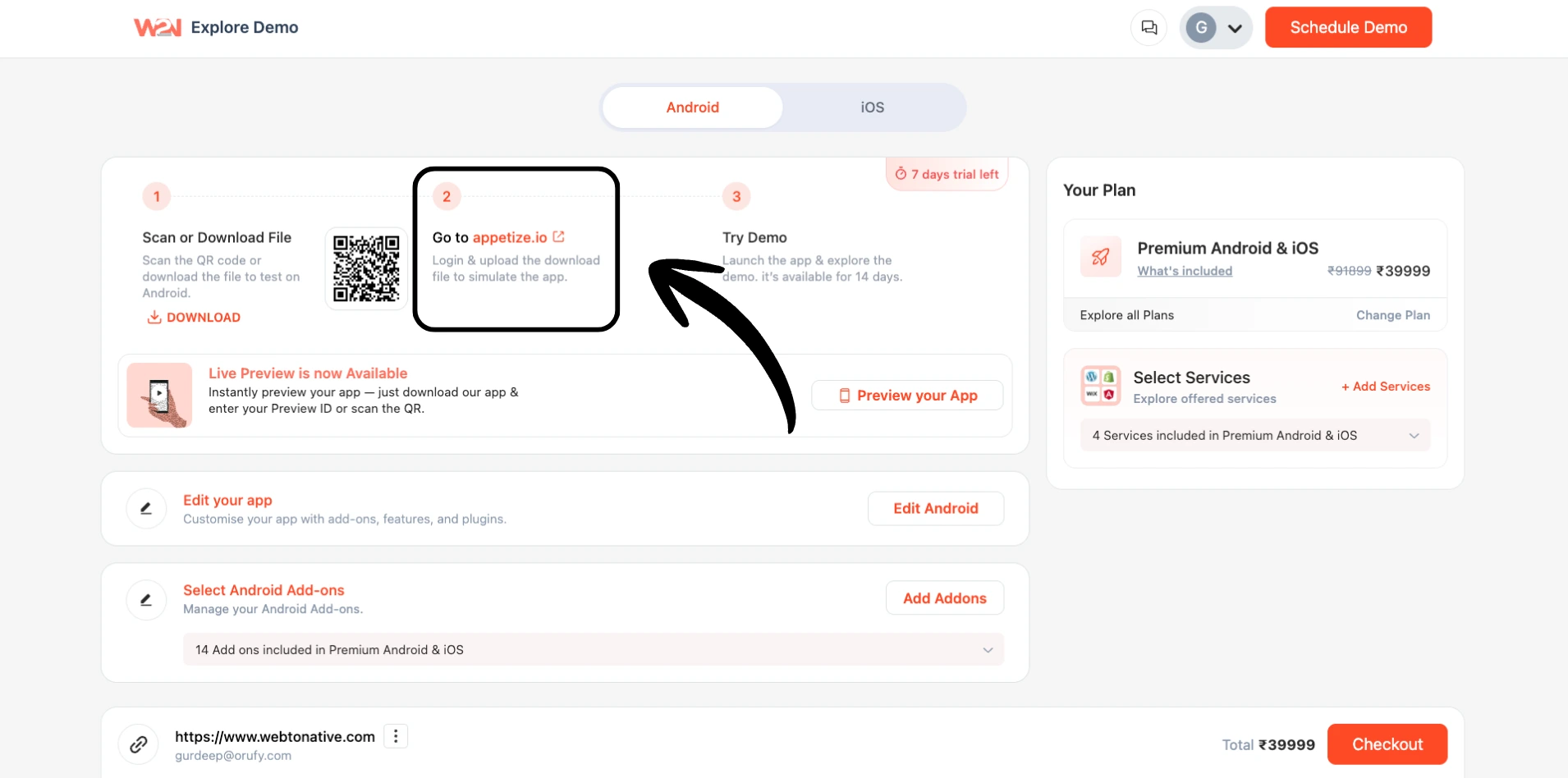
Click on appetize.io
Go to appetize.io (opens in a new tab) and sign in (free account is enough).
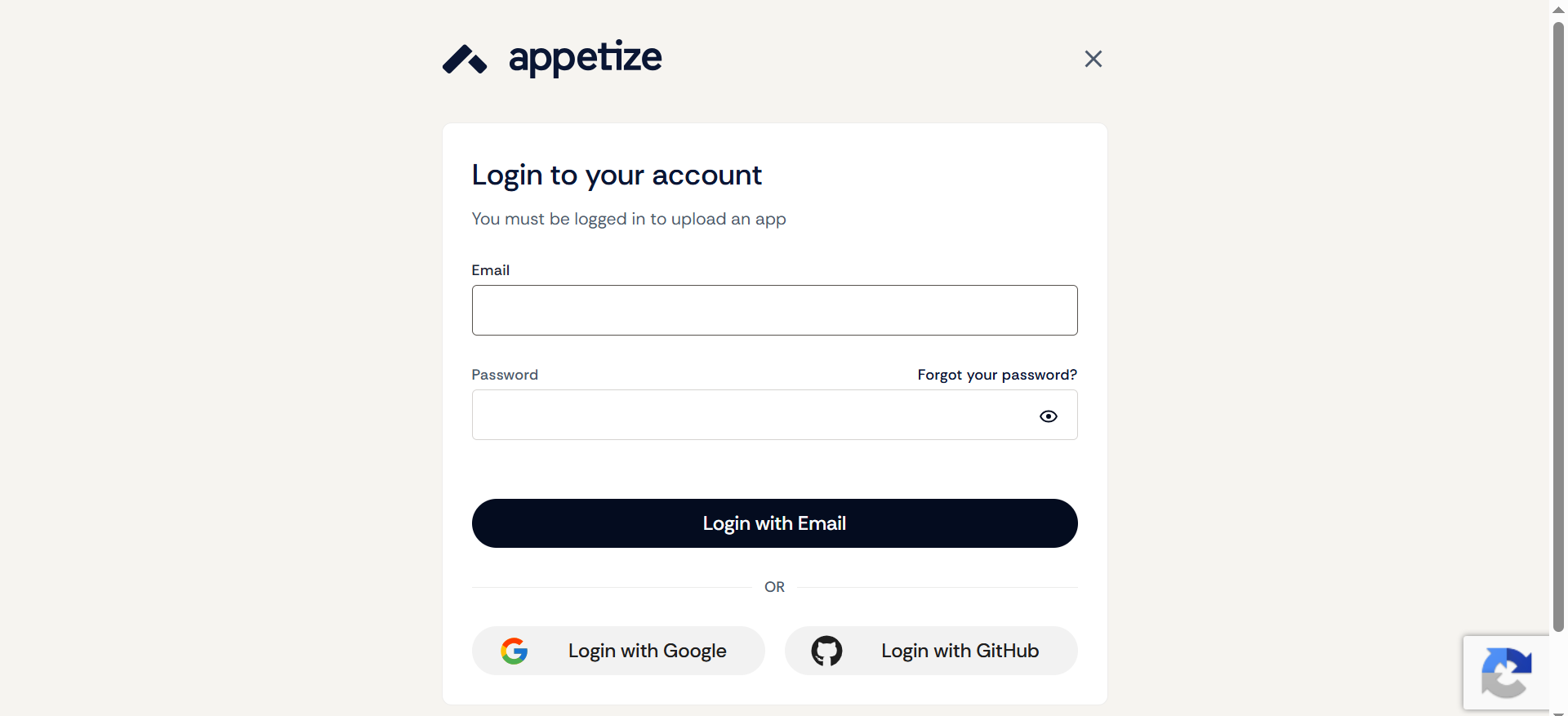
Log in
Log in your email address
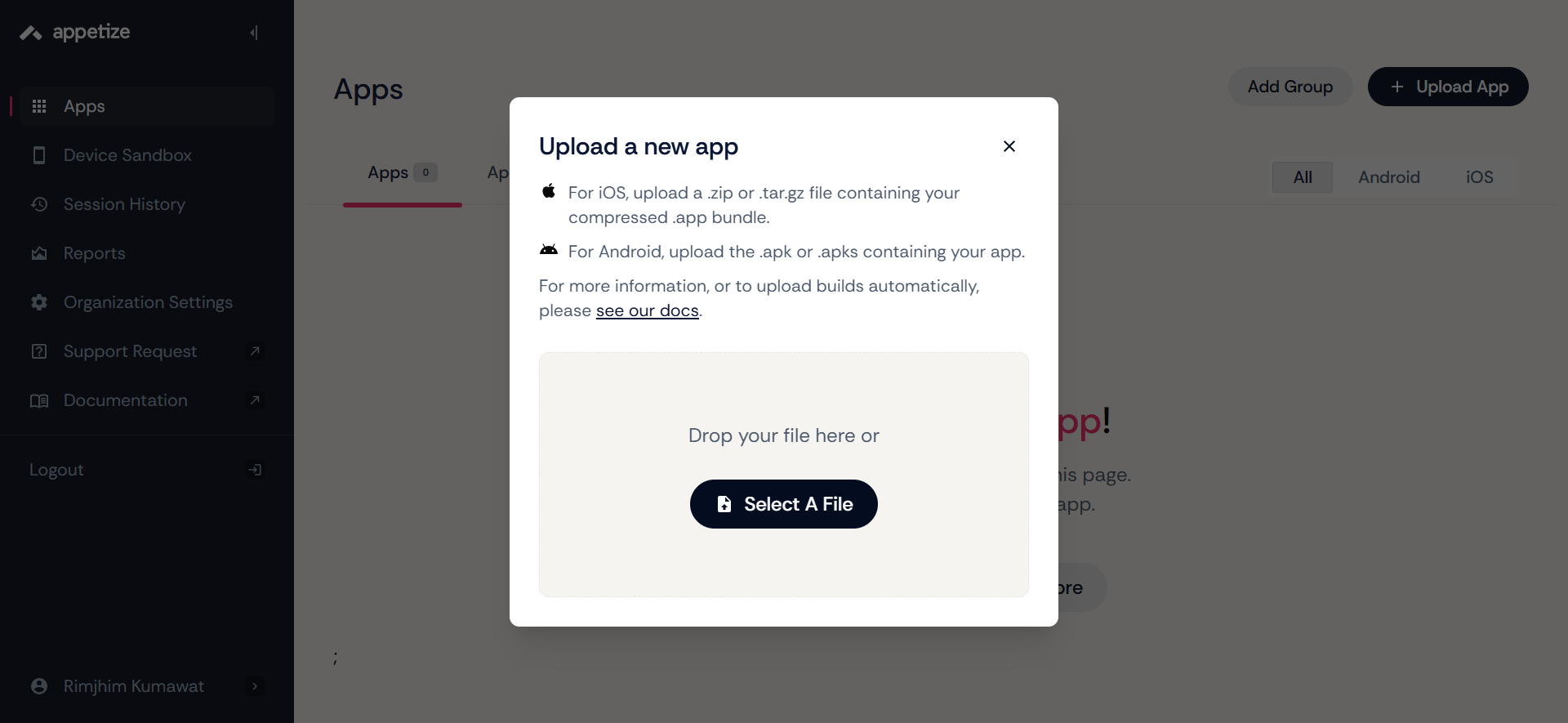
Select Your APK File
Click Select A File to upload the APK file to launch the simulator in your browser.
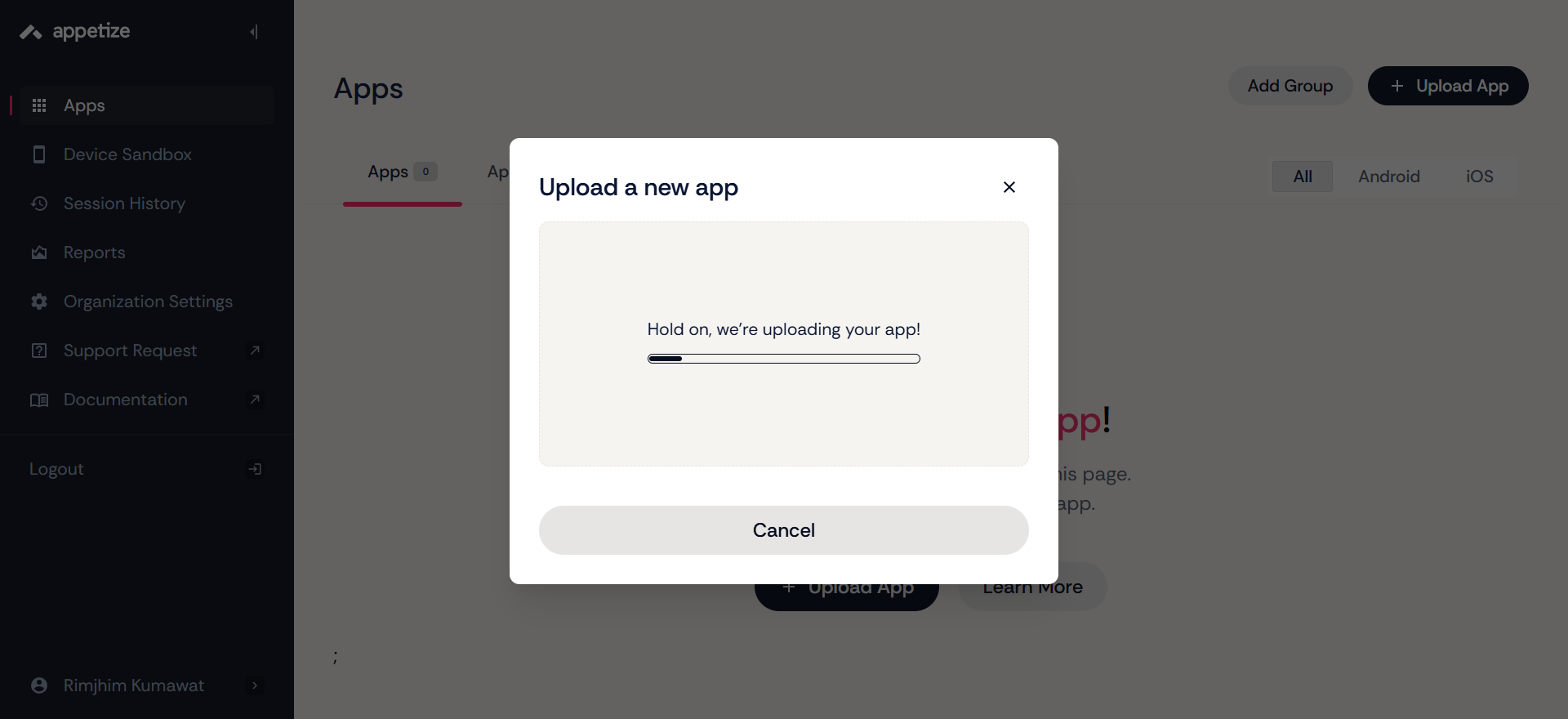
Wait for App Loading Process
Let the app load and start the emulator.
View App Details.
Tap on “View App Details.”
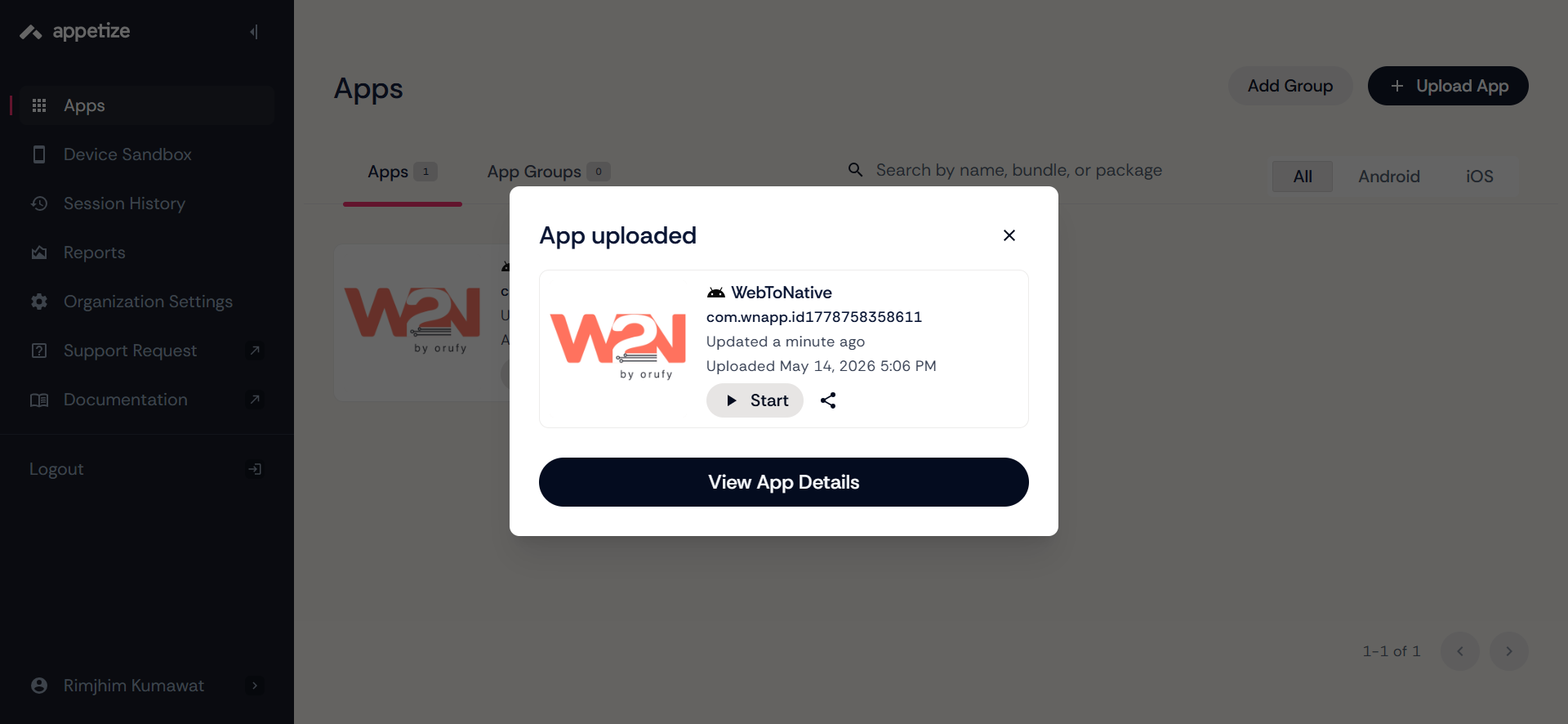
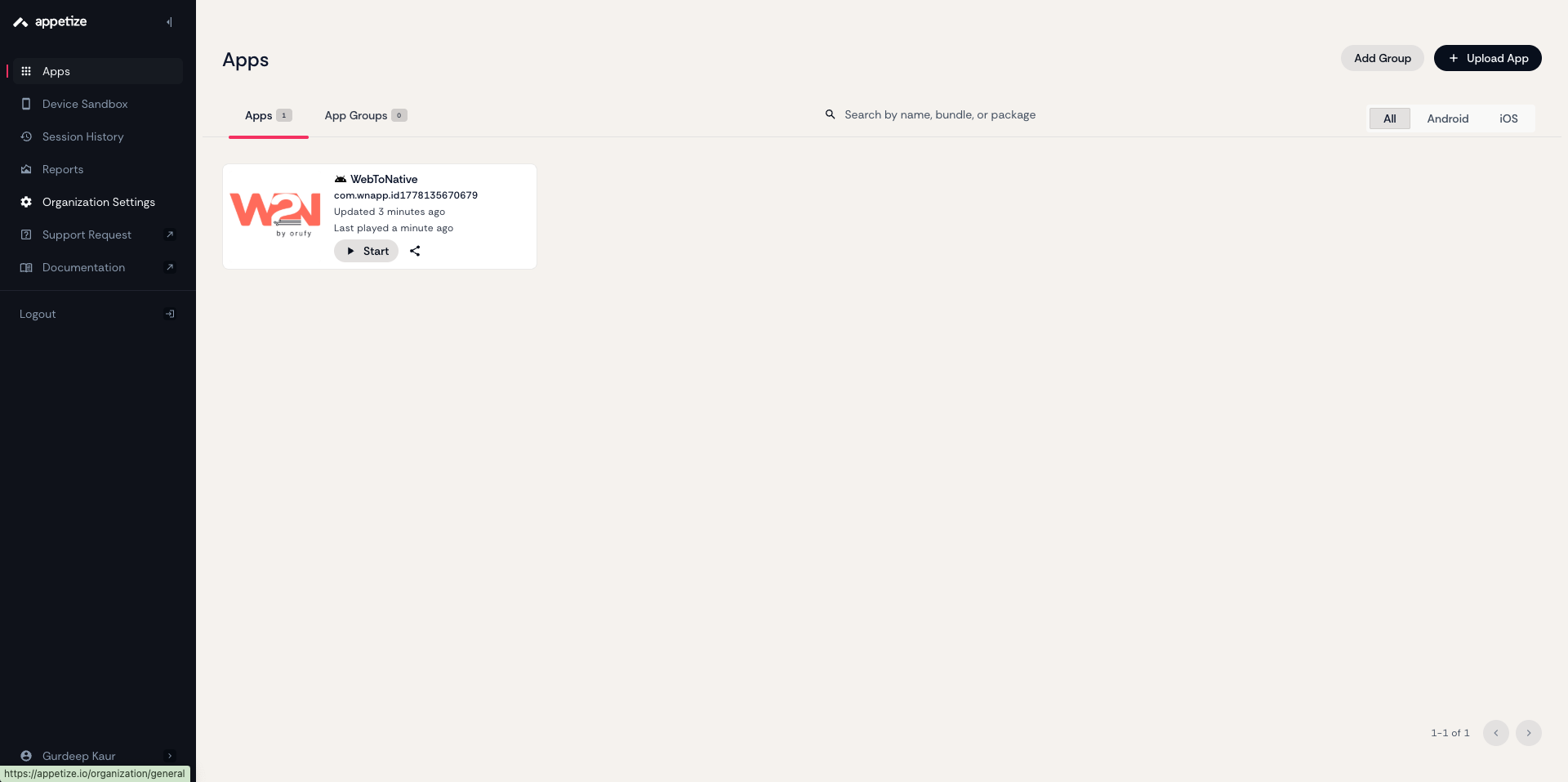
Find Start Button
Press the “Start” button.
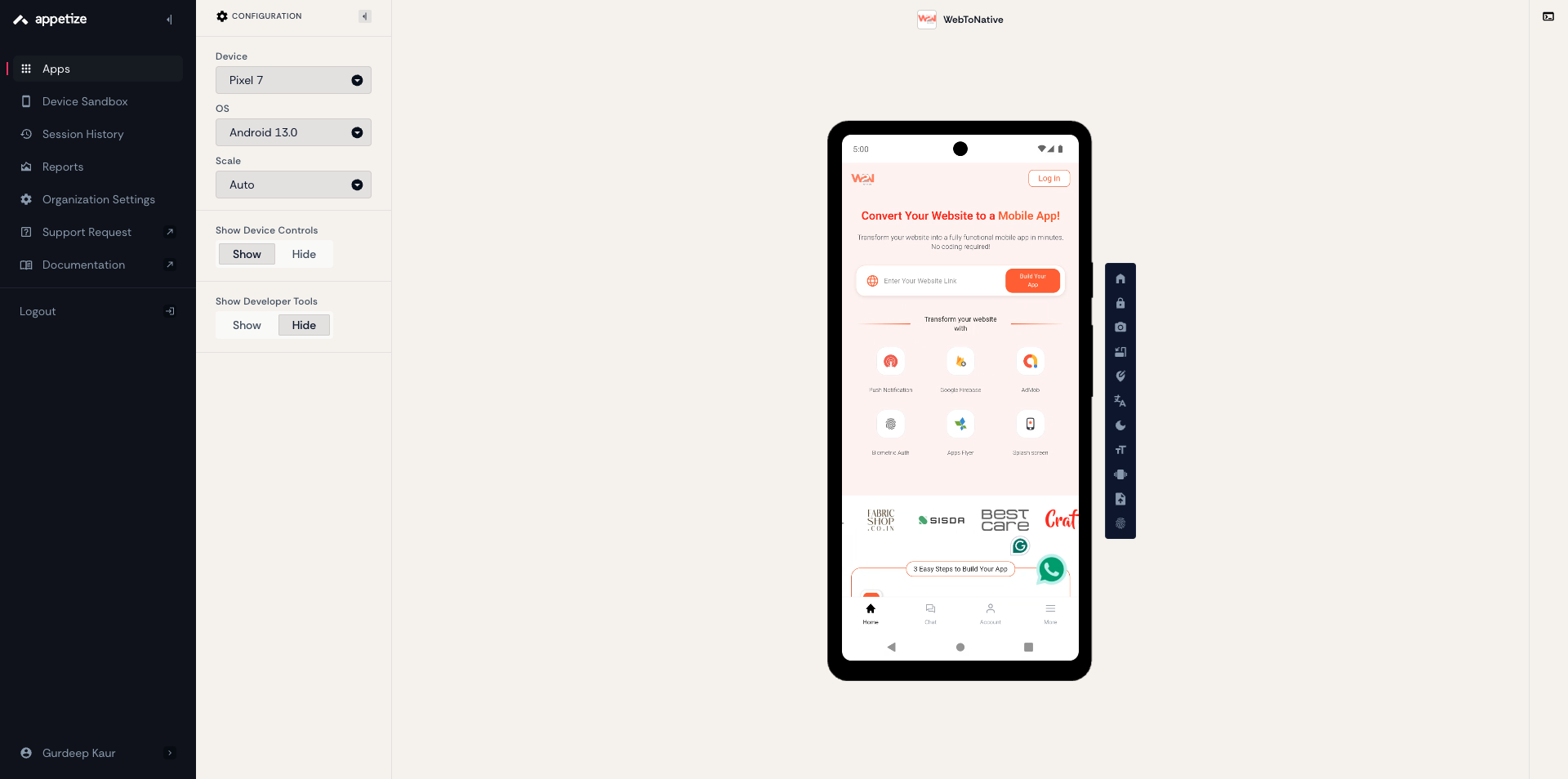
Click on “Tap to Start”
Now, test and explore your app directly in the browser environment.
appetize.io is free for up to 100 minutes per month. Perfect for testing before you commit to a plan.
What to Check While Testing
-
All pages of your website load correctly inside the app.
-
Navigation (menus, back button, links) works as expected.
-
Login, forms, and checkout flows work end-to-end.
-
Images, fonts, and layout match your website.
-
Any add-ons you enabled (push notifications, biometric login, etc.) are functioning.
-
The splash screen and app icon look correct.