


Auto Launch on Boot
Auto Launch on Boot lets your app start running automatically in the background as soon as the device turns on, restarts, or when specific system triggers occur — without the user needing to open it manually.
This add-on is included free with your Business plan on Android only, and you can unlock it from your Pro plan.

Without Auto Launch
After a device restart, the app is completely inactive until the user opens it. Scheduled alarms silently vanish. Background sync stays dead. Security and monitoring services have a gap from boot until first launch — and users usually don't notice until something is missed.

With Auto Launch
The app starts automatically after every restart. Alarms are re-registered, background services resume, and monitoring is active from the moment the device is ready — with no action needed from the user.
Where to find it in your dashboard
My Apps ➡️ Edit your app ➡️ Add-ons ➡️ Device And Hardware ➡️ Auto Launch on Boot
Why use Auto Launch on Boot?

Uninterrupted background services
→ Sync, backup, and monitoring services — fitness trackers, cloud backup apps — resume automatically after a reboot instead of silently staying inactive until the user opens the app. → Critical for apps where missing data during downtime is a real problem: health monitoring, IoT device companions, and anything that must log continuously.

Reliability for time-critical apps
→ Alarm clocks, reminder apps, and calendar apps need to re-register their scheduled triggers after a reboot. Without auto-launch, all pending alarms silently vanish until the user opens the app. → Call-blocking, SMS-filtering, and security apps must be active from the moment the device boots — a gap in protection between boot and first manual launch is unacceptable for these categories.
Steps to Enable Auto Launch On Boot
Enable the toggle
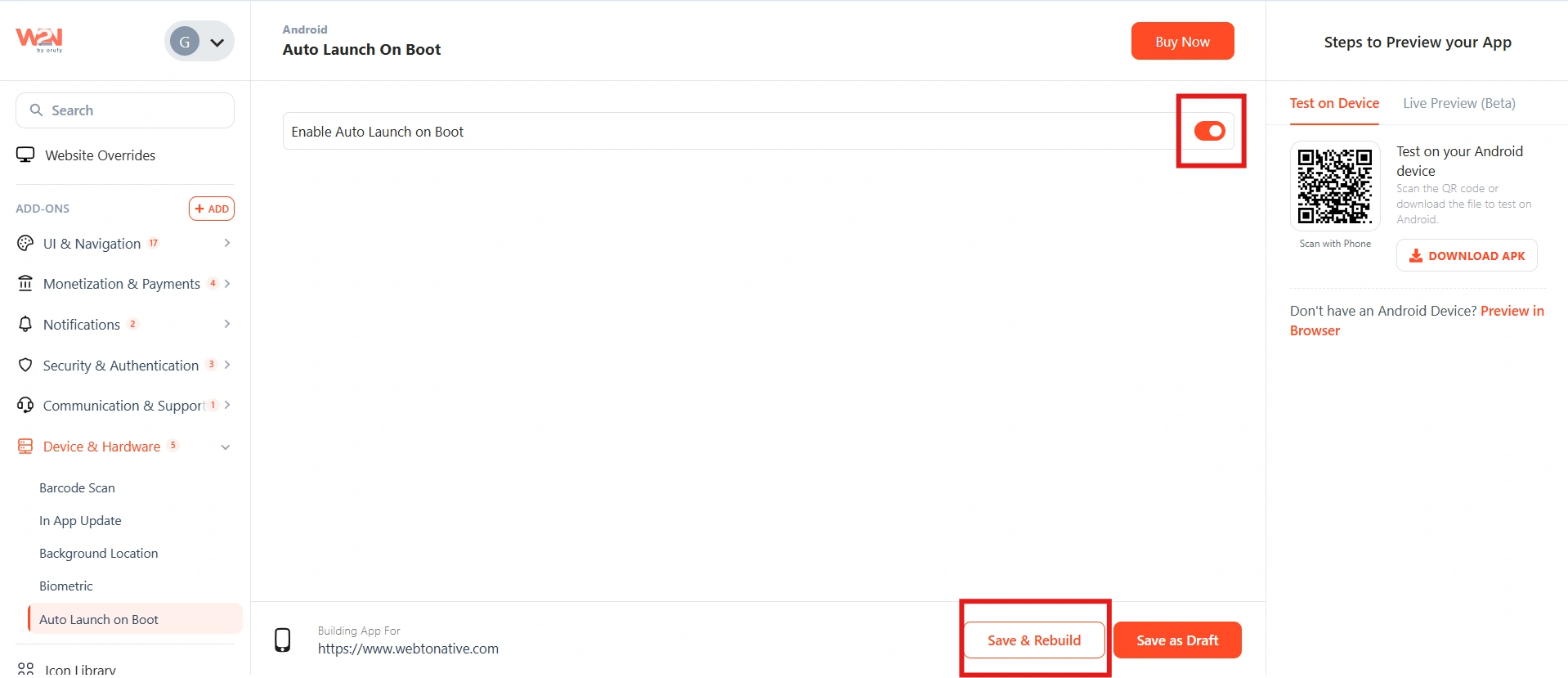
Go to your app's Add-Ons settings and switch the Auto Launch on Boot toggle to ON.
Save and rebuild the app
Click Save & Rebuild. The auto-launch capability is compiled into the new build — existing installs will not have it until users update to the new version.
Use Javascript Functions to detect Auto App Launch - https://docs.webtonative.com/javascript-apis/app-launch-detection (opens in a new tab)
How Can User Enable Auto Launch on Boot

User grants permission
The first time the user opens the app after installing, the user is prompted to allow the Auto Launch permission in their device settings. This is a one-time step — once granted, the app starts automatically on every subsequent restart without any further action.
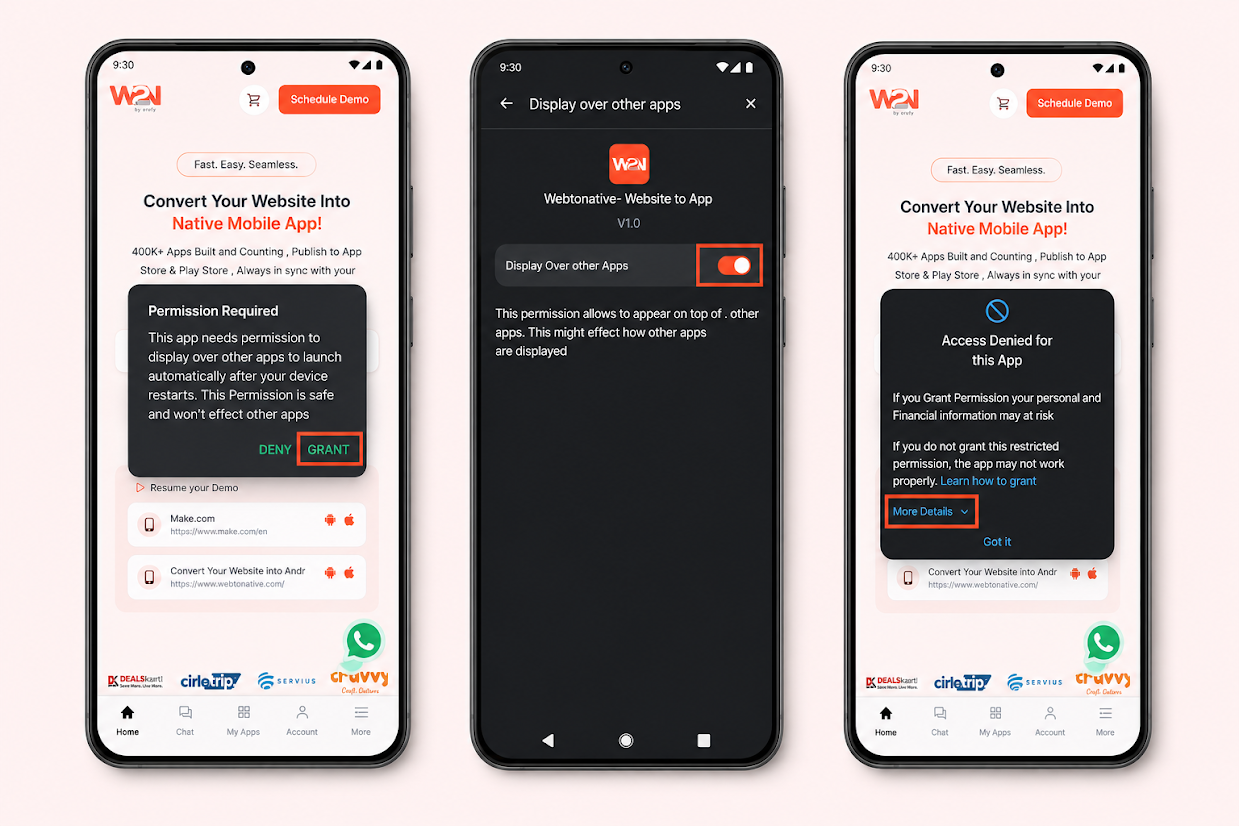
Some device manufacturers restrict auto-start permissions by default. If the user doesn't see the prompt or permission is blocked, see the OEM-specific guidance in the FAQ below.
Frequently Asked Questions
The permission was denied — how do I fix it?
Some phone manufacturers block auto-launch permissions by default as part of their battery optimisation — this is an OEM restriction, not a WebToNative limitation. The user needs to manually allow it in their device settings. The exact path depends on the brand — see the table above for common locations. On MIUI (Xiaomi) devices, for example, the user needs to go to Settings → Apps → Manage Apps → [App name] → Autostart and enable it. If the permission setting is grayed out or missing, the user may need to first remove any battery restriction on the app.
Does the user need to grant this permission every time?
No — it's a one-time permission. Once the user grants Auto Launch access, the app starts automatically on every subsequent restart without any further prompts or action from the user.
Will existing users get Auto Launch automatically?
No — the feature is compiled into the app build. Users who already have the app installed need to update to the new version that includes Auto Launch on Boot. After updating and restarting their device, they'll be prompted to grant the permission.
Does this drain the battery?
Auto Launch on Boot itself only triggers once — at device startup. The app starts in the background and then behaves exactly as it would if the user had opened it manually. Battery usage depends on what the app does in the background after launching, not on the auto-launch mechanism itself. Apps that run lightweight background services will have minimal impact; resource-intensive background processes would have the same impact whether launched manually or automatically.