
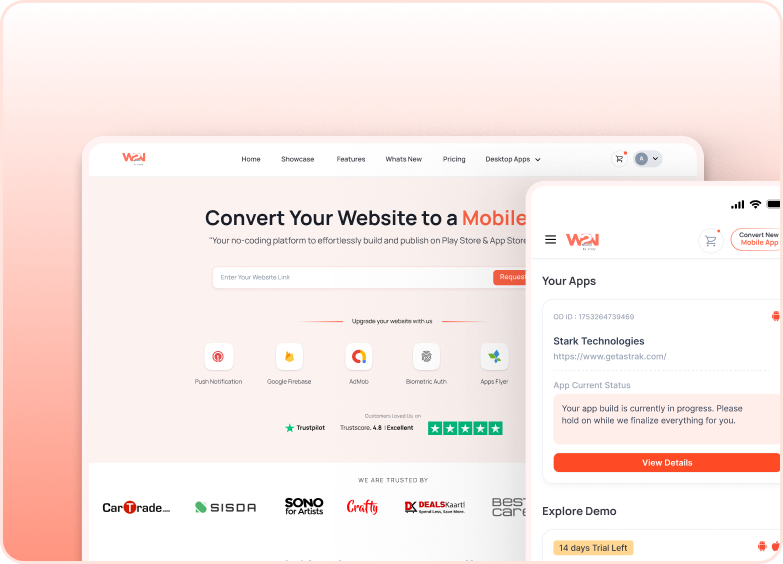


RevenueCat
The App Store and Google Play each have their own billing systems — different APIs, different receipt formats, different validation rules. Building a backend to handle all of that is months of engineering work, and getting it wrong means lost revenue or fraud.
RevenueCat sits between your app and the app stores. It handles receipt validation, purchase syncing, subscription status tracking, and customer management — on both platforms — so you don't have to build any of that yourself.
With WebToNative's RevenueCat integration, you access all of this through simple JavaScript functions — no native code required.
This add-on is included free with your Business plan on Android and iOS, and you can unlock it from your Pro plan.
Types of in-app purchases RevenueCat handles
Subscriptions
Recurring payments for ongoing access — weekly, monthly, or annual plans. RevenueCat tracks renewal status, trial periods, and cancellations automatically.

Consumables
One-time purchases used up and bought again — game coins, credits, tokens, boosts. RevenueCat records each transaction and purchase history.
Non-consumables
Permanent unlocks purchased once — remove ads, unlock a feature, lifetime access. RevenueCat restores these if the user reinstalls the app.
Free trials
A free period before billing starts. RevenueCat manages trial state, conversion tracking, and what happens when the trial ends.
What is a paywall?
A paywall is the screen users see before purchasing — it displays your plan options, pricing, features, and the action button. RevenueCat lets you build and deploy paywalls remotely, test different variants, and update them without submitting a new app build.
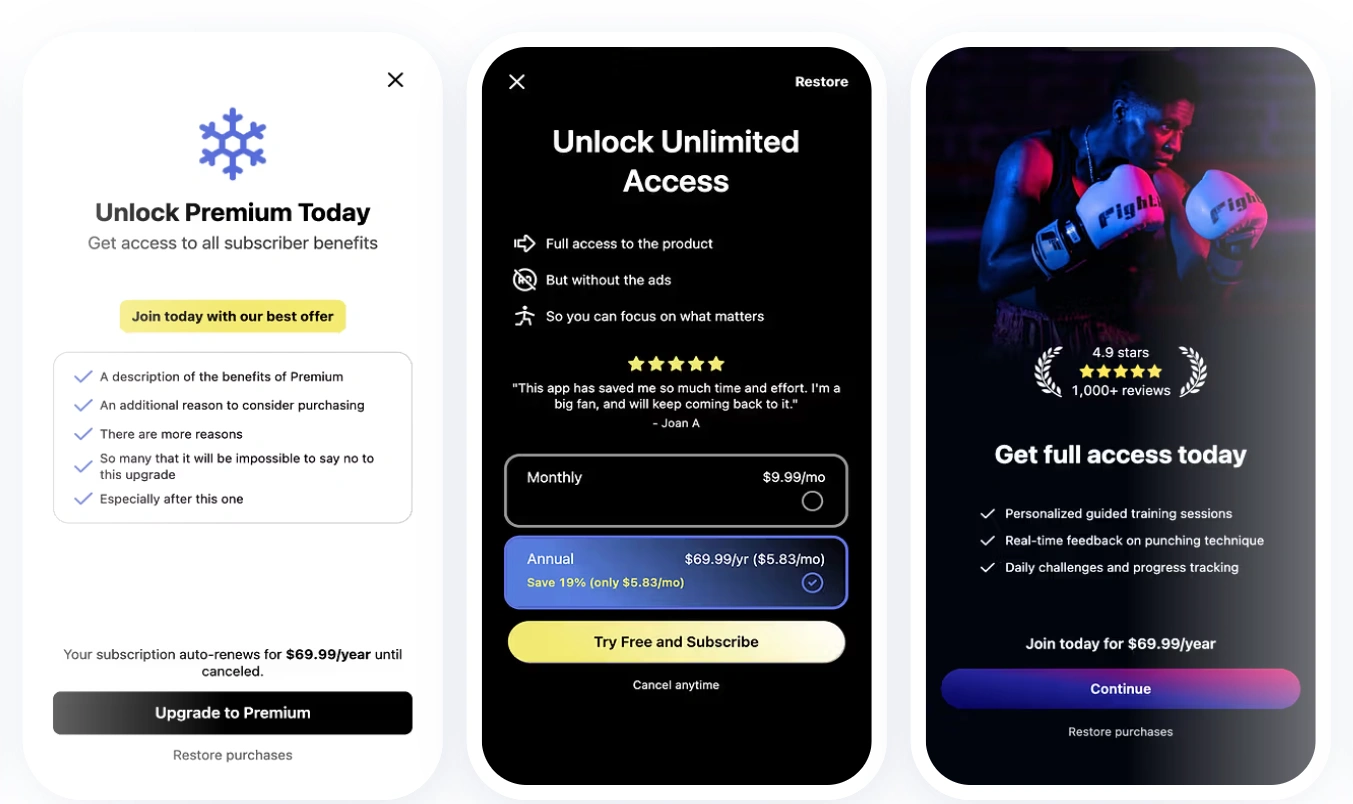
In WebToNative, you can show a RevenueCat paywall with a single JavaScript function — passing an Offering ID from your RevenueCat dashboard. No custom UI required. Learn more at revenuecat.com/docs/tools/paywalls.
Why use RevenueCat?
No billing backend required
Building server-side receipt validation from scratch takes months and is easy to get wrong — leaving you vulnerable to fraud. RevenueCat handles all of it securely: receipt verification, fraud prevention, purchase syncing across devices, and entitlement management. You never write billing server code.

One place for iOS, Android, and web
The App Store and Google Play have completely different billing APIs. RevenueCat gives you a single SDK and dashboard that works across both, making it easy to offer a unified subscription experience regardless of which platform your user is on.

Update paywalls without app store submissions
Build, deploy, and A/B test different paywall designs — different pricing, different copy, different layouts — remotely from the RevenueCat dashboard. Changes go live instantly without needing to submit an update to the App Store or Google Play.
Where to find it in your dashboard
My Apps ➡️ Edit your app ➡️ Add-ons ➡️ Monetisation and Payments ➡️ Enable Webview Ads
Steps to apply the RevenueCat to your app with WebToNative
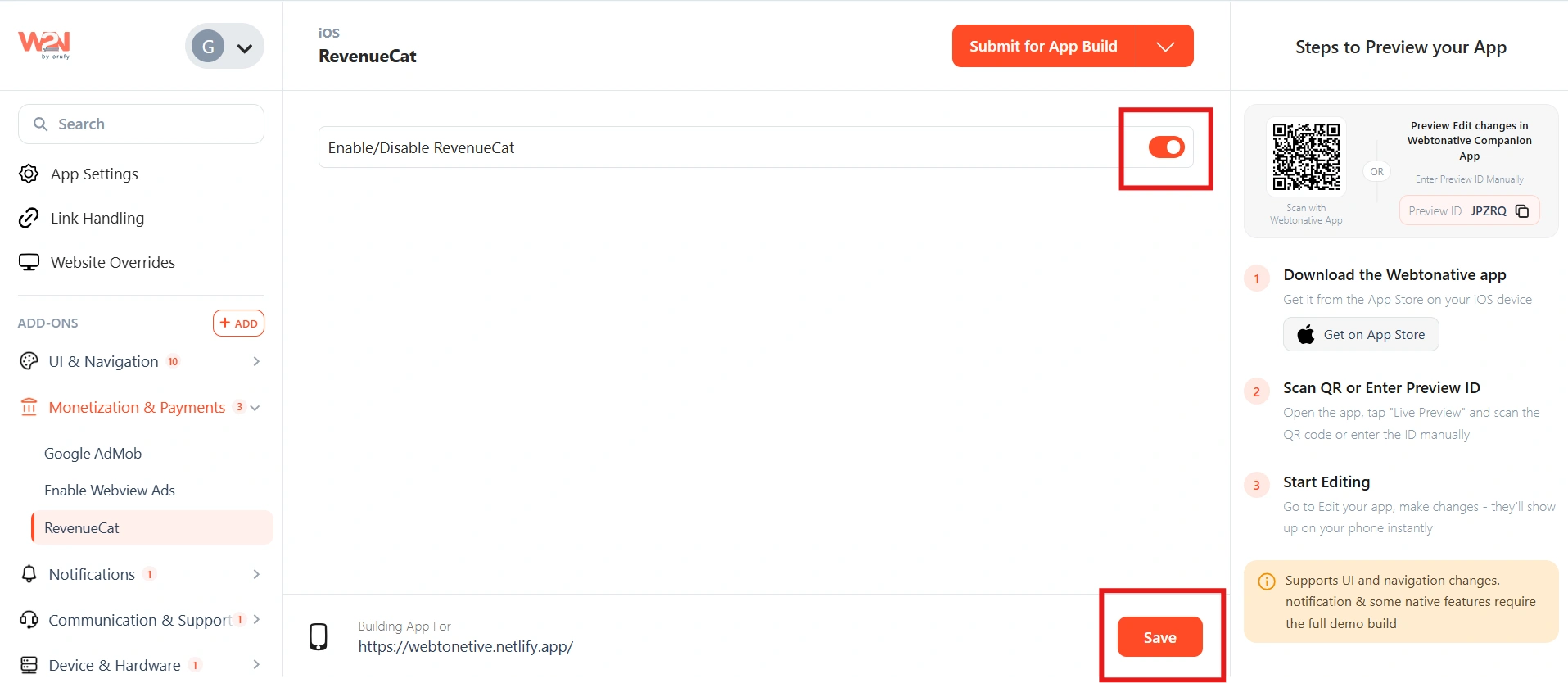
Enable the RevenueCat toggle
Switch the RevenueCat toggle to ON. This activates the RevenueCat SDK inside your WebToNative app, making the JavaScript functions available to call from your website.
Use the JavaScript API functions
Once the toggle is enabled and the app is rebuilt, you can call RevenueCat functions from your website's JavaScript. The full API reference is at docs.webtonative.com/javascript-apis/revenue-cat.
Save and rebuild
Click Save, then Save & Rebuild. The RevenueCat SDK is included in the new build. After installing, the JavaScript functions will be available in your app.
The 7 JavaScript Functions
configure() - Required First
Initializes the RevenueCat SDK. This must be called before any other RevenueCat function — nothing else will work until the SDK is configured. Call this when your app loads or when the user reaches a point where purchases become relevant. 1. API Key — your RevenueCat API key (found in your RevenueCat dashboard under Project Settings) 2. User ID (optional) — your own identifier for the user. If not provided, RevenueCat assigns a random anonymous ID (see Login Alias Behaviour below)
isInitialised() - Status Check
Checks whether the RevenueCat SDK has been successfully initialised. Useful before calling other functions to confirm RevenueCat is ready — especially if your app has complex loading flows or you're not sure configure() has completed yet.
setUserId() - Identity
Associate the current RevenueCat session with a specific user from your own system. Call this after the user logs into your app to link their purchases to their account — so if they sign in on a new device, their subscription history is preserved. 1. User ID — pass your own user identifier (e.g. the ID from your database or auth system) 2. Without this, RevenueCat assigns an anonymous random ID — purchases are tracked but can't be linked to your user accounts.
getCustomerInfo() - Purchase Setup
Fetches the current customer's subscription and purchase details from RevenueCat. Use this to check what the user has purchased, whether their subscription is active, when it expires, and what plan they're on. 1. Returns active subscriptions, purchase history, entitlements, and the user's RevenueCat ID 2. Use this to gate features — show premium content only if the user has an active entitlement.
showPaywall() - Built-in UI
Displays a RevenueCat paywall — the pricing and plan selection screen — without requiring you to build any custom UI. RevenueCat renders the paywall using the design you've configured in your RevenueCat dashboard. 1. Offering ID — pass the ID of the offering you want to display (found in your RevenueCat dashboard under Offerings). 2. An offering is a set of products you've grouped together for display.
makePurchase() - Direct Purchase
Initiates a purchase directly — bypassing the paywall UI and opening the native App Store or Google Play purchase flow immediately. Use this when you've built your own purchase UI and just need to trigger the transaction. 1. Product ID — pass the product identifier from the App Store (iOS) or Google Play Console (Android). This is the ID you set when creating the in-app product in the store. 2. The native store payment sheet appears — the user completes or cancels the purchase there.
restorePurchase() - Recovery
Checks with the App Store or Google Play to see if the user has any previous active purchases or subscriptions — and restores access if they do. Essential for users who delete and reinstall the app, switch devices, or lose access to their purchase history. The function communicates directly with the app store to verify existing purchase receipts Required by App Store guidelines — every app with in-app purchases must provide a "Restore Purchases" option.
Every function above returns a success or failure callback. Always handle both cases in your code — for example, if makePurchase() fails, show the user a message explaining why the purchase didn't complete rather than silently doing nothing.
How RevenueCat identifies users without a User ID
If you call configure() without passing a User ID, RevenueCat automatically assigns a random anonymous ID to that session. Purchases made under this anonymous ID are tracked — but if the user later logs into your app and you call setUserId(), RevenueCat merges the anonymous purchase history with the identified user account.
This is called Login Alias Behaviour. Read more: https://www.revenuecat.com/docs/customers/identifying-customers (opens in a new tab)
Frequently Asked Questions
Do I need a RevenueCat account to use this?
Yes — you need a RevenueCat account at revenuecat.com, with your apps set up and your in-app products configured. RevenueCat offers a free plan for apps under $2,500/month revenue. You'll need your API key from the RevenueCat dashboard to pass into the configure() function.
What order should I call the functions in?
Always call configure() first — every other function depends on the SDK being initialized. After that: call setUserId() once the user logs into your app, use getCustomerInfo() to check their subscription status, and call showPaywall() or makePurchase() when the user initiates a purchase.
What's the difference between showPaywall() and makePurchase()?
showPaywall() displays RevenueCat's built-in paywall screen — your pricing page with plan options, designed in the RevenueCat dashboard. The user selects a plan and purchases from there. makePurchase() skips the paywall entirely and goes straight to the native store payment sheet — use this if you've built your own pricing UI and just need to trigger the transaction for a specific product.
Where do I find the Offering ID for showPaywall()?
In your RevenueCat dashboard, go to Product Catalogue → Offering ID. Each offering has an Identifier — that's the Offering ID you pass to showPaywall(). An offering is a collection of products you've grouped together for display on the paywall.
Why is restorePurchase() required?
Apple App Store guidelines require all apps with in-app purchases to provide a way for users to restore previous purchases. Without it, your app can be rejected during review. Google Play also recommends it. The restorePurchase() function is a one-tap way for users to recover access after reinstalling the app or switching devices — without having to repurchase.