



Allow HTTP (Insecure Content)
The Allow HTTP (Insecure Content) option enables the app to load content from non-secure HTTP links as well as secure HTTPS URLs. By default, apps only load HTTPS content to protect your data. You can use this option if your site and some of its resources are still on HTTP (images, scripts, fonts, iframes).
Difference Between HTTPS and HTTP

HTTPS - Secure (loaded by default)
The padlock you see in your browser. All data travelling between your app and the website is encrypted - like a sealed envelope. Nobody in the middle can read it. This is the standard for all modern websites.

HTTP - Insecure (blocked by default)
No padlock. Data travels as plain text - like a postcard that anyone along the route can read. Images, scripts, and fonts loaded over HTTP can be intercepted or tampered with. Apps block HTTP content to protect users.
Simple Rule: URLs starting with https:// = safe, loaded automatically. URLs starting with http:// = blocked by default in your app. This setting lifts that block.
What breaks when HTTP content is blocked
If your website loads any resources over HTTP, your app will silently block them. Here’s what you will see:

Broken Images
Images hosted on HTTP URLs appear as blank boxes or broken image icons inside the app.

White/Blank Screens
Pages with HTTP iframes or embedded content show a blank white area where the content should be.

Broken Layouts
CSS or fonts loaded from HTTP fail to load, causing text, spacing, and design to look completely wrong.
Steps to Enable Allow HTTP (Insecure Content)
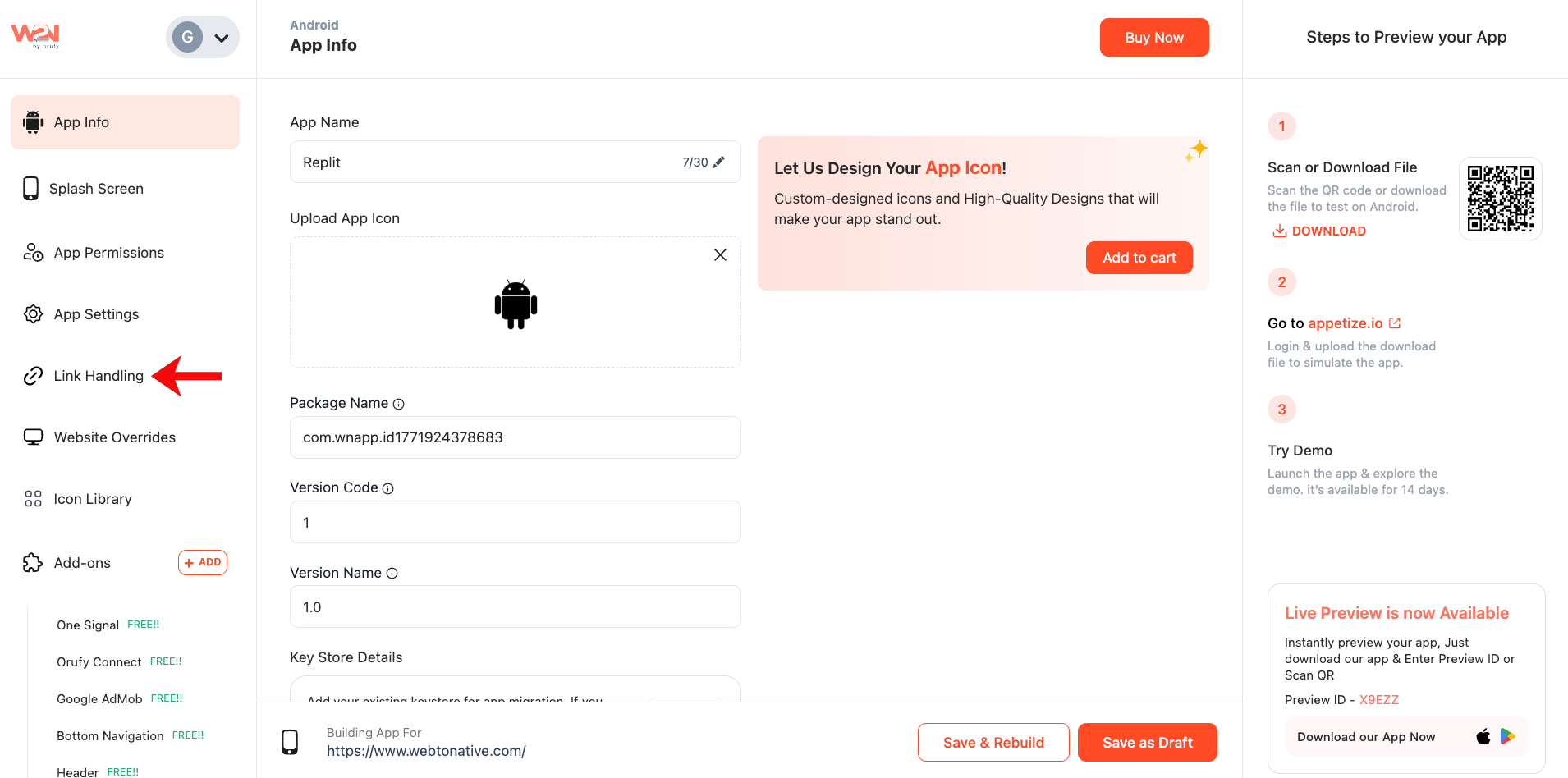
Navigate to Link Handling
Sign in to your WebToNative dashboard and select your app and click on Link Handling from the left sidebar menu.
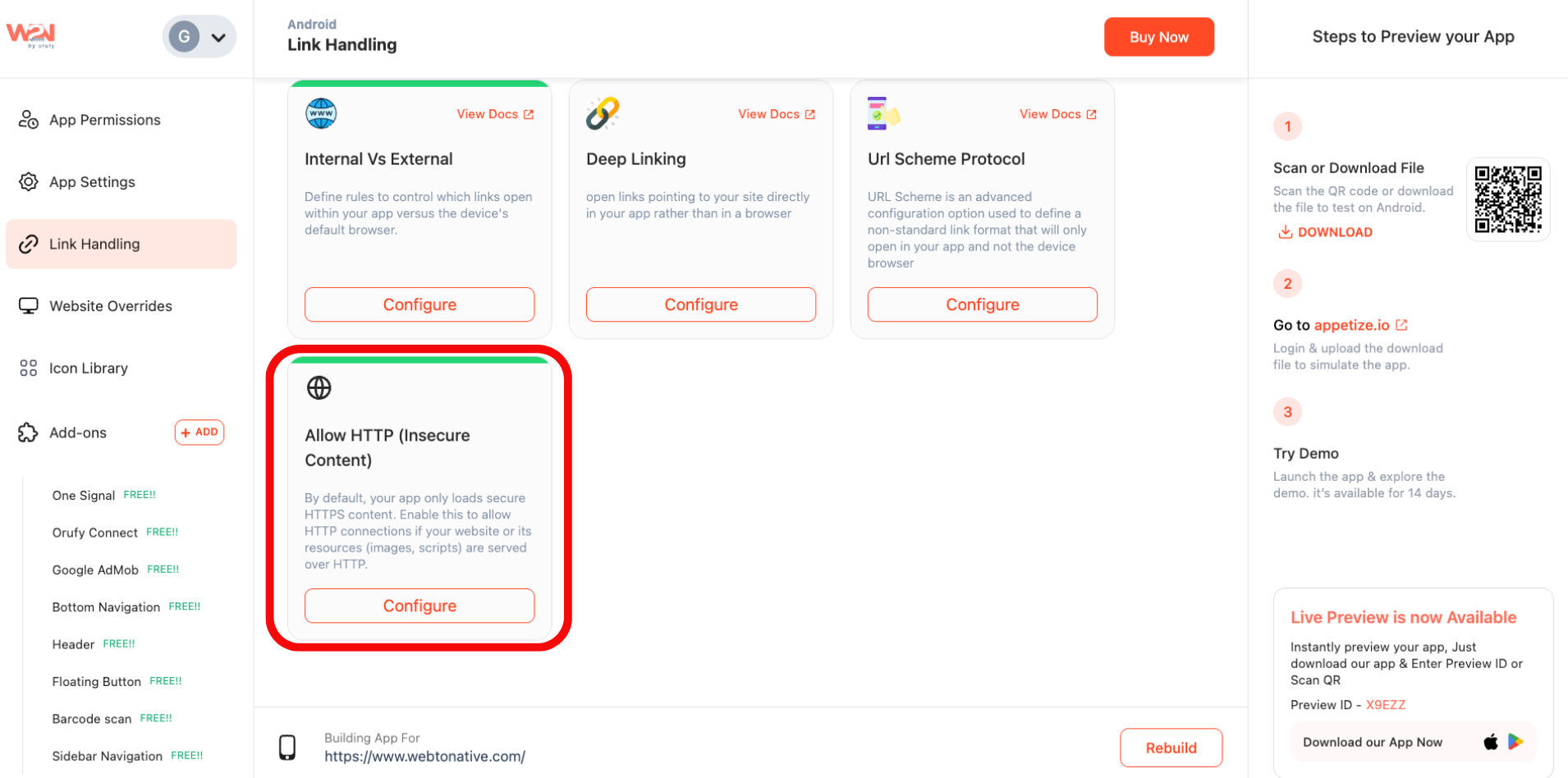
Find the “Allow HTTP (Insecure Content)” Card
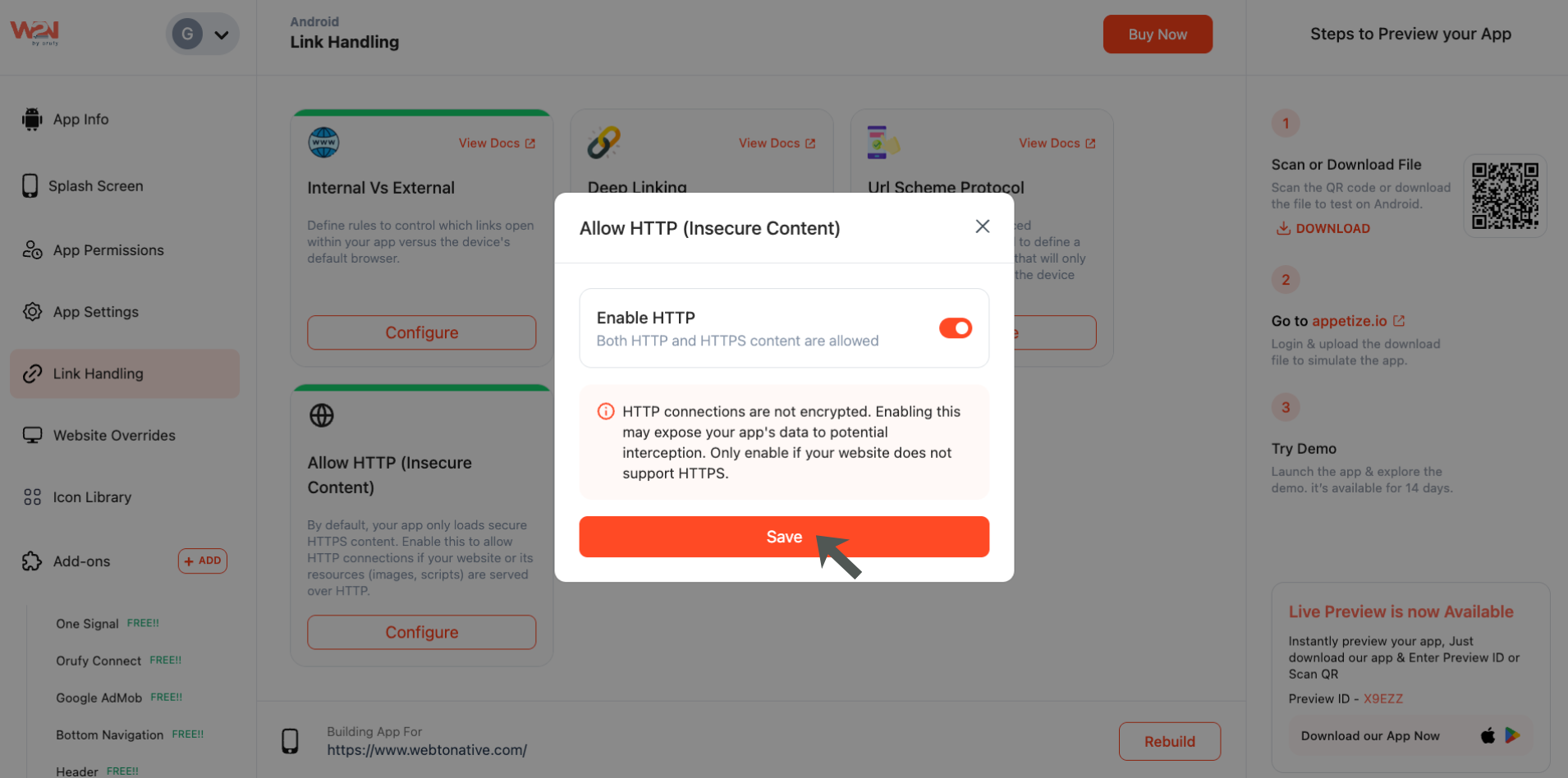
In the “Link-Handling section, locate the Allow HTTP (Insecure Content) card and tap on “Configure” right under the card.
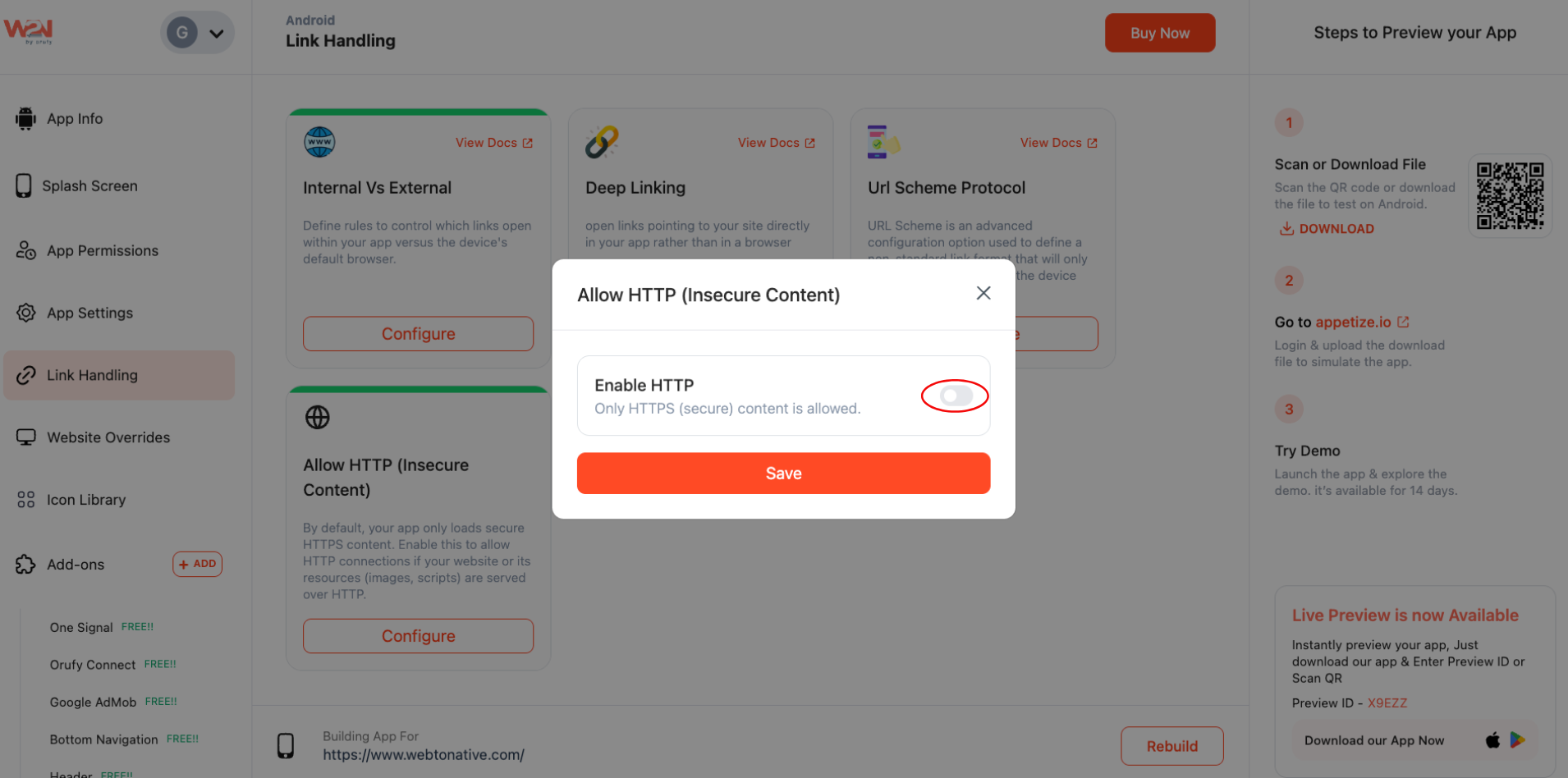
Open the Configuration Popup
It allows you to enable or disable HTTP content in your app.
Enable HTTP Content
Inside the popup, turn the Enable HTTP toggle ON to allow both HTTP and HTTPS content to load in your app.
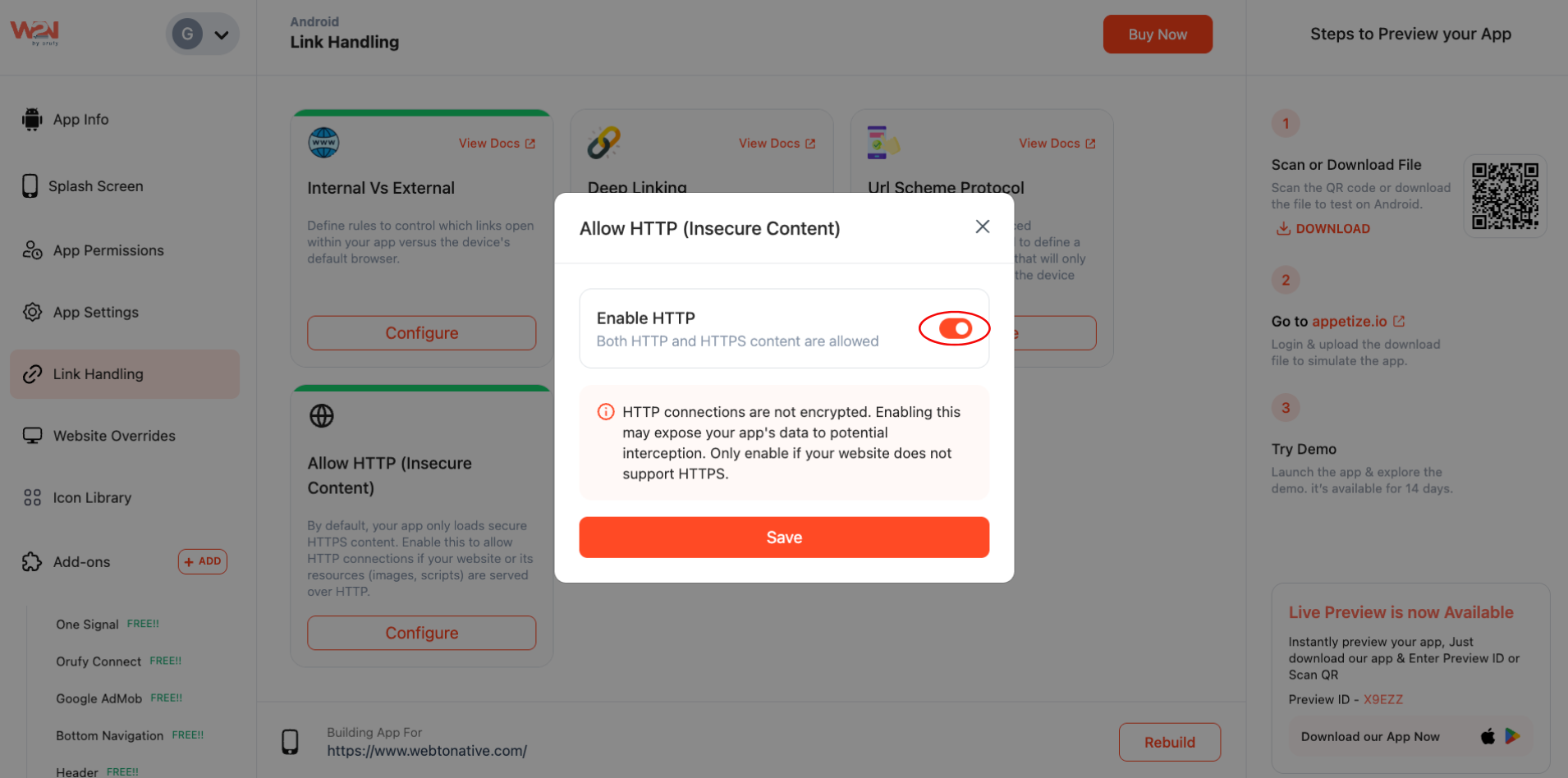
Save Your Changes
Now, click on the Save button to apply changes.
Rebuild Your App
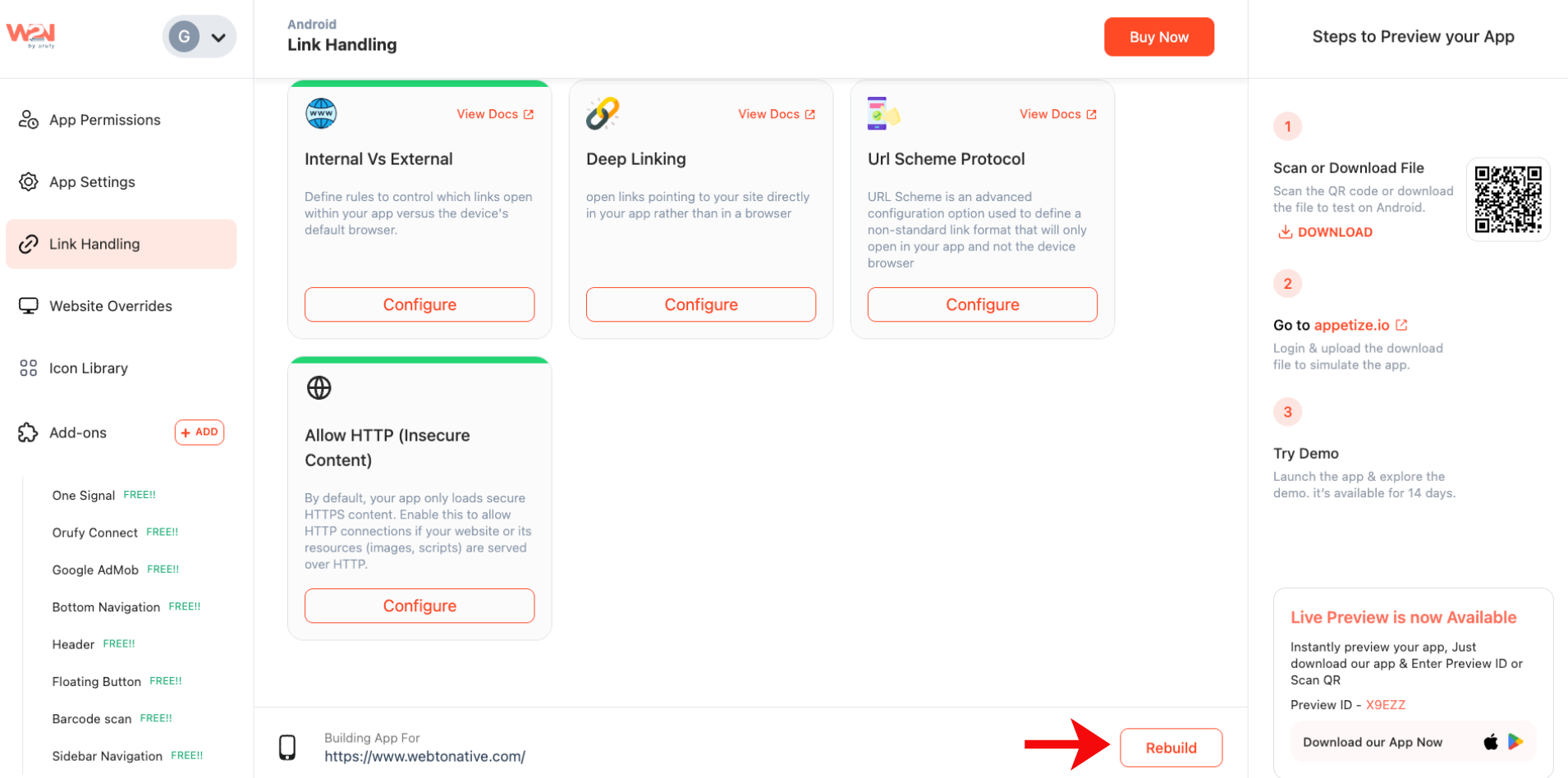
Click on Rebuild and publish the updated build.
When Should You Enable Allow HTTP?
Enable this setting when:
-
Your site still uses HTTP instead of HTTPS.
-
Your site is mostly HTTPS, but some resources are from HTTP URLs.
-
Inside your app, there are blank screens, missing images, or layouts that display incorrectly.

Unsecured HTTP Traffic
HTTP connections are not secure, so transferring data over HTTP can be intercepted.

Use HTTPS
We strongly recommend upgrading your website to HTTPS rather than relying on this setting. Also, many web hosts offer free SSL certificates.

Build Required
This setting only works when you submit a new app build.

Turn Off HTTP
After moving your site fully to HTTPS, you can turn this setting OFF, rebuild the app to apply the change.