App Info
The App Info section is where you set up your app's identity — its name, icon, and visual branding. Your app icon is automatically generated from your website URL and app name, and you can customise it further to match your brand perfectly.
Follow these Steps to Generate the App Icon for Your App
App Info
Navigate to the App Info section.
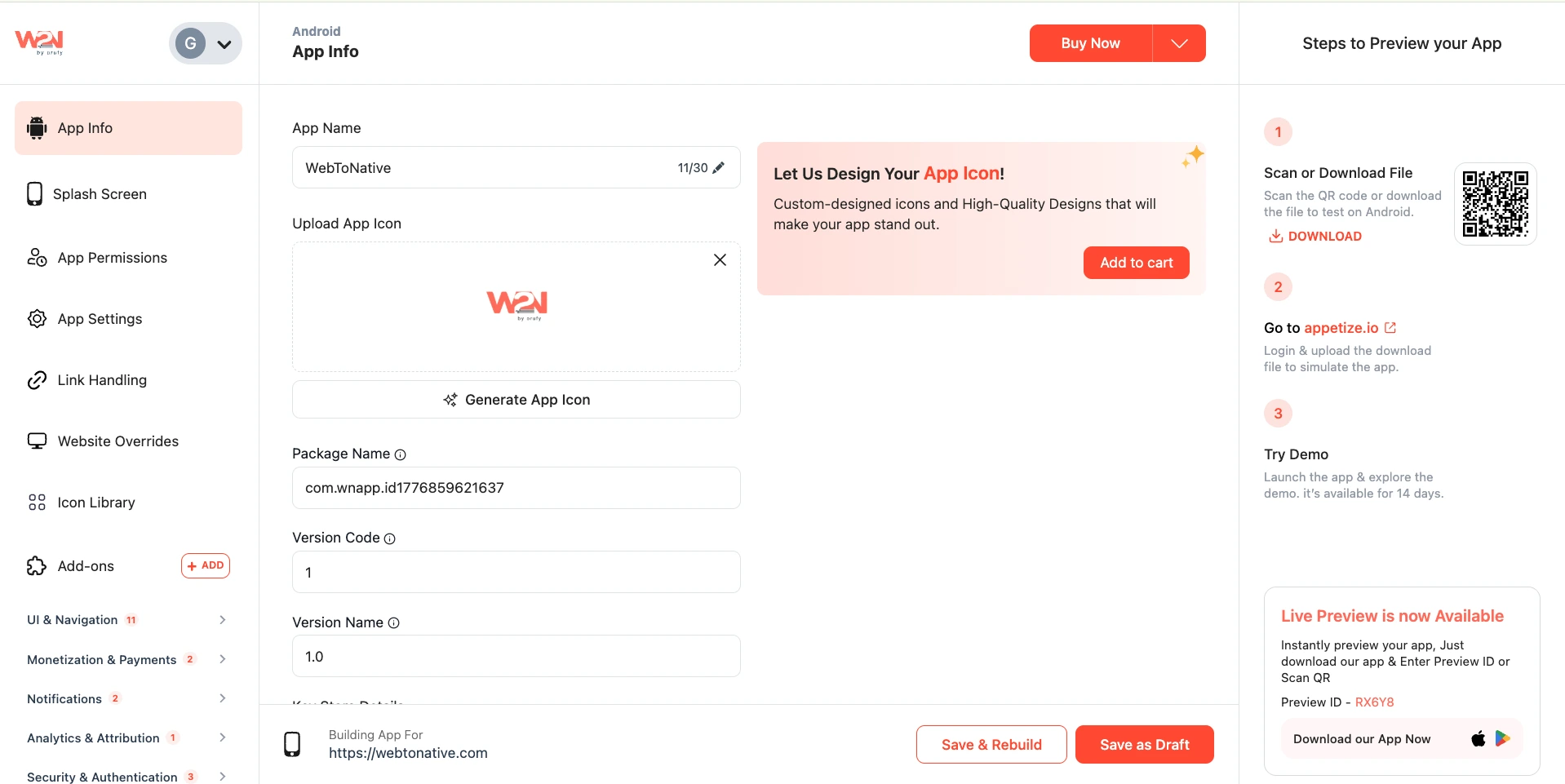
Instant Logo Creation
Your logo will be automatically generated using your website URL and app name.
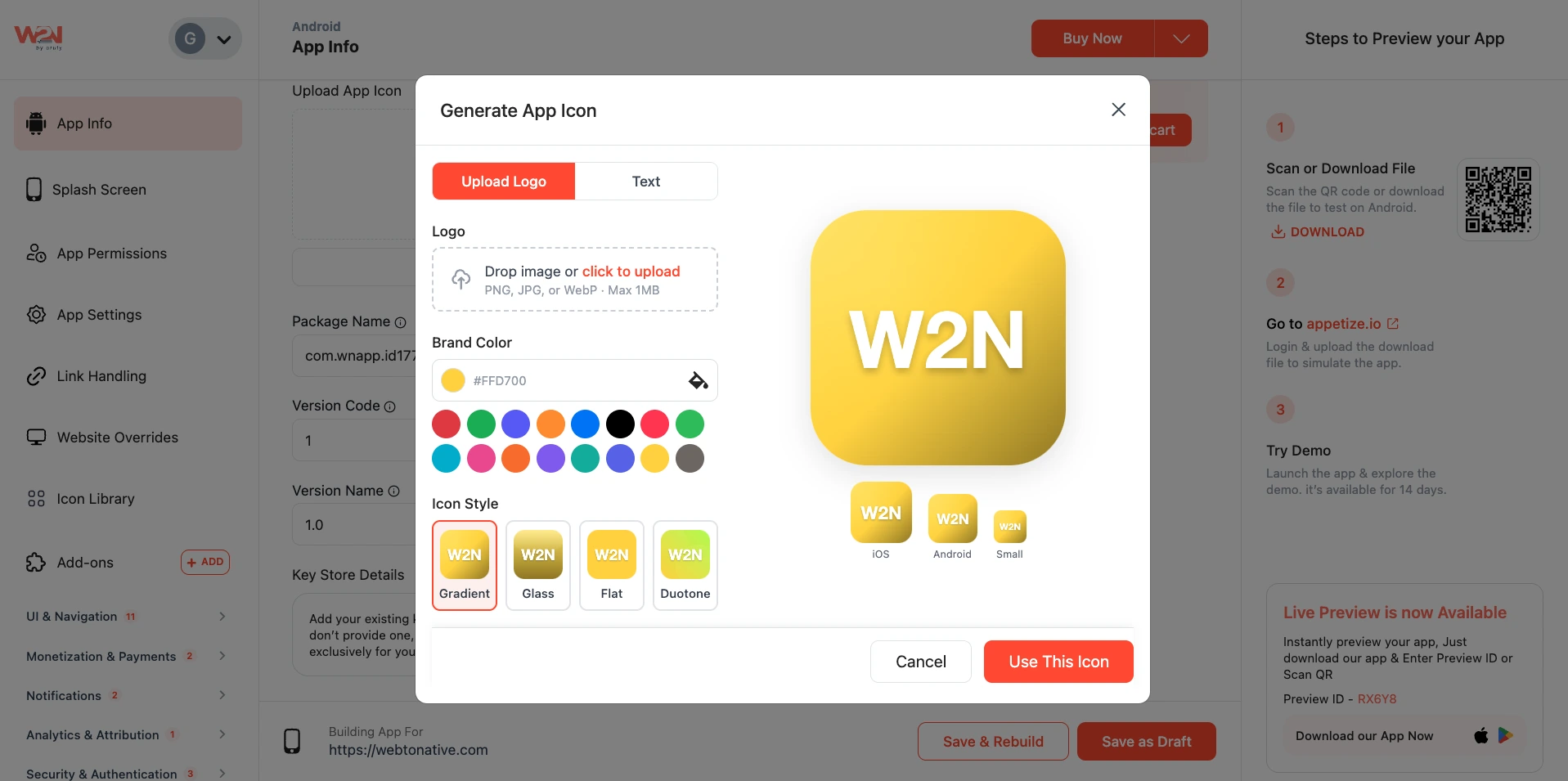
There are two ways to add or upload the app icon:
Customize Your Logo Icon
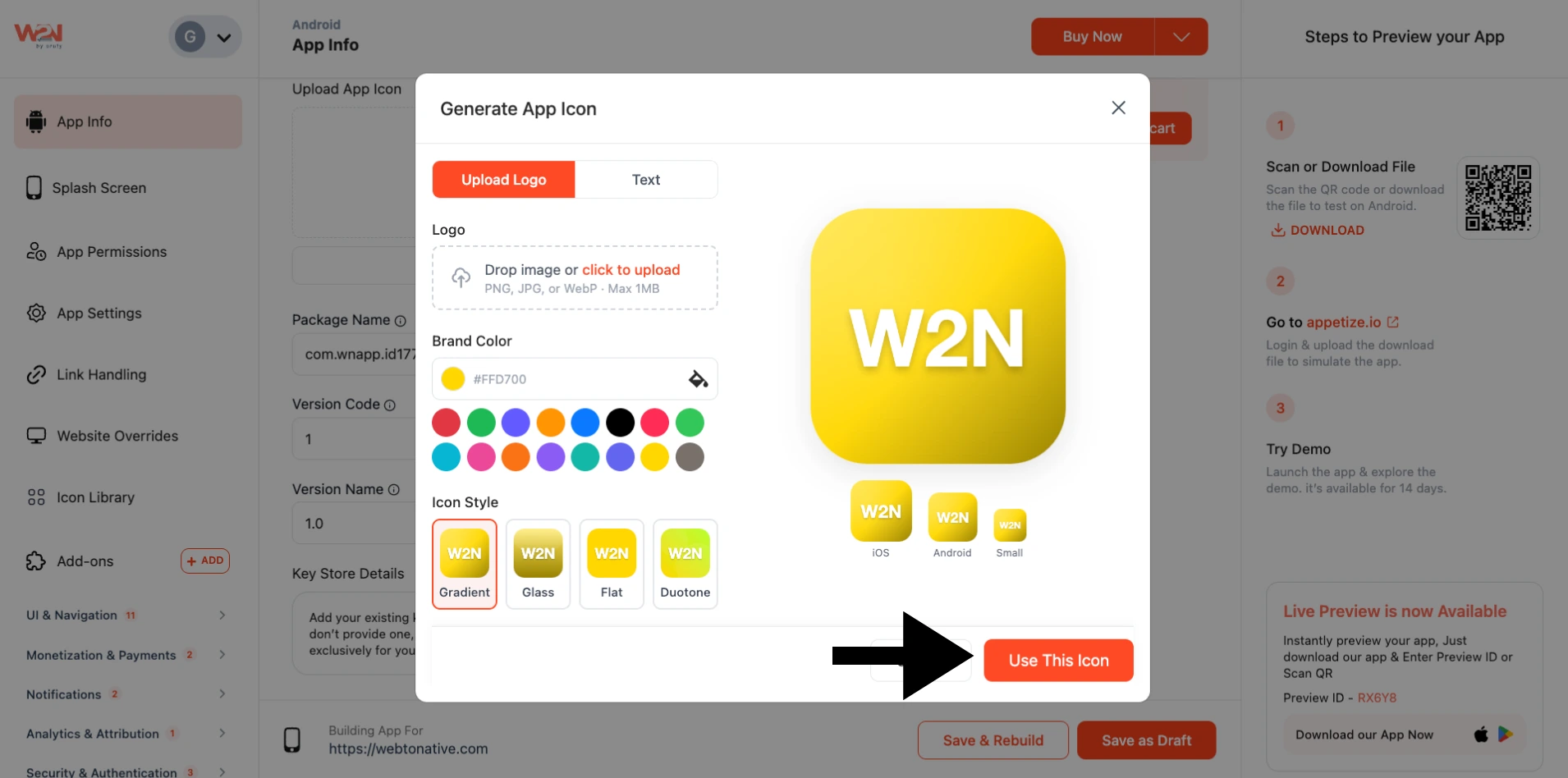
You can upload a logo image and add color-specific preferences.
Logo
1. Image or Icon
- You have to upload the logo image by clicking the Click to Upload option.
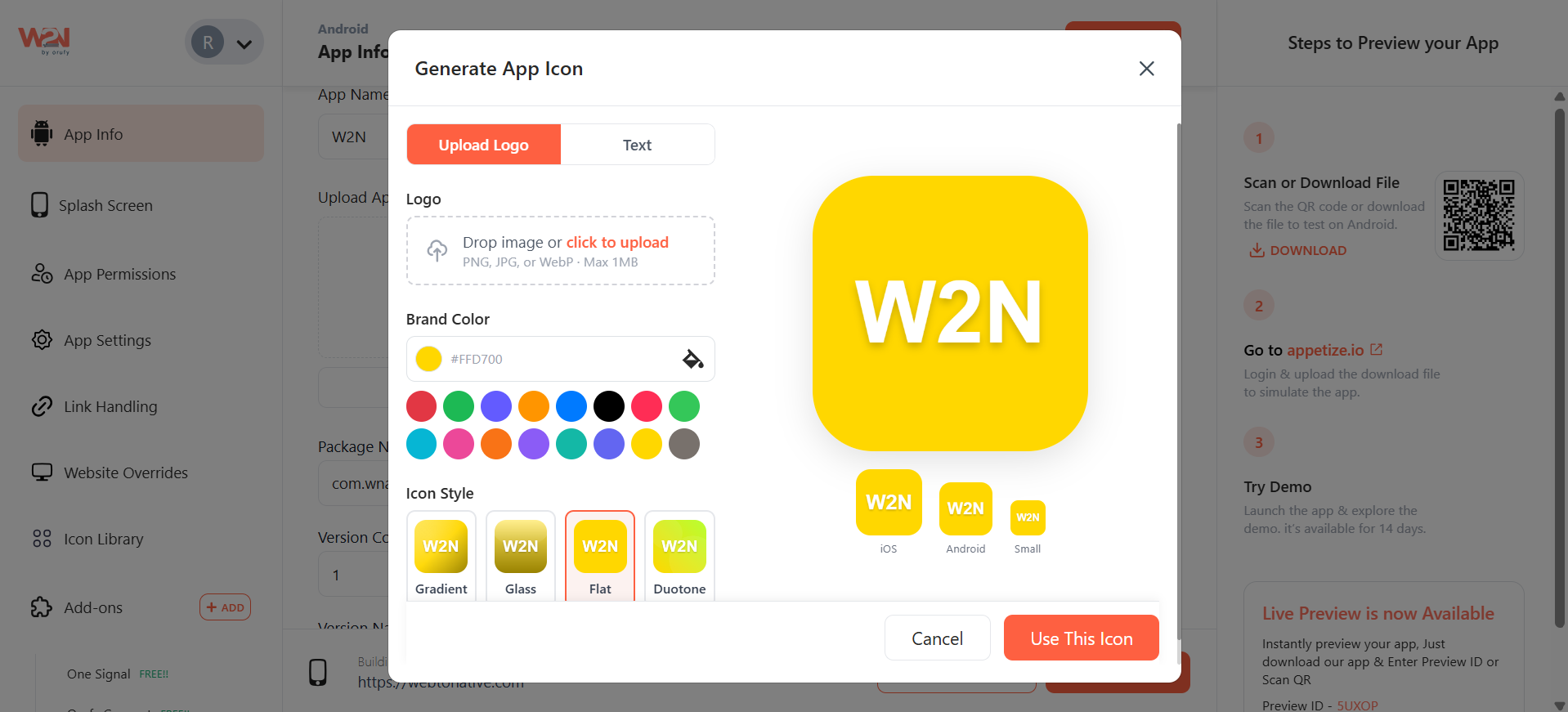
- The image format should be PNG, JPG, or WebP. Keep in mind that the size of the image should be a maximum of 1 MB. - You can change the logo image from the “Change” option beside your uploaded logo image.
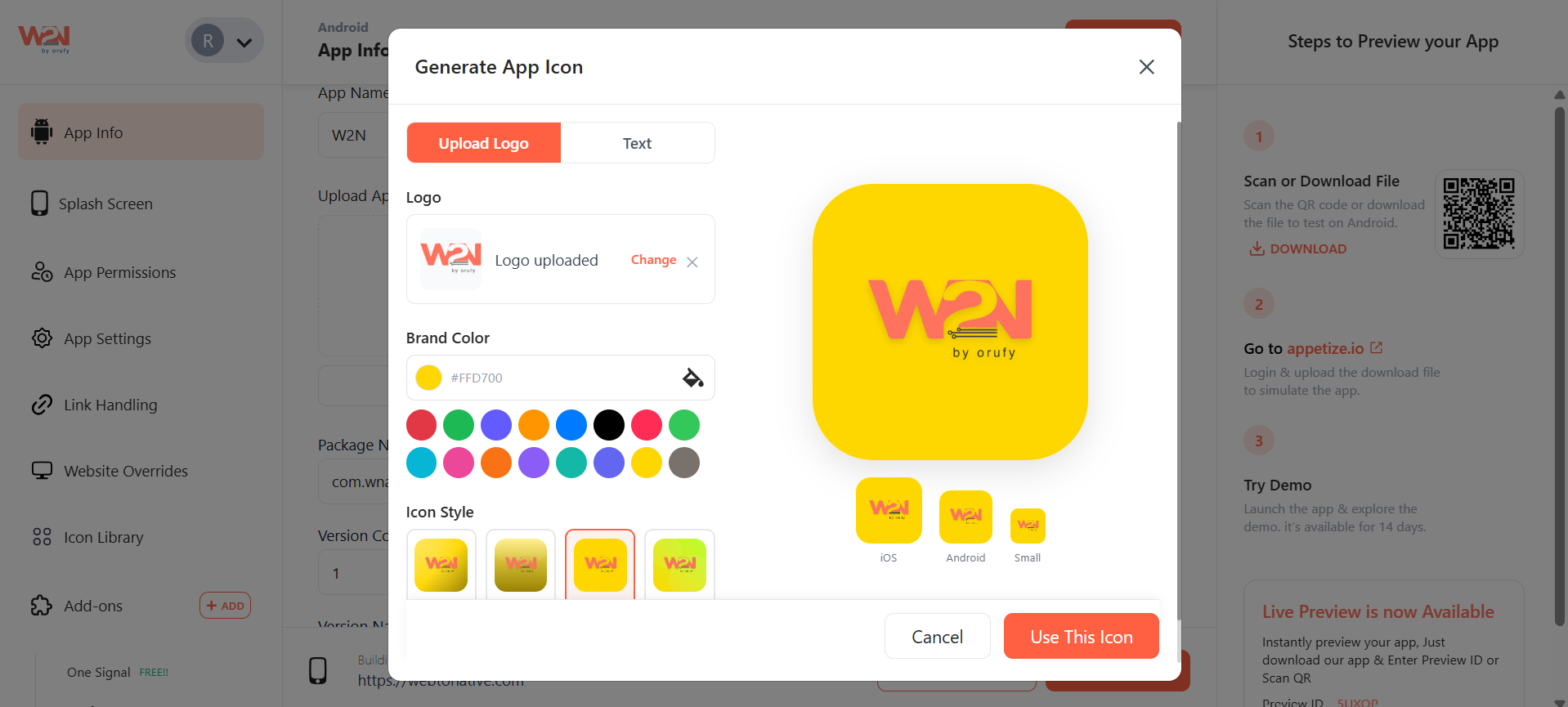
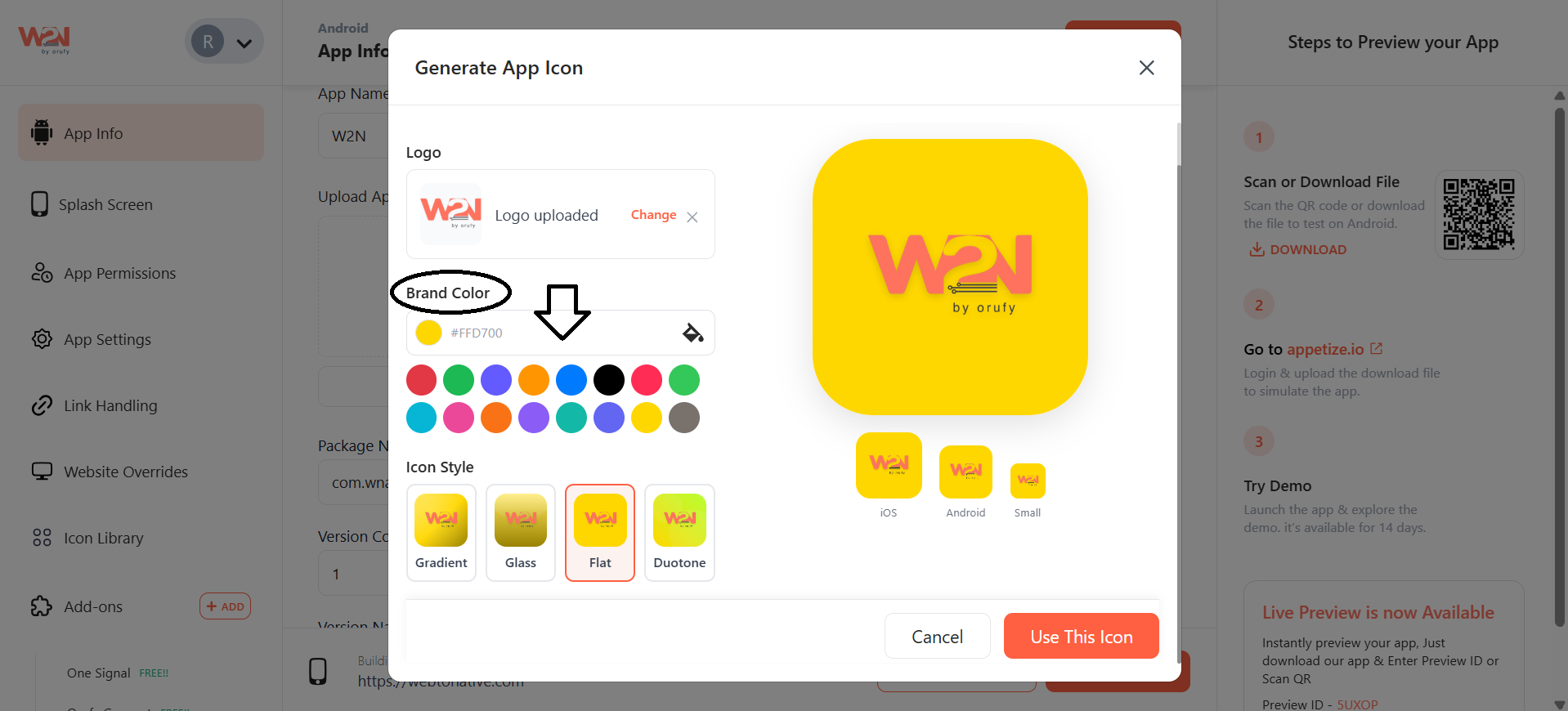
2. Brand Color You can choose the color of your brand according to your logo image. It is basically the background color of your logo.
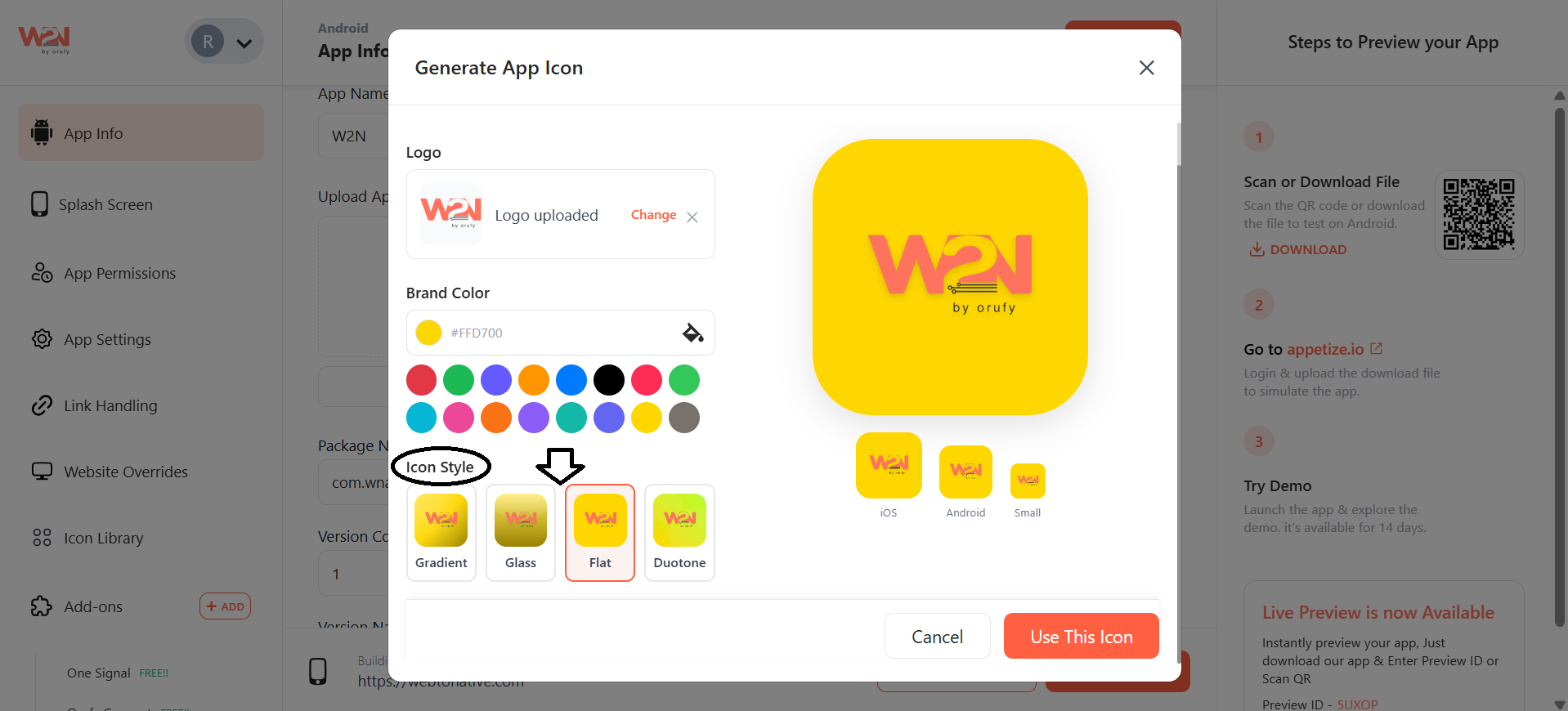
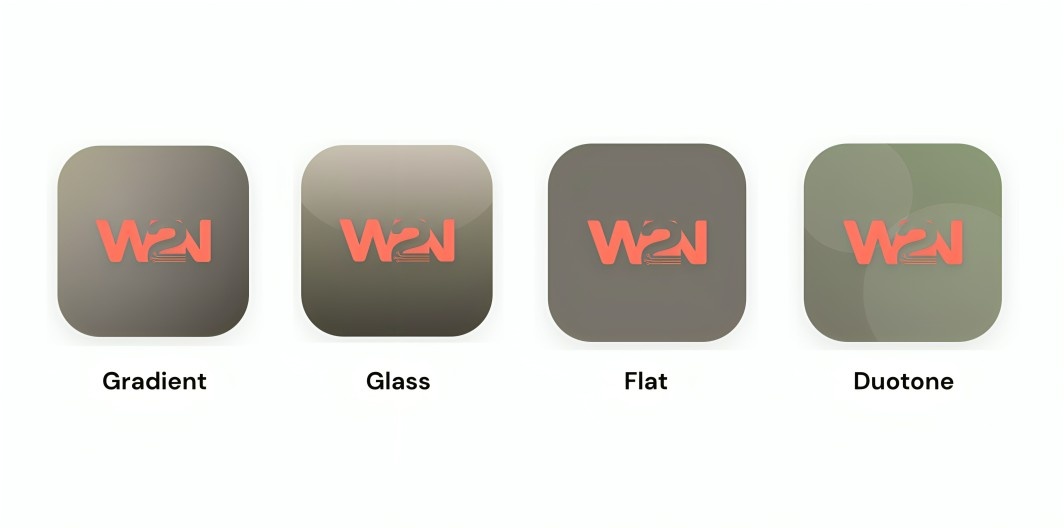
3. Icon Style Choose the icon style to see how your logo will look from the following design styles.
- Gradient - Glass - Flat - Duotone
Text
You can use text as your app icon with customizations.
1. Icon Text
Enter the text that will work as your app icon. You can write up to 12 characters for the Icon text.
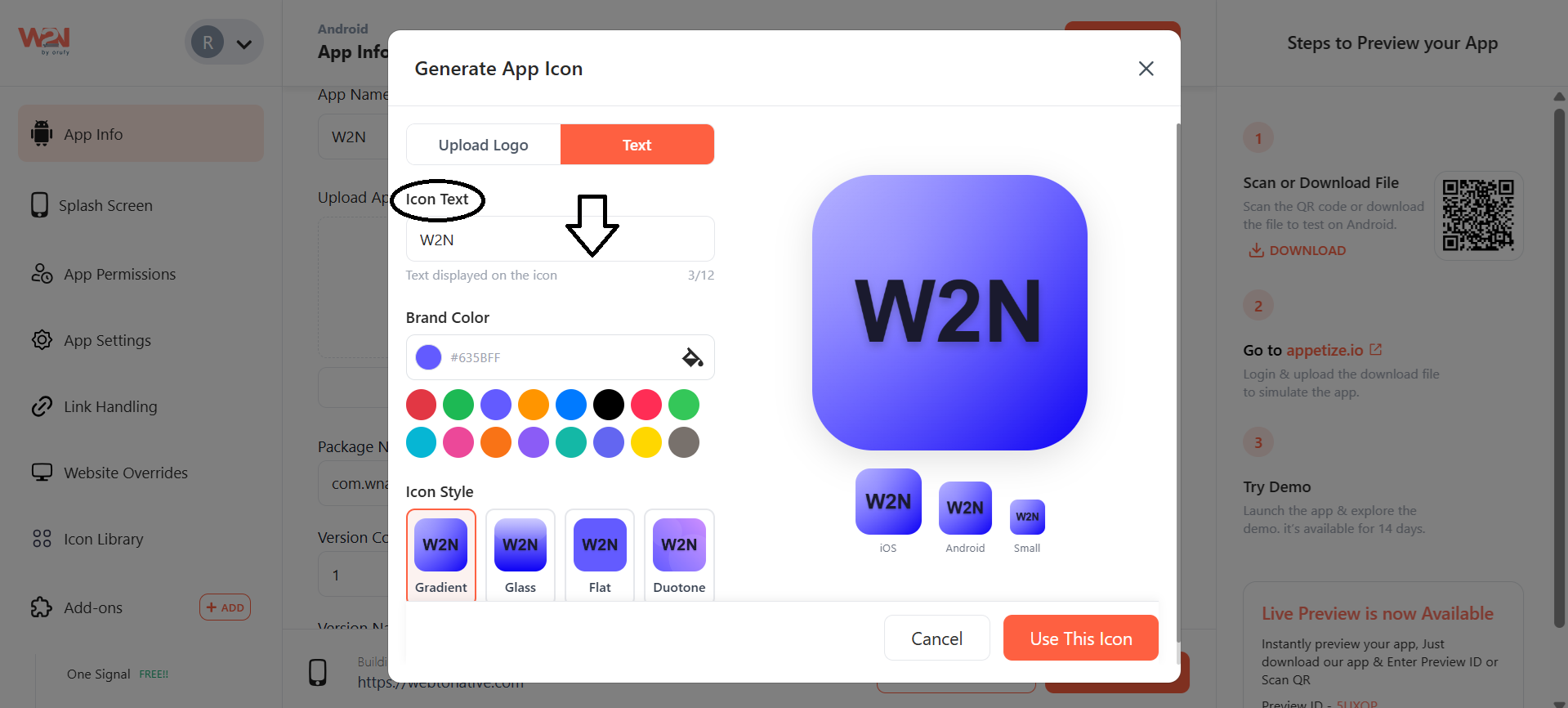
2. Brand Color Select the brand color according to your logo image. It displays the background color of your logo.
3. Icon Style Even using text also allows you to select how the icon style
- Click on Use this Icon
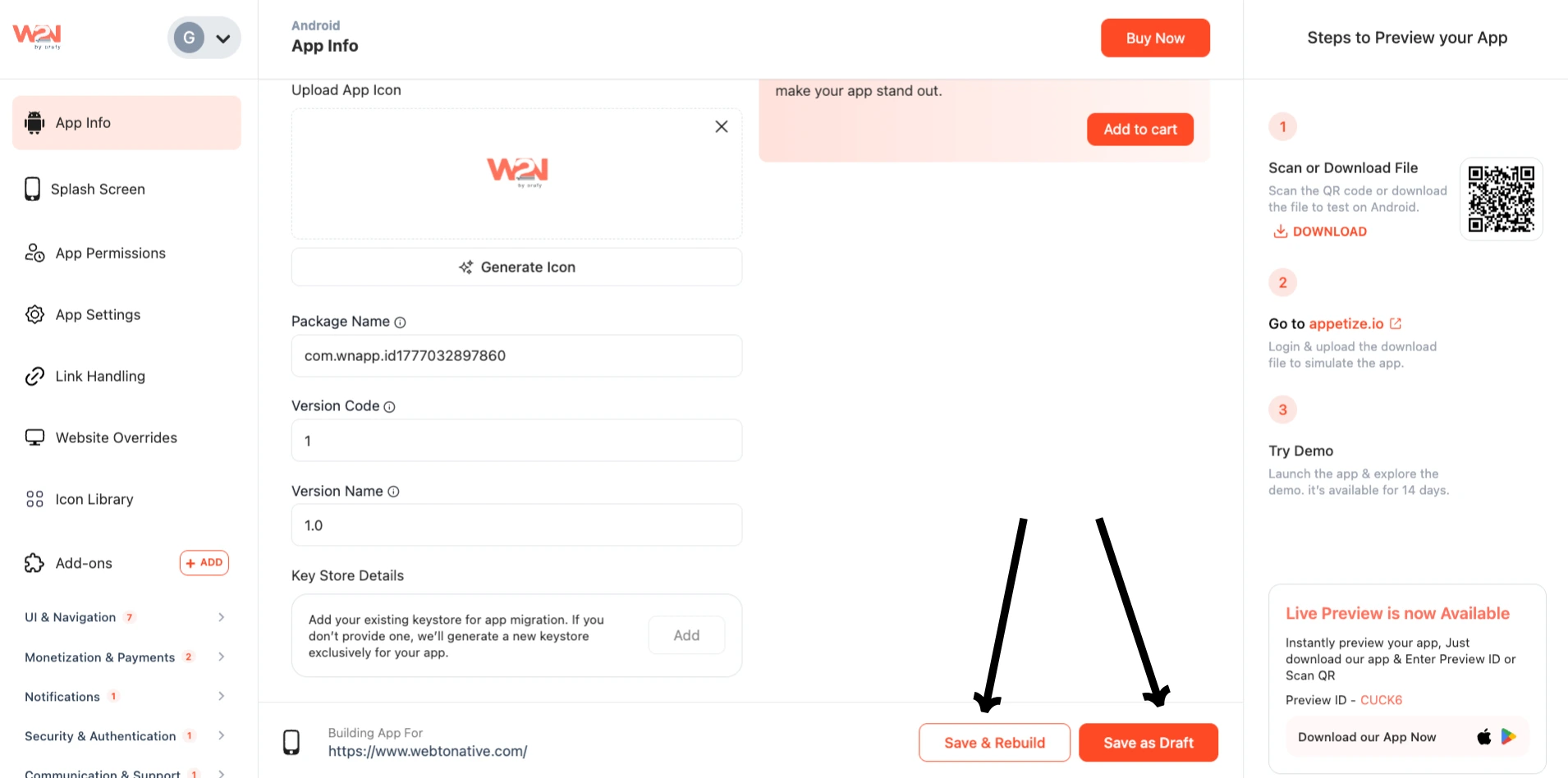
Save & Rebuild
After selecting the icon file, click on "Save & Rebuild" to upload the icon and to apply the changes to your app.
Save as Draft
If there is something left that you want to update, you can save this setting as a draft.