



Siri Support
Siri Shortcuts are quick actions tied to your apps on iOS, HomePod, and watchOS. They let users get things done with a tap — or by simply asking Siri. Rather than opening an app and navigating through screens, a shortcut performs the action instantly from wherever the user is.
This add-on is included free with your Business plan on iOS only, and you can unlock it from your Pro plan.
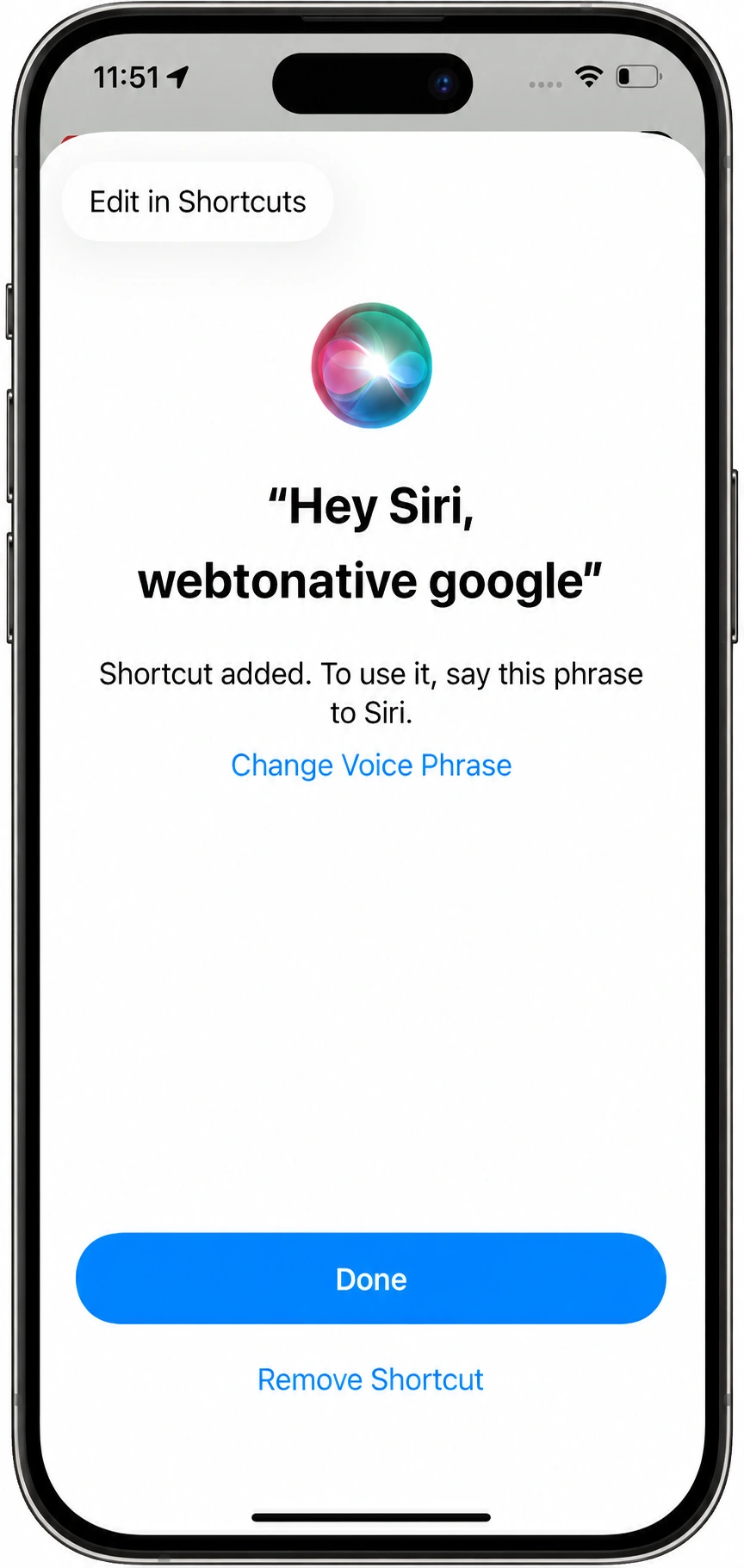
Features of Siri Shortcut

Background actions
A shortcut can perform an action automatically in the background — without the user ever opening the app. The result just happens.

Voice trigger
Users set a custom phrase and Siri listens for it — on iPhone, HomePod, and Apple Watch. Saying the phrase launches the shortcut instantly.

Siri suggestions
iOS learns from usage patterns and proactively suggests relevant shortcuts at the right time — on the lock screen, in search, or in Siri.

Shortcuts app
Saved shortcuts live in Apple's Shortcuts app, where users can tap to run them, combine them into automations, or assign them to widgets.
Siri Shortcuts were introduced in iOS 12 and let apps expose their functionality directly to Siri. Once a shortcut is added, Siri can suggest it at relevant moments based on context — time of day, location, usage patterns — even before the user asks. They work across iPhone, HomePod, and Apple Watch.
What is Siri Add-on on Webtonative?
The Siri Add-on brings Siri Shortcut support to your WebToNative iOS app. Once enabled, your website can call a single JavaScript function to register any page, feature, or workflow as a Siri Shortcut — no native iOS code needed.
Instead of opening your app and navigating through multiple screens, users can say "Hey Siri, open my orders" and land directly where they need to be. Your business logic stays entirely on the web — WebToNative bridges it to iOS Siri natively.
Where to find it in your dashboard
My Apps ➡️ Edit your app ➡️ Add-ons ➡️ +ADD ➡️ Communication & Support ➡️ Siri Support ➡️ Activate
How Siri Support works

Add the Siri Add-on to your WebToNative iOS app and rebuild.

Call window.WTN.addToSiri() from your website — on a button tap, on page load, or at any point in the user journey.

WebToNative passes the action to native iOS. The user is prompted to add it as a Siri Shortcut with the suggested phrase you provided.

The shortcut appears in Apple's Shortcuts app. The user can invoke it by voice — 'Hey Siri, [your phrase]' — or tap it directly in the Shortcuts app.

Siri launches your app and navigates to the action URL you specified — exactly where the user needs to be.
Steps to Enable Siri Support with Webtonative
Add the Siri Add-on
Go to your WebToNative dashboard, find the Siri Add-on under Add-Ons → Communication & Support, and activate it. This compiles the native iOS Siri functionality into your app build.
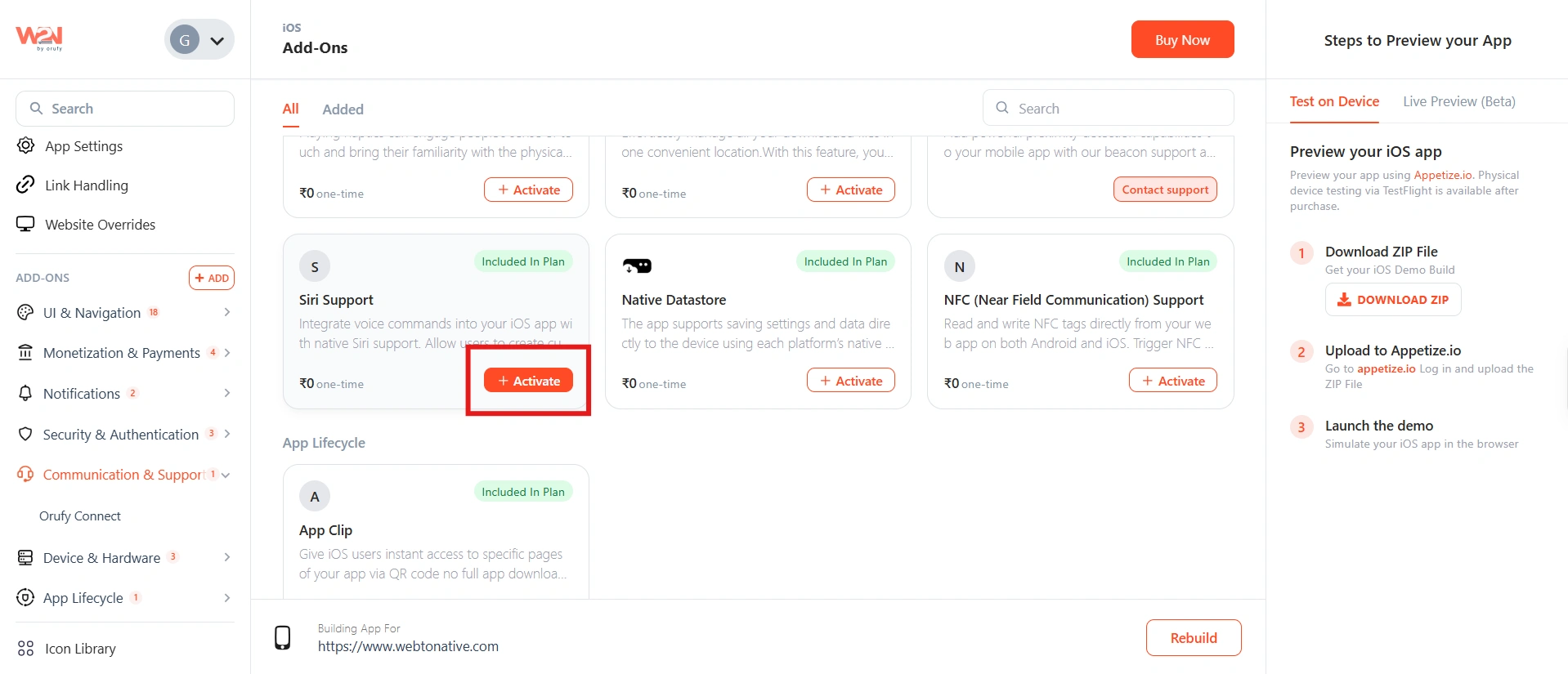
Rebuild and install the updated app before testing — calling addToSiri() without the add-on will do nothing.
Use the Javascript Function
Include the WebToNative JavaScript library in the <head> of your page before calling any WTN functions:
See The Script - https://docs.webtonative.com/javascript-apis/getting-started (opens in a new tab)
Then call the function with three parameters:
- title
- suggestedPhrase
- actionUrl
Full API reference for the Siri Add-on is in the WebToNative developer documentation. https://docs.webtonative.com/javascript-apis/add-to-siri-shortcut-ios-only (opens in a new tab)
Add an "Add to Siri" button
Call addToSiri() from a button or any trigger on your website. When the user taps it, the native iOS Siri add-shortcut prompt appears:
Place "Add to Siri" buttons on pages or features users visit frequently — order history, dashboards, profiles. The shortcut becomes most useful when it saves navigation to a place the user already returns to often.
What you can expose to Siri

Open a specific page
orders history, account dashboard, booking page, or any URL in your app.

Trigger a workflow
start a new order, begin a booking, open a frequently used form.

Access saved content
open a saved list, a pinned item, or a frequently viewed product.

Skip deep navigation
jump directly to a feature buried several taps deep, without opening the app and navigating.
Example user experience
Online store — "Open my orders" shortcut

User sees an "Add to Siri" button on the Orders page. They tap it.

iOS shows the native Siri shortcut prompt with the suggested phrase - Open my orders

User confirms and the shortcut is saved to their Apple Shortcuts app.

Next time, user says - Hey Siri, open my orders

Siri launches the app and navigates directly to the Orders page — no tapping, no searching.
Testing checklist
Siri Shortcuts rely on iOS system capabilities — test on a physical iOS device, not a simulator.
-
iOS app installed with the Siri Add-on included
-
WebToNative script tag is loaded in the page
<head>before any window.WTN calls -
Tapping "Add to Siri" triggers the native iOS Siri add-shortcut prompt
-
Shortcut appears in Apple's Shortcuts app with the correct title and phrase
-
Invoking via Siri voice command opens the app and navigates to the correct URL
-
"Add to Siri" button is hidden or not shown on the Android version of the app
Frequently Asked Questions
Can the user change the Siri phrase after adding the shortcut?
Yes — the suggestedPhrase you provide is a suggestion, not a fixed command. When the user adds the shortcut, iOS shows the phrase and lets them edit it to something they'll remember more naturally before saving. The phrase they save is what Siri will listen for.
Can I add multiple shortcuts for different parts of my app?
Yes — call addToSiri() with different title, suggestedPhrase, and actionUrl values on different pages or buttons. Each call creates a distinct shortcut. Place the most useful ones on pages users visit frequently — orders, dashboards, profiles, or key workflows.
Will this work on Android?
No — the Siri Add-on is iOS only. Calling addToSiri() from the Android version of the app will have no effect. Conditionally show or hide the "Add to Siri" button based on the platform the app is running on to avoid confusing Android users.
I called addToSiri() but nothing happened — what should I check?
The most common cause is a missing add-on. The function only works if the Siri Add-on is included in the app build — calling it without the add-on does nothing silently. Check that: (1) the add-on is enabled in the dashboard, (2) the app has been rebuilt and the new build is installed, and (3) the WebToNative script tag is loaded before the function is called.