


Pull To Refresh
Pull-to-refresh is a touchscreen gesture your users already know instinctively — drag the page downwards and release, and the content reloads. A spinning indicator appears while the data is fetched, then disappears when the page is fresh.
It gives users a manual override for moments when automatic updates haven't kicked in yet, or when they know something has changed and want to see it now — without closing and reopening the app.
iOS: Use the dashboard steps below. Pull-to-refresh on iOS is configured entirely through WebToNative — no code required.
Android: You can use the dashboard steps or trigger pull-to-refresh programmatically by calling a JavaScript function (https://docs.webtonative.com/javascript-apis/pull-to-refresh-api (opens in a new tab)) in your website's backend code.
When do users need to pull to refresh?

App isn't updating automatically
Background refresh may be delayed, throttled by the OS, or disabled. The user can see the content is stale, but has no way to fix it without pull-to-refresh.

Updates aren't frequent enough
The app refreshes every 5 minutes, but the user needs the latest data right now — before a meeting, before placing an order, before replying to a message.

Last refresh timed out
The app tried to fetch new data, but the request timed out due to a slow or unstable connection. A manual pull gives it another attempt.

Previous refresh hit a server error
The server returned an error on the last automatic update. The user can manually retry when they think the issue might be resolved.
How does Pull to Refresh benefit your users?

Users stay in control
When automatic updates fail silently, users aren't stuck. They can trigger a manual refresh and get immediate visual feedback that the app is working on it.

On-demand real-time data
Sometimes users want to read the current page without interruption, then fetch new data when they're ready. Pull-to-refresh gives them that choice — refresh only when you want to.
Self-service error recovery
If a refresh fails due to a timeout or server hiccup, users can retry it themselves — no need to close and reopen the app or contact support.

Familiar and intuitive
Pull-to-refresh is a universal mobile gesture. Users already know it from Gmail, Instagram, and X — no instructions needed, zero learning curve.
Where to Find It In Your Dashboard
My Apps ➡️ Edit your app ➡️ Add-ons ➡️ Ui & Navigation ➡️ Pull To Refresh
Steps to apply the Pull To Refresh to your app
Enable/Disable Toggle
Switch the Pull to Refresh toggle to ON to activate the feature. When it's OFF, the swipe-down gesture has no effect — content will not reload.
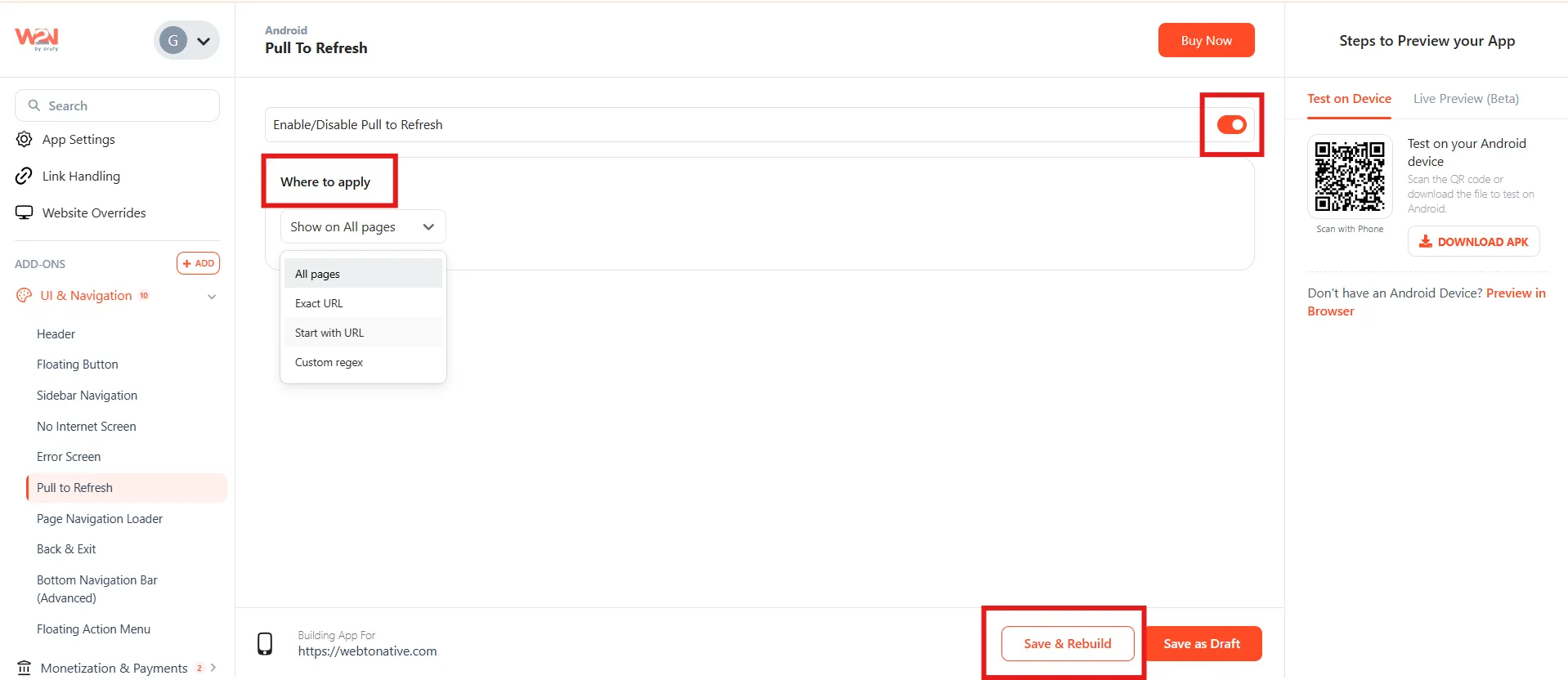
Choose Applicable Pages
Select where pull-to-refresh is active. You can enable it on every page, or limit it to specific pages or URL patterns where live data matters most.
All Pages
Pull-to-refresh is available everywhere in the app. The easiest option — good for apps where all content benefits from manual refresh (news, social, e-commerce). https://www.example.com
Exact URL
Pull-to-refresh activates only on this exact URL — nothing else. Use this for a single dashboard or feed page that updates frequently. https://www.example.com/support/addons
Start With URL
Any page whose URL begins with your chosen prefix gets pull-to-refresh. Use this for an entire blog, product section, or account area. https://www.example.com/blog → covers /blog, /blog/post-1, /blog/category...
Custom Regex
Write a regular expression to match exactly the pages you need. The most flexible option — for developers who need precise control over which URLs qualify. ^https://www\.example\.com/(feed|dashboard)
Save & Rebuild
Click Save and rebuild your app to apply and see the changes.
Frequently Asked Questions:
1. Does pull-to-refresh reload the whole app or just the page?
It reloads only the current page — the equivalent of a browser refresh on that specific URL. The rest of the app (navigation, other pages) remains unchanged. The user stays on the same page after the reload completes.
2. Can I enable Pull-to-refresh on some pages but not others?
Yes — that's exactly what the URL options are for. Use Exact URL to enable it on one specific page, Start with URL to cover an entire section (like all pages under /account/), or Custom Regex for advanced patterns. You can leave it off on pages like checkout flows where accidental refreshes would lose form data.
3. Why should I NOT enable pull-to-refresh on every page?
Some pages should not be accidentally refreshable — particularly checkout pages, payment flows, and multi-step forms. A user pulling down on a checkout form would lose their input and have to start over. Limit pull-to-refresh to pages with dynamic content (feeds, dashboards, account data) and exclude sensitive transactional flows.