



Error Screen
Error screen customization allows you to display a fully custom screen when a webpage fails to load inside your mobile app. Rather than showing a blank screen or a generic browser error screen, customize your screen with an image, messages, and a button. This keeps the user experience intuitive and consistent inside the app.
| ✘ Without Customization | ✔ With Customization |
|---|---|
| Generic white browser error screen appears | Your illustration fills the screen |
| Technical error language confuses non-technical users | Your friendly message in your brand voice |
| User is stuck with no clear path forward | Action button gives users a clear next step |
| User closes the app in frustration | Users trust the app and stay engaged |
How to Customize the Error Screen for Your App Screen
Navigate to Add-Ons ➡️ UI & Navigation ➡️ Error Screen
The Error Screen settings apply to both Android and iOS mobile apps.
Enable Show Error Screens
Enable the toggle on Show Error Screens at the top of the page to activate the custom error screen to appear when a webpage fails to load.
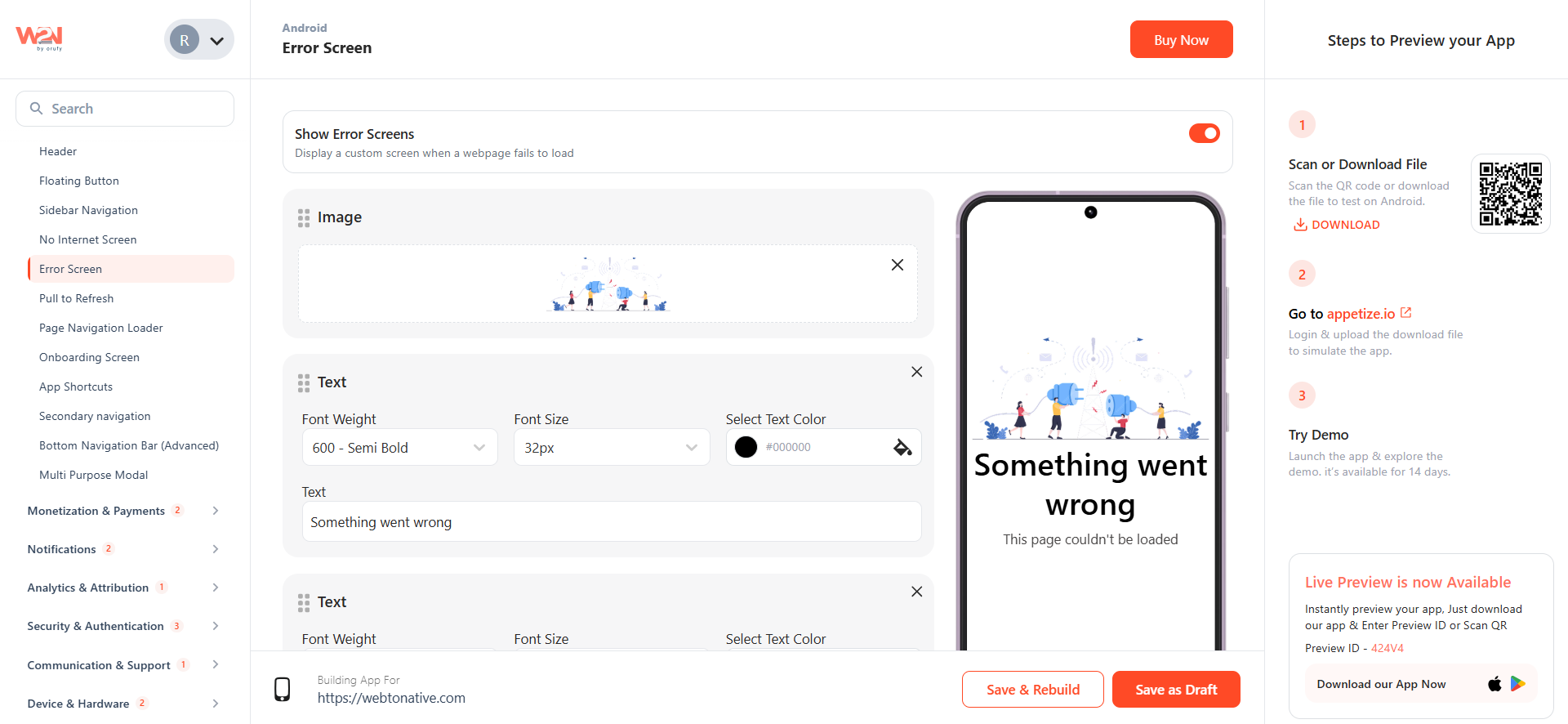
Add An Image (Optional)
Upload an image to display on the error screen. A clean and simple illustration is ideal. The image should be in .PNG or .JPG file format.
Add A Text
Under the Text field:
-
Font Weight: Select from the drop-down menu how thick your text must be shown.
-
Font Size: Choose from the drop-down menu the size of your text.
-
Text Color: Pick a color from the palette for the text.
-
Text: Enter your text to be displayed on the screen.
You can add up to four text fields from the + Add More Text button.
Customize the Action Button
Under Styling & Action Button:
-
Background Color: Choose the color from the palette for the screen background.
-
Top Margin: Set the spacing from the top of the screen.
-
Border Corner Type: Choose the button shape, either Rounded Corner or Square.
-
Text Color: Choose the color for the button label text.
-
Background Color: Select the background color for the button.
-
Border Color: Choose the border color for the action button.
-
Add Button Text: Enter the label for the action button.
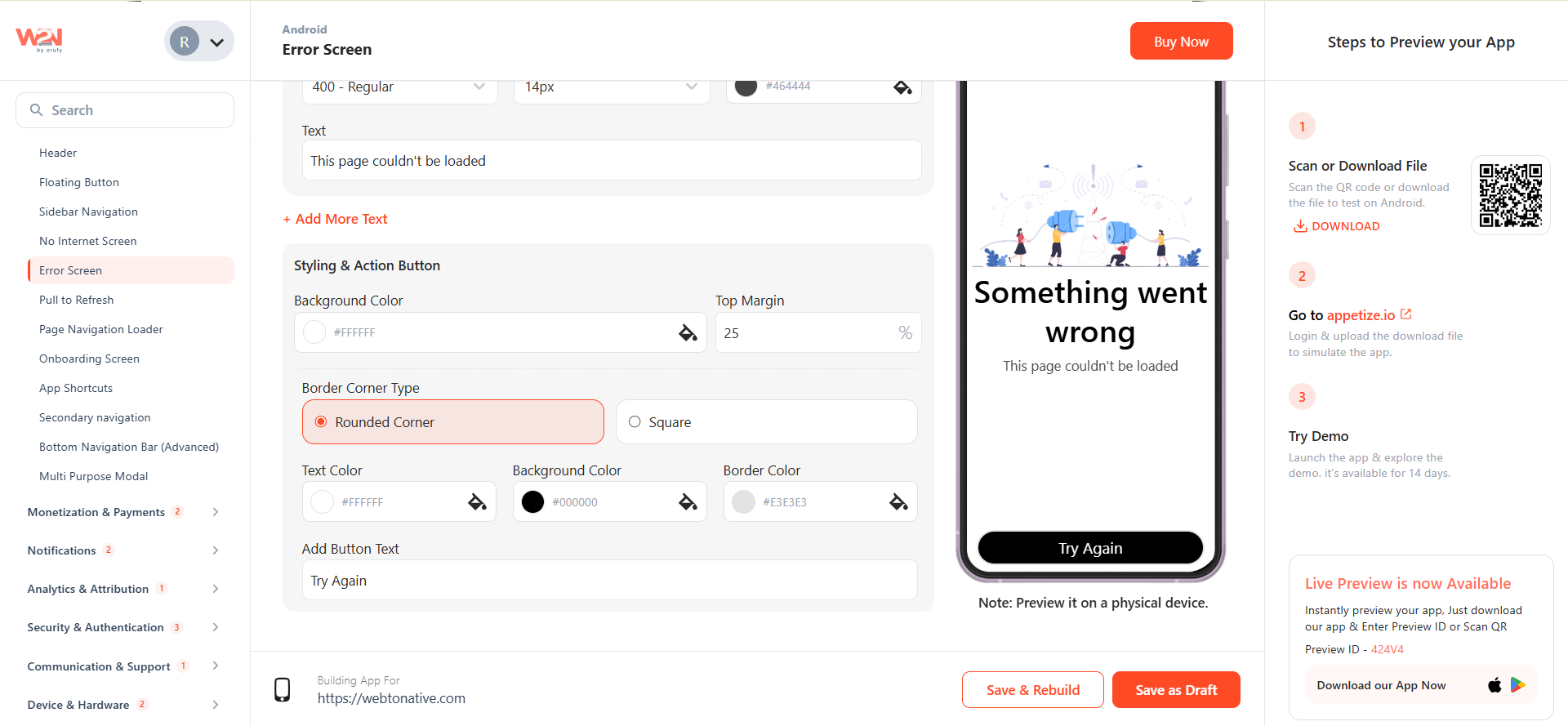
Click on Save to make your changes live.