


In-App Update
Normally, a user on an outdated version would have to notice the app is old, open the App Store or Play Store, find your app, and manually tap Update — a process most users skip entirely.
In-App Update intercepts this. When a new version is available, your app shows an update prompt directly on screen — branded, clear, and immediate. For mandatory updates, the app blocks access until the user completes the update. For optional updates, you control how often the prompt appears, so it's helpful rather than annoying.
The add-on will only work after you build, purchase, and publish your app on the App Store. It is included free with your Premium plan on Android and iOS, and you can unlock it from your Pro plan.
Where to find it in your dashboard
My Apps ➡️ Edit your app ➡️ Add-ons ➡️ Device and Hardware ➡️ In-App Update
Steps to apply the In-App Update to Your Android App
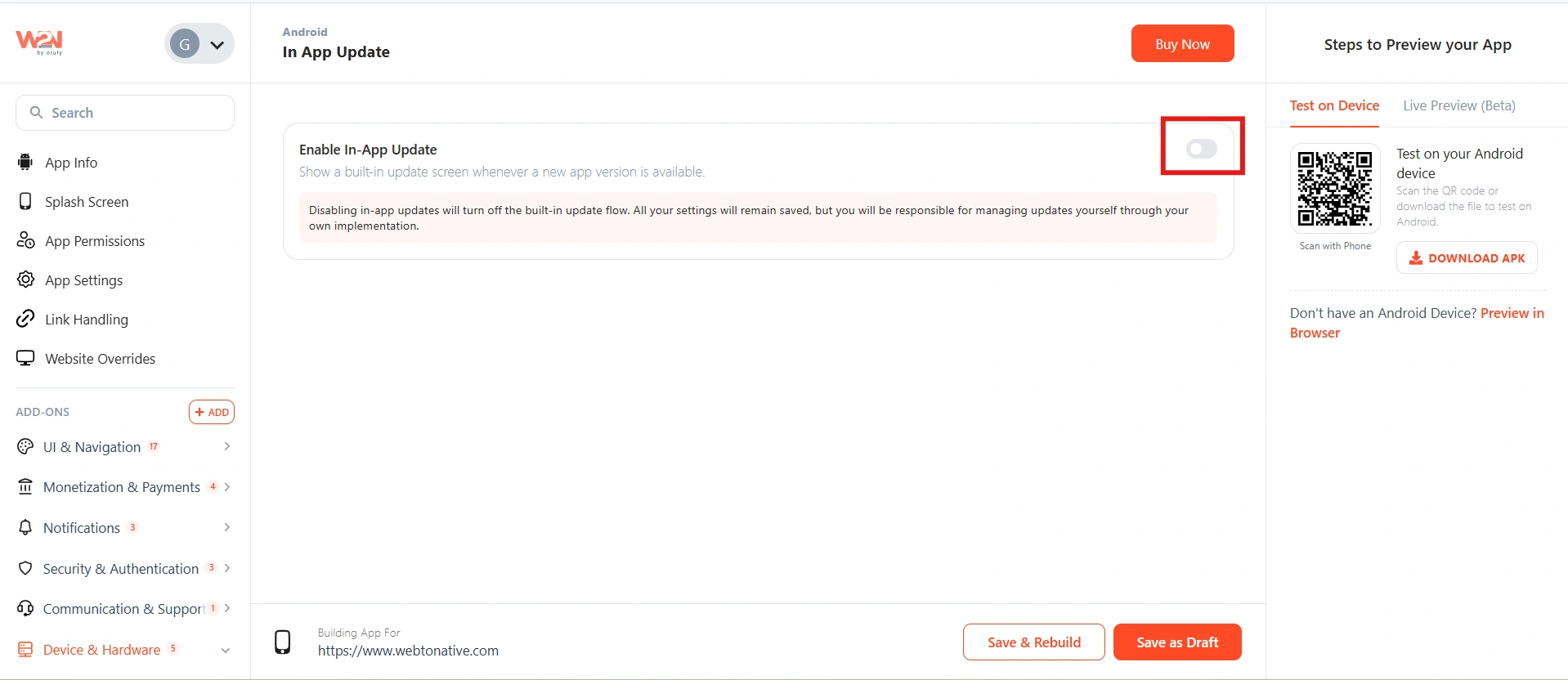
Enable or disable the add-on
Switch the toggle to ON to activate In-App Update.
When the toggle is OFF, the built-in update prompt is disabled — users would need to go to the App Store or Play Store manually to update, or you can implement your own update logic.
Choose the distribution method
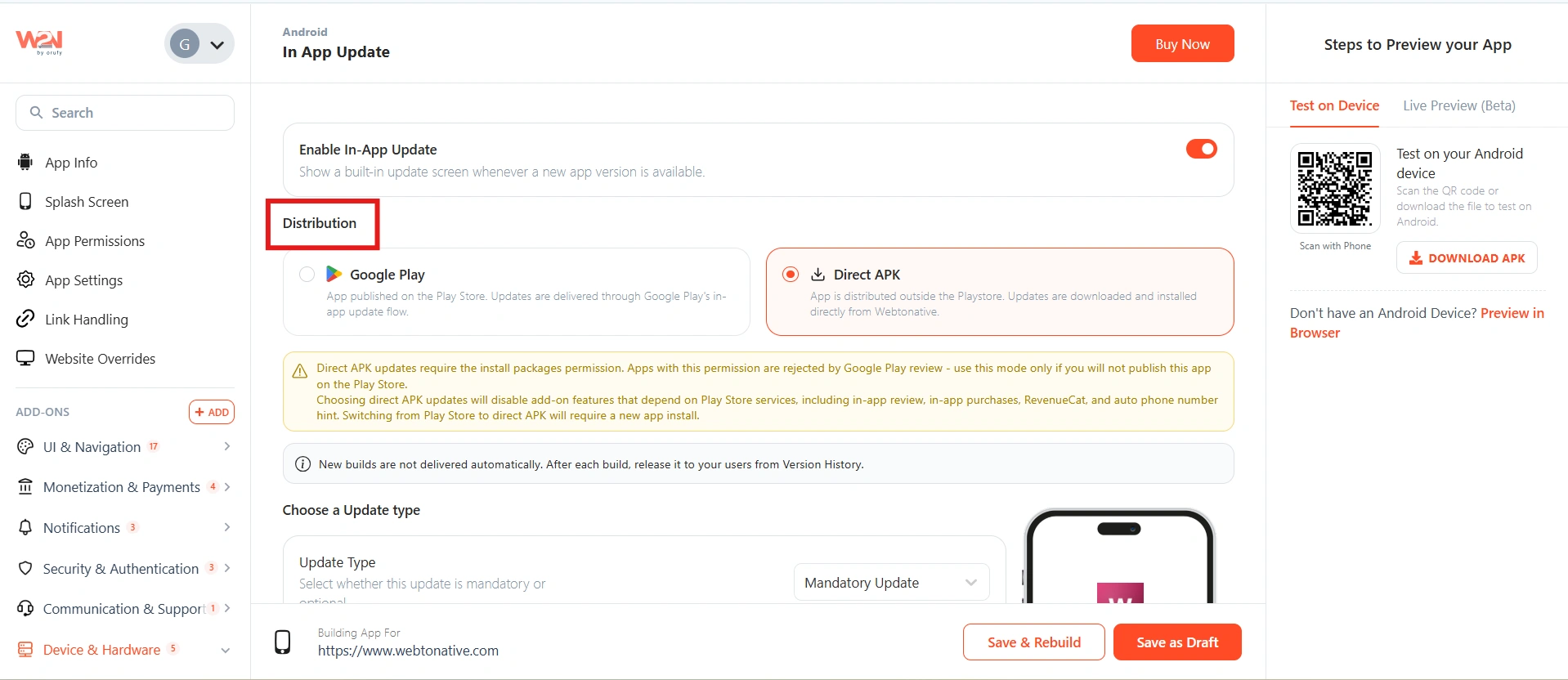
Select where users get the update from. This choice has major consequences — read the Direct APK notes carefully before selecting it.

Play Store
The standard method. Updates are delivered through Google Play.
Direct APK
Updates are delivered by installing an APK directly, outside the Play Store.
Direct APK is available only for Android apps.
If you choose Direct APK, be aware:
Google Play will reject the app. Direct APK updates require the REQUEST_INSTALL_PACKAGES permission. Apps with this permission are rejected during Google Play review. Use this mode only if you are not publishing to the Play Store.
Play Store-dependent add-ons stop working. Choosing Direct APK disables every feature that relies on Play Store services — including In-App Review, In-App Purchases, RevenueCat, and Auto Phone Number Hint. If your app uses any of these, do not use Direct APK.
Switching from Play Store to Direct APK requires a fresh install. Existing users won't transition automatically. Users must download and install the app directly from the APK first — only then will they receive the updated version through the Direct APK flow.
Use a custom in-app update screen
Enable a custom update screen with your own branding and content — your own text, styling, and visuals. Disable this option to use the default update experience provided by Google Play instead.
Turn this ON if you want the update prompt to match your app's look and feel. Leave it OFF to use Google's standard, familiar update UI with no customisation needed.
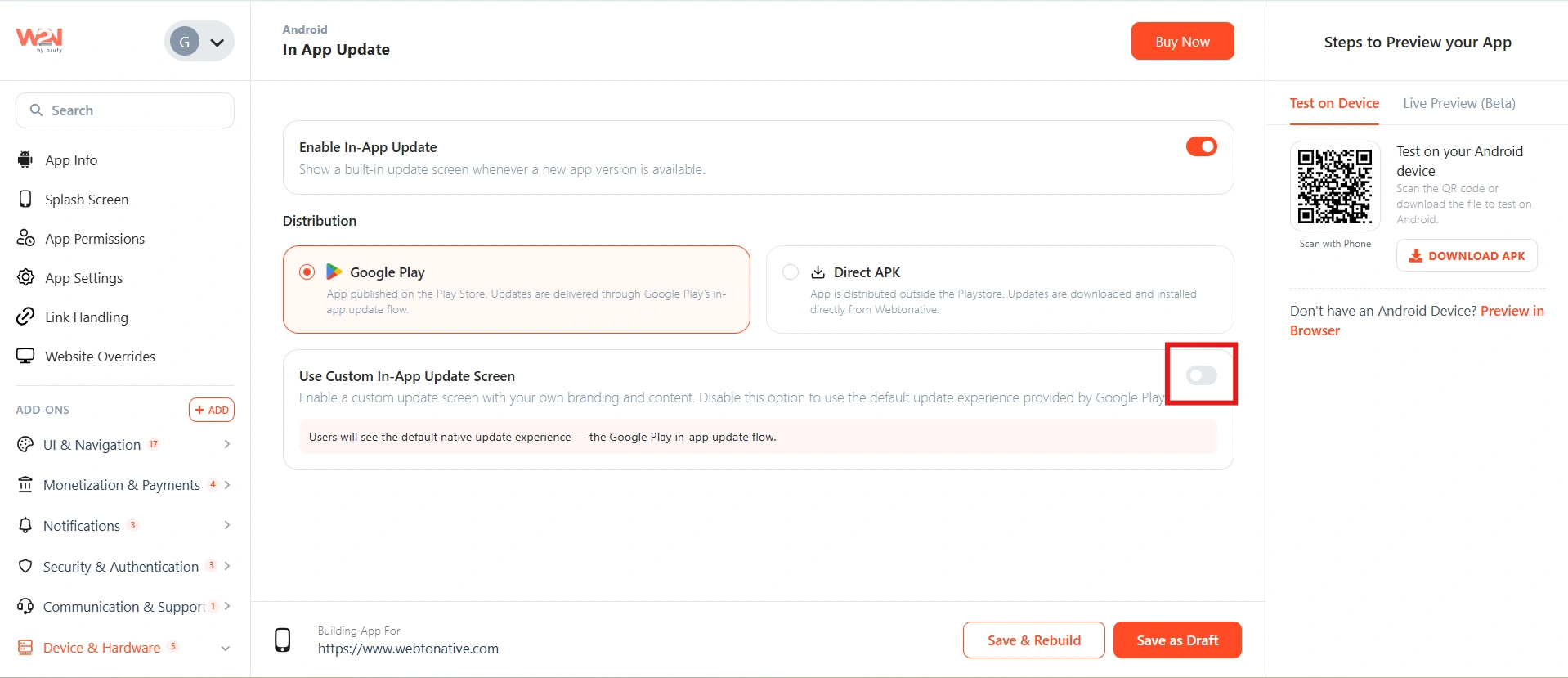
When you choose Direct APK as the distribution method, the custom in-app update screen is present by default.
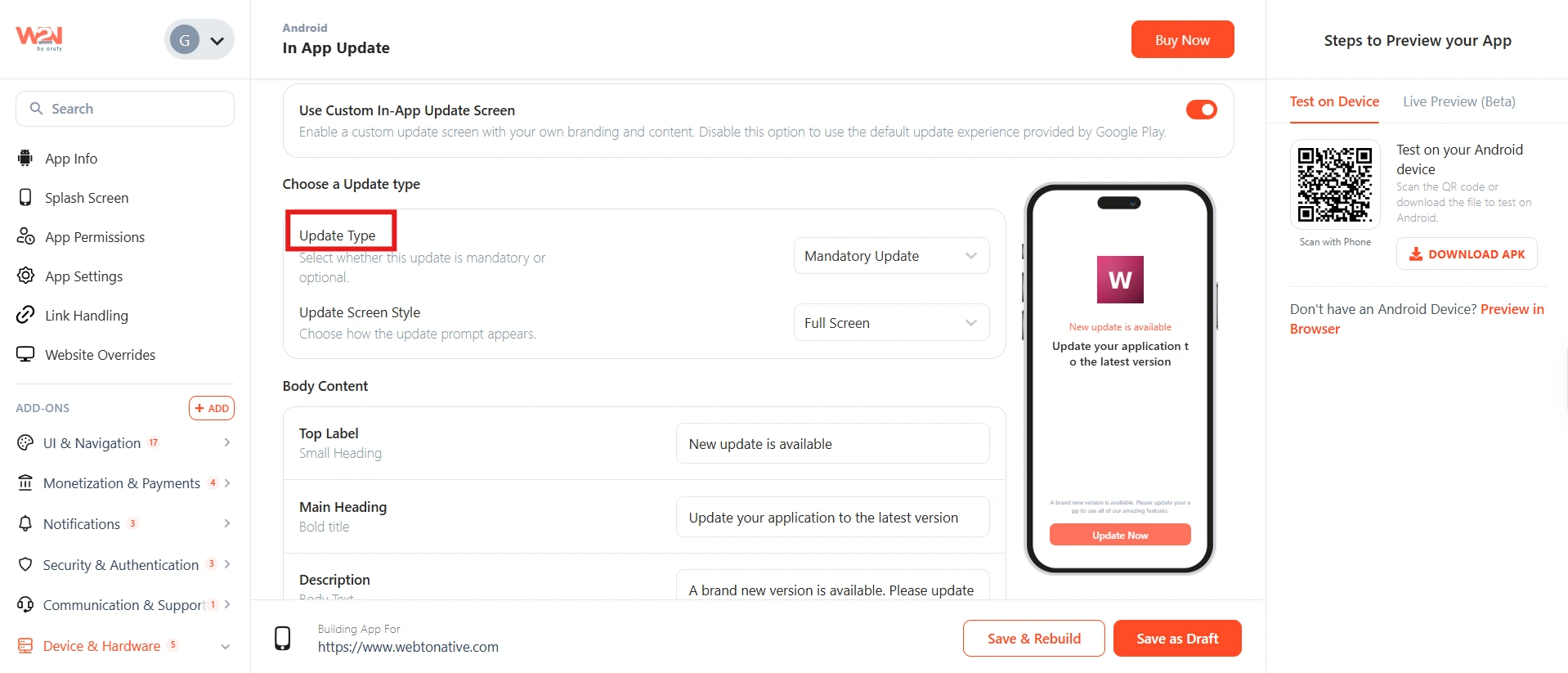
Choose update type
Select how the update is presented to users. This is the most important decision — it controls how much flexibility users have.
Mandatory
The update prompt blocks the entire app. Users cannot use the app at all until they install the update. Use this for critical bug fixes, security patches, or when an old version is no longer compatible with your backend.
Optional
Users see the prompt but can choose to Update Now or Update Later. Tapping Update Now begins downloading the update immediately. Once downloaded, the user is asked whether to install now or later.
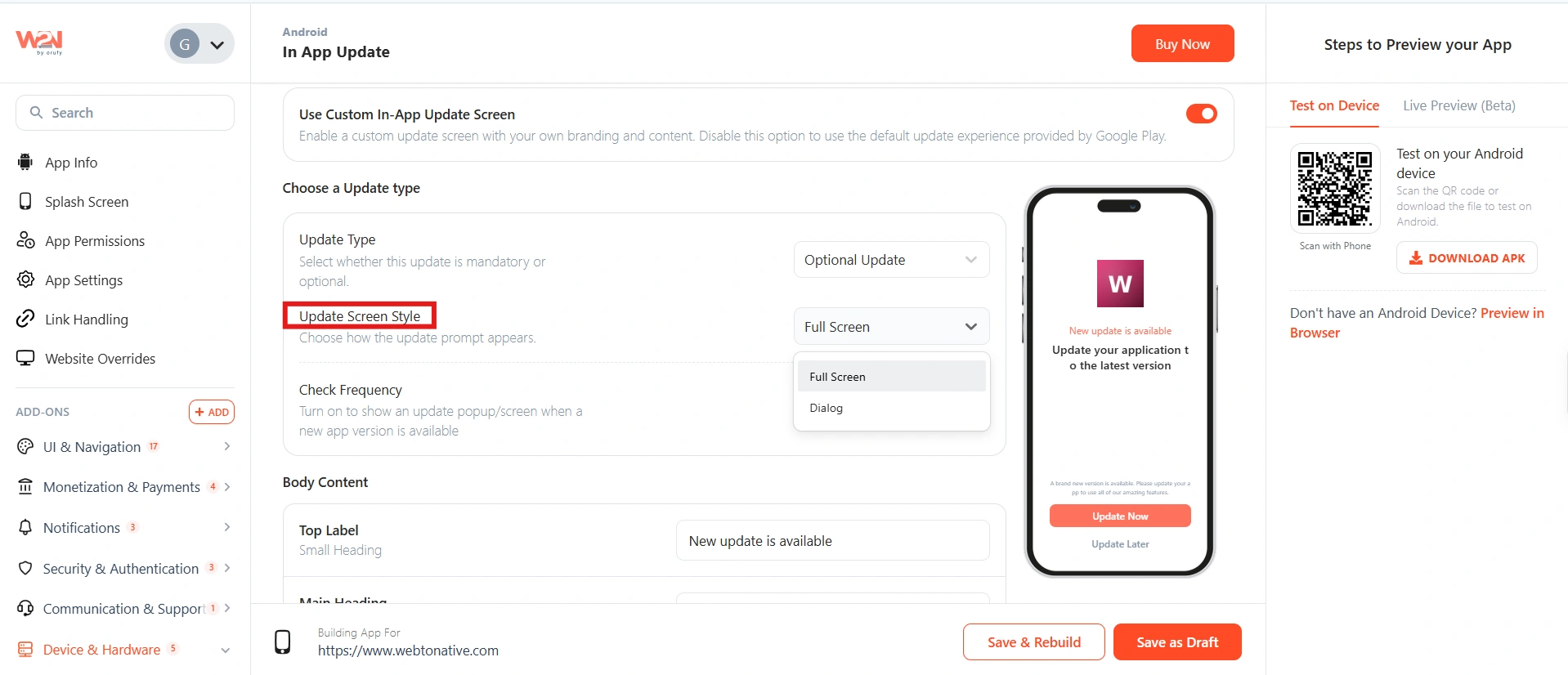
Choose Update Screen Style
Select how the update prompt is displayed to the user — as a full-screen takeover or as a dialog over the current screen.
Full Screen
Covers the entire app. High visibility — best for mandatory updates where you want to make the requirement unmissable.
Dialog
A popup over the current screen. Less disruptive — best for optional updates where users can still see what they were doing.
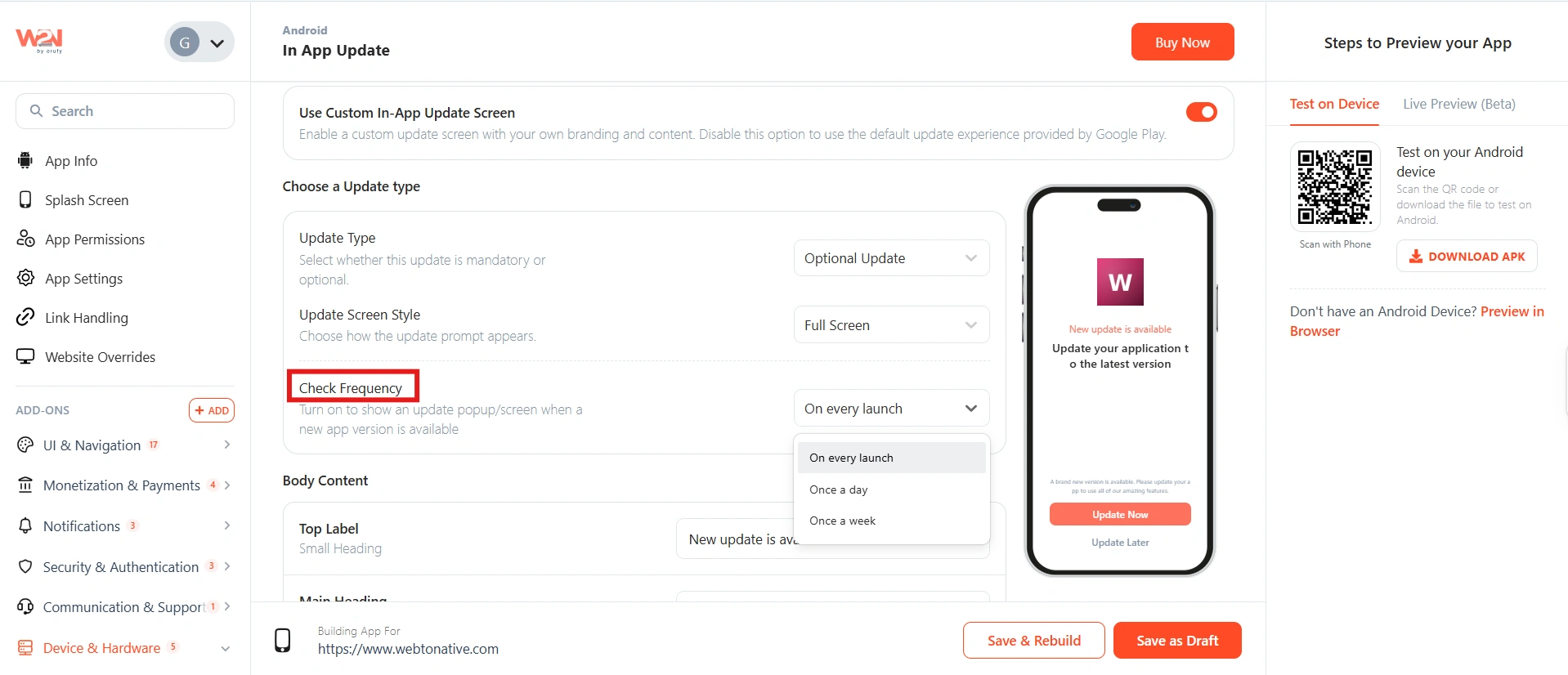
Check Frequency
You can also control how often the prompt reappears in the app.
-
On every launch
-
Once a day
-
Once a week
This option will only appear if you have chosen the update type as Optional Update.
Write the body content
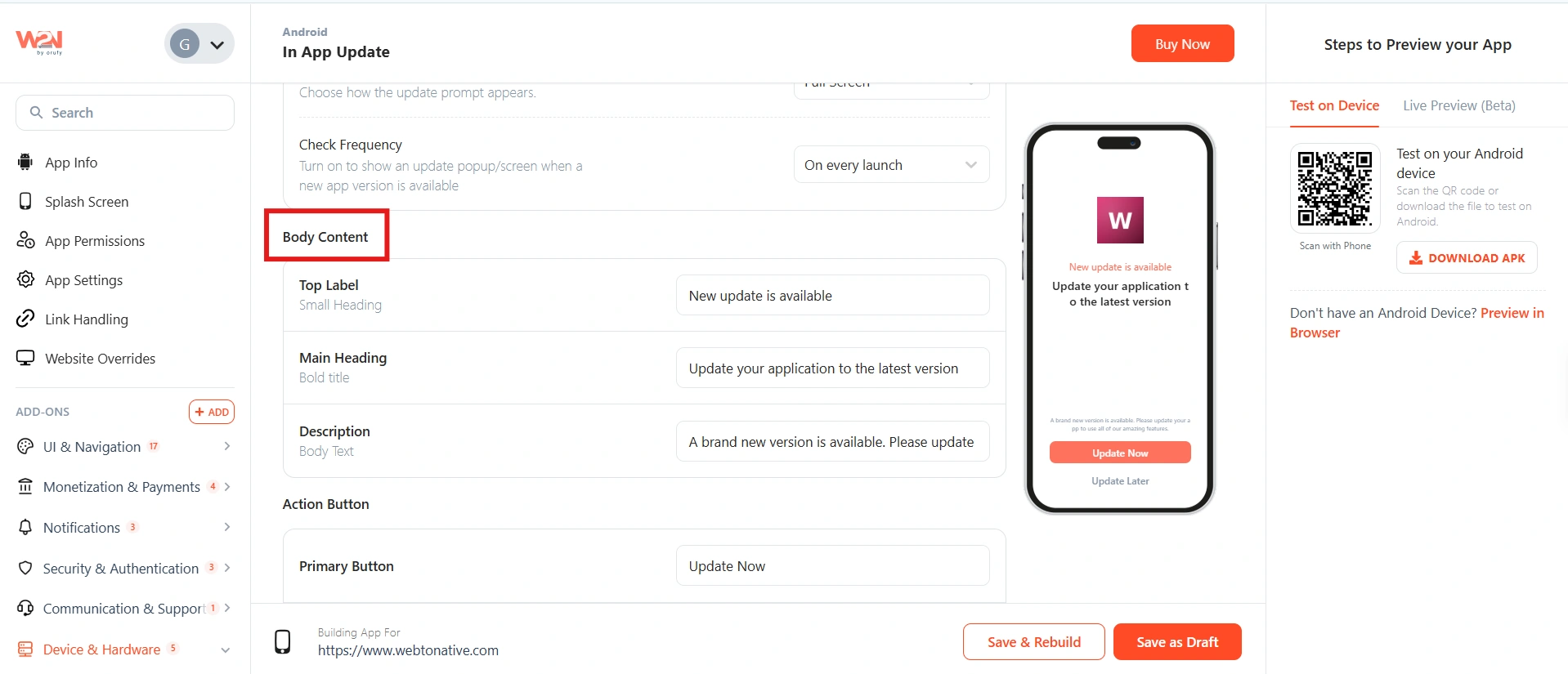
Customize the text that appears on the update screen.
Top Label
A small, understated heading that appears above the main title. Sets the context before the main message.
Main Heading
The bold primary title — the most prominent text on the update screen. Should be direct and action-oriented.
Description
Supporting body text that explains what the update contains or why it matters. Keep it brief — one to two sentences is enough.
Keep all three fields short. Users on an update prompt are not reading an essay — they want to know why and what to do. A clear heading and a single-sentence description is ideal.
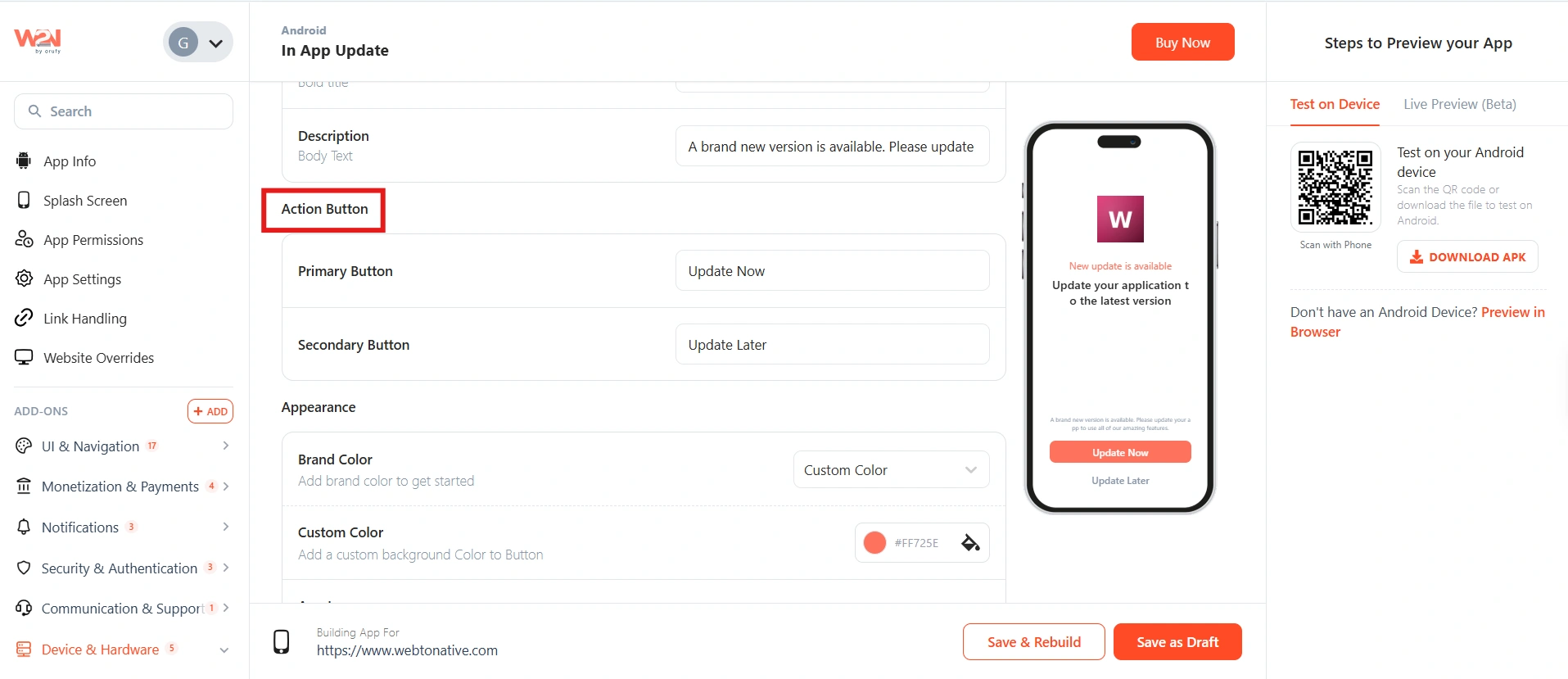
Set the action buttons

Primary Button (both update types)
The main call-to-action button is shown on both mandatory and optional updates. Label it clearly. Recommended: "Update Now".

Secondary Button (optional updates only)
Available only when update type is Optional. This is the "dismiss" button that lets users skip the update for now. On mandatory updates, there is no secondary button — the only option is to update. Recommended: "Later" or "Remind Me".
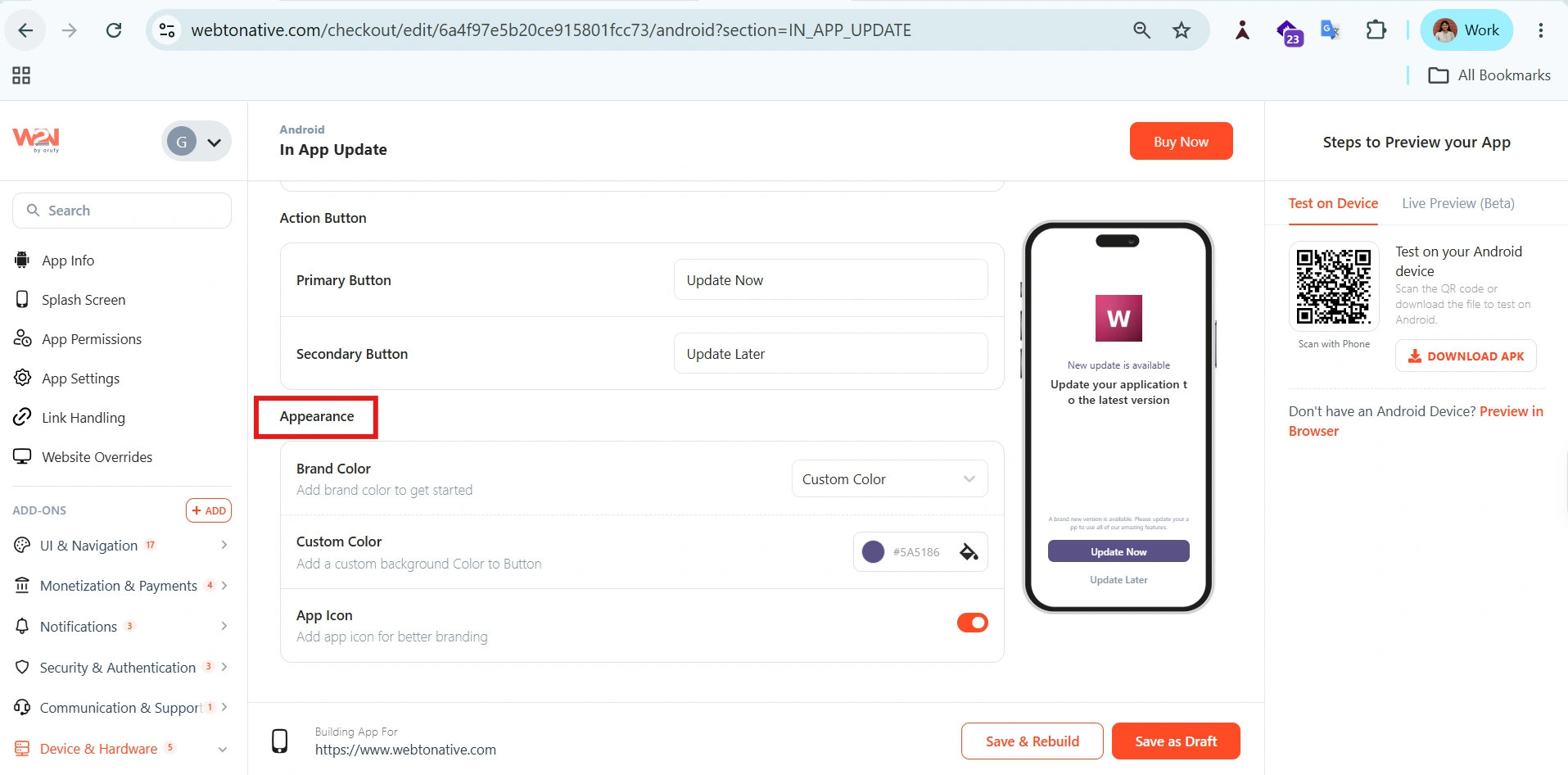
Set the appearance
Customize the visual appearance of the update prompt to match your app's branding.

Brand Color
Sets the color of the primary action button. Use your app's primary brand color so the button feels native to your app.
App Icon
Toggle whether to show your app icon on the update screen. When ON, the app icon configured in App Info is displayed at the top of the prompt.
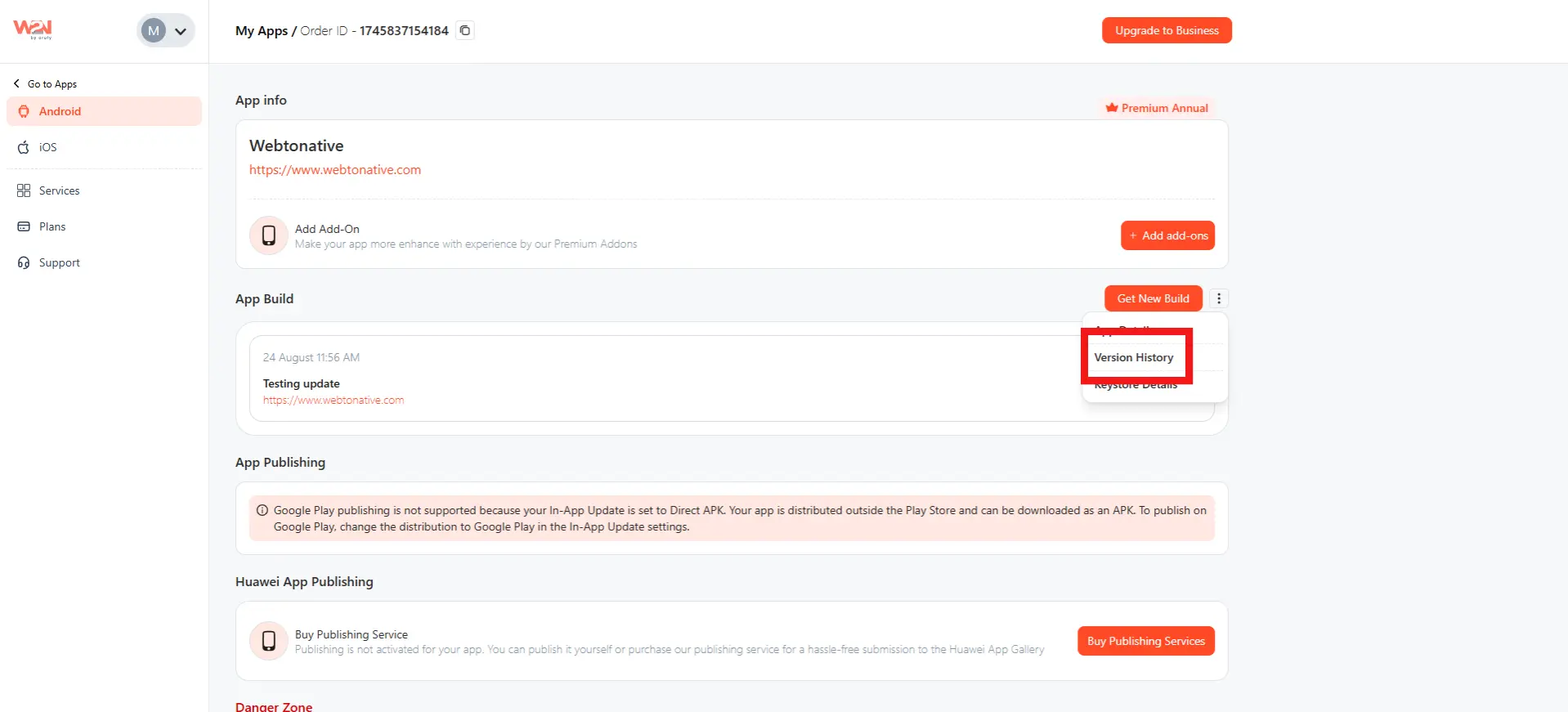
Release the new version
This additional step matters only for Direct APK distribution method.
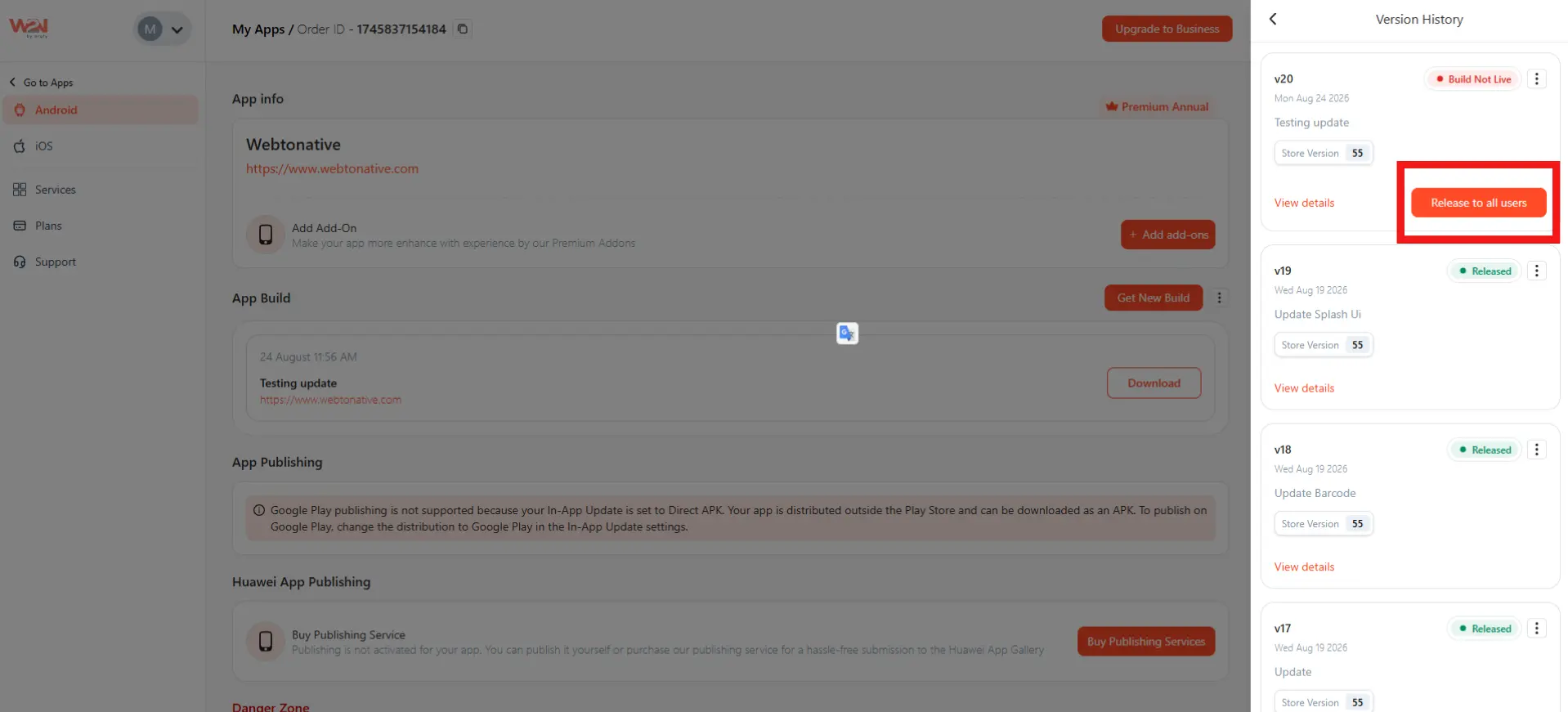
- Open Version History from the App Build menu.
-
Find the version you want to push live.
-
Click Release to All Users.
- Add a release note. This will be shown to all users.
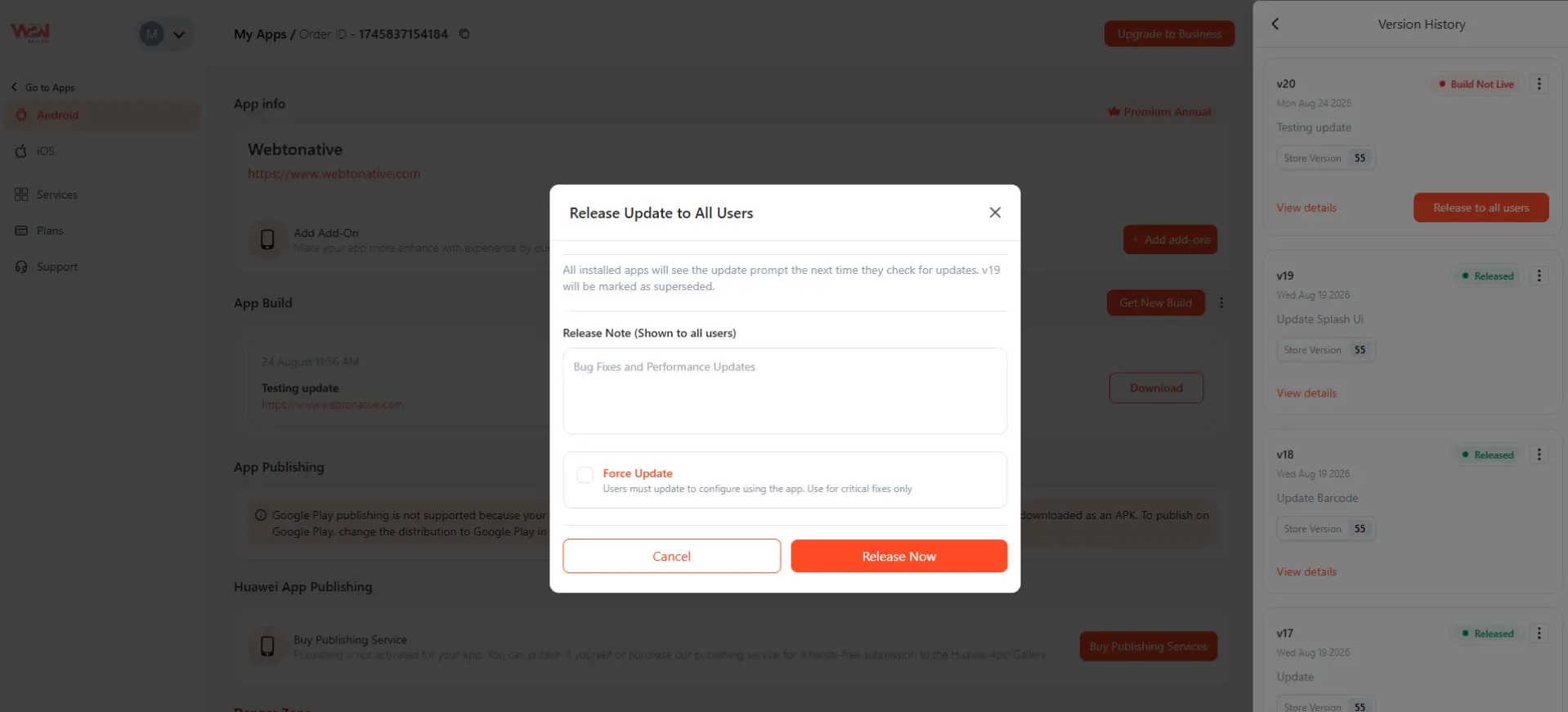
- Turn on Force Update if you want to make this update mandatory.
If you check the Force Update box, users will not be able to use the app without updating it. Users can only close the app but cannot continue using it until they install the update. This also overrides your dashboard setting. Even if Update Type was set to Optional, it becomes Mandatory once you check this box.
- Click Release Now.
Users will only start seeing the in-app update screen after this release is done. Turning on the toggle and setting up the screen alone is not enough for Direct APK.
Submit for App Build
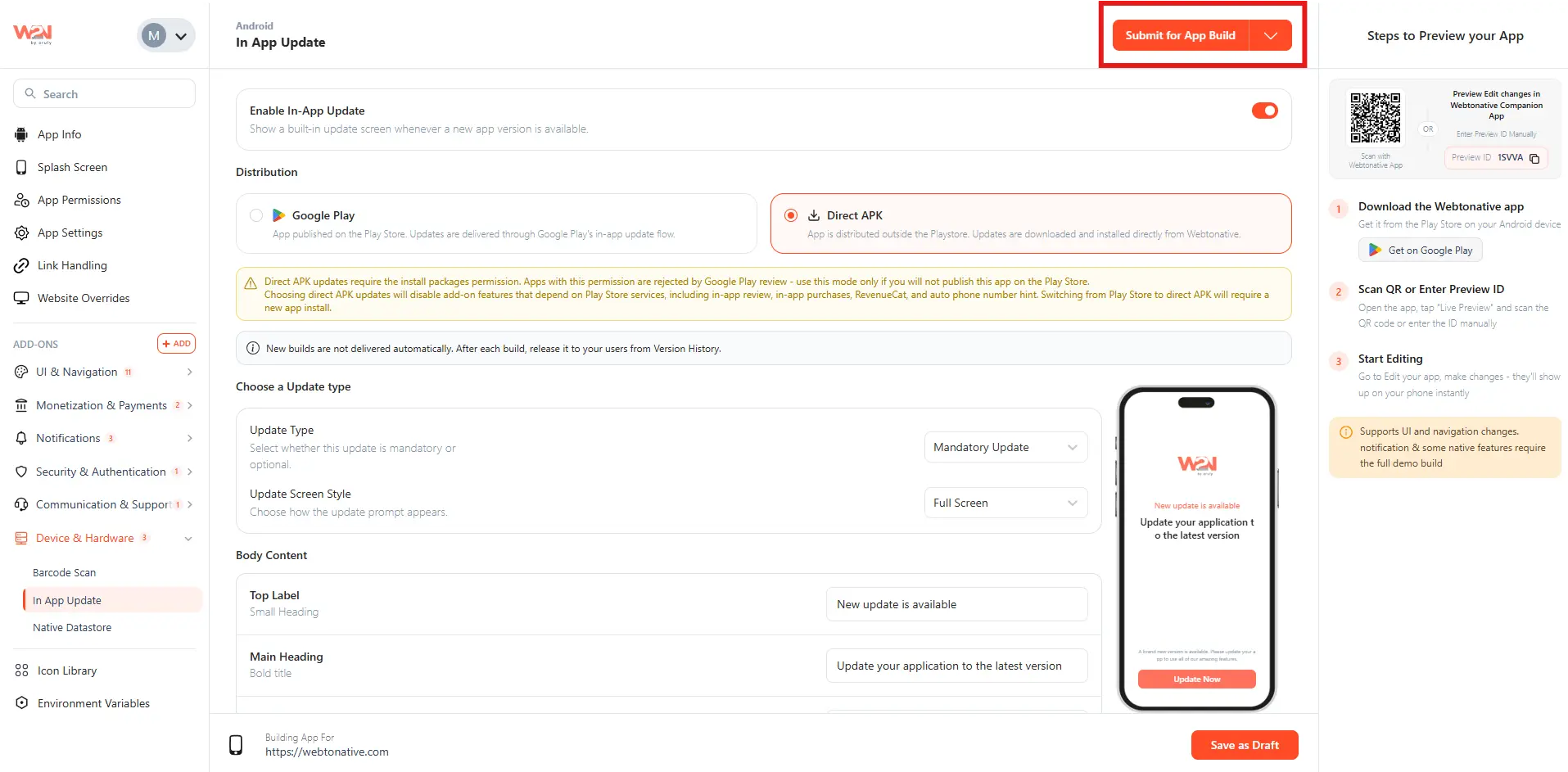
Android
Click on Submit App Build once you have done setting things up. This packages your In-App Update settings into a new build, which you can release to your users through the normal build process.
iOS
Click on Submit App Build after configuring your settings. The next build you submit and get approved on the App Store will include your updated In-App Update screen and settings.
JavaScript API — advanced control
In addition to the dashboard configuration, you can control In-App Update directly from your website's JavaScript. Three functions are available — useful for triggering the prompt on a specific page, button tap, or custom condition.
1 checkIfAppUpdateAvailable()
Checks whether a newer version of the app is available on the store — without showing any UI. Use this to silently verify whether an update exists before deciding whether to show a prompt, display a badge, or take any other action in your website.
2 updateApplication()
Triggers the platform's native update flow programmatically — with your choice of update mode. Use immediate to block the user until the update is installed, or flexible to download in the background while the user keeps using the app. This gives you full control over when and how the update starts from your own JavaScript logic.
The flexible and immediate options apply only on Android. On iOS, this JavaScript function will simply redirect the user to the App Store to update the app.
3 showInAppUpdateUI()
Displays the native In-App Update UI — the same prompt configured in the dashboard — but triggered from JavaScript. Use this to show the update prompt on a specific page, after a specific action, or via a button on your website, rather than automatically on app launch.
Full code examples, parameter details, and response formats for all three functions are in the developer documentation. https://docs.webtonative.com/javascript-apis/in-app-update (opens in a new tab)
Frequently Asked Questions
What happens if I use Mandatory — can users ever dismiss it?
No. With a mandatory update, the prompt completely blocks the app — there is no dismiss button, no "Later" option, and no way to continue using the app without installing the update. The only action available is to proceed with the update. Use this sparingly for truly critical releases.
What does "Once a week" frequency mean for optional updates?
If a user dismisses the optional update prompt, the app will not show it again for 7 days — even if the user opens the app every day. After 7 days, the prompt reappears. Once a day means it reappears on each new calendar day after a dismissal. Every launch means it appears every single time the app is opened until the user updates.
Can I check whether an update is available without showing a prompt?
Yes — use checkIfAppUpdateAvailable(). It silently checks the store for a newer version and returns isUpdateAvailable (true/false) and latestVersion (the latest version string) without displaying any UI. Use this to show a custom indicator in your website — like a badge or banner — before triggering the full prompt.
What is the app icon shown on the update screen?
It's the same app icon you configured in App Info in your WebToNative dashboard — the icon that appears on the user's home screen. Enabling the app icon on the update screen adds brand recognition, helping users immediately identify which app is asking them to update.