



Back & Exit for iOS
Disable Back Button
By default, Back & Exit is disabled. The app follows your website’s standard navigation flow and uses iOS's default navigation behavior.
When the Disable Back Button toggle is turned OFF:
-
Users can navigate back normally using the available navigation controls
-
No URL matching rules are applied
-
iOS's default navigation behavior remains active
-
No pages are restricted from back navigation
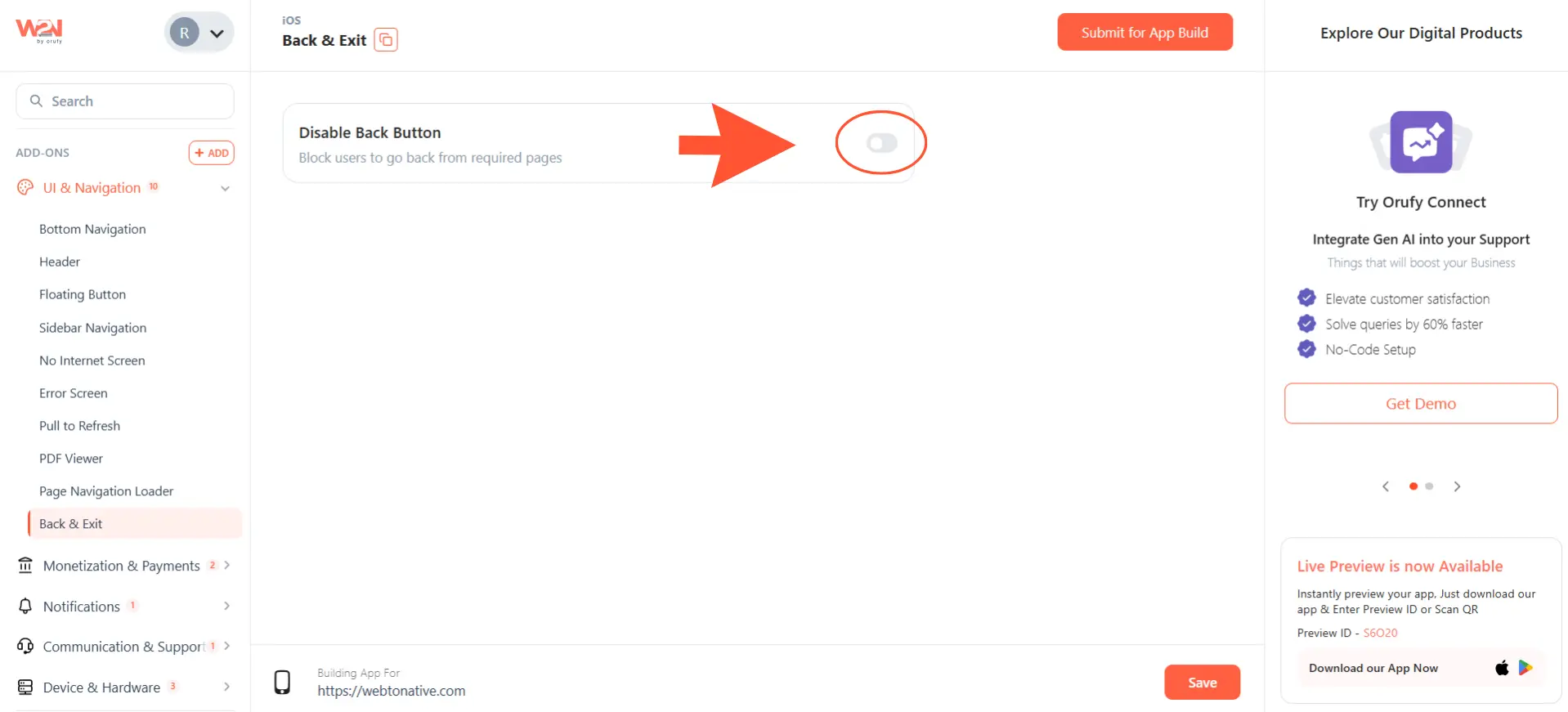
Enable Back Button
Enable Disable Back Button to prevent users from returning to previous pages using iOS navigation controls on selected pages.
When enabled, users will not be able to go back using the navigation bar's back button or the swipe-back gesture on the pages you choose.
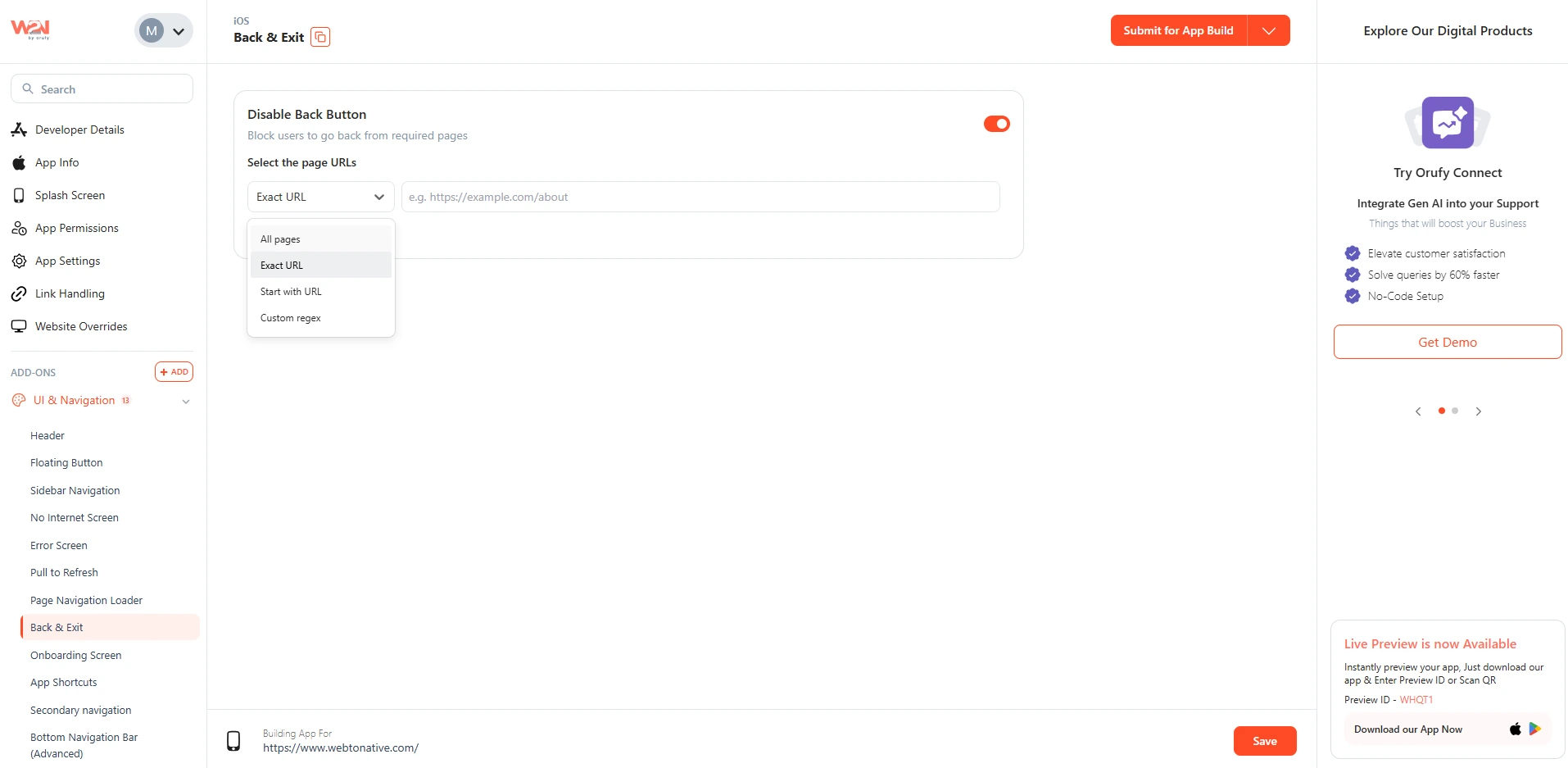
Select the Page URLs
Choose the pages where you want to restrict back navigation.
1. All Pages
If selected, back navigation will be disabled throughout the entire app.
Restricting back navigation on all pages may make it difficult for users to move around the app. Make sure alternative navigation options, such as a sidebar menu, bottom navigation bar, or in-app links, are available.
2. Exact URL
If selected, back navigation will be restricted only on the specified page.
For Example, https://www.webtonative.com/pricing (opens in a new tab)
Users will not be able to navigate back when viewing the pricing page.
3. Start with URL
If selected, back navigation will be restricted on all pages whose URLs begin with the specified path.
For Example, https://www.webtonative.com/blog (opens in a new tab)
Users will not be able to navigate back on any page under the /blog section.
4. Custom Regex
If selected, back navigation will be restricted on pages whose URLs match the specified regular expression.
For Example, https://www.webtonative.com/blog/ (opens in a new tab).*
Users will not be able to navigate back to any page within the blog section of your website.
Custom Regex is intended for advanced users who are familiar with regular expressions.