


OS Custom Sound
A custom notification sound is a unique audio file that plays when a push notification arrives — instead of the phone's standard default tone. It lets users recognise your app's alerts by ear alone, without looking at the screen.
With WebToNative, you can use a custom sound for both Firebase and OneSignal push notifications. Choose different sounds for different notification types — one for orders, one for chat messages, one for reminders — so each alert is instantly identifiable.
This add-on is included free with your Pro plan on Android and iOS, and you can unlock it from your Starter plan.
Where to find it in your dashboard
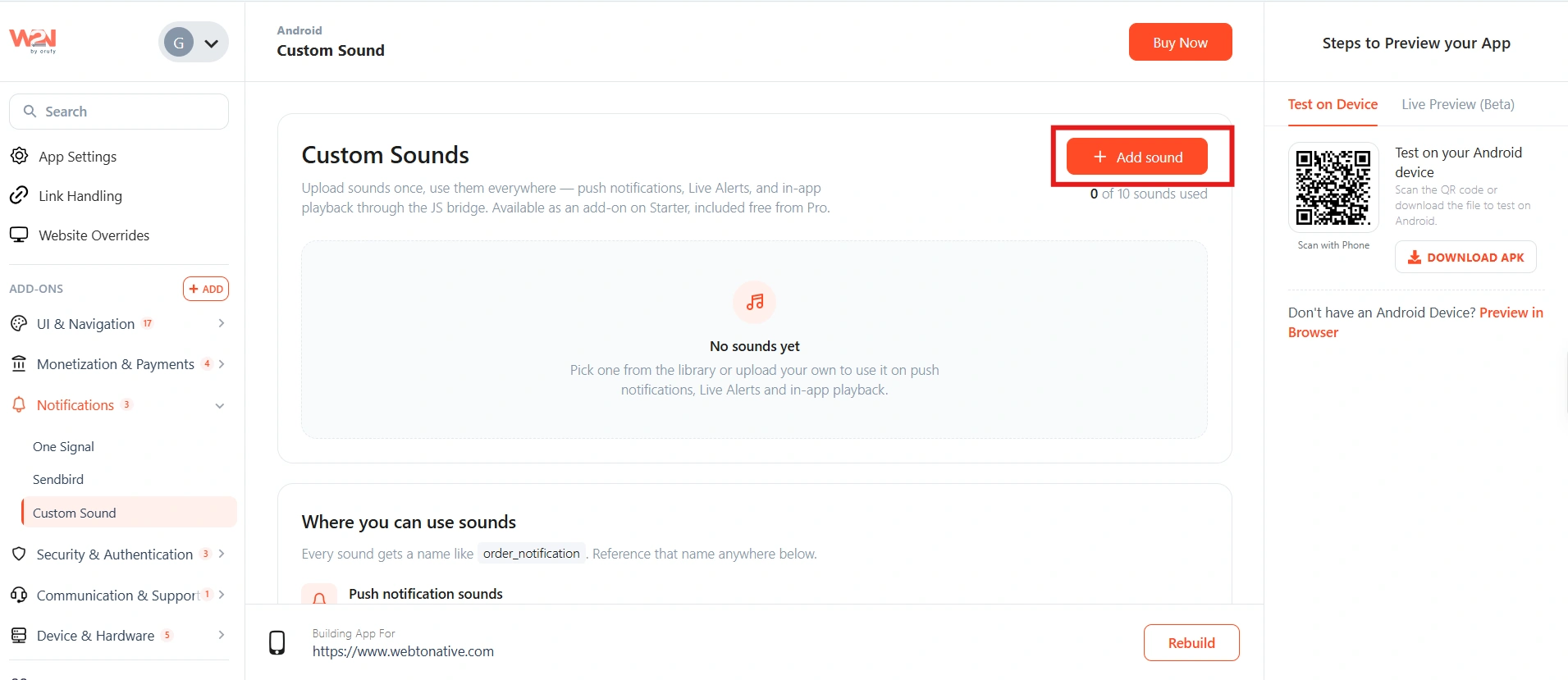
My Apps ➡️ Edit your app ➡️ Add-ons ➡️ Notifications ➡️ Custom Sound
Why custom sounds matter

Instant recognition
Users know whether an alert is a work email, a text, or a social update — without looking at their phone.

Better prioritisation
An important message — an order, a payment, a family alert — can have a sound that stands out from the rest.
Immediate attention
Users pay immediate attention to important notifications through a sound that signals urgency.

Brand personality
A distinctive sound makes your app instantly memorable — users hear it and immediately think of you.
How to set up custom sound?
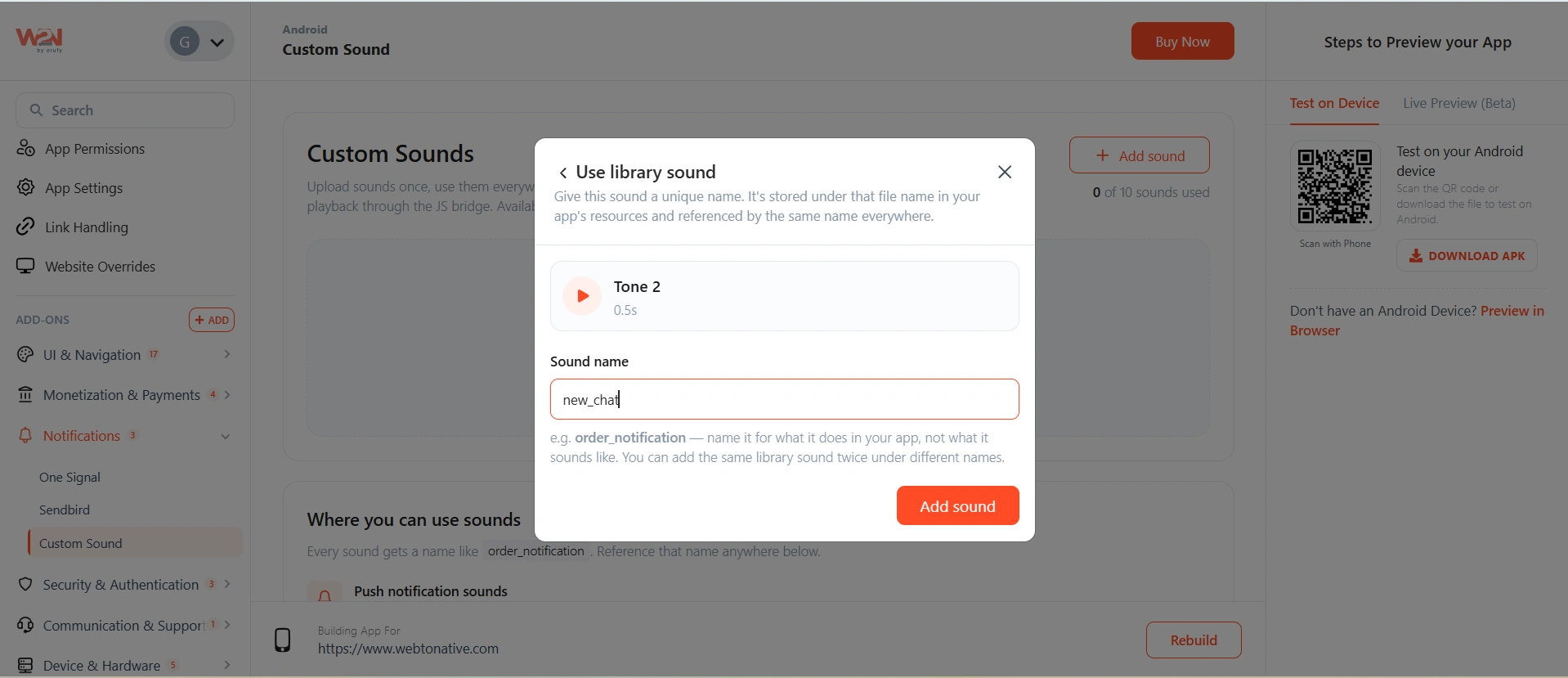
Add sounds to your app
In your WebToNative dashboard, add the sounds you want.
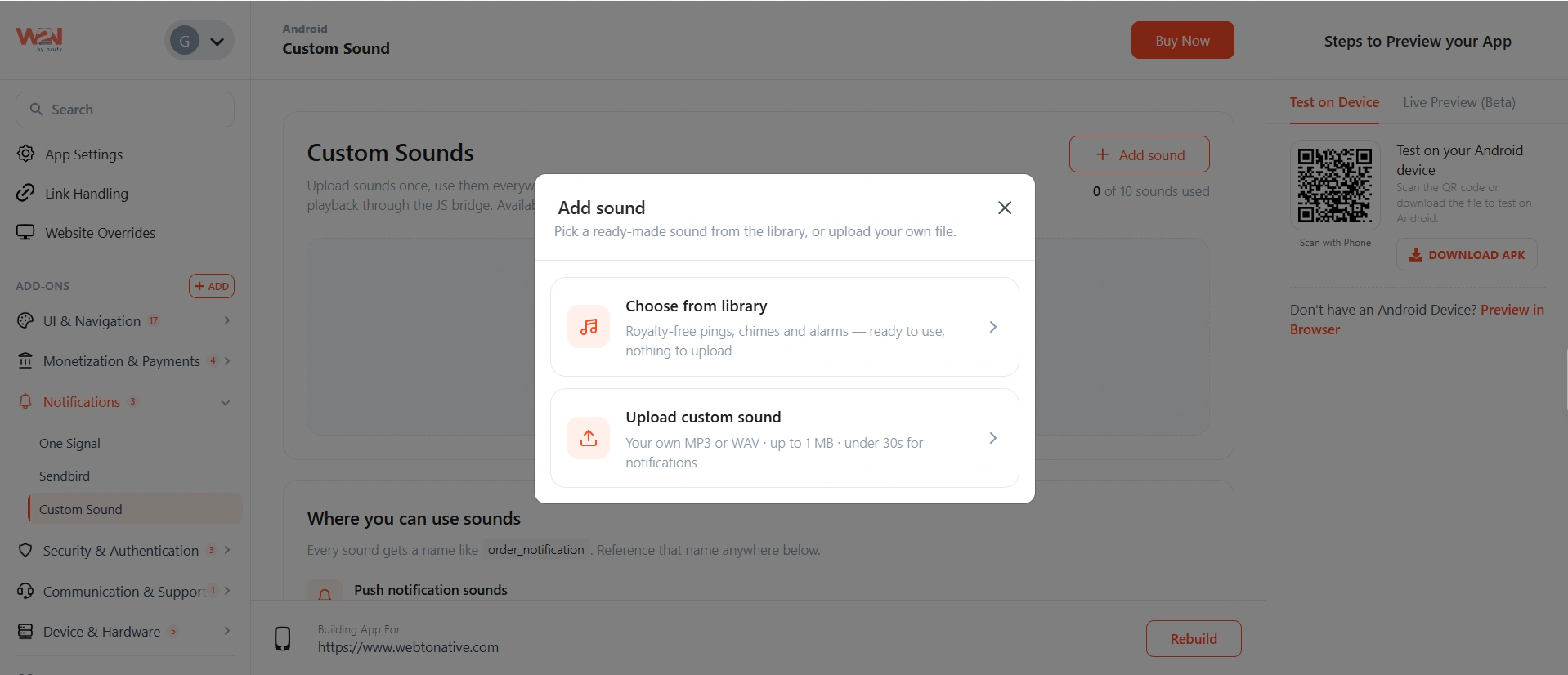
Select the Sound

WebToNative library
Choose from the ready-made sounds provided by WebToNative. No files to prepare — just pick one and reference it by name.

Your own upload
Upload your own custom audio file to use as a notification sound — your brand jingle, a signature tone, or any short clip you choose.
You can add up to 10 sounds. Each notification type can use a different sound — select one sound, then manually assign another sound to a different notification, and so on.
Each sound gets a name
Every sound you add is given a name — for example order_notification or chat_ping. This name is how you reference the sound everywhere else — in your push payload or in the JavaScript function.
Rebuild the app
Save and rebuild so the sounds are compiled into your app. The sound files must be present in the build before they can be referenced by name in notifications.
Where you can use sounds
Once a sound has a name, reference that name in either of two places:

Push notification sounds
Include the sound name in your Firebase (FCM) or APNs payload to play it with the notification: "sound": "order_notification" When the notification arrives, the device plays your custom sound instead of the default tone.
Critical
Use the data tag, never the notification tag. Custom sounds only work when the push is delivered through the data block. If a notification block is present in the payload, the operating system takes over how the notification is shown and played — it overrides your custom sound and falls back to the default. This applies to both Android and iOS.
Note
You cannot test custom sounds from the Firebase Console. The Firebase dashboard automatically adds a notification tag to every message it sends — which suppresses your custom sound. Test by sending a data-only payload from your own server or a tool that lets you control the raw payload.

In-app playback (JavaScript bridge)
Trigger a native sound directly from your website's JavaScript — useful for in-app events like a new chat message or a completed action: window.WTN.Sound.play(chat_ping). This plays the named sound through the device's native audio — so it works even when WebView audio is otherwise restricted or muted.
Full setup and payload reference for both push and in-app sounds in the developer docs. https://docs.webtonative.com/javascript-apis/os-notification-sound/notification-sound (opens in a new tab) https://docs.webtonative.com/javascript-apis/os-notification-sound/sound-through-javascript-function (opens in a new tab)
Frequently Asked Questions
Why isn't my custom sound playing?
The most common cause is a notification block in your push payload. Custom sounds only work with a data-only payload — if a notification block is present, the OS overrides your sound with the default. Also check that: the sound name in the payload exactly matches the name in your dashboard (case-sensitive), the app has been rebuilt after adding the sound, and you're not testing from the Firebase Console (which always adds a notification tag).
Can I use different sounds for different notifications?
Yes — that's the main advantage. Add up to 10 sounds, each with its own name. Then reference whichever sound you want in each notification's payload. An order notification can play order_notification, a chat message can play chat_ping, and so on — each notification type gets its own recognisable sound.
Why can't I test with the Firebase Console?
The Firebase Console automatically adds a notification tag to every message it sends — and that tag suppresses custom sounds by handing display control to the OS. To test your custom sound, send a data-only payload from your own backend server or a tool where you control the raw payload structure (such as a direct FCM API call or Postman).
Can I use custom sounds with OneSignal?
Yes — the custom sound feature works with both Firebase and OneSignal notifications. Add and name your sound in the WebToNative dashboard, then reference that name in your OneSignal notification configuration. The same rule about delivering via data rather than a notification block applies.
Why is my Android device still playing the old notification sound? This is expected Android behaviour, not a bug. On Android, a sound is assigned to a notification channel — and once a channel is created with a particular sound, Android locks that sound in. Changing the sound in your app or payload afterwards won't update an existing channel. The sound only gets replaced when the channel is recreated, which happens when the user uninstalls and reinstalls the app. If you've changed a sound and are still hearing the old one, reinstall the app to force the channel to be recreated with the new sound.
Does WTN.Sound.play() work if the phone is on silent?
WTN.Sound.play() plays through the device's native audio, which is why it works even when WebView audio is restricted. However, it still respects the device's overall sound settings and volume — if the phone is fully silenced or the media volume is at zero, the sound may not be audible. Use it for in-app feedback rather than as a guaranteed alert mechanism.