
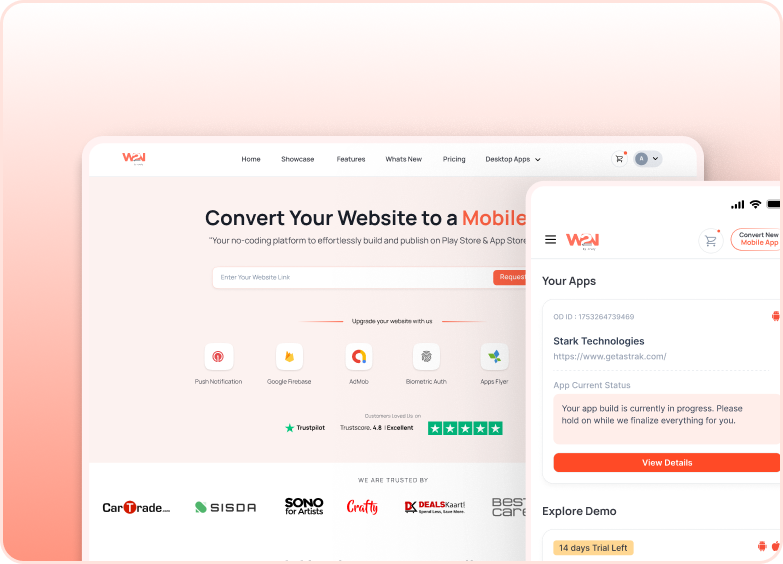


App Status
App Status lets you change what people see inside your app instantly — no rebuild, no store review. Turn on a full-screen maintenance message when you need to pause the app, or show a banner strip for offers, delays and notices while the app stays fully usable.
It gives you a way to talk to your users at the exact moment it matters, without waiting for a new app release.
This feature is available for both Android and iOS. It works on builds that include App Status support and on all newer builds.
Maintenance mode and the Announcement banner are set up entirely from the Webtonative dashboard — no code required.
When do you need App Status?
Planned downtime or a migration
Your website or backend will be unavailable for a while. Show a clear full-screen message instead of letting users hit errors.
A big release
You are rolling out a major change and want users to wait a few minutes. Block the app with a friendly message until you are ready.
Offers and promotions
Free delivery this weekend, a sale, a new feature. Show a banner at the top or bottom of the app, and let users tap it to open the offer page.
Delays and notices
Deliveries are slow, support hours changed, or something needs attention. Tell users right inside the app while they keep using it.
How does App Status benefit your users?
Clear communication
Users see exactly what is happening and what to do next, instead of a broken page or a confusing error.
No update needed
Changes appear in the app instantly. Users do not need to download a new version from the store.
Help is one tap away
Add a button to the maintenance screen, for example Contact support, so users always have a next step.
Planned in advance
Schedule maintenance with a start and end time. It turns on and off by itself, so you do not have to be online.
Where to Find It In Your Dashboard
My Apps ➡️ Select an app ➡️ App Status (left menu)
Steps to open App Status
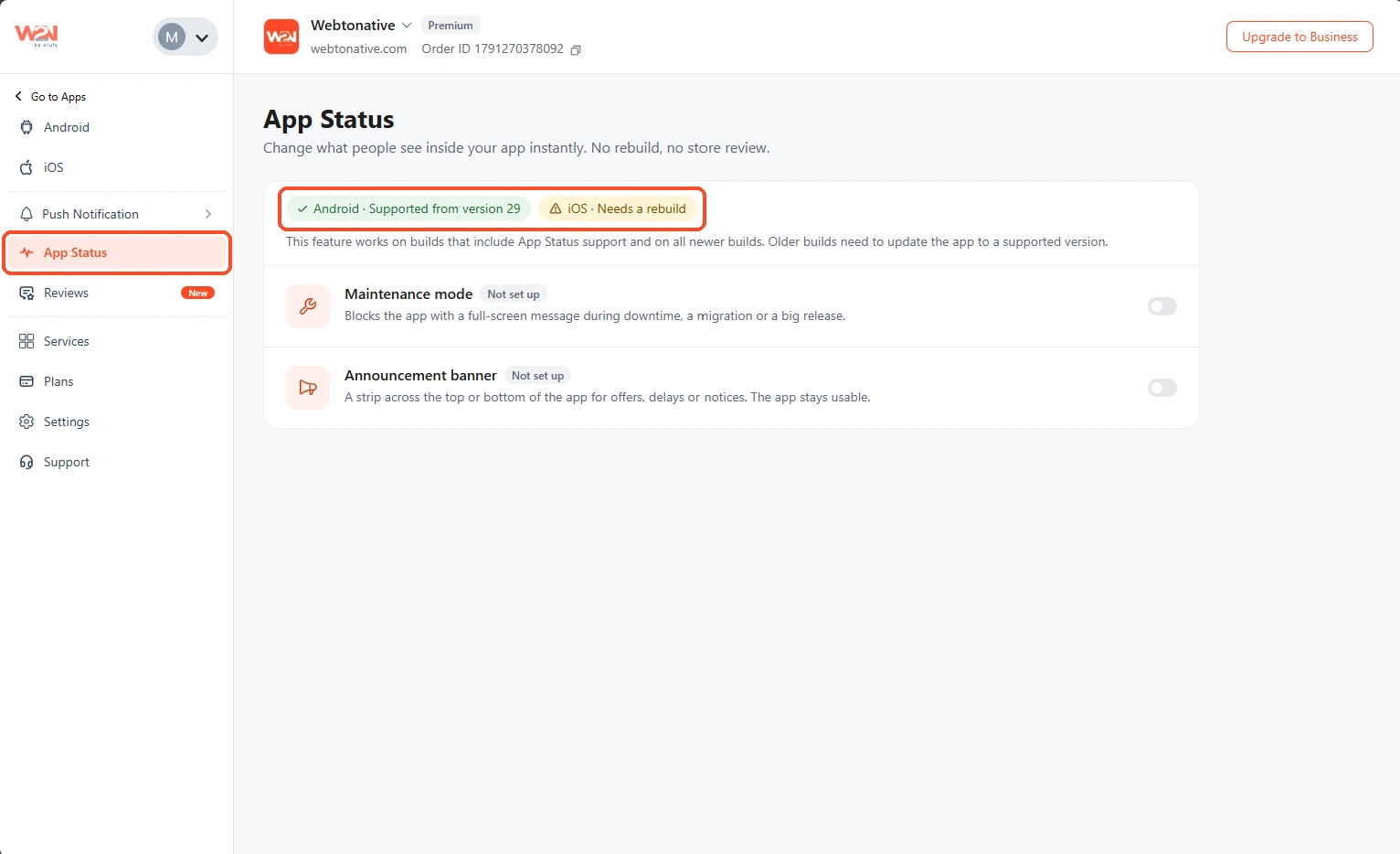
Click on App Status
Go to My Apps and select your app. In the left menu, click App Status.
Check the Support Chips
A chip for Android and iOS at the top of the page shows if your last build supports App Status. See Understand the Support Chips below.
Turn On a Tool
Each tool has a toggle on the right. Turn it on to open the setup window. A live phone Preview on the right shows the result before you save.
Steps to set up Maintenance Mode
Maintenance mode blocks the app with a full-screen message. Users cannot close it.
Turn On Maintenance Mode
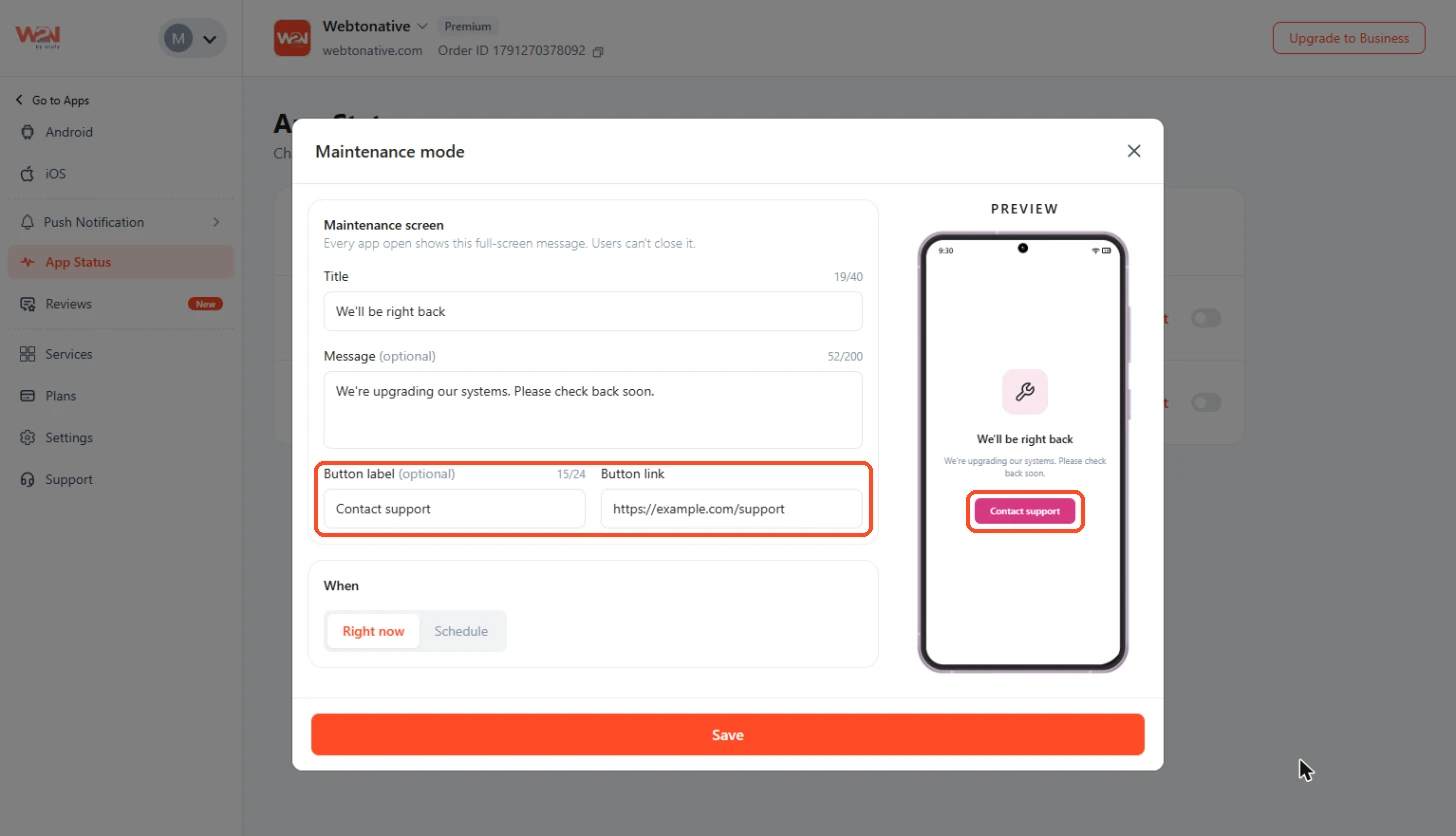
Turn on the Maintenance mode toggle. The Maintenance screen form opens on the left, with the phone Preview on the right.
Enter the Title
The Title is the headline on the screen. It starts as We'll be right back. Limit: 40 characters.
Enter the Message
Add a short Message, for example We're upgrading our systems. Please check back soon. This field is optional. Limit: 200 characters.
Add a Button
Enter a Button label (up to 24 characters) and a Button link. The link can start with https://, mailto: or tel:. Both fields are optional. The button appears in the Preview as soon as it has a label.
The button color comes from your app's brand color. You do not pick it here. If you change your app's brand color, the maintenance button follows it.
Choose When It Starts
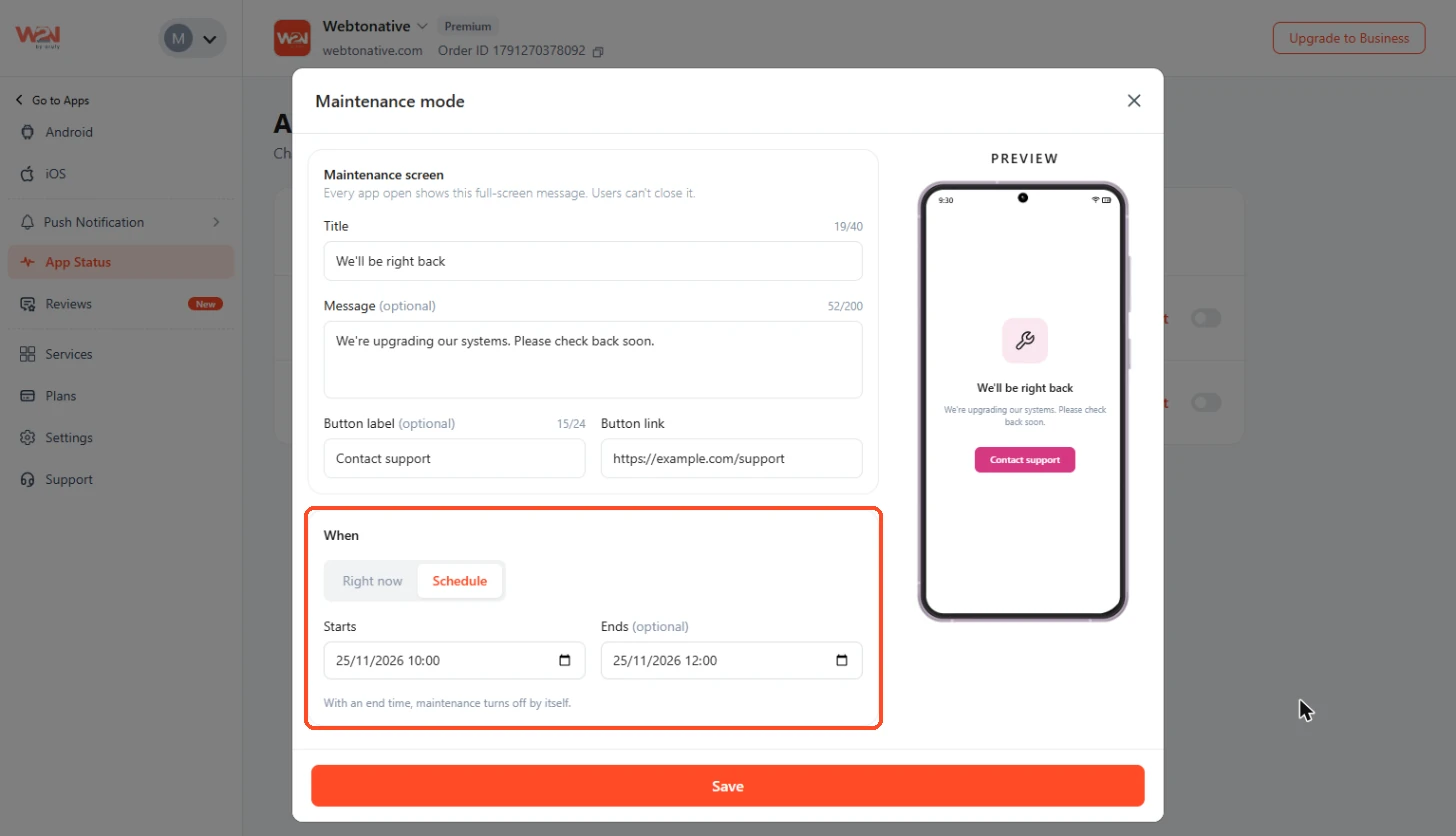
Under When, pick one option:
Right now
Maintenance turns on as soon as you save.
Schedule
Set a Starts date and time, and an optional Ends date and time. With an end time, maintenance turns off by itself.
Click on Save
Click Save. Every time someone opens the app, they see the full-screen message with your title, message and button. To stop maintenance, turn the toggle off.
Steps to set up the Announcement Banner
The banner is a strip at the top or bottom of the app. The app stays fully usable.
Turn On Announcement Banner
Turn on the Announcement banner toggle. The Preview shows a banner at the top of a sample app screen.
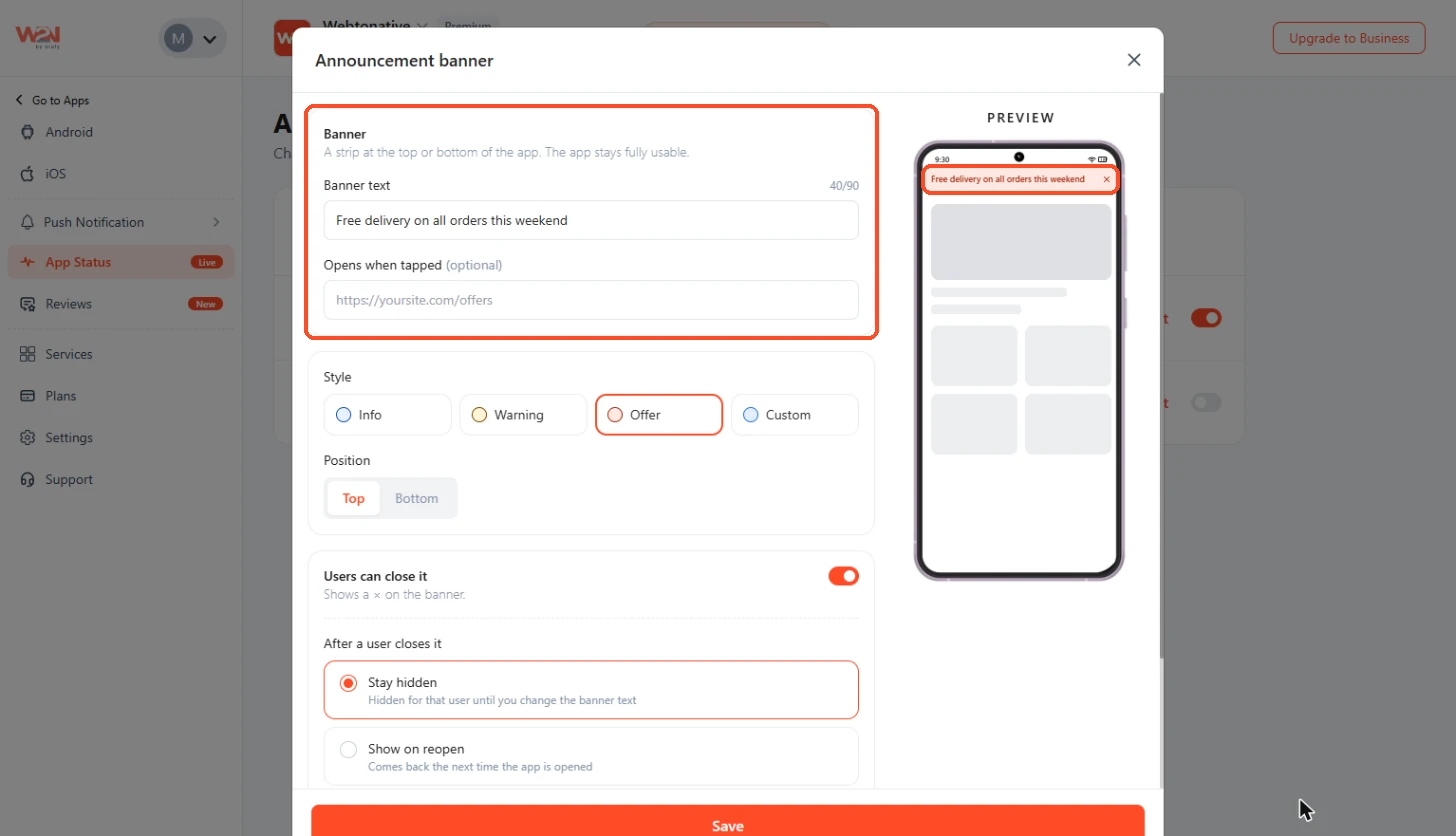
Enter the Banner Text
Type the Banner text, for example Free delivery on all orders this weekend. Limit: 90 characters.
Enter the Link
In Opens when tapped, enter the page that opens when users tap the banner, for example https://www.example.com/offers (opens in a new tab). This field is optional.
Select a Style and Position
Pick the banner style:
Info
A neutral strip for general information.
Warning
For delays and things users should notice.
Offer
For sales, discounts and promotions.
Custom
Your own look for the banner.
Under Position, pick Top or Bottom.
Set Users Can Close It
Turn on Users can close it to show a × on the banner. Then choose what happens after a user closes it:
Stay hidden
The banner stays hidden for that user until you change the banner text.
Show on reopen
The banner comes back the next time the app is opened.
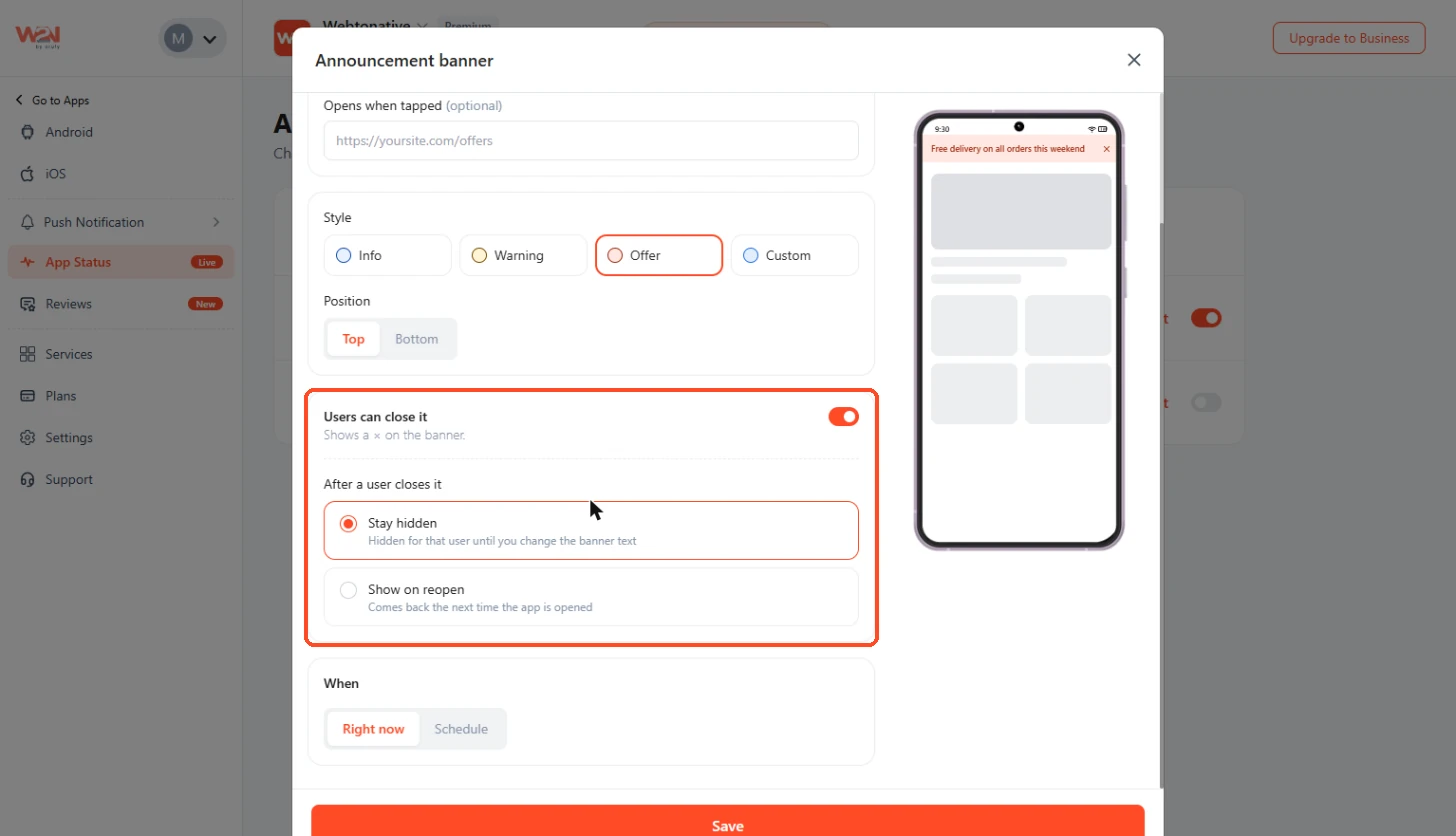
Choose When It Starts, then Click on Save
Under When, pick Right now or Schedule, then click Save. The app stays fully usable while the banner shows.
See What Changes After You Save
After you click Save, the dashboard confirms the change with a badge on the tool, the toggle, a message at the bottom of the screen and, for maintenance, a chip at the top of the page.
Not set up
You have not saved this tool yet. The toggle is off and there is no Edit link.
Live
Saved and showing in the app now. The toggle is on.
Scheduled · date, time
Saved with a start date and time. It goes live at that time. The toggle is on.
Off
Turned off. Your saved text and settings are kept, and Edit stays.
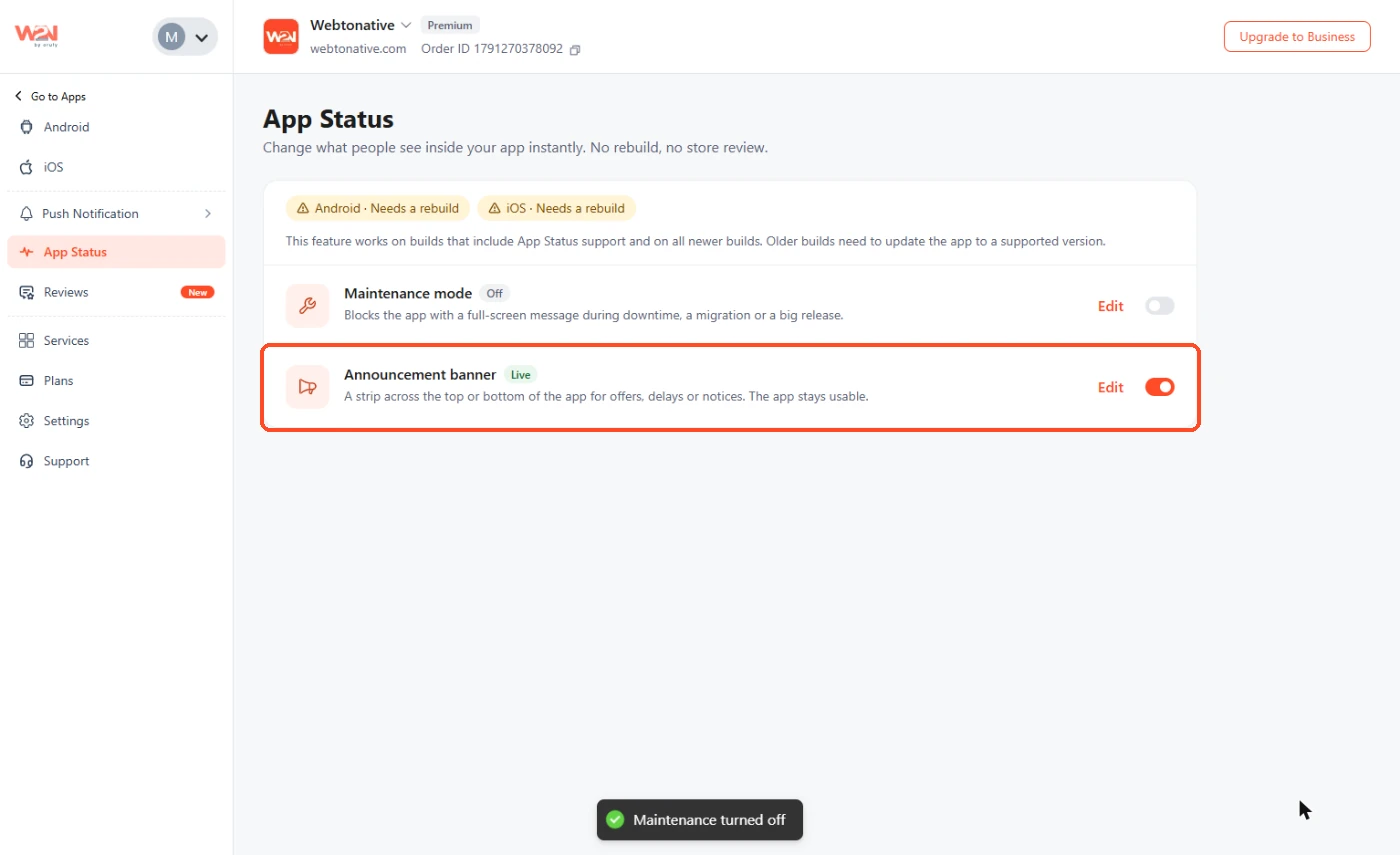
Save the Announcement Banner
The card shows the green Live badge, the toggle turns on and an Edit link appears. A message at the bottom says Banner published.
Save Maintenance Mode with Right Now
Maintenance goes live at once:
- A red Maintenance mode is live chip appears at the top of the page.
- The App Status menu item shows a Live badge.
- The card shows Live, and a message says Maintenance is live.
- A note under the cards says: While maintenance is live, users see only the maintenance screen. The banner shows again once maintenance ends.
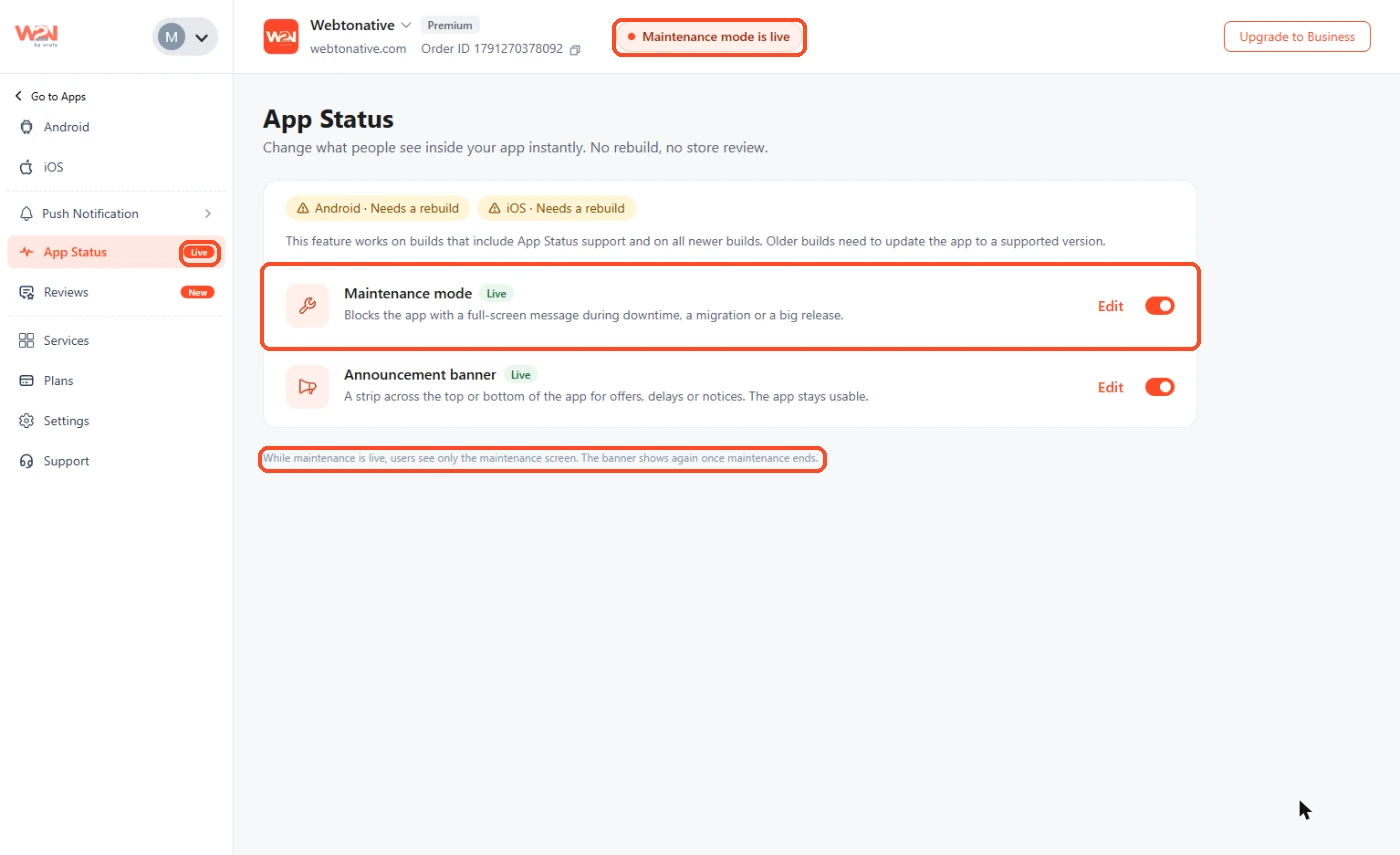
If the banner is also on, users see only the maintenance screen until maintenance ends. Then the banner shows again.
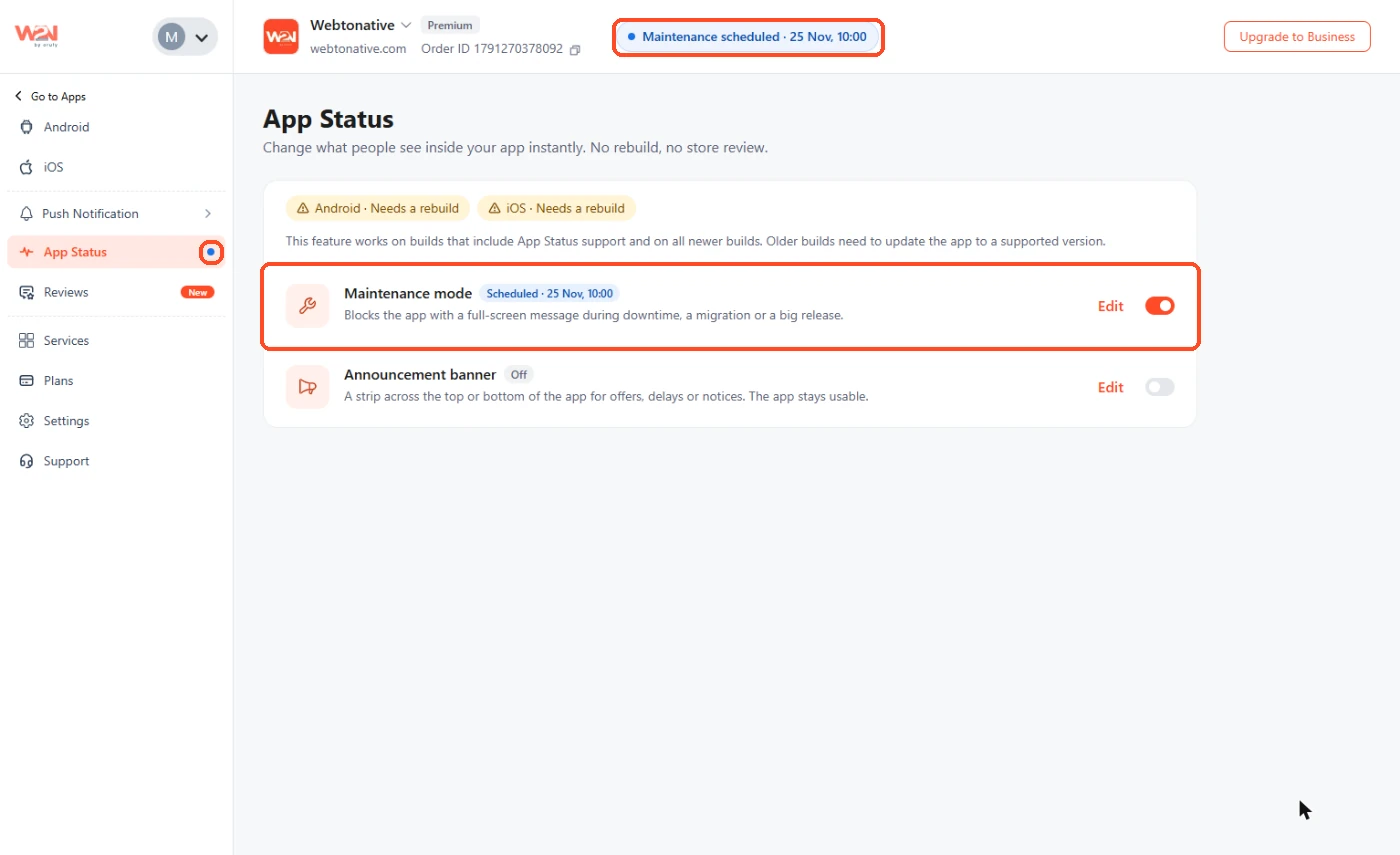
Save Maintenance Mode with a Schedule
Under When, pick Schedule, set Starts (and Ends if you want), then click Save. The toggle turns on, but nothing shows to users until the start time:
- A blue Maintenance scheduled · date, time chip appears at the top.
- A blue dot appears on the App Status menu item.
- A blue Scheduled · date, time badge appears on the card.
- A message says Maintenance scheduled for date, time.
Turn a Toggle Off
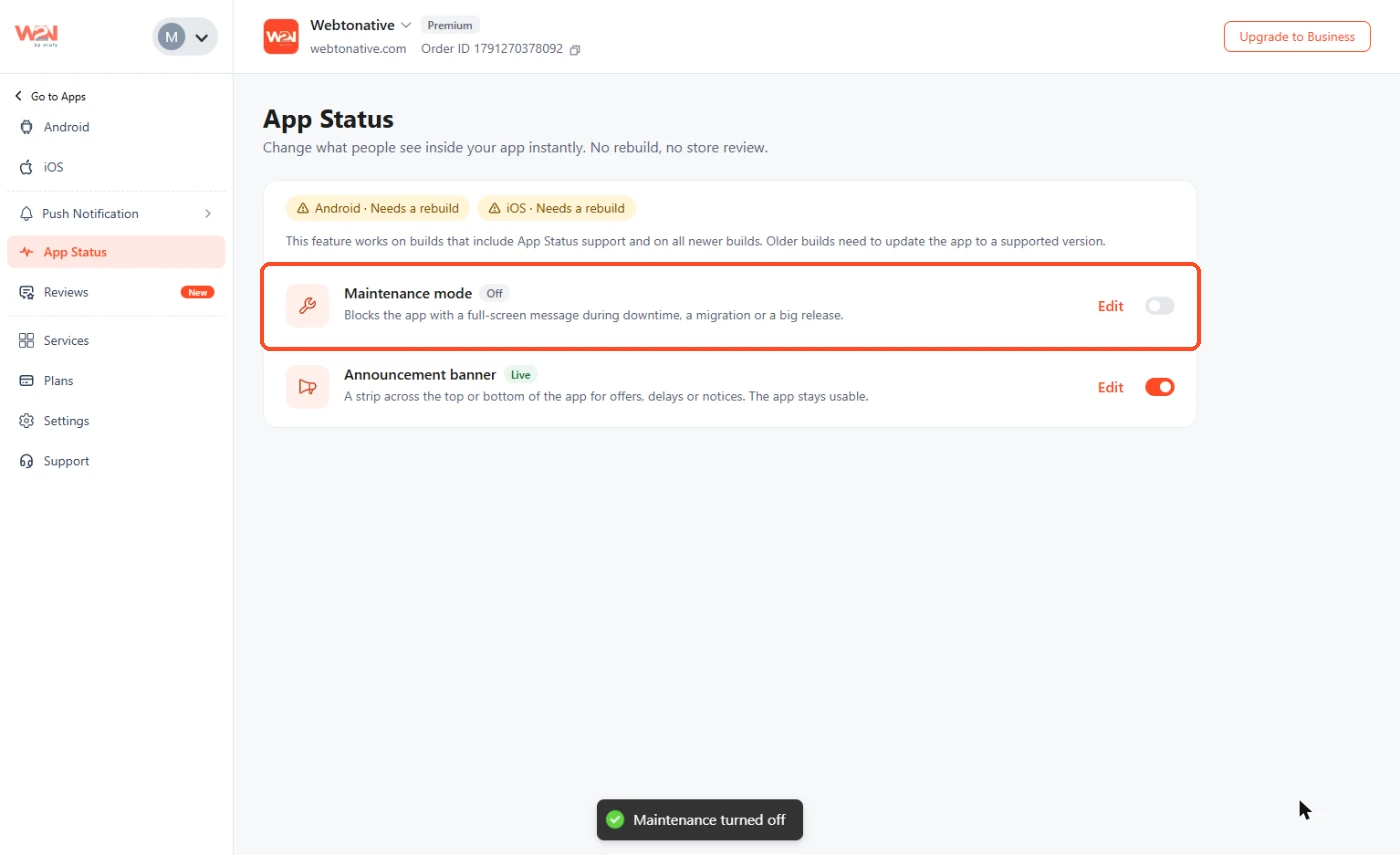
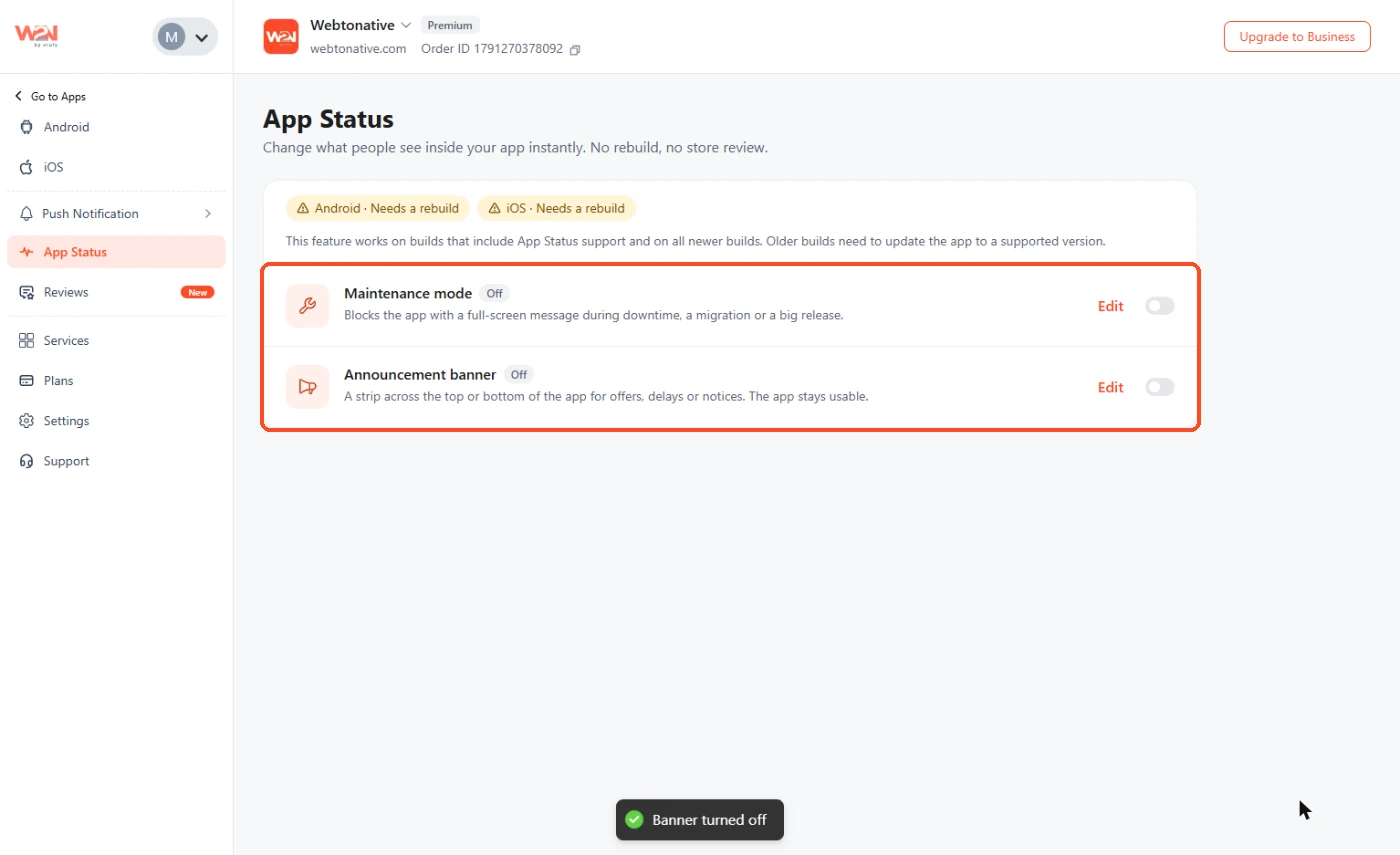
Turn a toggle off to stop that tool at any time. The badge changes to Off and a message says Maintenance turned off or Banner turned off. The top chip and the menu badge disappear. Your saved text and settings stay, and Edit remains.
Turn a Toggle Back On
Click Edit to open the window again. Your saved title, message, button, style and schedule are still there. Change them if you want, then click Save.
Understand the Support Chips
At the top of App Status, a chip for each platform shows whether your last build supports this feature.
Android · Supported from version X
Your last Android build supports App Status. That version and all newer builds include it. Nothing to do — set up a tool.
iOS · Supported from version X
Your last iOS build supports App Status. That version and all newer builds include it. Nothing to do — set up a tool.
Needs a rebuild
Your last build for that platform does not support App Status. Rebuild and publish, then ask users to update.
No chip
Nothing to update. App Status is supported from your first build.
You can set up Maintenance mode and the banner before you rebuild. Users on an older build see them only after they update to a build with App Status support.
Frequently Asked Questions:
1. Do I need to rebuild my app to change the message or banner?
No, not for every change. You need one rebuild so the app includes App Status support. After that, you change the message, banner, style and schedule from the dashboard instantly, with no new build and no store review.
2. Why do I see "Needs a rebuild"?
Your previous build does not include App Status support. Generate and publish a new build for that platform, then ask users to update.
3. What does "Supported from version X" mean?
Your last build supports App Status. The number in the chip is the first version that includes App Status. That version and all newer builds include it. You do not need to rebuild.
4. I don't see any chip. Is my app supported?
Yes. If no chip appears, App Status is supported from your first build.
5. Can users close the maintenance screen?
No. The maintenance screen is full-screen and users cannot close it.
6. Can users close the announcement banner?
Yes, if Users can close it is on. Choose Stay hidden to keep it hidden until you change the banner text, or Show on reopen to show it again the next time the app opens.
7. Can I choose the color of the maintenance button?
No. The button color comes from your app's brand color.
8. Can I schedule maintenance in advance?
Yes. Under When, pick Schedule and set Starts. Add Ends if you want maintenance to turn off by itself.
9. What can the button link open?
The Button link can start with https://, mailto: or tel:, for example a support page, a support email or a phone number.
10. Can I use both tools at the same time?
Each tool has its own toggle and setup window. Set them up separately. While maintenance is live, users see only the maintenance screen, and the banner shows again once maintenance ends.