Meta (Facebook)Ads
The Meta Ads feature lets you add Meta advertising to your app. You can include different types of ads, such as banner, full-screen, and reward ads. It helps you earn revenue from your app while keeping your users engaged with relevant ads. You can easily manage ad placements directly from your WebToNative dashboard if you add your Meta App ID and set up ad units. This add-on is available for Android only.
Getting Started with Meta Ads
Step 1: Open the Add-On Section
- After logging into your WebToNative dashboard, select your iOS app
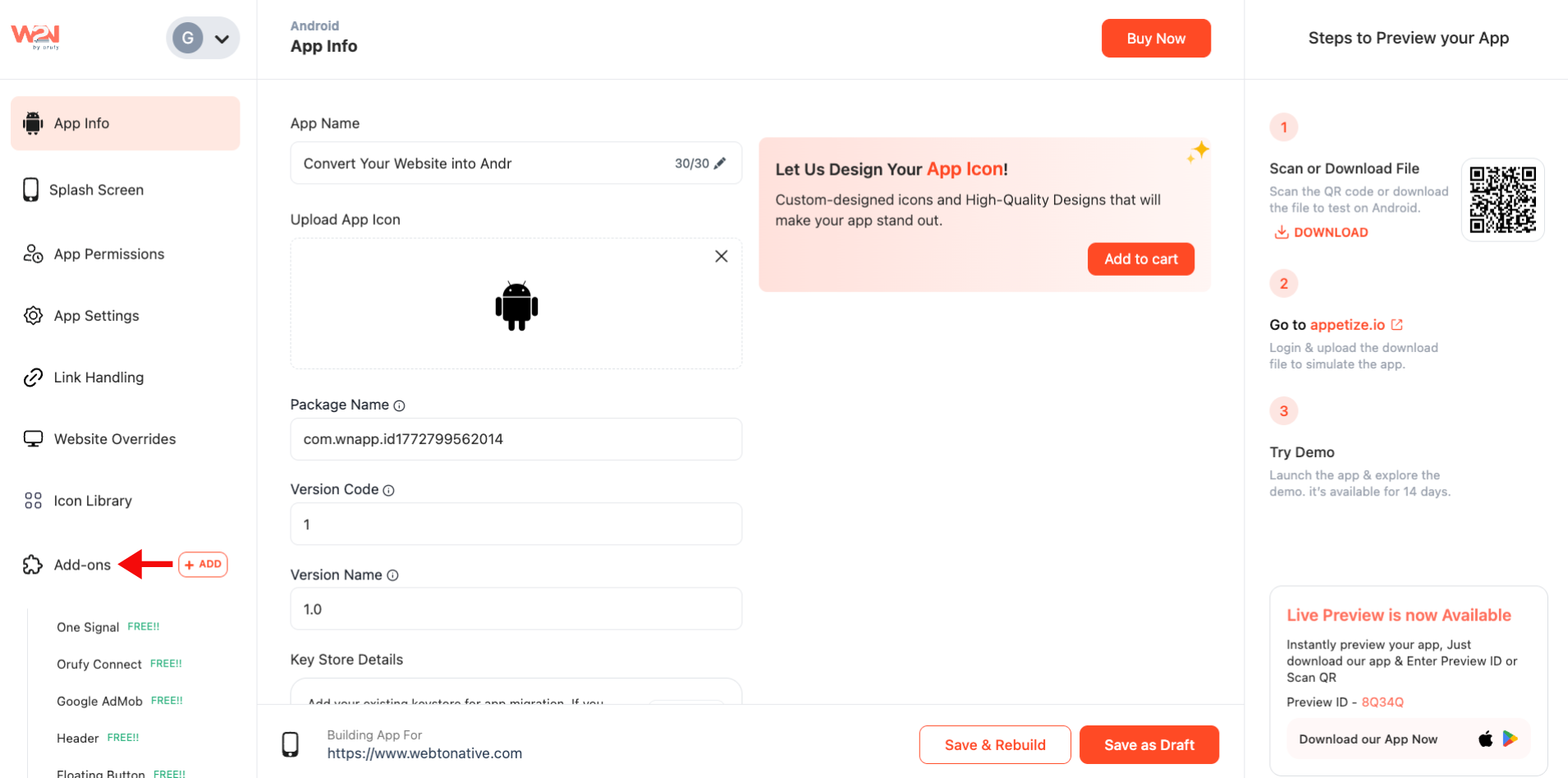
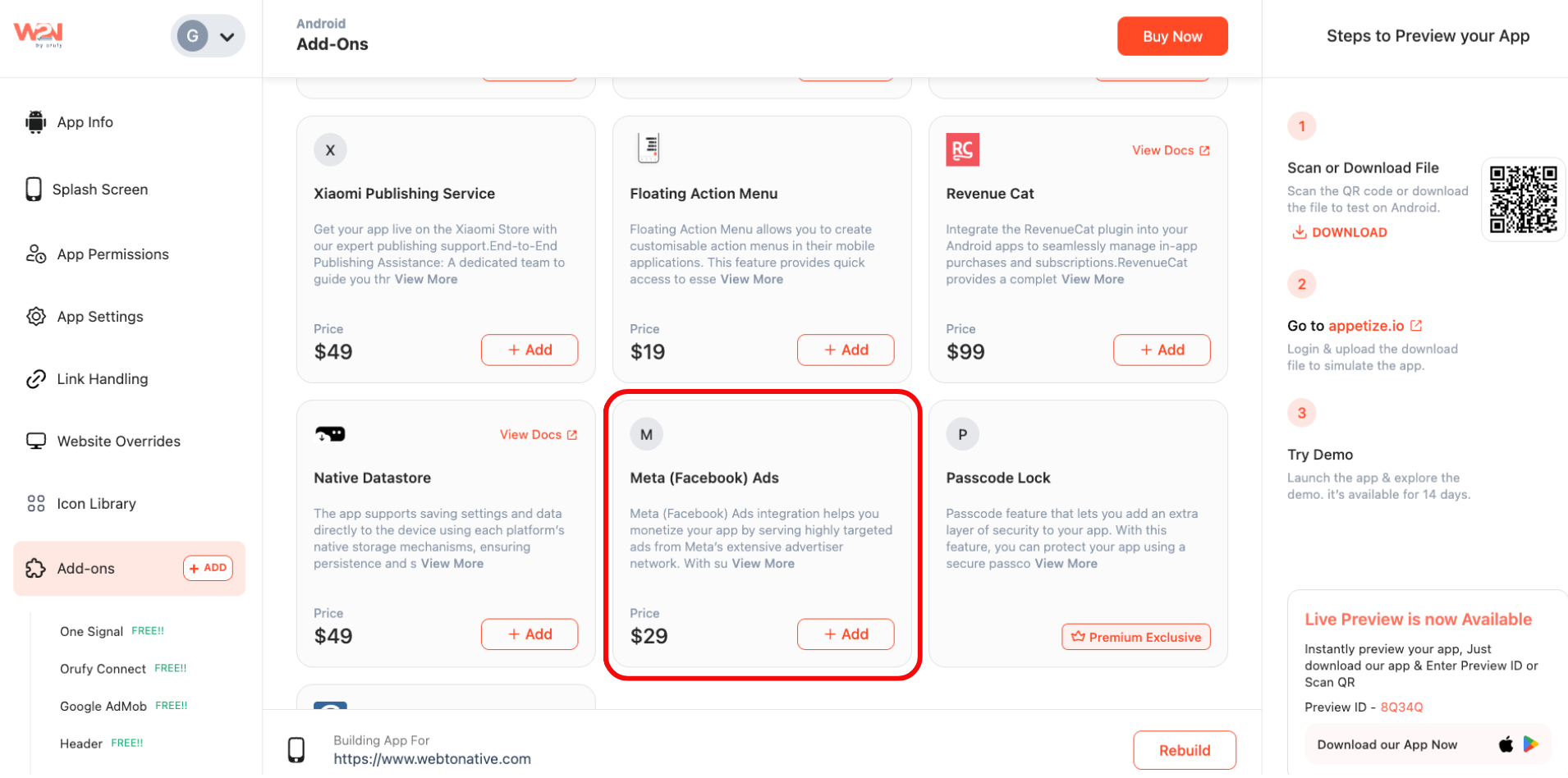
- Go to the Add-Ons section from the left sidebar and find the Meta Ads
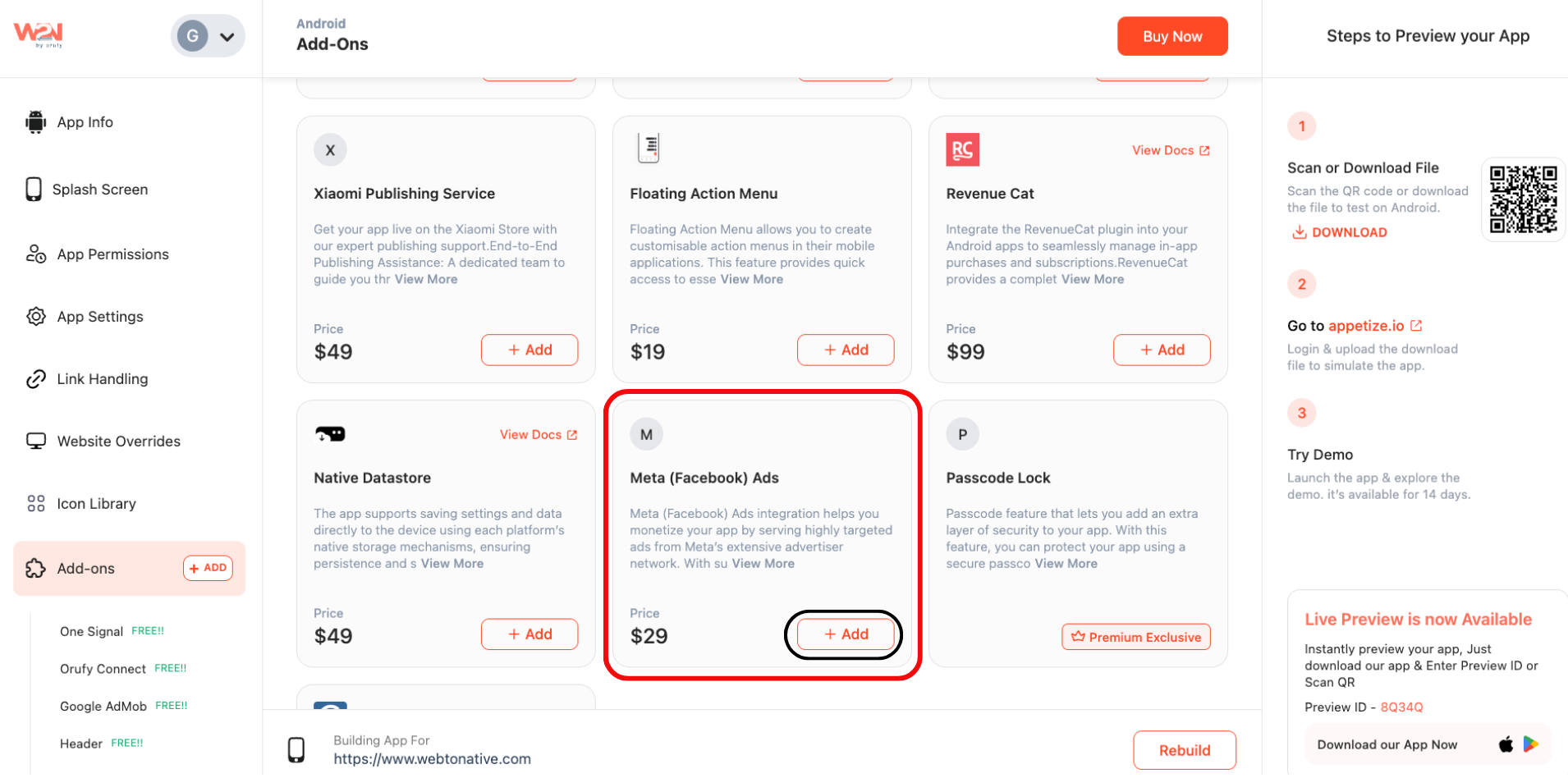
Step 2: Navigate to +Add Option
- Tap on “+Add” to enable the settings
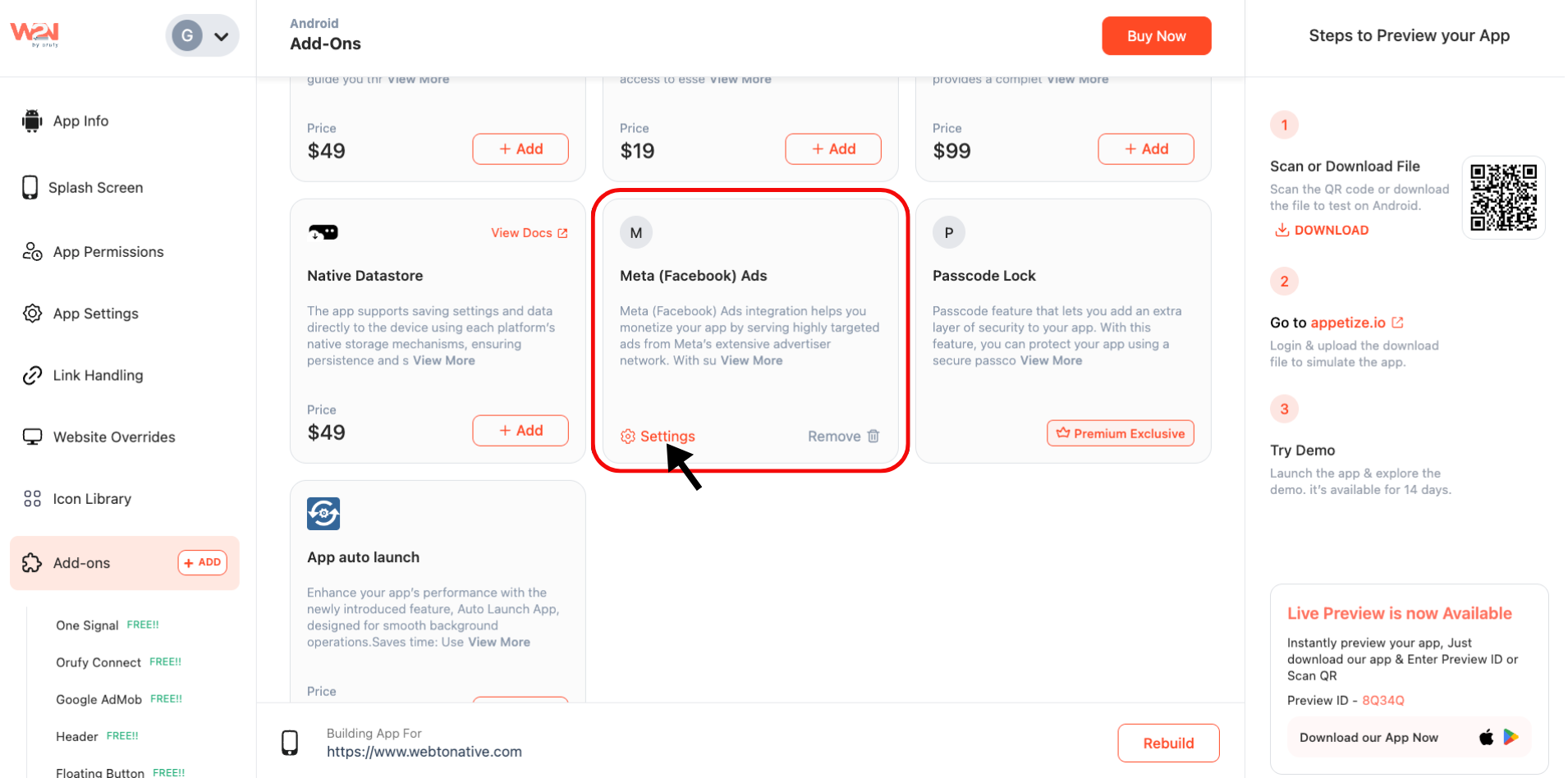
Step 3: Access Meta Ads Settings
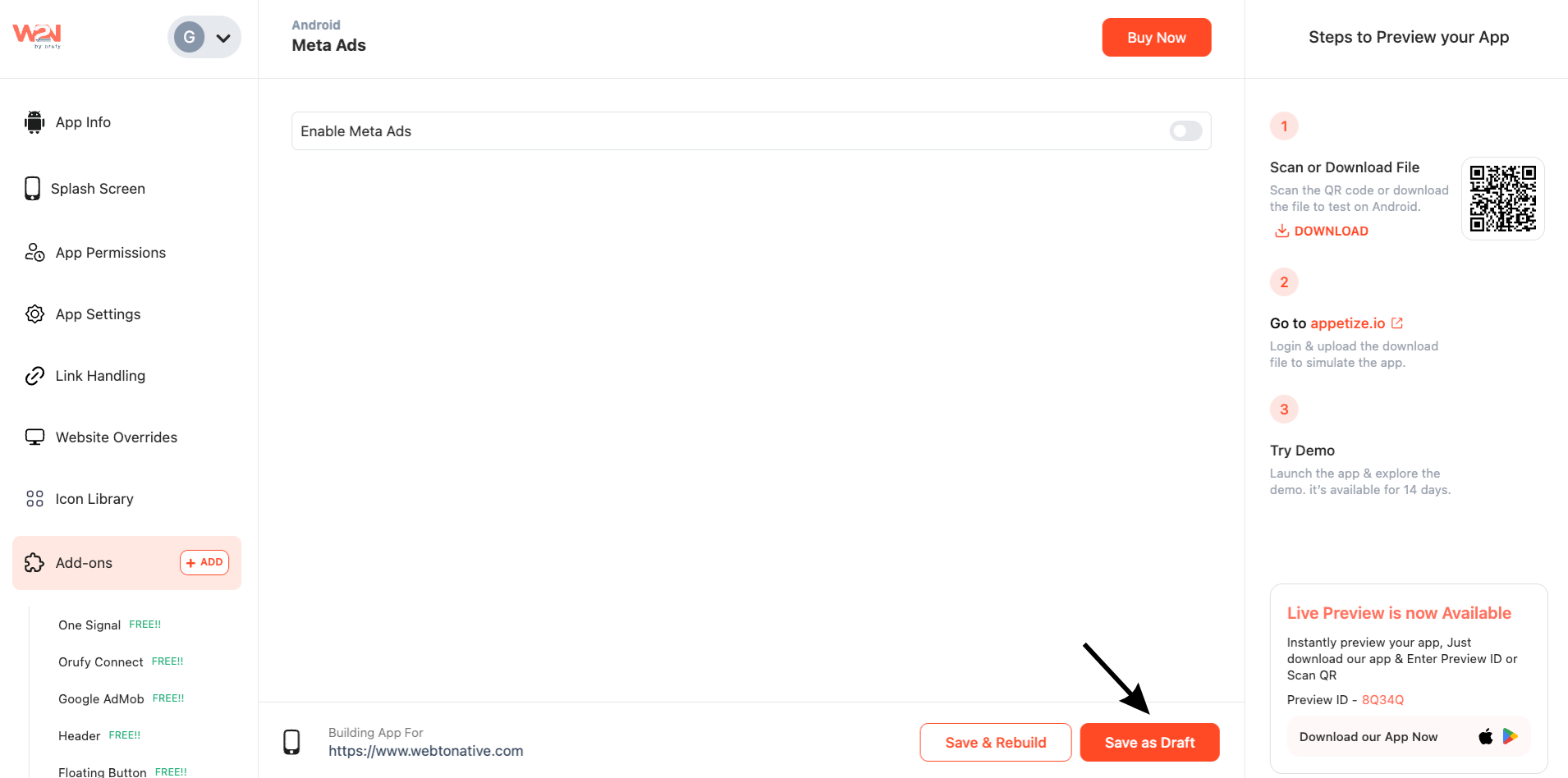
- Click on “Settings” right under the Meta Ads card to move further with the configuration panel
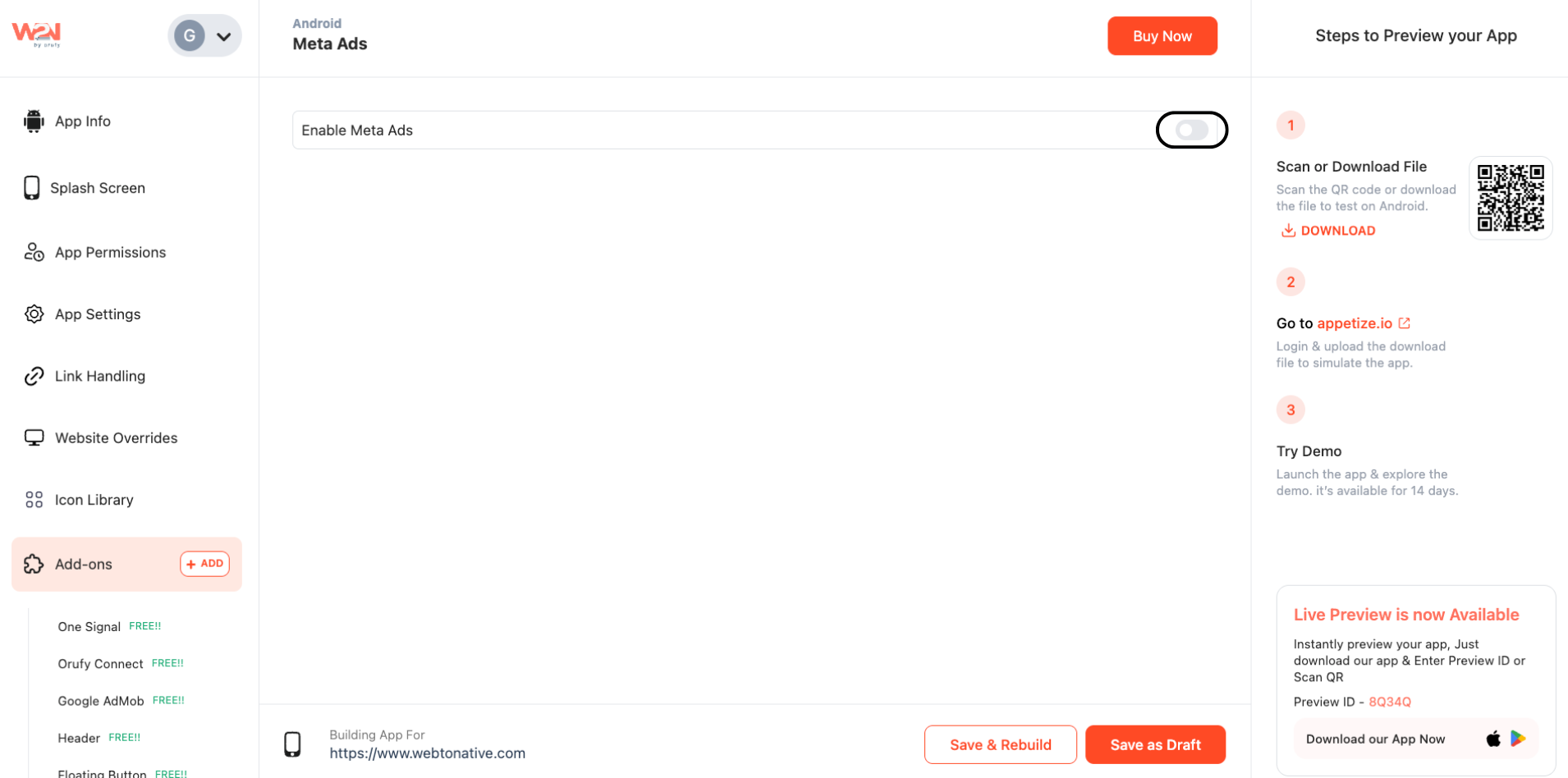
Step 4: Enable Meta Ads
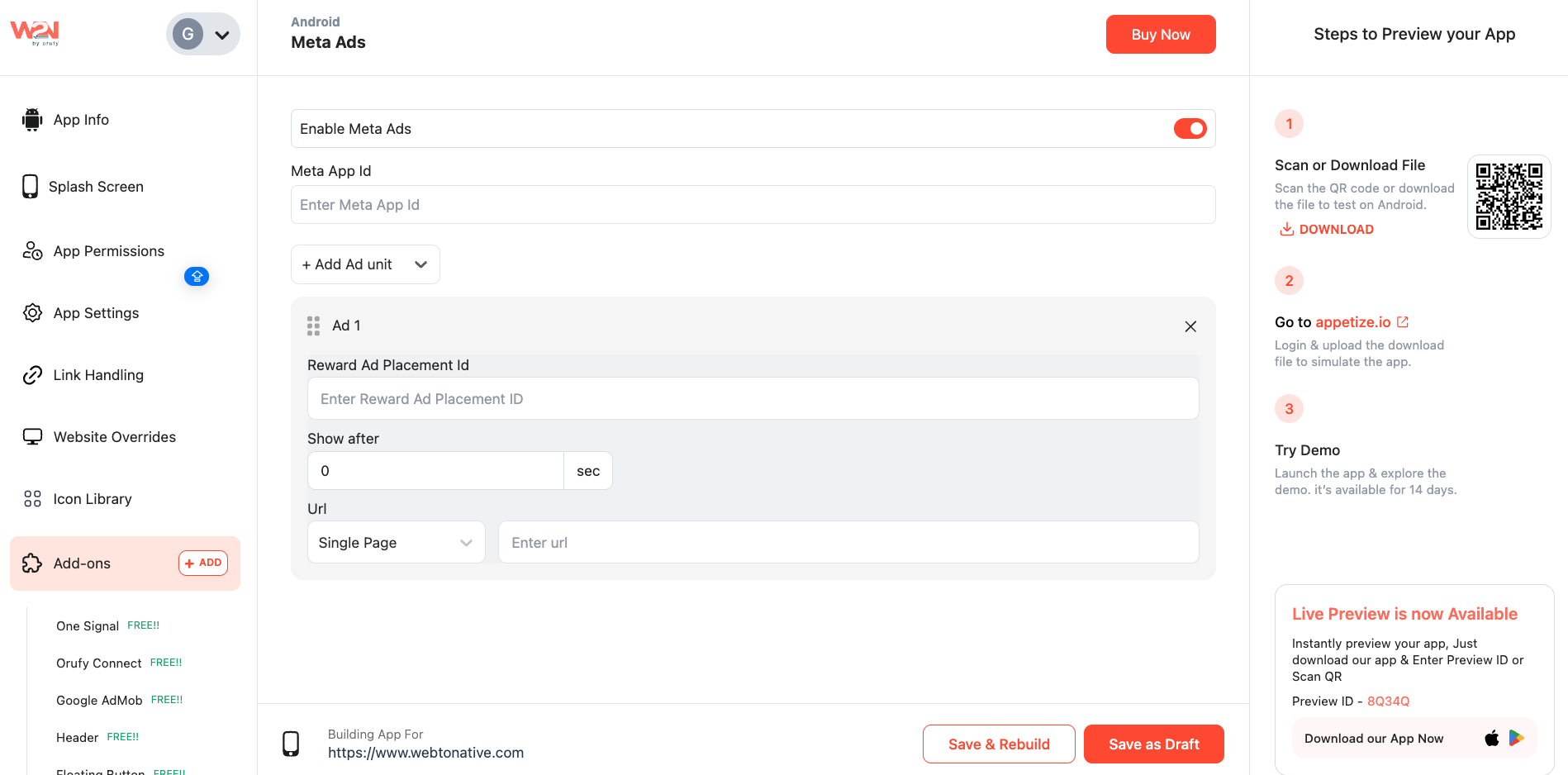
- Turn on the Enable Meta Ads toggle to use this feature
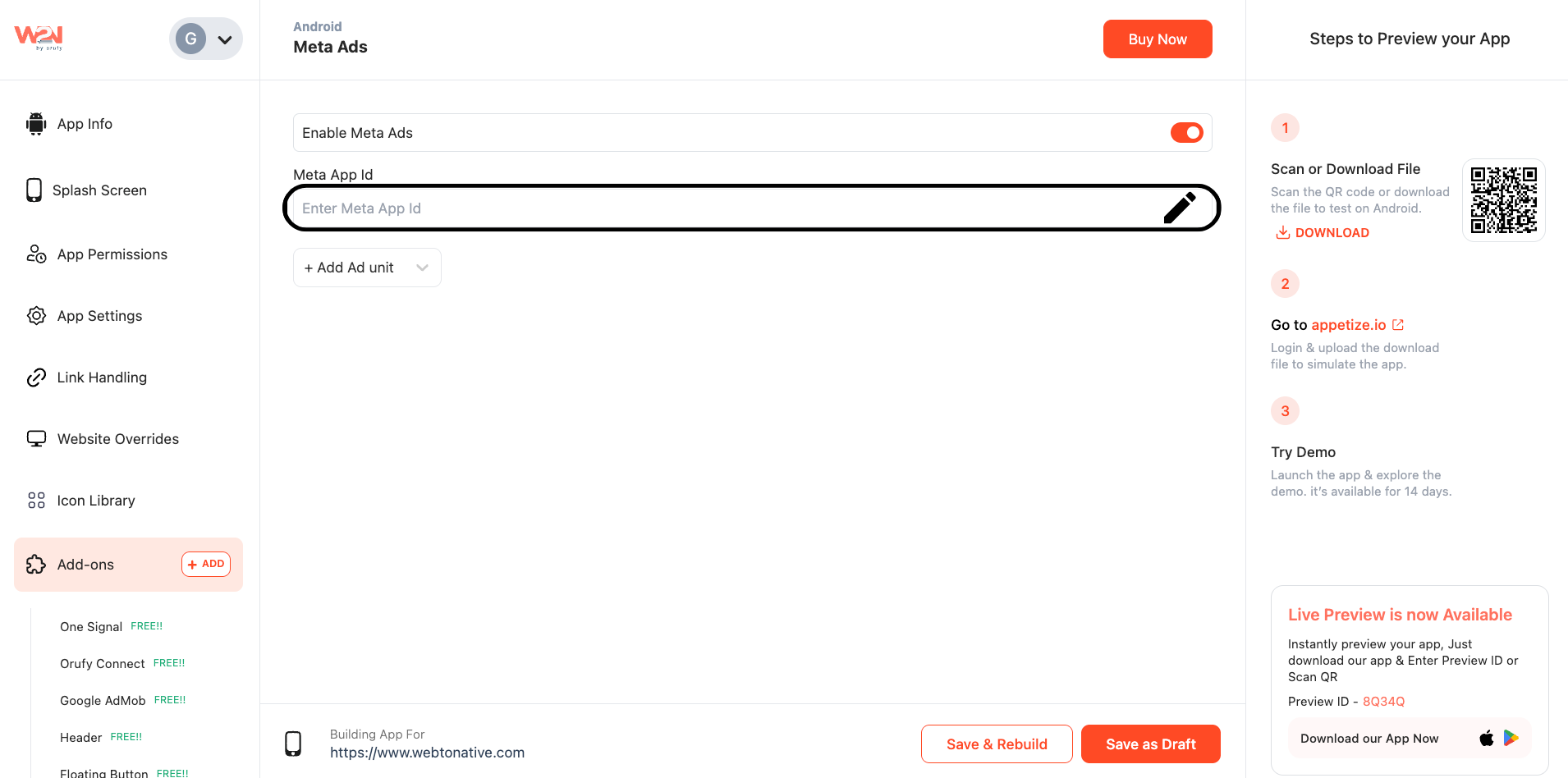
Step 5: Enter Your Meta App ID
-
After turning on the Enable Meta Ads toggle, enter your meta app id in the given field
-
This way, your app connects to your Meta Ads account, allowing you to set up ad units
Step 6: Add Ad Units
- Clicking on the + Add Ad Unit helps you choose the type of ad you want to display
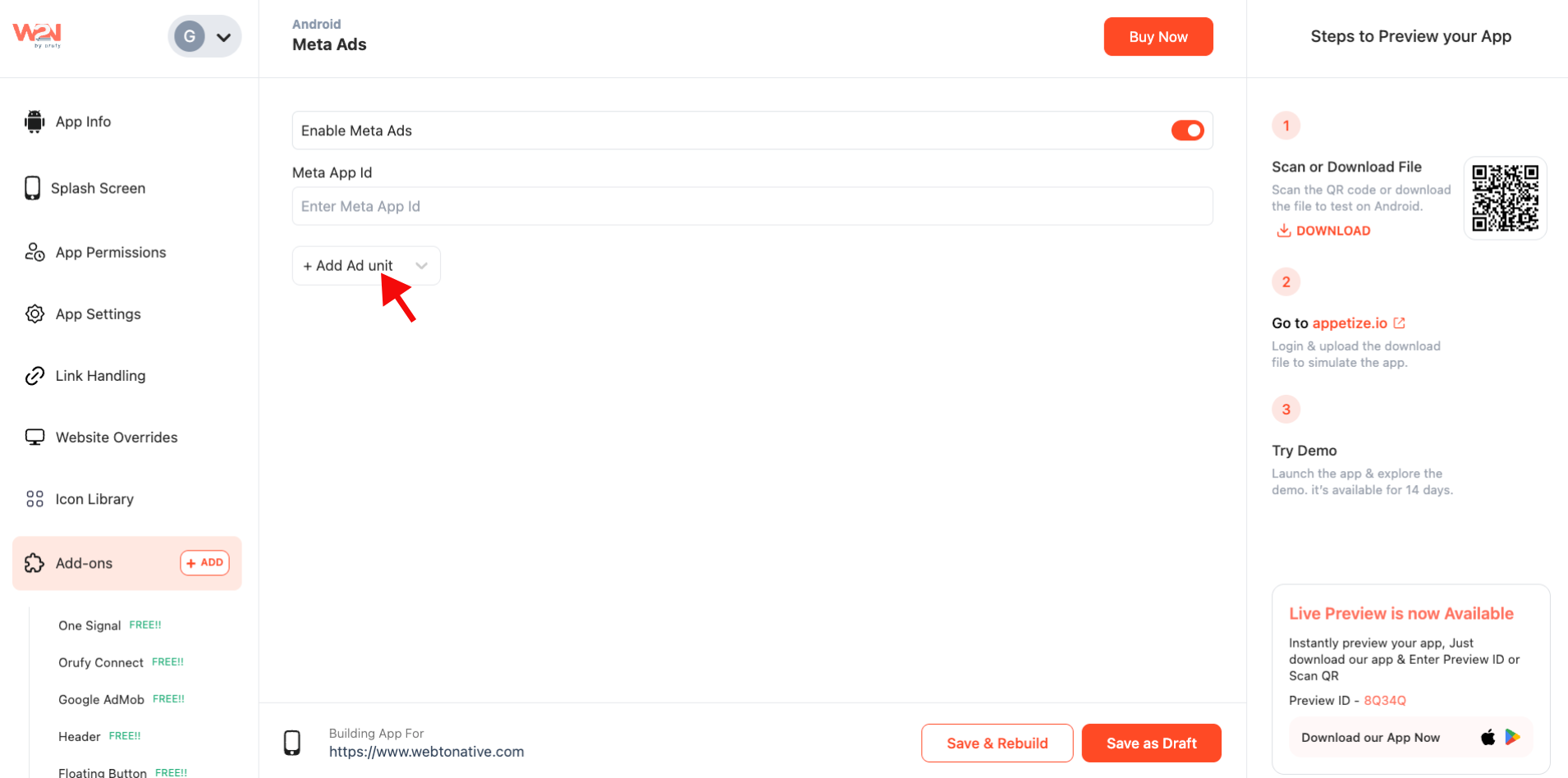
- Select your ad format from the section below by clicking on “ +Add Ad unit”: - Banner Ads - Full Screen Ads - Reward Ads
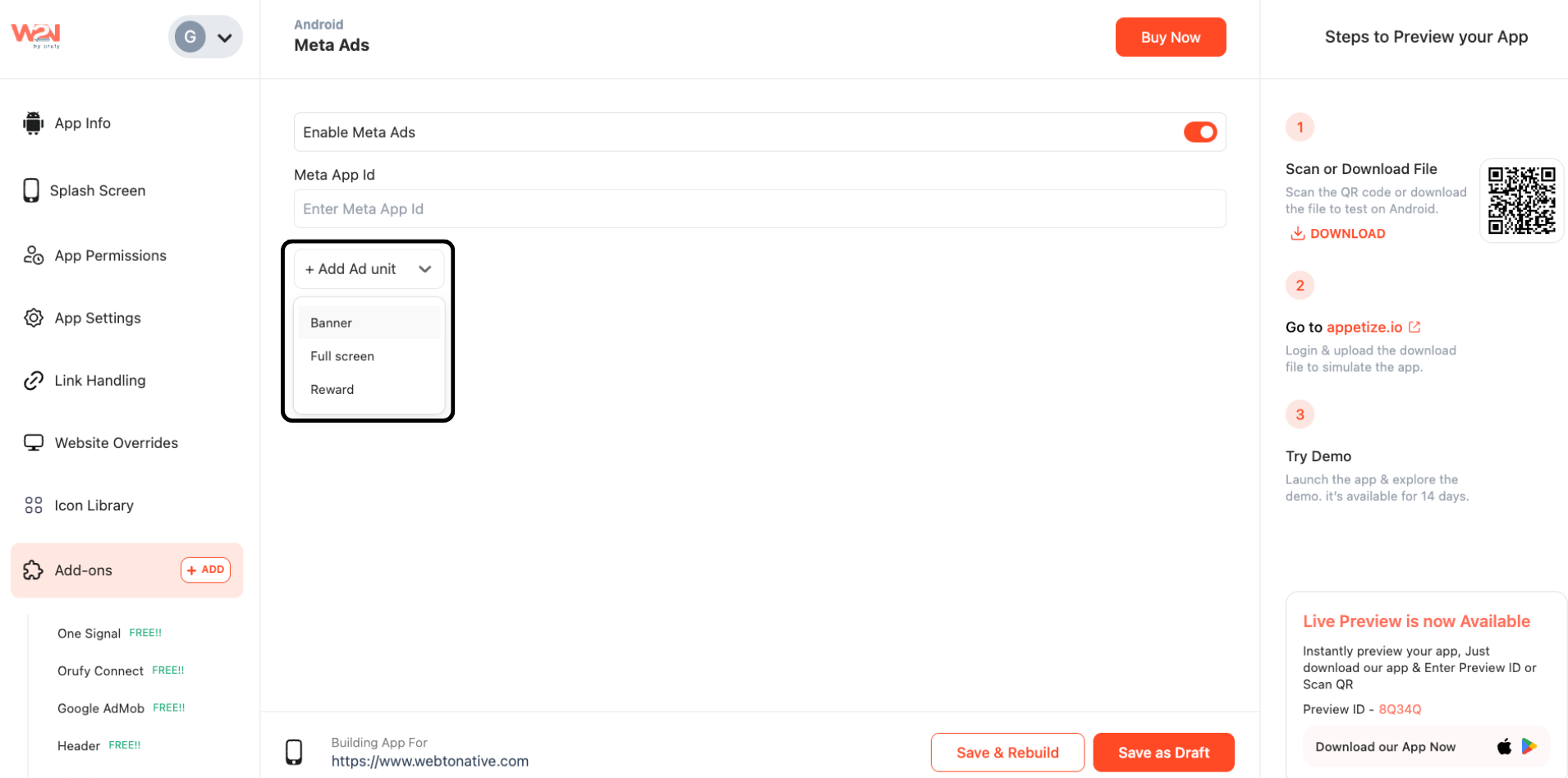
Step 7: Configure Your Ad Units
- After selecting the particular ad format, you can set up ad details in the configuration panel
For Banner Ads:
- Ad Placement ID: Add the Ad placement ID, which is provided by your Meta Ads account
- Show After: Set the time (in seconds) before the ad appears
- Position: Select whether the banner should appear at the Top or Bottom of the screen
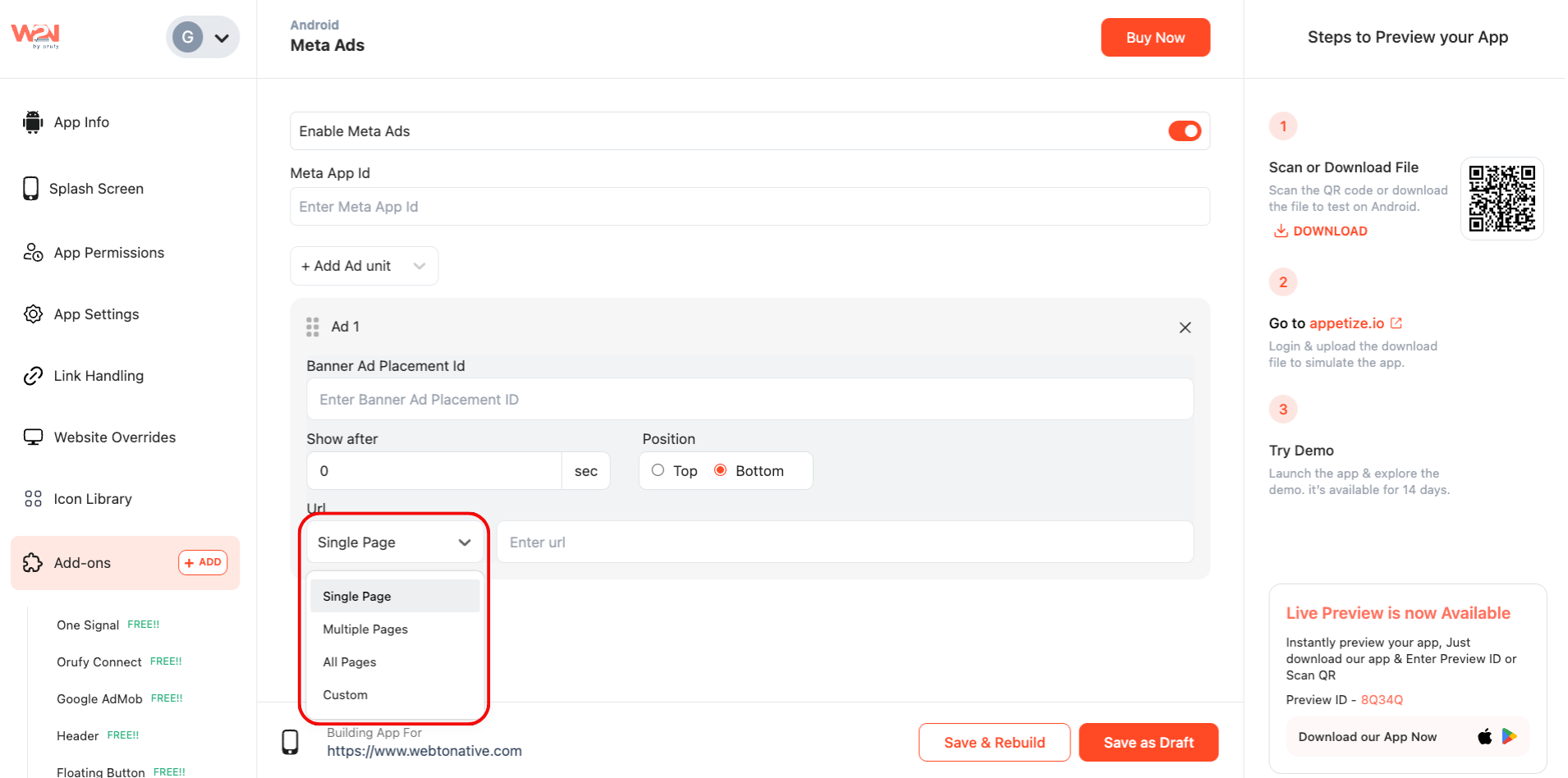
- URL Targeting: Show the ad on a specific URL
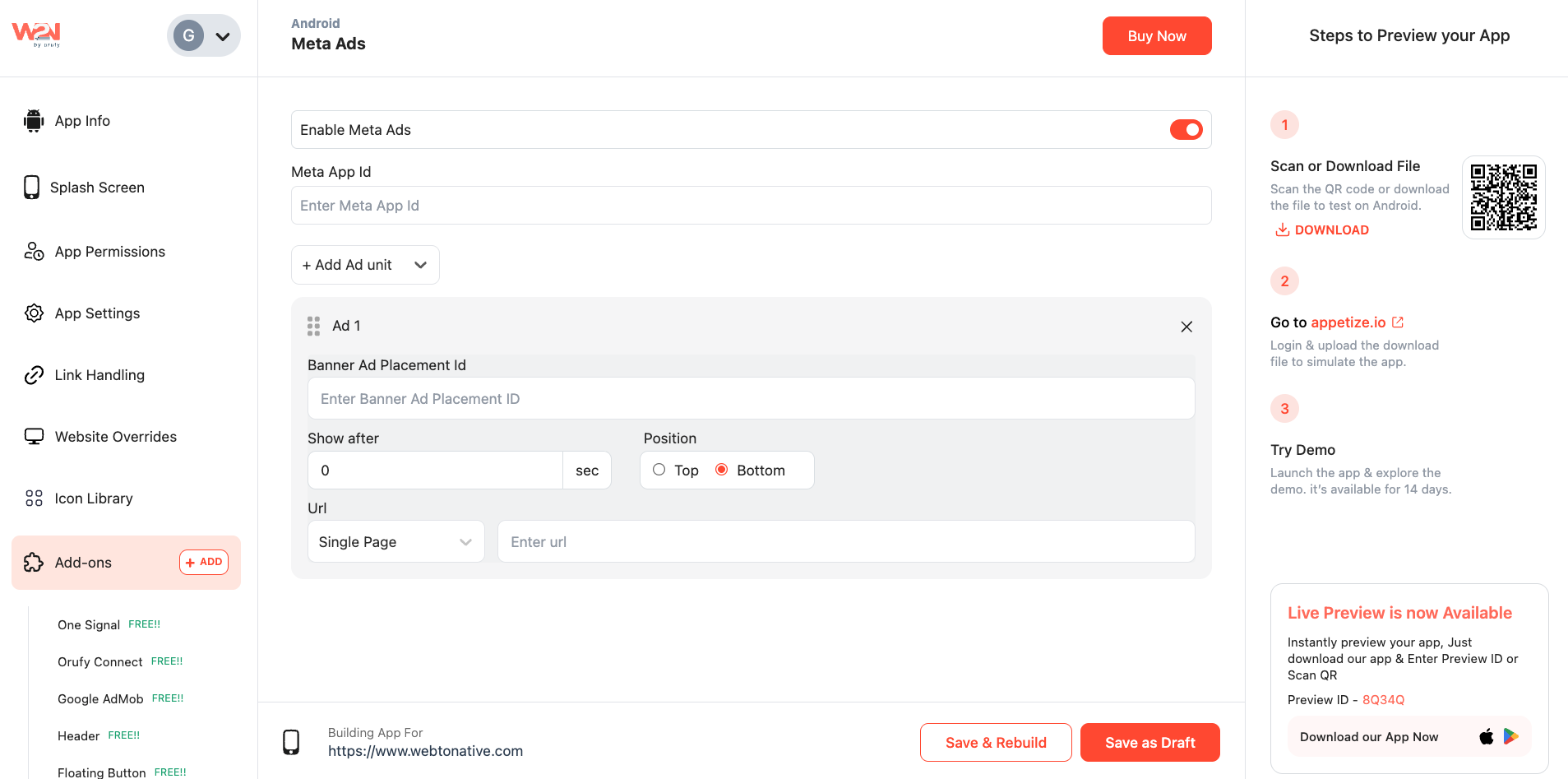
- You can also choose which page shows the ad
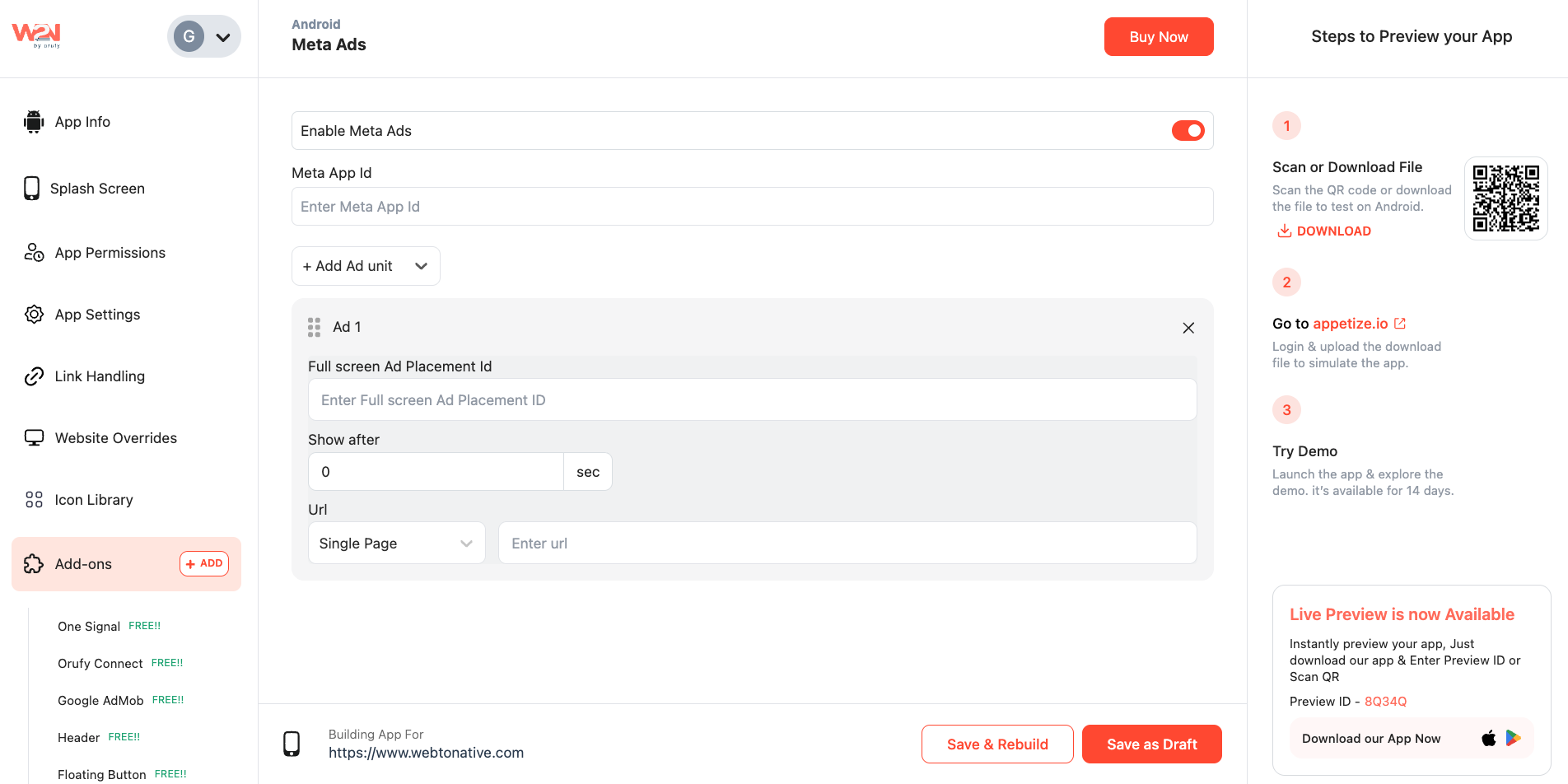
For Full Screen Ads:
- Ad Placement ID: Enter the Banner Ad Placement ID given by your Meta Ads account
- Show After: Choose when the ad should appear in seconds
- URL Targeting: Display the ad on a selected page or URL
For Reward Ads:
- Ad Placement ID: Fill in the Reward Ad placement ID provided by your Meta Ads account
- Show After: Delay the ad display by a few seconds
- URL Targeting: Target the ad to a particular page or link
Step 8: Save & Rebuild
- After done with your customization, you can save and rebuild directly to apply your changes
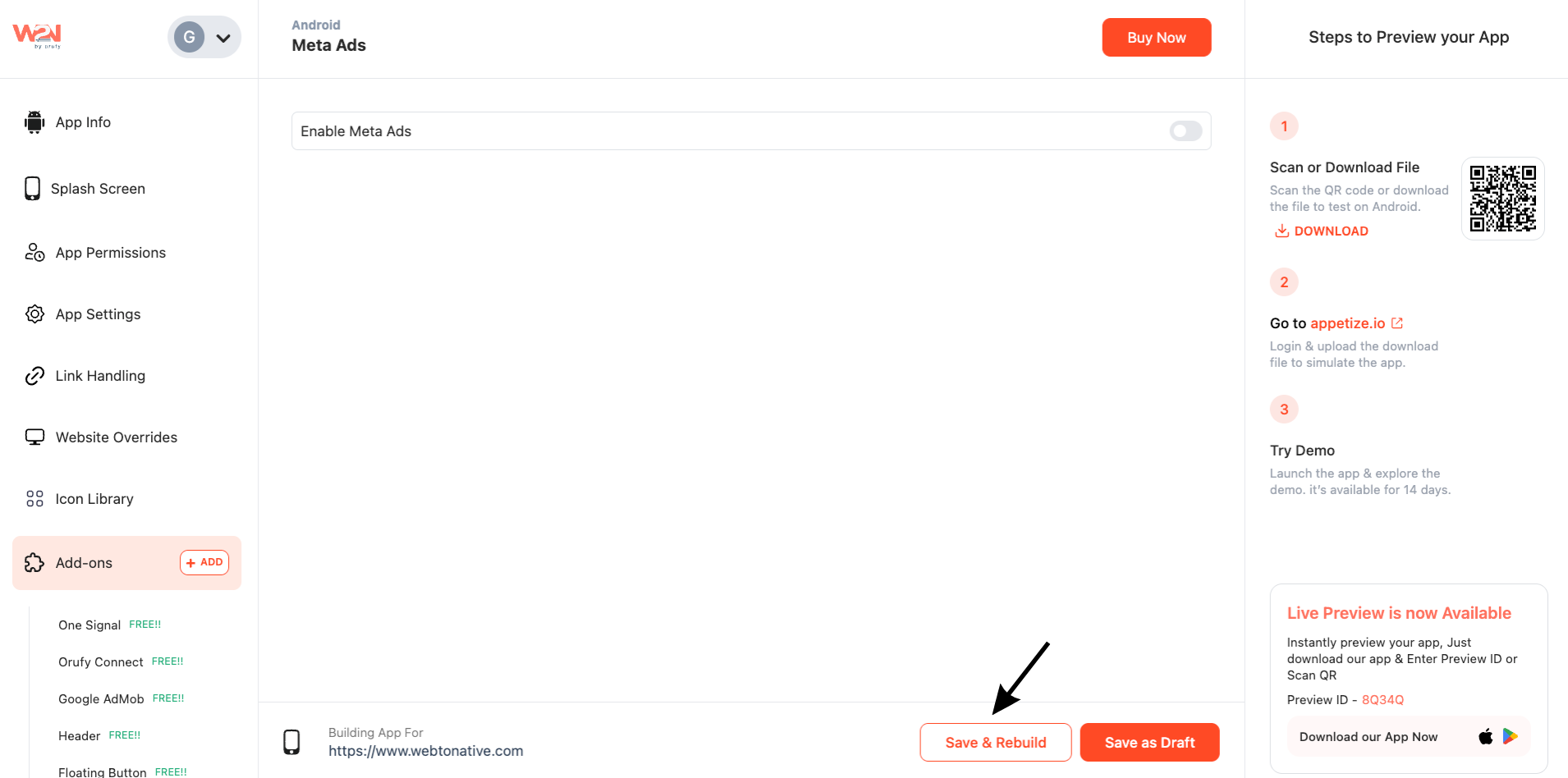
- Also, you can save these changes as a draft