



Preview Your App
Users can view the app in real time and quickly see how UI-related changes and add-ons will appear on their mobile devices using the Live Preview feature. This helps you review and verify the app’s design before publishing.
How to Access Live Preview for Your App
Follow the steps below to have a Live Preview for your app.
Open the Live Preview
-
Navigate to WebToNative (opens in a new tab) and log in to your account.
-
Inside the My Apps section.
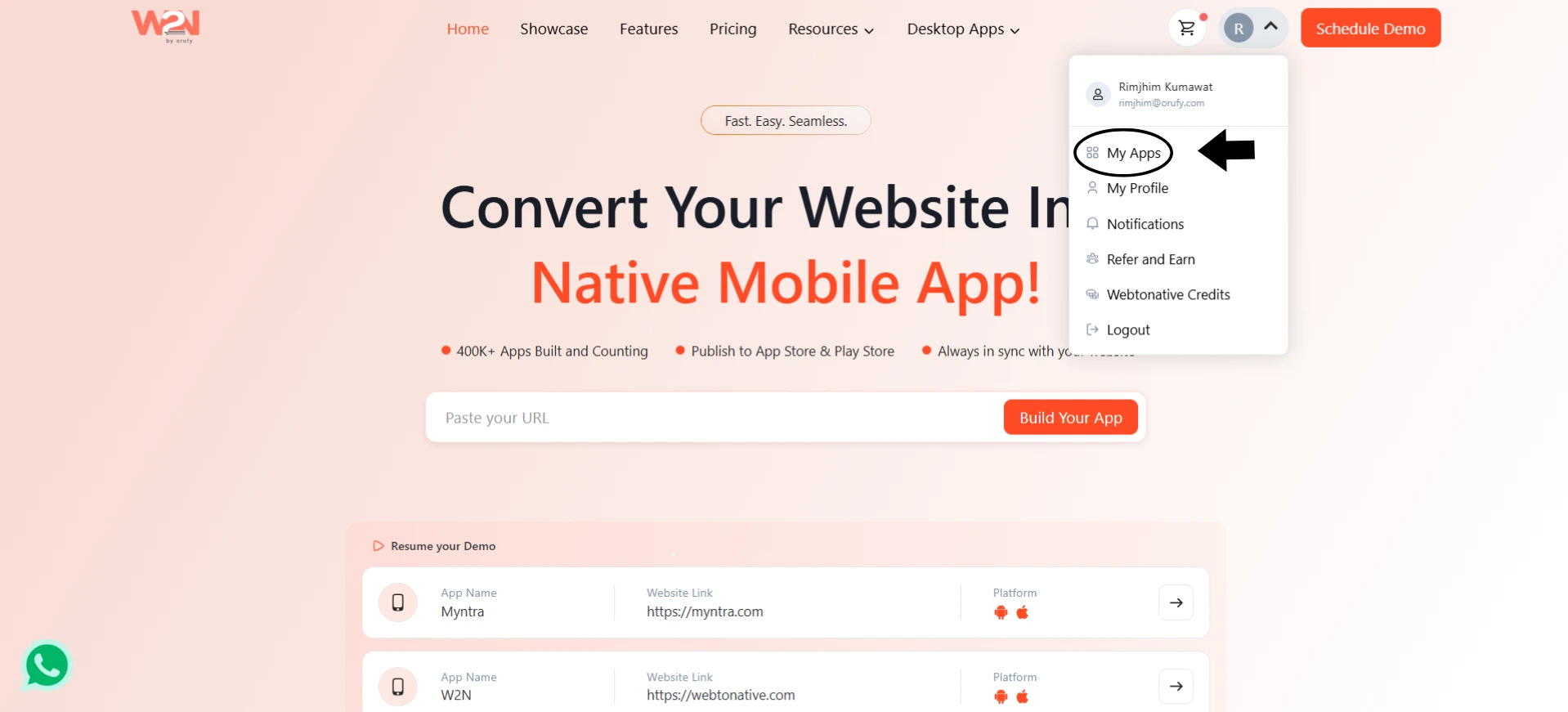
- Click on the app for which you want to view the Live Preview.
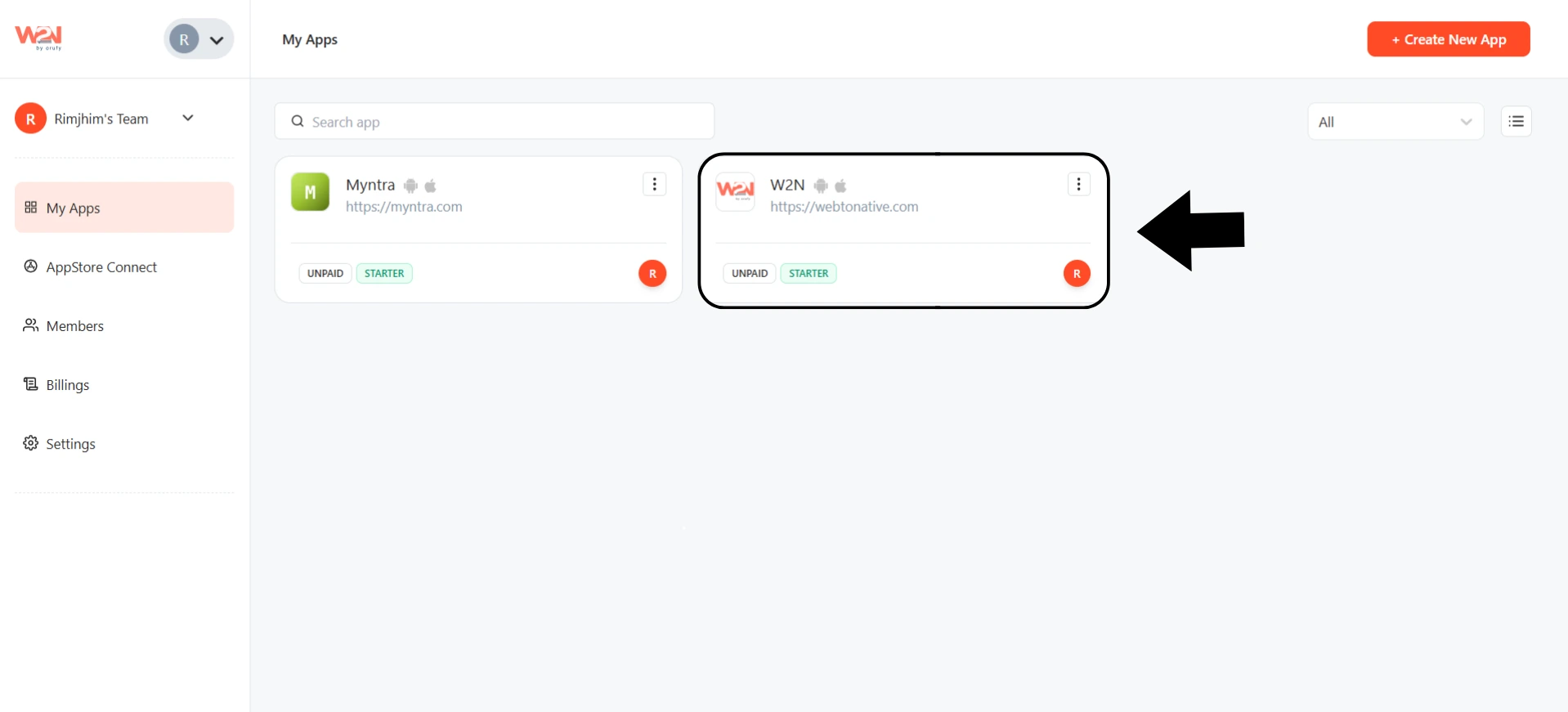
- The checkout page will open, showing two tabs: Test on Device and Live Preview (Beta).
Get Your Preview Credentials
- Click on the Live Preview tab beside Test on Device.
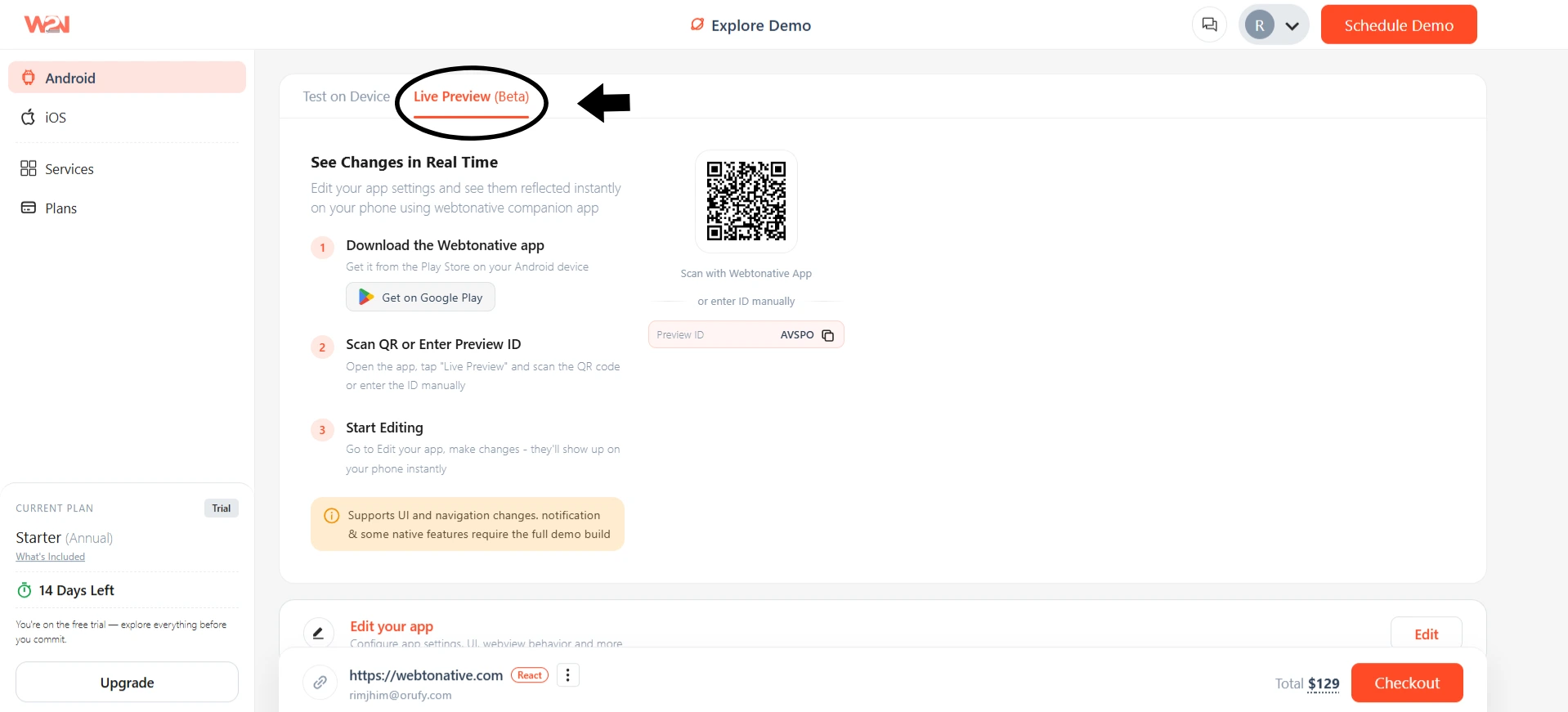
- The preview ID and QR code will be displayed instantly.
Download the WebToNative Mobile App
-
First, you must download the WebToNative app from the Google Play Store (opens in a new tab) or Apple App Store (opens in a new tab).
-
Install the app on the device where you want to preview your app.
Log In to Your Account
-
After the successful installation, open the WebToNative app.
-
Log in using your WebToNative account credentials.
-
Make sure that you log in with the same account associated with the WebToNative website account.
-
Once logged in, you will be able to access the live preview functionality.
Connect to Your App Preview
Inside the WebToNative app, click on Preview.
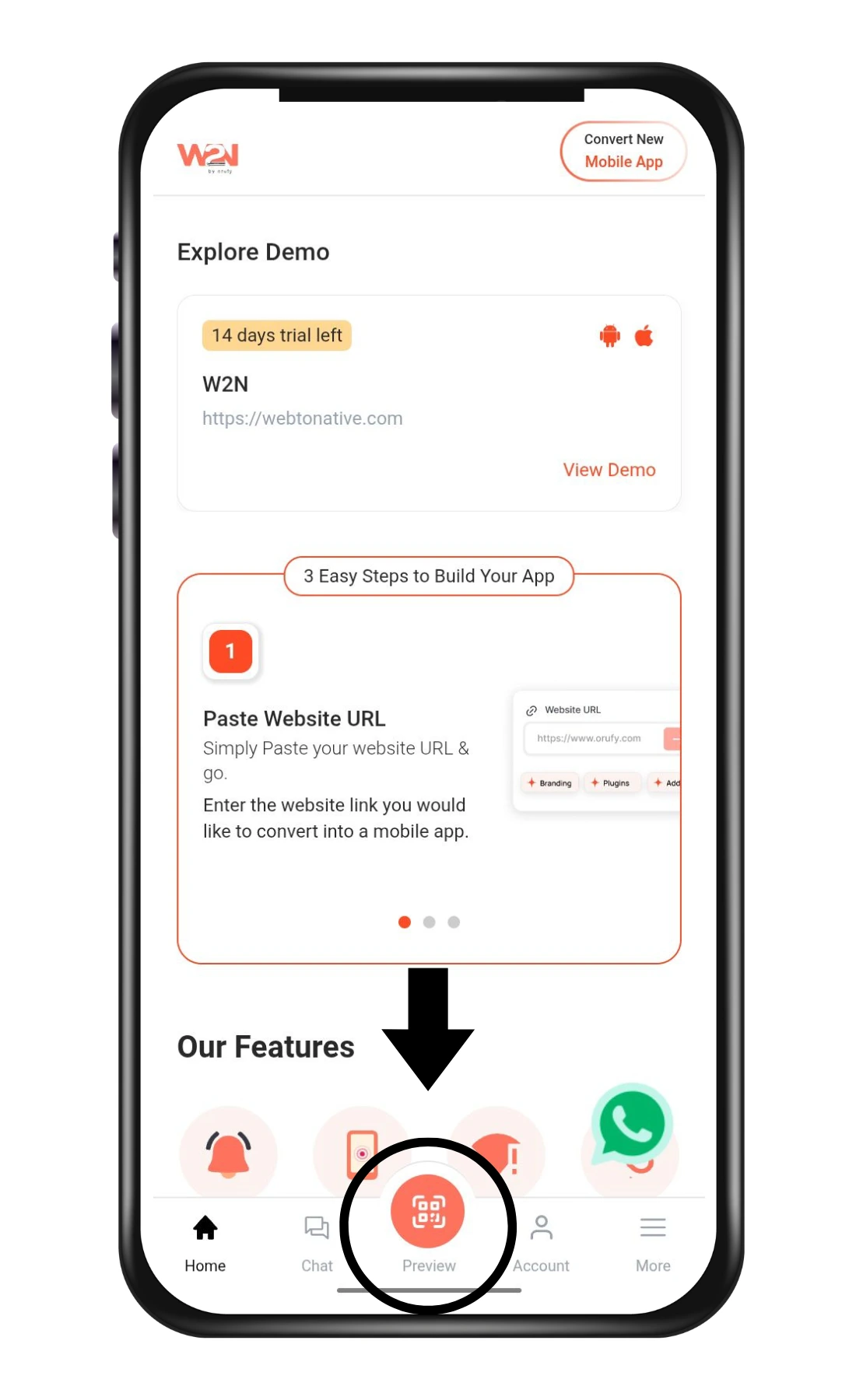
You can access the preview by Preview ID or a QR code.
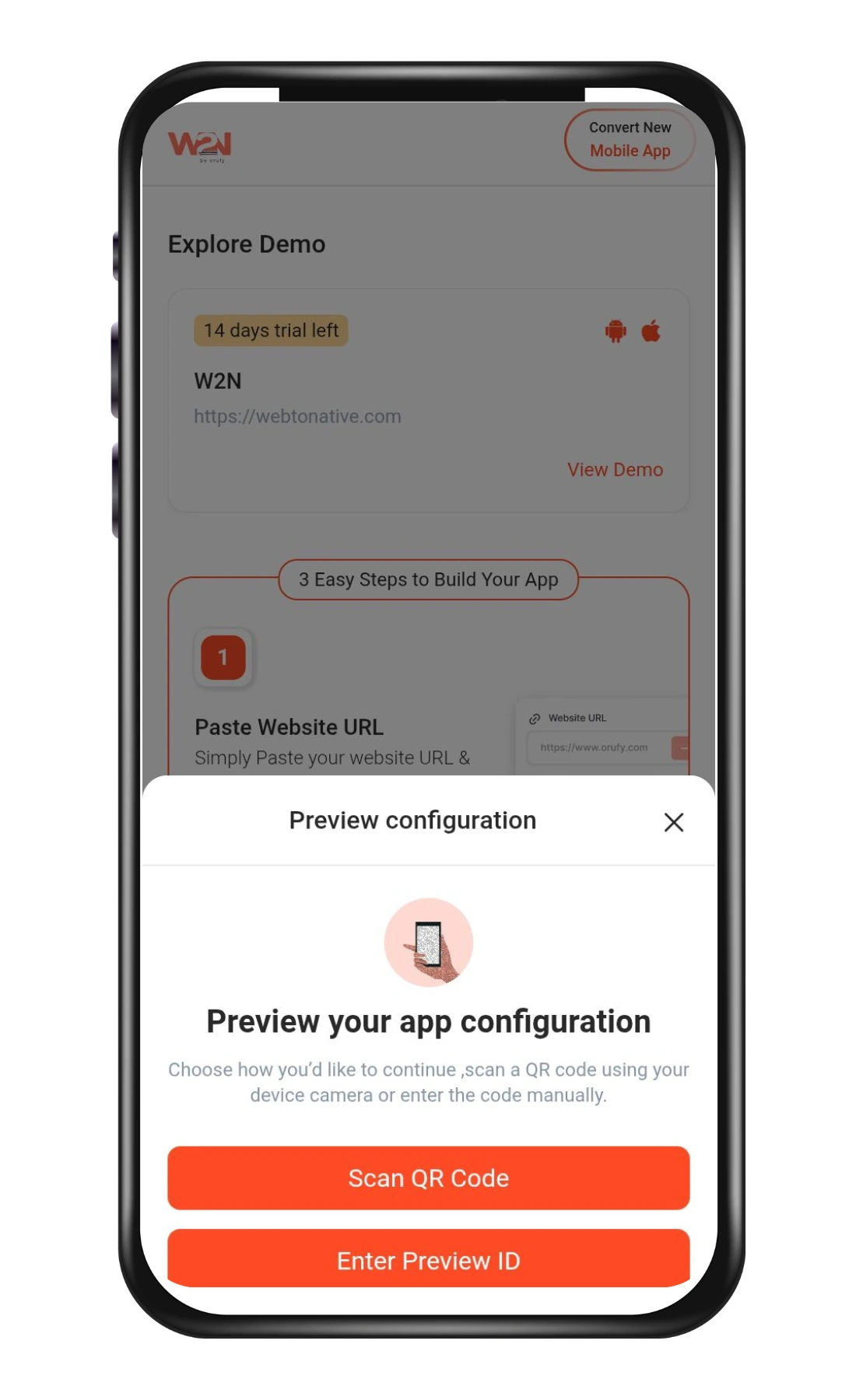
OPTION 1: Preview ID
- Enter the Preview ID displayed on the WebToNative’s dashboard.
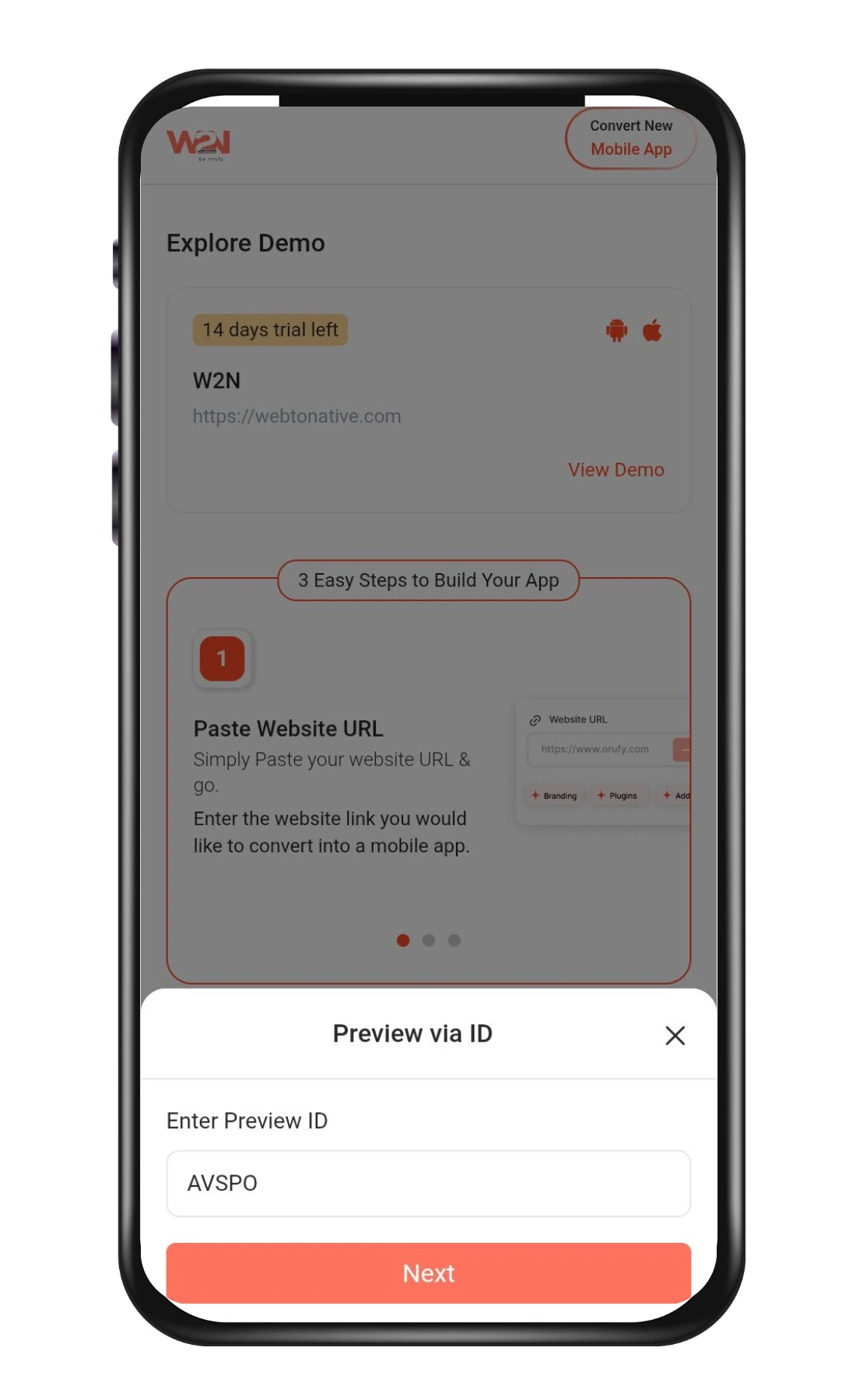
-
Click on Next.
-
A screen will appear showcasing the features that are not supported in the live preview.
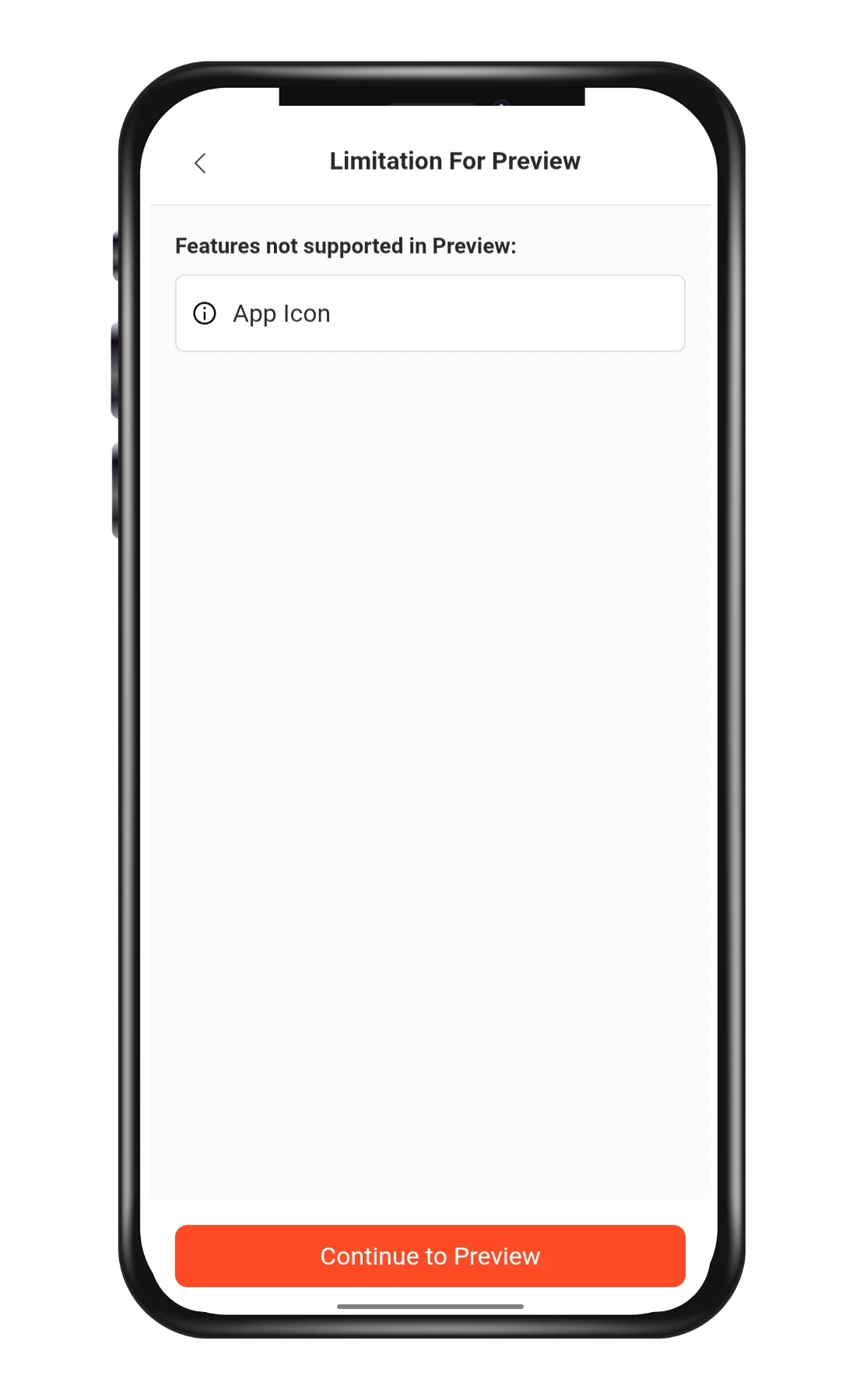
-
Click on Continue to Preview.
-
Your app’s preview will load automatically.
OPTION 2: QR Code
-
Scan the QR code displayed on WebToNative’s dashboard.
-
A screen will appear showcasing the features that are not supported in the live preview.
-
Click on Continue to Preview.
-
Your app’s preview will load automatically.
View Your App in Real Time
-
Your app will now load in the live preview mode.
-
You can customize the UI elements from the WebToNative dashboard.
-
This ensures that your app’s design and layout appear exactly as intended.
Review Changes Instantly
Any UI changes made can be viewed in the Live Preview in real-time. Instantly Updates Features such as Splash Screen, No Internet Screen, Error Screen, Bottom Navigation, and more. Use live preview to test your designs without generating a new app build each time.
Live Preview is available for UI-related features and add-ons. Some backend functionality, integrations, or platform-specific features may require a full app build for complete testing.