


Google Wallet
Google Wallet allows users to save things like event tickets, loyalty cards, boarding passes, offers, or gift cards with a tap.
How the Card Gets Ready Behind the Scenes
Before this add-on can work, your development team needs to set a few things up on Google’s side. Here’s the short process, so you know what’s happening even if you are not the one doing it.
-
They create an account on Google’s Wallet platform and get an ID for your business.
-
At the time of testing, cards only work for a few accounts your team has added as testers. Your team later switches this to live mode so it works for all your actual users.
-
They design a template for the card. For example, a loyalty card or event ticket should look like and contain the information it holds.
-
For each user, they fill in that template with the user’s actual details, like points balance or their seat number.
-
This filled-in card detail is then signed using a private key. So, Google Wallet can trust it’s really coming from your app.
-
That signed-in data is what finally reaches this add-on and triggers the save screen for the user.
Your development team also needs to register your app with Google. So Google knows where the request is genuinely coming from your app. If this step is missed, cards will fail to save even if everything else looks perfect.
Where to Find It in Your Dashboard
My Apps ➡️ Edit your app ➡️ Add-ons ➡️ Wallet
Steps to Set Up Google Wallet on Your Android App
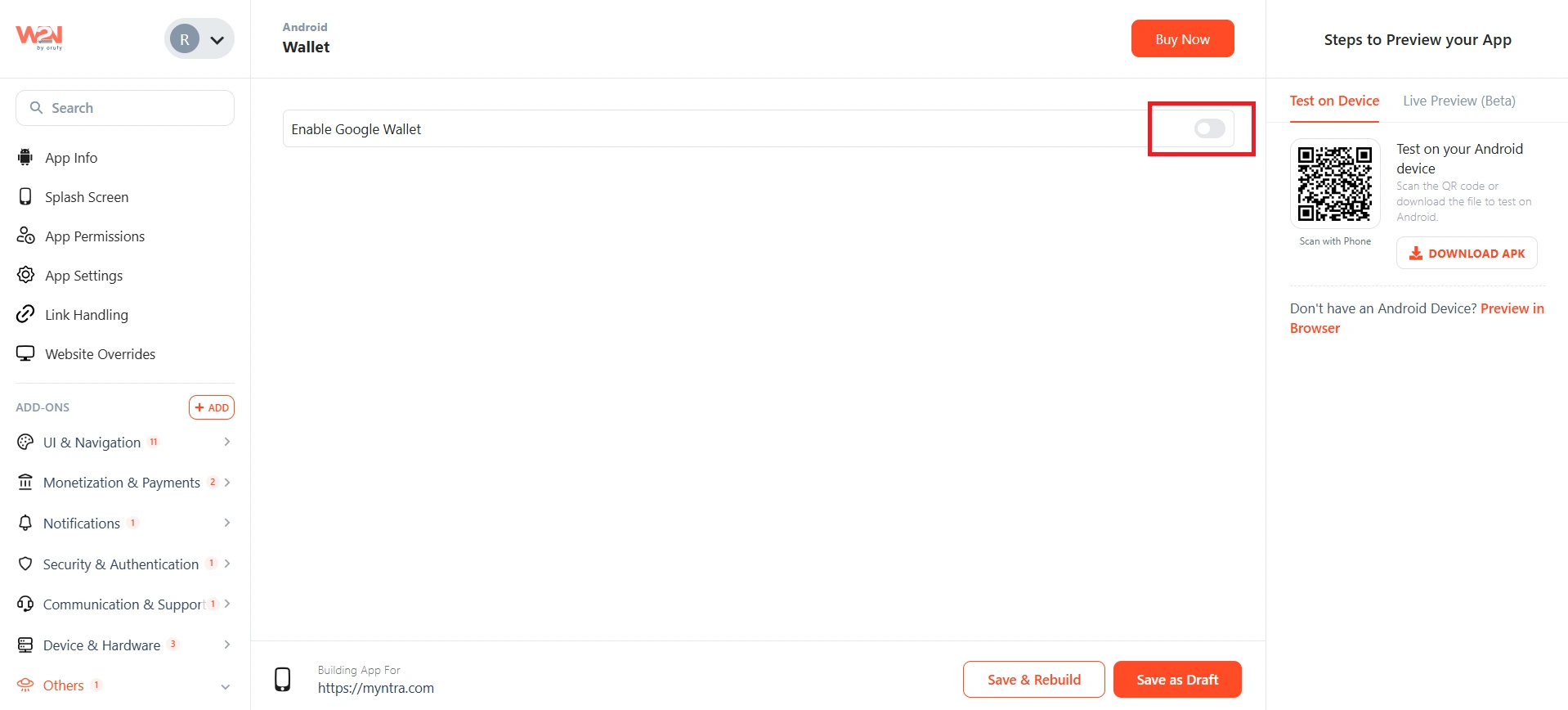
Enable / Disable Toggle
Turn this ON to switch on the add-on for your app. If it's OFF, none of the other settings on this page will work.
Automatically Add Pass Links Opened on Your Website
Turn this ON if you want the Google Wallet save screen to open on its own whenever a card is opened inside your app, whether that's a hosted pass link or the pass data passed directly in the URL. You don't have to add anything extra on your website for this to work.
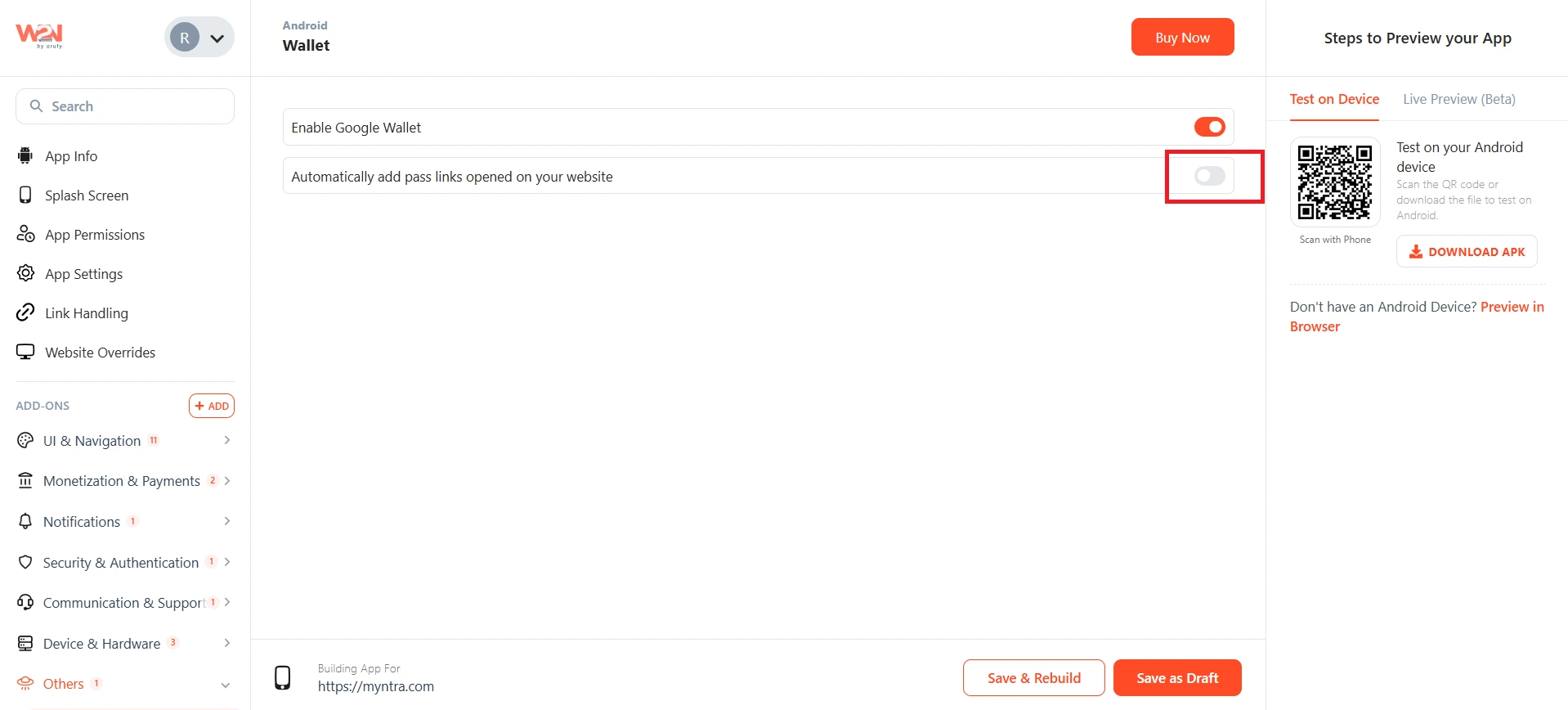
Keep it OFF if you'd rather open the save screen yourself, for example, using your own "Add to Wallet" button on a page.
Save the Changes
Click Save so your changes apply and the app rebuilds with Google Wallet turned on.
If your development team needs the technical steps for setting up and creating these Wallet cards, they can find them in our developer documentation: https://docs.webtonative.com/javascript-apis/wallet/wallet-creating-passes/wallet-creating-passes-android (opens in a new tab)
Functions for Google Wallet
You can use the following functions in code to control how Apple Wallet behaves inside your app.
isSupported checks whether the user's device has Google Wallet available. Your team can use this before showing an Add to Wallet button, so it does not appear on a device that cannot use it.
addPasses saves one or more cards to the user's Google Wallet. This is the main function behind this add-on and is used whenever a loyalty card, ticket, or offer needs to be added.
getName checks the exact name of the wallet app installed on the user's device. This is mostly used behind the scenes to confirm which wallet app is present, for example Google Wallet.
Frequently Asked Questions
Q1. Do I need to turn on “Automatically Add Pass Links” if I already have my own Add to Wallet button?
A. No. Keep the toggle OFF and use your own button instead. Turn it ON only if you want the save screen to open on its own whenever a card link is opened.
Q2. Why does saving a card fail even though everything looks set up right?
A. One of the most common reasons for this failure is that you have not registered your app with Google yet. Google needs to know the request is really coming from your app before it will let a card save. You must check whether your app is registered with Google. Later, do a double-check to review the entire card setup.
Q3. Does Webtonative create the card design for me?
A. No. You have to create and set up the card using Google’s tools. Webtonative just makes sure it saves correctly to the user’s Google Wallet app.
Q4. Can a card be updated after a user has already saved it?
A. Yes. If something changes inside your saved cards or events, you must send an updated version. It will automatically replace the older version with a new and updated version in the user’s Google Wallet.
Q5. If it worked for us while testing but doesn’t work for our actual users, why?
A. New Google Wallet accounts begin in a testing environment where cards only save for a handful of accounts you have added as testers. You have to switch the account to production mode inside Google Wallet Console before it will work for everyone.
Q6. Does this work on iPhone too?
A. No. This will only work on Android. For iPhone users, there’s a separate Apple Wallet add-on in the same Wallet section. You only have to switch to the iOS tab.