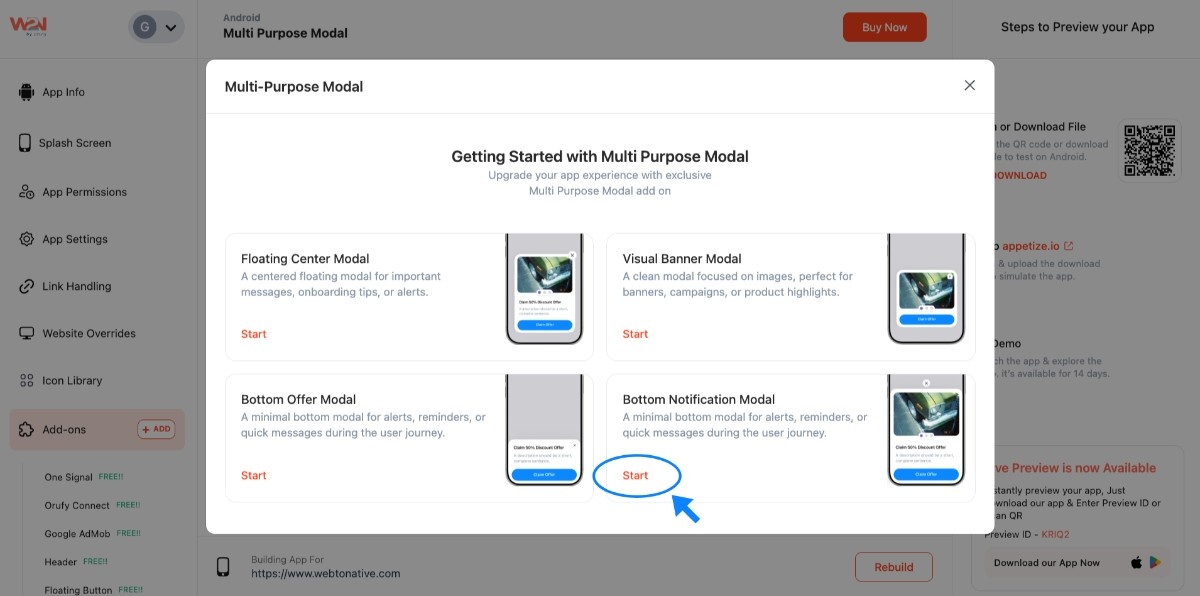
Bottom Notification Modal
A bottom notification modal is a pop-up that shows at the bottom of the screen, used to give updates, alerts, or messages to the user. Without covering the whole screen, it sits on the main content. Additionally, it works like a short message bar at the bottom.
Step 1: Go ahead and tap on the Start button
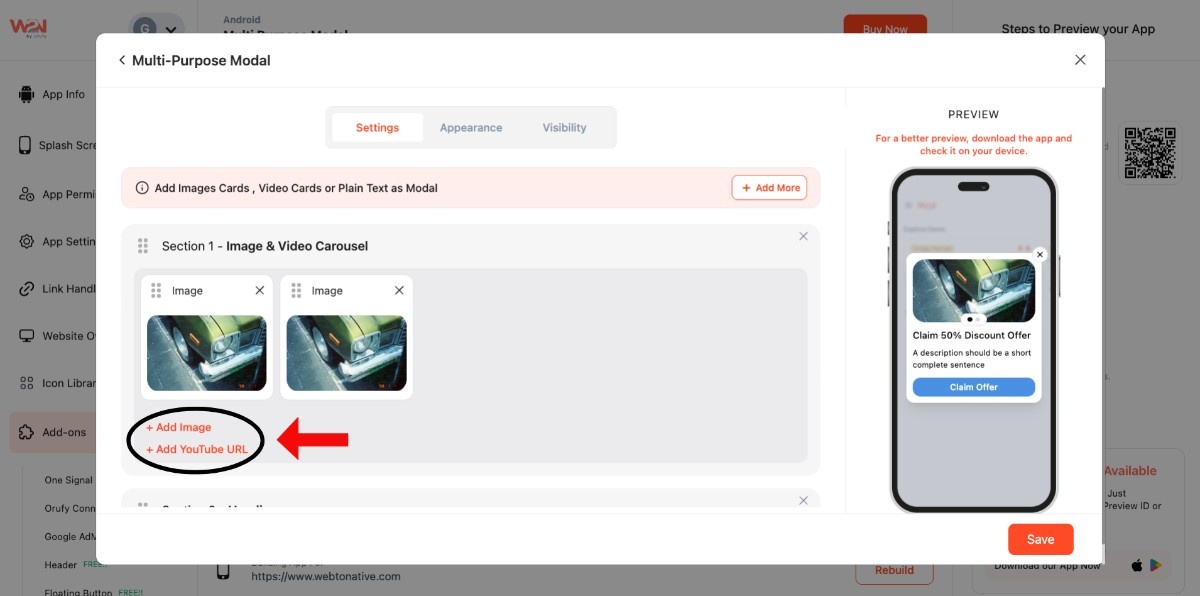
- To add visuals to your app, click on + Add Image or + Add YouTube URL
- Write a clear title for your message
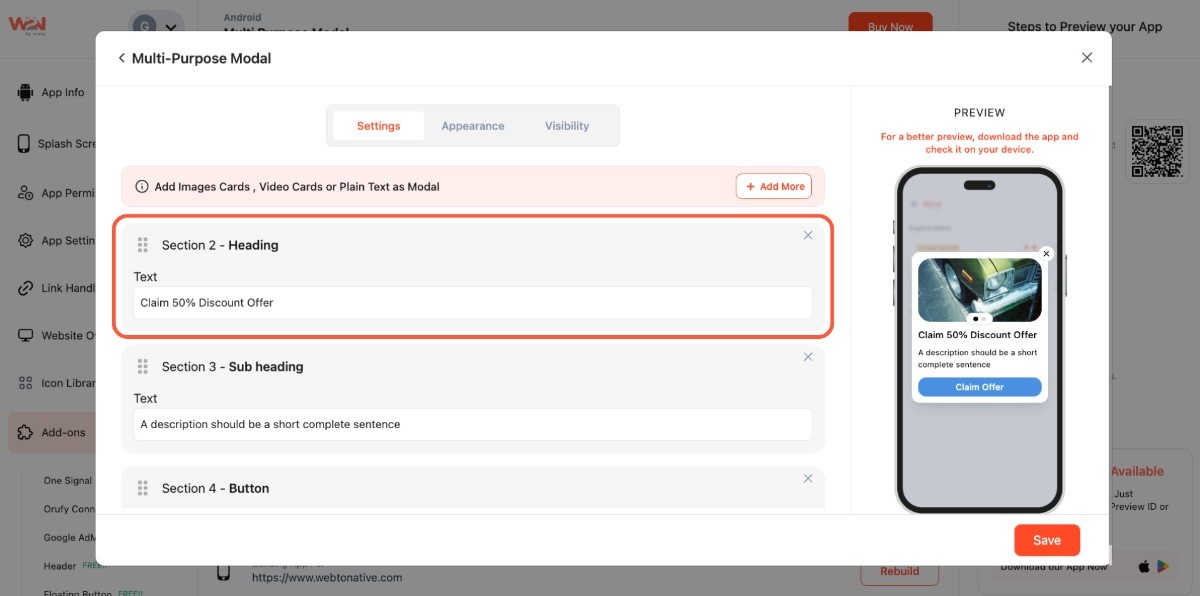
- Include a simple, short sentence to support the title
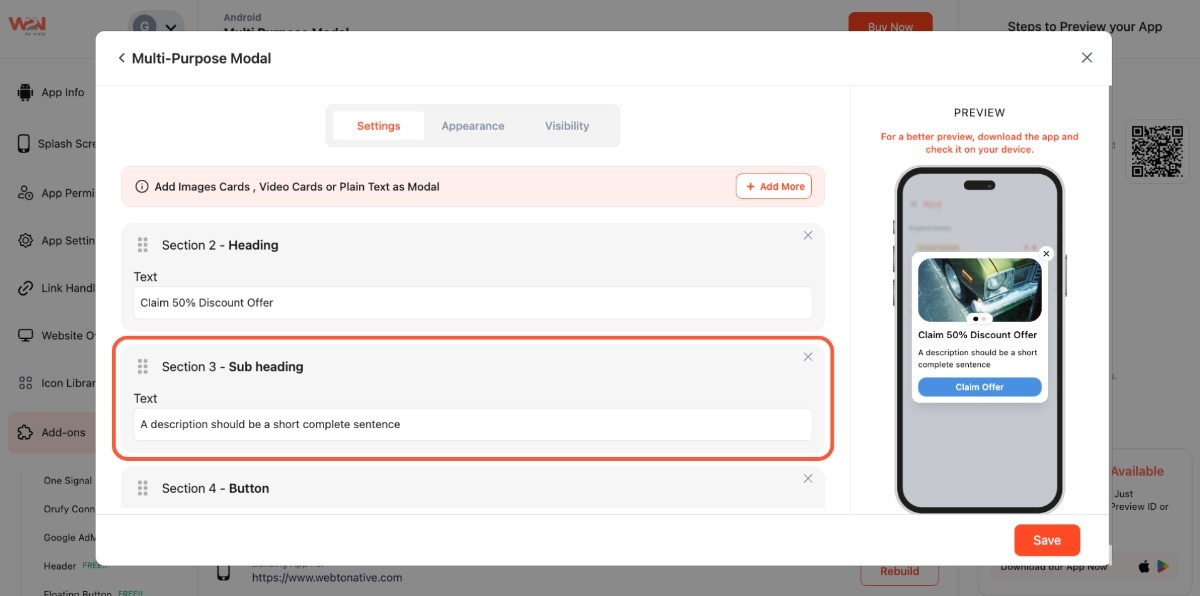
- Use a button and a web link to lead users forward
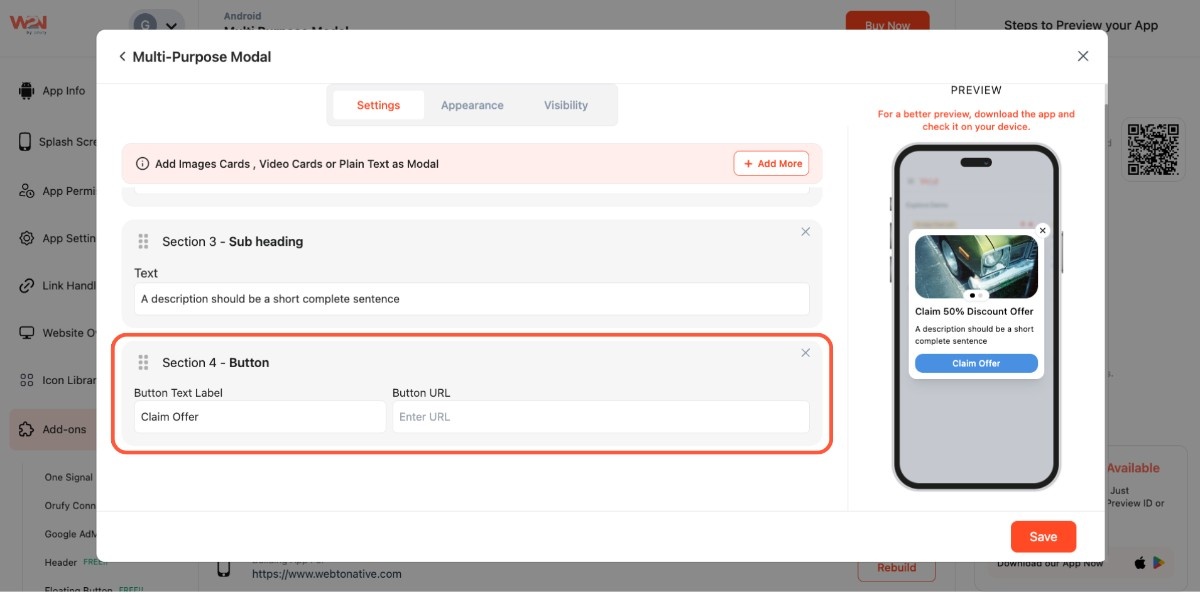
Step 2: Open the Appearance Section
- This section allows you to modify the design of your modal
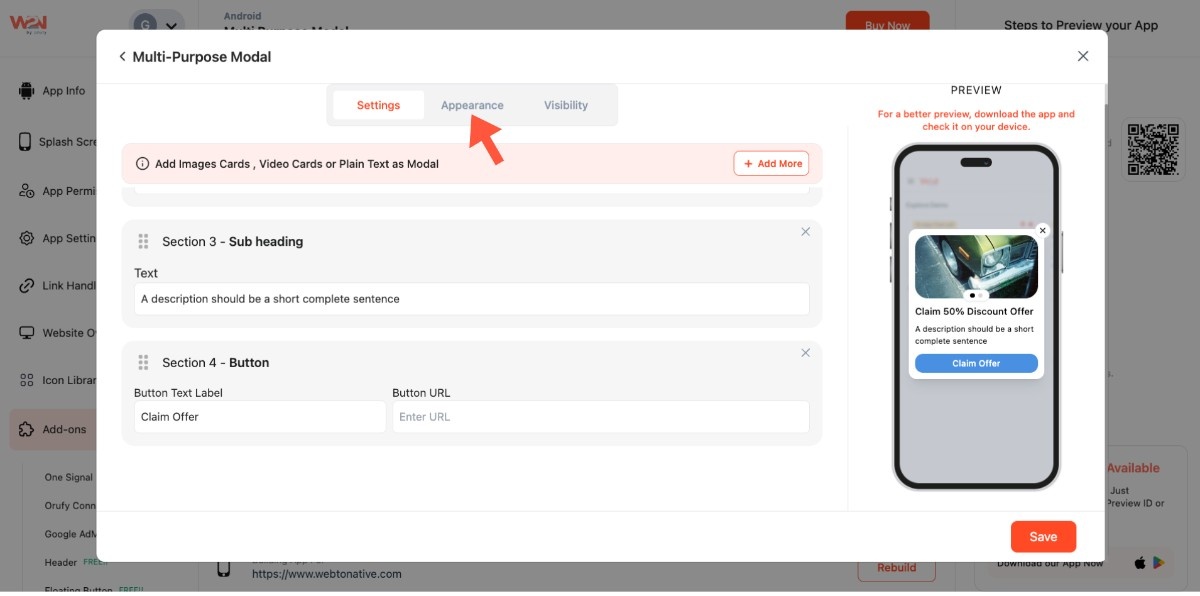
- Use a colour circle to set a background colour according to your app theme
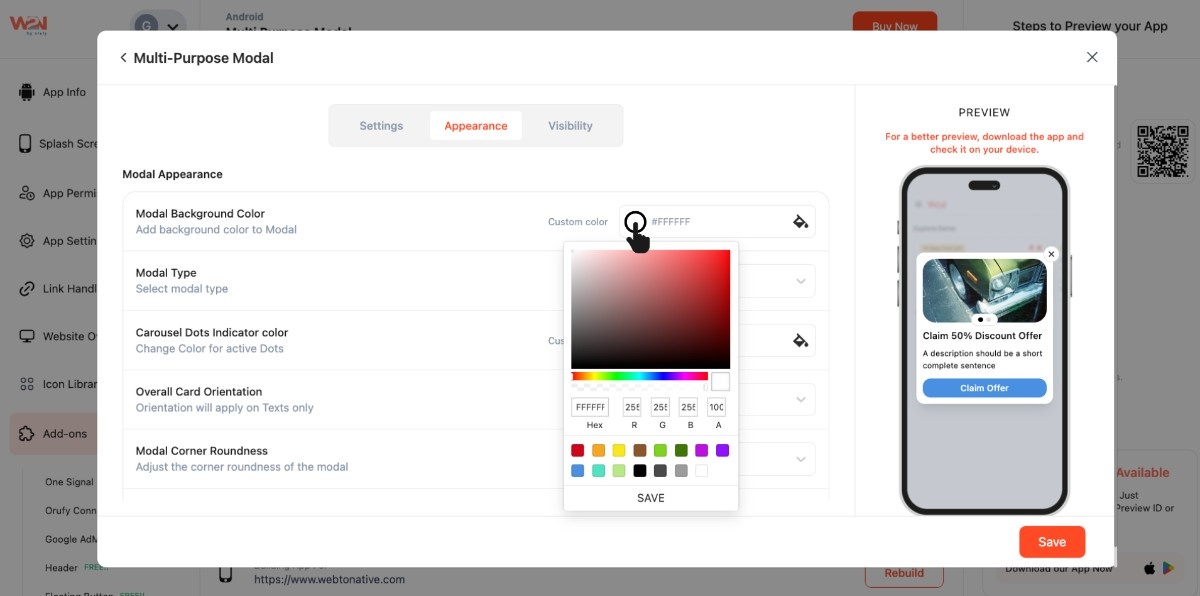
- Decide where you want to appear the modal: Bottom or Float
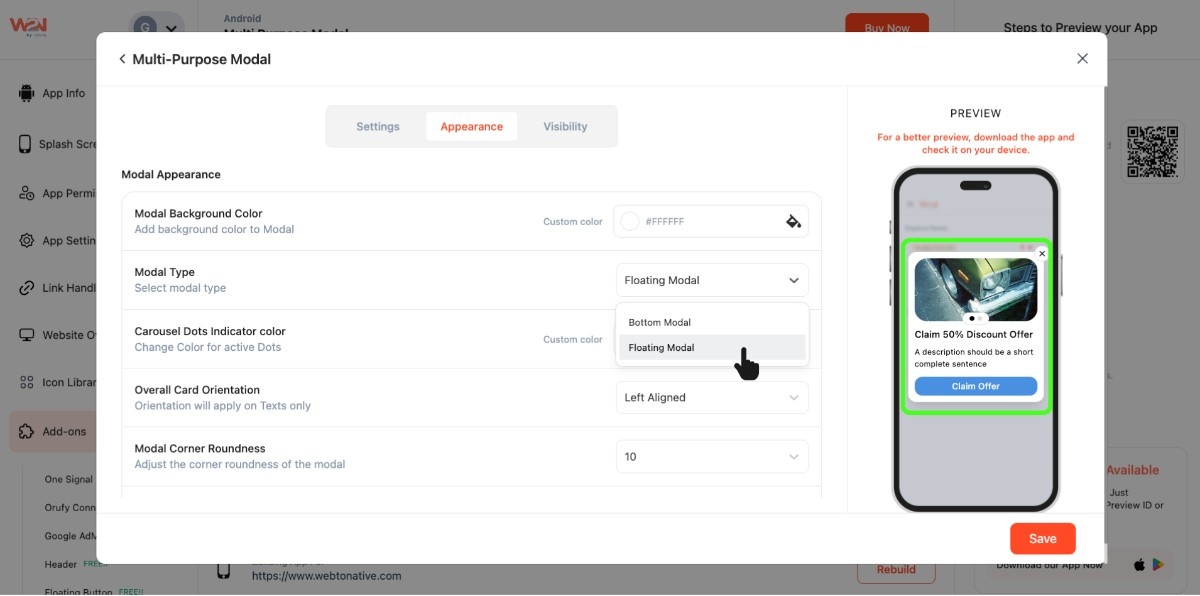
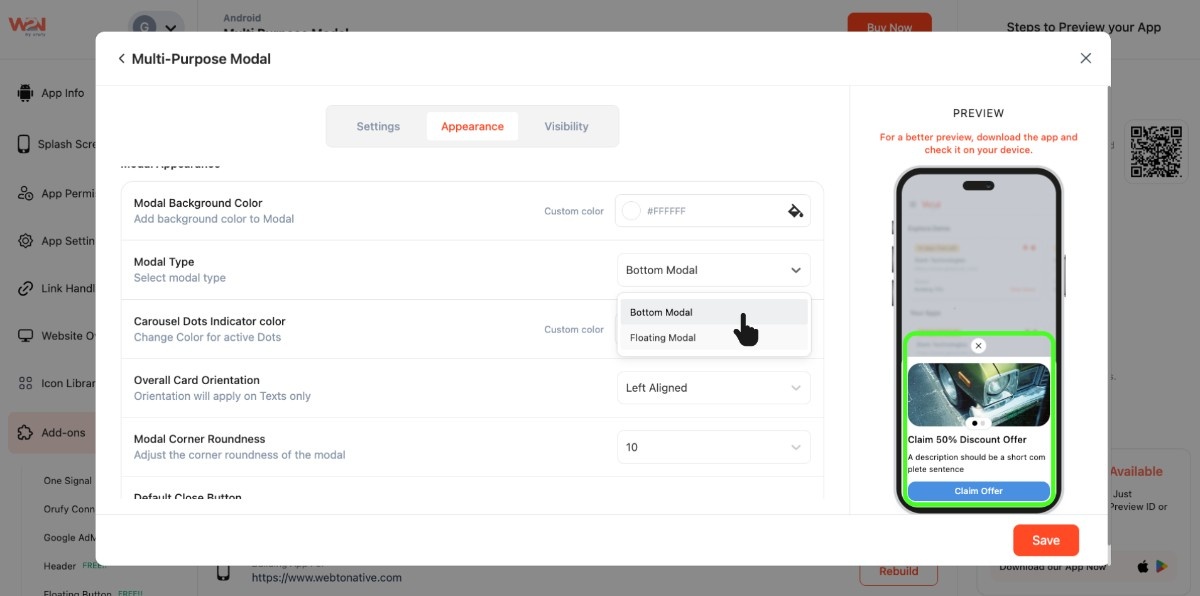
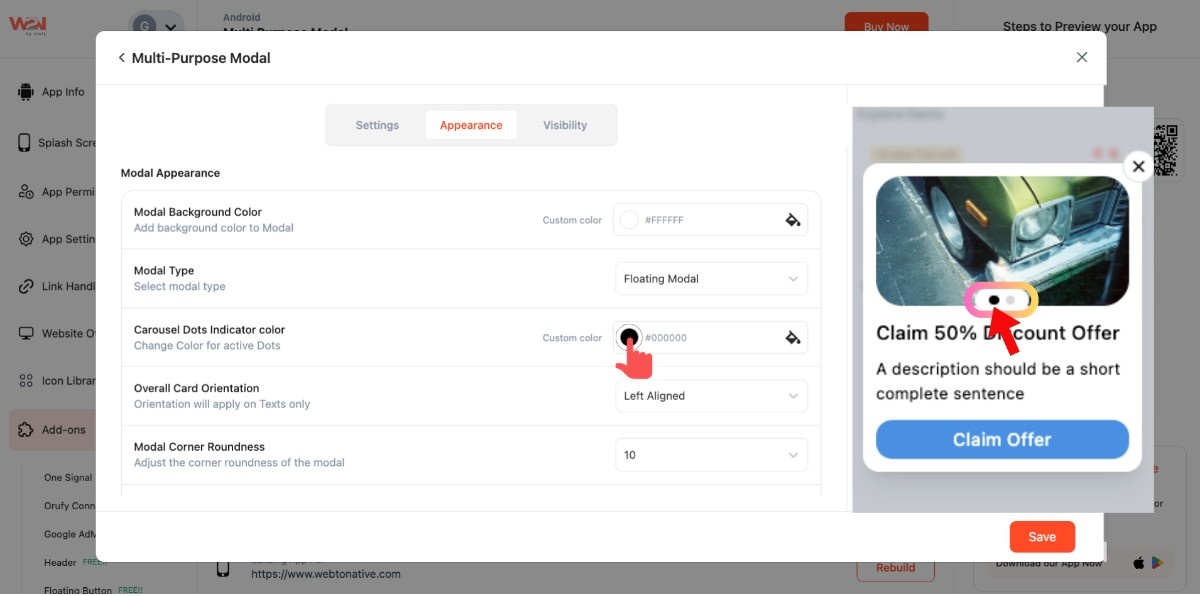
- Select a colour for the carousel dot
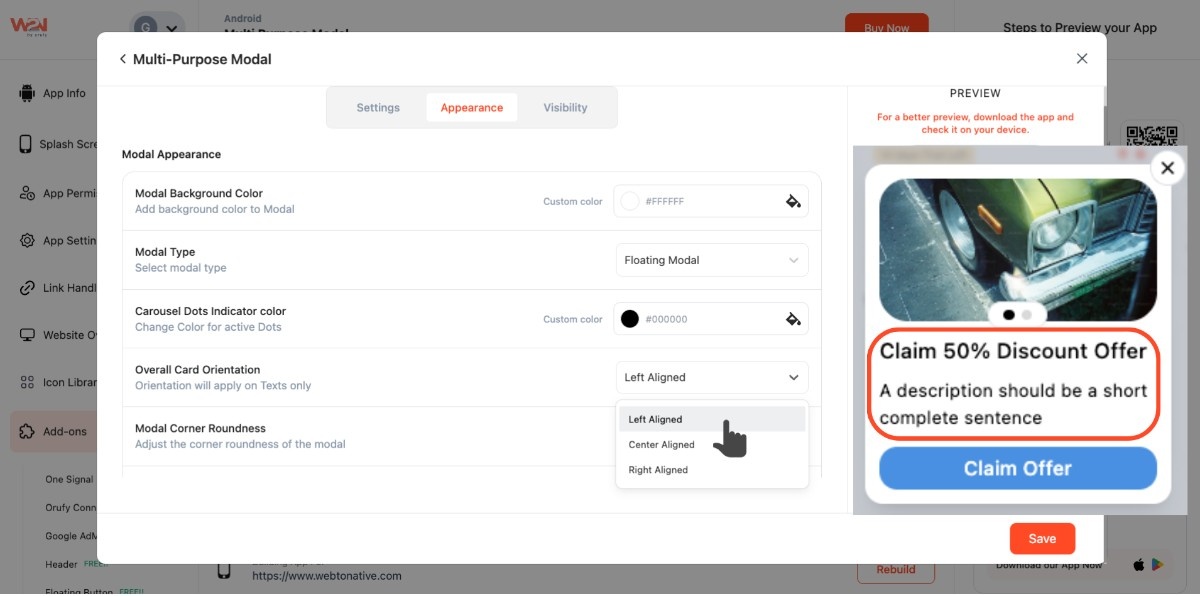
- Using the Overall Card Orientation allows you to set the text alignment (left, right, or center)
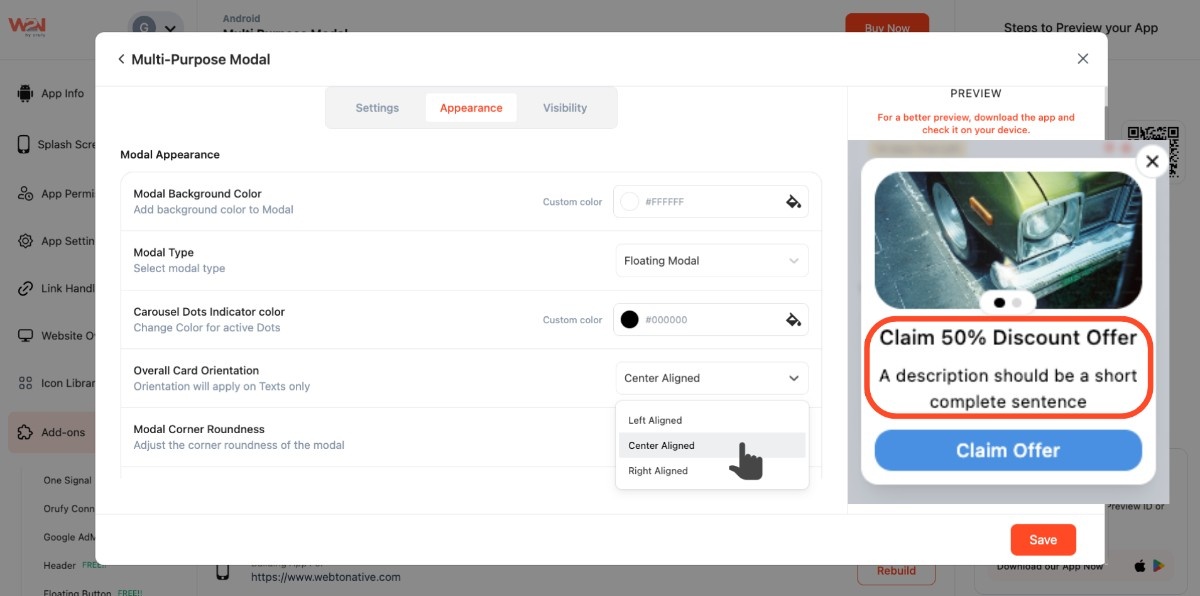
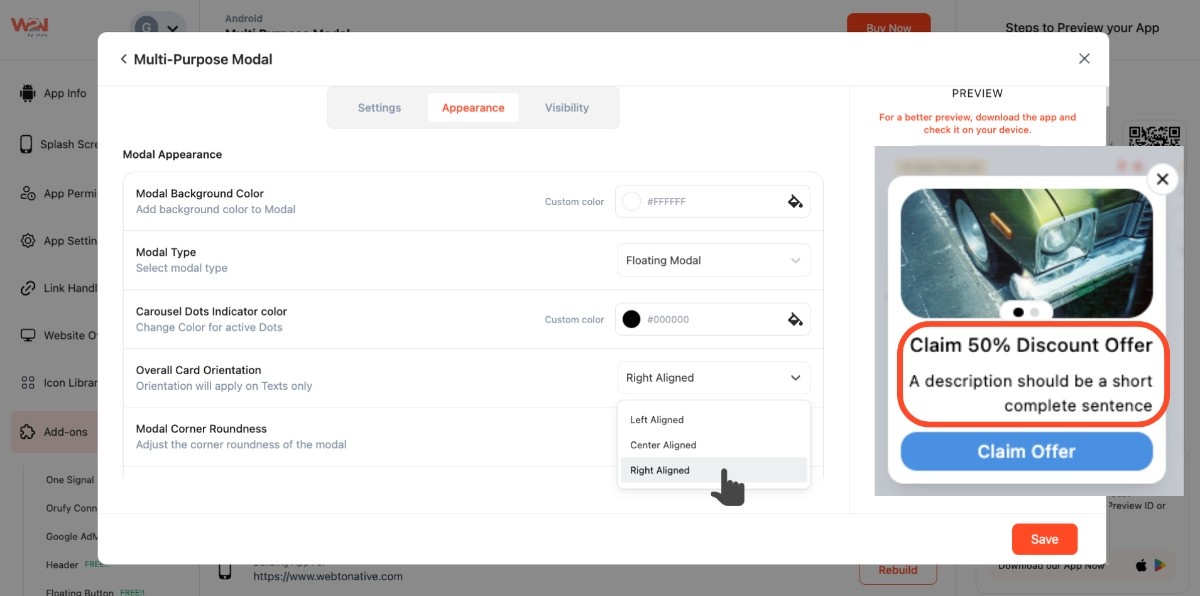
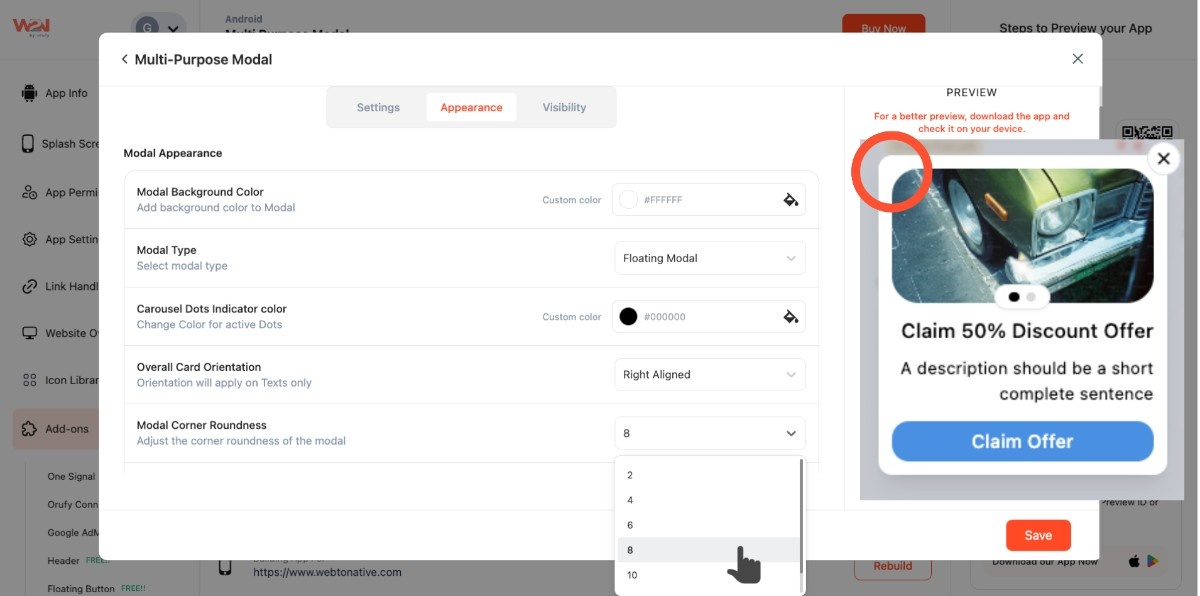
- You can also increase or decrease the modal’s corner roundness
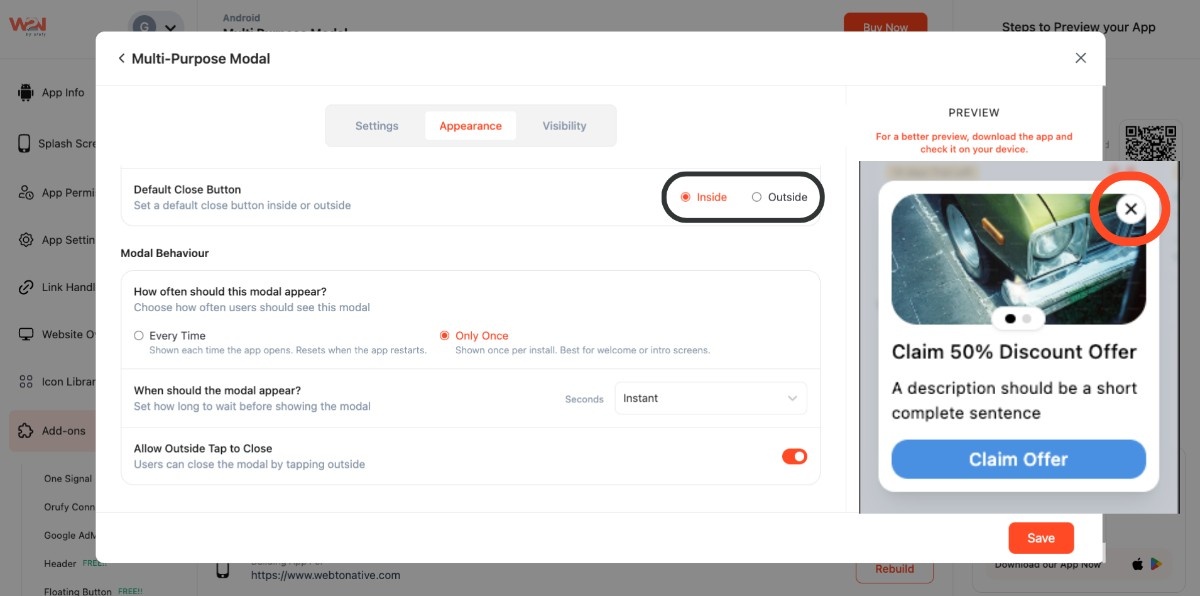
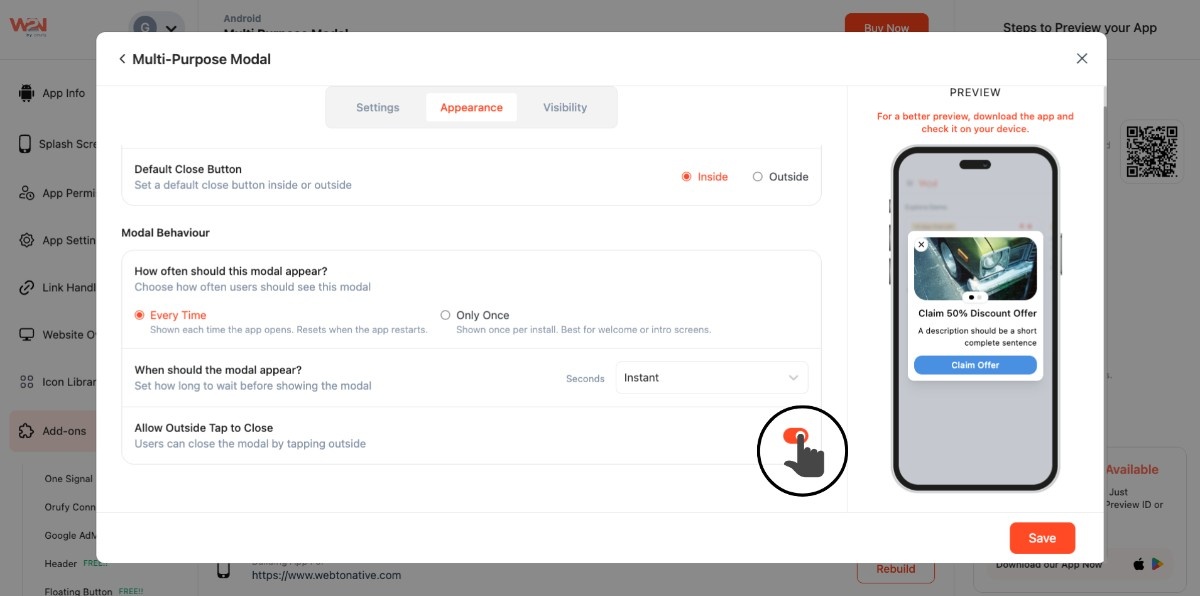
- Place the close button at the desired location- inside or outside of the modal
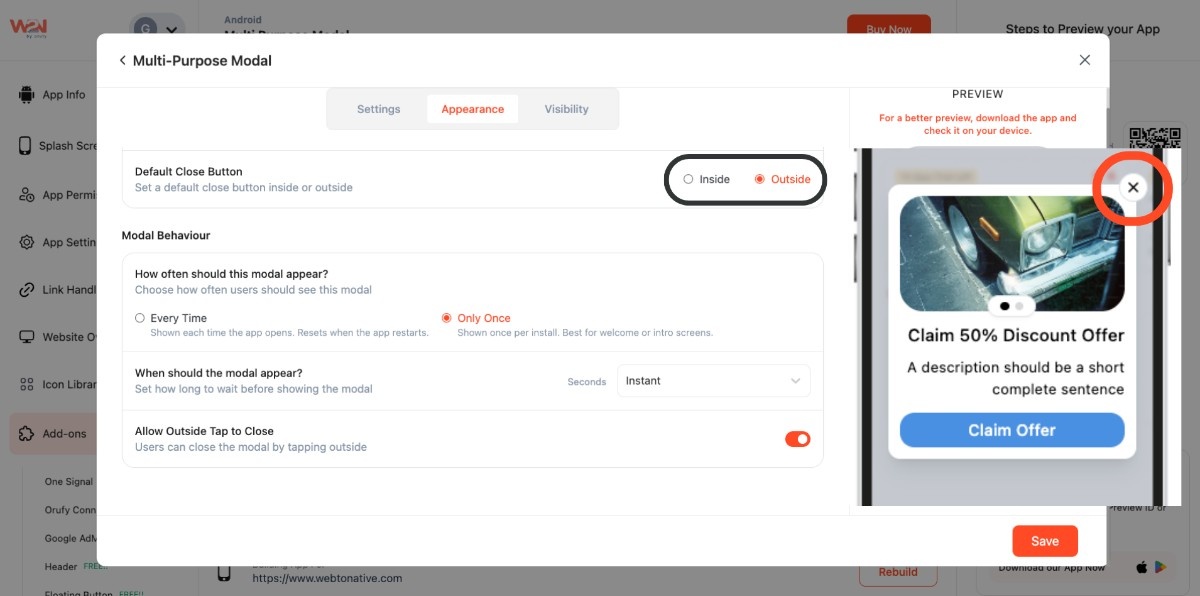
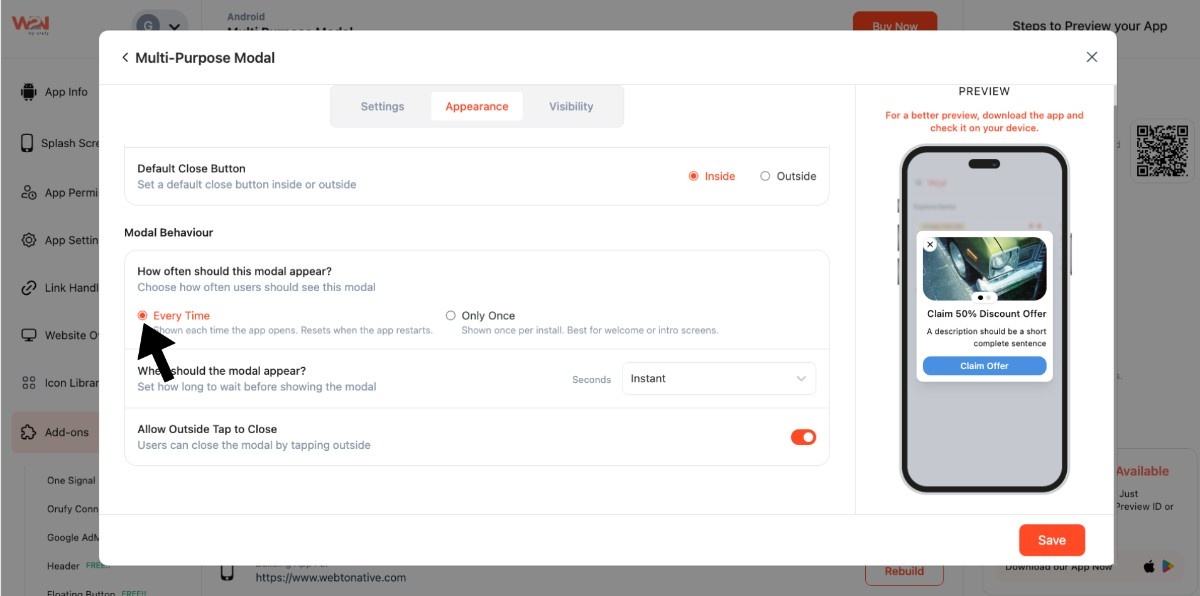
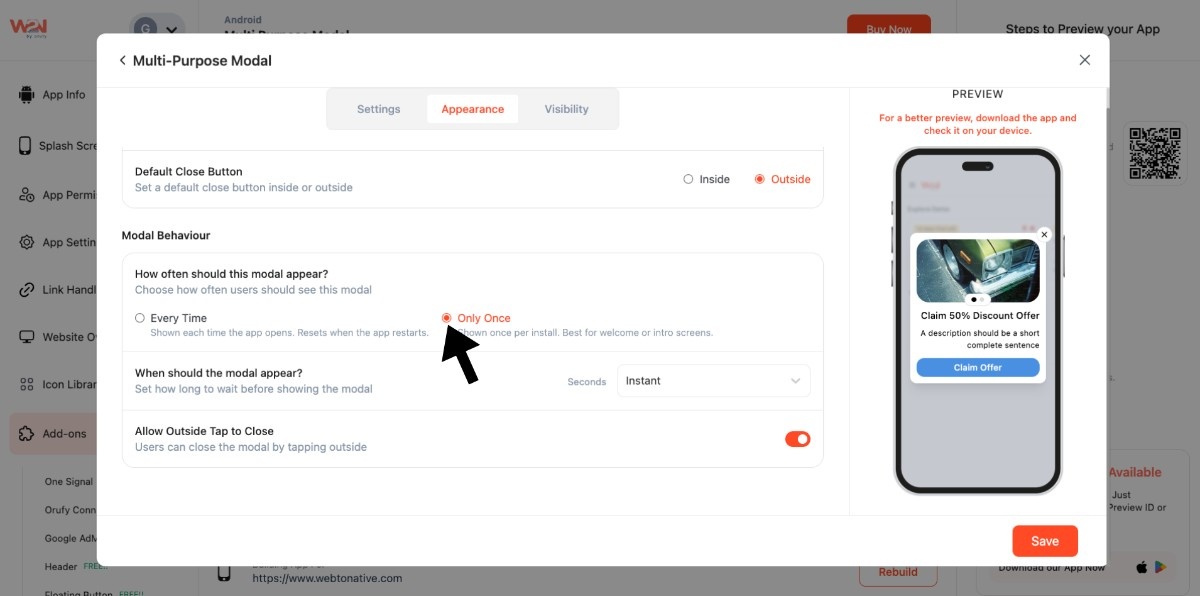
- Control the display frequency of the modal: every time the app opens or just once after app installation
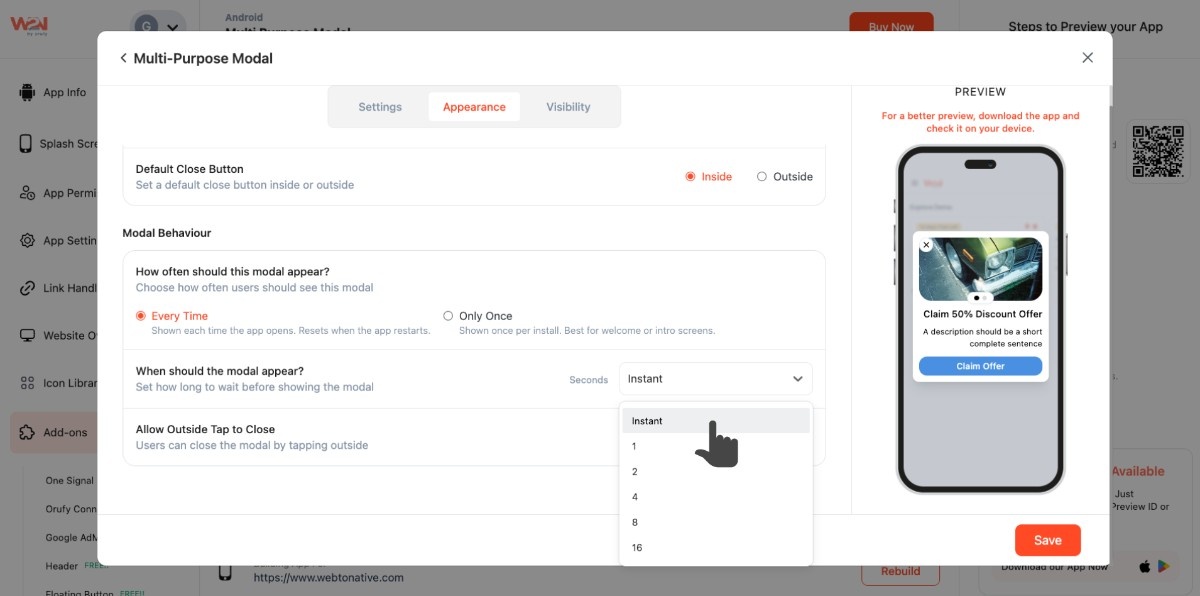
- Decide when you want to show the modal, instantly or after a few seconds
- Enable Allow Outside Tap to Close, helping users to close the modal with an outside tap
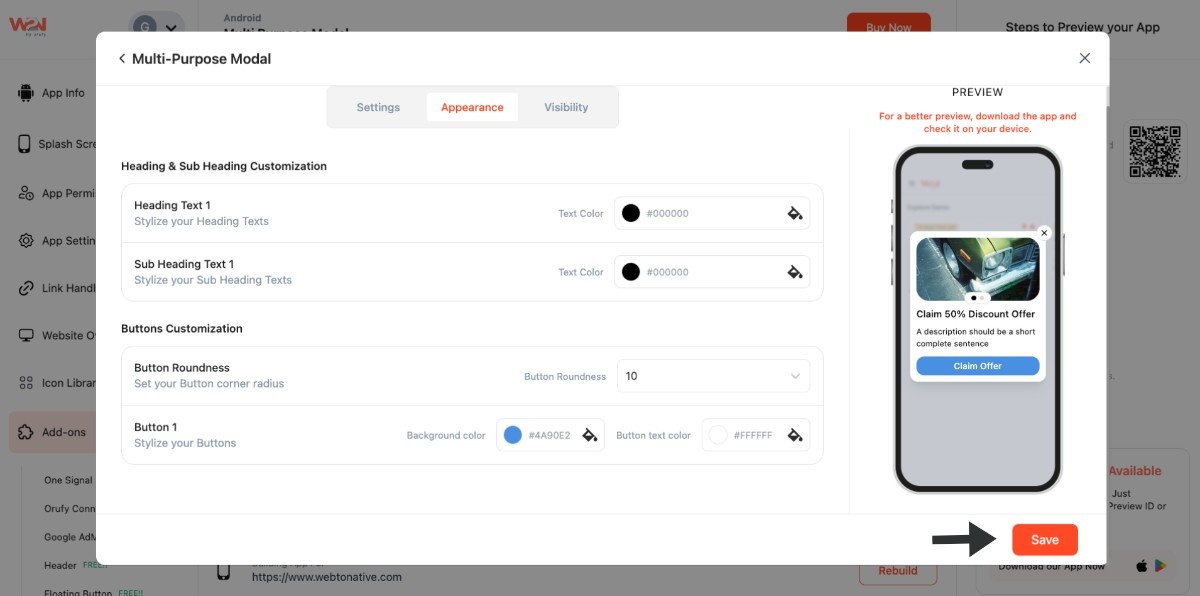
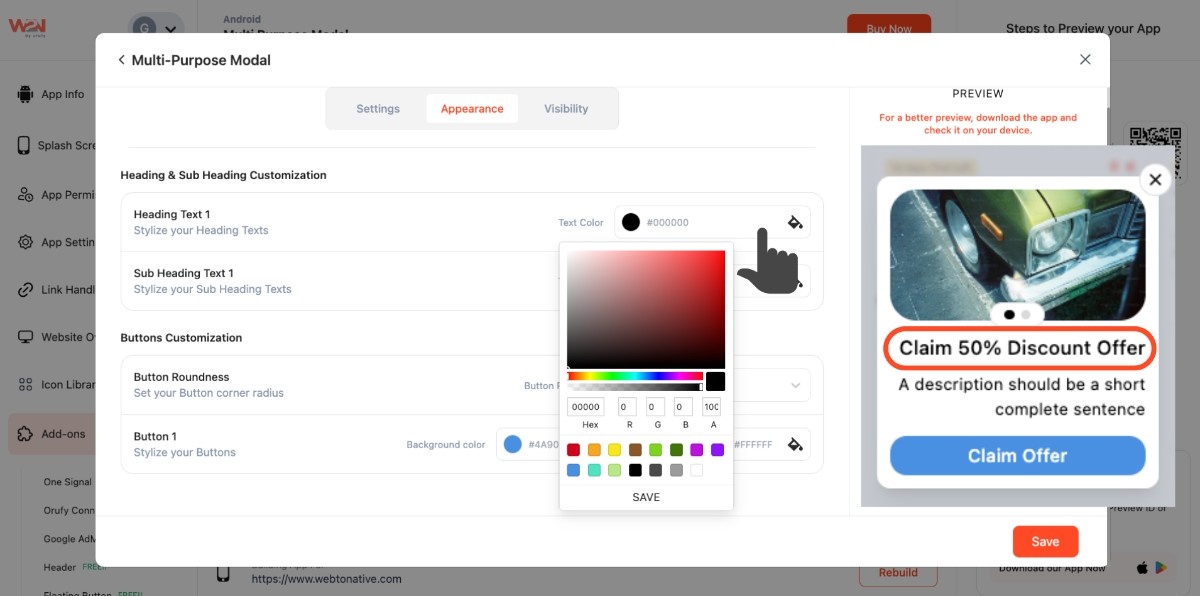
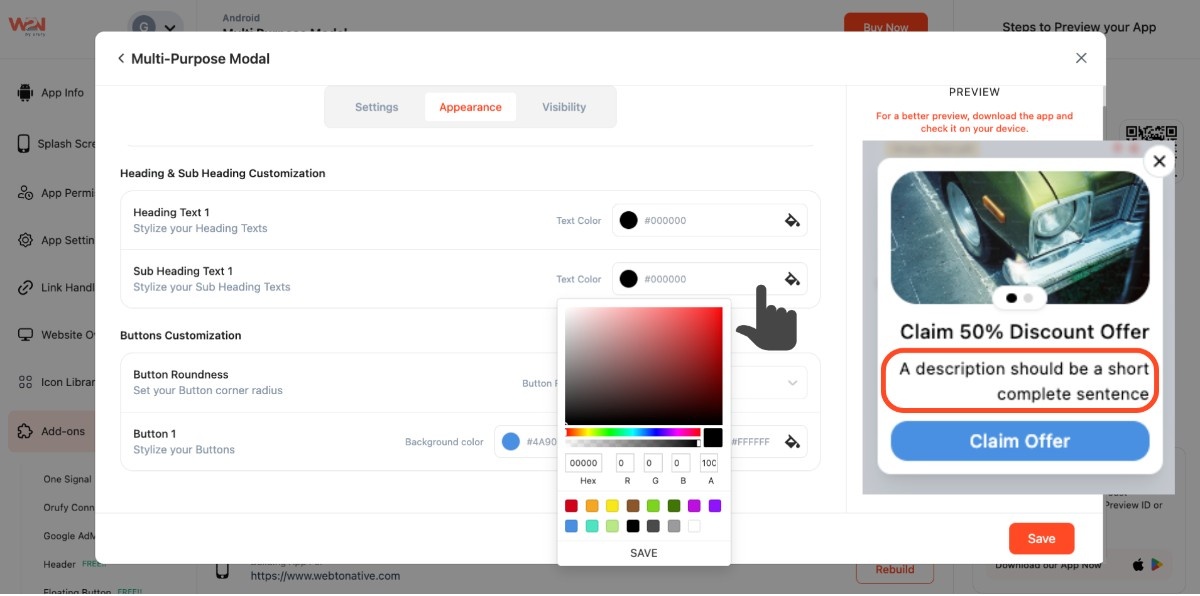
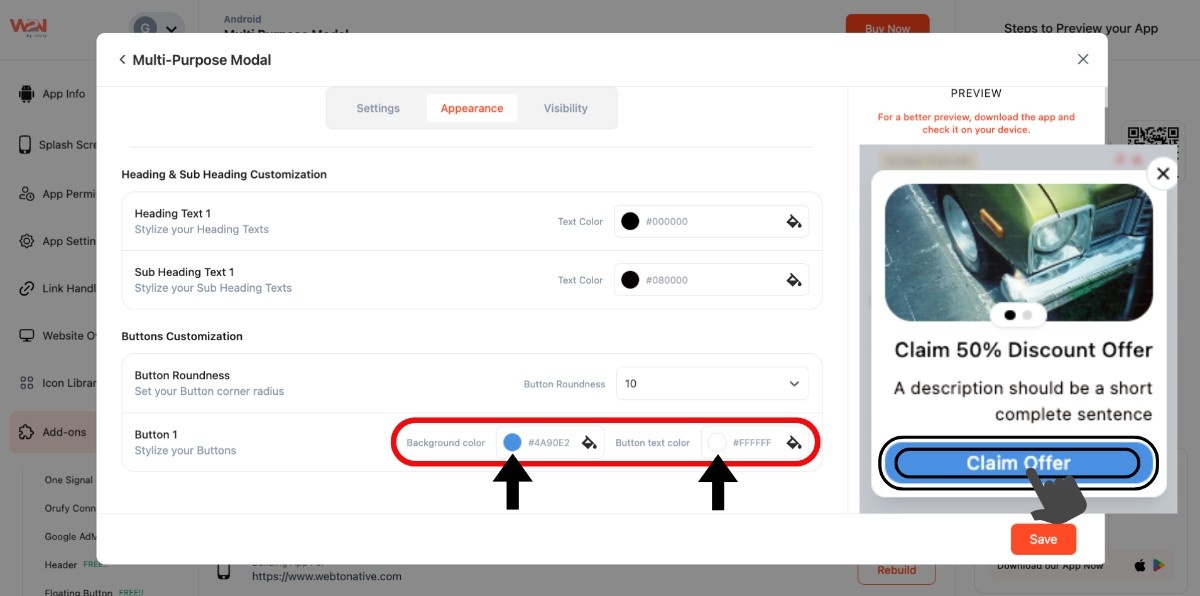
- Choose colours for your heading and subheading
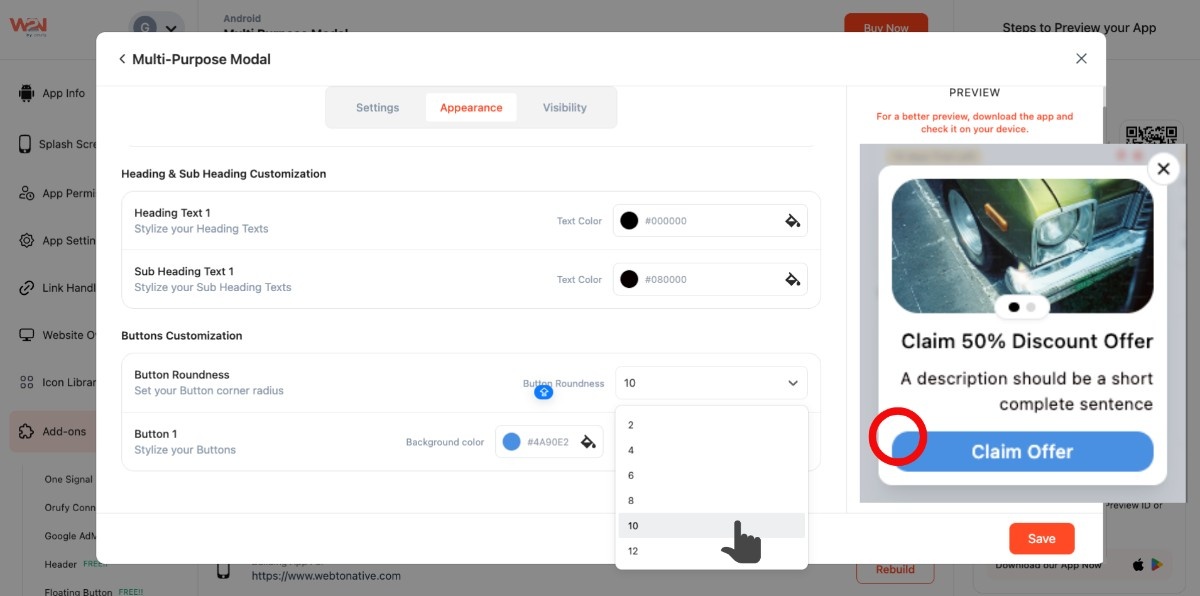
- Adjust the corner roundness of the action button corners
- Choose colours for both background and text
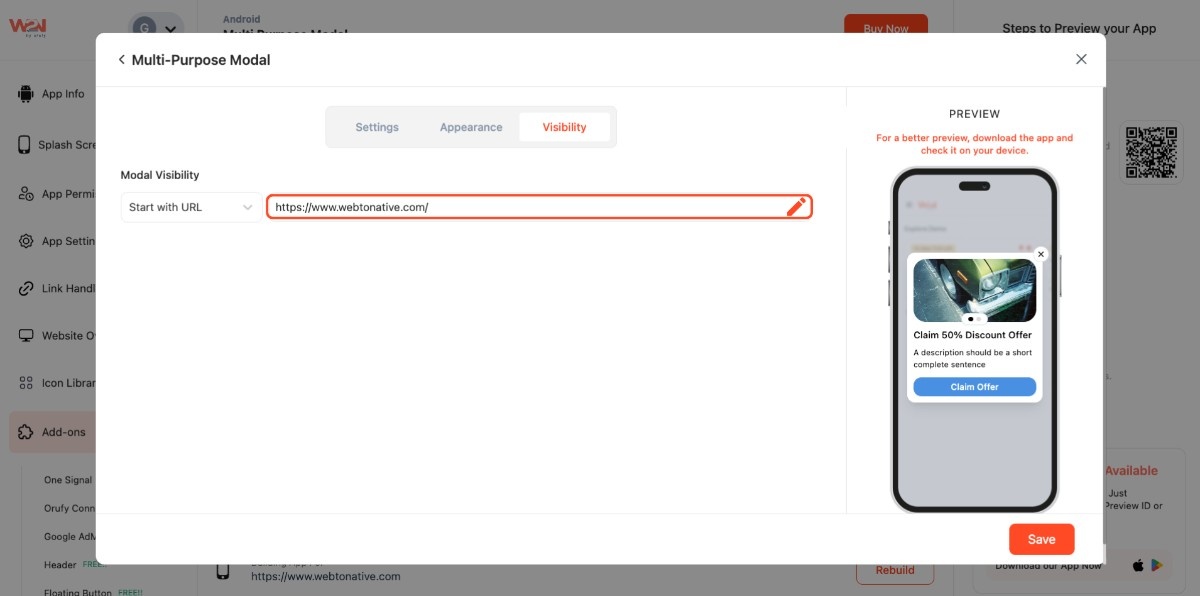
Step 3: Go to the Visibility Section
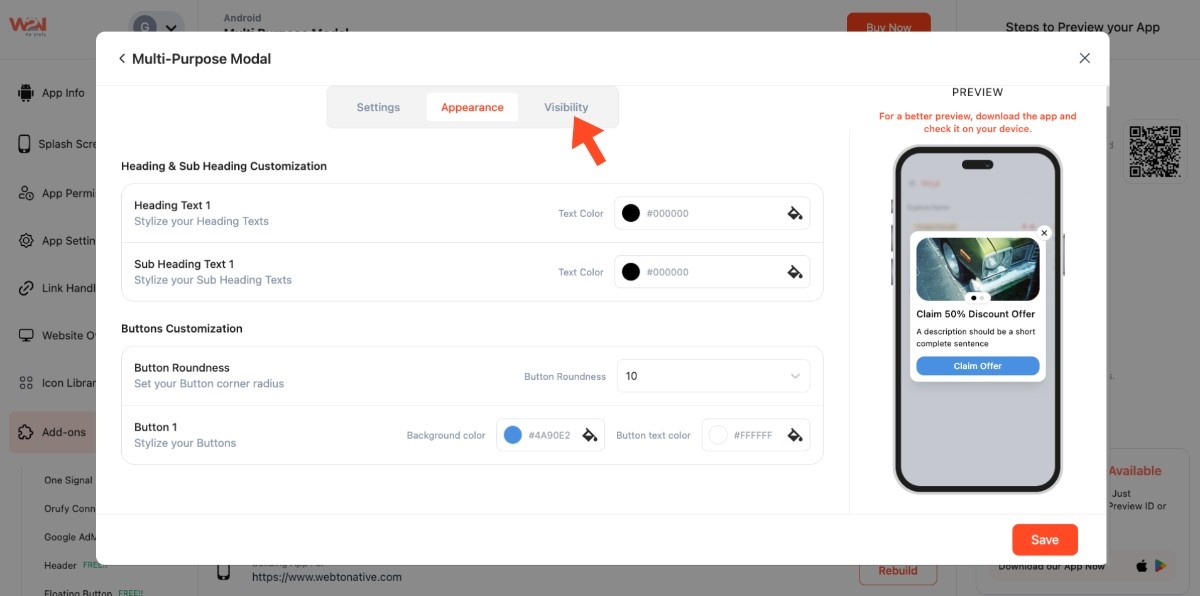
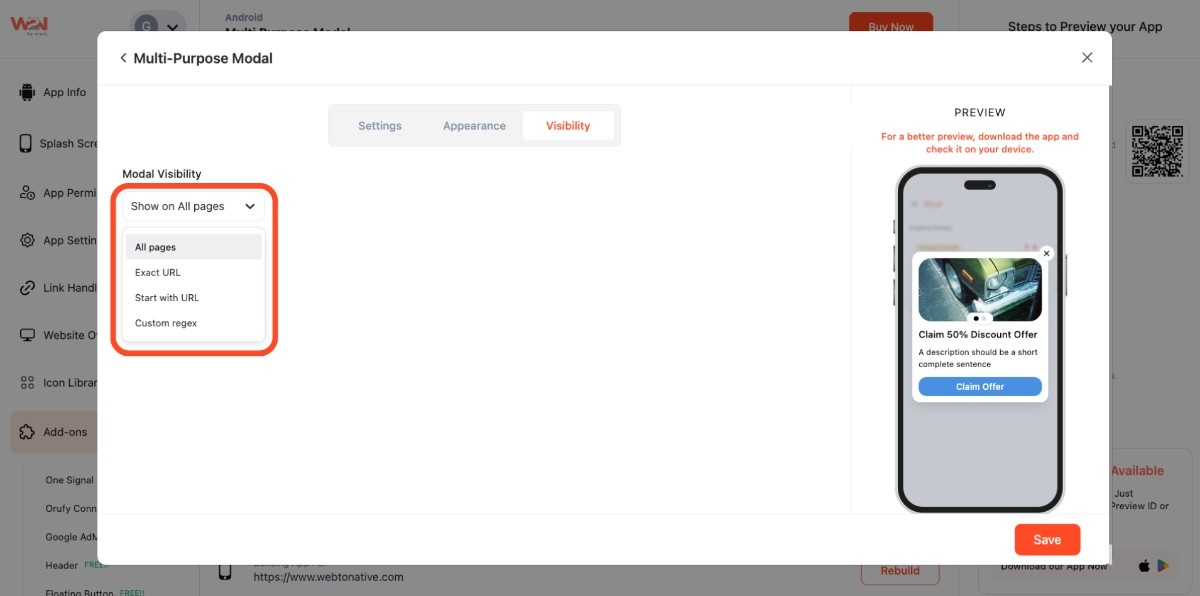
Pick a targeting page method for the modal:
- Exact URL: https://www.webtonative.com/login (opens in a new tab)
- Start with URL: https://www.webtonative.com/ (opens in a new tab)
- Custom Regex: ^https://webtonative.com/?$ (opens in a new tab)
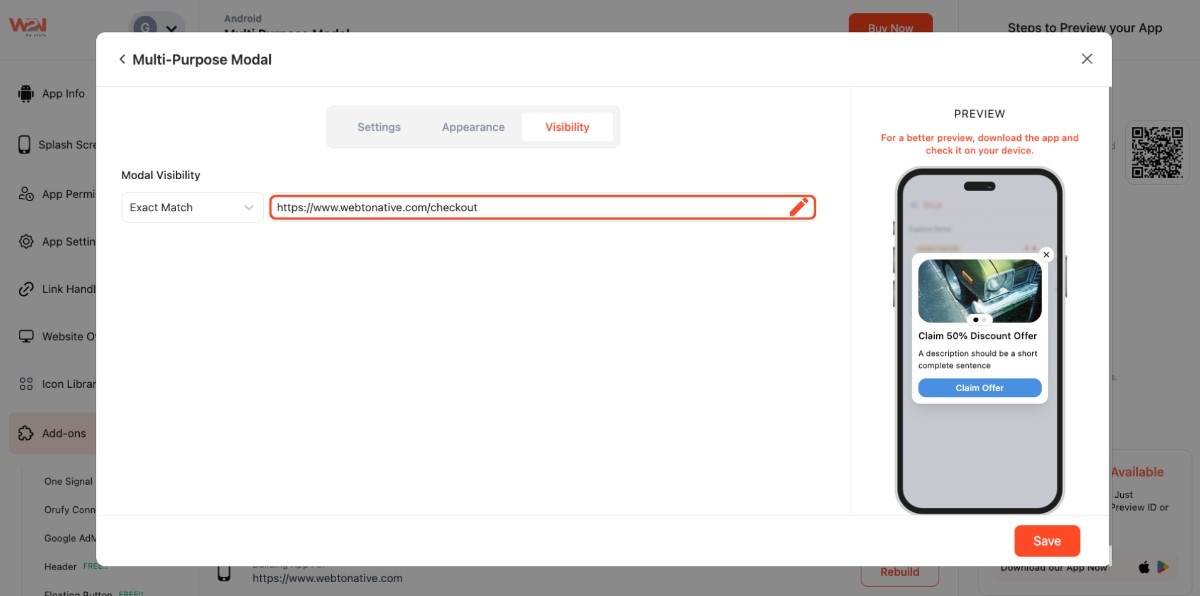
- Add your URL in the input section, whether you selected Exact URL or Starts With URL
Custom Regex
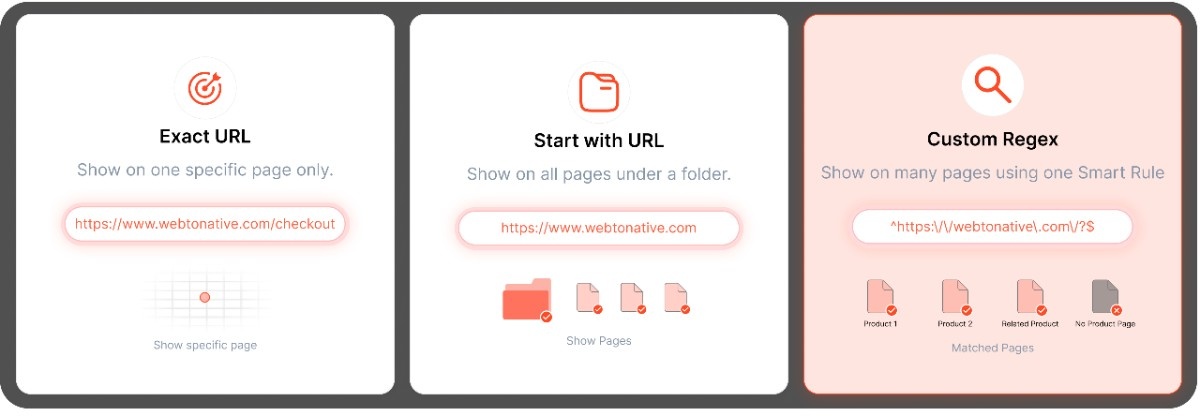
What is a Custom Regex?
A custom regex is a rule that matches text, such as URLs. Here, you do not add pages one at a time. You write a pattern, and it automatically finds matching pages. For example, you say that show this modal on any page that has ./ category /. in it. Instead of navigating page to page, it will work for:
yoursite.com/category/men yoursite.com/category/electronics yoursite.com/category/beauty

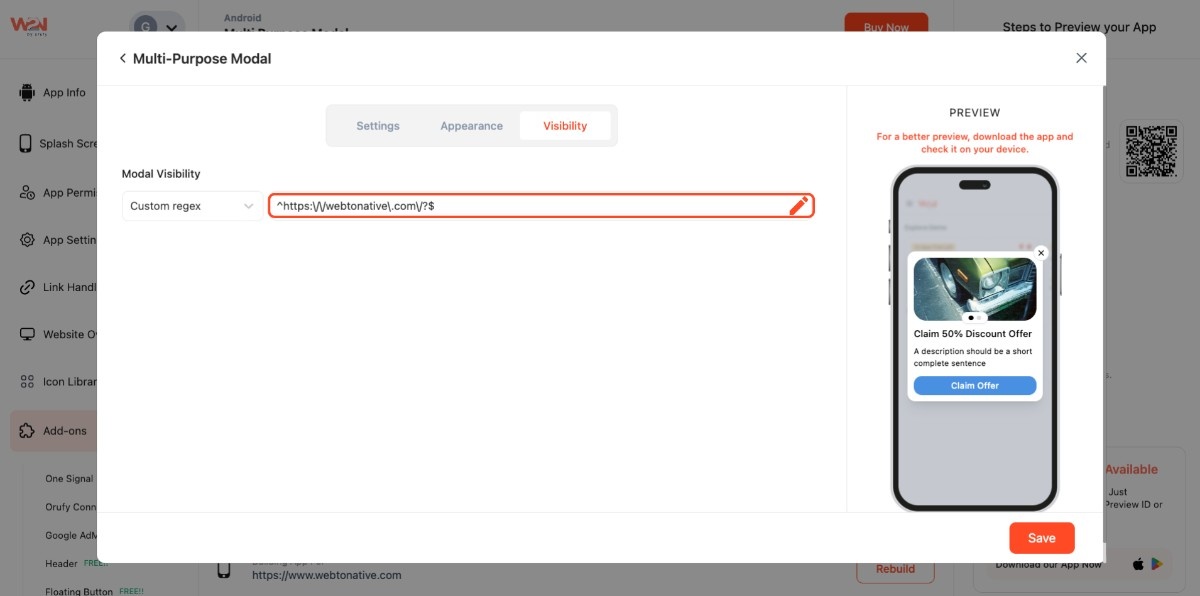
- Save your settings to make the modal active