Floating Center Modal
A Floating Center Modal is a pop-up that appears in the middle of the screen in your app. It sticks to the center with space around it. The background is usually seen dimmed or blurred, so focus stays on the modal
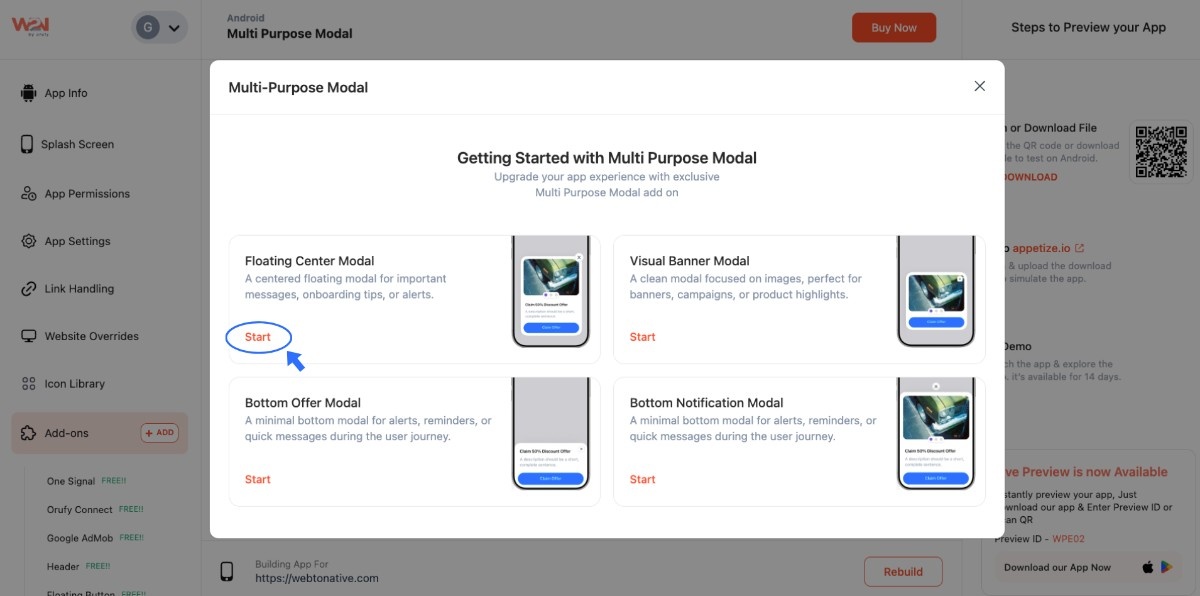
Step 1: Click on Start for further customization
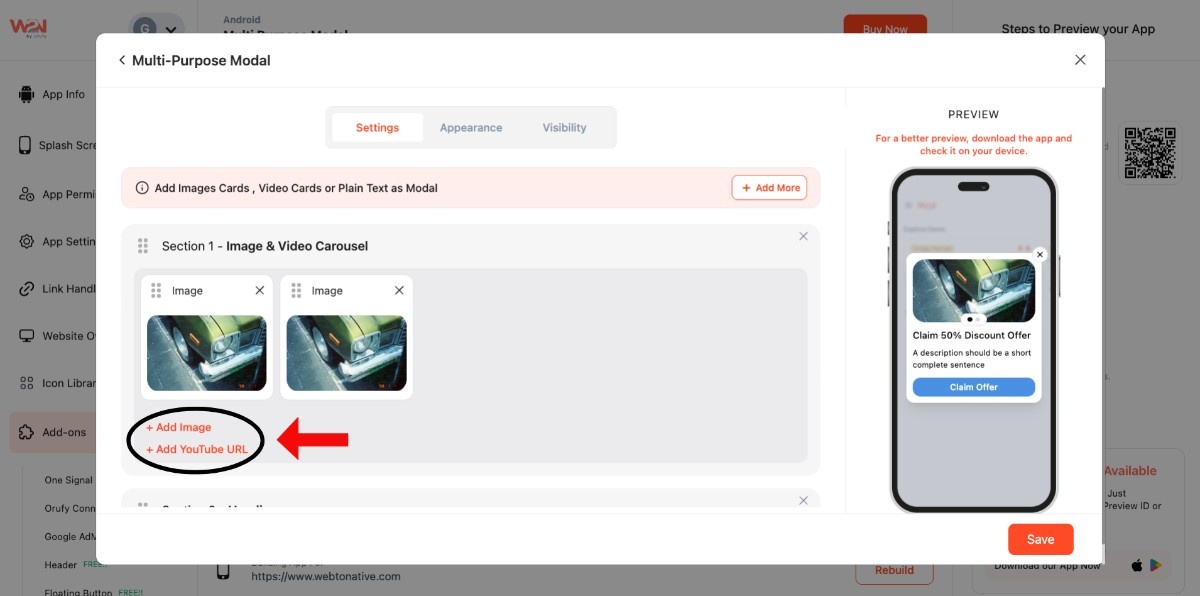
- You can add both an image and a YouTube video using + Add Image and + Add YouTube URL
- Write the heading of the offer or alert
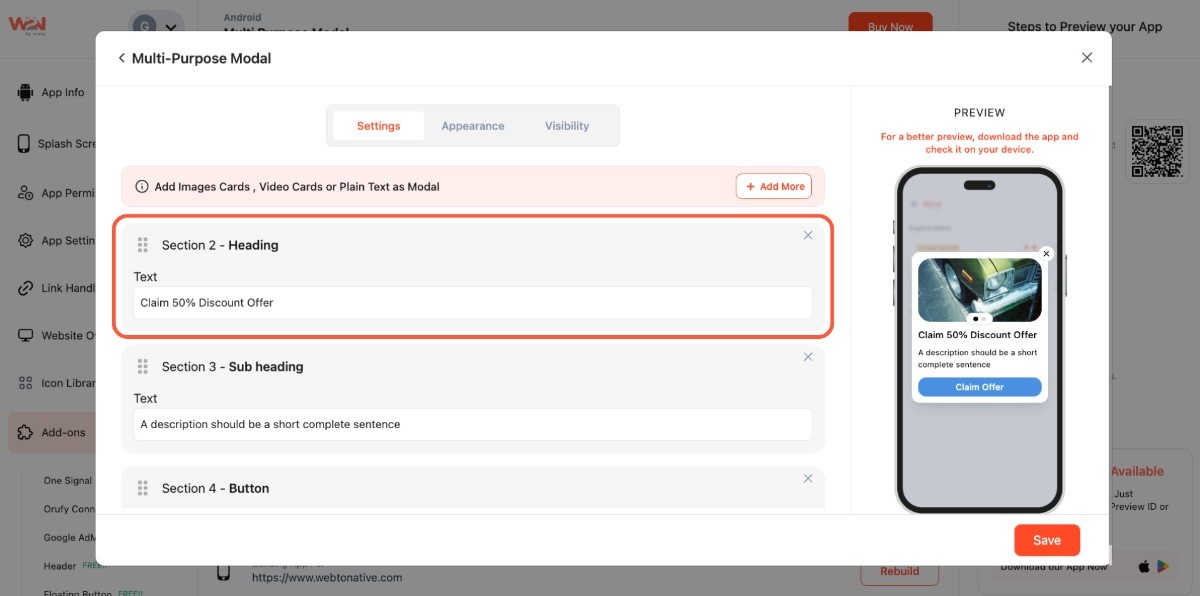
- Include a subheading for the message in a short, complete sentence
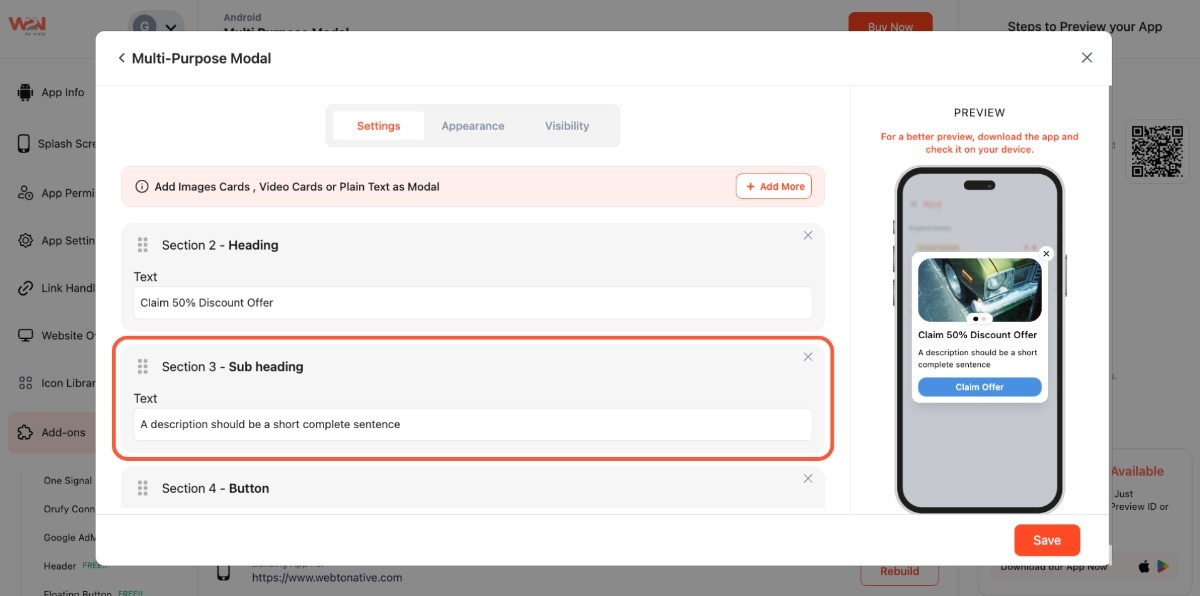
- Lead user to the specific action using a button and URL right below the message
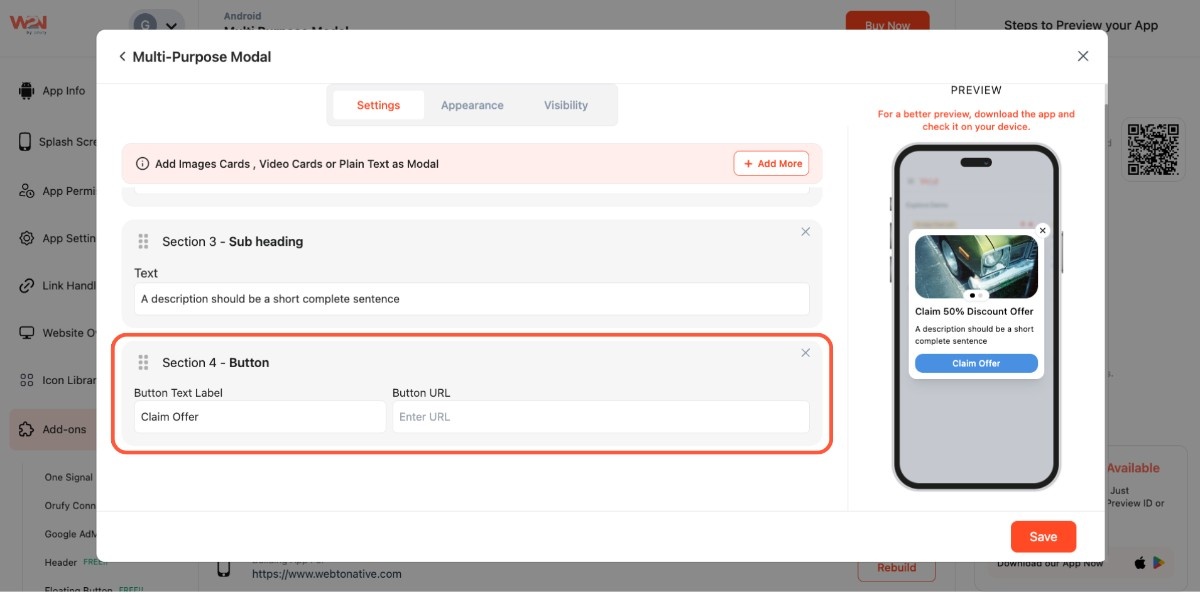
Step 2: Go to Appearance
- It allows you to modify the overall appearance of the modal
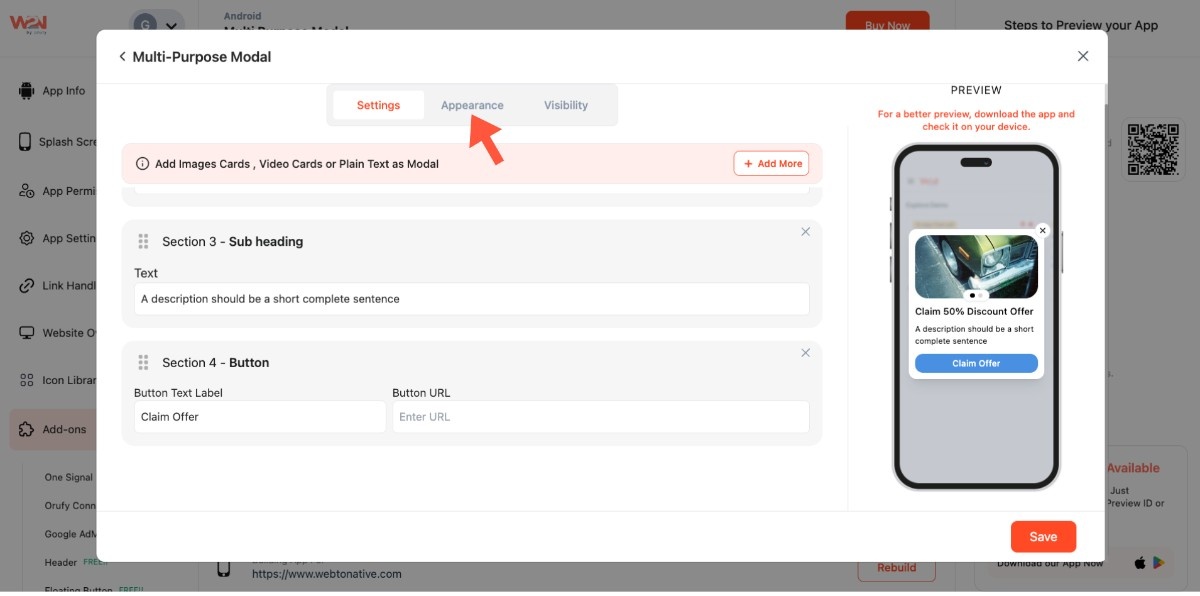
- Select the modal’s background color by clicking on the circle
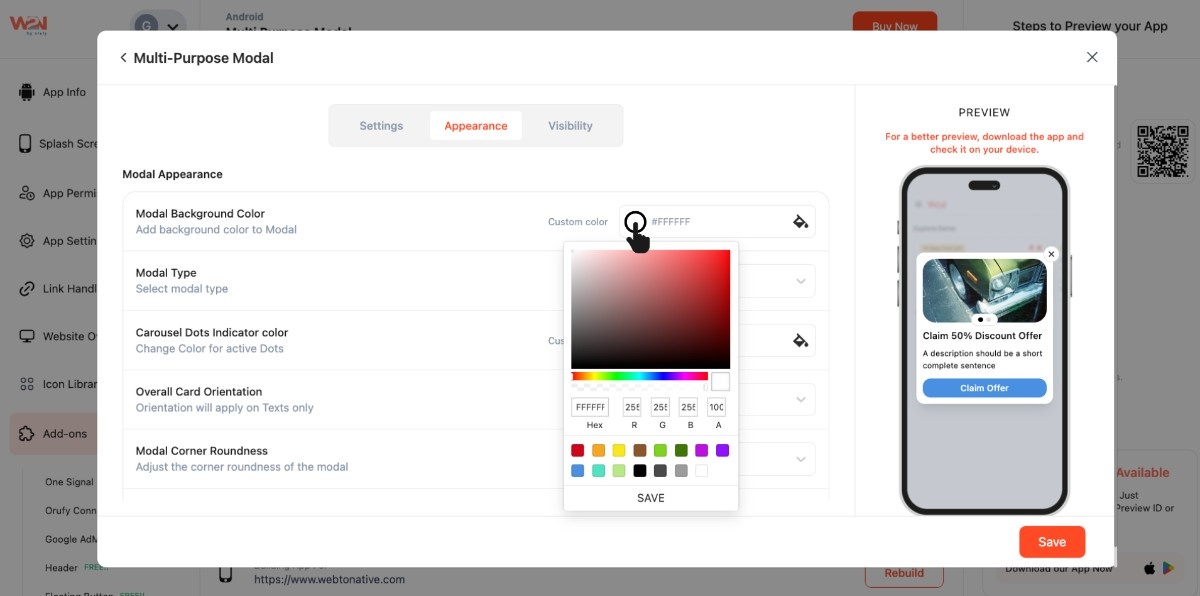
- Choose the modal type - Bottom or Floating
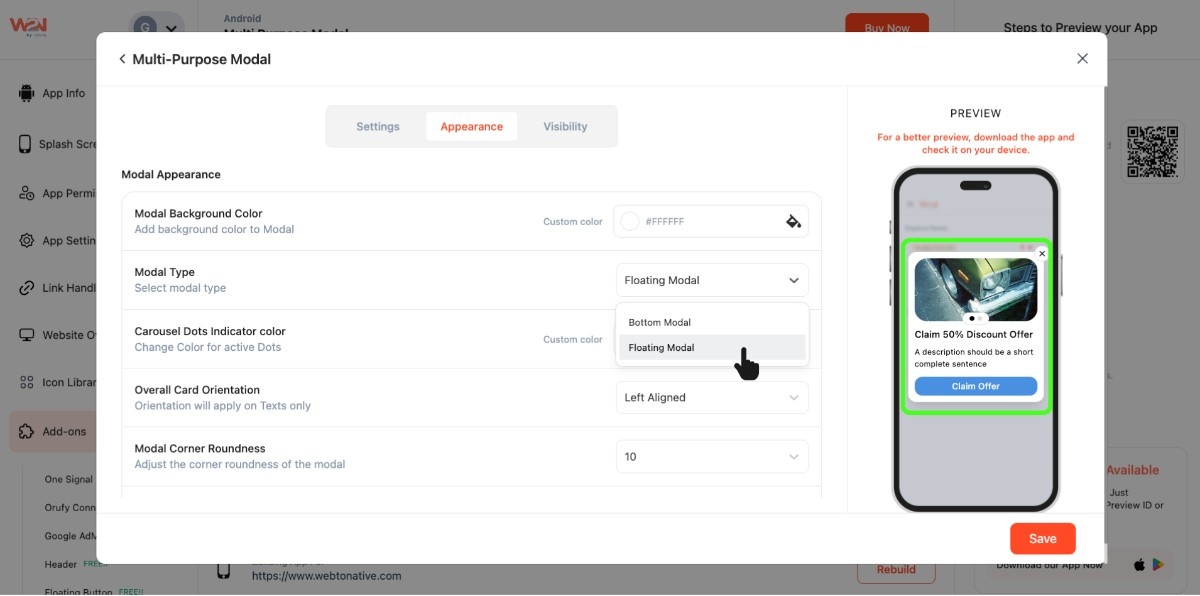
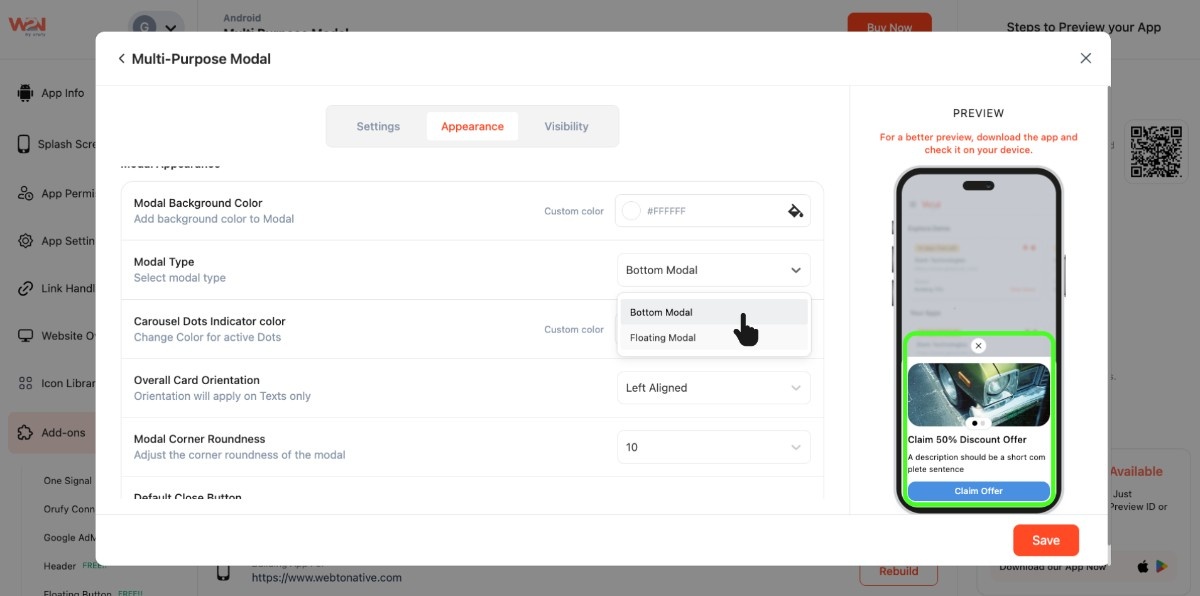
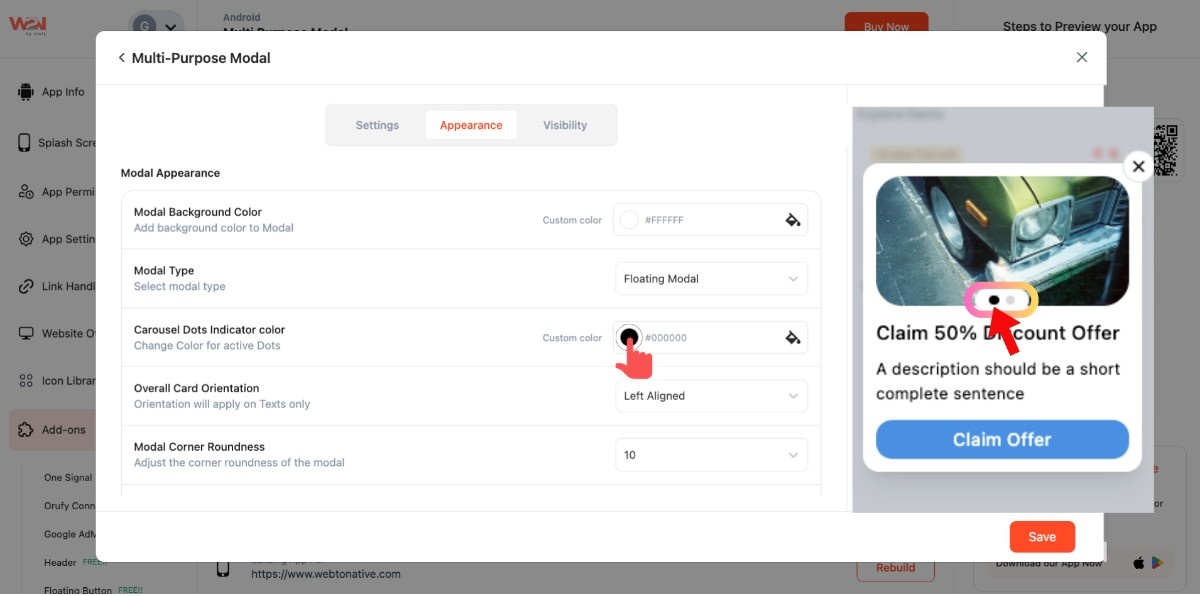
- You can also select the colour of carousel dots by clicking on the circle. It is usually a small, horizontal circle at the bottom of a carousel, banner, or image slider that shows the total number of slides.
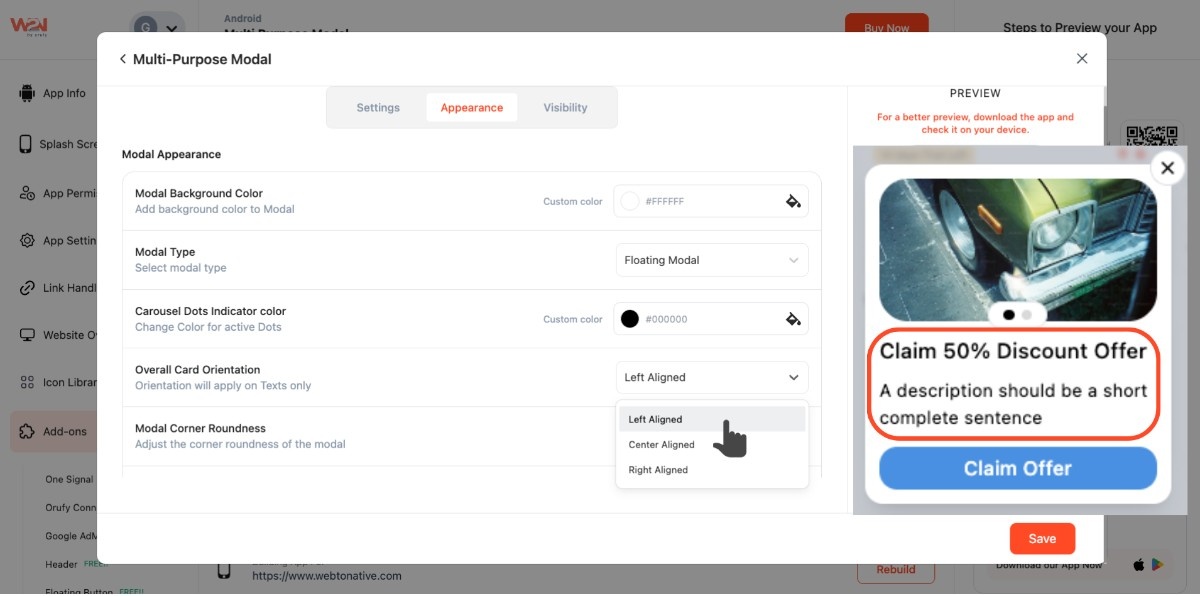
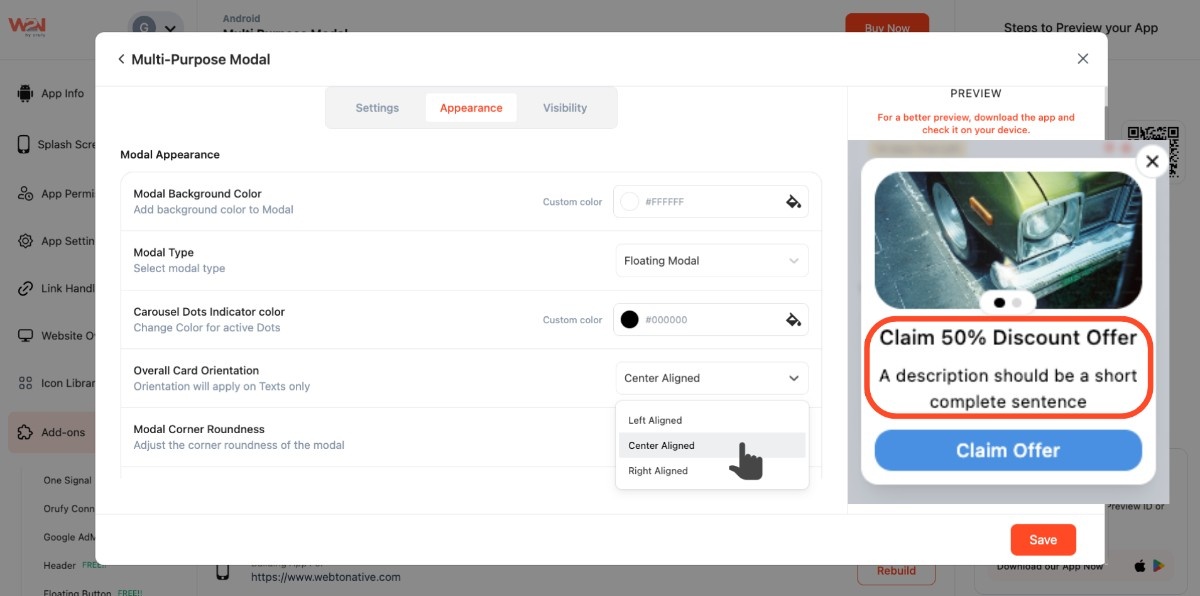
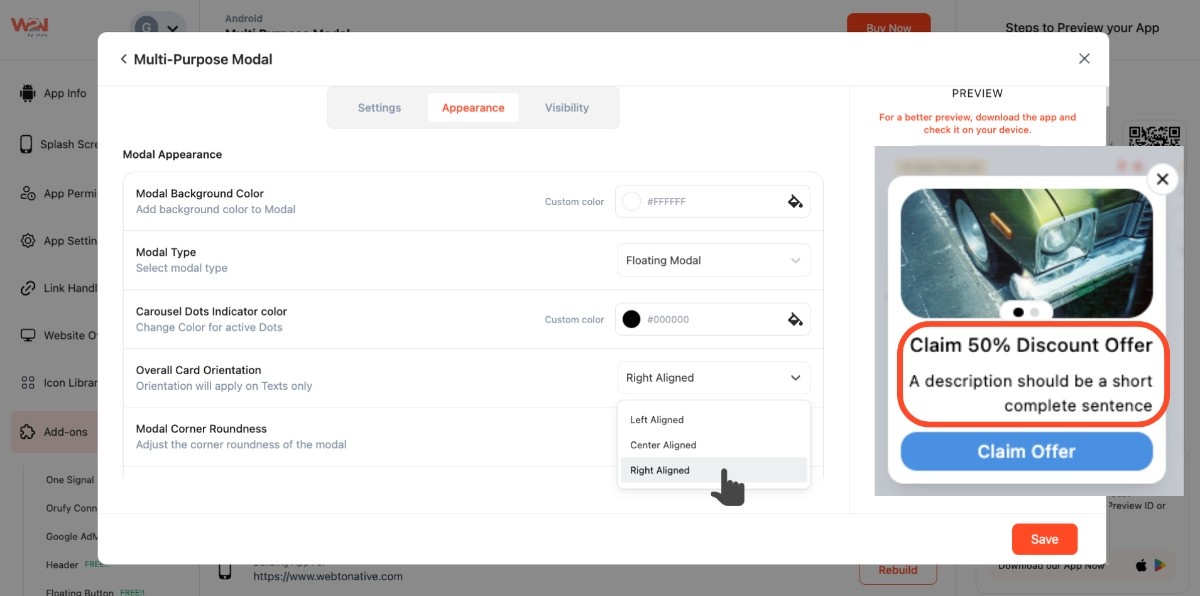
- Display the text to show on the left, center, or right side of the slide with the Overall Card Orientation
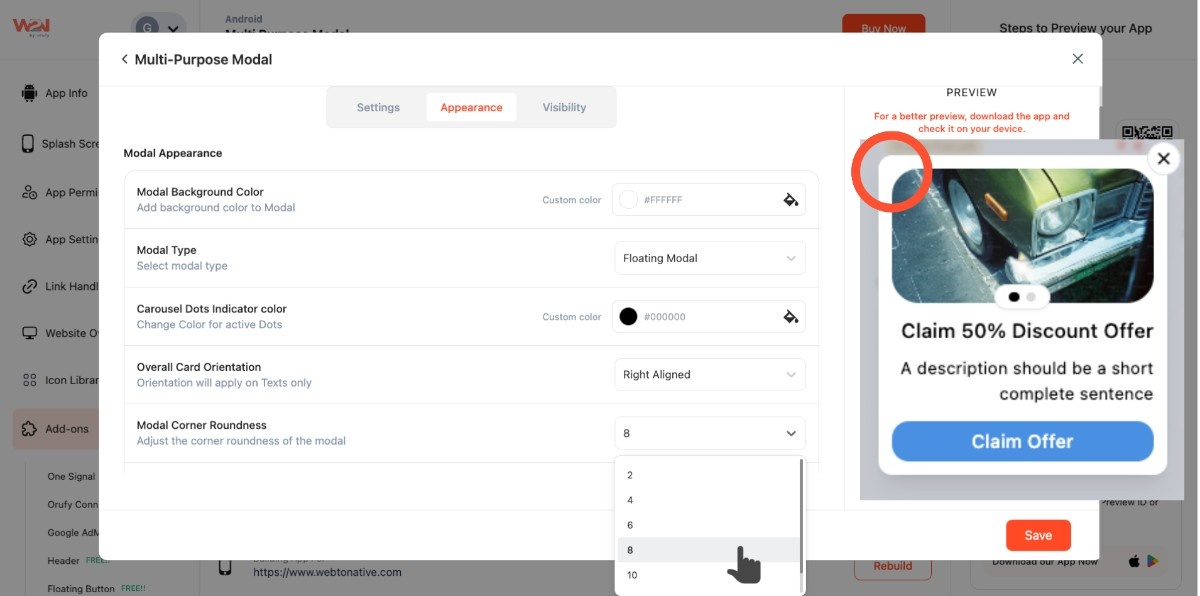
- Set the roundness of the modal’s corner
- Select where you want to show the default close button - inside or outside
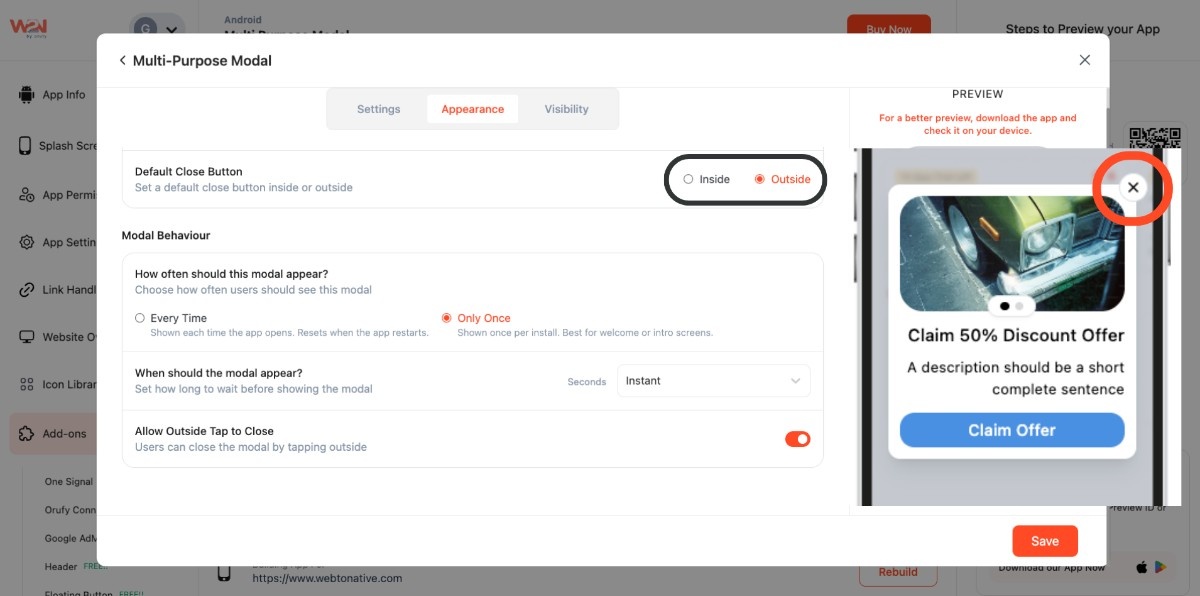
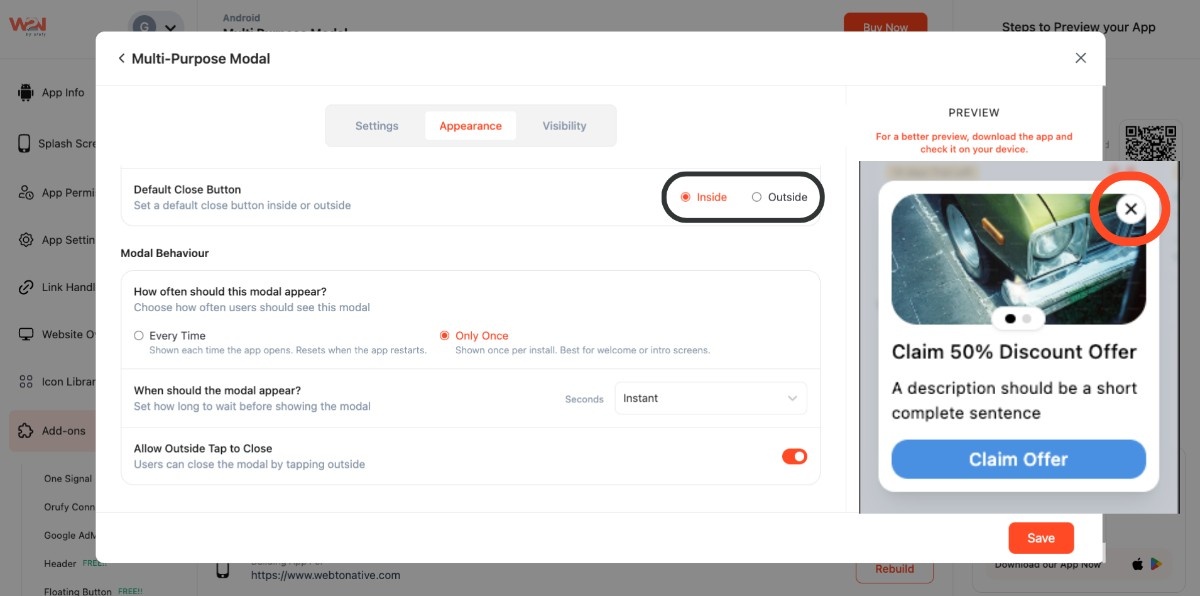
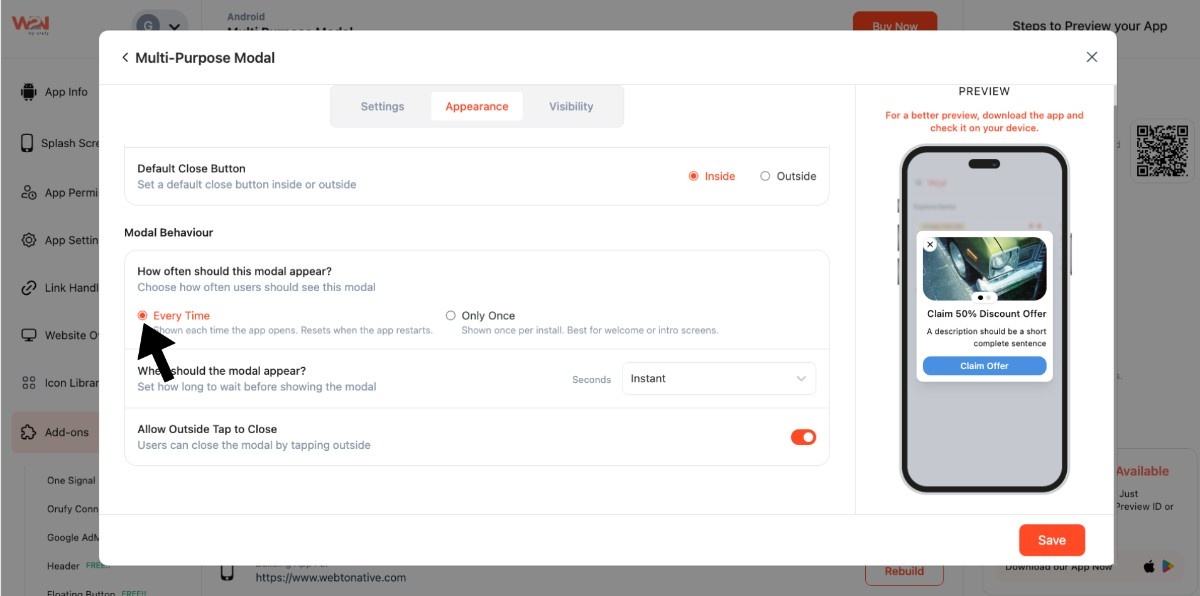
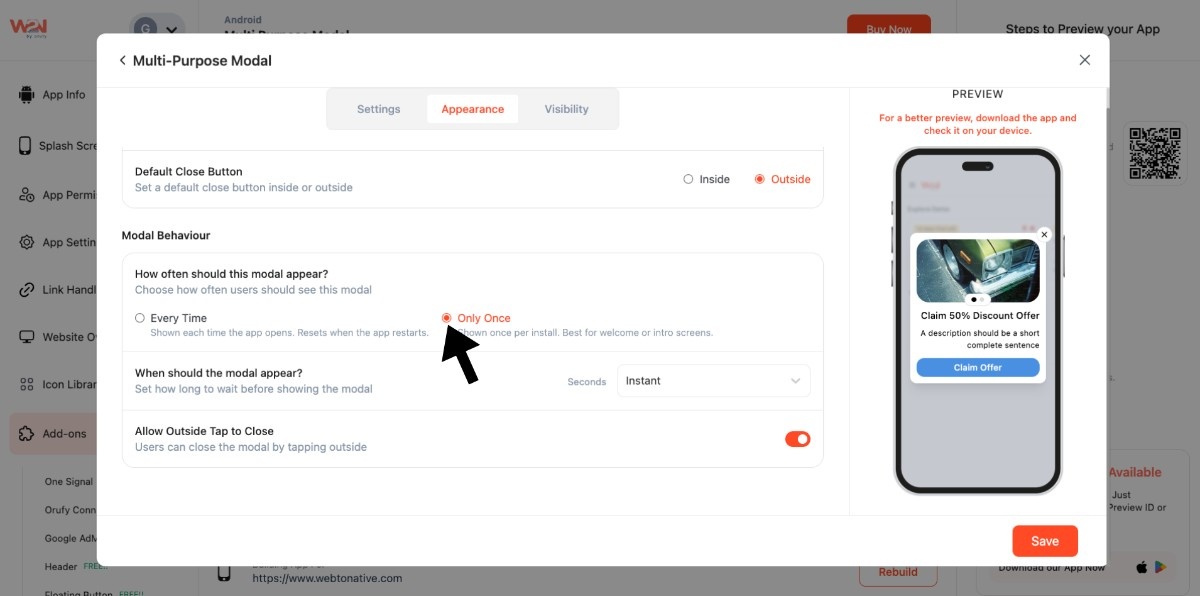
- Decide how often the modal will be shown to users - every time or only once. Selecting the Every Time option displays each time the app opens and restarts. If you choose Only Once, it shows only once when the app is installed and opened for the first time
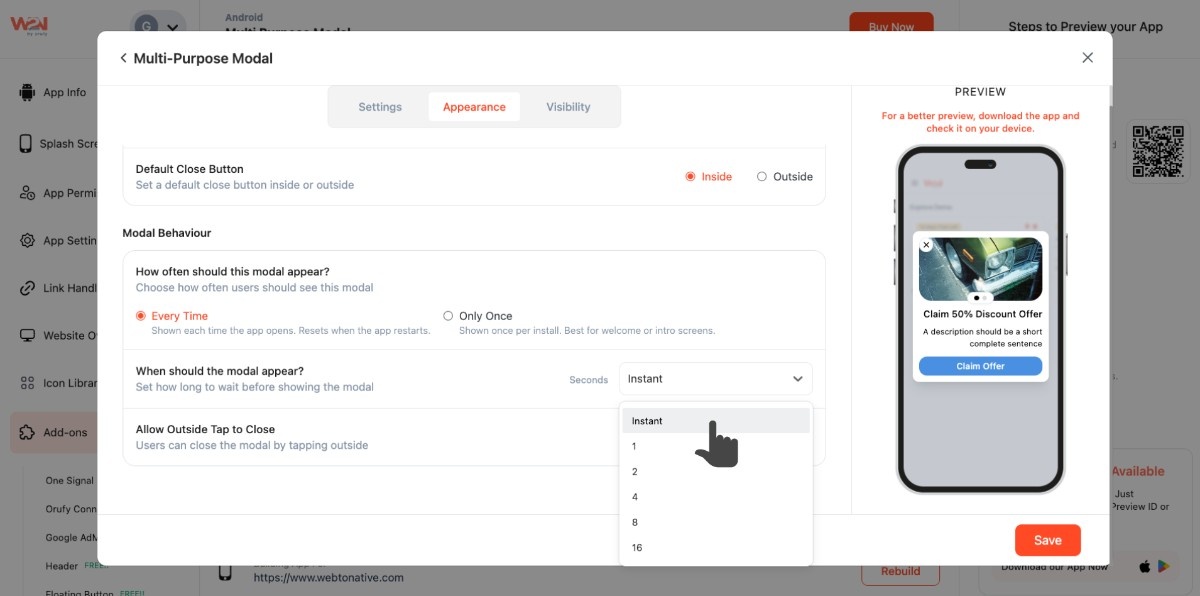
- Define the time gap before the modal is shown, such as instantly or in seconds
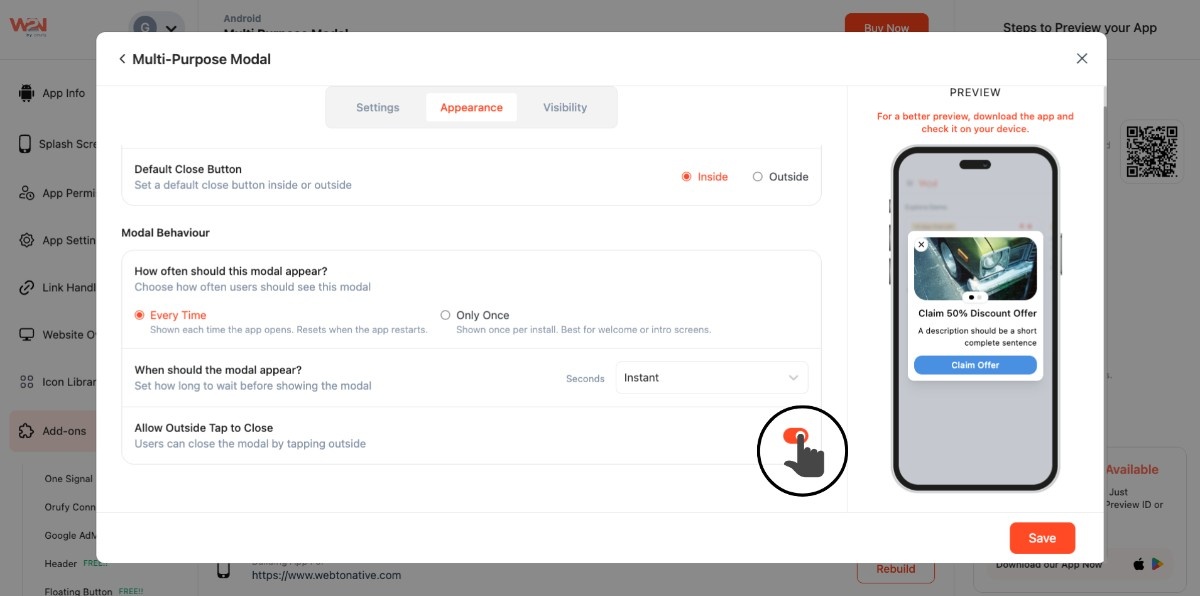
- Users can close the modal if tap anywhere outside the modal if you have turned on the toggle of Allow Outside Tap to Close
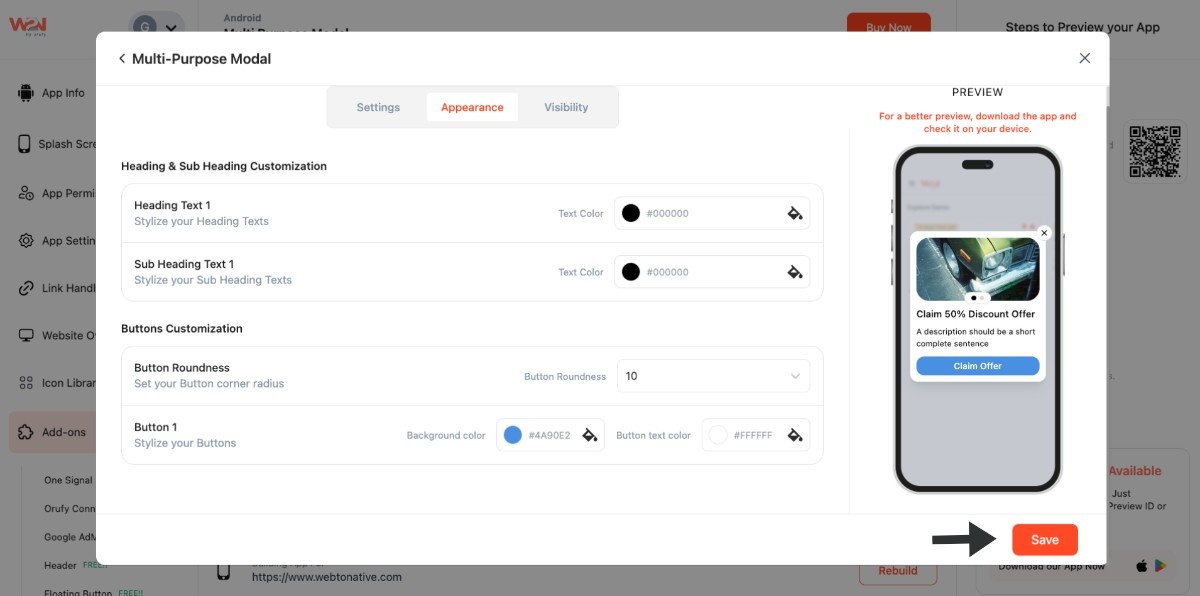
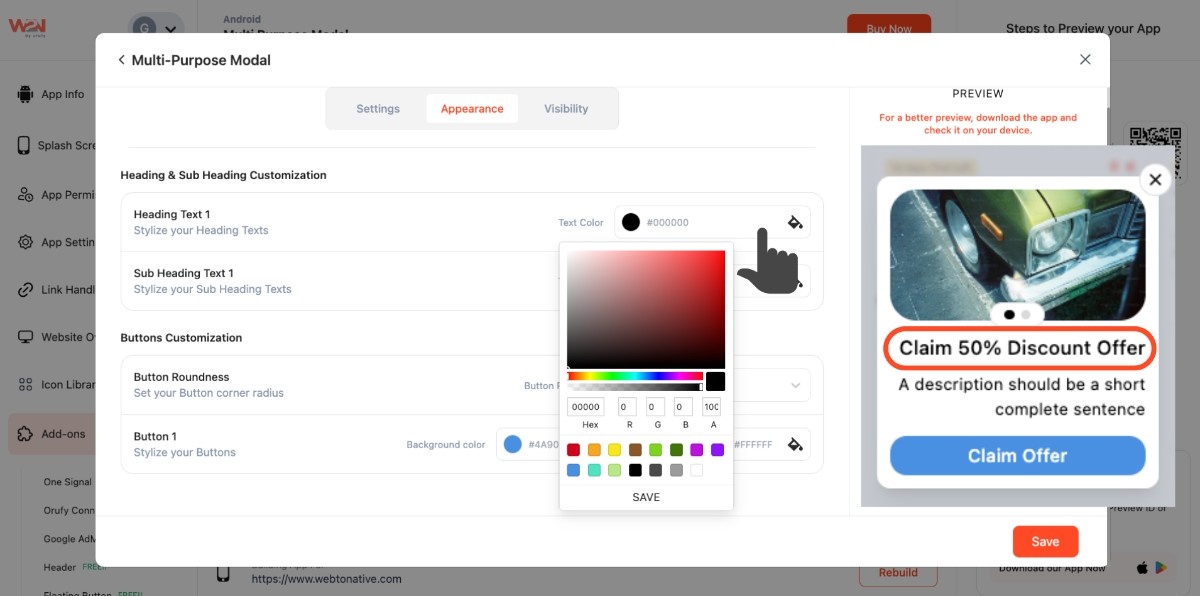
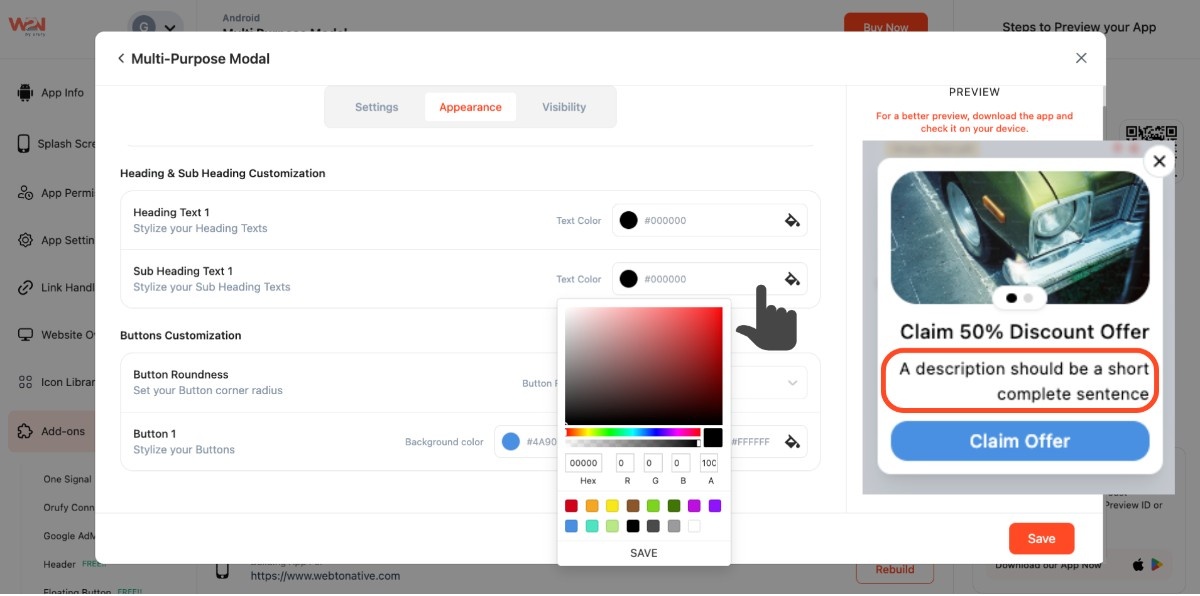
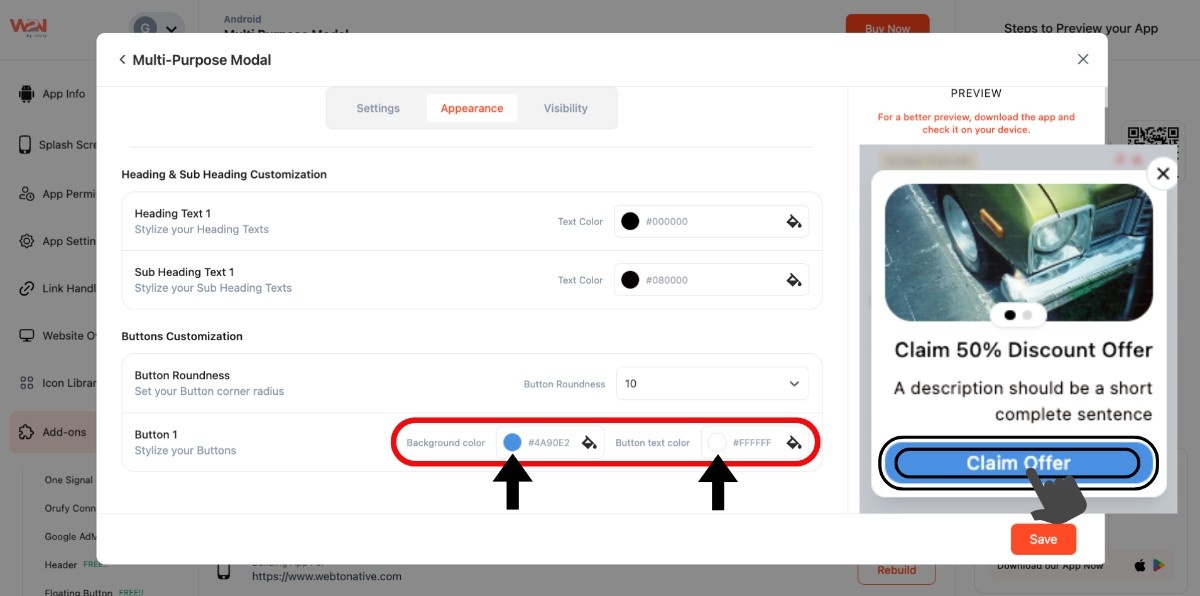
- Change the colour of the heading and sub-heading’s text
- Set the roundness of the action button
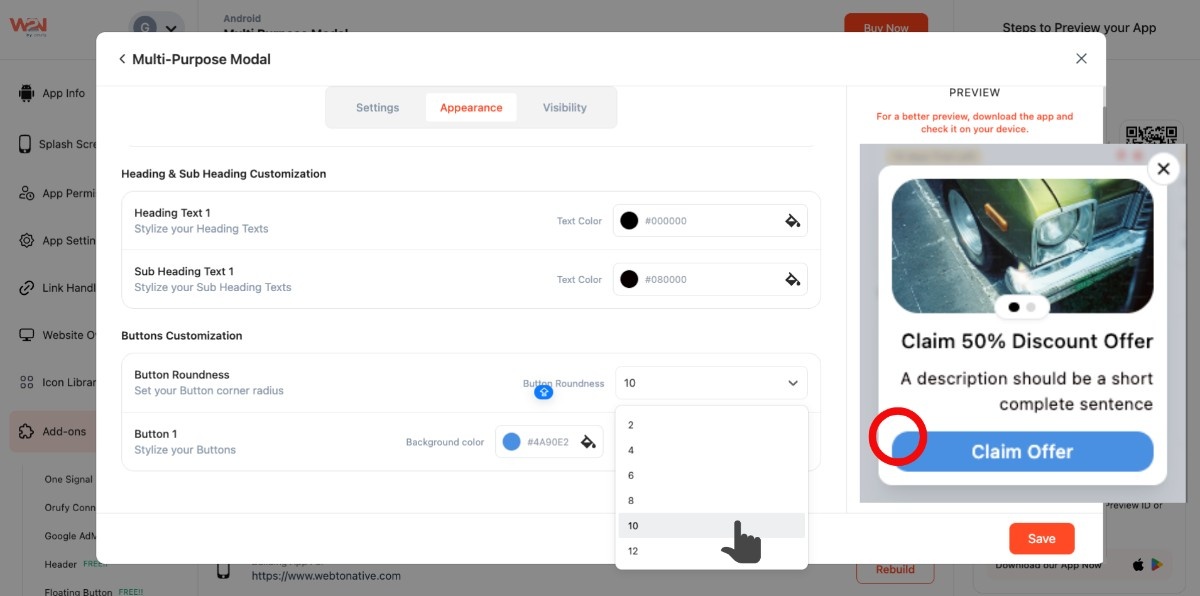
- Also, customize the colour combination of the button’s background and text
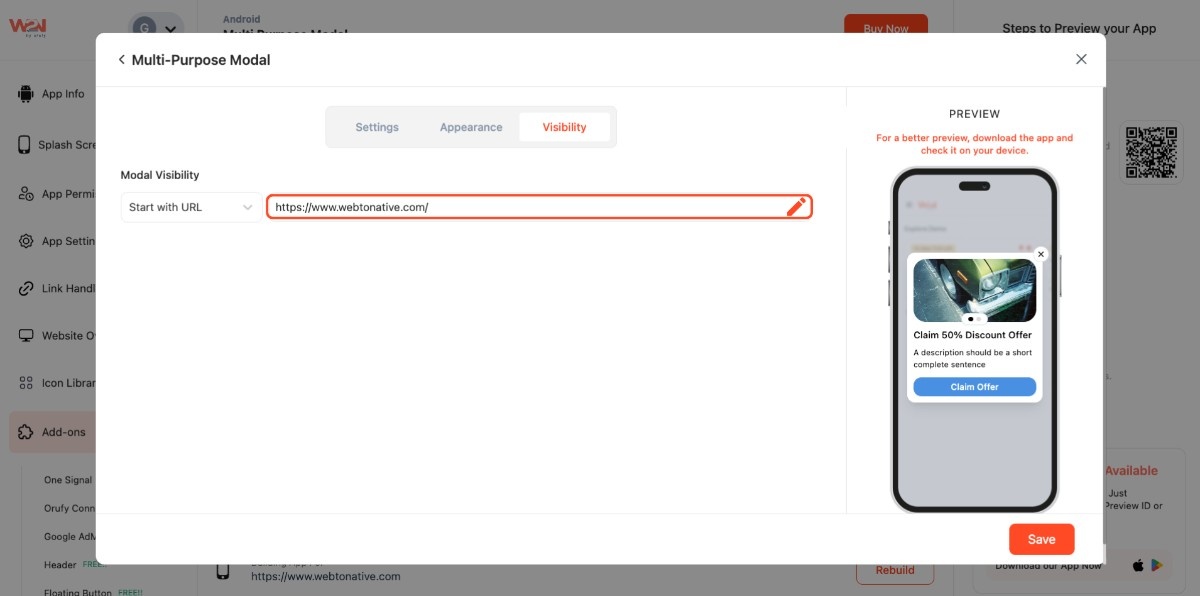
Step 3: Navigate to Visibility
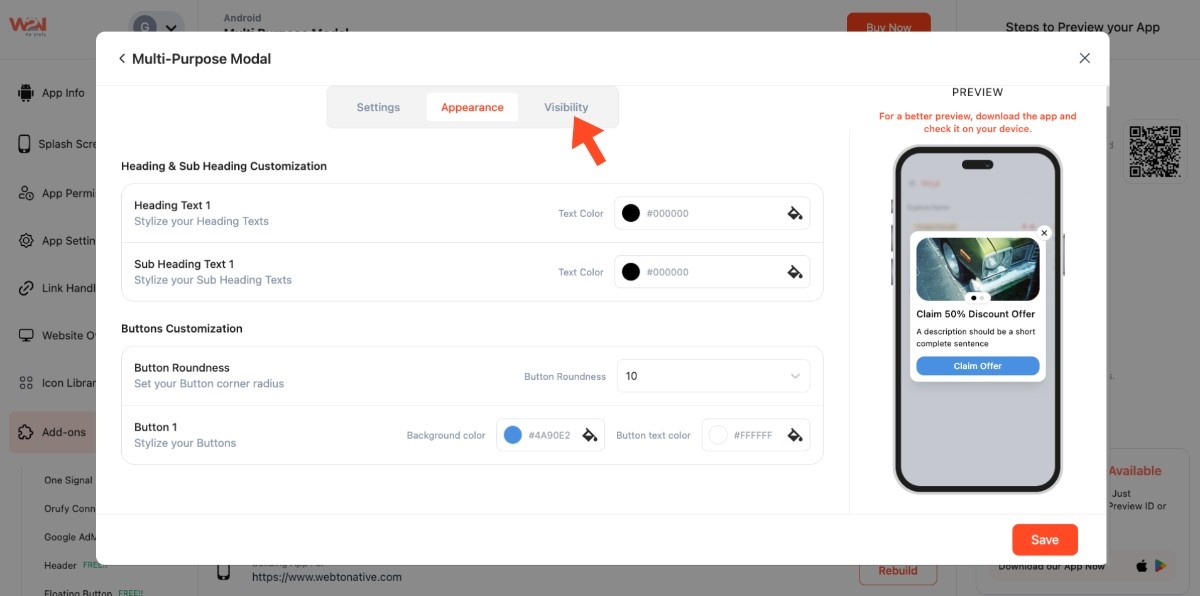
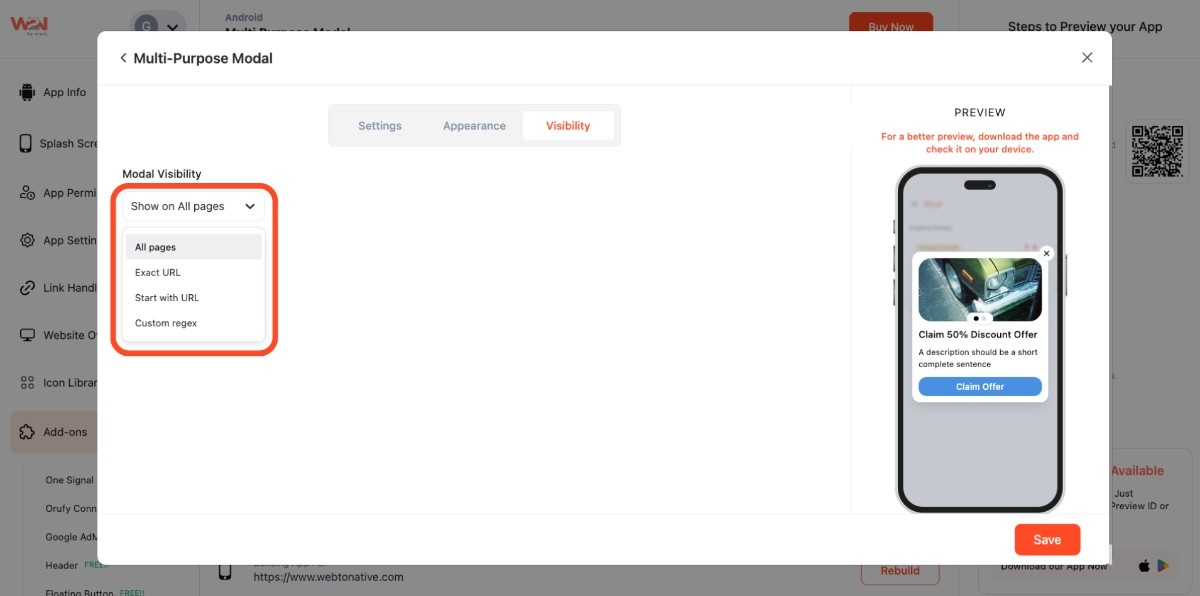
Choose the page or URL where the modal will appear
- Exact URL: https://www.webtonative.com/login (opens in a new tab)
- Start with URL: https://www.webtonative.com/ (opens in a new tab)
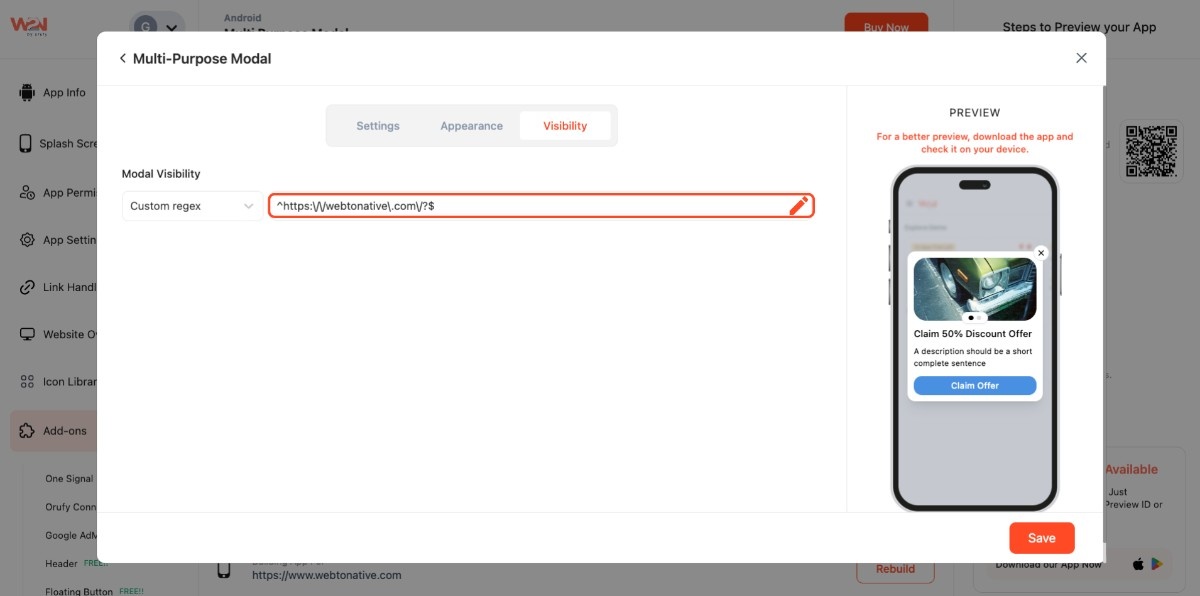
- Custom Regex: ^https://webtonative.com/?$ (opens in a new tab)
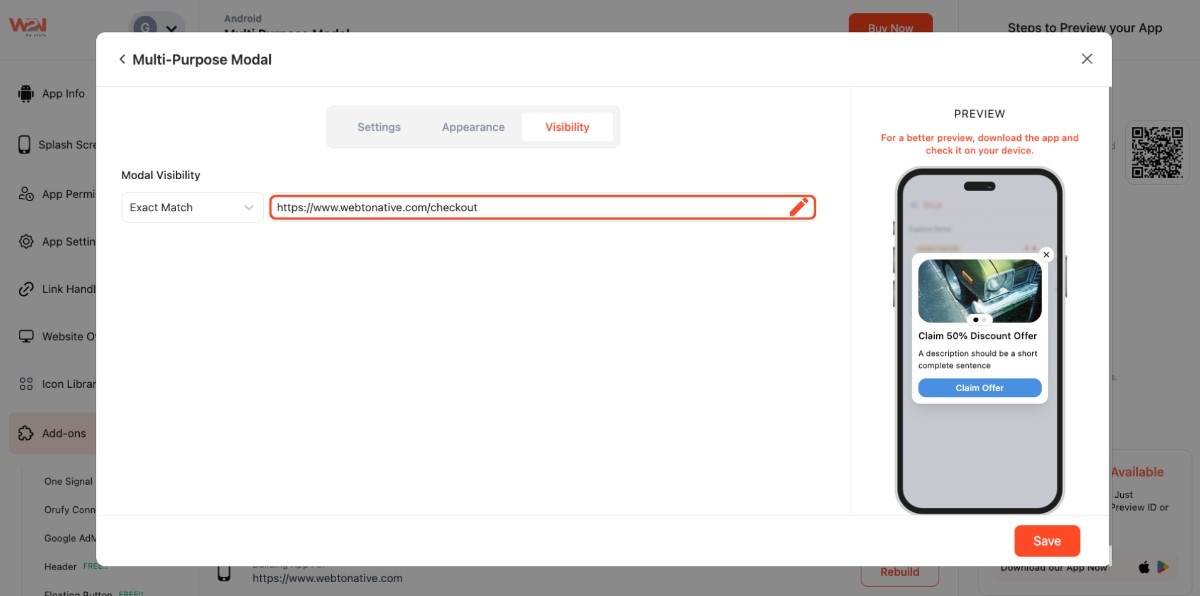
- Paste the URL in the given field, whether you chose Exact URL or Start with URL
Custom Regex
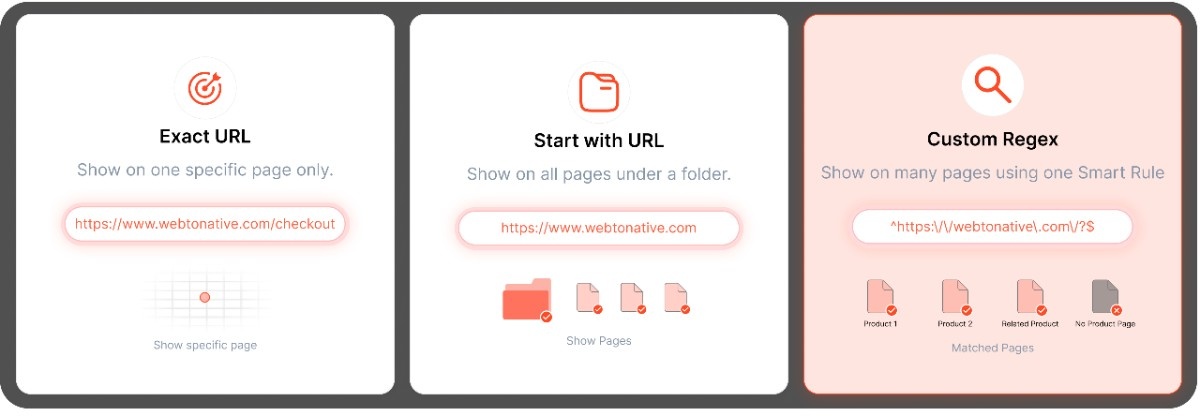
What is a Custom Regex?
A custom regex is a rule that matches text, such as URLs. Here, you do not add pages one at a time. You write a pattern, and it automatically finds matching pages. For example, you say that show this modal on any page that has “. *offer. * in it. Instead of navigating page to page, it will work for:
yoursite.com/offer
yoursite.com/big-offer-today
yoursite.com/offer/diwali-sale

- Save your settings to apply this modal