
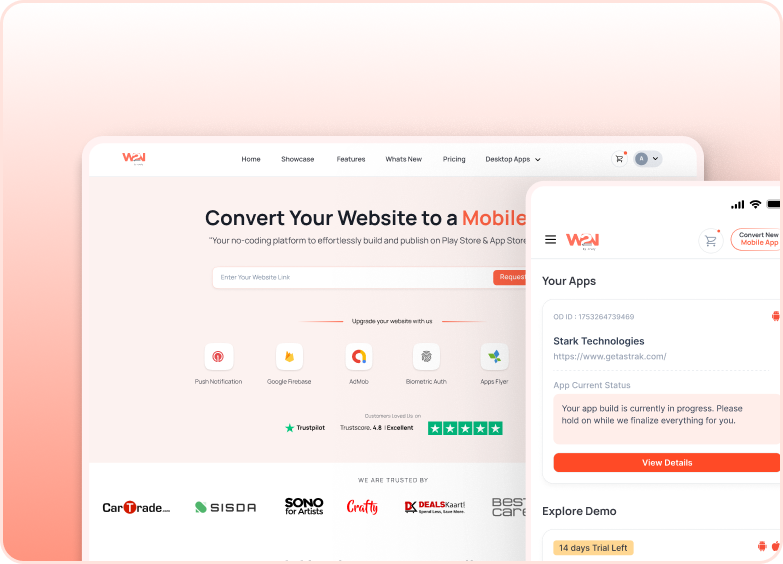


Splash Screen – Sound
Splash Screen Sound plays a short tone the moment your app's splash screen appears. It adds an audio cue to your brand, the same way a startup chime does on a TV or game console, and makes the launch feel more alive.
Sound works with every splash screen type: Animation, Logo Image, Full Image and MP4. The Sound card appears at the bottom of the Splash Screen page for each of these types.
Before You Start
The Sound option on the Splash Screen page is only available after you add and purchase the Custom Sound add-on. Without it, the Sound card can't be used.
My Apps ➡️ Edit your app ➡️ Add-ons ➡️ Notifications ➡️ Custom Sound
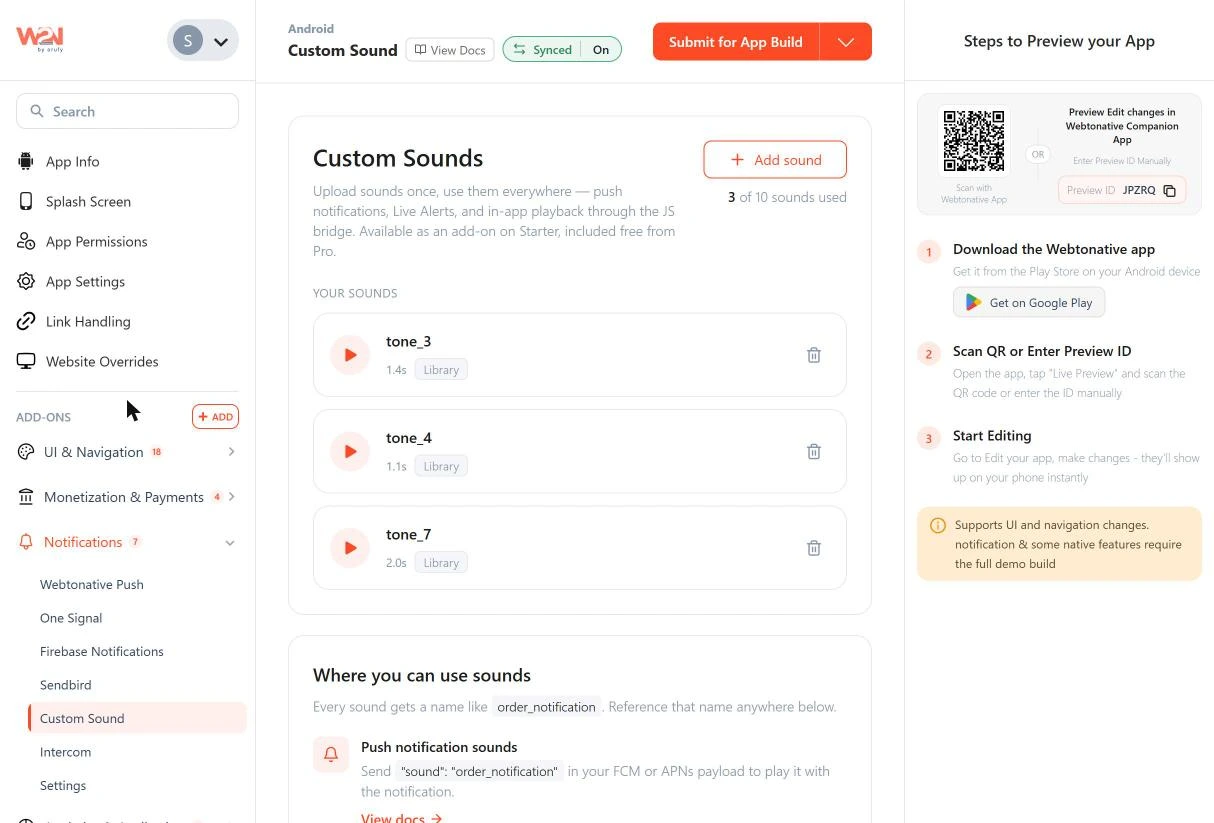
Where to Find It in Your Dashboard
My Apps ➡️ Edit your app ➡️ Splash Screen ➡️ Select your splash screen type ➡️ Scroll down to the Sound card (below the preview)
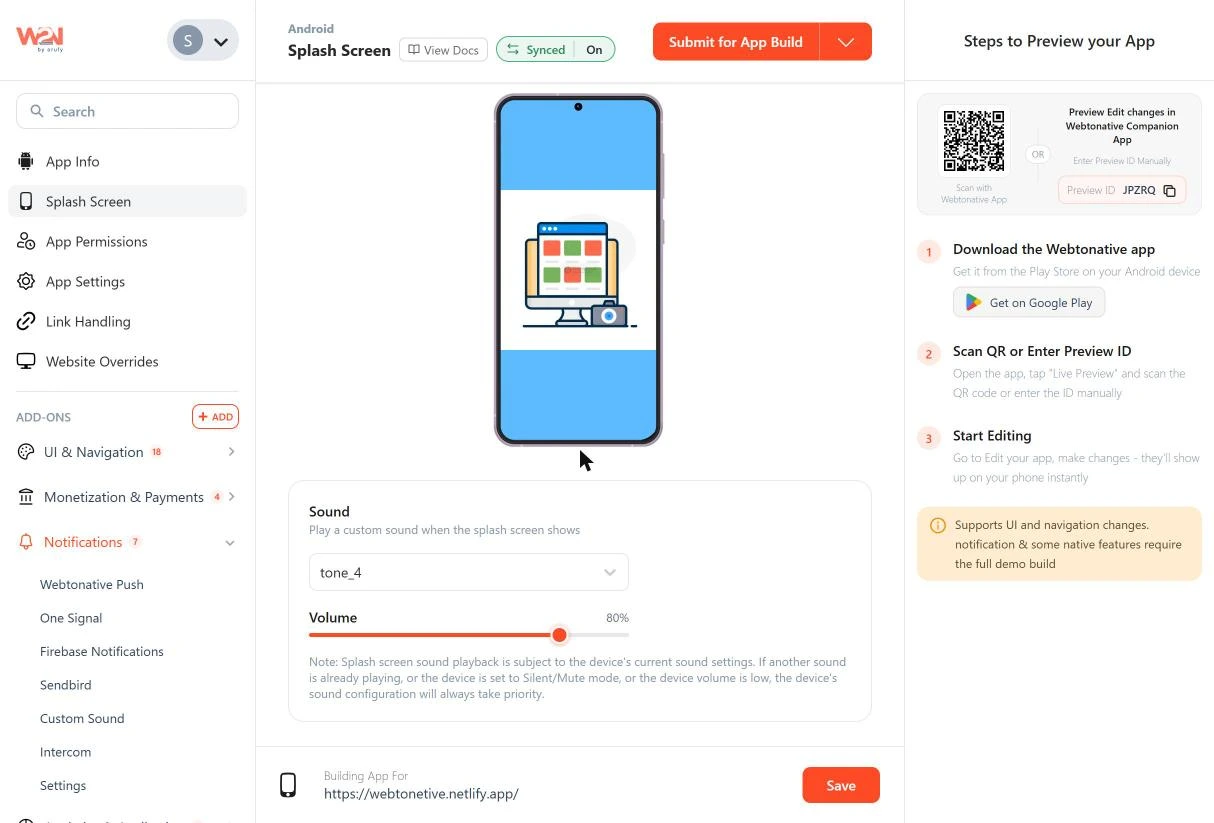
Steps to Add Sound to Your Splash Screen
Choose Your Splash Screen Type
Select Animation, Logo Image, Full Image or MP4 and set it up as usual. The Sound card shows for every type.
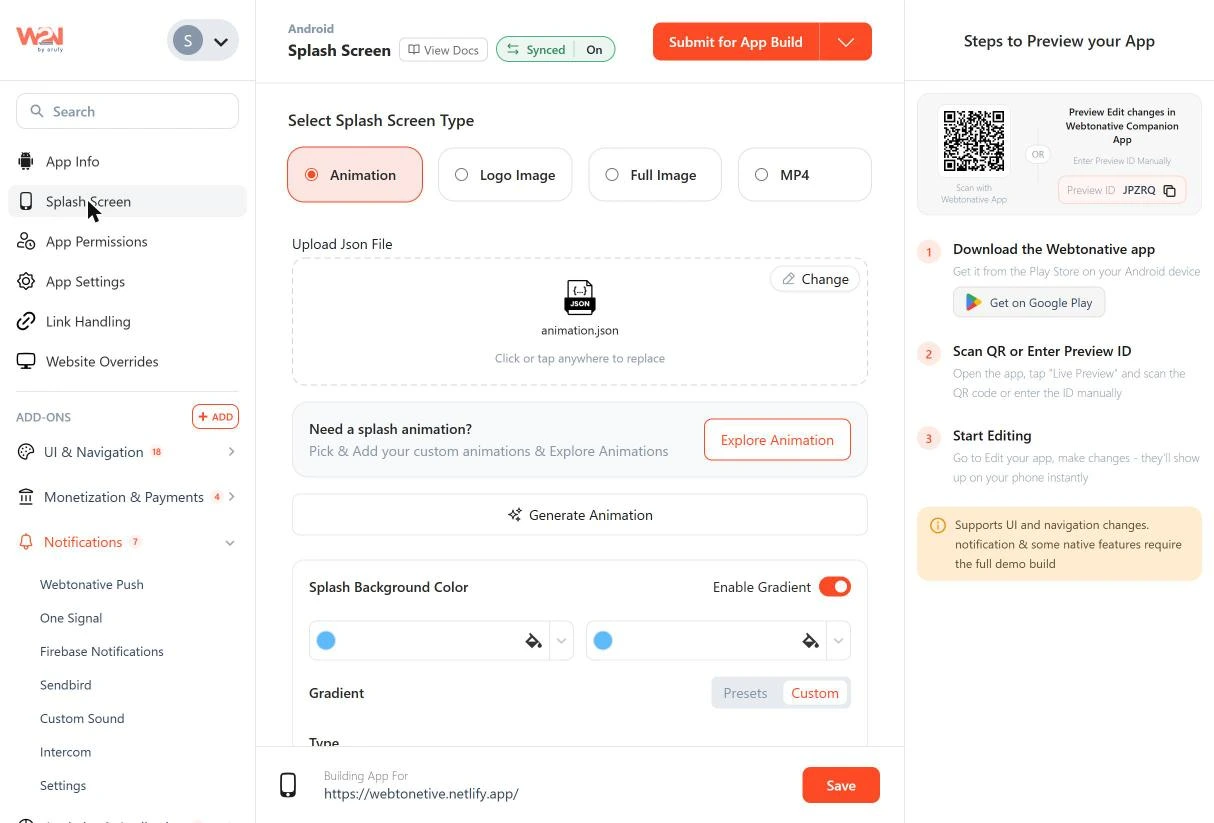
Select a Sound
Open the Sound dropdown under "Play a custom sound when the splash screen shows". It lists None (no sound) and every sound already added to your app. Pick one, or choose + Add Sound to add a new one.
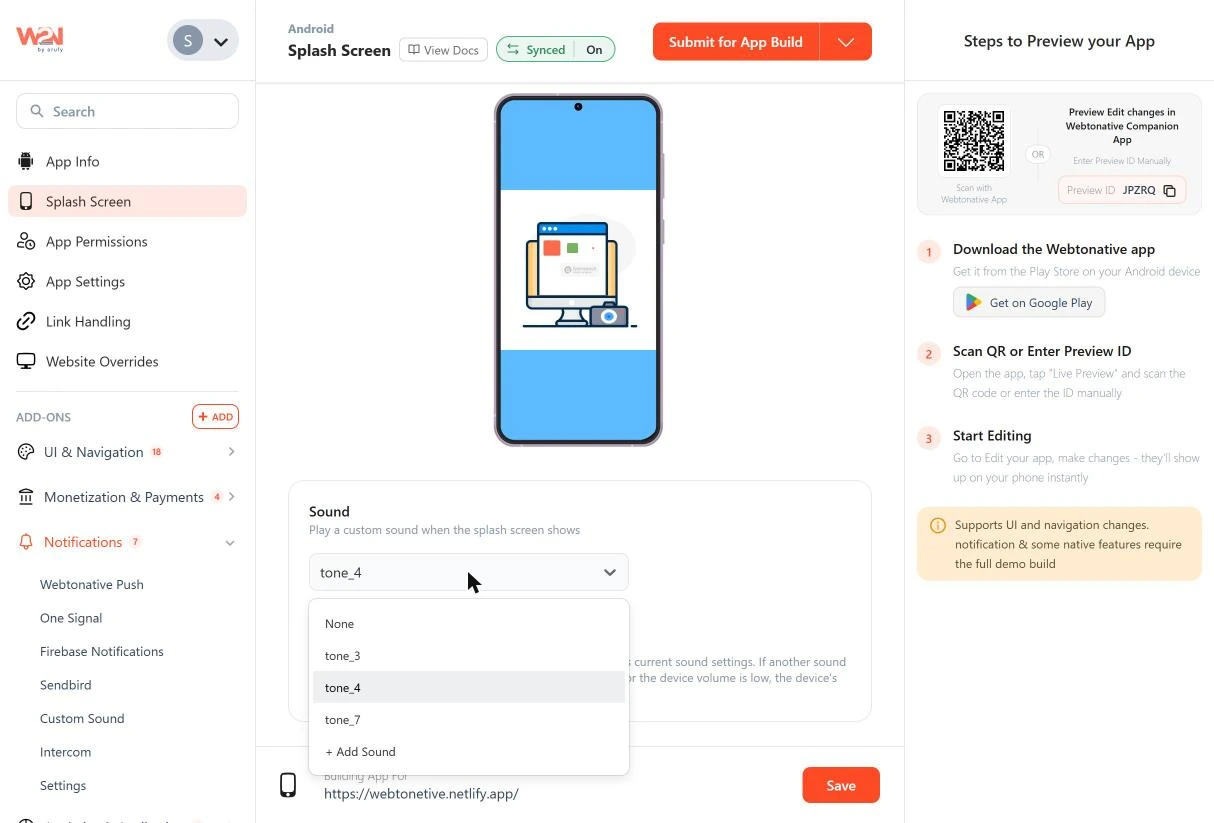
Add a New Sound
+ Add Sound opens the Add sound window with two choices.
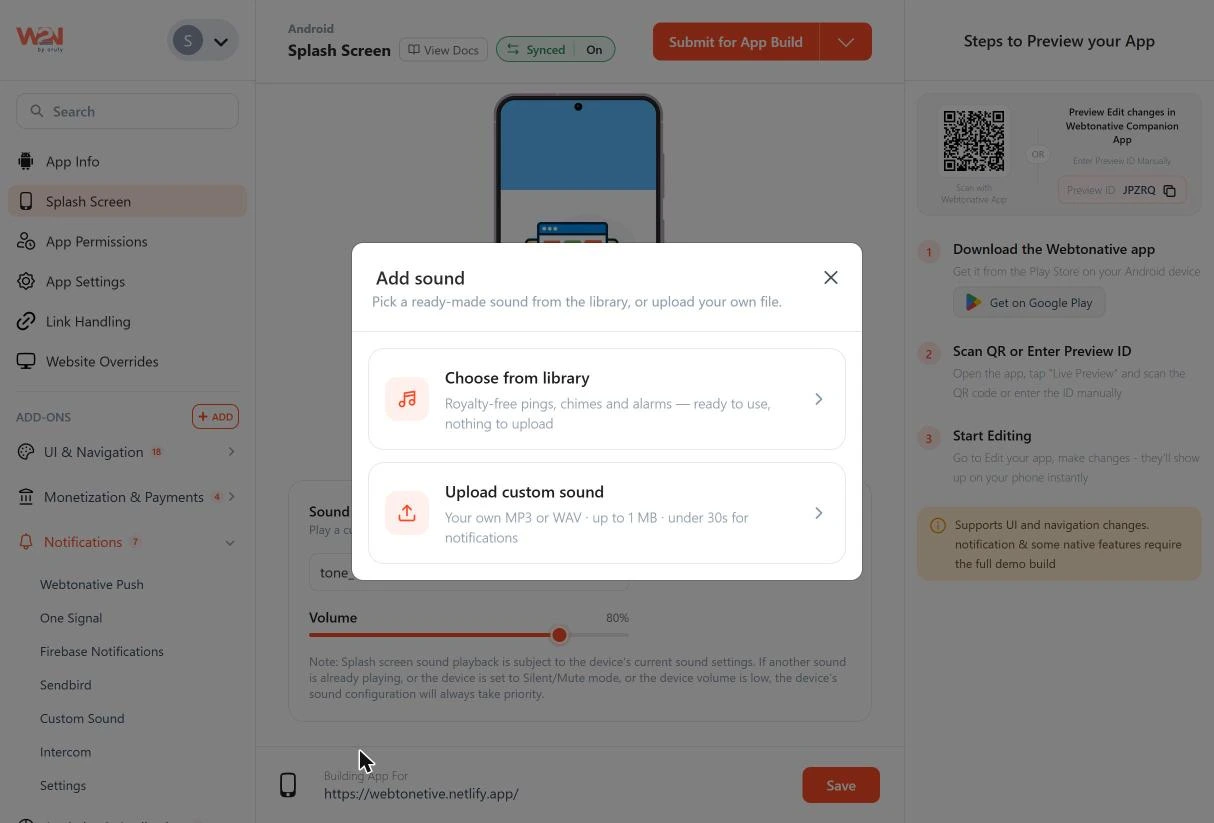
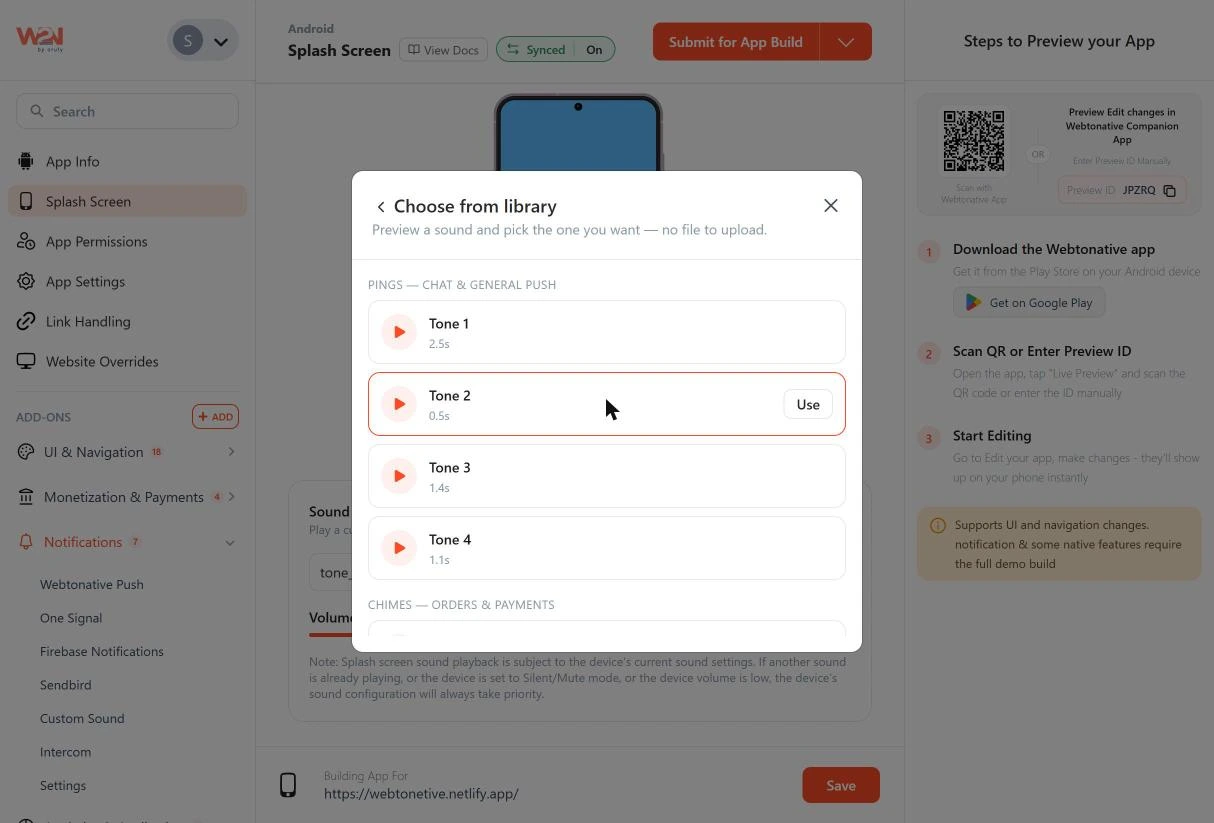
Choose from library – royalty-free tones, ready to use, nothing to upload. Tap ▶ to preview a tone, then click Use to add it.
Upload custom sound – use your own MP3 or WAV file (up to 1 MB). Drop the file or click browse, enter a Sound name, then click Save sound.
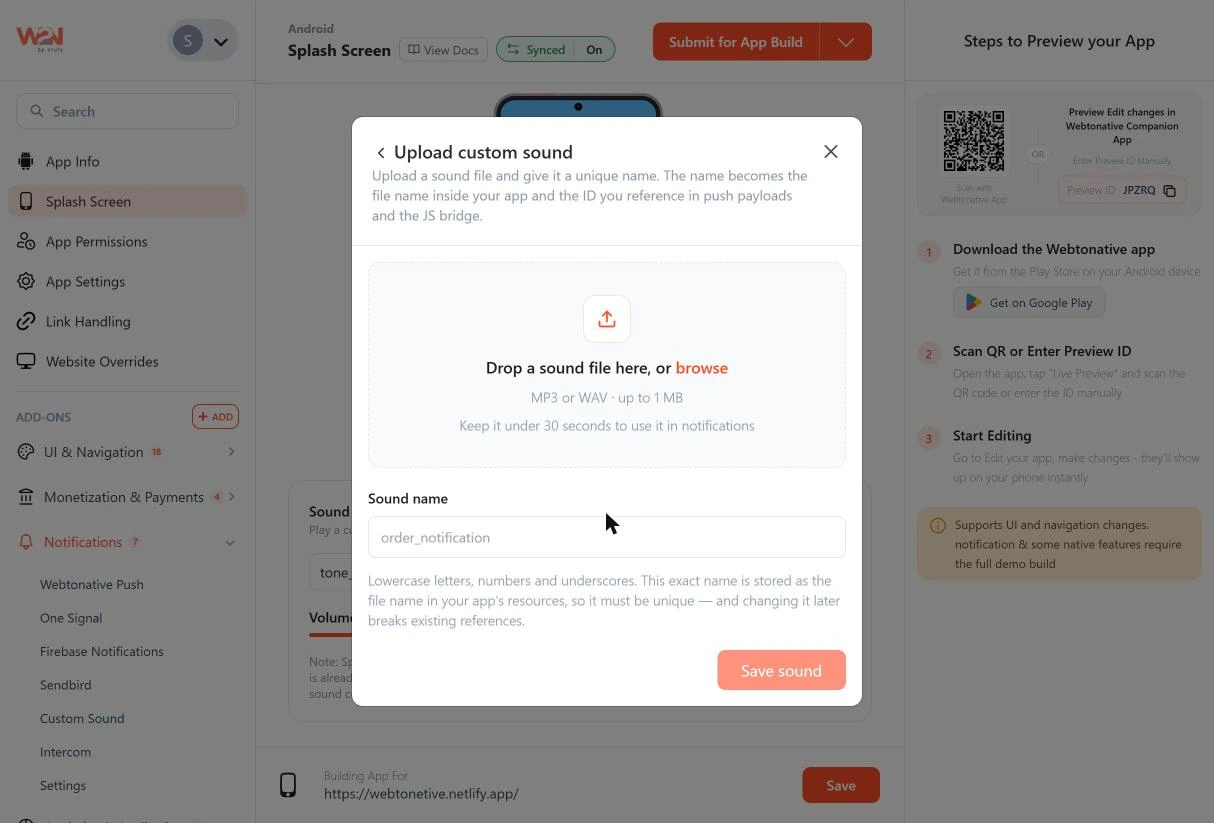
The sound name uses lowercase letters, numbers and underscores only (for example order_notification).
The name becomes the file name inside your app and the ID used in push payloads and the JS bridge, so it must be unique. Changing it later breaks existing references.
Set the Volume
Drag the Volume slider to set how loud the sound plays (shown as a percentage, for example 80%).
Save the Changes
Click Save, then rebuild your app. Install the new build to hear the sound on launch.
Things to Know
Splash screen sound playback follows the device's sound settings. If another sound is already playing, the device is on Silent/Mute, or the device volume is low, the device's settings always take priority.
Best Practices
Keep it short
A splash screen lasts only a few seconds, so a 0.5 – 2 s tone fits best.
Match the sound to your brand
A soft chime suits shopping and finance apps. A lively ping suits social and gaming apps.
Keep the volume moderate
Around 50 – 80% is noticeable without startling users who open the app in public.
Test on a real device
Check the sound with the device in normal and silent mode.
Frequently Asked Questions
Q1. Which splash screen types support sound?
A. All four: Animation, Logo Image, Full Image and MP4.
Q2. How do I turn the sound off?
A. Select None in the Sound dropdown, then save and rebuild.
Q3. What file formats can I upload?
A. MP3 or WAV, up to 1 MB. Keep it under 30 seconds if you also want to use it for notifications.
Q4. Why don't I hear the sound on my phone?
A. The device's sound settings take priority. Check that the phone isn't on Silent/Mute, the volume isn't low, and no other sound is playing. Also make sure you installed a build made after saving the sound.
Q5. Can I use the same sound for notifications?
A. Yes. Sounds you add are saved to your app with their sound name, which is the same ID used in push payloads and the JS bridge.
Q6. Why can't I see or use the Sound option?
A. Splash screen sound needs the Custom Sound add-on. Add and purchase it from Add-ons ➡️ Notifications ➡️ Custom Sound, then return to the Splash Screen page.