


Share Target
When users want to post a photo, forward a file or save a link in your mobile app, they usually have to leave the app they're in, open yours, and find the file again. Your app doesn't show up when they tap Share, so the content often never reaches it.
Share Target adds your app to the phone's native share sheet. Users can send photos, videos, audio, text, links and files from any other app, like Gallery, Chrome, WhatsApp or Files, straight into your app, and you choose the page that opens to receive them.
Why Should I Use Share Target?
Be Where Users Share
Your app appears next to WhatsApp, Gmail and other apps in the device share sheet, so it's one tap away whenever users share something.

Fewer Steps for Users
No downloading, switching apps or re-uploading. Shared content lands directly on the page you choose inside your app.

Only What You Support
Choose the content types your app accepts, so users only see your app when sharing content it can actually use.
Where to Find It In Your Dashboard
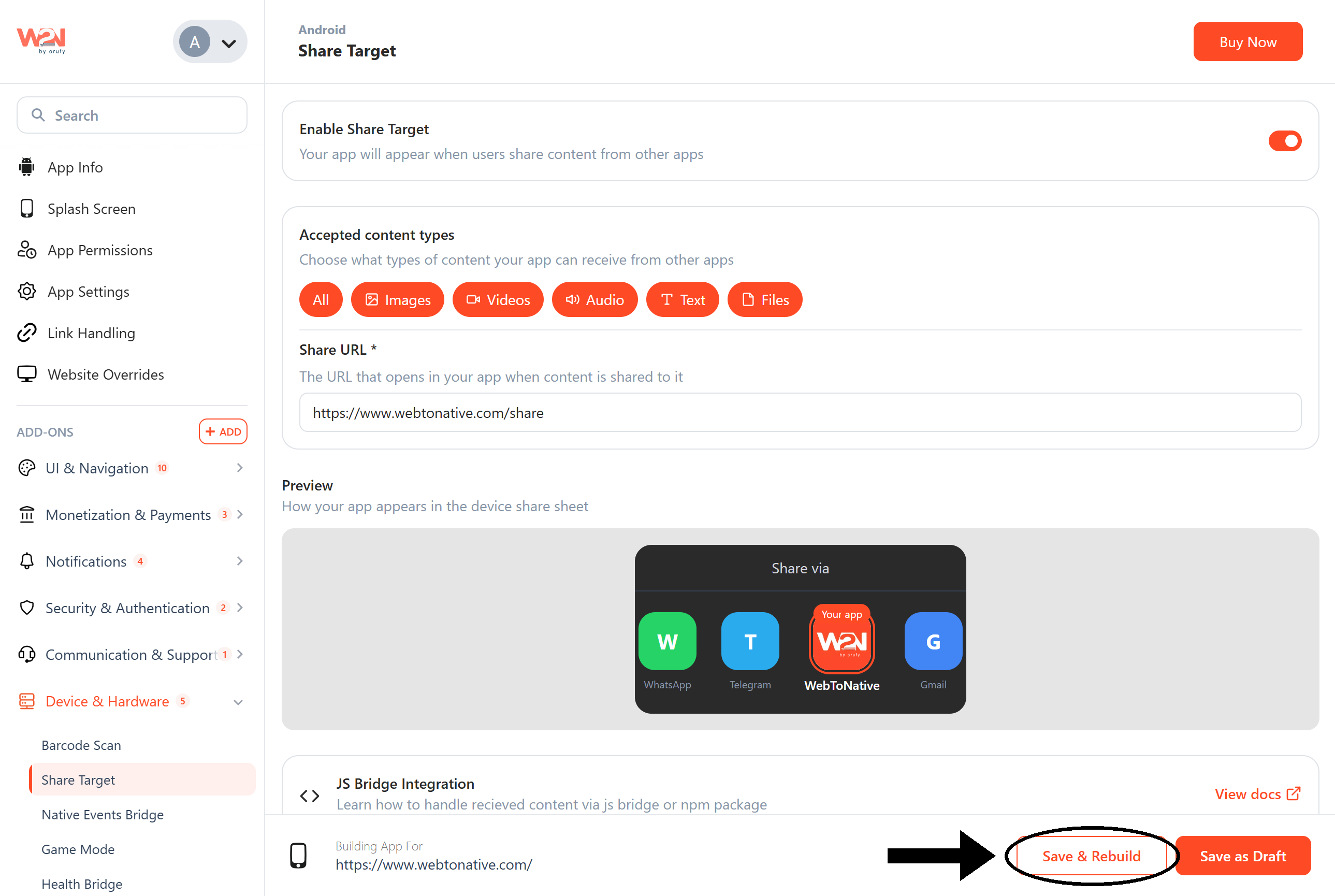
My Apps ➡️ Edit your app ➡️ Add-ons ➡️ Device & Hardware ➡️ Share Target
What Does Webtonative Provide in Share Target?

Content Type Control
Accept images, videos, audio, text, files, or all of them, from any app on the device.

Custom Share URL
Pick the exact page of your website that opens inside the app when content is shared to it.

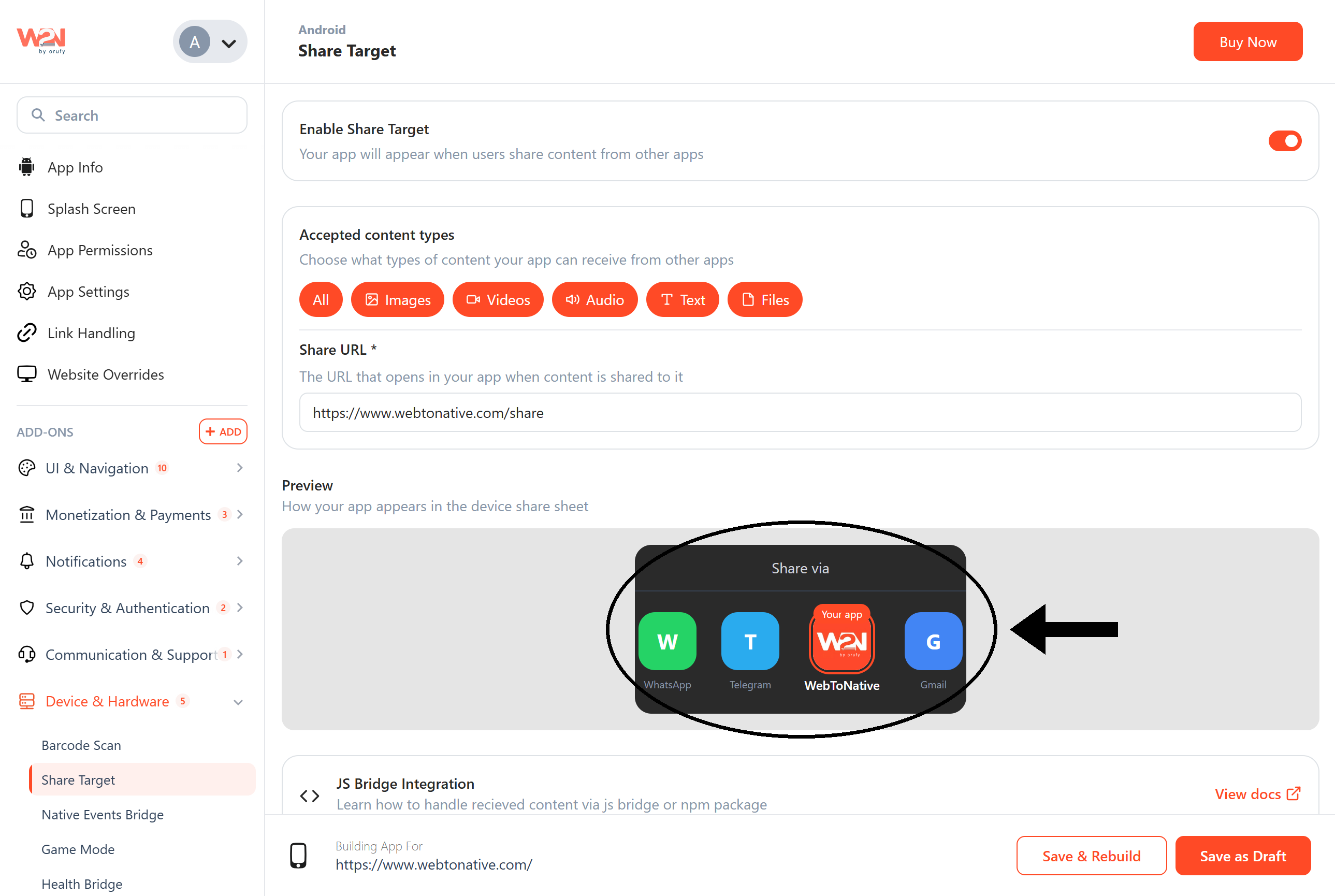
Live Share Sheet Preview
See how your app icon and name will appear in the device's 'Share via' sheet before you build.
Steps to Apply Share Target to Your App with Webtonative
Enable Native Events Bridge
Before you turn on Share Target, enable the Native Events Bridge add-on. Share Target uses it to deliver the shared content to your website. Go to My Apps ➡️ Edit your app ➡️ Add-ons ➡️ Device & Hardware ➡️ Native Events Bridge and switch the toggle to ON.
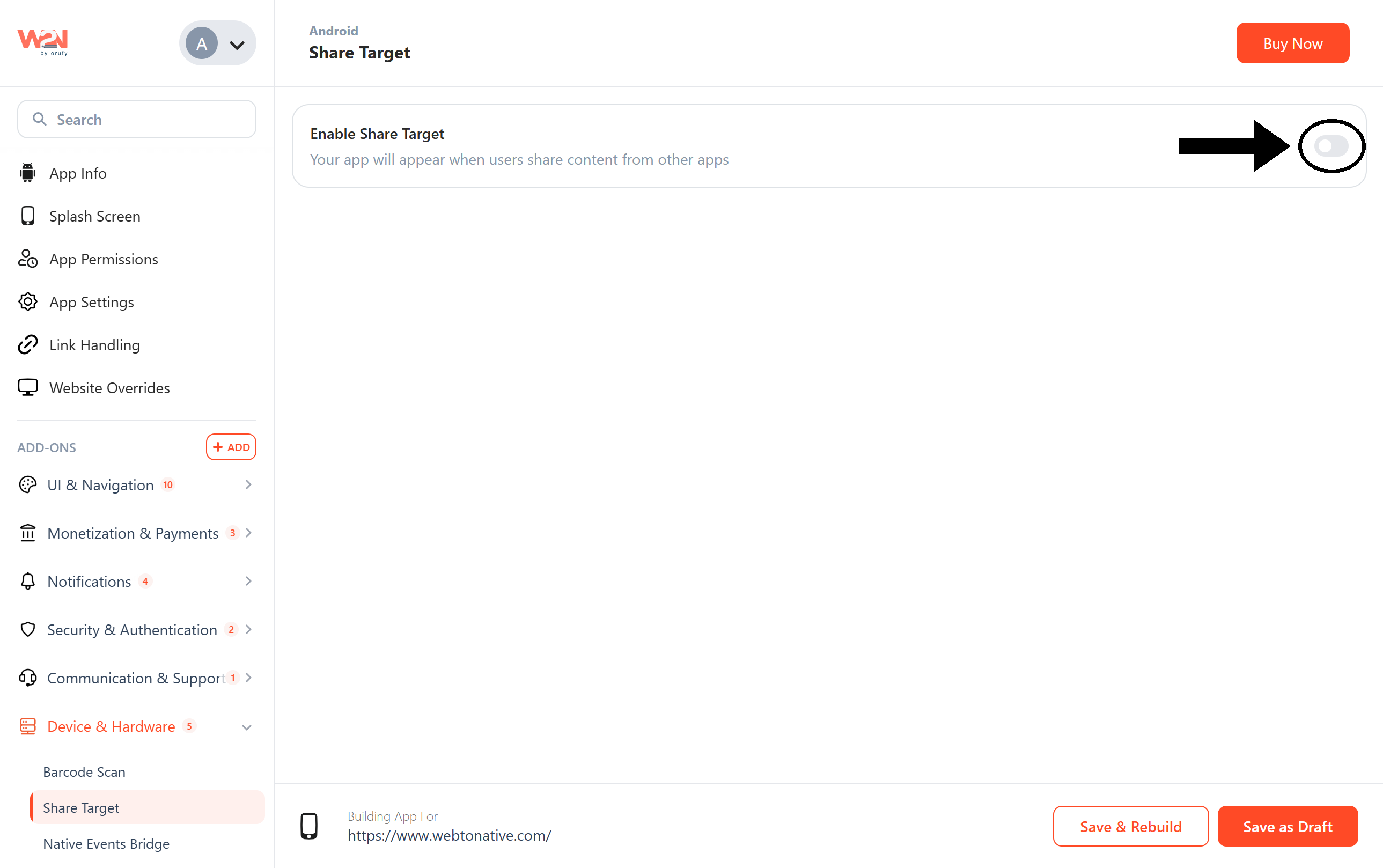
Enable/Disable Toggle
Switch the Enable Share Target toggle to ON to activate the add-on. By default, it is disabled. Your app does not appear in the share sheet, and none of the settings below apply inside the mobile app.
App Groups Setup (iOS Only)
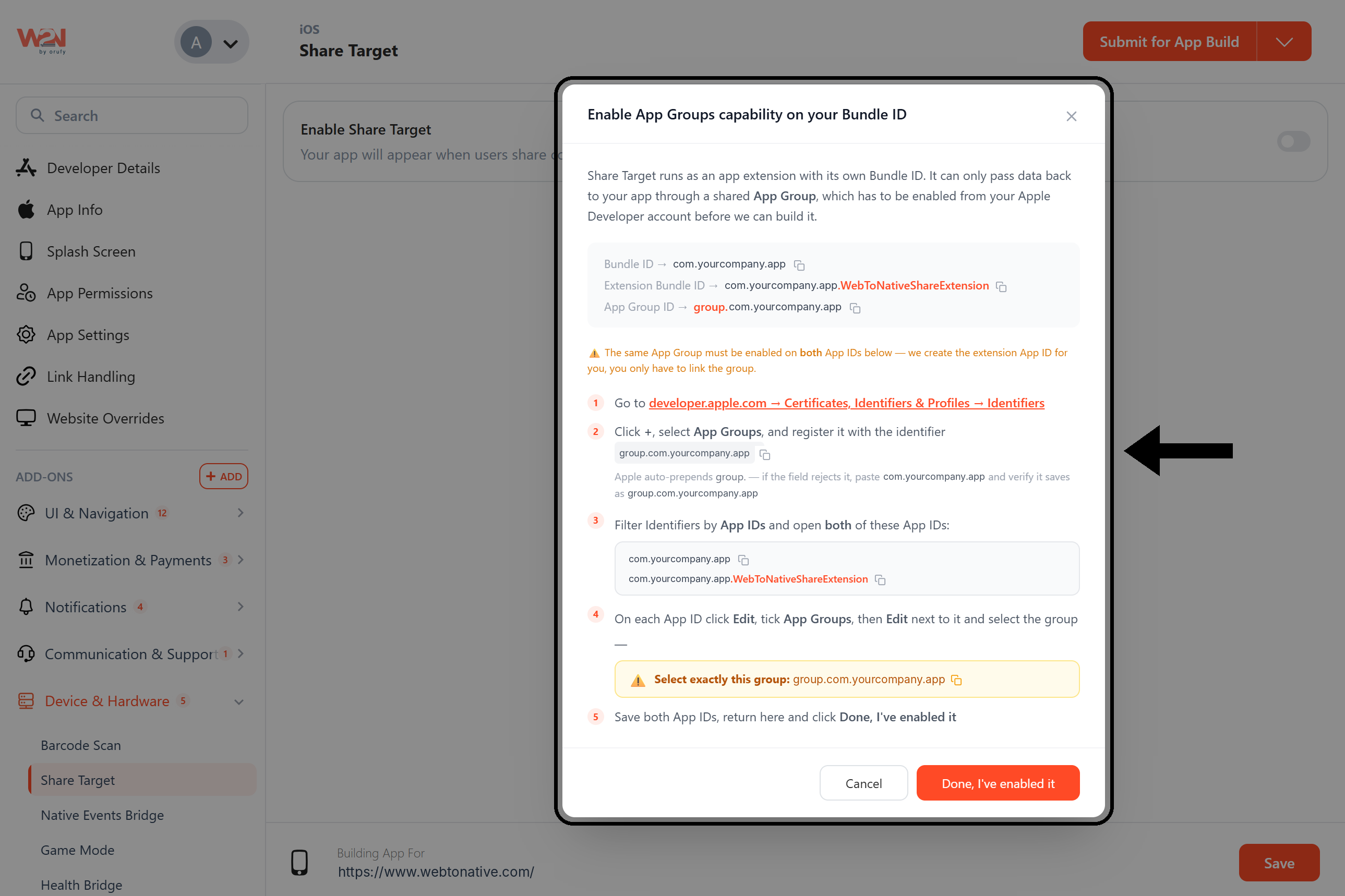
When you switch on Share Target for an iOS app, a pop-up asks you to enable the App Groups capability on your Bundle ID. Share Target runs as an app extension with its own Bundle ID, and it passes the shared content to your app through a shared App Group. This App Group must be enabled in your Apple Developer account before your app can be built.
The pop-up shows your IDs, each with a copy button:
Bundle ID
Your app's Bundle ID. com.yourcompany.app
Extension Bundle ID
Your Bundle ID followed by .WebToNativeShareExtension. Webtonative creates this App ID for you. com.yourcompany.app.WebToNativeShareExtension
App Group ID
group. followed by your Bundle ID. group.com.yourcompany.app
Follow these steps in your Apple Developer account:
-
Open Identifiers: Go to developer.apple.com ➡️ Certificates, Identifiers & Profiles ➡️ Identifiers.
-
Register the App Group: Click +, select App Groups, and register it with your App Group ID. Apple adds "group." automatically, so if the field rejects it, paste your Bundle ID and check that it saves as group.your-bundle-id.
-
Open both App IDs: Filter Identifiers by App IDs and open both your app's Bundle ID and the Extension Bundle ID.
-
Link the group: On each App ID, click Edit, tick App Groups, click Edit next to it, and select exactly your App Group ID.
-
Confirm: Save both App IDs, return to the dashboard, and click Done, I've enabled it.
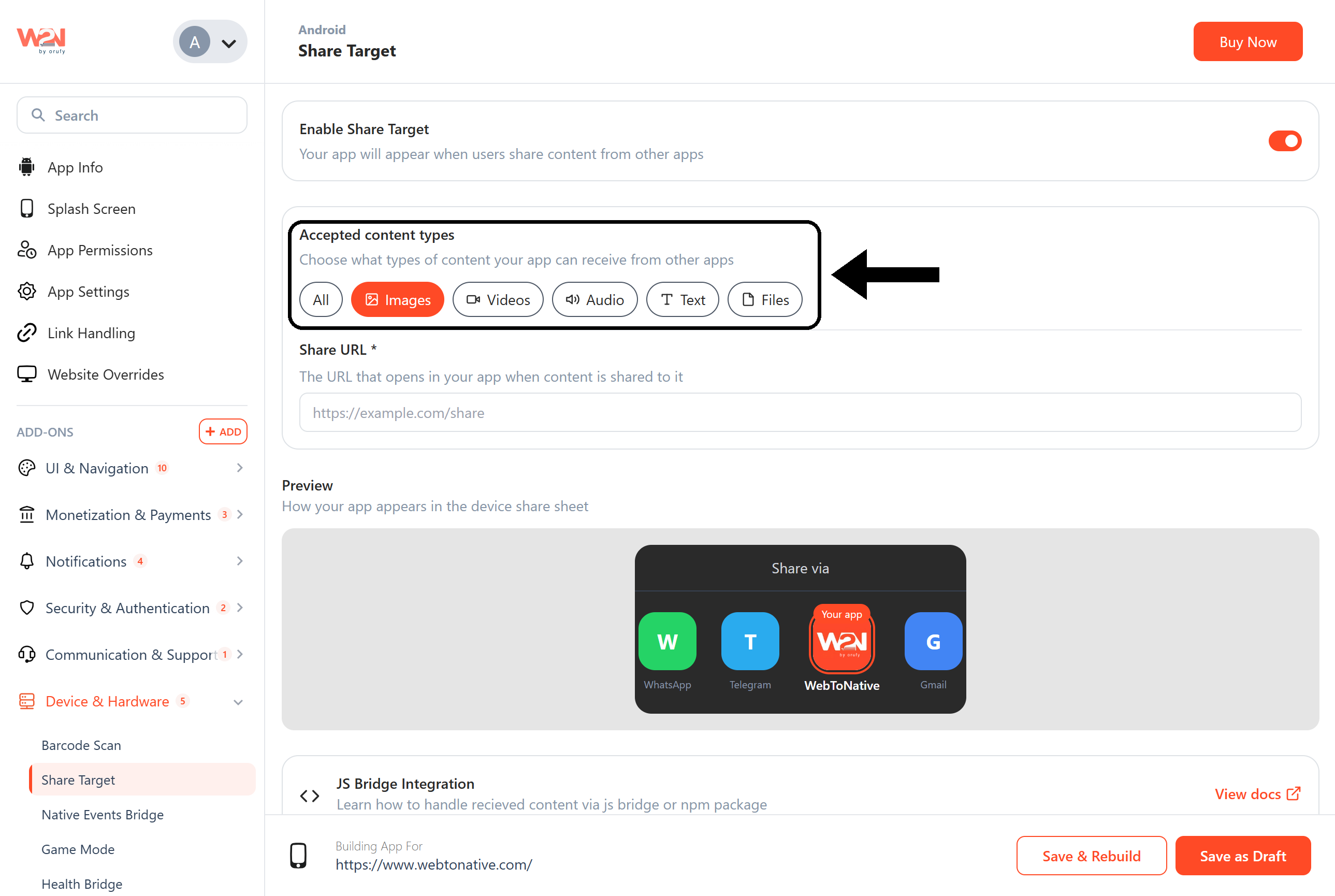
Accepted Content Types
Choose what types of content your app can receive from other apps. Your app is offered in the share sheet only for the types you select.
All
Accept every content type listed below.
Images
Photos and screenshots from the gallery or camera.
Videos
Videos and screen recordings.
Audio
Voice notes and audio files.
Text
Plain text, selected text and links. For example, a link shared from a browser.
Files
Documents such as PDFs from the file manager, Drive or email attachments.
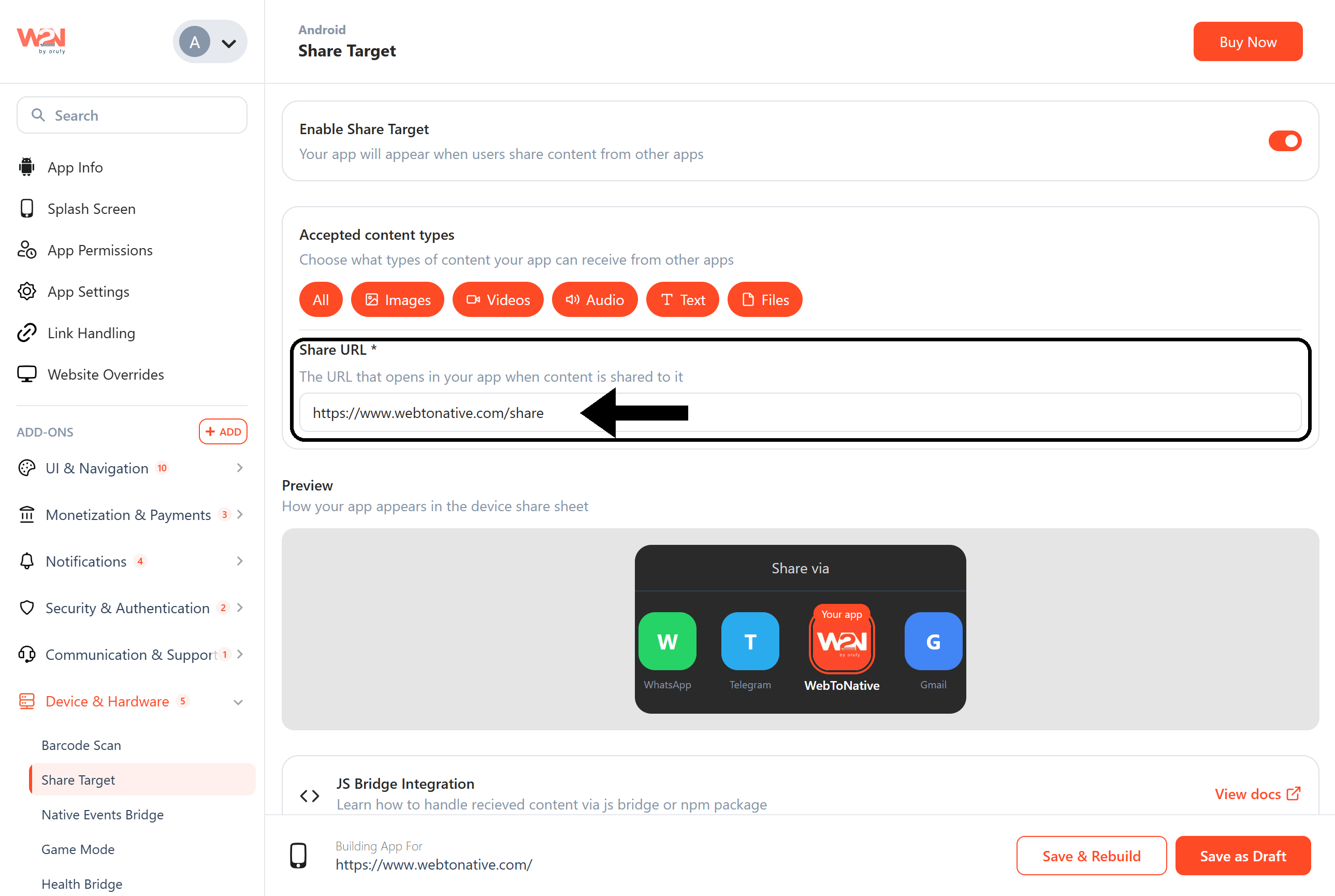
Share URL
Enter the URL that opens in your app when content is shared to it. For example, https://www.webtonative.com/share (opens in a new tab). This field is required.
Preview
The preview shows how your app icon and name will appear in the device's "Share via" sheet. The icon and name come from your app's App Info settings.
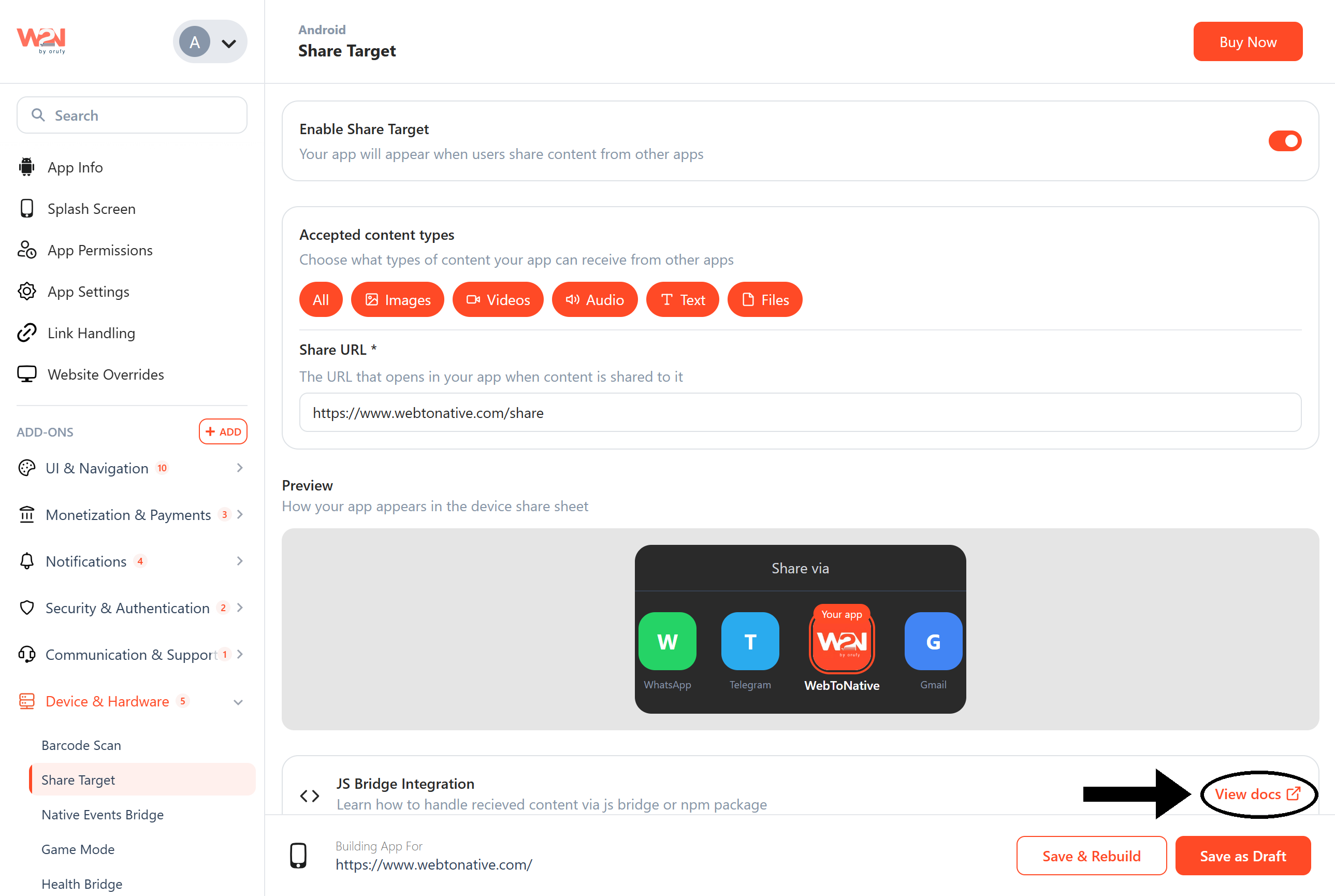
JS Bridge Integration
Your website receives the shared content through the Webtonative JavaScript bridge as a contentShared event. For text and links you get the text itself; for images, videos, audio and files you get a file your page can read and upload. For setup steps and code examples, visit the developer documentation: https://docs.webtonative.com/javascript-apis/native-events-bridge (opens in a new tab)
Save & Rebuild
Click Save & Rebuild to apply and see your changes inside the mobile app.
Frequently Asked Questions
1. How do I test Share Target?
Test on a real device with a new build. On Android, click Save & Rebuild, then scan the QR code or click Download APK in the Steps to Preview your App panel and install the build. Open another app, tap Share on a photo, link or file, and pick your app. Share Target is a native feature, so it won't work in a desktop browser.
2. How do I test Share Target on iOS?
Share Target for iOS is available for paid iOS apps. Once your iOS app is purchased, test it on a physical device through TestFlight.
3. My iOS build fails after enabling Share Target. What should I check?
Check that the App Group is registered in your Apple Developer account and enabled on both App IDs: your app's Bundle ID and the Extension Bundle ID ending in .WebToNativeShareExtension. Both must use exactly the App Group ID shown in the pop-up, group. followed by your Bundle ID.
4. Why doesn't my app appear in the share sheet?
Check that Share Target is enabled, the content type being shared is selected under Accepted Content Types, and you installed a build made after clicking Save & Rebuild. Changes don't apply to builds created before.
5. My app opens, but nothing happens with the shared content. What should I check?
First, make sure the Native Events Bridge add-on is enabled under Add-ons ➡️ Device & Hardware, then Save & Rebuild. Your Share URL page also needs to load the Webtonative JavaScript library and listen for the contentShared event. Follow the steps in the developer documentation: https://docs.webtonative.com/javascript-apis/native-events-bridge (opens in a new tab)
6. Shared images, videos or files come through empty. Why?
For images, videos, audio and files, your page receives a temporary blob: URL instead of the file itself. Read it inside the app and upload or use it right away. It can't be opened outside the app.
7. A shared link arrives as text. Is that expected?
Yes. Depending on the app it's shared from, a link can arrive with the content type url or text, so your page should handle both.
8. Why does my page handle the same share twice?
The contentShared listener was registered more than once. Register it only once when the page loads, or remove the old listener before adding it again.
9. Why can't I save my Share Target settings?
The Share URL field is required. Enter a full URL starting with https://
10. Can I accept only images?
Yes. Select only Images under Accepted Content Types, and your app won't be offered when users share other kinds of content.
11. Do I need to update my app on the stores?
Yes. Share Target is part of the native build, so publish the rebuilt app for your store users to get it.