


Environment Variables help maintain different backend URLs and configuration values across different stages of your app. You store the URL once and reuse it anywhere using a placeholder, eliminating the need to hardcode a URL across multiple settings.
Understand the Available Environments
Every app starts with one environment, Production, which is your live website URL. You can add two more environments as needed:

Dev
It is used when your app is still in active development and is usually pointed to a beta or test URL.

Staging
It is used once development testing is completed and you want to test the app with real data and conditions before making it live.

Production
Your final live URL that real users will see once the app is published.
This allows building and testing the same app against different backends simply by switching environments, instead of manually changing URLs everywhere.
Add a New Environment
Add and Select Environment
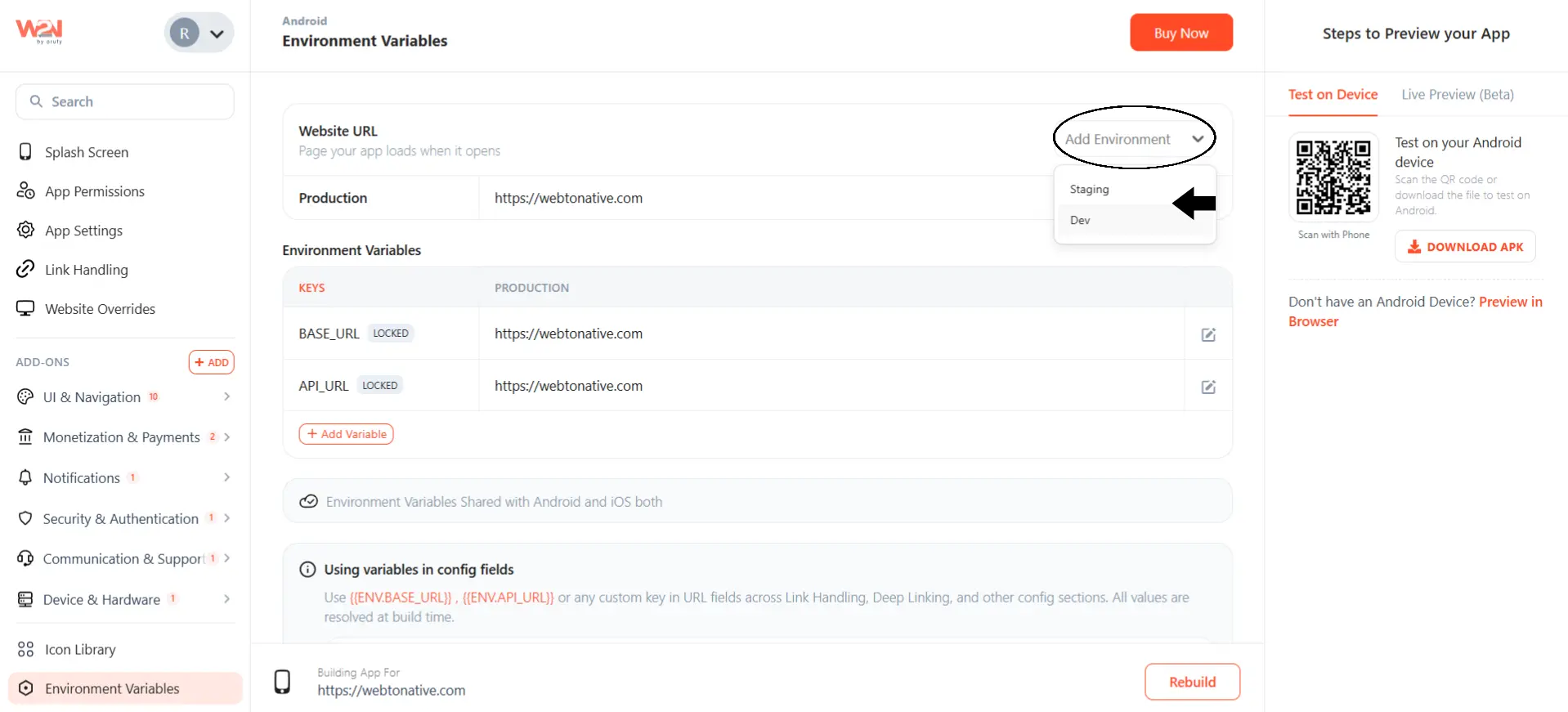
Click on the Add Environment. A drop-down menu will open to select from the two given environments. Select either Staging or Dev.
Enter the Website URL
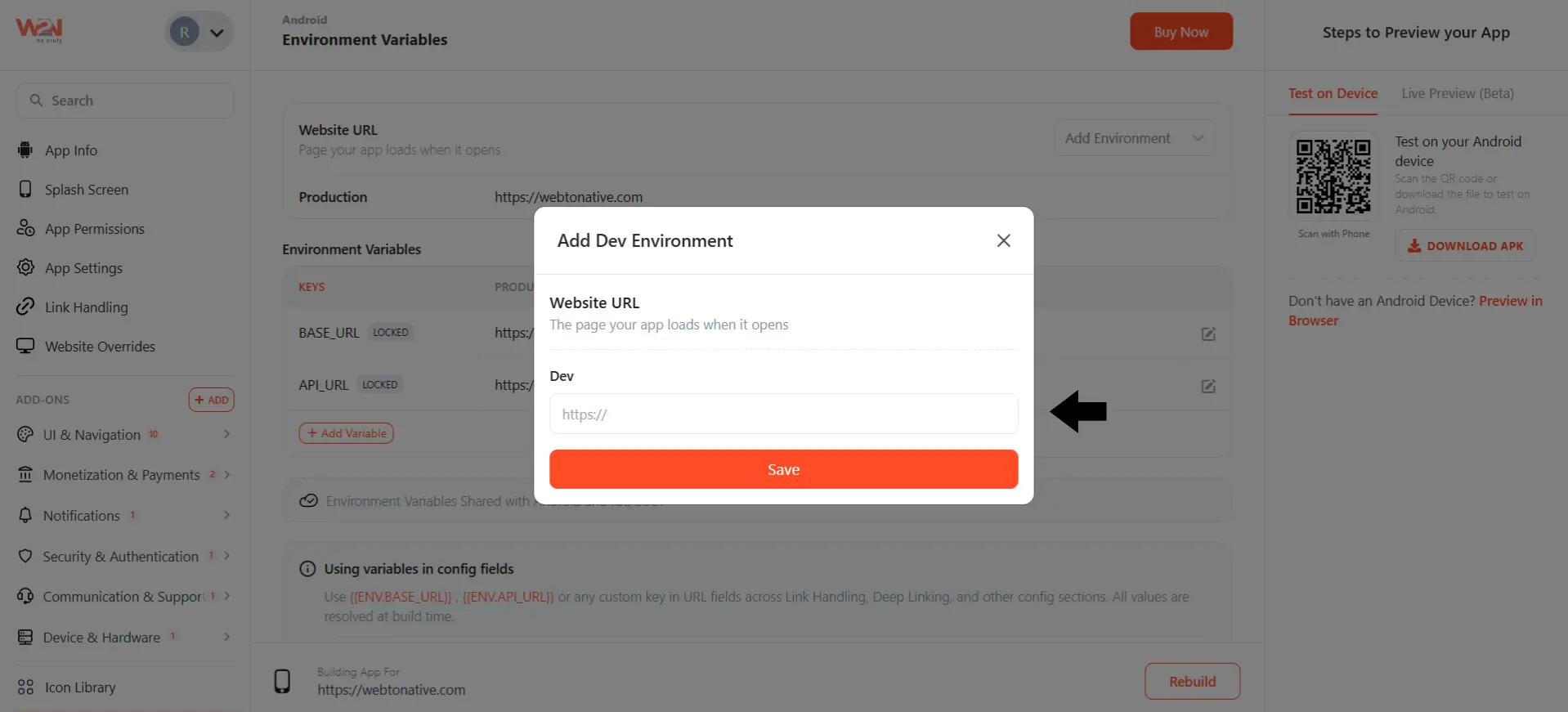
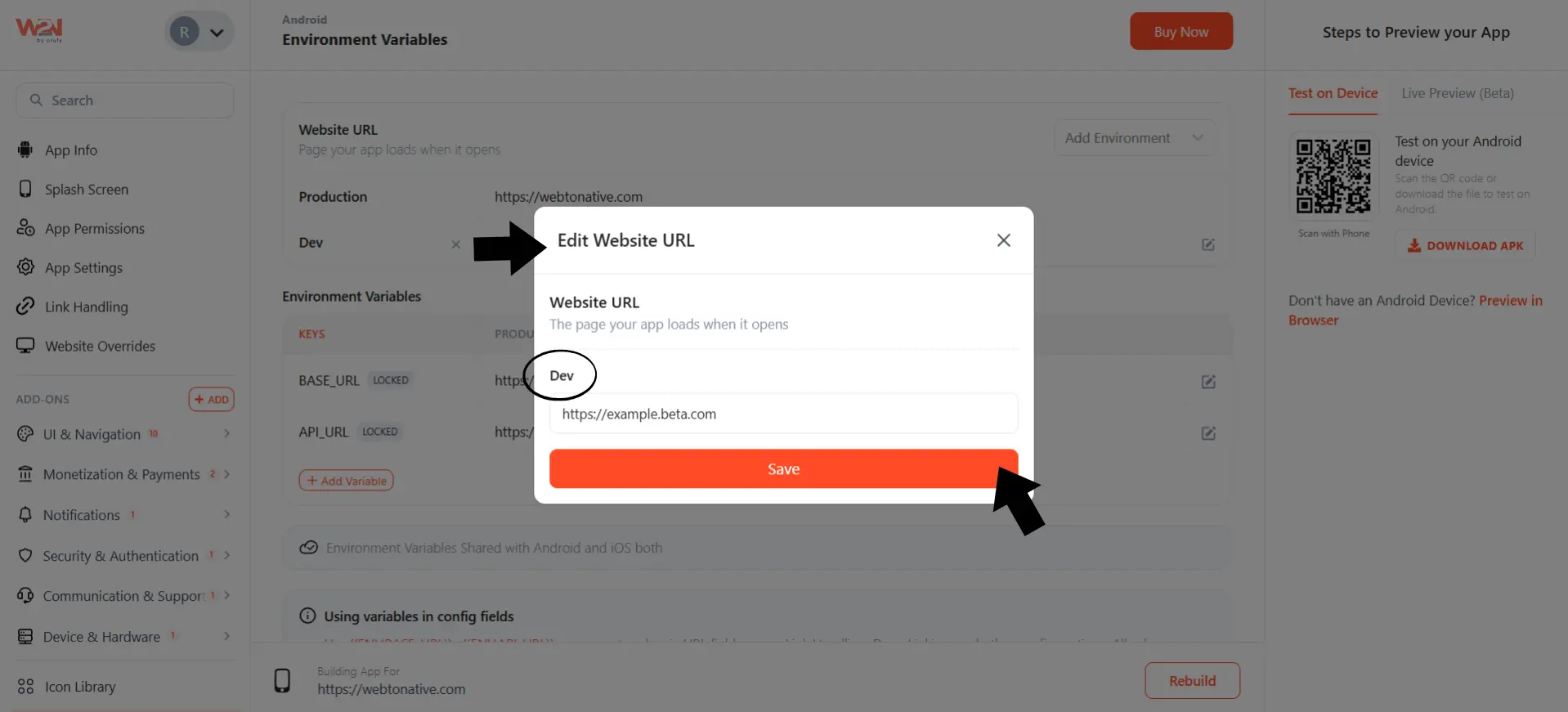
Enter the website URL for that environment, then click Save.
Edit Website URL
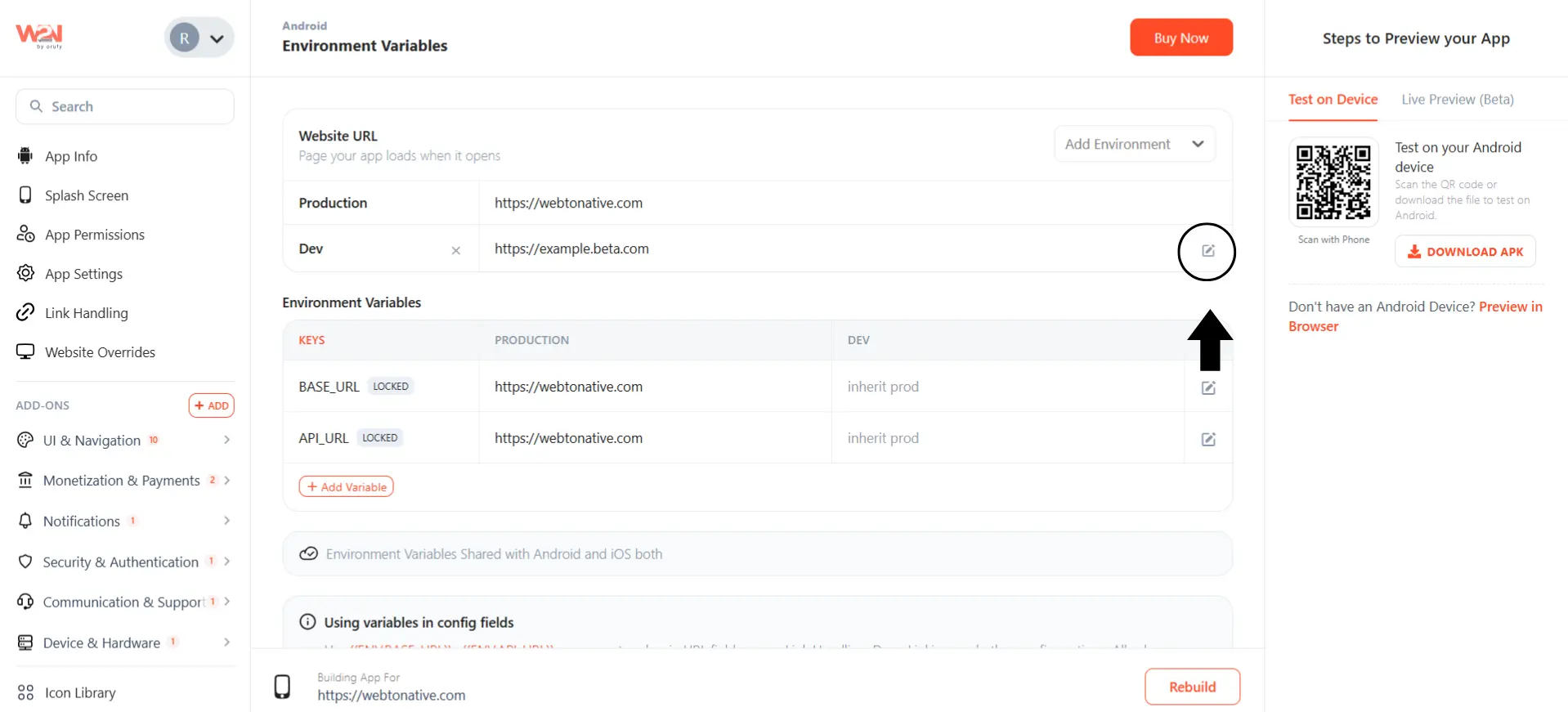
You can edit the website URL from the Edit icon beside the URL.
And click on Save.
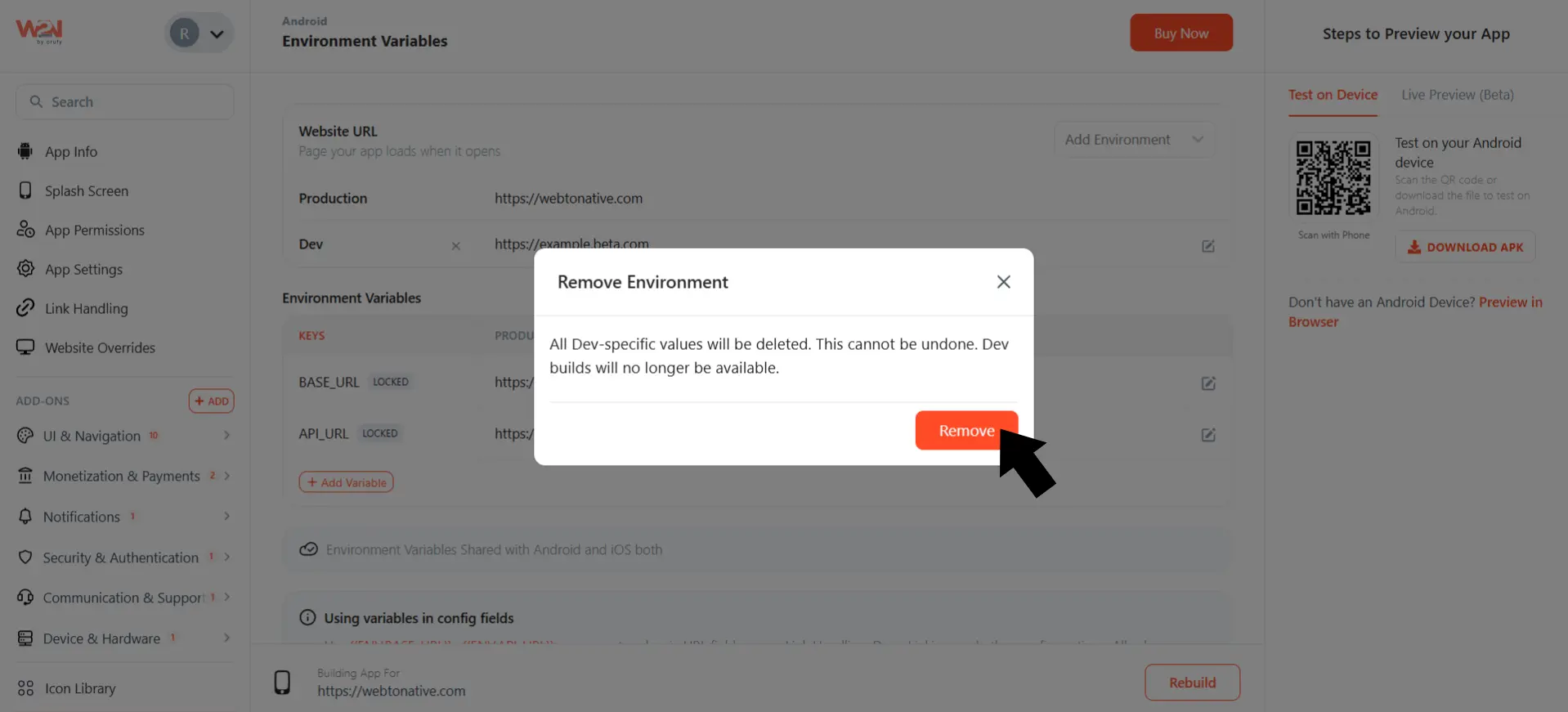
Remove Website URL
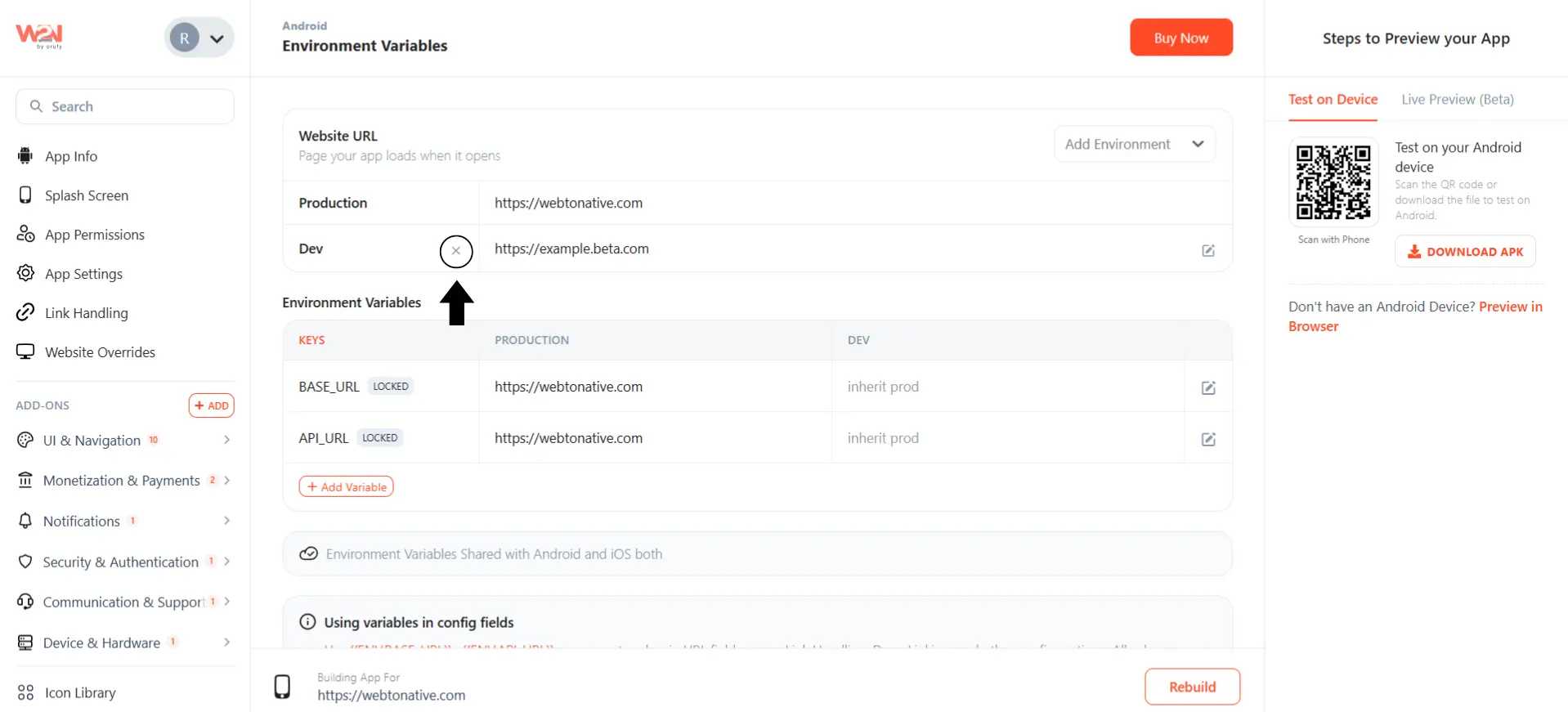
You can remove the website URL from the “x” icon beside the environment name.
Set Up Environment Variables
The Environment Variables table lists reusable keys such as BASE_URL and API_URL as marked. Since they are created by default and cannot be renamed.
-
Each key holds a different value for every environment you have added.
-
By default, Staging and Dev do not have their own value. They are shown as inherited prod, which means they automatically use the same value set as Production.
-
You only need to change this if that particular environment genuinely needs a different value.
Set a Different Value for Staging or Dev:
Edit Variable
Click on the Edit icon next to the variable you want to change.
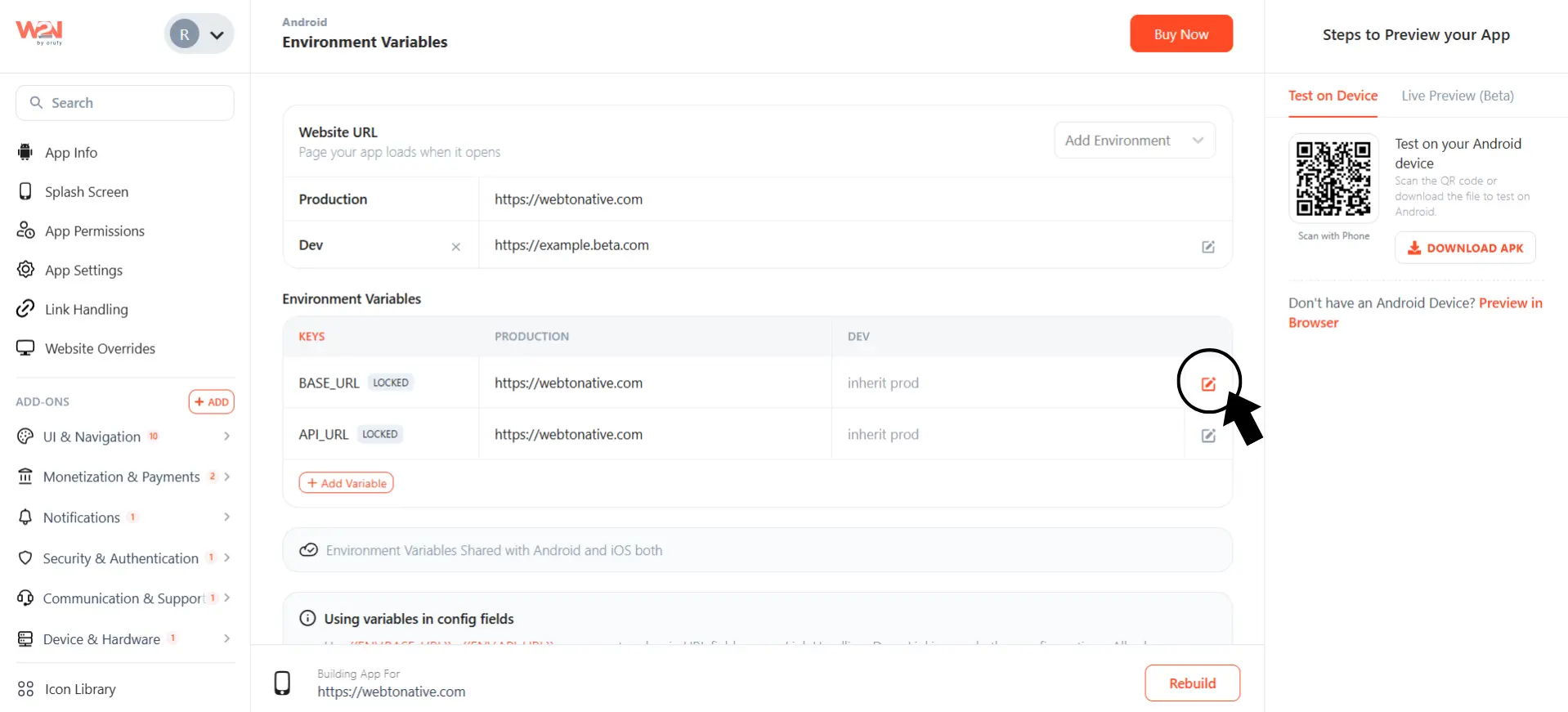
View Production Field
In the Edit variable, you will see the Production value already filled in the field. Click on Override.
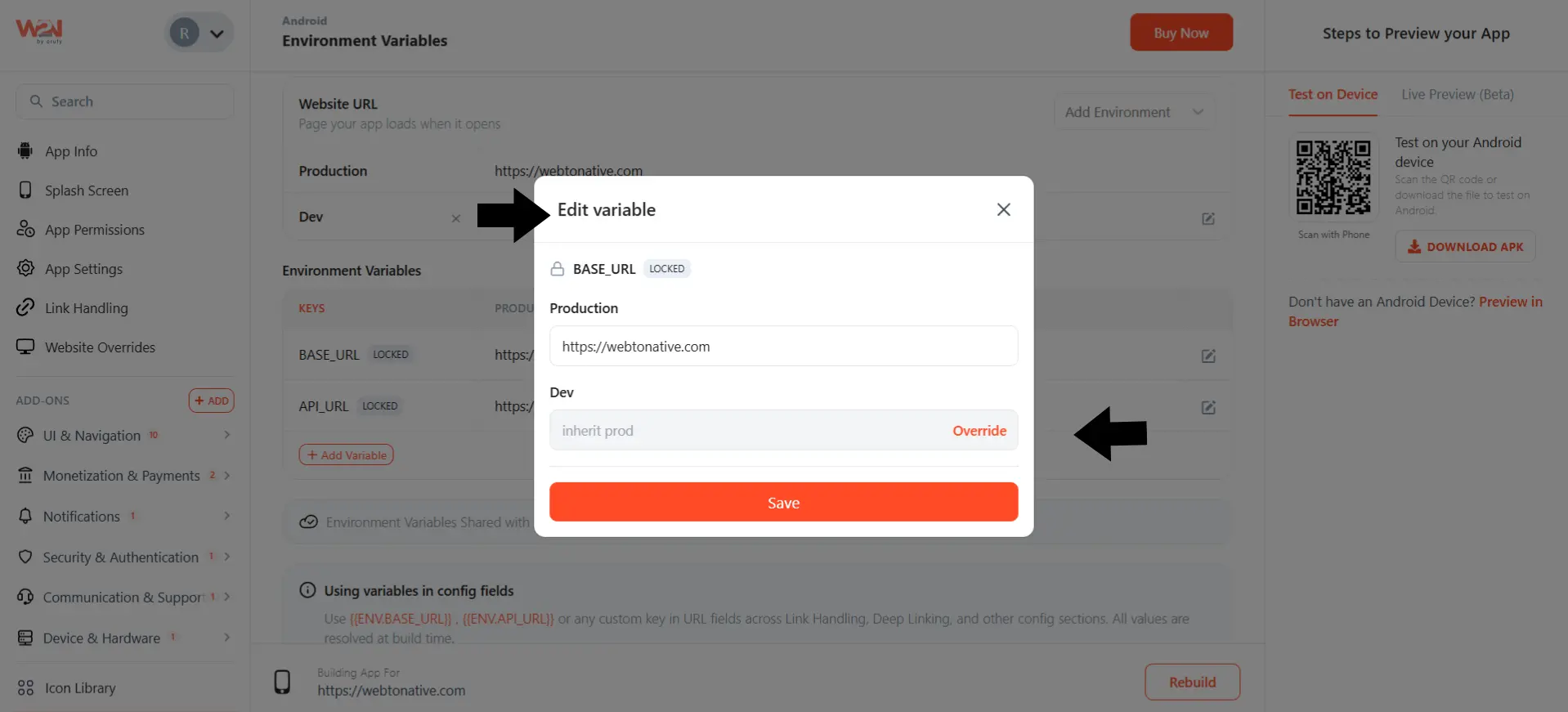
Enter and Save the Value
Enter the new value you want the environment to use. Click on Save.
As overridden, that environment will use its own value instead of inheriting from the Production.
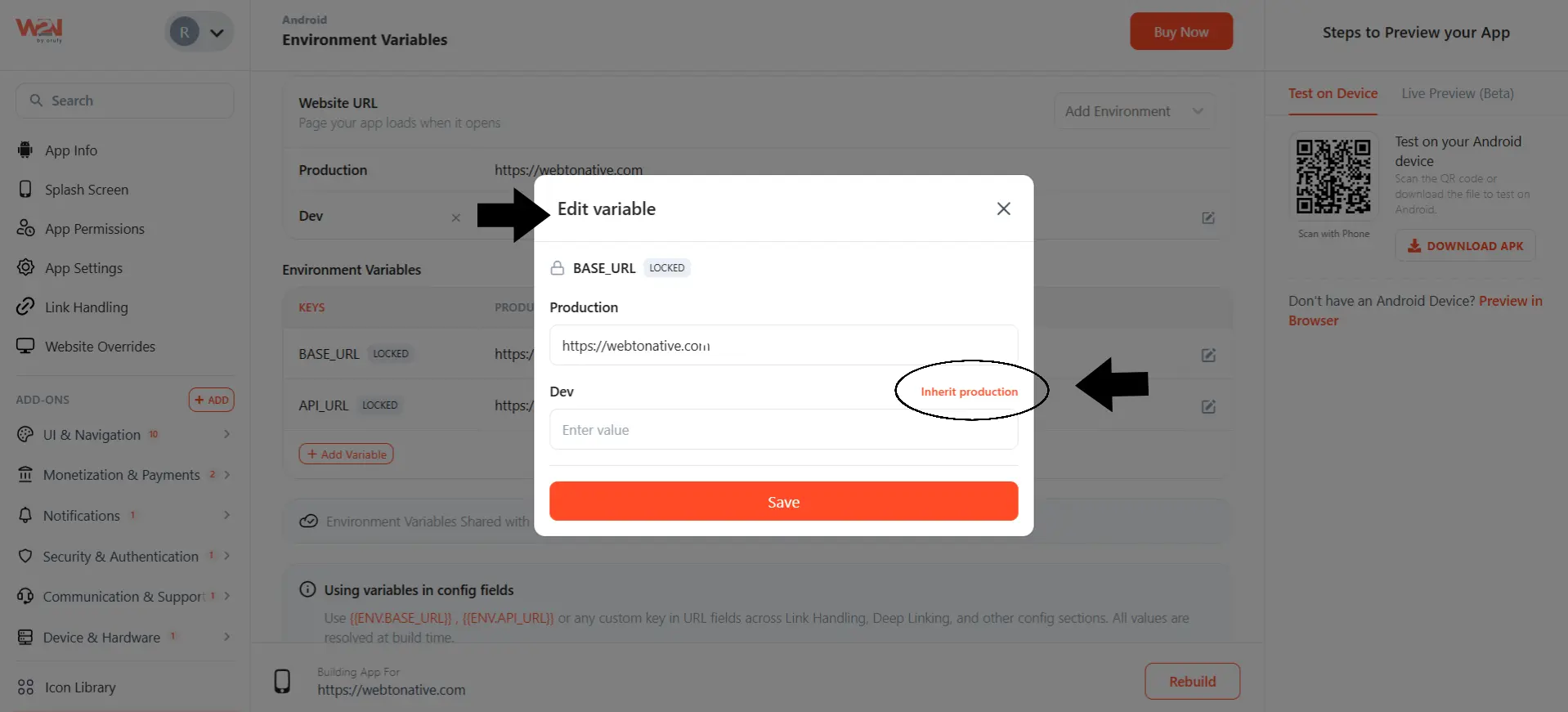
If you want it to go back to matching Production, simply clear the overridden value.
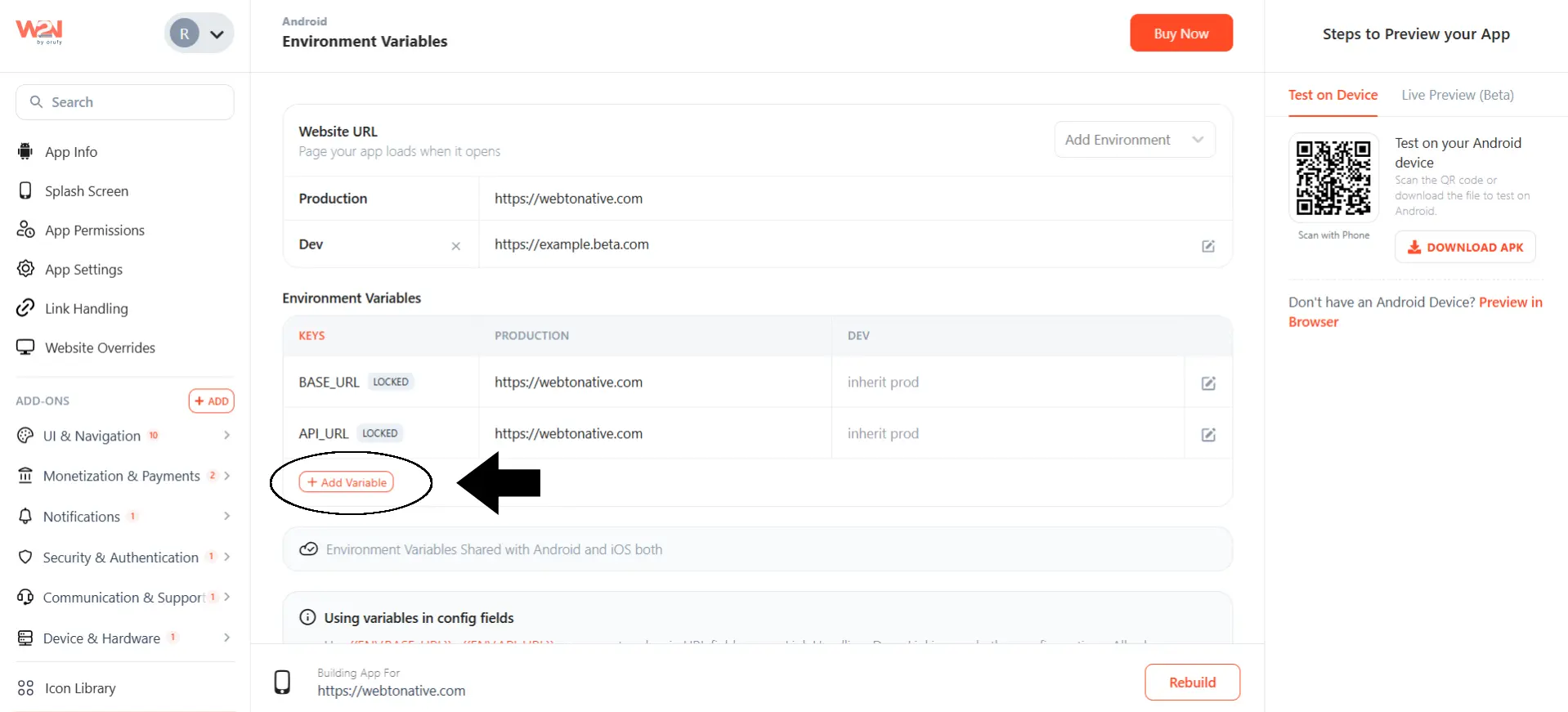
Add a Custom Variable
Click on + Add Variable.
Enter a Key Name
Enter the key name of the variable which is used to identify wherever you reference it in your configuration fields.
Enter Production Value
The value this variable holds for your live app, used by default unless another environment overrides it.
Enter Dev Value
The value this variable holds for your Dev environment, or leave it as Inherit production to automatically use the Production value instead.
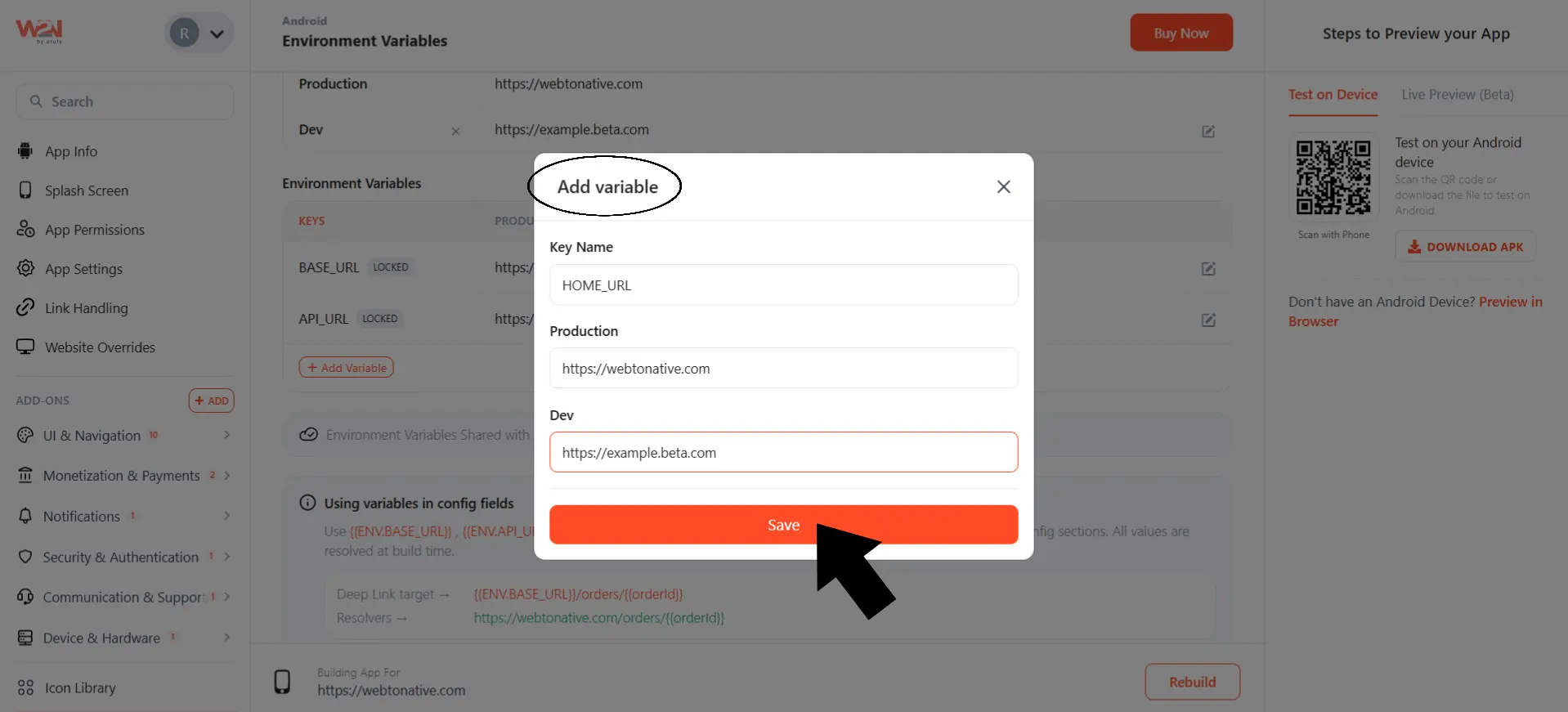
Click on Save.
Use this for any value that changes between environments. For example, a feature flag or a different endpoint.