


How to Turn a Website Into an App (Android and iOS)
Published on:
2 November, 2026
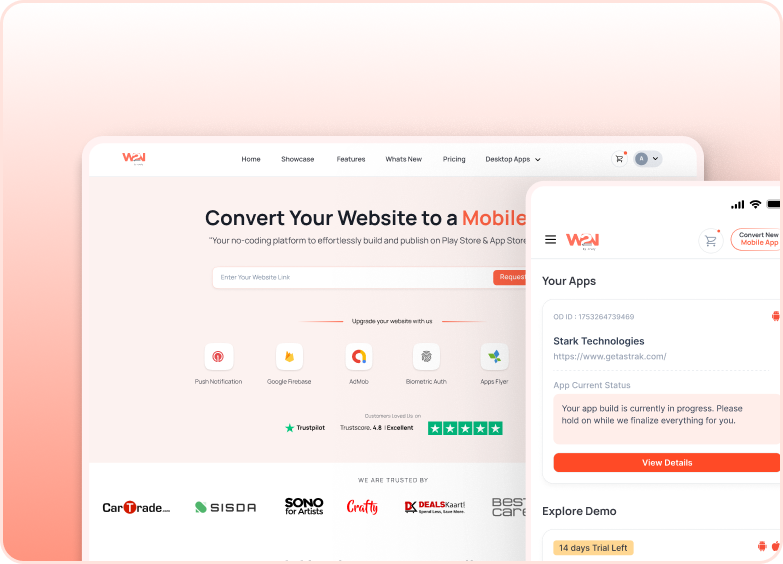
Want to turn your existing website into an app?
There are three ways to turn a website into an app: Hire developers, hire an agency, or use a website-to-app converter.
The converter turns your live site into a native app and usually costs less time and money. It bundles up your existing web application into an app that works well on a phone. Apple and Google both look for apps that give users a reason to download them apart from what your website already offers.
Your website already does the work; apps put it on the user’s home screen with push notifications and a quicker return process.
In this blog, you will learn the three different ways to turn a website into an app, the six major converter steps for Android and iOS, and what store reviewers check.
Which Route Should You Take: Developers, an Agency, or a Converter?
| Route | What sets the time? | What do you pay for? | Skills you need | Who is it best suited for? | Who is it not for? |
|---|---|---|---|---|---|
| In-house Developers | Your team handles the app development, testing, and maintenance. | Developers’ salaries, tools, and maintenance costs. | Basic technical skills required for the founders to manage and hire developers. | Brands or companies with a dedicated development team and with an extensive budget. | Startup with a limited budget and no technical development team. |
| Agency | Agency’s project timeline and review phases. | Project cost, maintenance, and additional change requests. | Explaining your requirements and reviewing the app. | Organizations that need a custom app and have a suitable budget. | Businesses looking for a cost-effective solution with frequent custom changes. |
| Converter (Webtonative) | Your setup, customization, testing, and app store review. | Android: $99 one-time or from $9/month. iOS: $99 one-time or from $14/month. | Basic website and app management. | Website owners, Startups, or publishers that want to turn an existing website into an app without building everything from scratch. | Products or projects that need complex gaming features, deep offline functionality, or highly customized native app features. |
Store fees are an additional cost you need to consider, regardless of which app development route you choose. Google Play charges a one-time registration fee of $25, while Apple's Developer Program costs $99 per year. If you hire developers or an agency, the cost will depend on your app's features, requirements, and complexity. It's always a good idea to ask for a price estimate before getting started.
If your website already works on a phone, try a converter first. You can test a real app in a free trial before spending on developers and agencies.
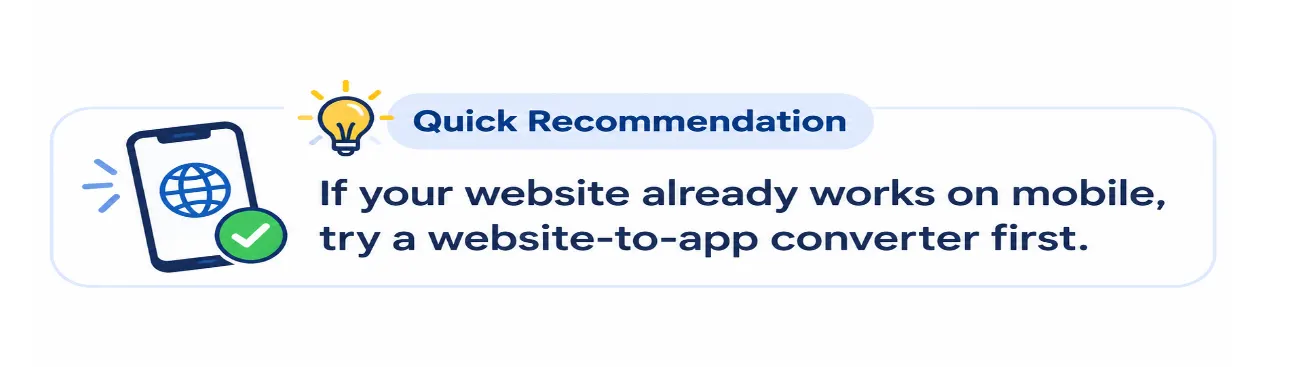
Step-by-Step Process to Convert Your Website into a Mobile App Using WebtoNative
Here we will see how to turn a website into an app using the WebtoNative converter.
1. Check your website
Make sure your website works properly on mobile. Check all the buttons, menus, cards, and features like login and password reset. Also, check that all images and videos display correctly, the layout fits the mobile screen, and pages load quickly. A slow website makes a slow app.
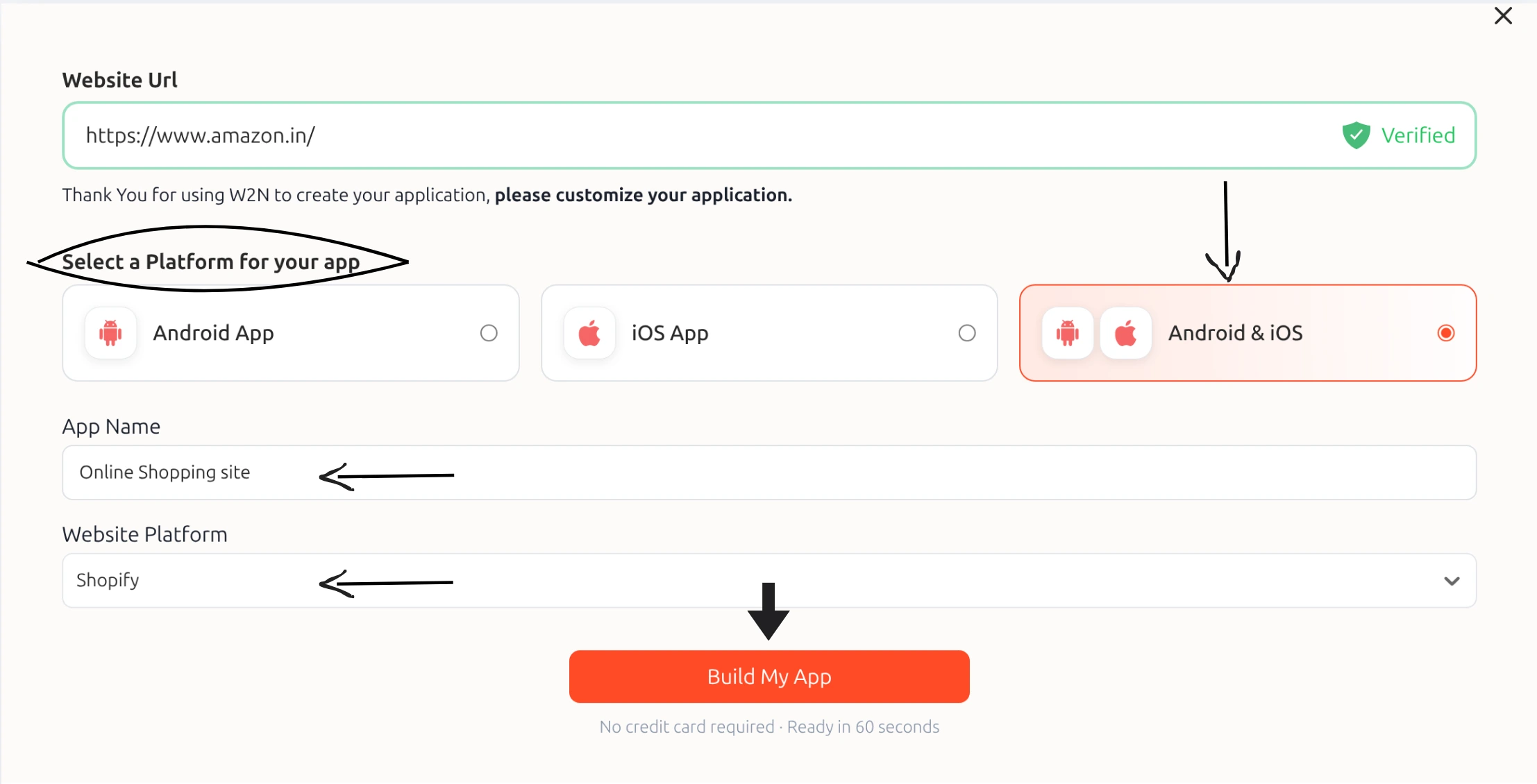
2. Enter your website URL
Visit the website to an app converter and enter the URL of the site you want to convert into an app. Webtonative brings your website’s content and features into an app without requiring you to write a single line of code.
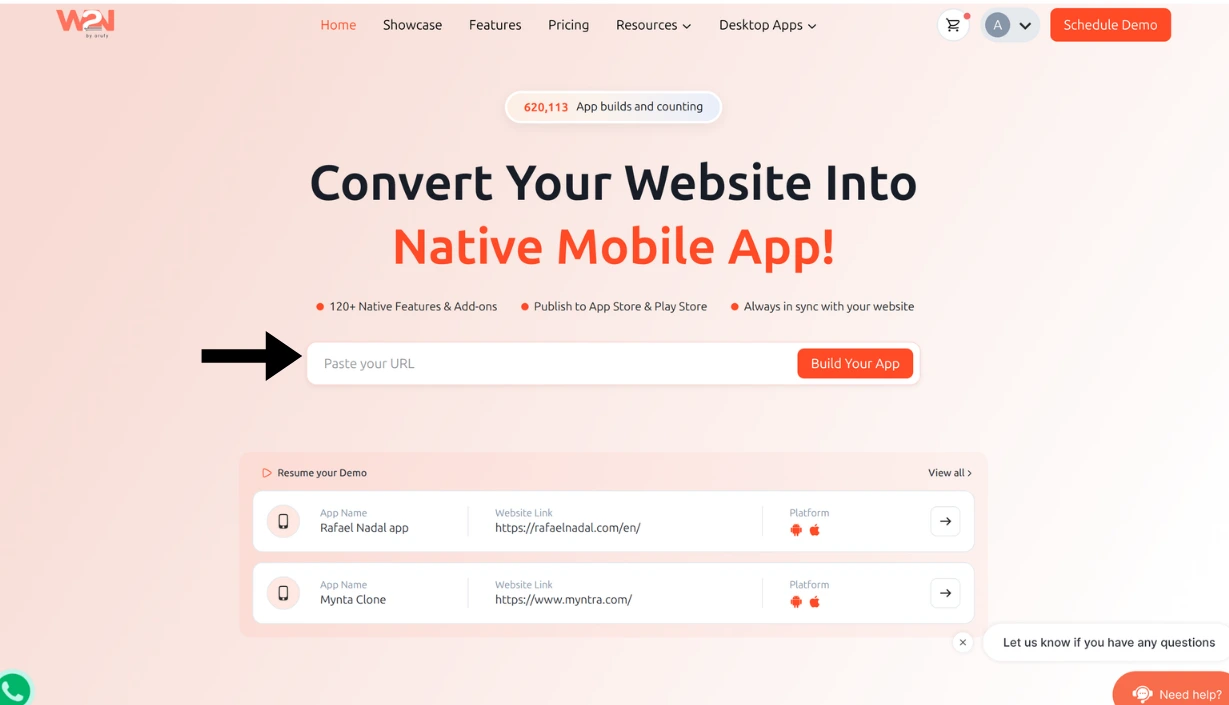
3. Select Your Platform
Choose where you want your app to be available (Android, iOS, or both), enter your app's name, and select the type of platform your website is built on.
4. Customize your design and branding
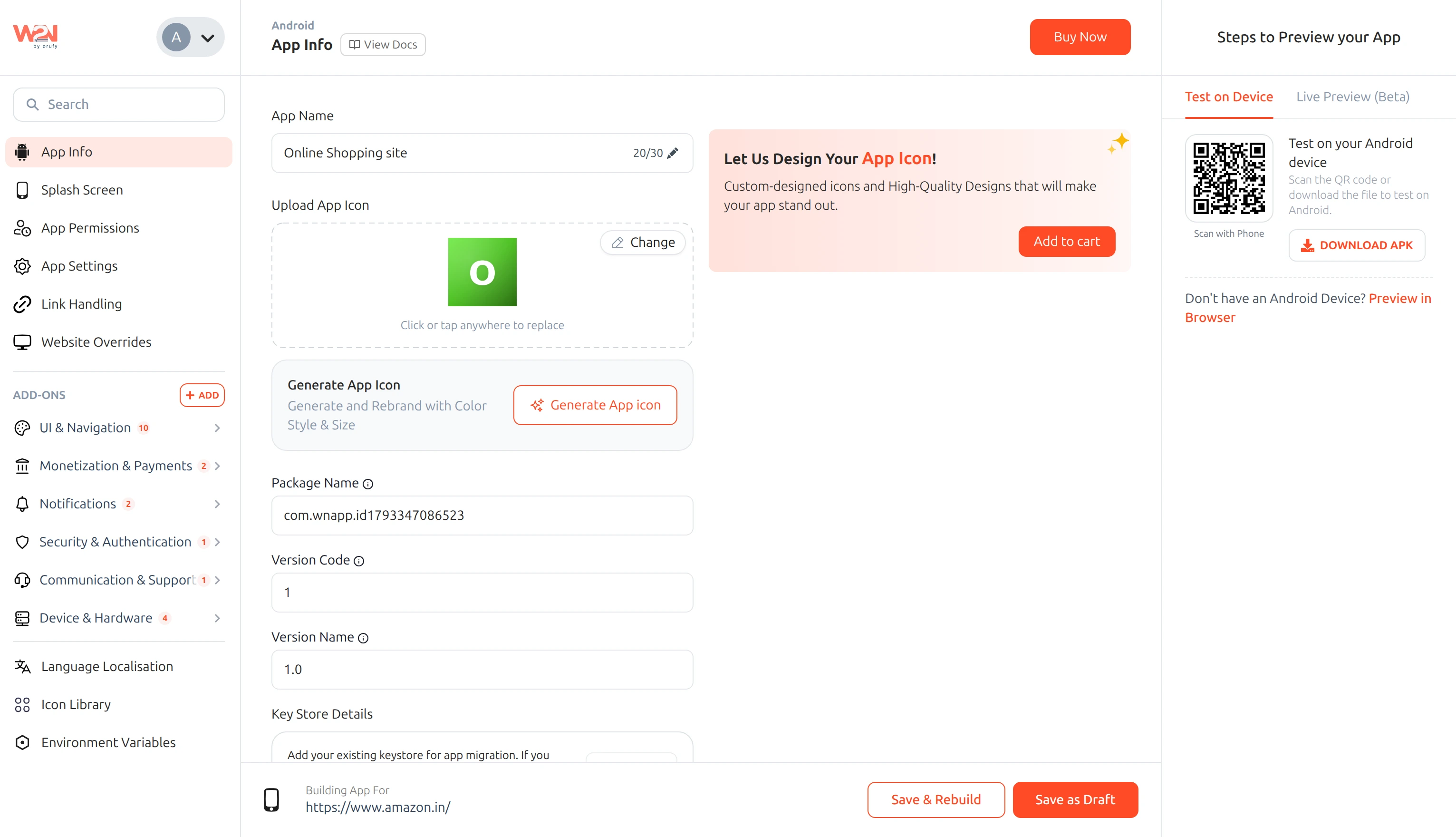
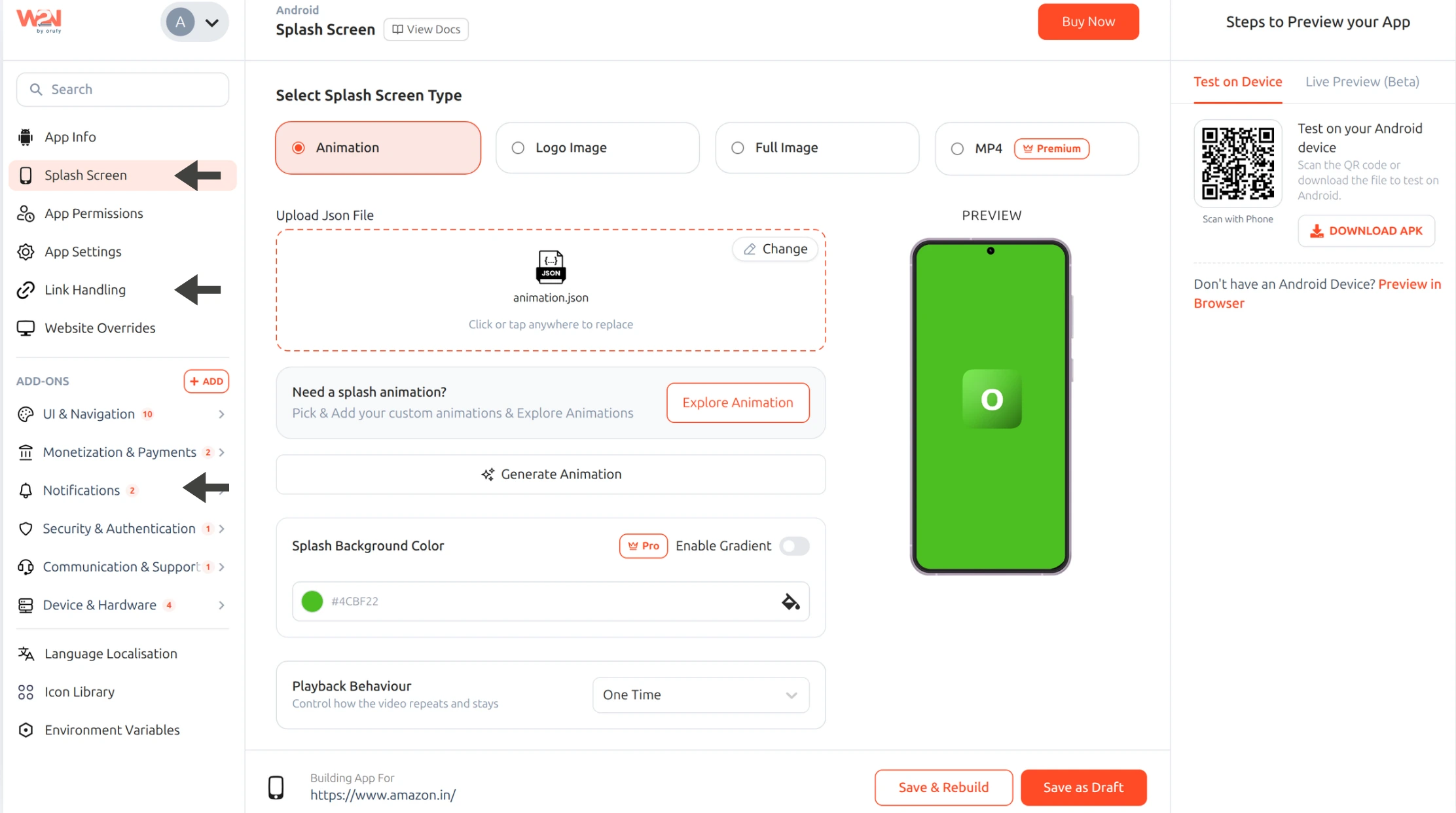
Click Edit to customize your app. Open App Info to set up the basic details of your app. Here, you can add your app name and icon, choose a splash screen, set theme colors, and manage other basic app settings. Next, design your app by adding useful UI and navigation features to make it easier for users to use. For example, you can add a No Internet Screen that tells users when their device is not connected to the internet instead of showing a blank page. You can also add a Bottom Navigation Tab to help users move between important sections of your app easily. The Pull to Refresh feature lets users pull down the screen to refresh a page and load the latest content or updates. Similarly, the PDF Viewer allows users to open and read PDF documents directly inside your app without needing another PDF reader, and many more features and add-ons you can include in your app. Click on Save & Rebuild to save the changes.
5. Add Real App Features
Add the features that make sense for your website and business. You can add push notifications to send users updates about new offers, important announcements, and other information directly to their phones. Deep linking helps users open a specific page or section of your app directly instead of having to find it themselves. Background location allows your app to access the user's location in the background when the required permission is given, which can be useful for location-based services. Biometric log-in lets users log in using their fingerprint or face instead of entering their password every time. In-app purchases allow users to buy digital products, services, or subscriptions directly through your app. You do not need every feature; just choose the ones that your business needs and that add value to your app.
6. Preview, Test, and Publish
Webtonative provides built-in services to preview, test, and publish your app, so you can check how your app works before making it available to users.
For the preview, there are two ways to check your app. First, you can install the Webtonative application on your phone and log in with the same credentials you used while creating an app and see how your app looks and works. This option is available for both iOS and Android. Second, if you are building an Android app, you can download the APK file and install the preview version directly on your phone. For iOS, Webtonative provides a visualizer through Appetize.io, where you can see how your app looks on an iPhone.
Testing is done while you review your app. As you go through different screens and features, check whether everything is working properly. Test the buttons, navigation, login, links, and other features to make sure there are no errors or issues. Also, check how the app looks on your phone and whether it is easy for users to navigate.
Once you are happy with the preview and testing, you can move to publishing your app. Webtonative provides a built-in service to help you publish your app on the Google Play Store and the Apple App Store. You can also choose to publish your app externally by handling the store submission process yourself.
For more details on each platform, read our blogs that guide you to convert a website to an Android app and convert a website to an iOS app.
What Changes When Your Website Becomes an App?
The app adds some extra features, such as a home screen icon, push notifications, a splash screen, intuitive navigation, an offline screen, and access to phone features like location, biometrics, and scanner.
The website content, login, and checkout process remain the same because the app works by loading your existing web applications. Whenever you make basic changes to your website, they are reflected in your app too without needing to update it through app stores.
Your website remains the main source of the content for the app. So, if your website faces any loading issues, downtime, or any broken features, it can affect the performance of the app too.
Why "just wrapping" your website isn't enough anymore?
If you're turning your website into an app, you can't just put the website inside an app and call it done. Before publishing your app, make sure it follows the guidelines of both Apple and Google. Both stores have their own rules for checking apps, and your app must meet these requirements before it can be made available to users.
Apple’s App Store guidelines say that an app must do more than simply recreate a website. Your app should offer something extra that makes it useful for people to install it on their phones. For example, you can allow users to save important information for later, view PDF documents directly inside the app, scan QR codes to open specific pages, or use the phone's camera to upload photos. You can also add location-based features that help users find nearby stores or services. These features give users more ways to use your app instead of just browsing the website. Your app should also be easy to use, load pages properly, and work without errors. Just showing your website inside an app may not be enough to meet Apple's minimum functionality requirements.
Google Play also has rules that your app needs to follow before it can be released. Your app should work properly, provide useful functionality, and should not have broken links, blank screens, or features that do not work as expected. You should also check that your app follows Google's requirements for app quality, user data, permissions, and content. Make sure you test the app on different screens and devices so users can use it without facing unnecessary problems.
Keep in mind that Apple and Google have separate review processes, so approval from one store does not guarantee approval from the other. Only converting your website into an app is not enough; your app must also meet their quality and functionality requirements. Before submitting, go through the app as a user would. Check every page, button, link, and feature to make sure everything works properly. Also, review your app descriptions, screenshots, privacy details, and permissions. A little preparation before submission can save you from repeated rejections, extra changes, and delays in getting your app published.
What Should You Check?
Here’s the list you should check before publishing your app:
1. Check for proper functionalities: Check if all the buttons, features, deep linking, and login pages work properly or not.
2. Works on different devices: Check if the app is responsive in design and adapts to the orientation of different screens.
3. Handles poor connectivity: The app should show a clear message or a no-internet screen whenever the network is poor or lost.
4. Performance should be optimized: fast loading time, smooth scrolling, and no heavy battery or data usage.
5. Version and build numbers: These should be accurately displayed and should go in proper increasing order or should follow a logical order.
6. Crash or analytics tool setup: To catch crashes after the launch.
7. Account deletion should be available: Apple specifically requires apps with sign-up to let their users delete their account in-app.
8. The payments feature must follow the store’s rules: digital goods must use in-app purchases.
The purpose is not to simply copy the website into an app but to make it useful by adding the important features that users require and making the app beneficial to use.
When Is a Converter the Wrong Choice?
A website-to-app converter is a wrong choice when:
-
Your website is already not working properly on a mobile phone; the app would pick up the slow and cluttered pages.
-
When you need heavy native features in your app, like hardware access, advanced camera settings, voice integrations, or offline speech processing.
-
Where you want high performance of the app, for example, gaming, real-time video, or animation-heavy features.
A converter works best for mobile-friendly websites that need only a few native features. If your needs go above that, a custom-built app is the smarter choice.
Frequently Asked Questions
Ques 1. Can I really turn my website into an app without coding?
A. Yes, you can easily turn your website into a mobile app using a no-code app development platform, even if you have no coding knowledge. You simply enter your website’s URL, choose whether you want an Android app, an iOS app, or both, and give your app a name. You can also add your icon and splash screen so the app displays your brand and include native features such as push notifications, social login, or in-app purchases. The platform then converts your existing website into an app package that you can preview and test on a device. Once you’re done with it, you can publish it to the Apple App Store and Google Play. This saves the time and cost of hiring developers.
Ques 2. What app features can I add with WebtoNative?
A. WebToNative offers a vast range of features and add-ons for your app. You can engage users with push notifications through OneSignal or Firebase and make sign-up easier with Google and Facebook social login. To earn revenue, you can add in-app purchases for Android and iOS, or show ads with Google AdMob. Other features include a built-in barcode scanner, deep linking that opens specific pages from links, and an advanced bottom navigation bar for easy use. For security, screenshot prevention helps protect sensitive screens. You can also add biometric login, no-internet screen, camera access, Bluetooth, and many more.
Ques 3. How long does it take to build an app with Webtonative?
A. The time it takes to build your app depends on the features you want to add. A basic app with your brand name, logo, and website content can be built quickly. But if you want extra features like push notifications, social login, in-app purchases, or ads, it will take more time to set them up and test them. Webtonative offers a 14-day free trial, so you can create your app and test it on your phone before choosing a plan. You should also keep some extra time for app store approval. Apple and Google check every app before publishing it. Sometimes approval takes a few days, and sometimes it takes longer. If your app does not fulfill their rules, you may need to fix the issues and submit it again. So, it is always better to start early and test your app properly before publishing it.
Ques 4. Can I add push notifications to my website app?
A. Yes. When you convert your website into an app, you can add push notifications. This feature lets you send important updates and urgent alerts that appear directly on users’ phones, even when the app is closed or the user is not using it. You can use it to share offers, order updates, reminders, or announcements. This keeps your app on users’ minds, brings them back to it, and makes sure they don’t miss anything important. Keep messages relevant and not too frequent, as users may turn off notifications if they are getting too many.
Ques 5. Will my app work without internet?
A. Yes. Your app can still offer access to some native features even without an internet connection. Features like the onboarding screen, advanced bottom navigation, app shortcuts, in-app reviews, and home screen widgets can still be accessed offline. However, features that depend on your website, such as browsing pages, viewing products, logging in, and placing orders, will require an internet connection. If users lose their connection, a custom "No Internet" screen can appear instead of a blank page, letting them know they are offline. Once they reconnect, they can continue using the app as usual.
Ques 6. Do I need my own Apple and Google developer accounts?
A. Yes. Your app will be published using your own Apple and Google developer accounts. This means you are in control of your app on both stores. You can manage its name, description, screenshots, price, and reviews. To publish your app, you need to pay the app store fees. Apple charges $99 every year to keep your app on its store. Google Play charges a one-time fee of $25, so you don't have to pay it again every year. These fees go directly to Apple and Google, not to the app-building platform. You need to pay them separately from the cost of building your app.
Conclusion
You don't need to build an app from the beginning. Your website, content, and features are already there. When you turn a website into an app, it helps you bring everything to your users' phones. This saves the time and money required to build separate Android and iOS apps. Also, whenever you update your website, those changes can appear in your app too.
You can also add extra features like push notifications, social login, and a bottom navigation bar to make your app more useful. Remember, your app should offer something useful to users instead of just looking like a copy of your website. Apple may reject apps that only show a website, so add features that give users a reason to use your app, such as alerts, easy login, and quick navigation.
Want to see how your website looks as an app? Enter your website's URL and start the 14-day free trial. You can build your app and test it on your phone before choosing a plan. If you have questions, you can also book a demo call with the team before getting started.
Similar Blogs