



What is a Passkey?
A passkey lets your users sign in to your app using their fingerprint, Face ID, or PIN — no password needed.
Instead of typing a password, the user simply taps a button and confirms with their biometric. That's it. The device handles everything securely in the background.
Why it's safer than a password:
-
Nothing is typed, so nothing can be stolen or phished.
-
Even if your website gets hacked, there are no passwords to leak.
-
It replaces SMS or one-time codes — no delays and delivery failures.
Why Use Passkeys?
1. No passwords: Users never create, forget, or reset a password.
2. One-tap sign-in: Sign in with a fingerprint or Face ID in seconds.
3. Works across devices: Register once and sign in on all your Apple or Android devices.
4. No SMS codes: No waiting for a text message to arrive.
5. Safer by default: Cannot be stolen by fake websites or data breaches.
How Passkey Sync Works?
| Platform | How Passkeys Sync |
|---|---|
| iPhone / iPad / Mac | Automatically via iCloud Keychain — same Apple ID, all devices |
| Android | Automatically via Google Password Manager — same Google account, all devices |
A user who sets up a passkey on their iPhone can instantly sign in on their iPad or Mac — no setup needed on the second device.
Steps to Set Up Passkeys
Follow these three steps in order:
Step 1: Your Website Must Support Passkeys First
Before anything else, your website's backend needs to be set up to handle passkeys.
Step 2: Configure Passkeys in Your WebToNative Dashboard
Once your website supports passkeys:
-
Log in to your WebToNative Dashboard.
-
Go to your App settings.
-
Go to the Link Handling section.
-
Enable passkey support and save.
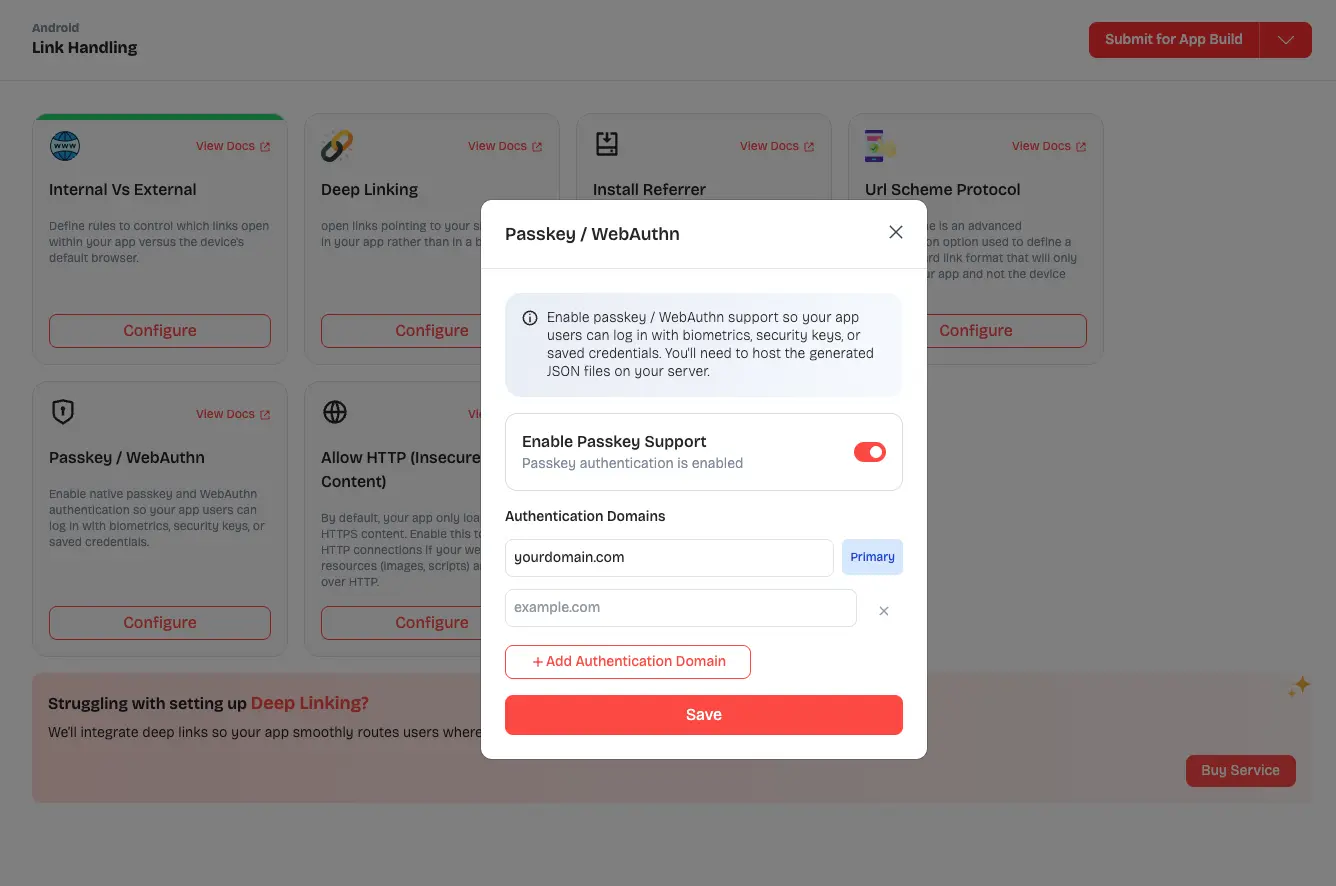
Step 3: Upload the Domain Association Files to Your Website
This is the final step. You need to place two small files on your website so that iOS and Android can trust that your app and your website belong together.
See below for exactly what these files look like and where to upload them.
Domain Association Files
Think of these as a trust certificate between your app and your website. They are two small text files you upload to your website once.
Without these, passkeys may seem to work in the app, but users won’t be able to sign in.
File 1 — For iOS
File name: apple-app-site-association (no file extension)
Where to upload it to your website: https://yourdomain.com/.well-known/apple-app-site-association (opens in a new tab)
File contents: Copy this exactly and replace the highlighted parts:
{
  "webcredentials": {
    "apps": [ "TEAMID.BUNDLE_ID" ]
  }

}
What to replace:
| Placeholder | What It Is | Where To Find It |
|---|---|---|
| TEAMID | Your 10-character Apple Team ID | Apple Developer Portal → Account → Membership Details |
| BUNDLE_ID | Your app's unique identifier | WebToNative Dashboard → App → Developer Details |
Example — after filling it in, it should look like this:
{

  "webcredentials": {

    "apps": [
      "AB12CD34EF.com.yourcompany.yourapp"
    ]

  }
}
NOTE: Apple saves a copy of this file on its servers. If you make changes, it can take up to 24 hours to update. Plan accordingly before testing.
File 2 — For Android
File name: assetlinks.json
Where to upload it to your website: https://yourdomain.com/.well-known/assetlinks.json (opens in a new tab)
File contents: Copy this exactly and replace the highlighted parts:
[

  {

    "relation": [

      "delegate_permission/common.handle_all_urls",

      "delegate_permission/common.get_login_creds"

    ],

    "target": {

      "namespace": "android_app",

      "package_name": "PACKAGE_NAME",

      "sha256_cert_fingerprints": [

        "SHA256_FINGERPRINT"

      ]

    }

  }

]
What to replace:
| Placeholder | What It Is | Where To Find It |
|---|---|---|
| PACKAGE_NAME | Your app's unique ID | WebToNative Dashboard → App → App Info |
| SHA256_FINGERPRINT | Your app's security certificate | Google Play Console → Setup → App integrity → App signing key certificate → SHA-256 certificate fingerprint |
How to Upload the Files
Both files go inside a folder called .well-known at the root of your website:
1. Create a folder named .well-known in the root of the website (if it does not already exist).
2. Place both files inside that folder.
3. Make sure both files are publicly accessible via HTTPS (no login required to access them).
Quick check — paste these links in your browser after uploading:
| File | Check URL |
|---|---|
| iOS file | https://yourdomain.com/.well-known/apple-app-site-association (opens in a new tab) |
| Android file | https://yourdomain.com/.well-known/assetlinks.json (opens in a new tab) |
If the browser shows the file contents (JSON text), the upload was successful. Otherwise, an error or blank page means the file is not in the right place.
Testing
Passkeys only work on real physical devices. Passkeys cannot be tested on a computer simulator or emulator. You must use a real iPhone or Android phone.
| Android | iOS | |
|---|---|---|
| Test using | Internal Testing via Google Play | TestFlight via App Store Connect |
| Install method | Play Store internal testing link | TestFlight app |
| Real device required | Yes — no exceptions | Yes — no exceptions |
| Simulator / Emulator | Does not work | Does not work |
Android — How to test
1. Go to Google Play Console → Internal Testing.
2. Upload your app build.
3. Add your tester's Google account email to the testers list.
4. The tester opens the internal testing link on their Android phone and installs the app from the Play Store.
5. Make sure assetlinks.json is already uploaded to your website before testing.
iOS — How to test
1. Go to App Store Connect → TestFlight.
2. Upload your app build.
3. Add your tester's Apple ID to the Internal Testing group.
4. The tester installs the app using the TestFlight app on their iPhone.
5. Make sure apple-app-site-association is already uploaded to your website before testing it.
Limitations
Android
| Topic | What you need to know |
|---|---|
| Minimum Android version | Requires Android 9 or newer |
| Google account required | The user must be signed into a Google account on their phone for passkeys to sync across devices. |
| Huawei / some devices | Devices without Google services can use passkeys locally, but they won't sync to other devices. |
| Testing | Only works on a real Android phone — not in an emulator. |
iOS
| Topic | What you need to know |
|---|---|
| Minimum iPhone version | Requires iOS 16 or newer. Older iPhones cannot use passkeys. |
| Older devices | Users on iOS 15 or below must sign in with a password instead. |
| File update delay | Changes to the iOS association file can take up to 24 hours to take effect due to Apple's caching. |
| Testing | Only works on a real iPhone — not in a simulator. |
Both Platforms
| Topic | What you need to know |
|---|---|
| HTTPS required | Your website must use HTTPS. Passkeys do not work on HTTP websites. |
| No cross-platform sync | An iPhone passkey does not automatically appear on Android. Users may need to set up a passkey on each platform separately. |
| Physical device is always required | There is no way to test passkeys without a real device. |