


How to Add App Shortcuts
App Shortcuts let users long-press your app icon and jump straight to a page in your app, such as their cart, orders, or support. Follow the steps below to add them to your Android app.
Where to Find It in Your Dashboard
My Apps ➡️ Edit your app ➡️ Add-ons ➡️ UI & Navigation ➡️ App Shortcuts
Steps to Add App Shortcuts to Your Android App
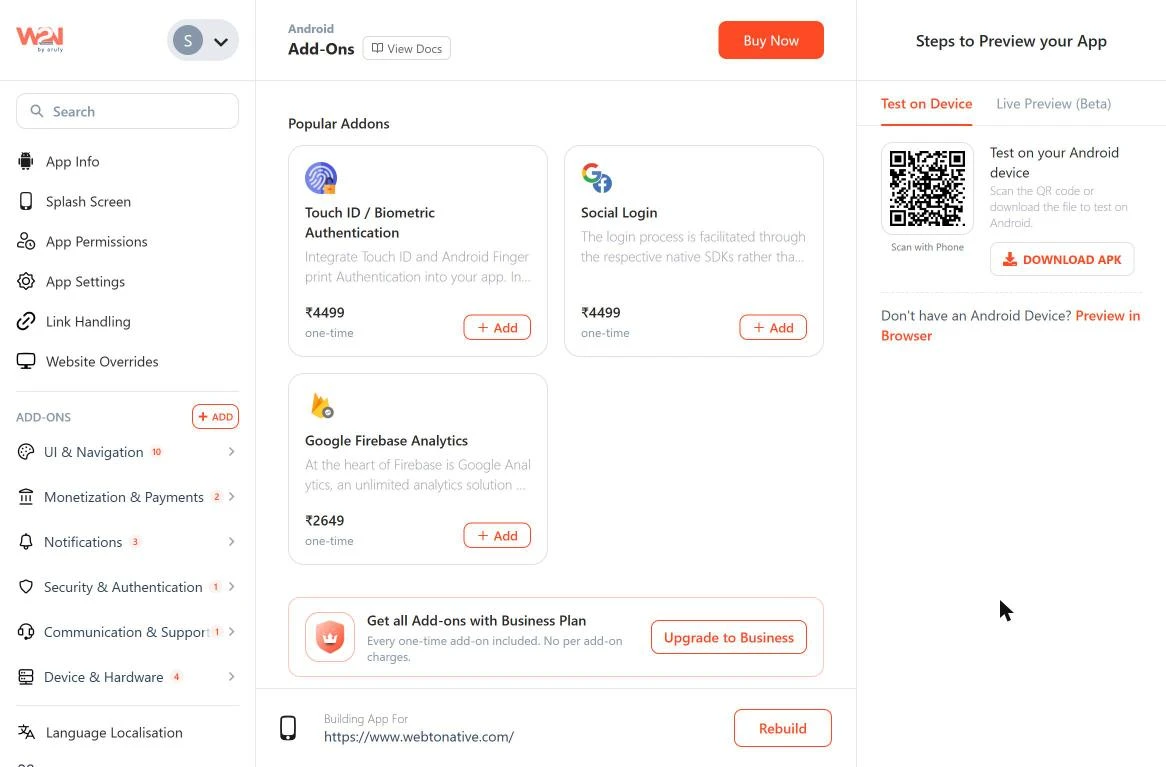
Open Add-ons
In your app's dashboard, click + ADD next to ADD-ONS in the left menu. This opens the list of all add-ons.
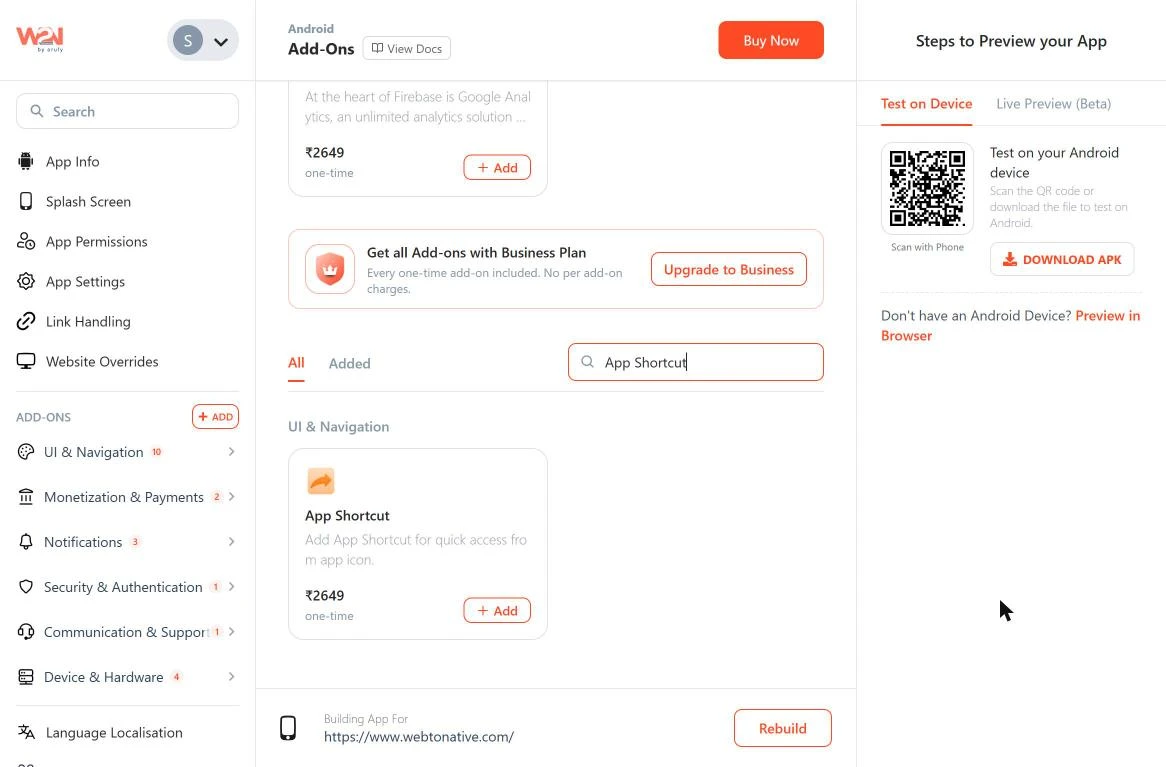
Search for App Shortcut
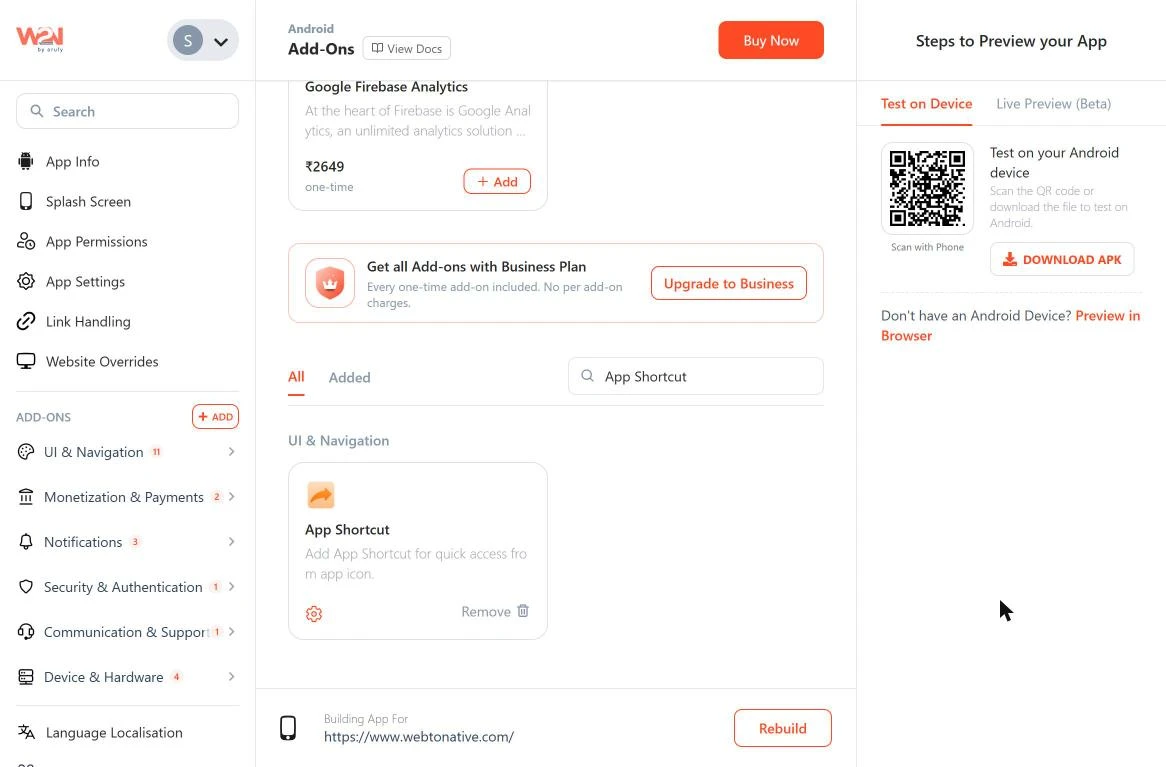
Type App Shortcut in the search box. The App Shortcut add-on appears under UI & Navigation.
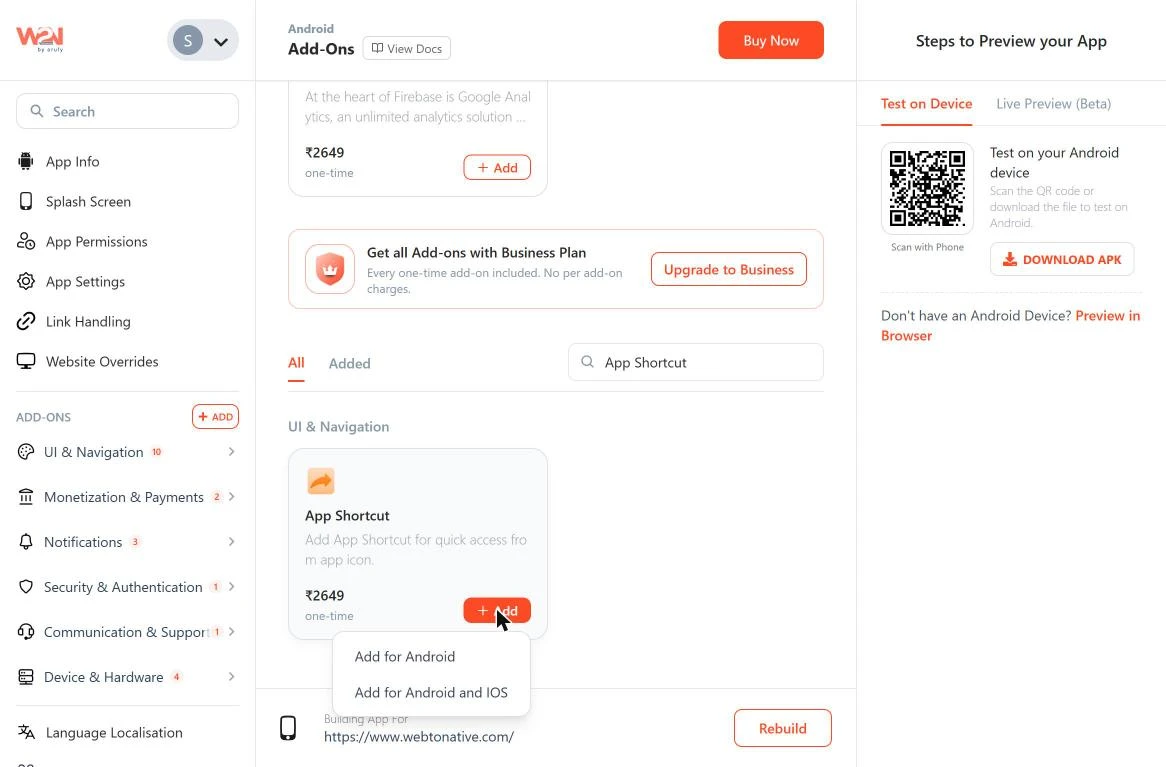
Add the Add-on
Click + Add on the App Shortcut card, then choose Add for Android. To add it to both apps at once, choose Add for Android and iOS.
Open App Shortcut Settings
Once added, the card shows a settings (gear) icon and a Remove option, and App Shortcuts appears under UI & Navigation in the left menu. Click the gear icon to open App Shortcuts.
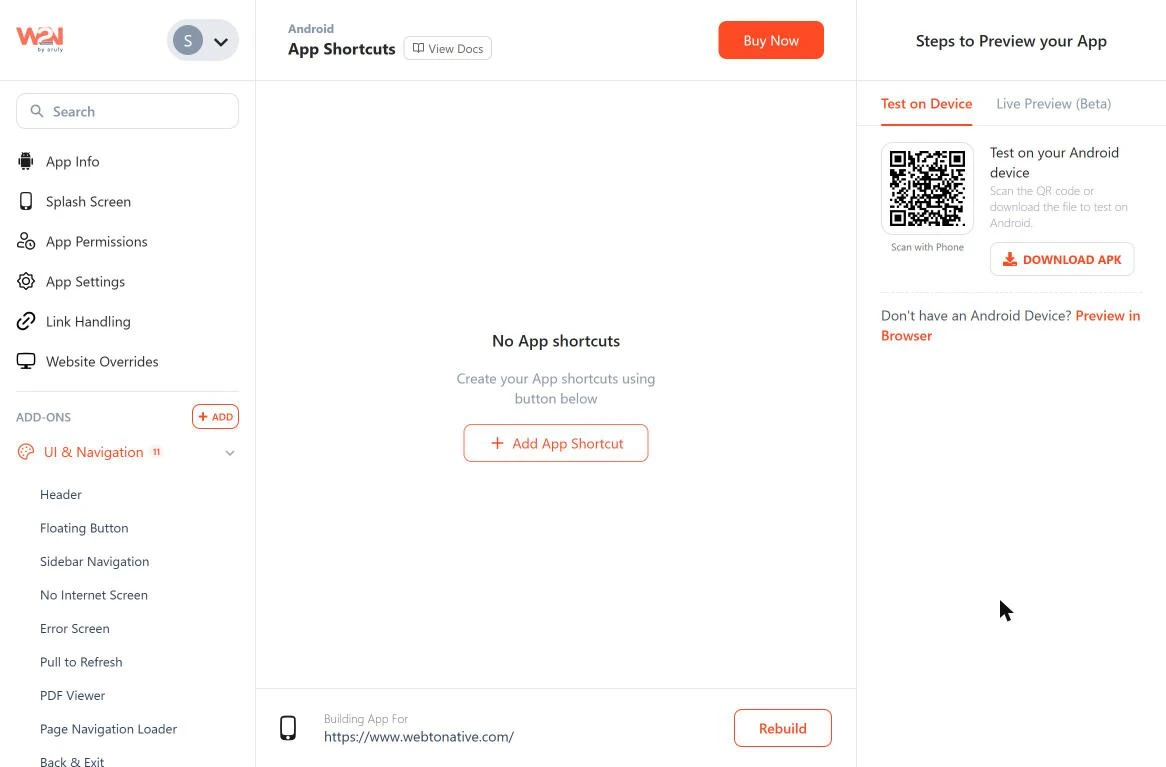
Click + Add App Shortcut
If you have not created a shortcut yet, you will see the "No App shortcuts" screen. Click + Add App Shortcut to open the shortcut editor.
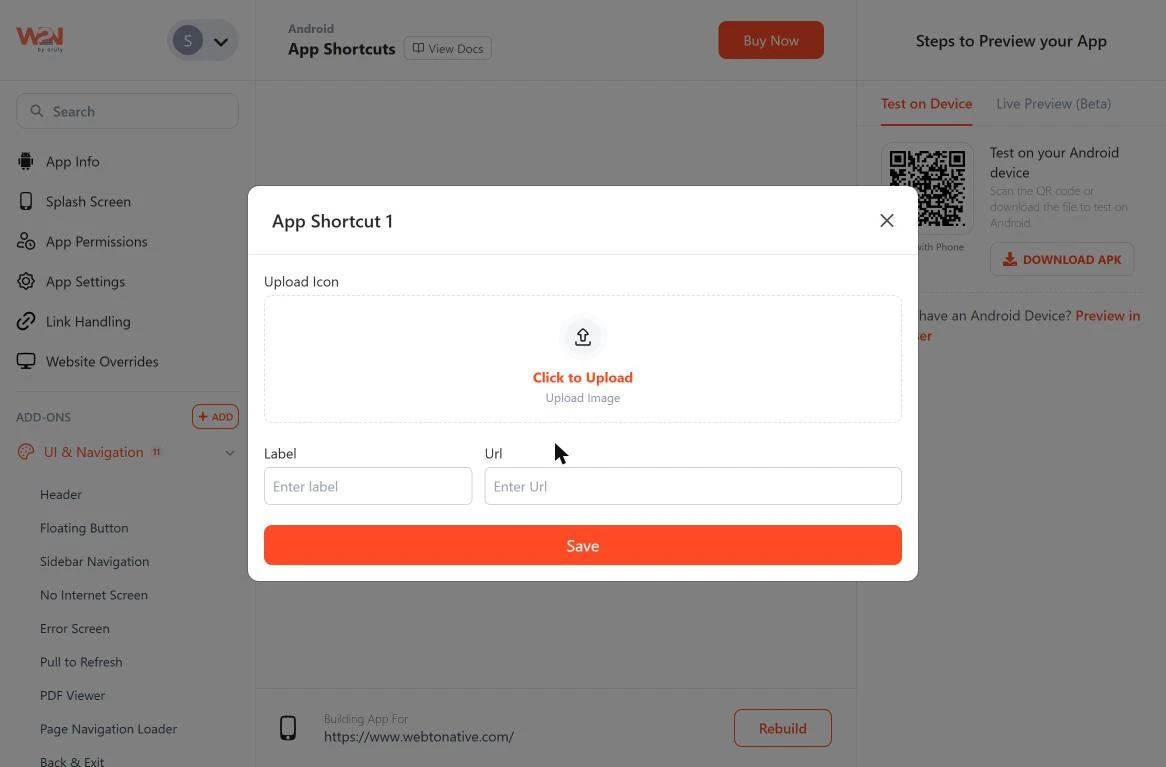
Fill in the Shortcut Details
The editor opens with three fields:
Upload Icon: Click Click to Upload and choose the image shown next to the shortcut in the long-press menu. Use a simple, square icon that clearly represents the page.
Label: The name users see in the menu. Keep it short and action-based. For example, My Cart or Track Order.
URL: The page of your website that opens inside the app when the shortcut is tapped. For example, https://yoursite.com/cart.
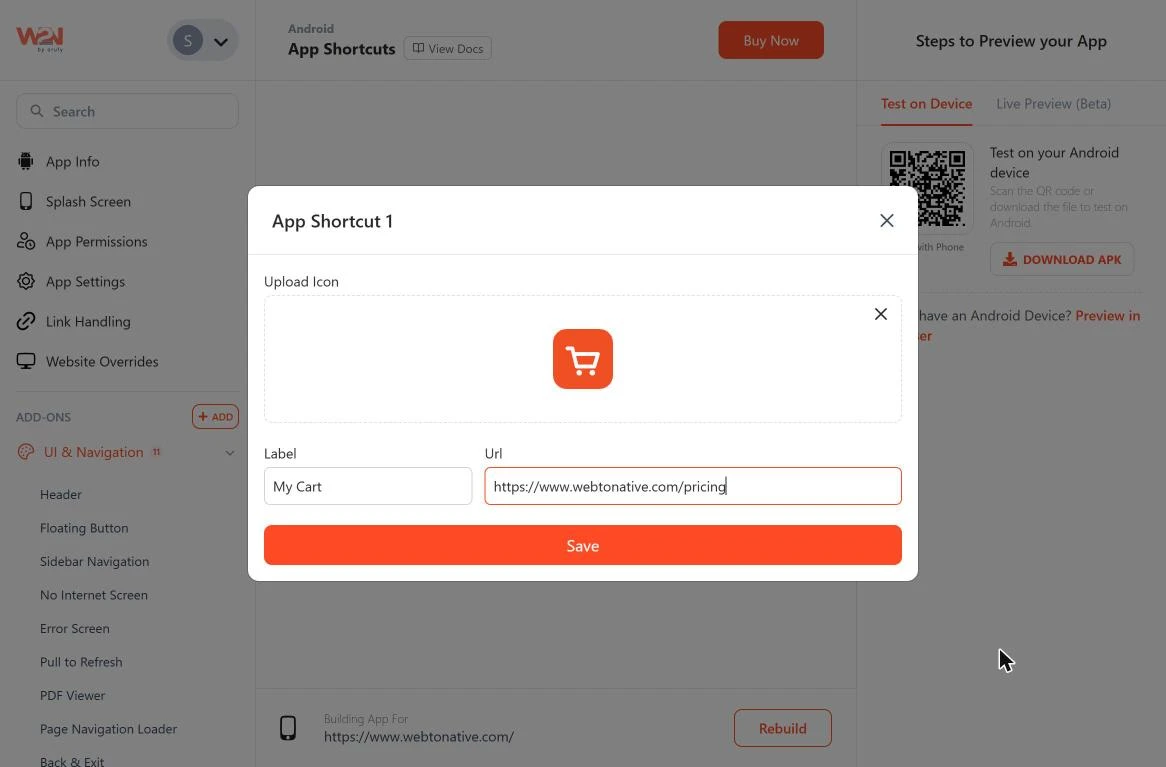
Save the Shortcut
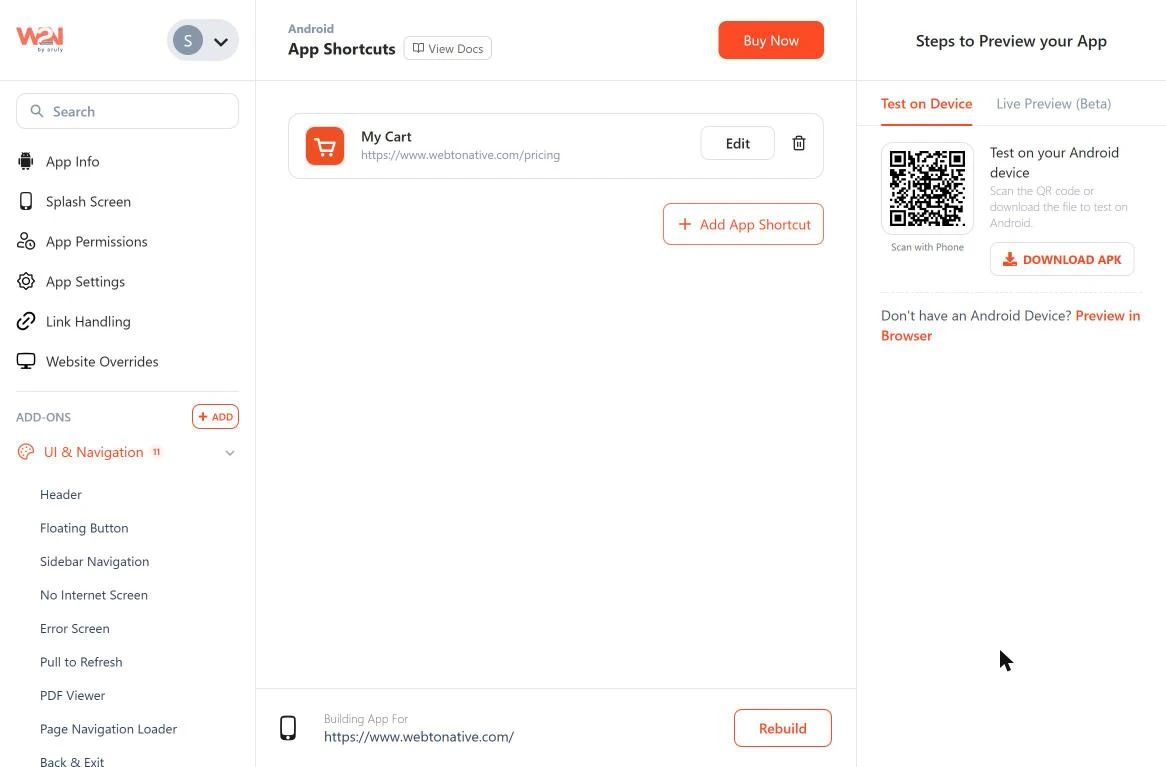
Click Save. Your shortcut now appears in the App Shortcuts list, showing its icon, label, and URL.
Edit: Click Edit to change the icon, label, or URL.
Delete: Click the bin icon to remove the shortcut.
To add more shortcuts, click + Add App Shortcut again and repeat the previous two steps.
Rebuild Your App
Click Rebuild to apply your shortcuts. After installing the updated app, long-press the app icon on your Android phone to see them.
Not sure which shortcuts to add? Start with the 3–4 pages your users visit most often, and put the most important one first.
Frequently Asked Questions
Q1. How do users open an App Shortcut on Android?
A. They long-press your app icon on the Home Screen or in the app drawer. A menu with your shortcuts appears, and tapping one opens that page inside the app.
Q2. Can I add App Shortcuts to my iOS app at the same time?
A. Yes. When adding the add-on, choose Add for Android and iOS. You then set up shortcuts separately for each app.
Q3. Do I need to rebuild after adding or editing a shortcut?
A. Yes. Any change to a shortcut is applied only after you click Rebuild.