


App Shortcuts
When users want to reach one specific page in your app, such as checkout, a scanner, or their orders, they usually have to open the app and tap through menus to get there. Every extra step is a chance for them to give up.
App Shortcuts let users jump straight to that page from outside the app. On iOS, they can long-press your app icon on the Home Screen, find the shortcut in Spotlight search, or simply ask Siri. Each shortcut opens a URL of your choice directly inside the mobile app.
This guide covers App Shortcuts for iOS. Spotlight and Siri shortcuts need iOS 16 or later.
Why Should I Use App Shortcuts?
Fewer Taps to Key Pages
Users reach your most-used pages straight from the app icon, without opening the app and navigating through menus.

Found Through Spotlight and Siri
Shortcuts can show up when someone searches your app name in Spotlight, and users can open them hands-free by asking Siri.

Native iOS Look and Feel
Shortcuts use the same icon style and long-press menu as built-in iOS apps, so they feel familiar to iPhone users.
Where to Find It in Your Dashboard
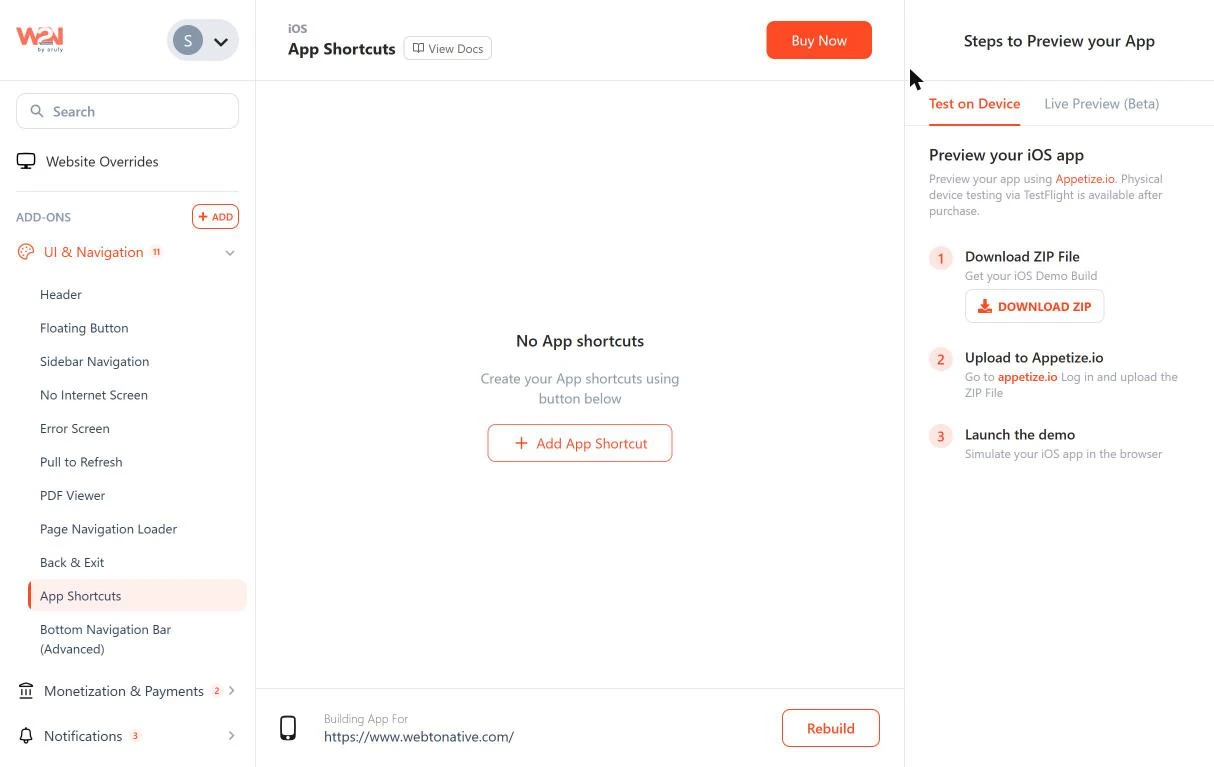
My Apps ➡️ Edit your app ➡️ Add-ons ➡️ UI & Navigation ➡️ App Shortcuts
What Does Webtonative Provide in App Shortcuts?

Built-in Icon Library
Pick an icon for each shortcut from a searchable library of iOS-style symbols. No need to design or upload your own icon.
Long-Press Menu Shortcuts
Show the shortcut in the quick-actions menu that appears when a user long-presses your app icon.

Spotlight and Siri Support
Make the shortcut searchable in Spotlight and let users open it by voice. The Siri phrase is generated automatically from your label.
Steps to Apply App Shortcuts to Your App with Webtonative
Add App Shortcut
Open App Shortcuts from the Add-ons menu. If you have not created any shortcut yet, you will see the "No App shortcuts" screen. Click + Add App Shortcut to open the shortcut editor.
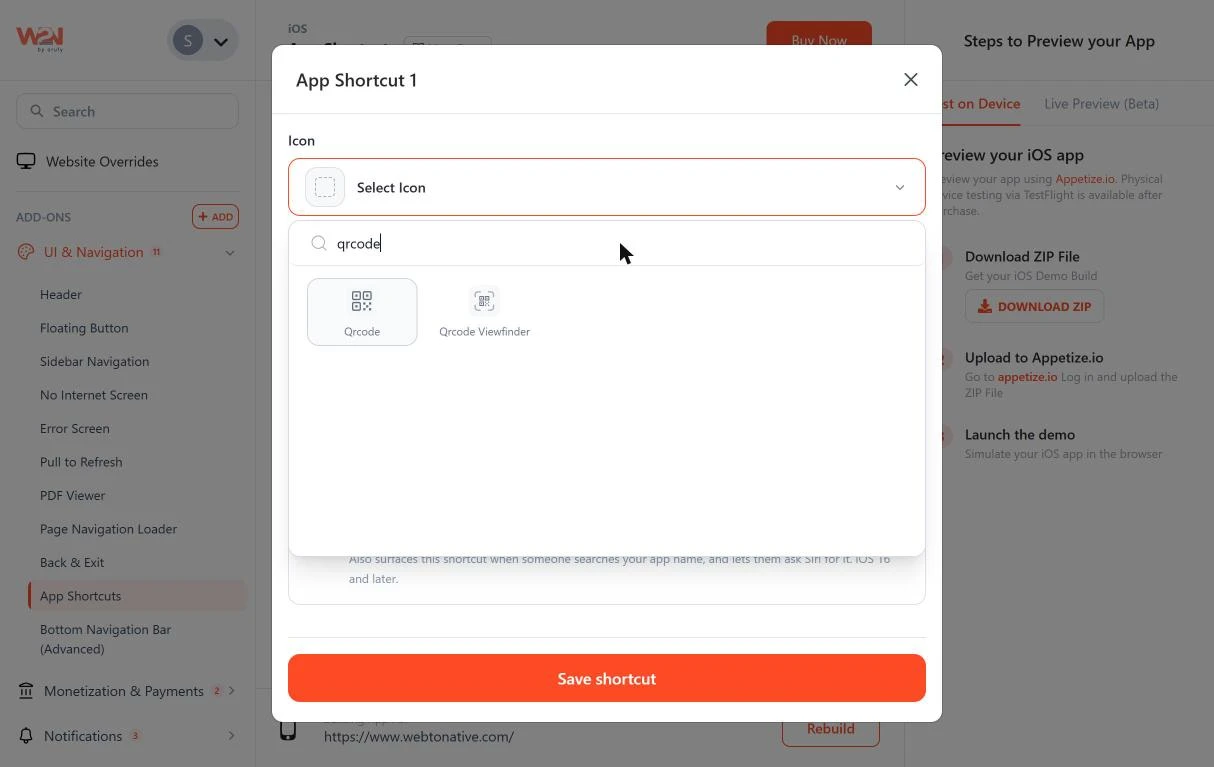
Icon
The icon is shown next to the shortcut label in the long-press menu and in Spotlight.
Select Icon: Click the Select Icon dropdown and search the symbol library by name. For example, type qrcode, cart, or bell. Pick the icon that best represents the page the shortcut opens.
Label & URL
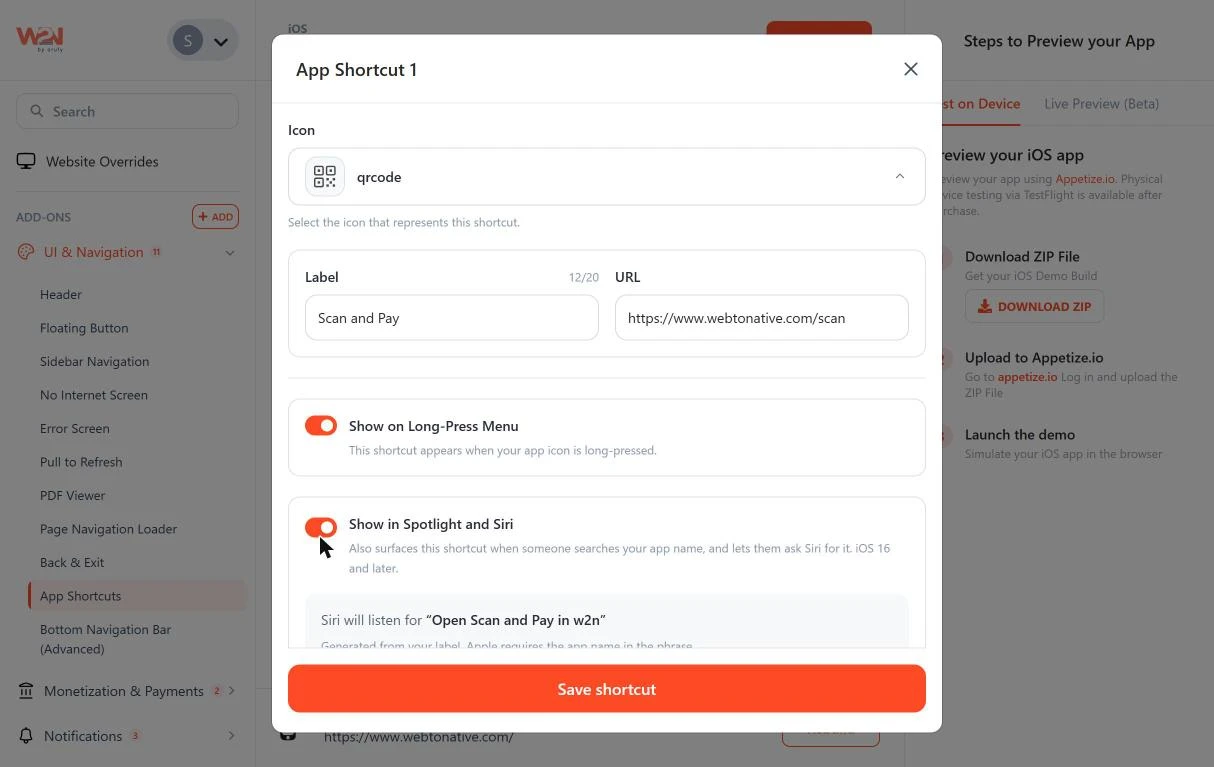
This section defines what the shortcut is called and where it takes the user.
Label: The name of the shortcut users see on screen, up to 20 characters. Keep it short and action-based. For example, Scan and Pay or My Orders.
URL: The page of your website that opens inside the app when the shortcut is tapped. For example, https://yoursite.com/scan (opens in a new tab).
Show on Long-Press Menu
Keep this toggle ON to show the shortcut when a user long-presses your app icon on the Home Screen. It is ON by default.
Show in Spotlight and Siri
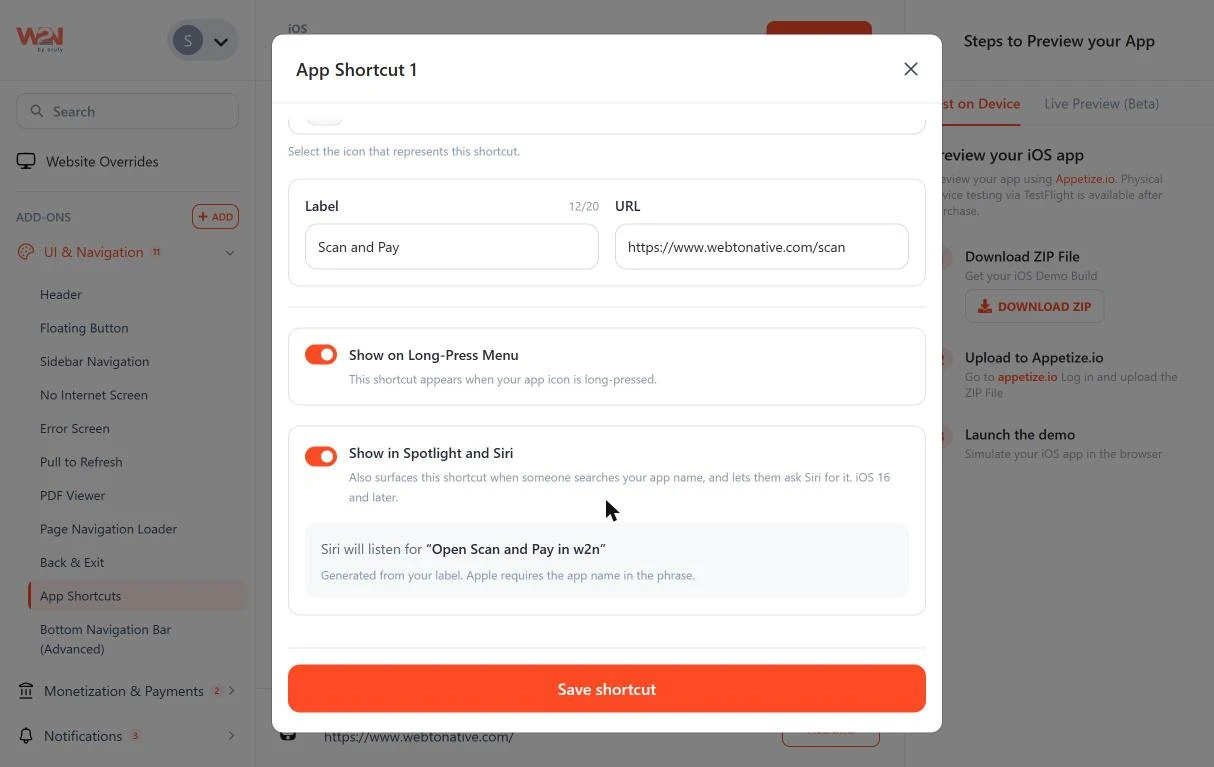
Switch this toggle ON to also show the shortcut when someone searches your app name in Spotlight, and to let them open it by asking Siri. This works on iOS 16 and later. It is OFF by default.
Siri Phrase: Once the toggle is ON, the dashboard shows the phrase Siri will listen for. It is generated from your label, and Apple requires your app name in the phrase. For example, "Open Scan and Pay in w2n".
Save Shortcut
Click Save shortcut to add it to your list. To add more shortcuts, click + Add App Shortcut again and repeat the steps above.
Manage Saved Shortcuts
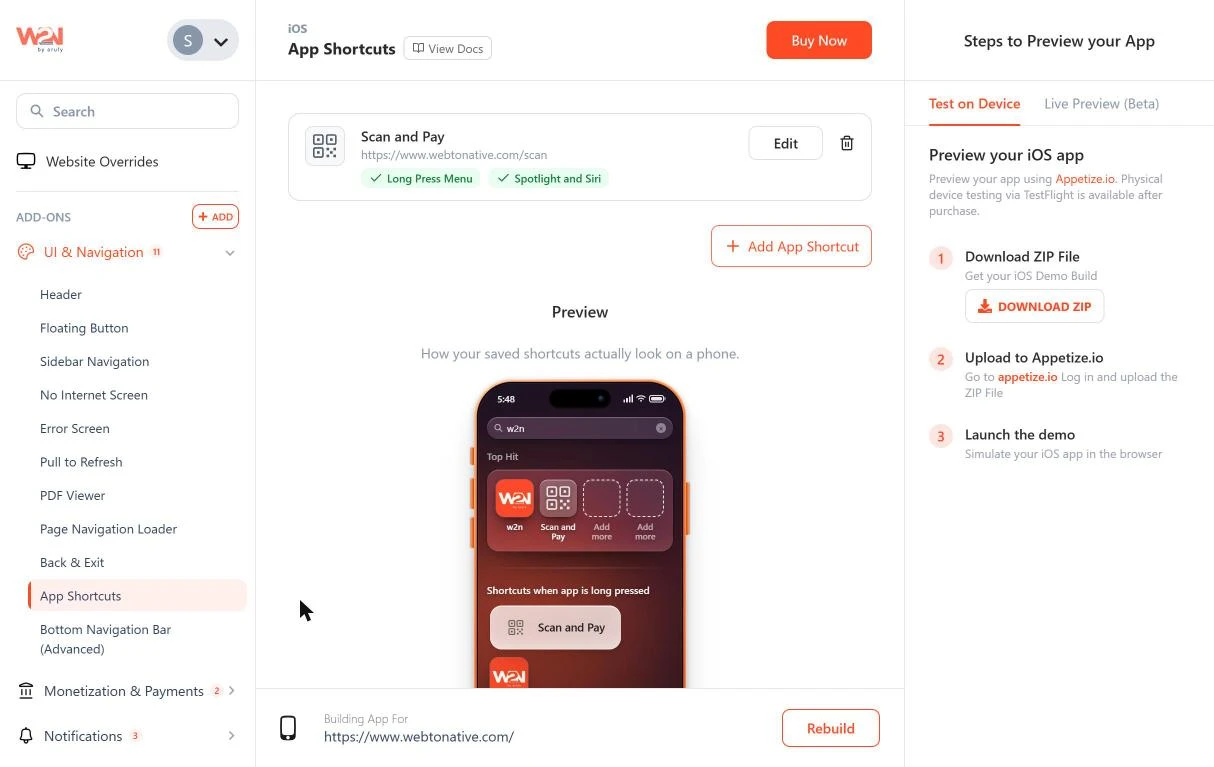
Every saved shortcut appears as a card showing its icon, label, URL, and where it is enabled (Long Press Menu, Spotlight and Siri).
Edit: Click Edit to change the icon, label, URL, or toggles.
Delete: Click the bin icon to remove the shortcut.
Preview
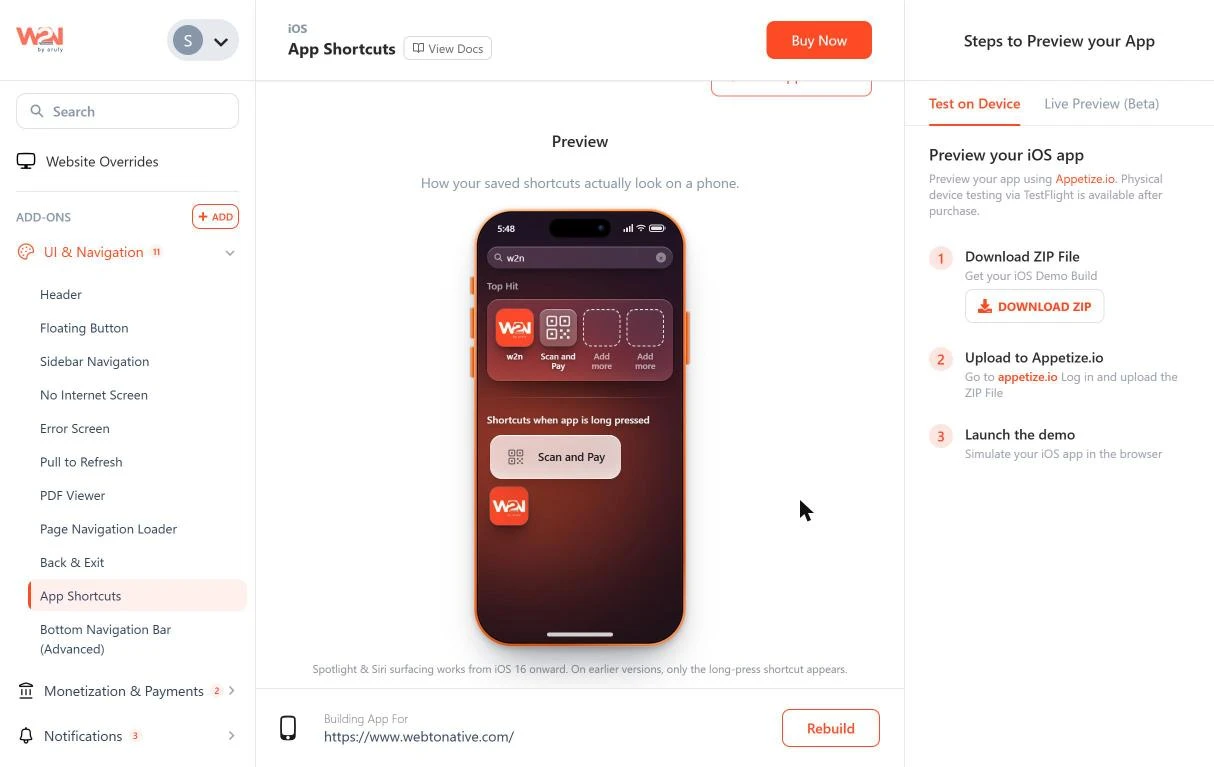
Below your shortcuts, the Preview shows how your saved shortcuts will look on an iPhone, without rebuilding the app.
Top Hit (Spotlight): Your app icon and its Spotlight shortcuts as they appear when a user searches your app name. Empty slots show "Add more."
Shortcuts when app is long pressed: The quick-actions menu that opens when a user long-presses your app icon.
Rebuild
Click Rebuild to apply and see your changes inside the mobile app.
Things to Know
Spotlight and Siri surfacing works from iOS 16 onward. On earlier versions, only the long-press shortcut appears.
Best Practices
Pick your top pages
Pick the 3–4 pages your users open most, such as orders, cart, scan, or support.
Put the most important first
Order your shortcuts so the one users need most appears at the top.
Check the Preview
Use the Preview to see how your shortcuts look on an iPhone before you rebuild.
Keep labels short
Use short, action-based labels like Scan and Pay or My Orders, up to 20 characters.
Frequently Asked Questions
Q1. Why is my shortcut not showing in Spotlight or Siri?
A. Check that Show in Spotlight and Siri is ON for that shortcut, that you rebuilt the app, and that the device runs iOS 16 or later. Spotlight and Siri may take a short while to index new shortcuts after the app is installed or updated.
Q2. Can a shortcut open a page that needs the user to be logged in?
A. Yes. The shortcut opens the URL inside your app, so it behaves exactly like your website. If the user is not logged in, your site's own login flow will appear first.
Q3. Can I upload my own icon for an iOS shortcut?
A. No. On iOS, you pick the icon from the built-in symbol library so it matches the native iOS style.
Q4. Do I need to rebuild after editing a shortcut?
A. Yes. Any change to an icon, label, URL, or toggle is applied only after you click Rebuild.