


Platform Sync – How to Sync Android and iOS App Settings
Platform Sync keeps your Android and iOS apps set up the same way. When it's on, a change you make to a shared setting or add-on on one platform is copied to the other one. You set something up once instead of twice.
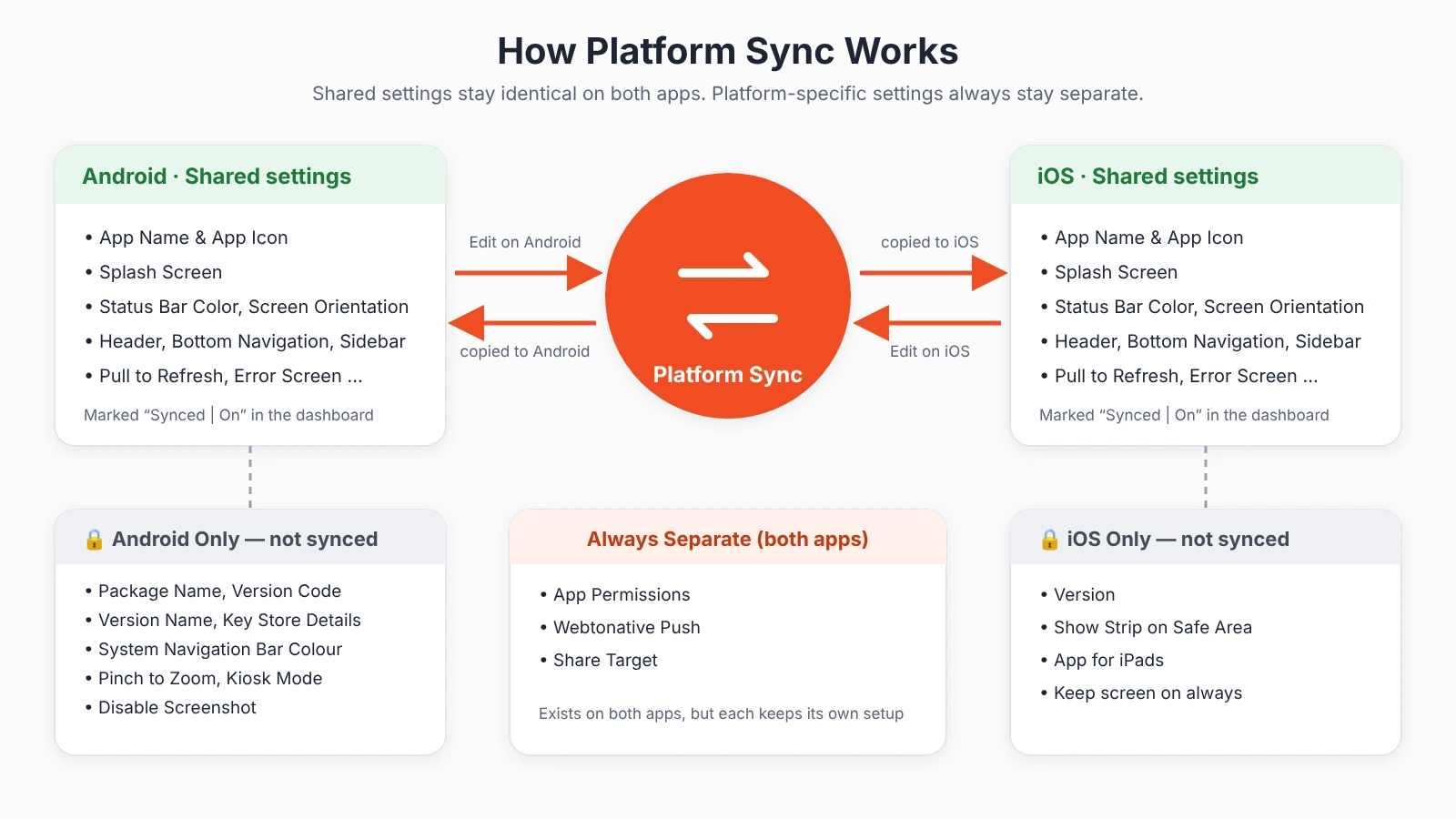
It's useful when you want both apps to look and behave alike, such as the same app name, icon, splash screen, navigation and add-ons. Settings and add-ons that only make sense on one platform, or that need separate setup for each store, always stay separate.
Before You Start
Platform Sync only appears for apps that have both an Android and an iOS version. If your app was created for one platform only, the Settings page shows no Platform Sync option.
My Apps ➡️ Open your app ➡️ Settings
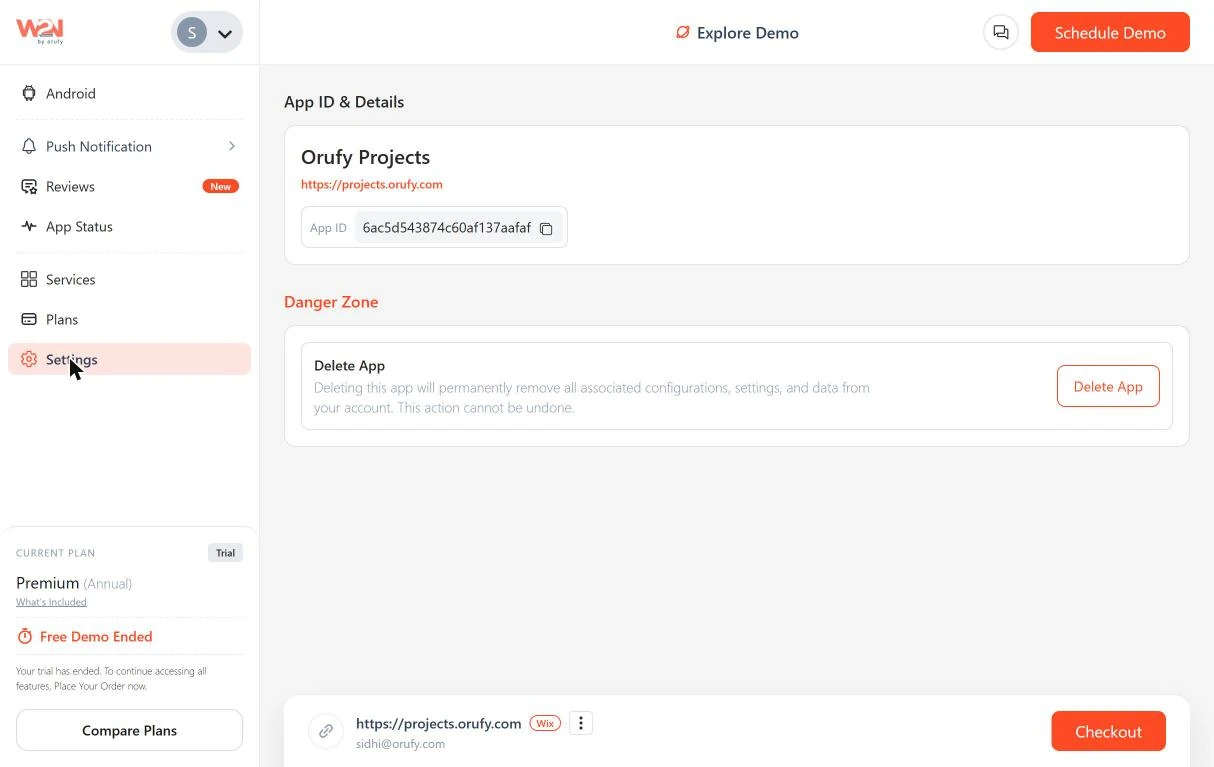
Platform Sync is On by default for a new app created with Android & iOS. It is available on the free trial (Starter plan), with no purchase needed.
Platform Sync is available only to the app Owner. Other collaborators, such as Admin, Manager and Developer, can't turn it on or off or change its settings.
Where to Find It in Your Dashboard
My Apps ➡️ Open your app ➡️ Settings ➡️ Platform Sync
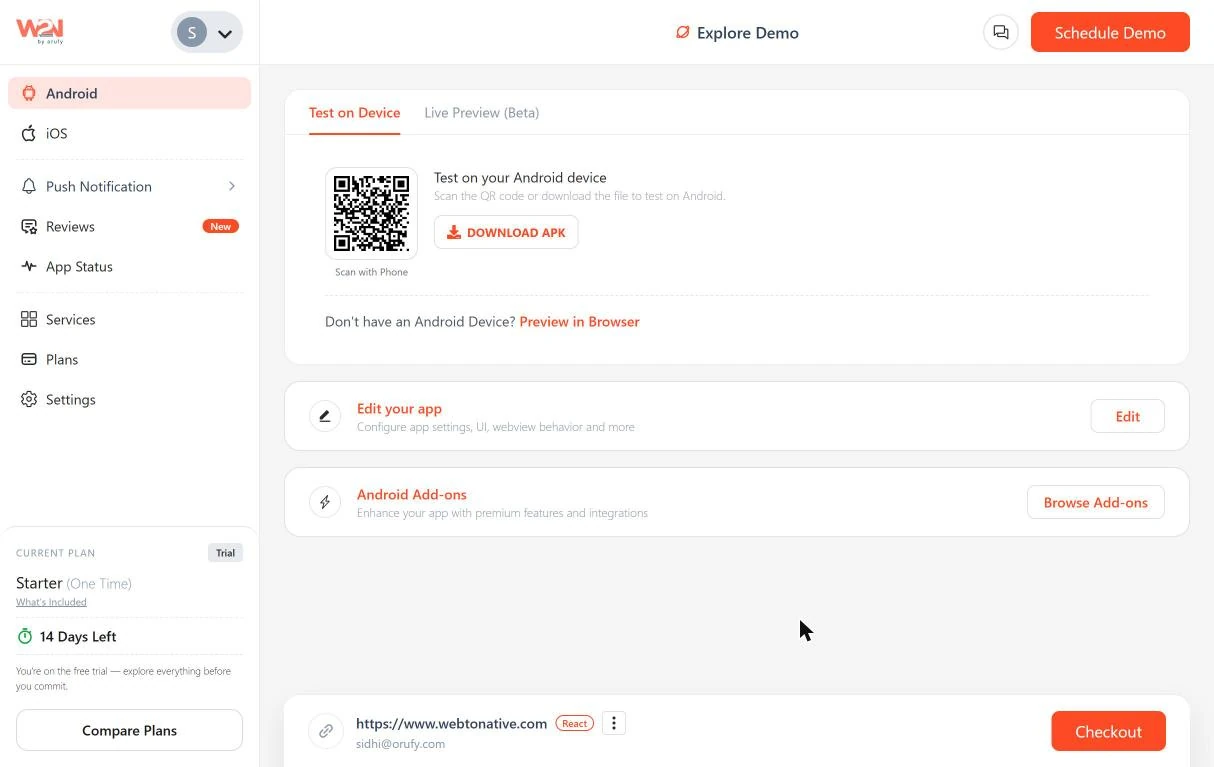
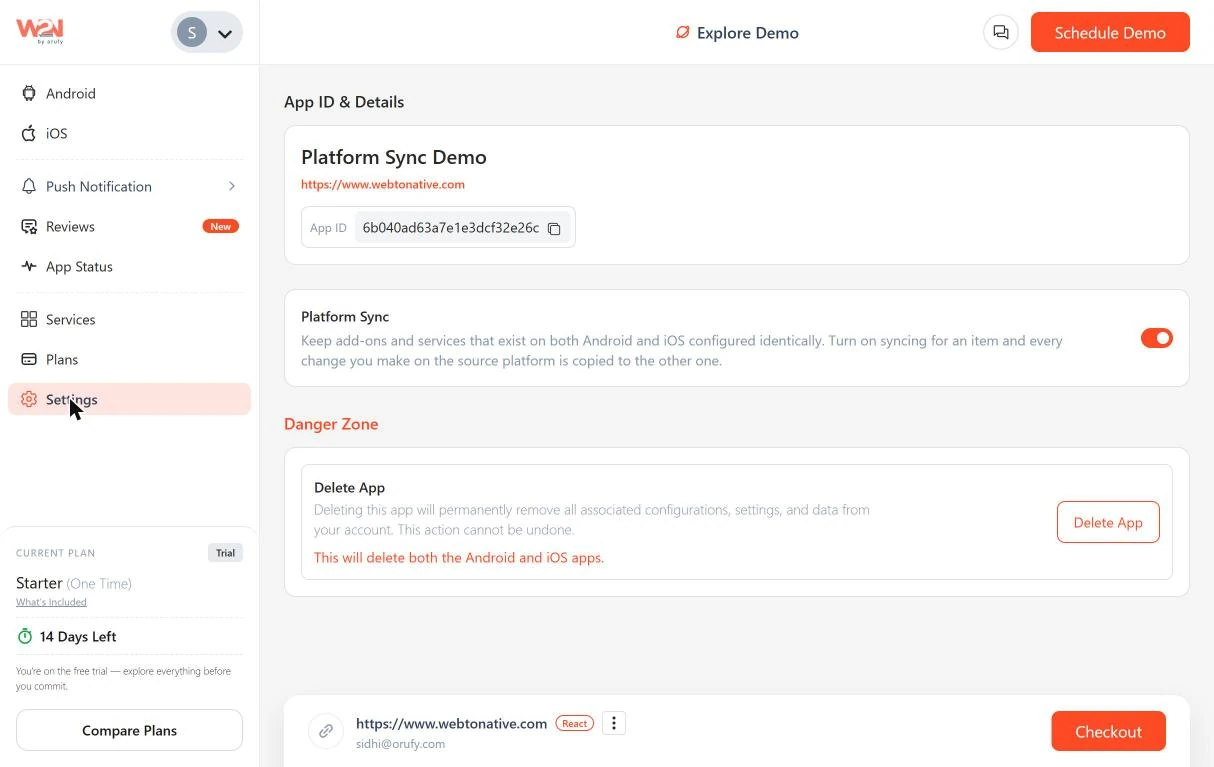
The Platform Sync card sits under App ID & Details, above the Danger Zone. It reads: "Keep add-ons and services that exist on both Android and iOS configured identically."
Steps to Enable and Use Platform Sync
Open Platform Sync
Open your app from My Apps, then click Settings in the left menu. Find the Platform Sync card.
Check Its Current Status
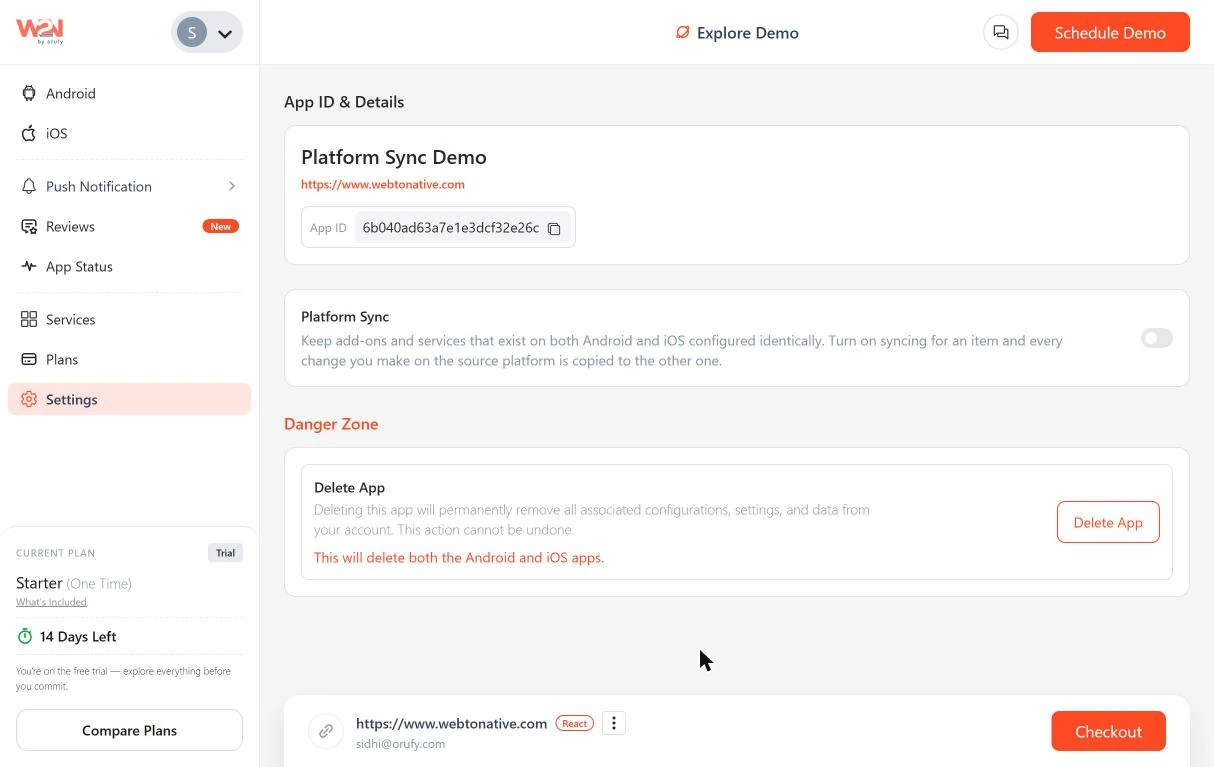
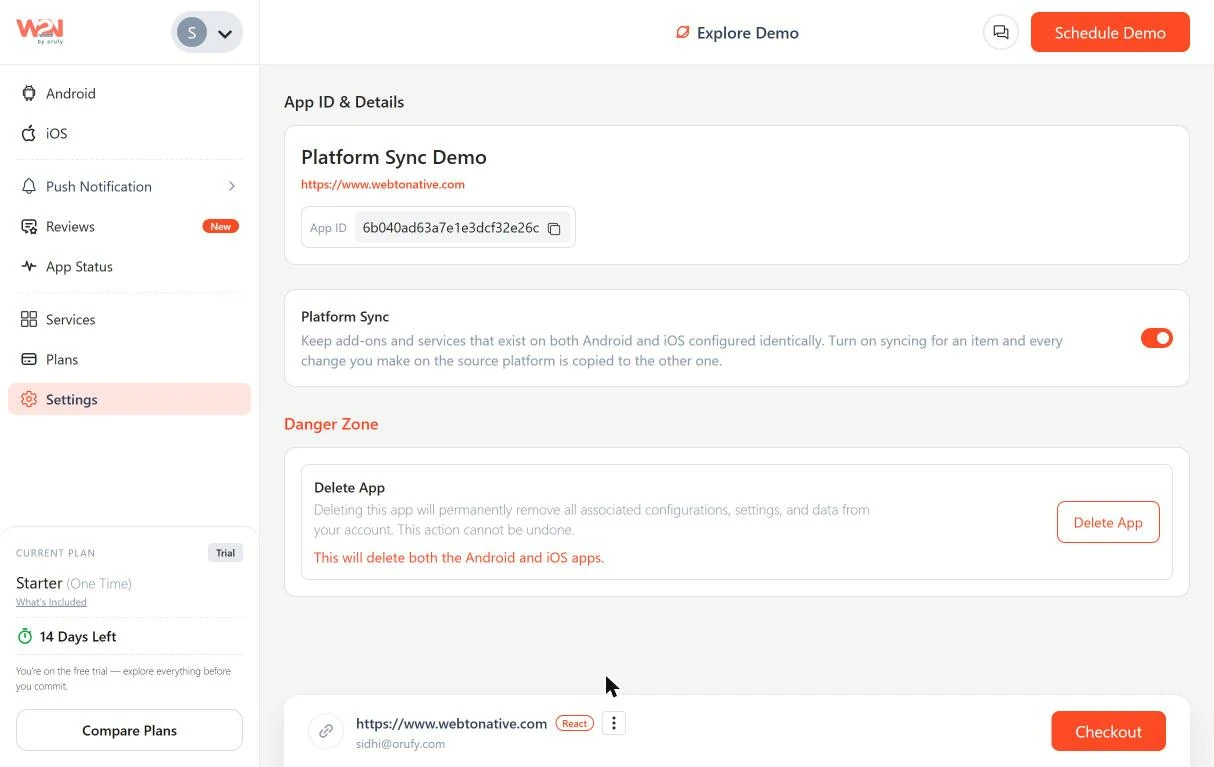
The switch on the right shows whether sync is on. Orange means Android and iOS share settings. Grey means each platform is configured on its own.
Turn On Sync
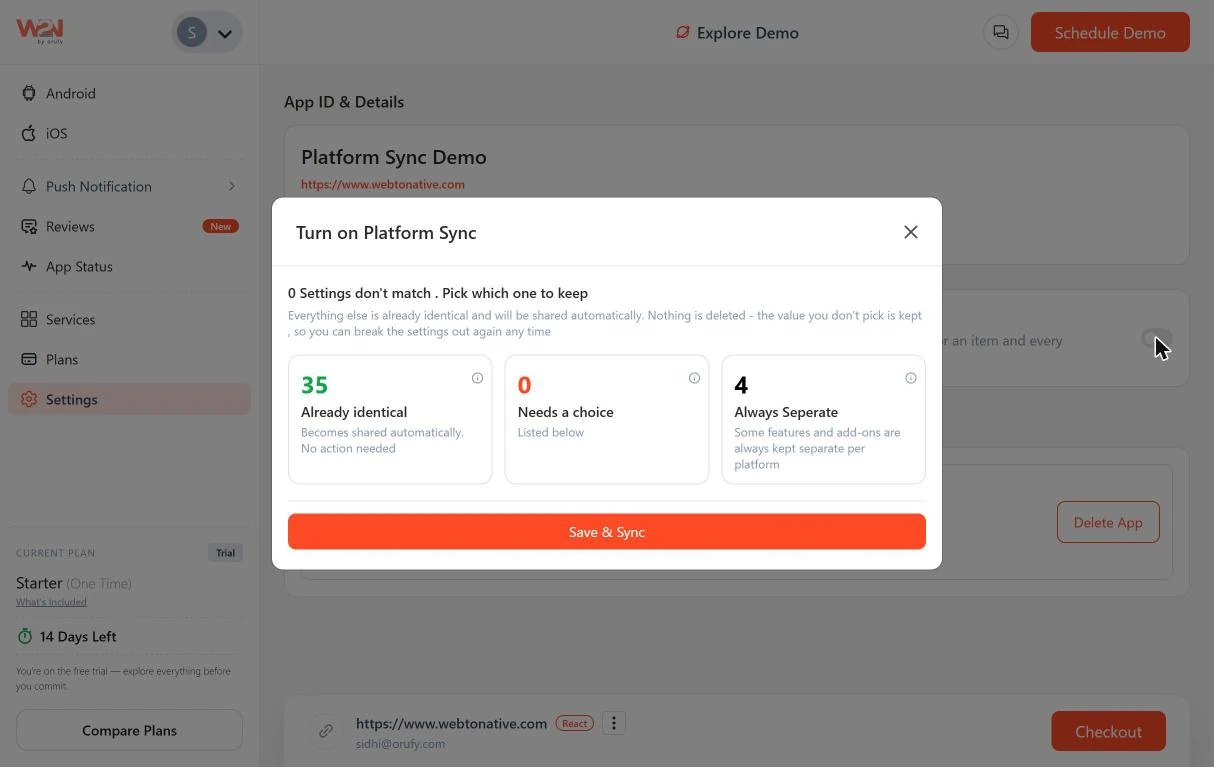
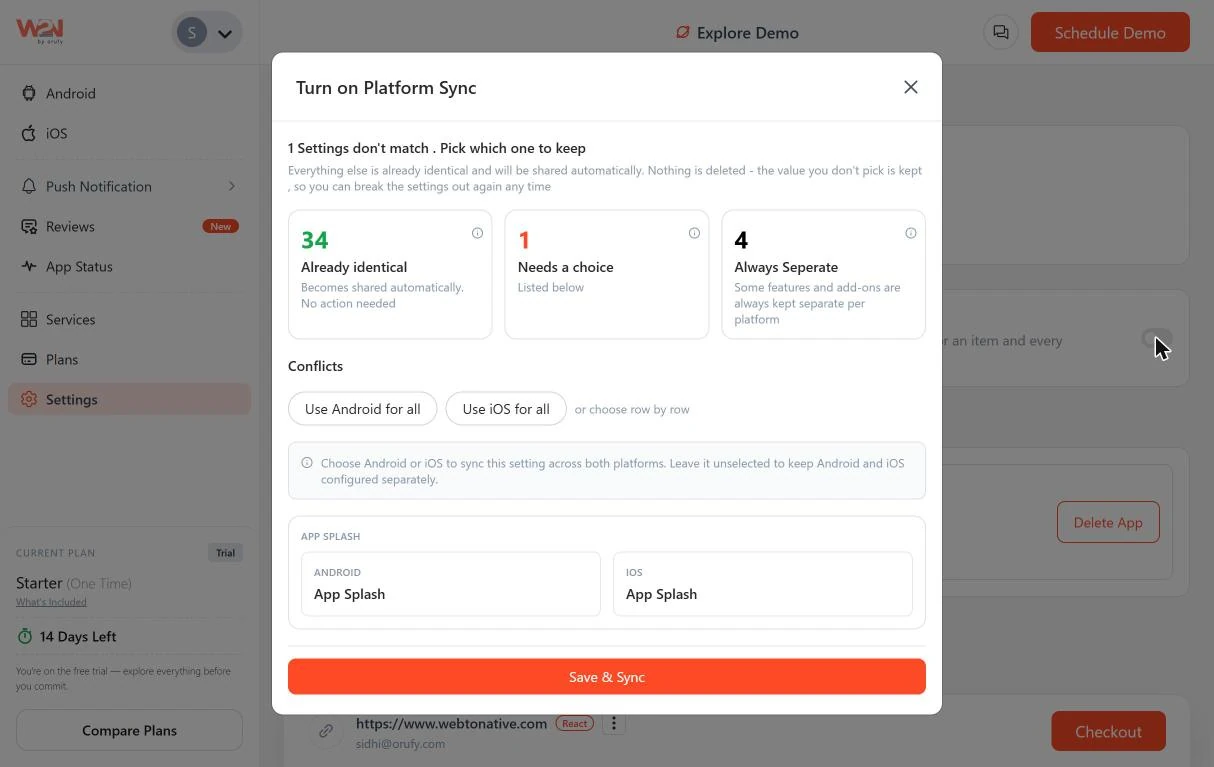
Click the switch. The Turn on Platform Sync window opens before anything is changed.
Review the Summary
The window compares your two apps and shows three counts. The numbers depend on your app and the add-ons it has.
| Card | What it means |
|---|---|
| Already identical | Settings and add-ons that are the same on both apps. They become shared automatically. No action needed. |
| Needs a choice | Settings that are different on Android and iOS. You pick which value to keep. |
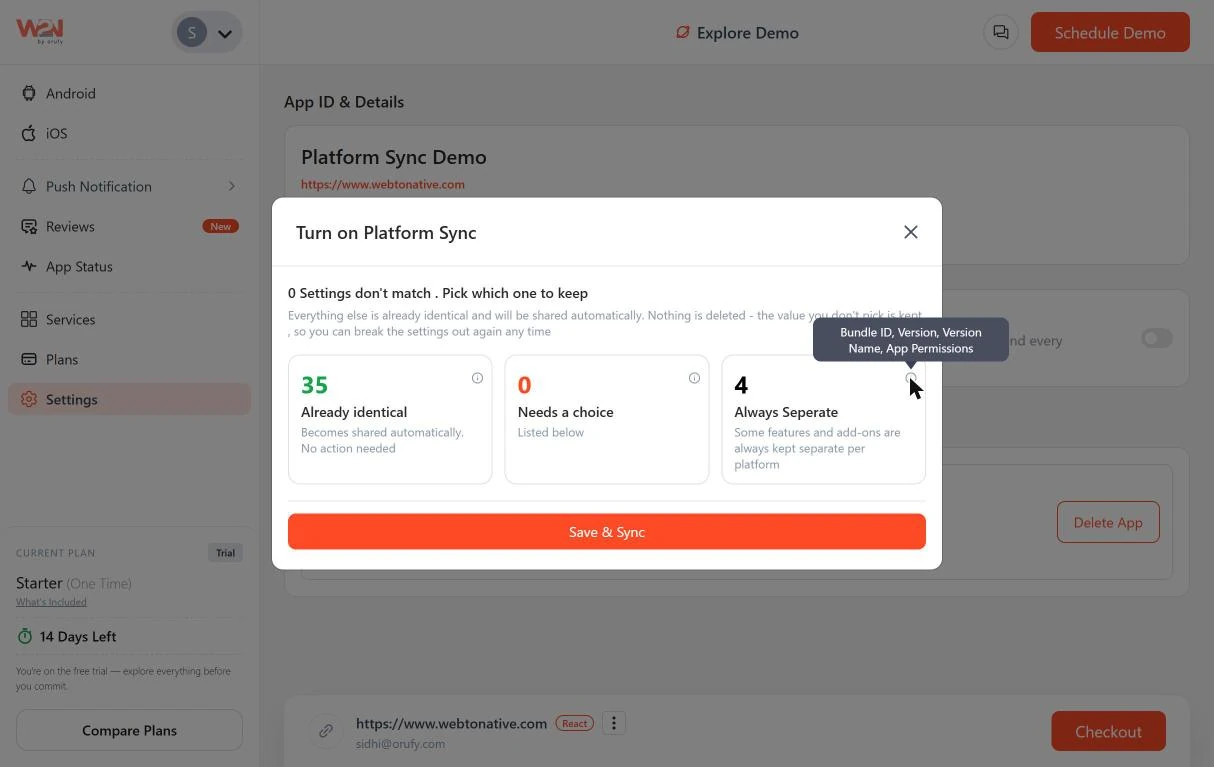
| Always Seperate | Items that are never synced. Hover the ⓘ icon to see the list. |
If both apps are already identical, Needs a choice shows 0 and you can go straight to Save & Sync.
Hover the ⓘ on Always Seperate to see what stays separate. In a demo app with add-ons, it listed Bundle ID, Version, Version Name, App Permissions, Truecaller, Google Firebase Analytics, Social Login and App Shortcut.
Choose Which Platform to Keep
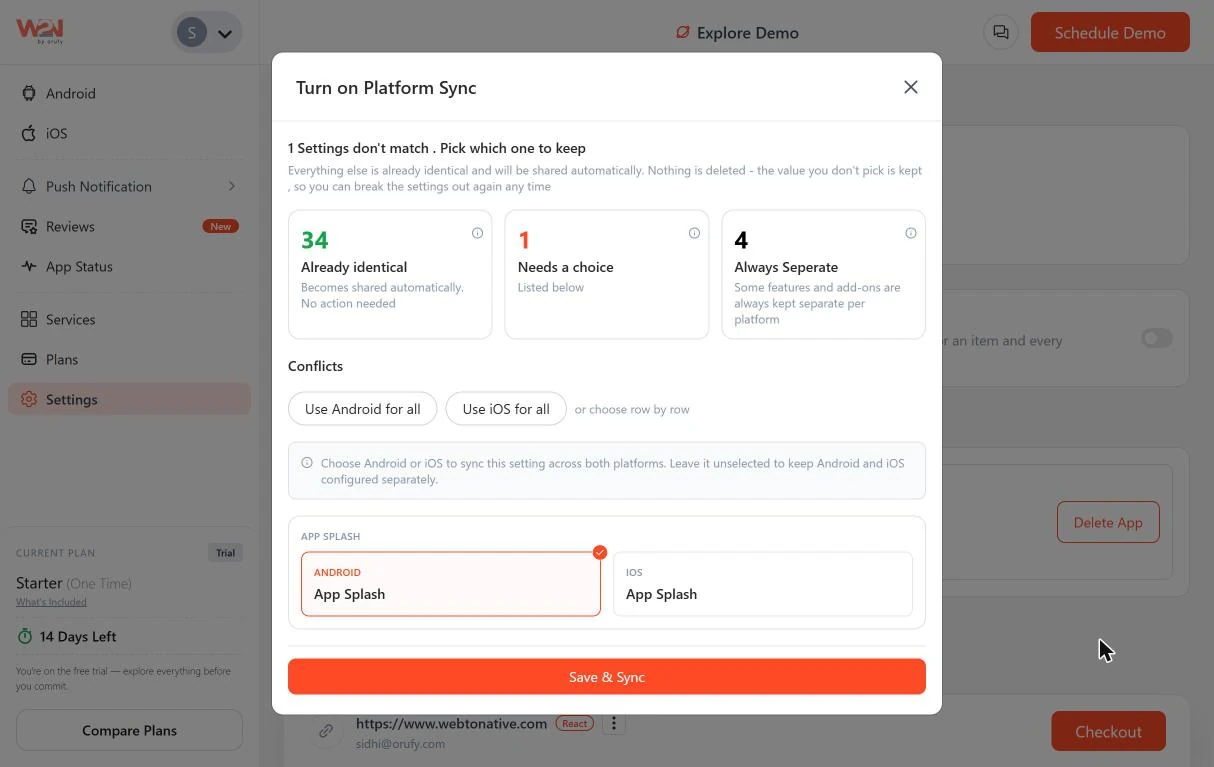
If some settings differ, a Conflicts section appears. Each conflict shows an Android card and an iOS card side by side. Click Use Android for all or Use iOS for all, or choose row by row by clicking a card.
Resolve Any Differences
The card you pick gets a tick, and its value becomes the shared value on both apps. If you leave a row unselected, that setting is not synced and each platform keeps its own value. Nothing is deleted.
Click Save & Sync
Click Save & Sync. The switch turns on and your choices are applied.
Check That Settings Are Synced
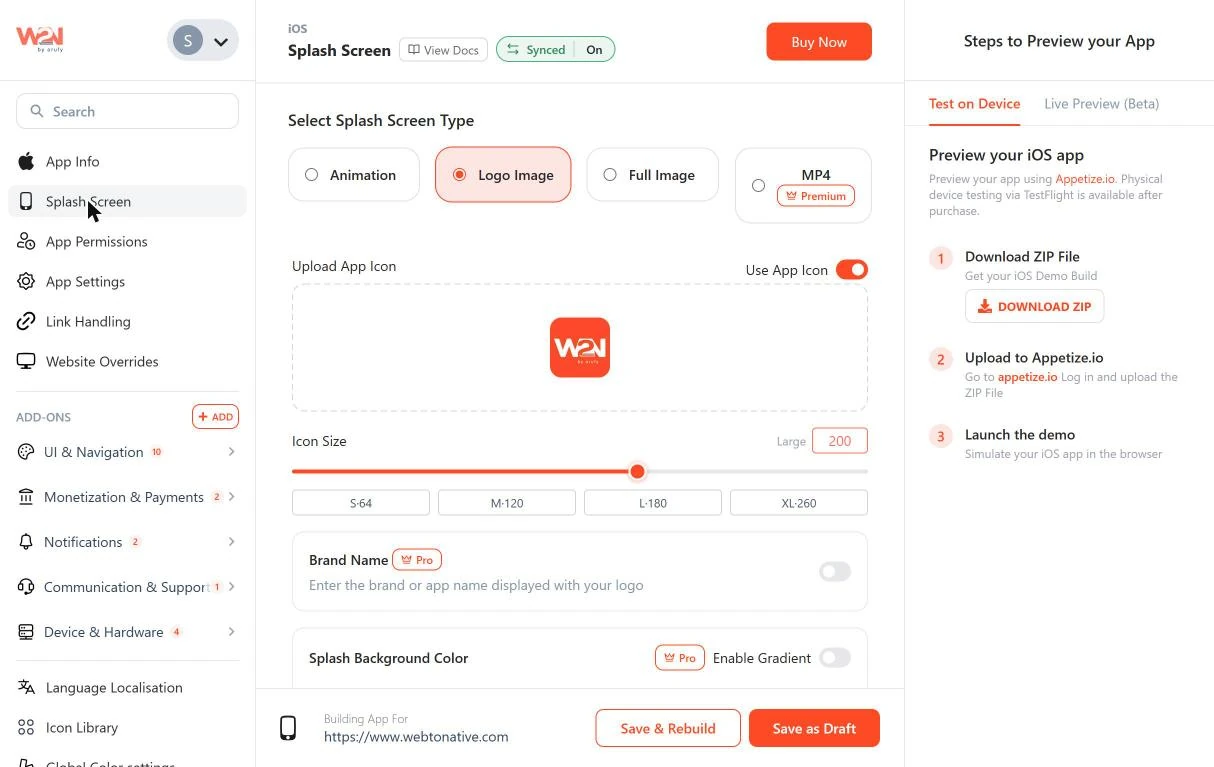
Open Edit your app for either platform. Shared settings and add-ons now show a green Synced | On label next to their name. Kept Android's splash screen, and the iOS Splash Screen page showed the same type after syncing.
Add-ons and Platform Sync
Add-ons follow the same rules as other settings. An add-on syncs only if it is added to both apps and is not marked as separate.
Add the Add-on for Both Platforms
Go to Edit your app ➡️ + ADD next to ADD-ONS. Click + Add on an add-on card and choose Add for Android and IOS. Choosing Add for Android adds it to Android only, so there is nothing to sync.
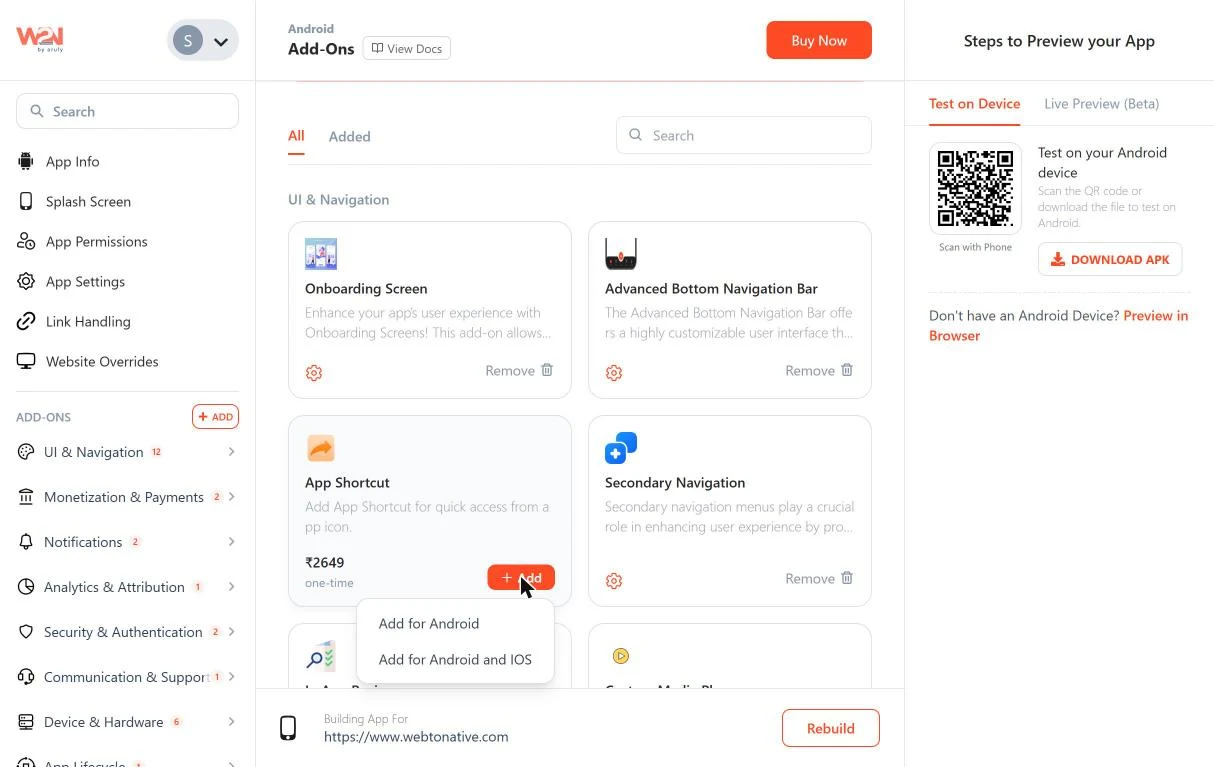
Added add-ons show a settings (gear) icon and a Remove option.
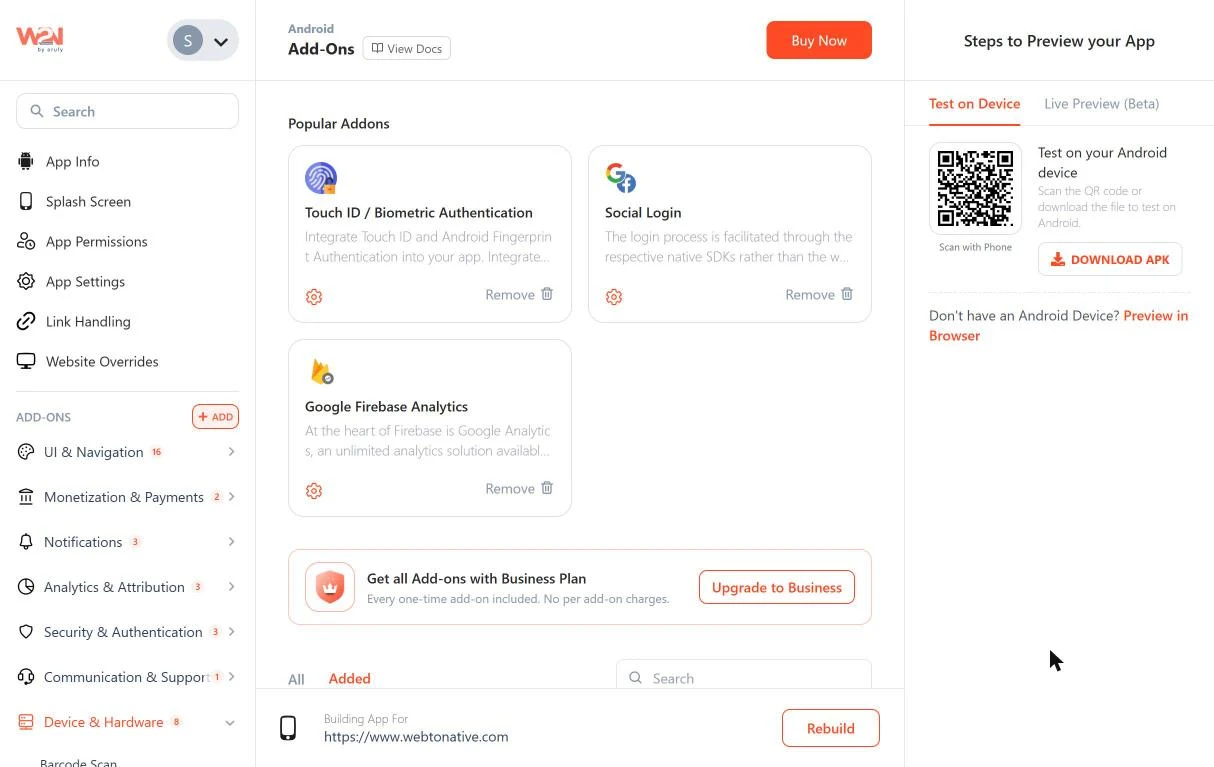
Check the Add-on's Label
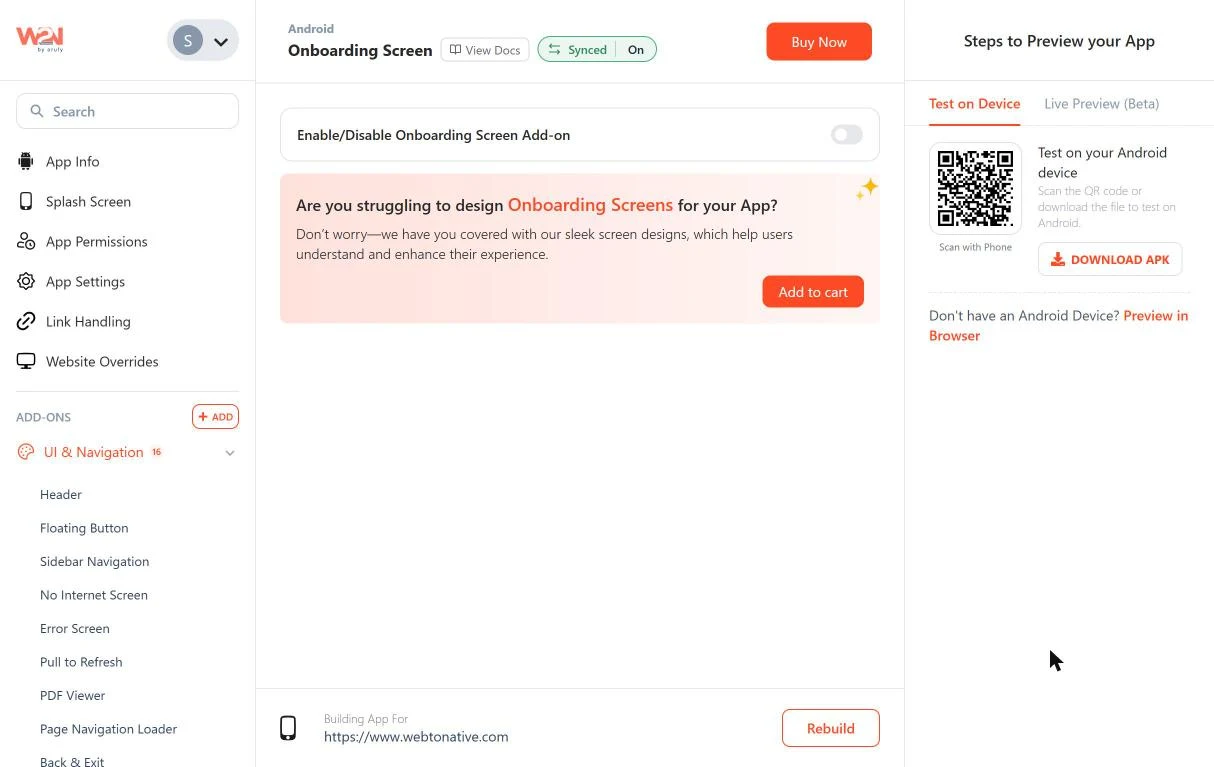
Open the add-on from the left menu. The label next to its name tells you how it behaves.
Synced | On – changes copy to the other platform. For example, Onboarding Screen.
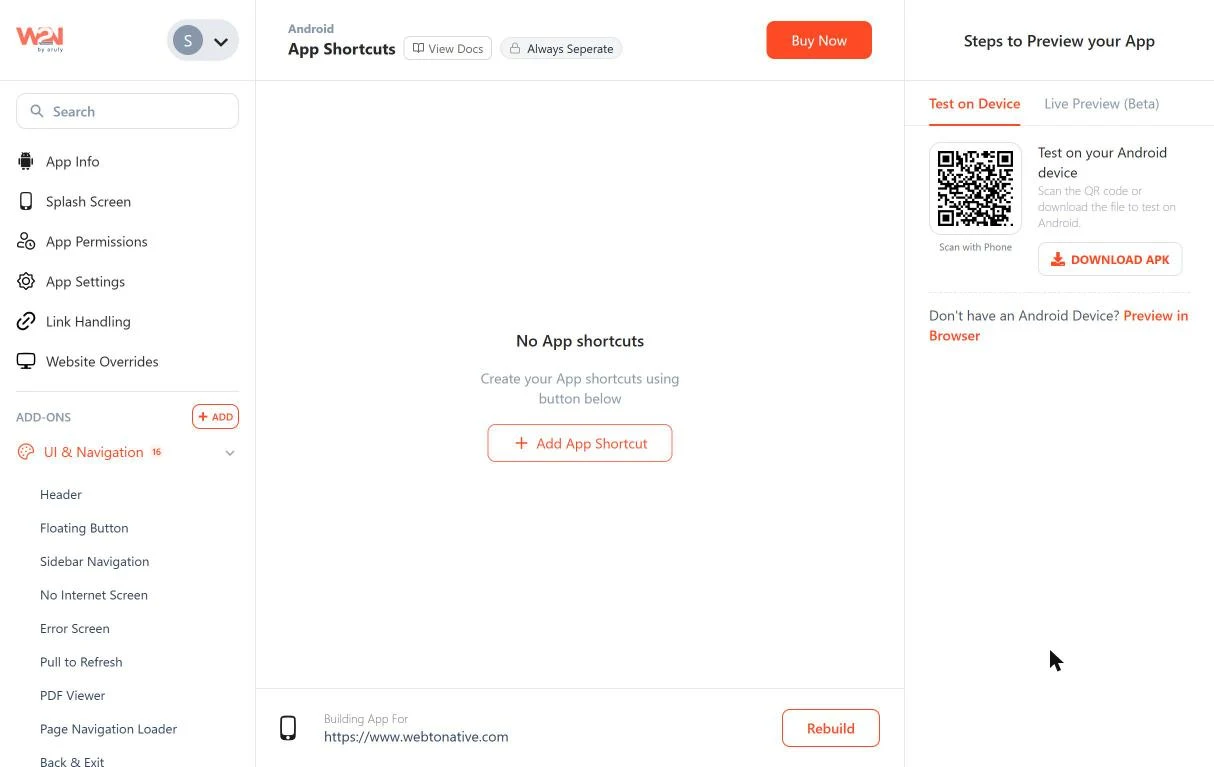
Always Seperate – the add-on exists on both apps, but each one is set up on its own. For example, App Shortcuts.
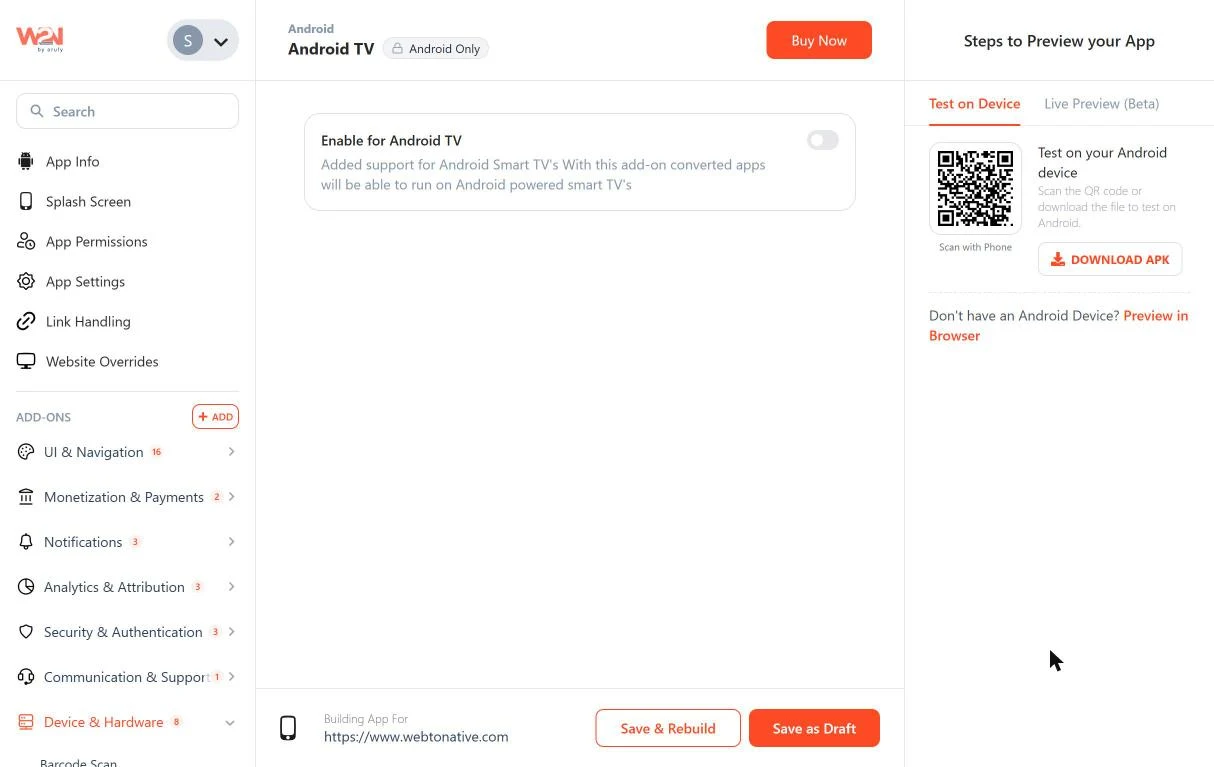
Android Only or iOS Only – the add-on exists on one platform only. For example, Android TV.
Set Up the Add-on and Save
Change the add-on's settings on either platform and click Save as Draft or Save & Rebuild.
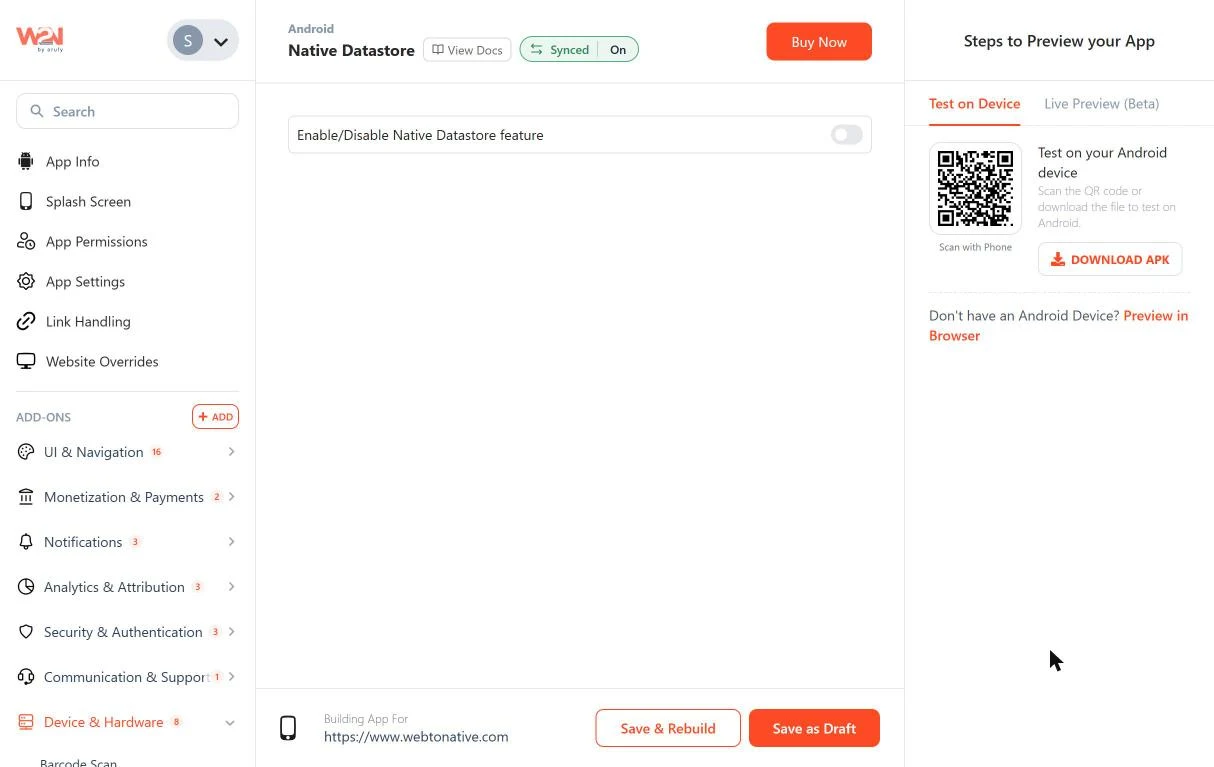
Turned off Native Datastore (Synced) on iOS. The Android Native Datastore page then showed it off too.
How Platform Sync Works
Shared settings stay identical. While sync is on, saving a change to a shared setting or add-on on one platform updates the other. This worked both ways: Android to iOS and iOS to Android.
Differences are settled once. When you turn sync on, the Turn on Platform Sync window lists every setting that differs and lets you pick a side. Anything already matching is shared without any action.
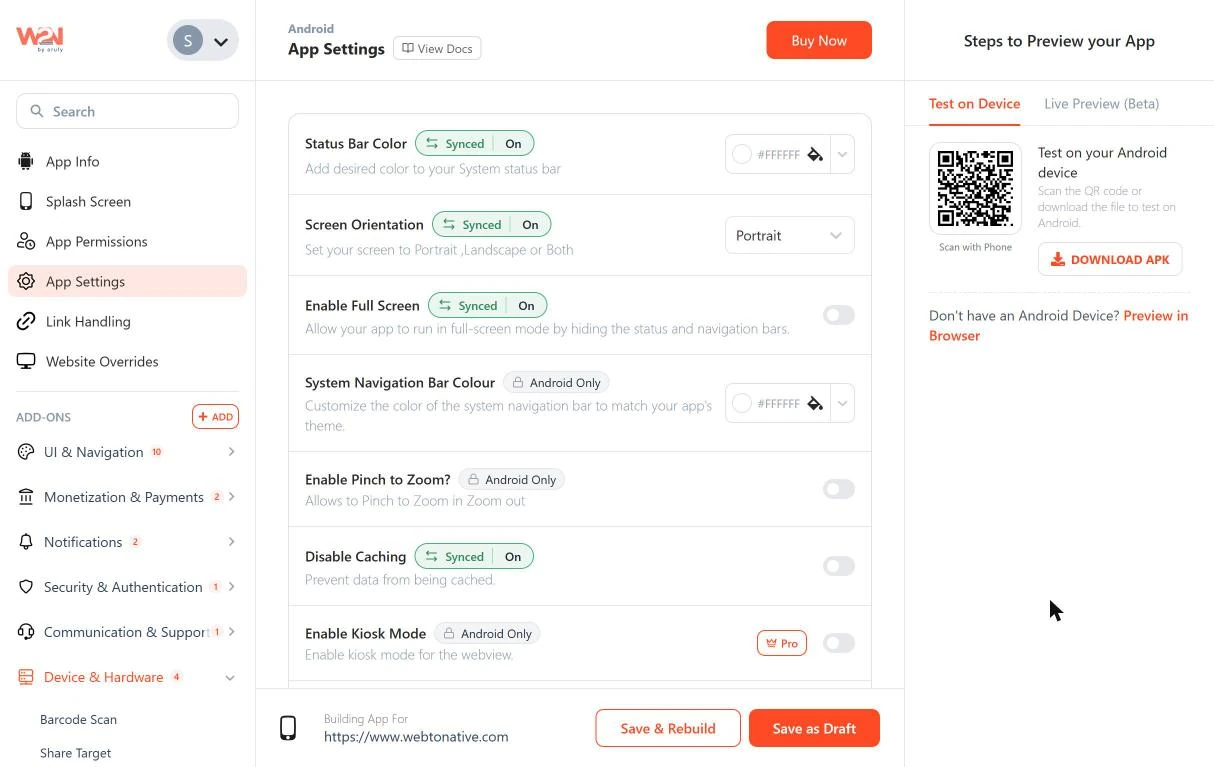
Platform-specific items are never synced. They carry a grey lock label: Android Only, iOS Only or Always Seperate.
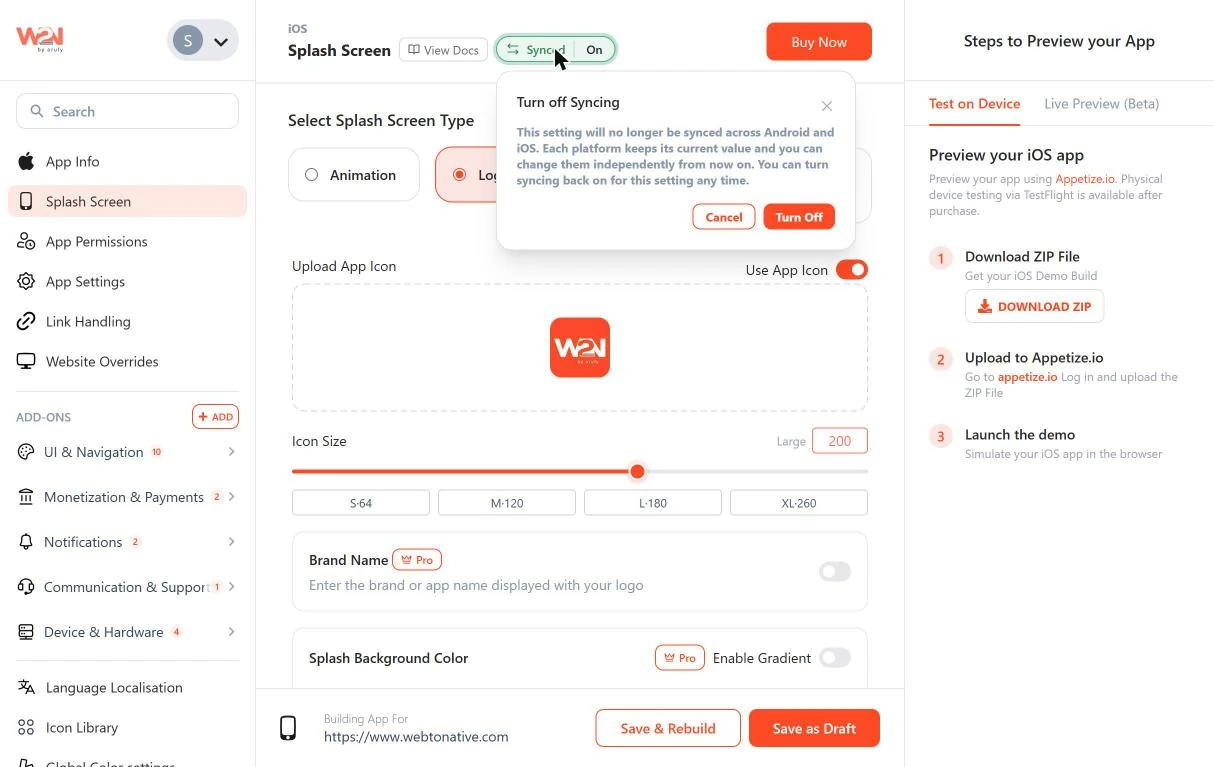
You can stop syncing a single item. Click the Synced | On label on any setting or add-on. A Turn off Syncing popup explains that each platform keeps its current value and can be changed on its own from then on. Click Turn Off to confirm, or Cancel.
Settings Comparison
These labels come from the dashboard of our demo app.
| Setting / Feature | Android | iOS | Sync Behavior |
|---|---|---|---|
| App Name, Upload App Icon | Available | Available | Synced |
| Splash Screen | Available | Available | Synced |
| Status Bar Color, Screen Orientation, Enable Full Screen | Available | Available | Synced |
| Disable Caching, Enable WebRTC Support, Disable Scroll Bounce Effect? | Available | Available | Synced |
| Header, Floating Button, Sidebar Navigation | Available | Available | Synced |
| No Internet Screen, Error Screen, Pull to Refresh | Available | Available | Synced |
| PDF Viewer, Page Navigation Loader, Back & Exit | Available | Available | Synced |
| Google AdMob, Enable Webview Ads | Available | Available | Synced |
| Notification Settings | Available | Available | Synced |
| Orufy Connect, Barcode Scan, Native Events Bridge, Game Mode | Available | Available | Synced |
| Language Localisation, Icon Library | Available | Available | Synced |
| App Permissions | Available | Available | Always Separate |
| Webtonative Push, Share Target | Available | Available | Always Separate |
| Package Name, Version Code, Version Name, Key Store Details | Available | Not Available | Separate (Android Only) |
| System Navigation Bar Colour, Enable Pinch to Zoom?, Enable Kiosk Mode | Available | Not Available | Separate (Android Only) |
| Version | Not Available | Available | Separate (iOS Only) |
| Show Strip on Safe Area, App for iPads, Keep screen on always | Not Available | Available | Separate (iOS Only) |
| Link Handling, Website Overrides | Available | Available | Synced |
| Global Color settings, Environment Variables | Available | Available | Always Synced |
Add-ons Comparison
| Add-on | Android | iOS | Sync Behavior |
|---|---|---|---|
| Onboarding Screen | Available | Available | Synced |
| Secondary Navigation | Available | Available | Synced |
| Advanced Bottom Navigation Bar | Available | Available | Synced |
| Floating Action Menu | Available | Available | Synced |
| Custom Media Player | Available | Available | Synced |
| Wallet (Google Wallet / Apple Wallet) | Available | Available | Synced |
| Custom Sound | Available | Available | Synced |
| Facebook App Events | Available | Available | Synced |
| AppsFlyer | Available | Available | Synced |
| Touch ID / Biometric Authentication | Available | Available | Synced |
| Background Location | Available | Available | Synced |
| Native Datastore | Available | Available | Synced |
| App Shortcut | Available | Available | Always Separate |
| Social Login | Available | Available | Always Separate |
| Truecaller SDK | Available | Available | Always Separate |
| Google Firebase Analytics | Available | Available | Always Separate |
| Support for TV (Android TV) | Available | Not Available | Separate (Android Only) |
| Background App As Service | Available | Not Available | Separate (Android Only) |
| Disable Screenshot | Available | Available | Separate (Android Only on Android, iOS Only on iOS) |
Add-ons that need a paid plan (marked Upgrade or Starts with Pro/Premium in the Add-ons list) could not be added on the free trial, so their sync behavior was not checked.
Turning Platform Sync Off
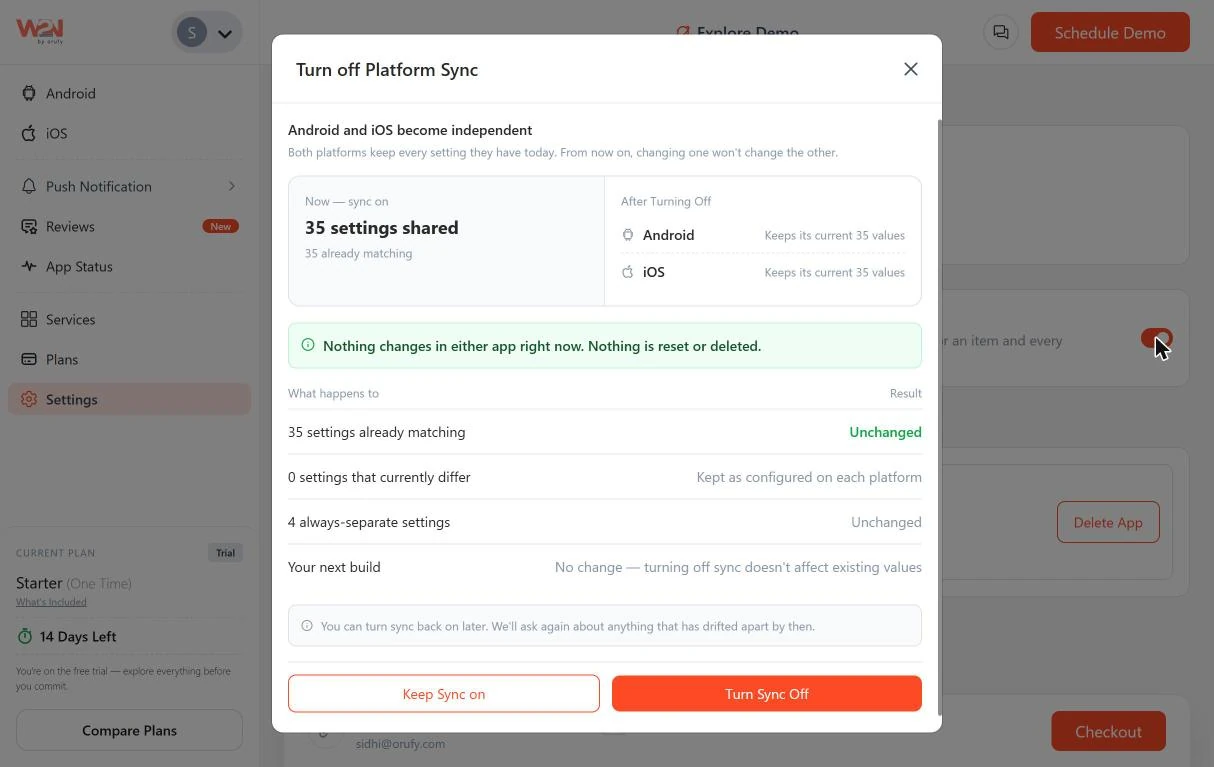
Click the switch again. The Turn off Platform Sync window explains that Android and iOS become independent. Both platforms keep every setting they have today, nothing is reset or deleted, and your next build is not affected. Click Turn Sync Off to confirm, or Keep Sync on to cancel.
After turning sync off, change the Android splash screen, and the iOS splash screen stayed as it was.
Things to Know
Platform Sync appears only for apps with both Android and iOS versions. An add-on syncs only when it is added to both apps. Items marked Android Only, iOS Only or Always Seperate never sync, so set them up on each platform. When you turn sync back on, the window checks both apps again and asks about anything that has drifted apart. Synced changes are saved to the dashboard; rebuild each app to see them in the installed app.
Best Practices
Add add-ons for both platforms
Choose Add for Android and IOS so the add-on can be shared.
Review both apps first
Check both apps before turning sync on, so you know which values differ.
Pick the right side for each conflict
The value you pick becomes the shared value. Choose row by row if each platform has settings you want to keep.
Set up separate items twice
App Shortcut, Social Login, Truecaller, Firebase Analytics and App Permissions need setup on each platform.
Frequently Asked Questions
Q1. What is Platform Sync?
A. A setting that keeps shared settings and add-ons on your Android and iOS apps identical. A change on one platform is copied to the other.
Q2. Who can enable Platform Sync?
A. We confirmed it as the account Owner. We couldn't check whether other team roles have access.
Q3. Where can I find Platform Sync?
A. My Apps ➡️ Open your app ➡️ Settings ➡️ Platform Sync.
Q4. Is Platform Sync on for new apps?
A. Yes. It was on by default for a new app created with Android & iOS.
Q5. What happens when I enable Platform Sync?
A. The Turn on Platform Sync window shows what's already identical, what needs a choice, and what is always separate. After you click Save & Sync, shared items stay in step.
Q6. Are add-ons synced too?
A. Yes, if the add-on is added to both apps and shows Synced | On. Add-ons marked Always Seperate, Android Only or iOS Only are not synced.
Q7. Which add-ons stay separate?
A. In our tests: App Shortcut, Social Login, Truecaller SDK and Google Firebase Analytics (Always Seperate), plus Support for TV and Background App As Service (Android Only) and Disable Screenshot (set per platform).
Q8. What happens when Android and iOS have different configurations?
A. They are listed under Conflicts. Pick Android or iOS for each one, or use Use Android for all or Use iOS for all.
Q9. What happens if both platforms have identical configurations?
A. Needs a choice shows 0. Everything is shared automatically when you click Save & Sync.
Q10. Can I keep one setting different on each platform?
A. Yes. Leave its conflict row unselected when turning sync on, or click its Synced | On label later and choose Turn Off.
Q11. What happens when I disable Platform Sync?
A. Nothing is reset or deleted. Each platform keeps its current values, and from then on changes on one platform don't affect the other.
Q12. Why can't I see Platform Sync?
A. Your app probably has only one platform. Platform Sync appears only when the app has both an Android and an iOS version.