


Webhook Connectors
When something important happens on your store or backend, like an order being placed, a payment or a shipment, your users usually only find out by email, or by opening your app and checking.
Webhook Connectors send automatic push notifications to your app users when these events happen. A connector links one event on your platform to Webtonative. When the event happens, your platform sends a webhook to the connector, and Webtonative sends your notification to the user it belongs to.
Why Should I Use Webhook Connectors?
Real-Time Updates
Order confirmations, payment updates and shipping alerts go out the moment they happen, with no manual sending.

Reaches the Right Person
Each notification goes only to the user the event belongs to, on every device linked to them.
Works With Your Platform
Ready-made connectors for Shopify and WordPress, plus a Custom connector for any other platform or backend.
Where to Find It In Your Dashboard
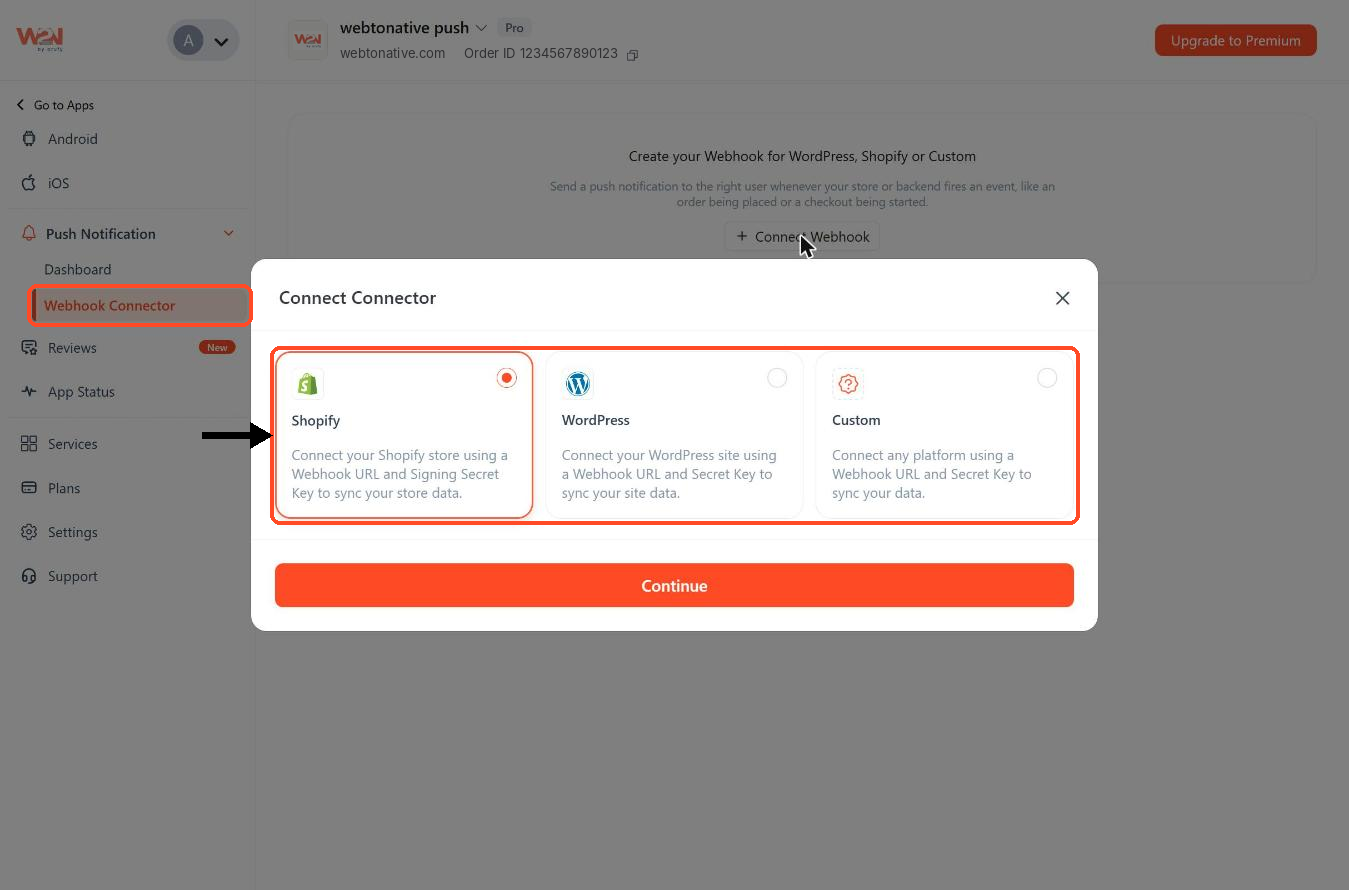
My Apps ➡️ Edit your app ➡️ Push Notification ➡️ Webhook Connector
Before You Start
-
Your plan must include Webtonative Push.
-
Push must be configured for your app (Android and/or iOS) in the Webtonative dashboard.
Choose Your Connector

Shopify Connector
For Shopify stores. Uses Shopify webhooks and their signing secret. Users are linked with a short script in your theme.

WordPress Connector
For WooCommerce stores on WordPress. Users are linked by the Webtonative plugin with Enable User Sync.

Custom Connector
For any other platform or your own backend. Users are linked with setExternalUserId() from your website.
| Connector | Use It For | How Users Are Linked |
|---|---|---|
| Shopify (opens in a new tab) | Shopify stores. Uses Shopify webhooks and their signing secret. | A short script in your theme |
| WordPress (opens in a new tab) | WooCommerce stores on WordPress. | The Webtonative plugin with Enable User Sync |
| Custom (opens in a new tab) | Any other platform or your own backend. | setExternalUserId() from your website |
How It Works
Link Users to Devices
When a user logs in on your app, their ID is set on the device as the External User ID.
Create a Connector
In Webtonative, go to My Apps ➡️ Edit your app ➡️ Push Notification ➡️ Webhook Connector and add a connector for your platform.
Add the Webhook
Point your platform's webhook to the connector's Webhook URL, and verify it.
Create the Template
Write the notification title, message and Launch URL. Use values from the webhook, like the order number.
Notifications Are Sent Automatically
Each time the event happens, the user with that ID receives the notification.
Connector Status
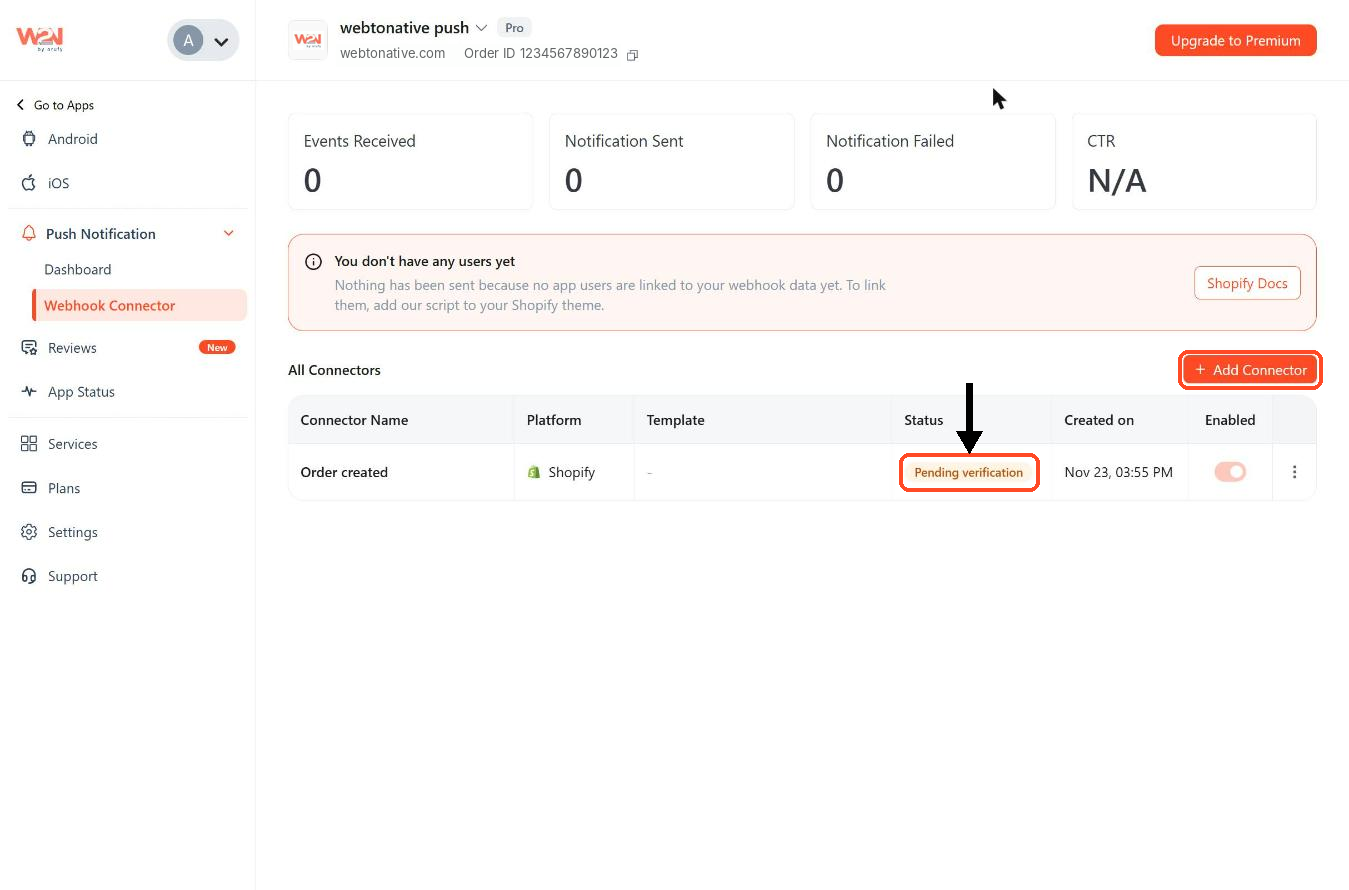
Every connector you add appears under All Connectors with one of these statuses:
Pending verification
Created but not verified yet. No notifications are sent.
Active
Verified and sending notifications.
Paused
Turned off with the Enabled toggle. Webhooks are received, but nothing is sent.
Notes
- Notifications only reach users who have logged in on the app, so their device has an External User ID.
Frequently Asked Questions
1. Which connector should I choose?
Use Shopify for a Shopify store, WordPress for a WooCommerce store, and Custom for any other platform or your own backend that can send an HTTP request.
2. Can one connector send notifications for several events?
No. One connector handles one event. Add a separate connector for each event you want to notify users about.
3. Does this work on both Android and iOS?
Yes, as long as push notifications are configured for that platform in your Webtonative dashboard.
4. Who receives the notifications?
Only users who have logged in on the app, so their device has an External User ID.