


Bulk Action
Organisations that run many apps often need to do the same job on each one, such as buying release builds or shipping an update. Doing it app by app takes time, and it's easy to miss one.
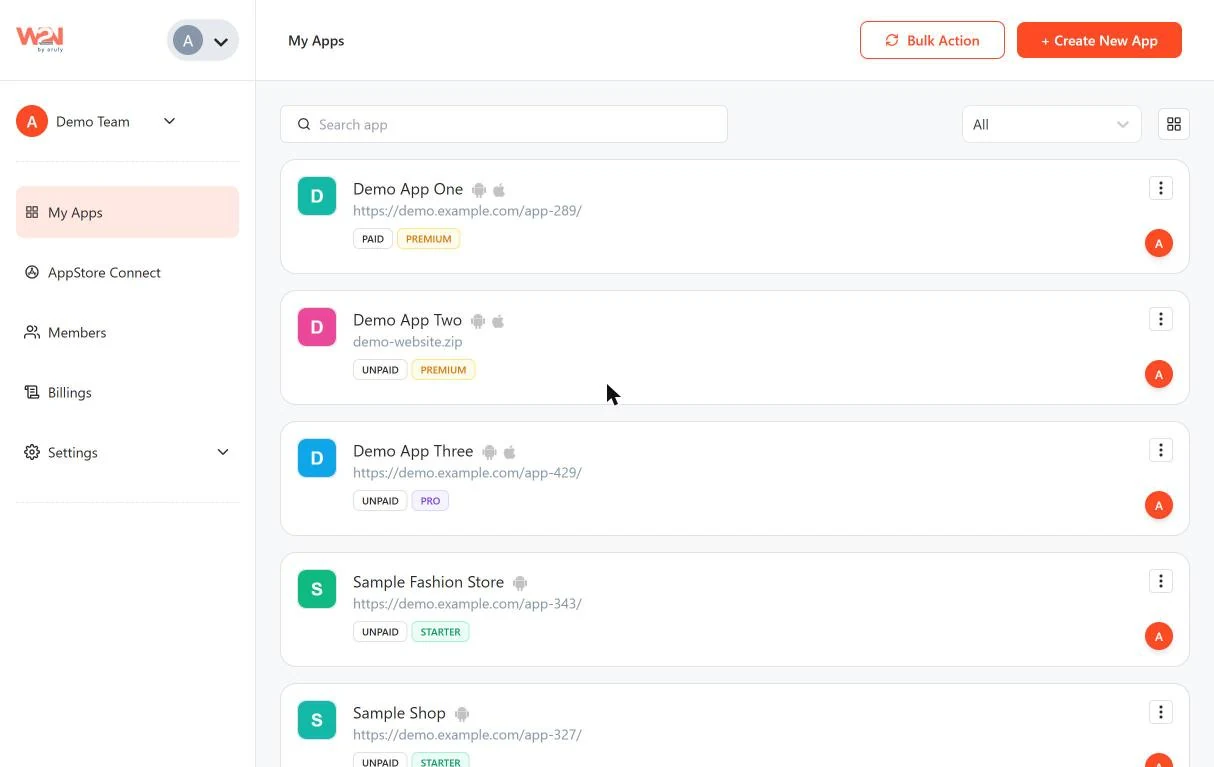
Bulk Action lets you do these jobs for many apps at once from the My Apps page. You can buy release builds for several apps in a single checkout, send one release note to several apps in a single update, and look back at every bulk action your organisation has run.
Bulk Action is available only to the Owner and Admin of an organisation that has more than 3 paid apps. Other roles, such as Collaborators, don't see the Bulk Action button.
Why Should I Use Bulk Action?
Save Time on Repeated Work
Buy builds or push an update for many apps in one flow, instead of opening each app and repeating the same steps.
Keep Every App in Step
Send the same release note to all selected apps at once, so every app gets the update together.
Track Every Run
Each bulk action is saved in History with its date, apps, order IDs and result, so you can check what happened later.
Where to Find It in Your Dashboard
My Apps ➡️ Bulk Action
What Does Webtonative Provide in Bulk Action?
Bulk Purchase Builds
Buy release builds for several apps at once. Pick a platform, select the apps, review the total and check out in one go.
Update App Version
Add one release note to many apps and push the version update to all of them for the platform you pick.
Bulk Action History
See every past bulk action with its date, the apps included, order IDs, and the result for each app.
Steps to Bulk Purchase Builds with Webtonative
Open Bulk Action
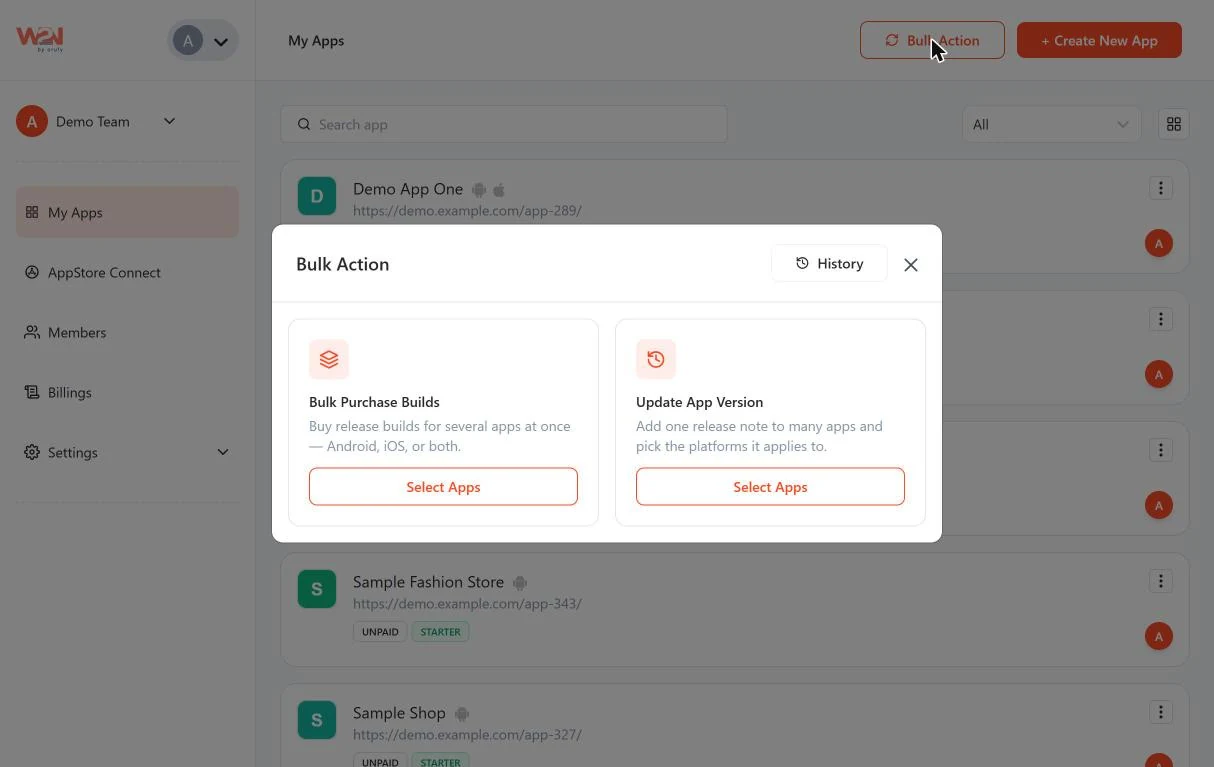
On the My Apps page, click Bulk Action. A window opens with two options, Bulk Purchase Builds and Update App Version, and a History button. Under Bulk Purchase Builds, click Select Apps.
Select a Platform
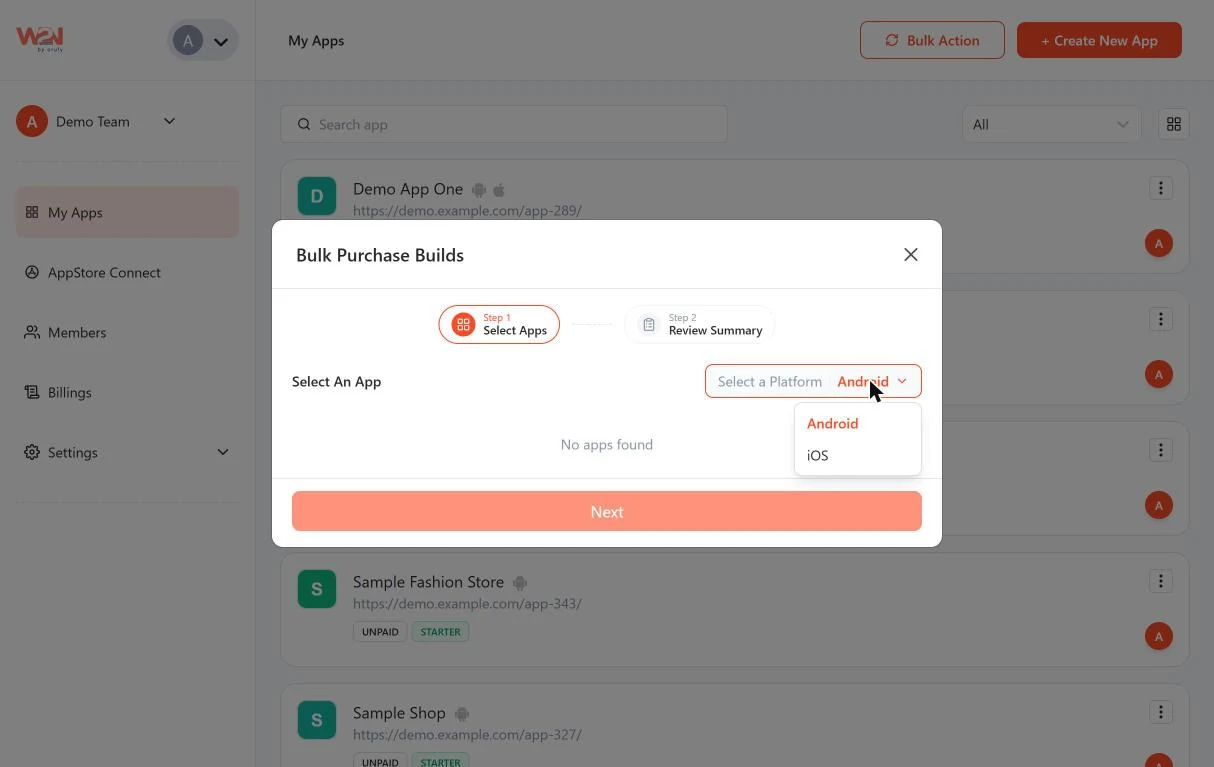
Select a Platform: Use the dropdown at the top right to choose Android or iOS. Android is selected by default. The app list updates to show the apps that are eligible for a build on that platform.
Select Apps
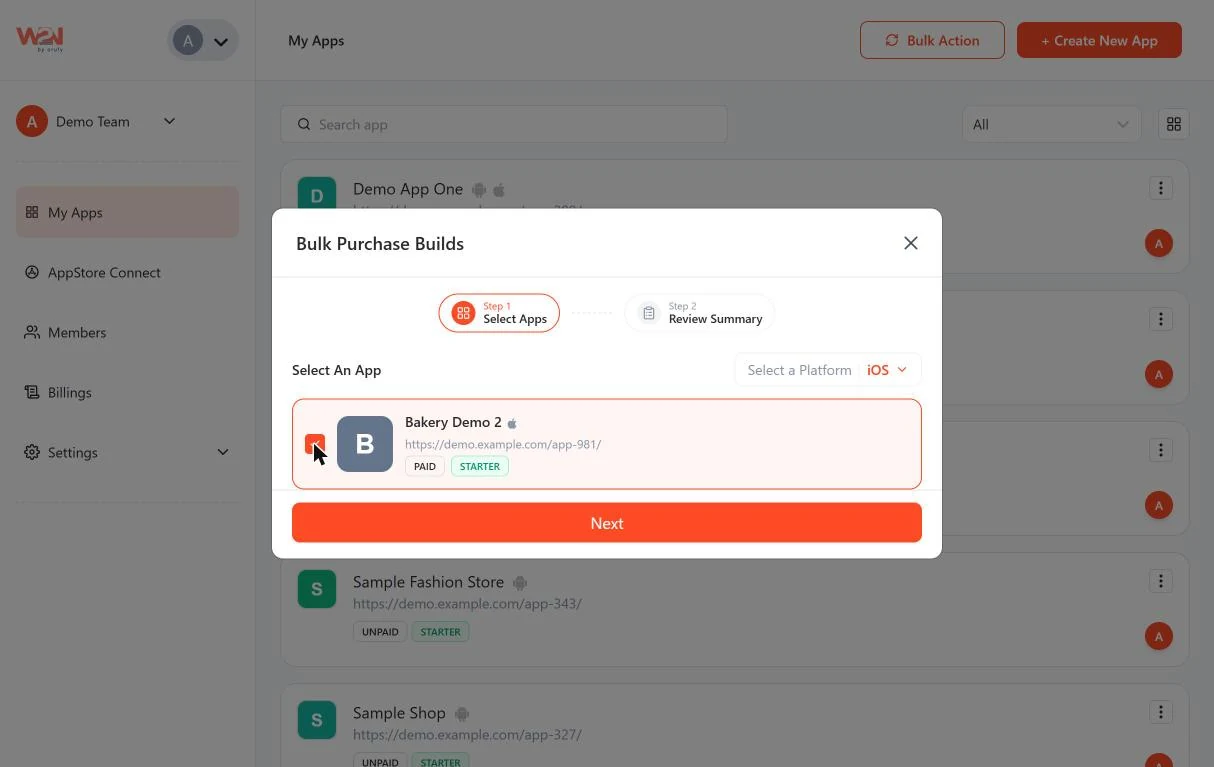
Tick the checkbox next to each app you want to buy a build for. Each app shows its name, URL, payment status and plan (Starter, Pro or Premium). Next becomes active once at least one app is selected.
If no app is eligible on the selected platform, the list shows "No apps found."
Review Summary
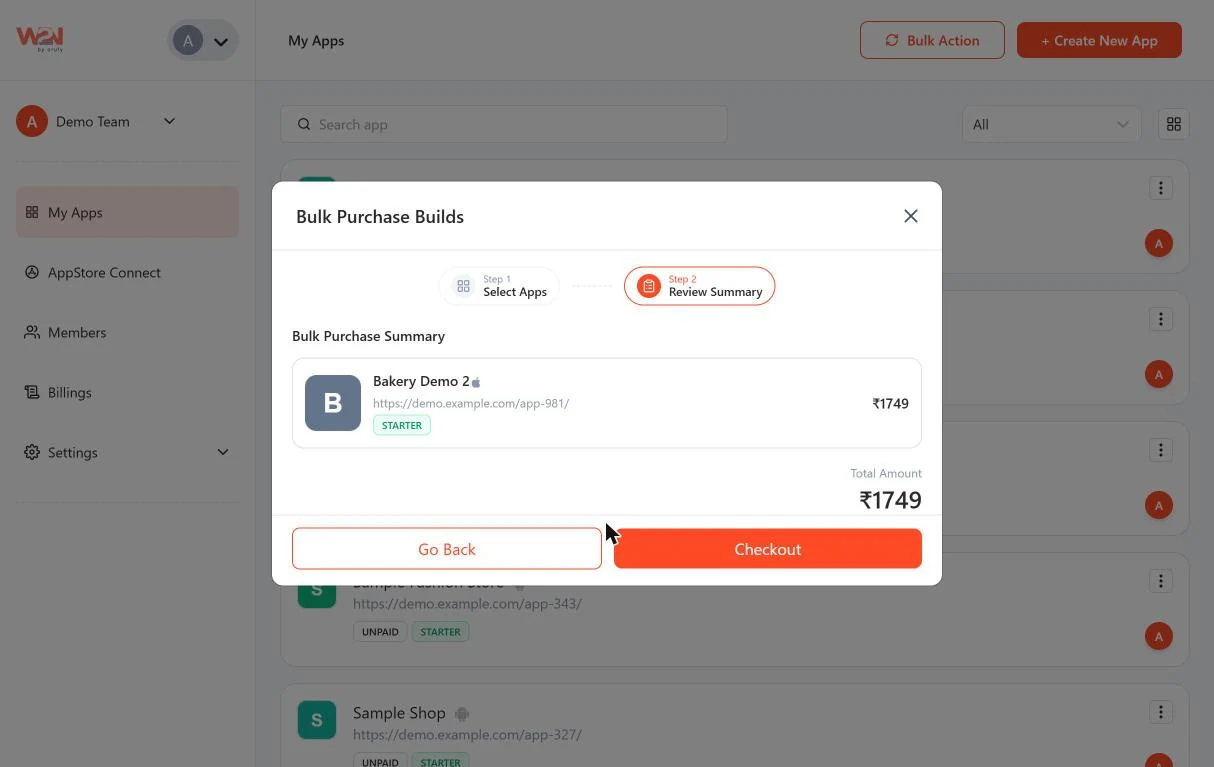
Click Next to see the Bulk Purchase Summary. It lists each selected app with its plan and price, followed by the Total Amount.
Go Back: Returns to the app list with your selection kept.
Checkout: Continues to payment for all the selected builds.
Steps to Update App Version with Webtonative
Open Update App Version
Click Bulk Action on the My Apps page, then click Select Apps under Update App Version.
Select a Platform
Select a Platform: Choose Android or iOS from the dropdown. The list shows your organisation's paid apps for that platform.
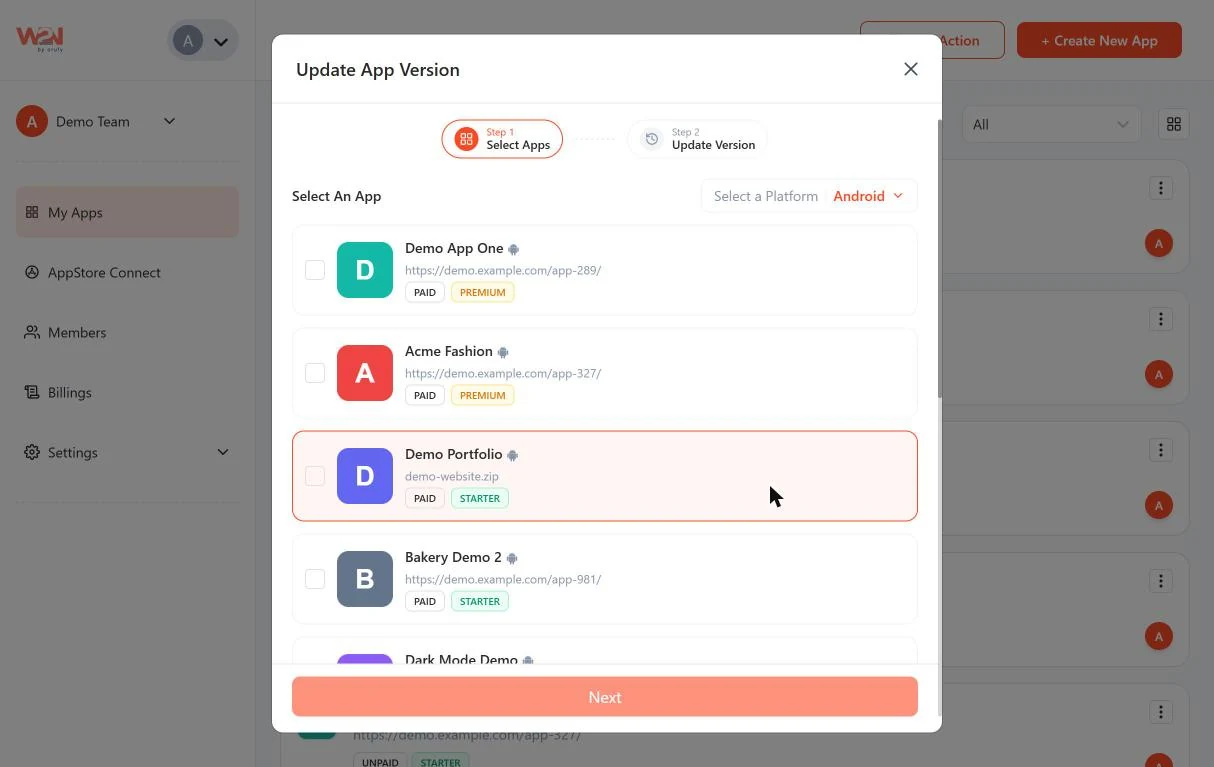
Select Apps
Tick each app you want to update, then click Next. Some apps can't be selected and appear greyed out:
App Expired: The app's plan has expired.
Build Required: The app doesn't have a release build for the selected platform yet. Buy one first with Bulk Purchase Builds.
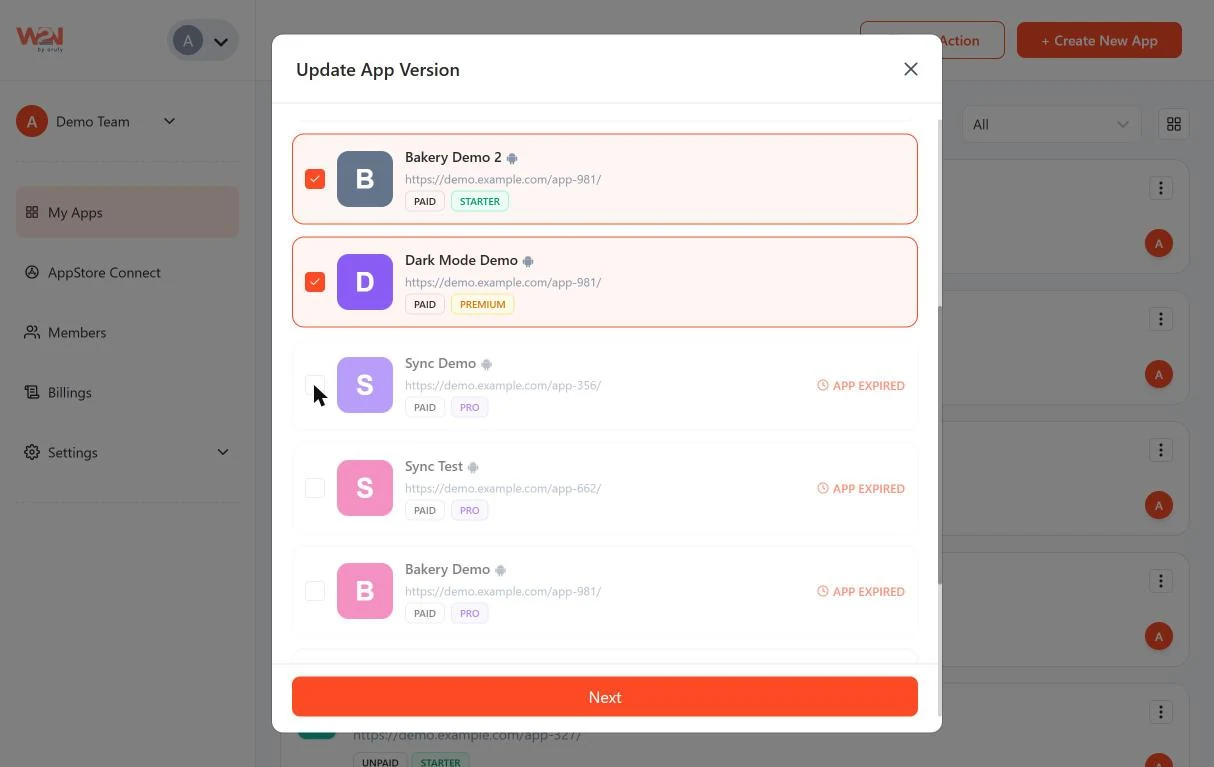
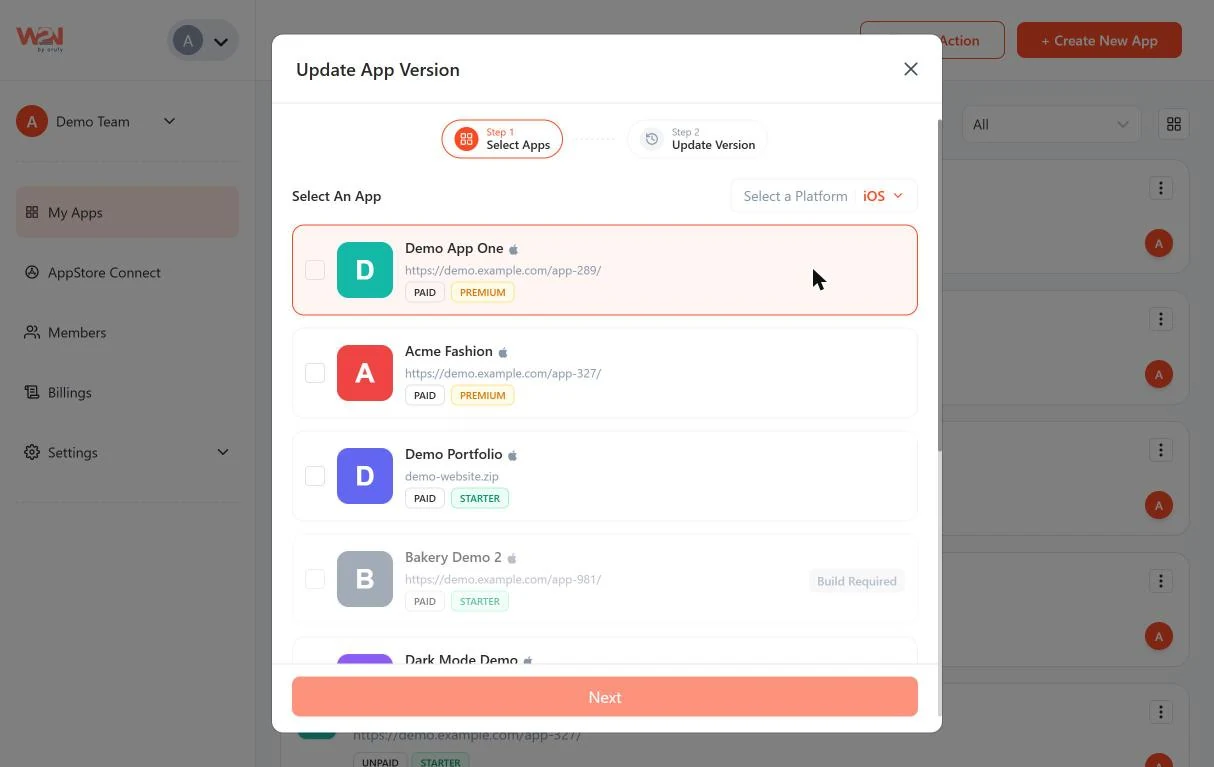
Add What's New
What's new: Enter the release note for this update. It's added to the version update of every selected app on the platform you chose. Update Version becomes active once you've entered a note.
Go Back: Returns to the app list with your selection kept.
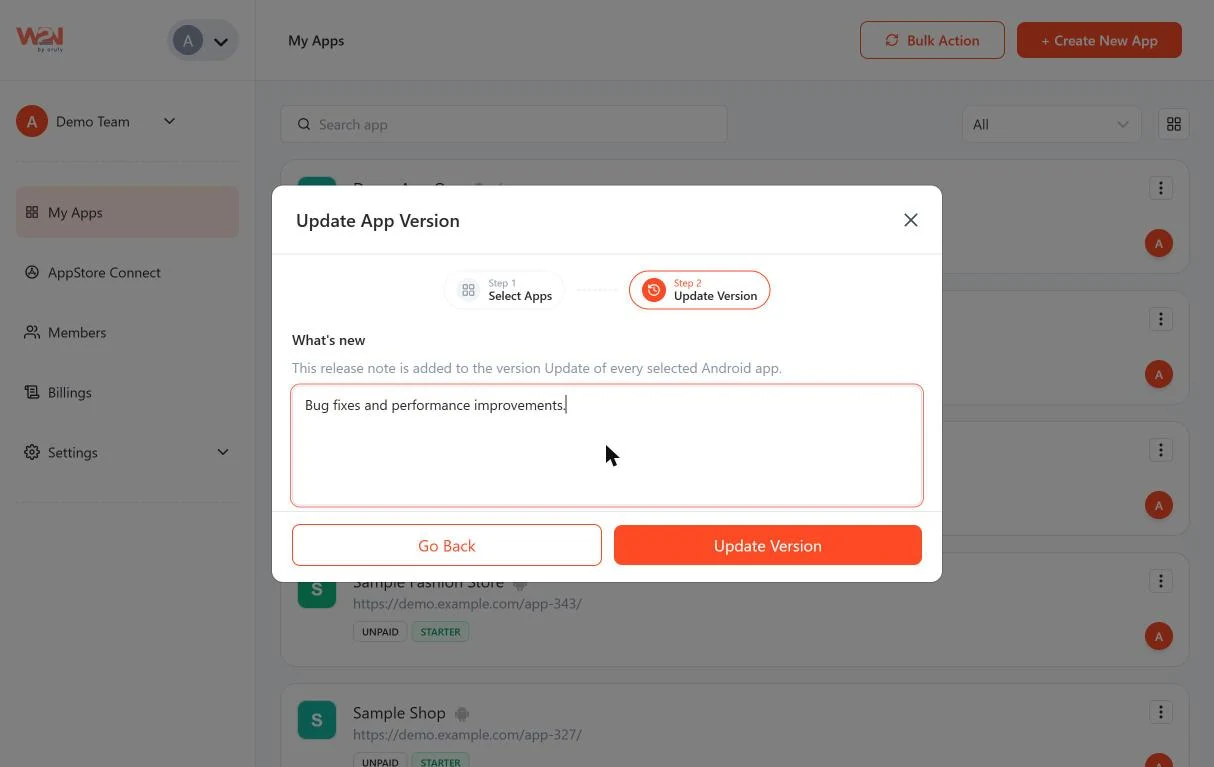
Update Version
Click Update Version to start the update for all selected apps. You can follow the result for each app in Bulk Action History.
View Bulk Action History
Open History
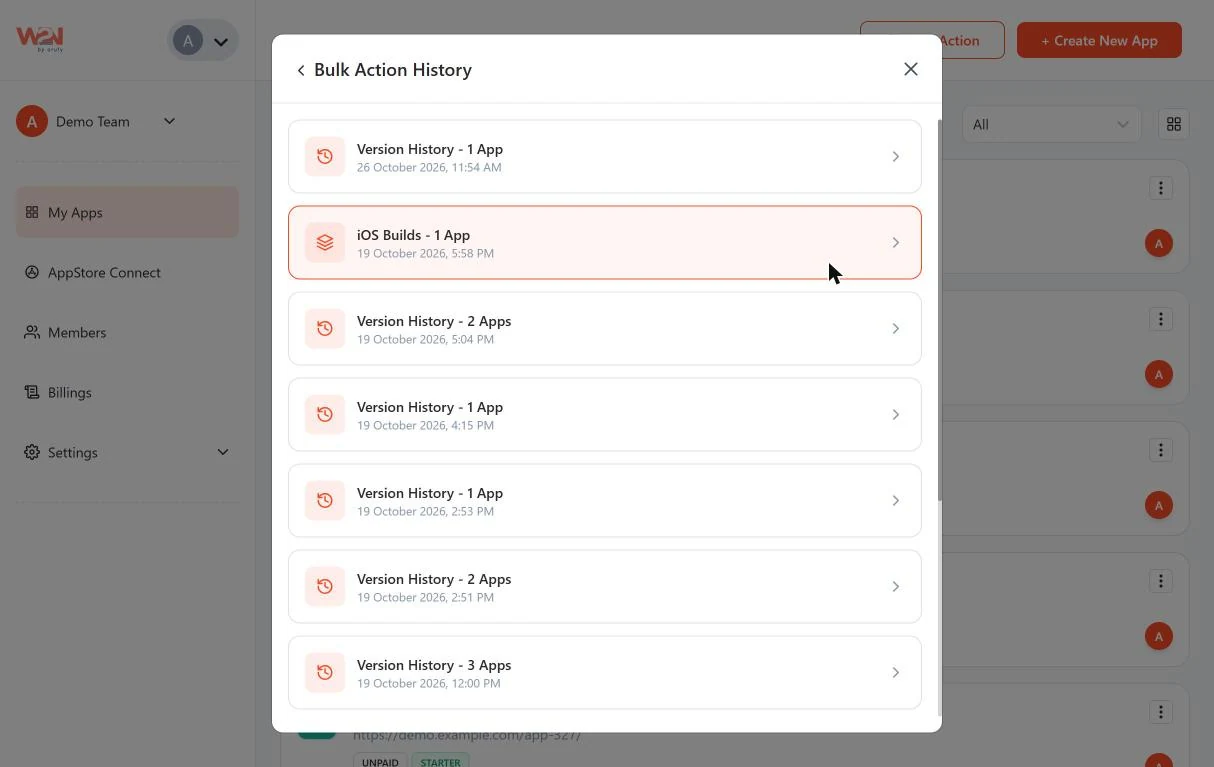
Click Bulk Action, then click History at the top right of the window. Past bulk actions are listed newest first, each with its type, number of apps, and date and time:
Version History: An Update App Version run.
iOS Builds / Android Builds: A Bulk Purchase Builds run for that platform.
Check Version Updates
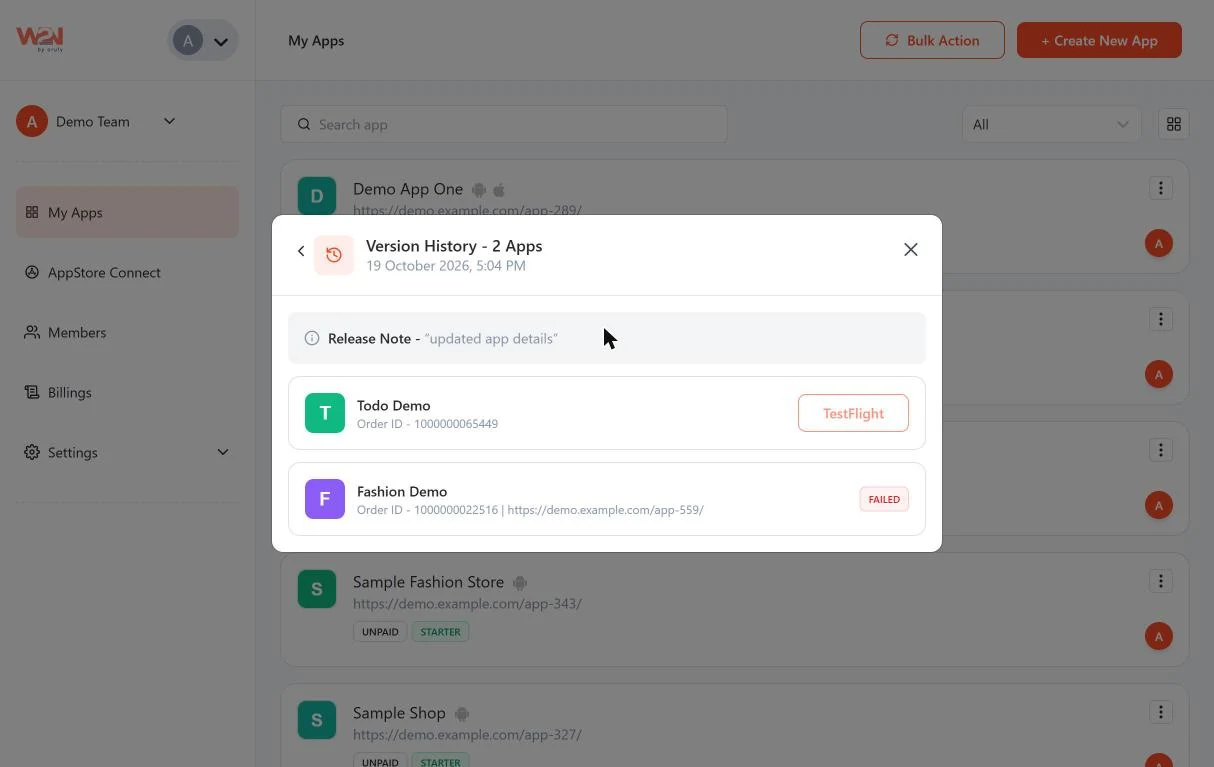
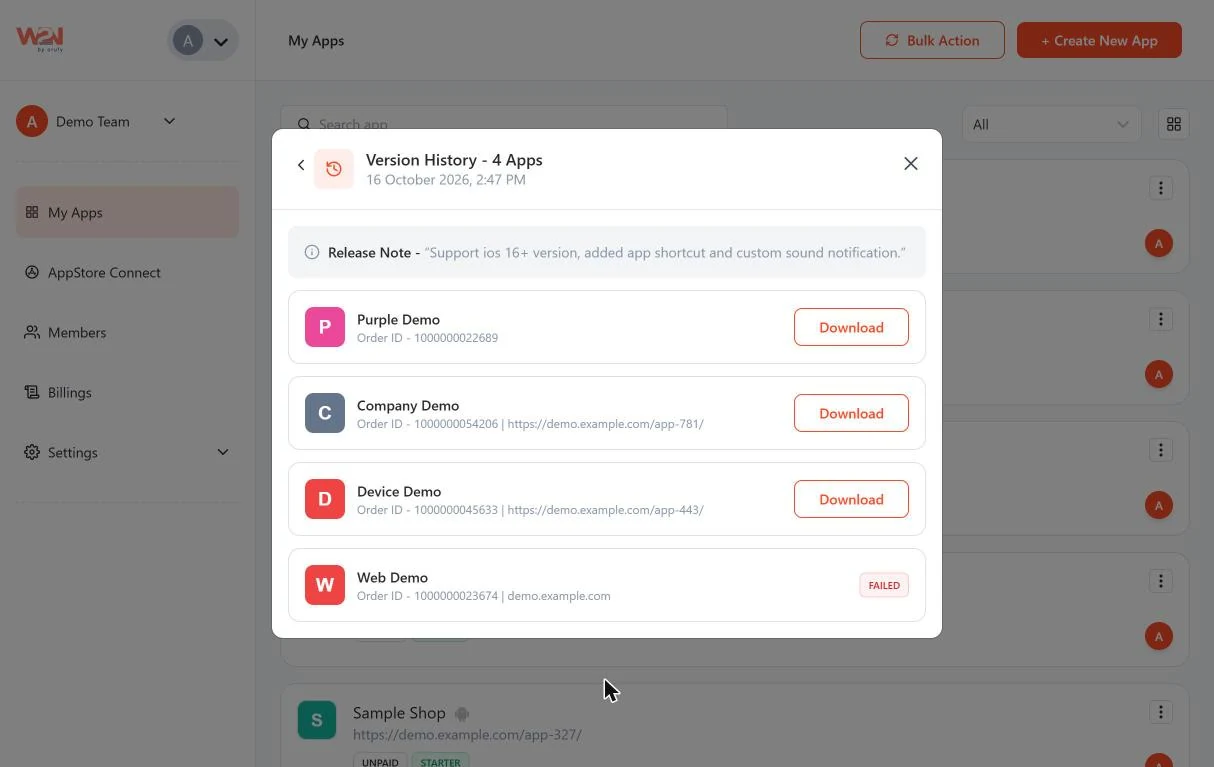
Open a Version History entry to see the release note that was sent and each app with its Order ID. The right side shows the result for each app:
Download: The updated build is ready to download.
TestFlight: The updated build is available through TestFlight.
Failed: The update didn't go through for that app.
Check Build Purchases
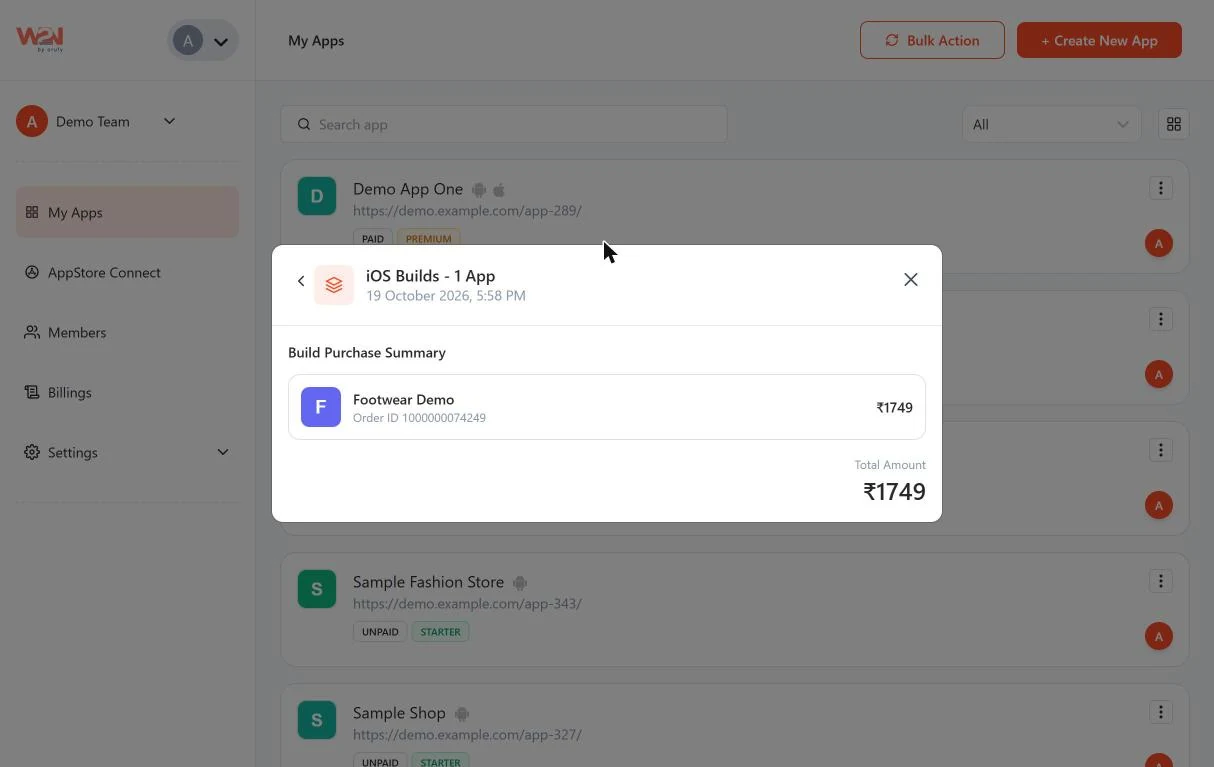
Open an iOS Builds or Android Builds entry to see the Build Purchase Summary: each app with its Order ID and price, and the Total Amount.
Things to Know
You can pick only one platform at a time. To buy builds or update versions for both Android and iOS, run the flow once for each platform.
Changing the platform clears the apps you've selected. Choose the platform first, then select your apps.
Expired apps and apps marked Build Required can't be selected in Update App Version.
Best Practices
Buy builds before updating
If an app shows Build Required, buy its build with Bulk Purchase Builds first, then run Update App Version.
Pick the platform first
Choose Android or iOS before you select apps, because switching platforms clears your selection.
Review before checkout
Check the apps, prices and Total Amount on the Review Summary before you click Checkout.
Check History after each run
Open the latest History entry to confirm every app updated, and retry any app marked Failed.
Frequently Asked Questions
Q1. Why can't I see the Bulk Action button?
A. Bulk Action shows only for the Owner or Admin of an organisation with more than 3 paid apps. Check your role on the Members page and the number of paid apps using the Paid filter on My Apps. If you belong to several organisations, make sure the right one is selected in the sidebar.
Q2. Why is an app greyed out in Update App Version?
A. It's either marked App Expired, which means its plan has expired, or Build Required, which means it has no release build for the selected platform yet.
Q3. Why does Bulk Purchase Builds show "No apps found"?
A. None of your apps are eligible for a build purchase on the selected platform. Try switching to the other platform.
Q4. Can I buy Android and iOS builds in the same checkout?
A. No. Each checkout covers one platform. Run Bulk Purchase Builds once for Android and once for iOS.
Q5. What should I do if an app shows Failed in History?
A. The update didn't go through for that app. Run Update App Version again for that app.